
What languages does the Multilingual AI feature support?
DataGalaxy's Multilingual AI feature supports the following languages:
- French
- English
- German
- Italian
- Spanish
- Dutch
- Portuguese
You can submit a request to add a new language from our Freshdesk support portal.
How many languages can my data catalog be translated into?
There is no limit to the number of languages that can be translated. You can translate the catalog into any language supported by the multilingual feature.
How do I add a new language to my data catalog using the Multilingual AI feature?
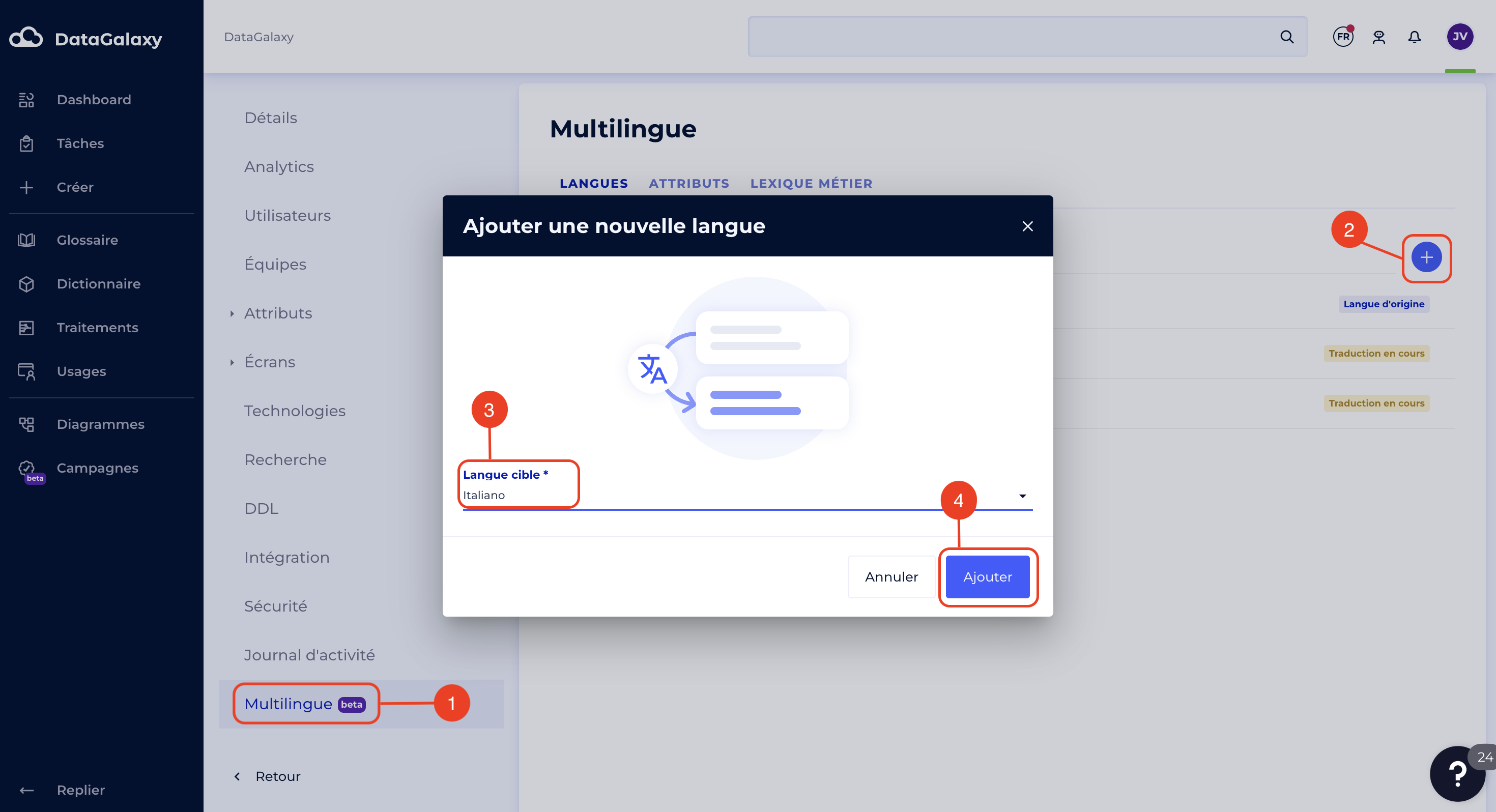
Only clientspace administrators can add a new language to the Multilingual feature. To add a new language:
- Go to the languages tab in the Multilingual section of the administration panel
- Click on the + button on the right of the screen
- Choose a target language from the list of available languages
- If the language of your choice does not appear in the list of available languages, you can submit a request to add a new language from our Freshdesk support portal.
- Click on the Add button
How long does it take to generate translations when adding a language?
This depends on the number of objects in your catalog and the number of attributes to be translated. It can take up to 48 hours. Once it's finished, a notification will be sent to all users to let them know that the data catalog is now available in a new language.
How do I know if translations are in progress?
A red dot will appear on the language menu, meaning that translations are in progress. When you open the menu, an attention icon will show you which languages are currently being translated.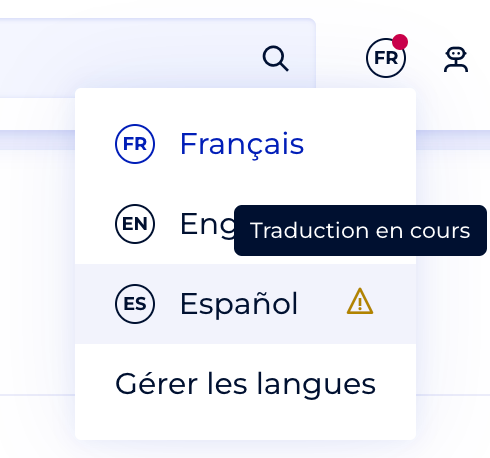
As administrator of the clientspace, you can monitor the progress of translations from the Multilingual language management page.
In which languages can unitary objects be created?
Objects can be created from the platform in any of the multilingual languages supported by the Multilingual AI feature. The object will be instantly translated into all other languages.
In which languages can objects be imported?
Objects are automatically imported into the data catalog's original language, whether via:
- CSV import
- Connectors
- API
Translations will be visible after a few hours of processing. Translation times vary according to the number of objects to be translated.
Are the interface languages the same as the Multilingual AI feature ones?
When the Multilingual AI feature is activated, the available interface languages (which you can modify from your user profile) are synchronized with the multilingual languages. However, it's possible that an interface language may no longer be available after multilingual activation if the catalog has not been translated into that language. If a user is in a language that is not part of the Multilingual AI system, they will be switched to the original language when the multilingual system is activated.
What do I do if my data catalog is filled out in several languages before the Multilingual AI feature activation?
The Multilingual feature supports only one source language. We recommend that you indicate which language is predominant in your data catalog as the original language, and set your second original language as the target language.
This way, content in the original language you specify will be translated into the target language. Content that is already in the target language will remain in the target language for the original language because we don't translate the original language. In the target language, the model will be smart enough to detect that it's already the right language, so it won't translate these texts.