
When you activate the Multilingual AI feature and add a new language, a new attribute to be translated, or import new objects, the translations are automatically generated by our AI. Once the translations have been generated by our AI, you retain full control of your data catalog and have the ability to modify, regenerate, and flag translations. Our AI-generated translations are easily identified by the purple AI translation icon to the right of the translated attribute.
Who can manage translations?
Clientspace administrators can set the Multilingual feature to:
- Add new languages
- Add attributes for translation
- Update the business lexicon
Users with editing rights on an object can manage translations from the object files:
- Edit/update translation in all languages
- Regenerate translation
All users can:
- Copy the content of an attribute translated by the AI into its original language
- Report a translation error
How do I edit a translation?
All translations made by our AI are editable by users with editing rights on the object. After modification, the purple AI translation icon disappears, as the content is now of human origin. To modify an automatic translation, you must:
- Access the object file of your choice
- Click on the field of your choice and apply the changes.
How do I regenerate a translation?
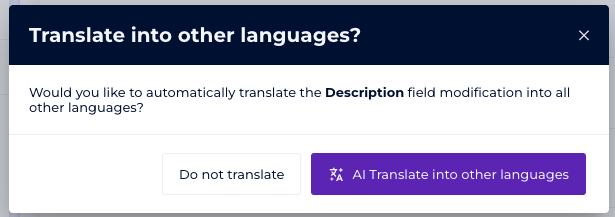
Regeneration is possible once the content of a multilingual attribute has been modified. This allows you to update the translations of an attribute in all other languages based on the new value entered. Only users with editing rights on the object can regenerate the translation of an attribute in other languages. To regenerate the translation of an attribute in other languages, you must:
- Access the object file of your choice
- Modify a multilingual attribute
- A regeneration dialog box opens
- Click on the "Translate with AI to other languages" button
How do I copy the content of an attribute in its original language?
Once an attribute has been translated by the AI, you can copy its content into the original language. This can be useful if you don't speak the original language and want to check the translation from another tool. To do this:
- Click on the purple AI translation icon, which indicates that the AI has translated the content
- Click on the Copy original text option

How do I report a translation error?
If you're a reader user, you don't have editing rights on the object, or you're simply not sure about the translation, you can report a translation error. To do so, simply:
- Click on the purple AI translation icon, which indicates that the AI has translated the content
- Click on the Report translation error option
Reporting a translation will open the comment creation mode, which will be pre-filled with:
- Object owner(s)
- The field concerned
- The language concerned
This is a template, but you can add more detail to the comment. 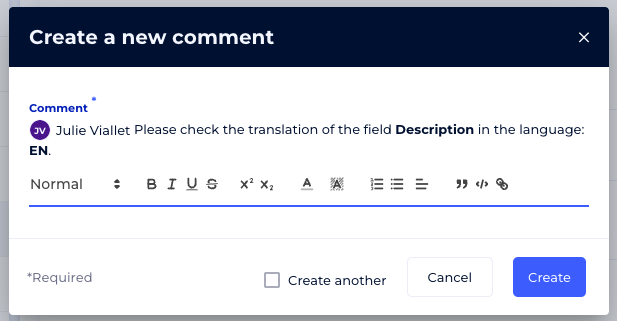
How long does it take to generate translations when adding one (or more) object(s)?
This depends on the number of objects created and the number of attributes to be translated. It may take a few seconds to add a single object or a few hours to add several objects (CSV import, for example). When translations are in progress, an “Attention” icon appears to the right of the language concerned in the language change menu. 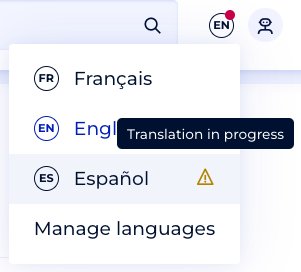
As administrator of the clientspace, you can monitor the progress of translations from the multilingual language management page.
Is it possible to see a difference in the filling of object files between different languages?
All attributes are translated automatically when a new language is added, when an attribute to be translated is added, or when objects are added or imported. If translation errors occur, the value in the original language appears in the target language.
Therefore, filling object files in different languages is automatically synchronized. The only exception is if you decide to update an attribute and you decide not to regenerate the translation in the other languages.