
Which attributes are translatable?
All text and formatted text attributes are translatable, whether system or custom (excluding technical attributes.) In addition to text attributes, you can also translate functional labels. In the future, we plan to make it possible to translate all object card attributes.
How do I add an attribute for translation?
Only clientspace administrators can add an attribute for translation. To add an attribute for translation, you need to:
- Access the Multilingual section of the administration panel
- Go to the Attributes tab
- Click on the + button on the right of the screen
- Select the attribute(s) you wish to translate
- Click on the Add button
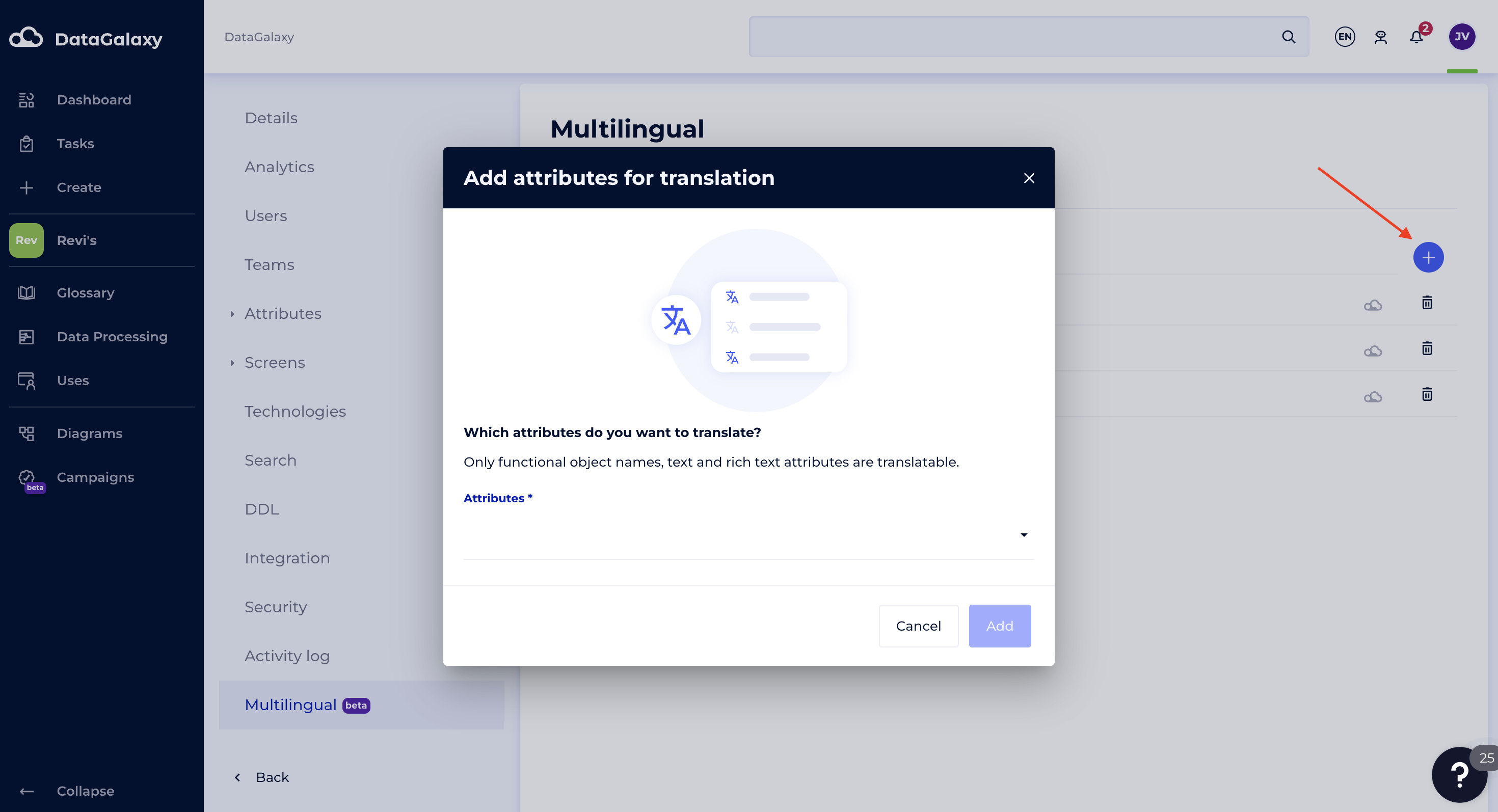
Do users see non-translatable attributes?
The content of non-multilingual attributes is displayed in the original language for all users, regardless of the display language. In this case, if a user modifies the content of a non-multilingual attribute from the object file, this will modify the attribute in all languages.
How do I remove an attribute for translation?
Only clientspace administrators can remove an attribute from translation. When you remove an attribute, its content will be visible in the original language for all languages. To remove an attribute from the translation, proceed as follows:
- Go to the Multilingual section of the administration panel
- Access the Attributes tab
- Click on the trash button for the attribute of your choice
- A confirmation dialog box opens. Confirm by clicking on the Remove attribute button.
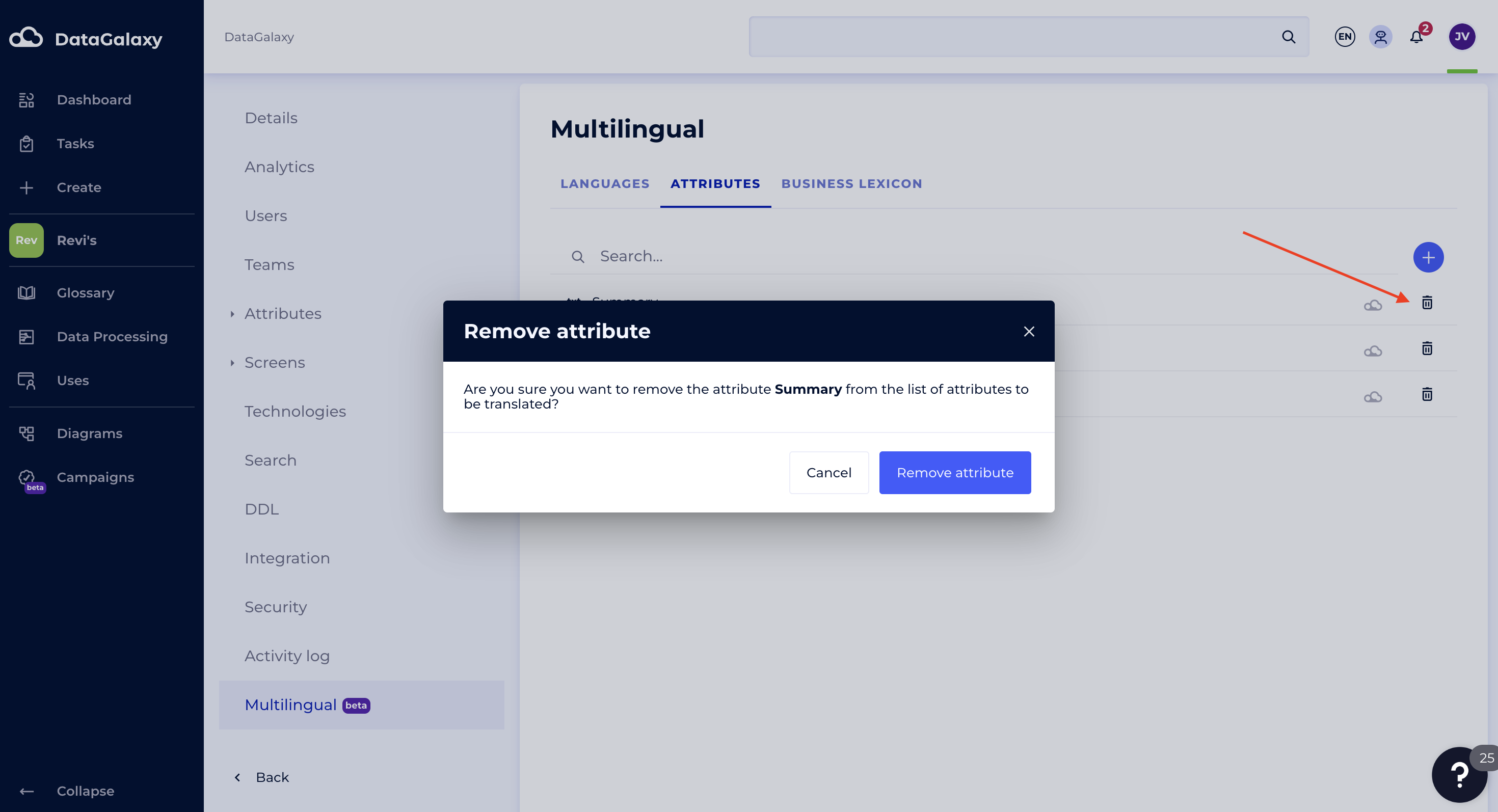
How long does it take to generate translations when adding one (or more) attribute(s)?
This depends on the number of objects in your catalog and the number of attributes to be translated.
It may take several hours. As a clientspace administrator, you can monitor the progress of translations from the multilingual language management page.