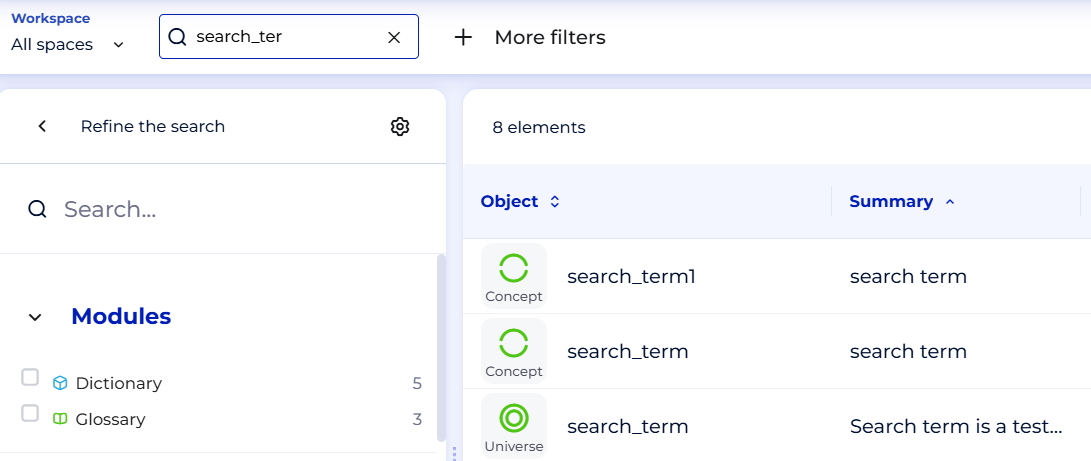
Let’s figure out what you see and why you see it in the DataGalaxy search results.
Your search results normally consist of:
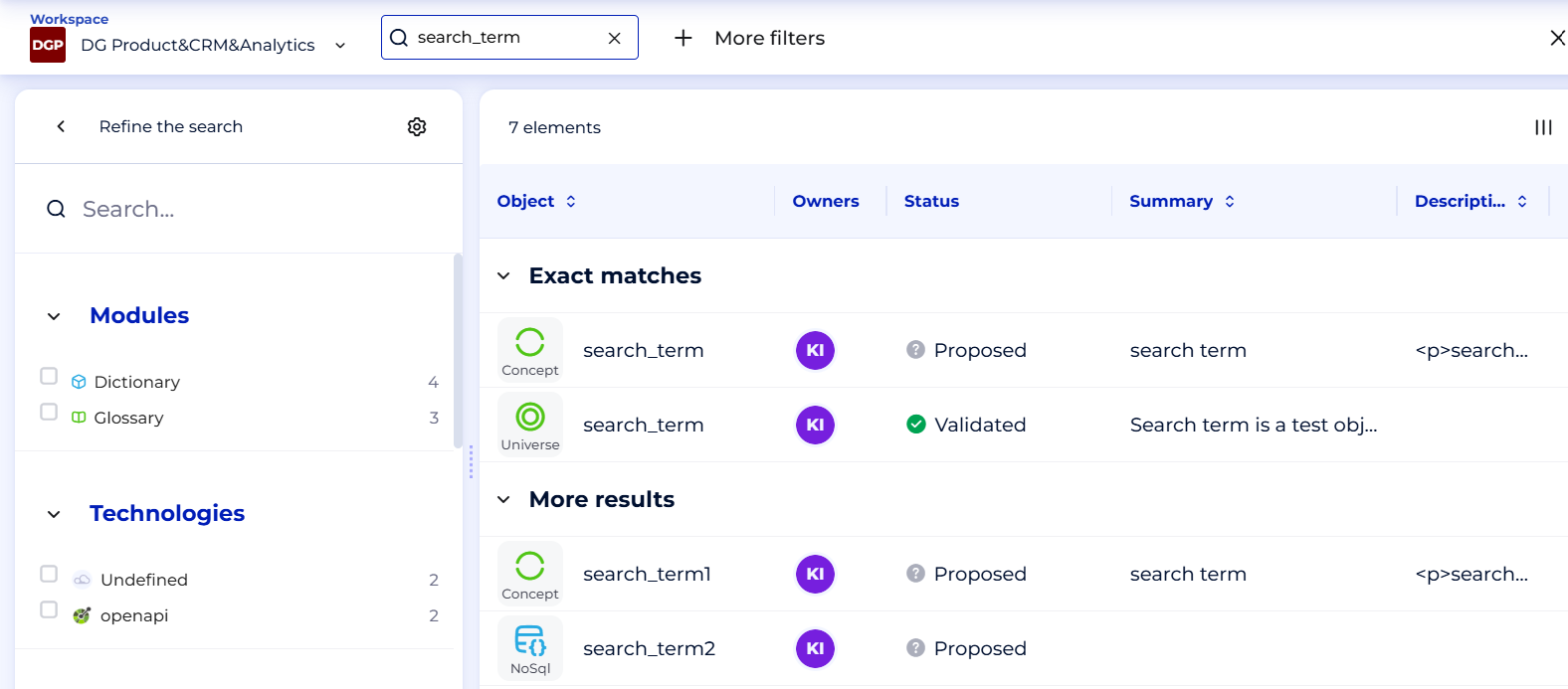
1. Exact match results (if any):
These appear when an object title exactly matches your search query. In some cases, no exact match exists.
2. More search results:
These are results that do not exactly match your search terms but are still considered relevant.
Exact match:
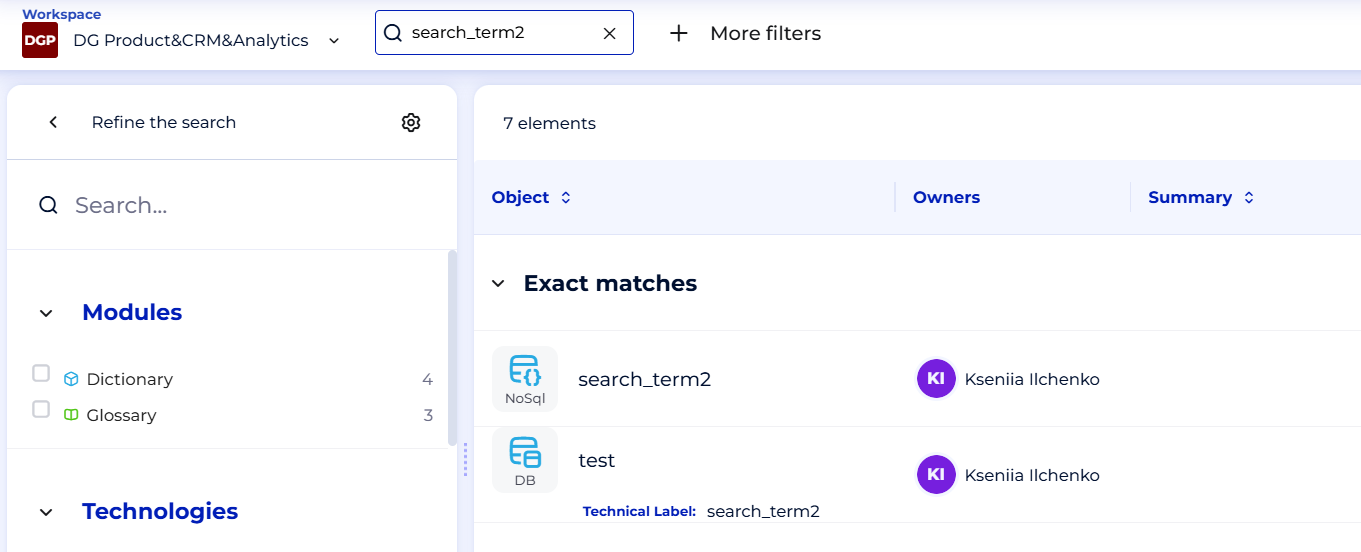
Only the objects with titles exactly matching the search term appear in this category.
That means that even one symbol difference in the search query will give different objects in exact match section
For example,
for searching 'search_term':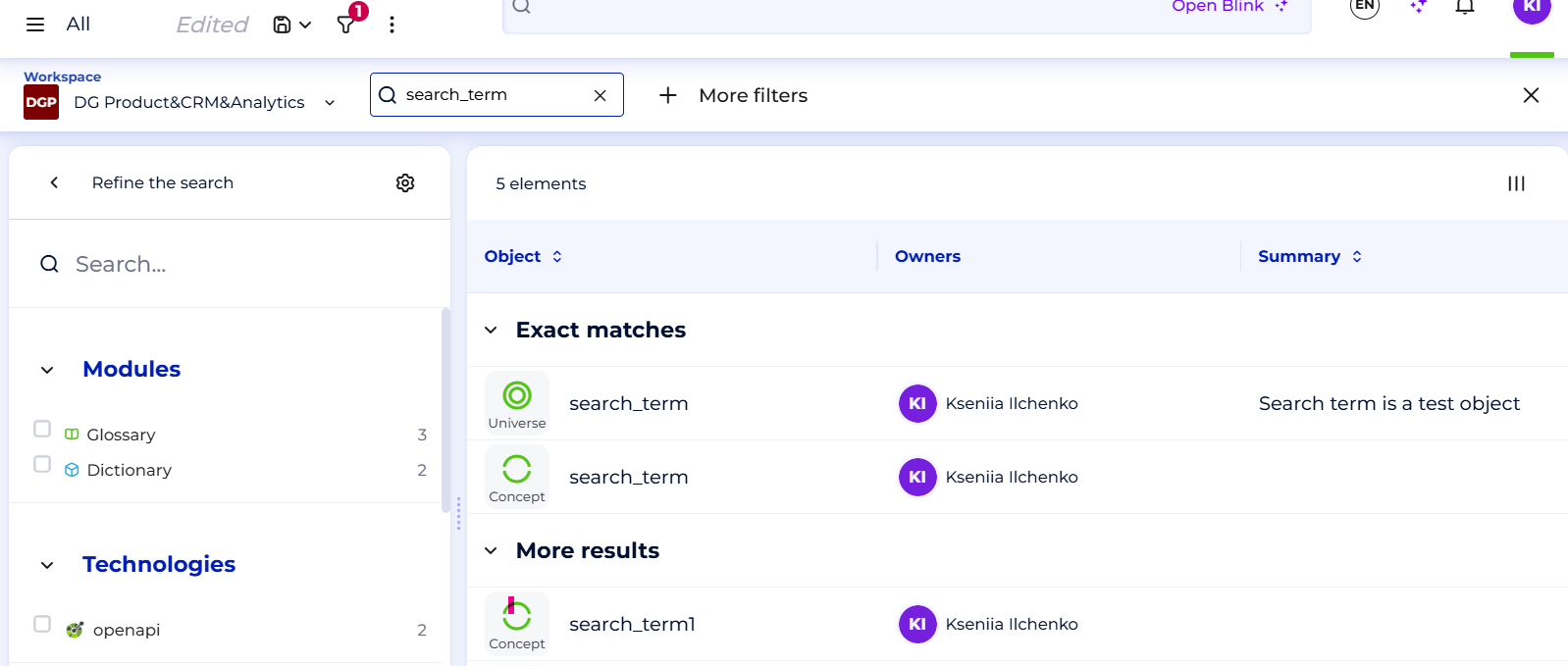 for searching 'search_term1':
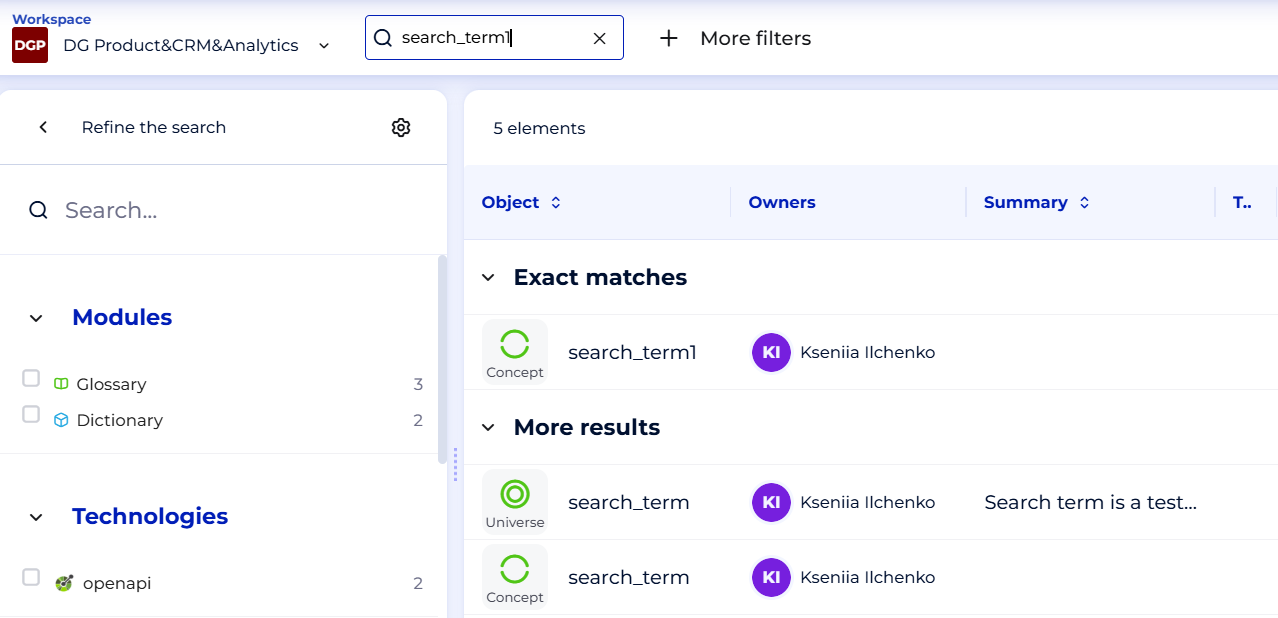
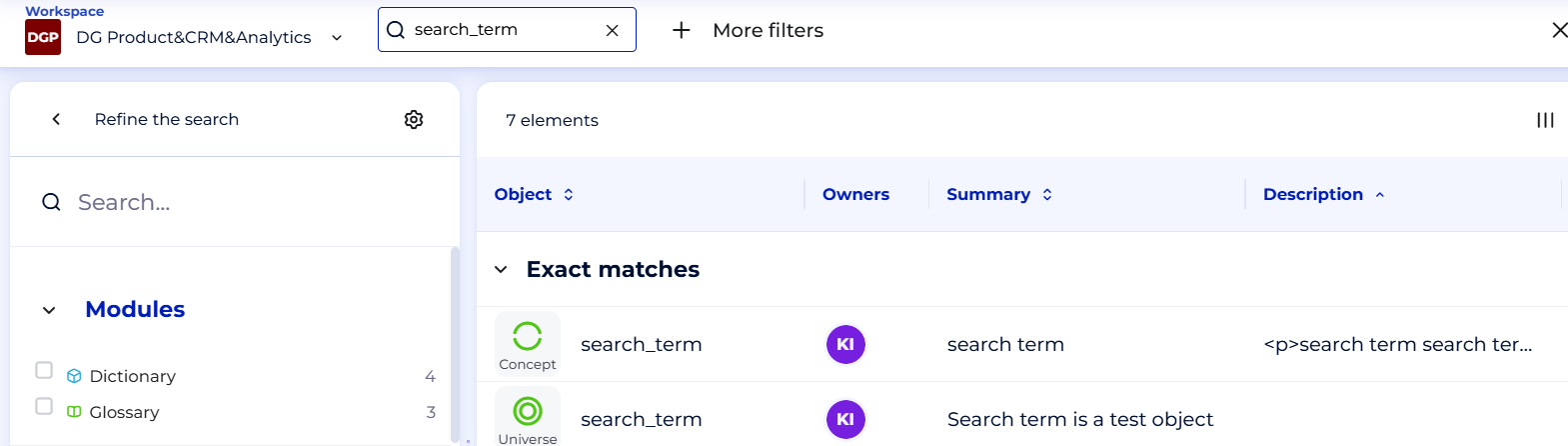
The order of these search results depends on their similarity score that takes into account object name, description and other indexed fields.
Here you can see that object of type universe is placed first. The reason is that attribute summary consists of the key words similar to the search request and this makes the search score higher.
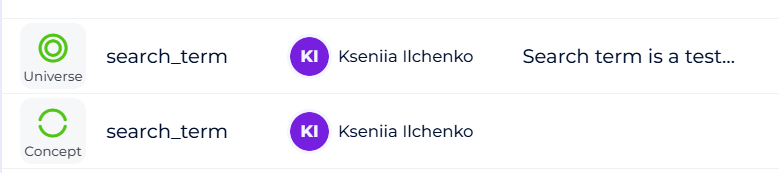
If your object has technical and business name, the object will appear in the exact match section if any of these names matches search request:
More results
This section contains of the search results that are similar but not exactly matching the search request:
- fuzzy matches where several symbols difference is checked
- search terms used in the attributes other than titles
- other order of words than in the search requests
These objects are sorted in accordance with the search score: if the search term appears in the several indexed attributes, the search score will be higher.
How to narrow the search results?
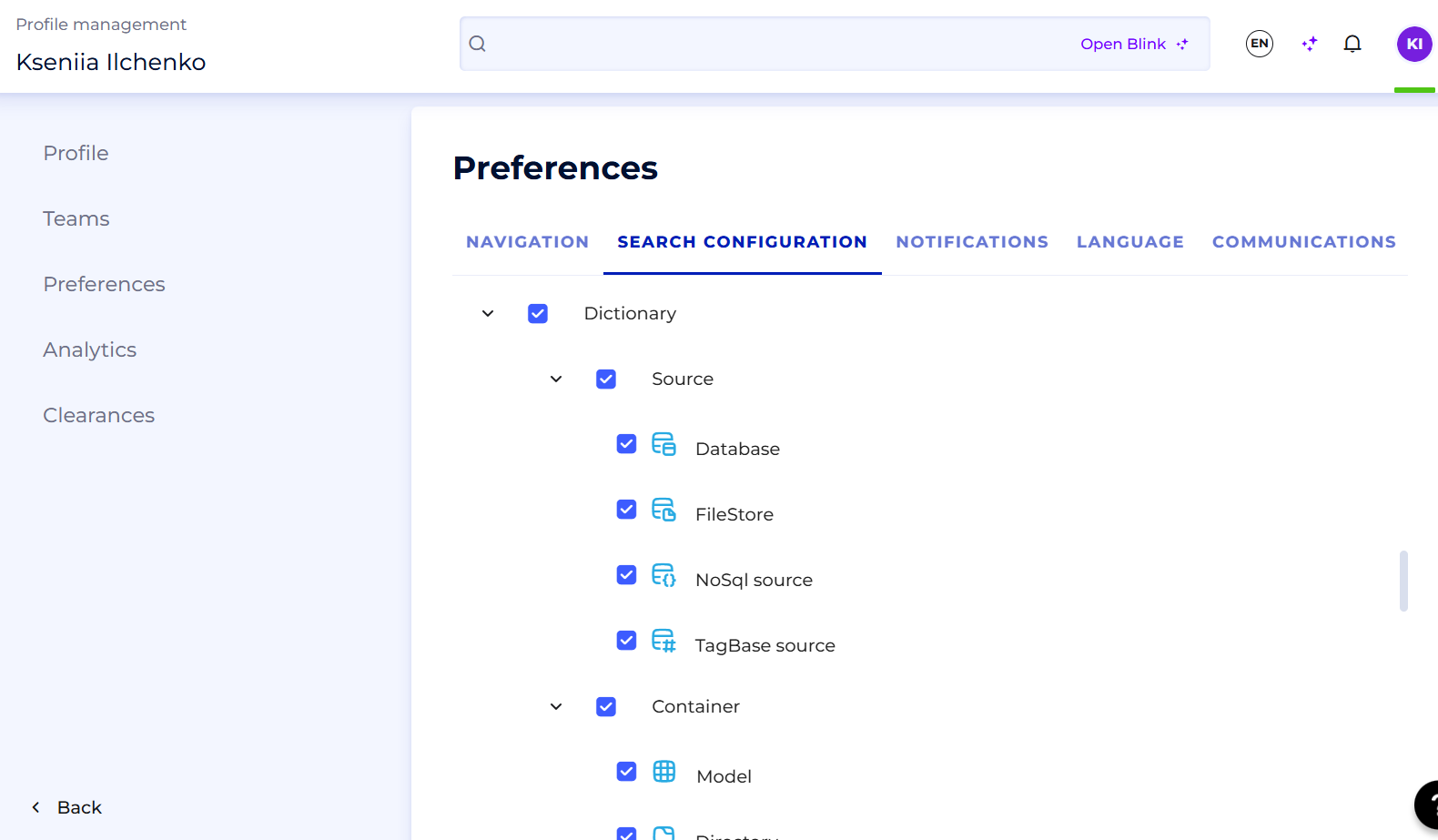
Option 1. You can limit your search output by using search preferences - ability to choose the object types shown in the search results.
For example, you can limit your search output only by Dictionary module objects:
And then, your search results will consists only of this module objects.
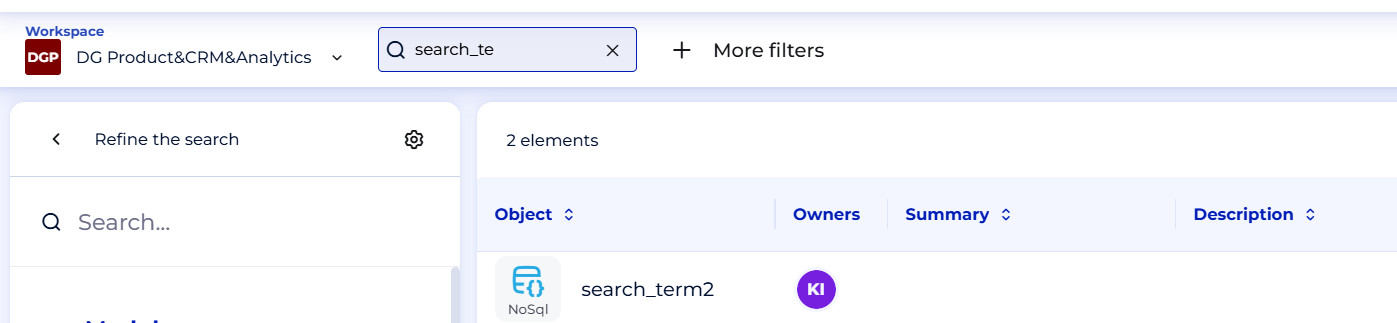
Please note, if you set up the search preferences, they will work for DataGalaxy extension and Blink also.
Option 2. Using filters. You can filter your search results by one or more attributes.
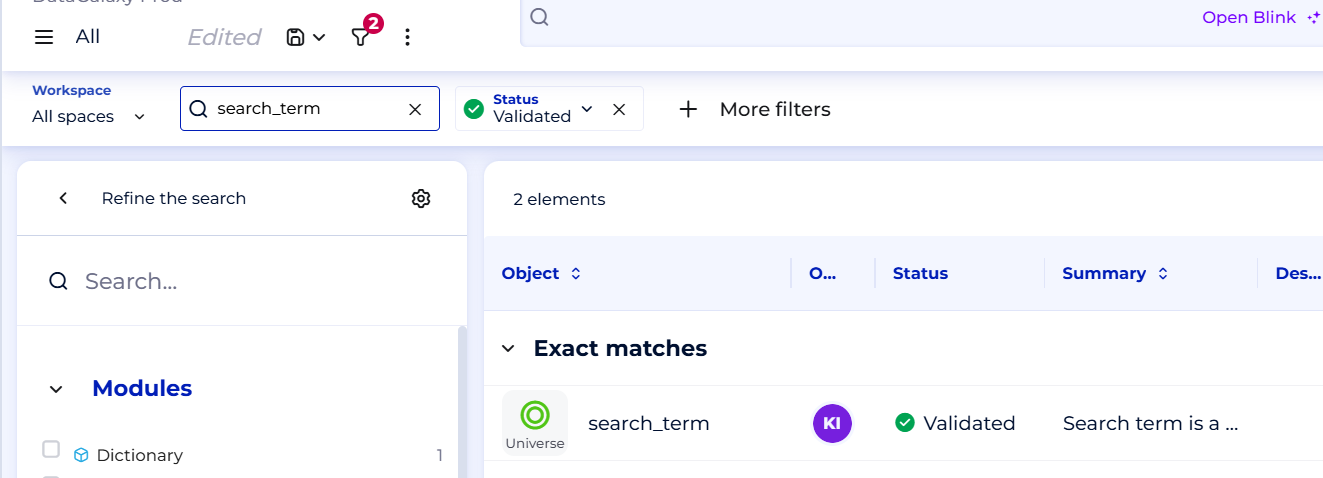
For example, we want to see only validated objects.
Initial search results:
With filter on Status attribute:
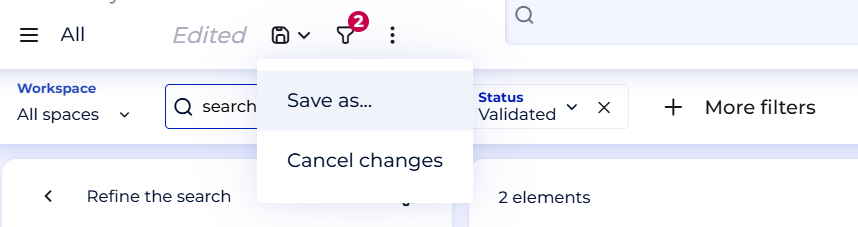
You can save your filtered views for being reused by you or other users later:
Option 3. You can simply sort the search results by acsending or desending order of an attribute - that may bring the objects you need to the top of the table.