
The purpose of this article is to explain how to use the filtered view functionality.
What is a filtered view?
The filtered views are lists of objects corresponding to a certain number of filters. The list of objects is dynamically updated according to their evolution.
Example: I create a filtered view with all objects whose status is "proposed". If I update the status of my business term "Customer", and change it from "proposed" to "validated", then the object "Customer" will no longer be part of my filtered view.
There are 2 types of filtered views:
- Module filtered views: these are filtered views available within a module, and only include objects from this module. These can be defined by default as an end page in a module.
- Cross-module filtered views: these are filtered views available from the search, and can group objects from all modules.
The filtered views can be:
- Public: all users in the workspace have access to this filtered view
- Private: only you have access to this filtered view
Please note that once a filtered view becomes public, it is no longer possible to go back and make it private again.
Access to filtered views
1 - From the home page
In your home page, you have a "Filtered views" widget, which allows you to quickly access all your filtered views of a workspace.
Thanks to the filtered view icon, you can see to which module the view belongs. You also have the possibility to filter directly on the module of your choice. 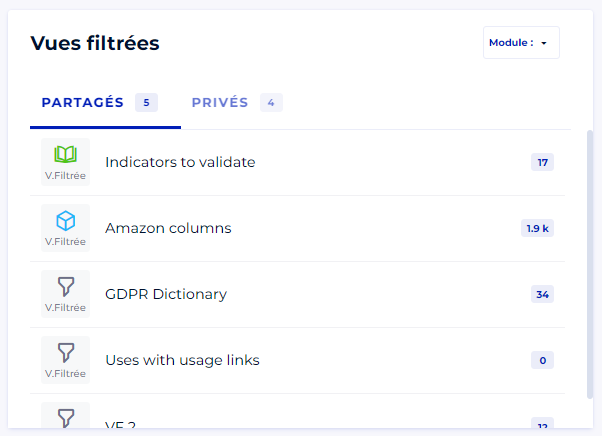
1 - From the modules
To access the module filtered views:
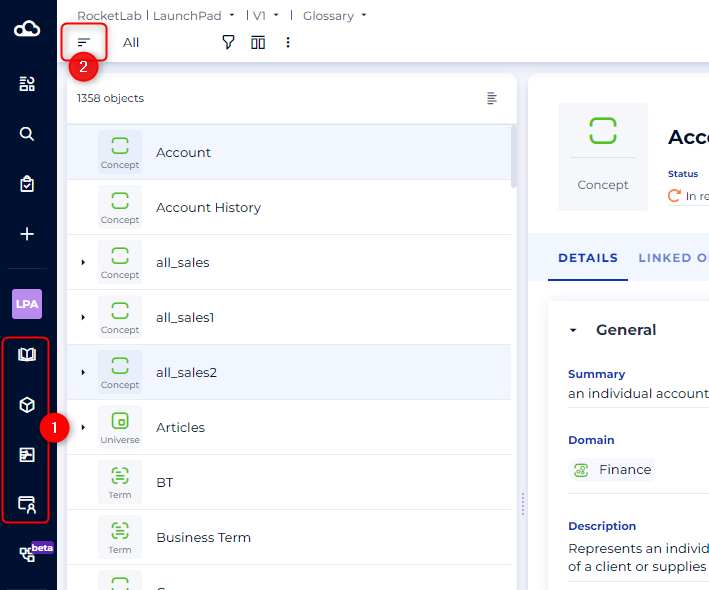
- Go to the module of your choice
- Click on the filtered views button at the top left of your screen to open the filtered views panel
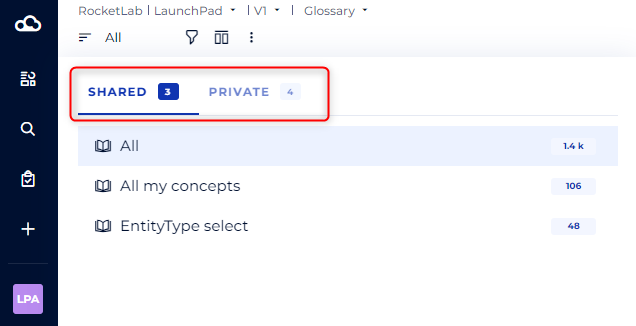
- The filtered views panel consists of 2 tabs, one for public filtered views, and one for private filtered views
Manage the filtered view
1 - Filter a list of objects
When you are in the search or in a module, you have the possibility to filter the list of objects. Filters are cumulative and are available in detailed and tabular views.
- Click on the More filters button
- In the drop-down menu select the attribute or link on which you want to filter
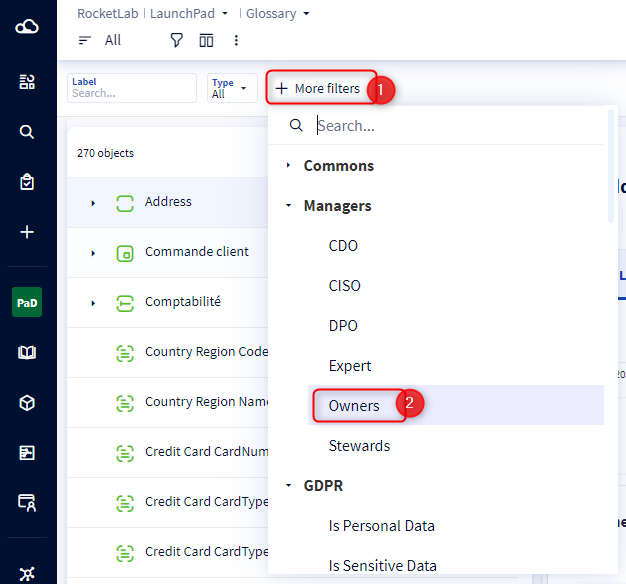
- Choose the value
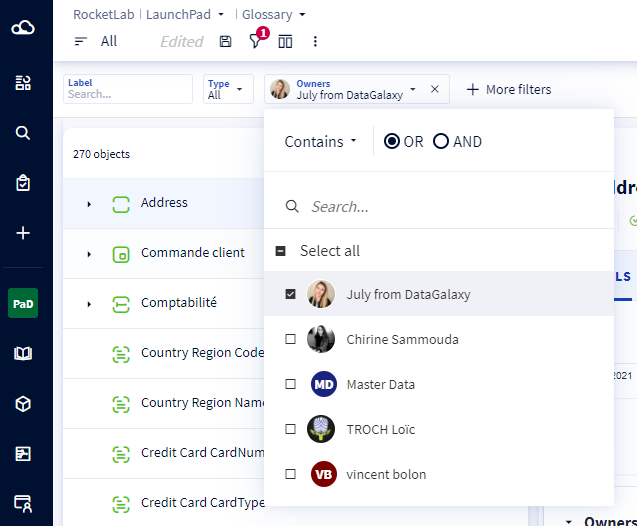
- The list of objects is updated and your filter appears at the top of your screen
2 - Save a filtered view
In all modules and in the search, you have the possibility to save filtered views.
- Filter the list of objects
- Click on the Save button, then Save as in the drop-down list
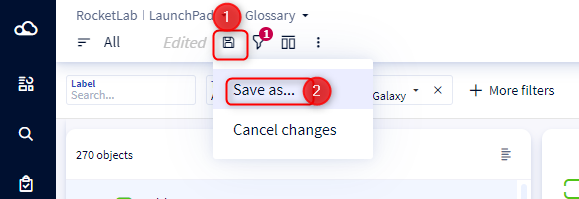
- In the popup window, enter a label (required) and a description (optional) and the public or private character
- Click on Create
3 - Define a default filtered view
The default filtered views allow you to go directly to the filtered view when you arrive in the module.
NB: This functionality is only available for filtered module views.
To define a default filtered view:
- Open the list of filtered views
- Hover over the filtered view of your choice
- Click on the star that appears when hovering
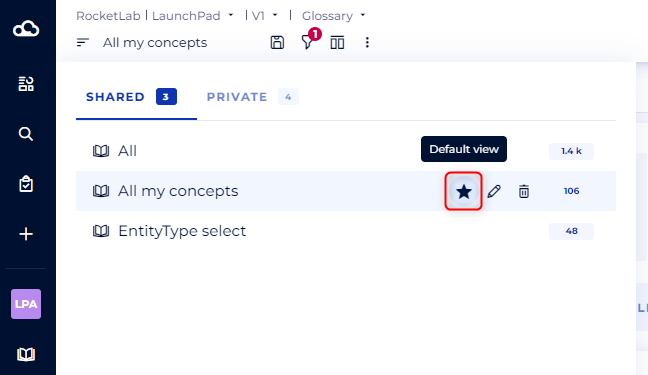
Note: Filtered views are sorted as follows: the default view appears first, followed by other filtered views sorted alphabetically, respecting case sensitivity.
4 - Update the filters of a filtered view
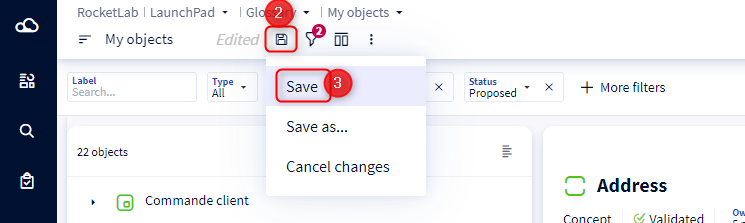
On each filtered view, you have the possibility to update the filters:
- Position yourself on a filtered view
- Update the filters
- Click on the Save button, then Save in the drop-down list
5 - Update the properties of a filtered view
The following elements are called properties of a filtered view:
- The label
- The description
To update these elements:
- Open the filtered views panel
- When hovering over the line of the filtered view, click on the pencil
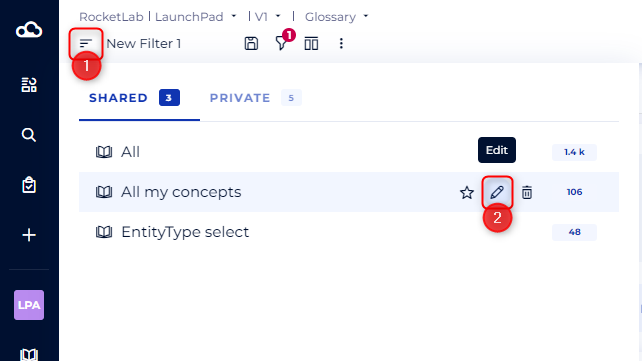
- A modal opens
- Modify the elements of your choice
- Click on the Update button
6 - Delete a filtered view
To delete a filtered view you need to:
- Open the filtered views panel
- When hovering over the line of the filtered view, click on the trash can
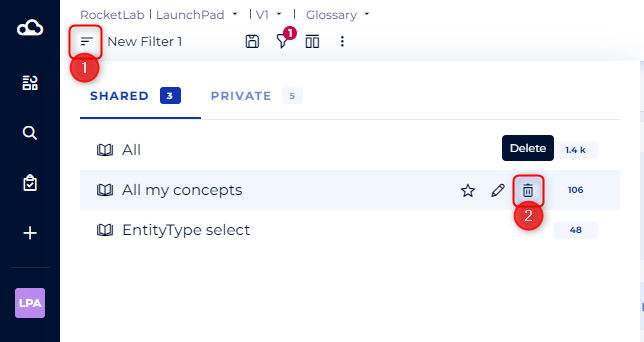
- A confirmation of deletion modal opens
- Click on the Delete button