The purpose of this article is to explain how to refine the results after running a search.
When you perform a search, either from the spotlight or from the global search, you are automatically redirected to the search results page.
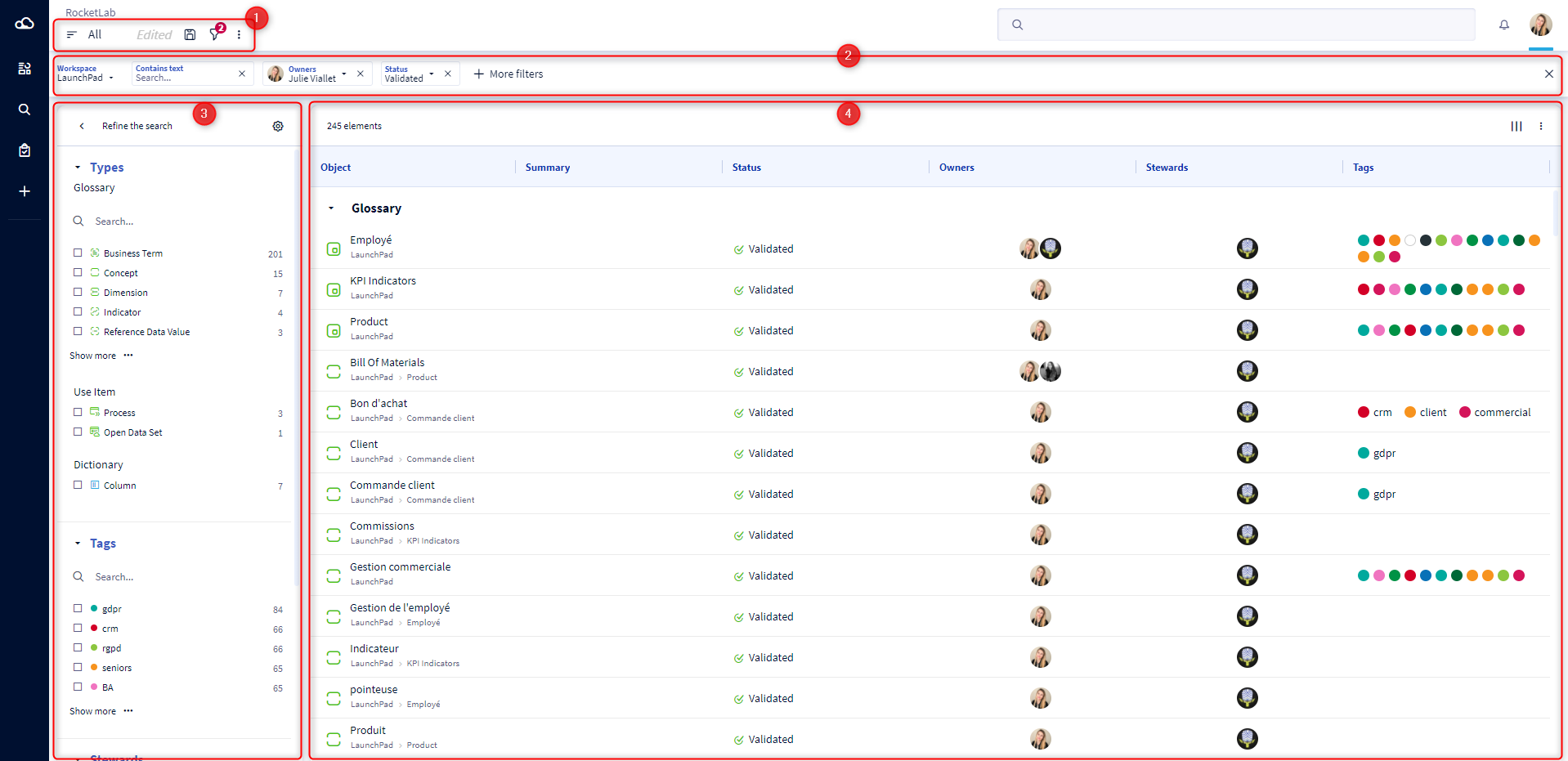
1 - Contextual actions in search
- From the search results, you can navigate between filtered views, and save new ones. To learn more, read this article: [How to] Manage filtered views
- The filter icon allows you to show or hide the filter bar. By default, it is displayed. The red dot indicates the number of filters applied to your search.
- The three small dots open a menu that allows you to access the search preferences. To set up your search preferences, please read this article: [How to] Manage your search configuration preferences
2 - The multi-criteria filter bar
When you perform a search from the search bar (global or spotlight) and click on the magnifying glass, then the search bar empties and your filters automatically appear in the multi-criteria filter bar.


If you click on the cross to close a filter, it is deleted and the search is automatically updated.
If you click on a facet, then the corresponding filter will automatically be displayed in the multi-criteria filter bar.
By clicking on the "More filter" button in the filter bar, you will be able to select the attribute or link on which you want to apply a filter. You can then select the operator of your choice according to the type of attribute selected.
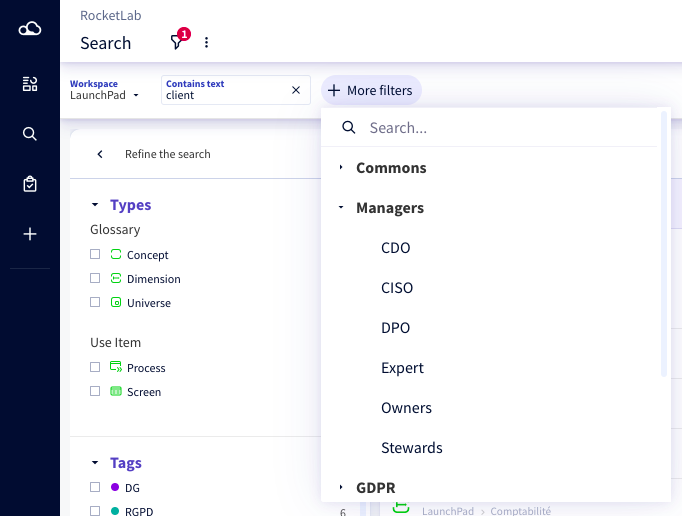
For filters on multi-value attributes, you can choose the operator between the values you select: AND or OR.
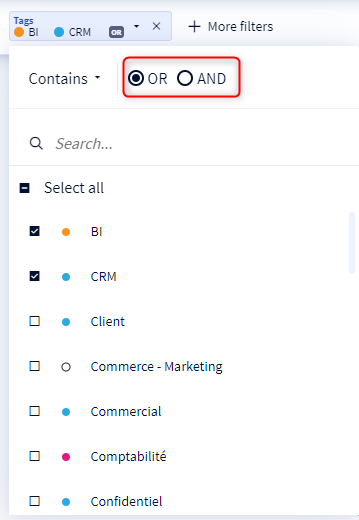
In this example, the filter allows you to search for objects that contain the tags "BI" or "CRM".
3 - The facets panel
The facets panel allows you to quickly refine your search by displaying all the objects that correspond to the criteria of your choice.
When you click on a facet, the corresponding filter is automatically displayed in the multi-criteria filter bar. A checkbox on each facet gives you an additional visual indication of the filters that are applied to your search.
The facet panel is updated when :
- You apply to a new facet
- You add a new multi-criteria filter
By default, only 5 facets are displayed per category so as not to overload the facet panel. You can still use the search bar to search in all values, as well as use the "see more" button which displays 5 additional facets if your value search is rather blurred.
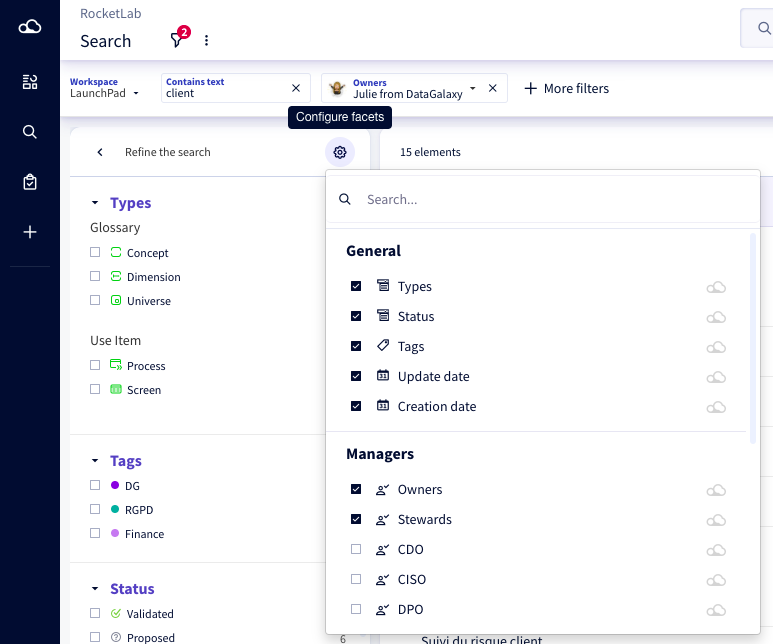
You have the possibility to display the attributes of your choice in the facets panel to facilitate the filtering of your search.
4 - The table of search results
Your results are ordered by module. You can change this order and hide certain modules or object types from the search preferences.
When hovering over an object it is possible to:
- Open the card of an object by clicking on its label
- Open the prerview of this object by clicking on the row
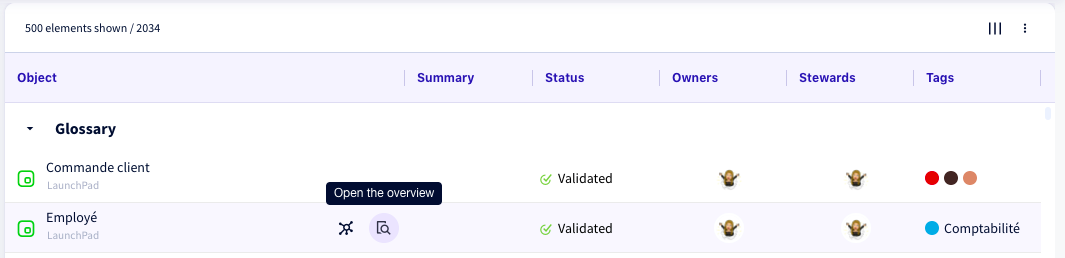
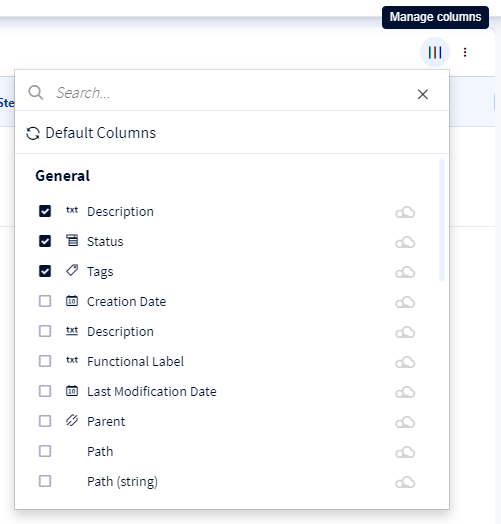
You have the possibility to customize the columns of your search results table with all the attributes available in your clientspace: system and custom, by clicking just in the top right corner of your results table, right here :