
The purpose of this article is to introduce you to how to use DataGalaxy's search engine functionality.
There are 2 ways to search in the application:
- From the home page accessible by clicking on the cloud in the side navigation bar on the left of your screen.
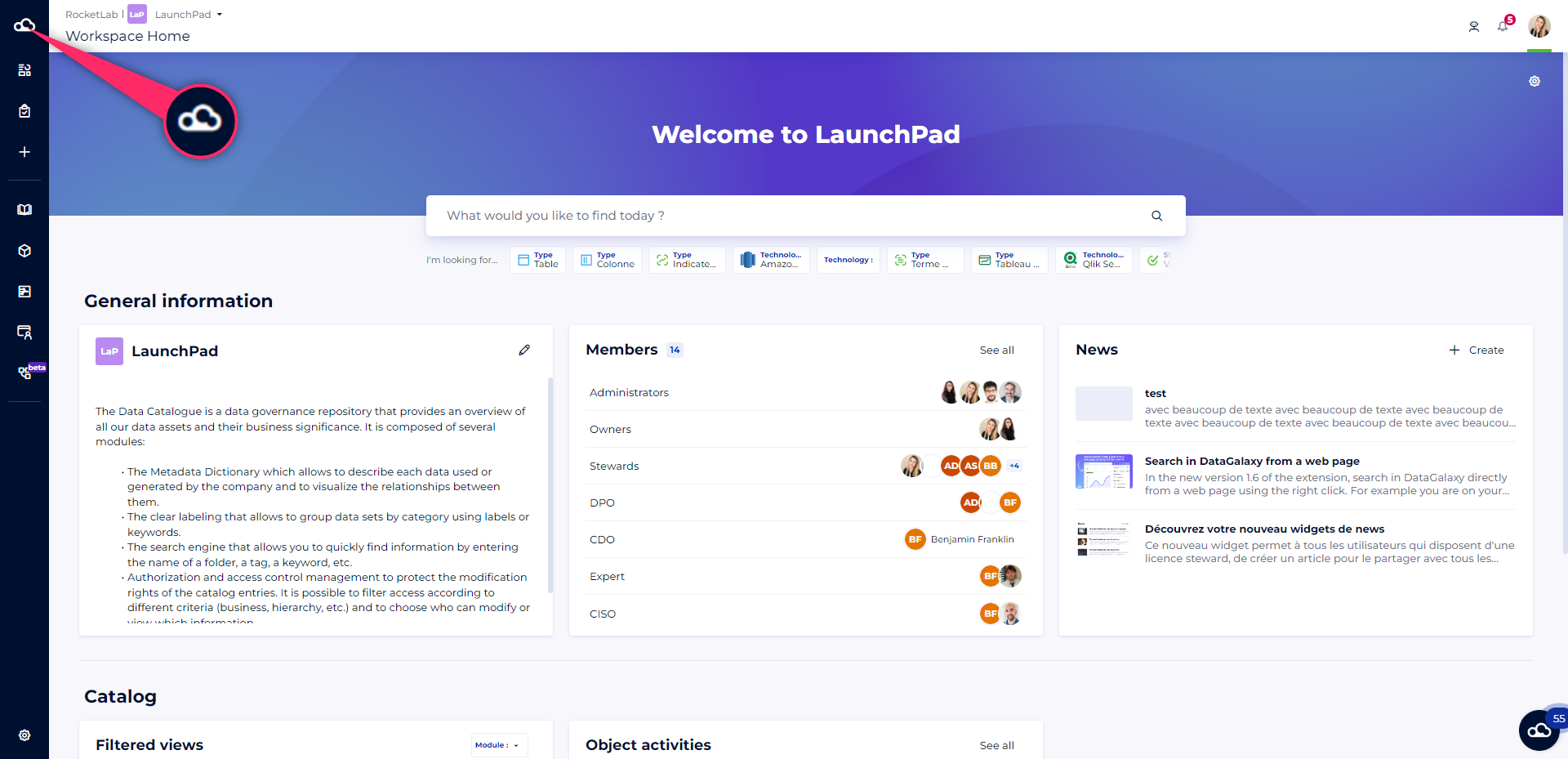
- From any page of our application, using the search box located at the top right of your screen.

If you have access to multiple workspaces or versioned workspaces, you can search on:
- a version of a particular workspace
- or the official version of all workspaces at the same time
NB: Non-versioned workspaces are always considered as being in official version.
The search allows you to find :
- All objects
- All your private and public filtered views
- Diagrams and diagram notes
- PK, FK, FFK
The search is applied to all attributes that are indexed in the search on your search perimeter defined in the search preference.
Launch a search
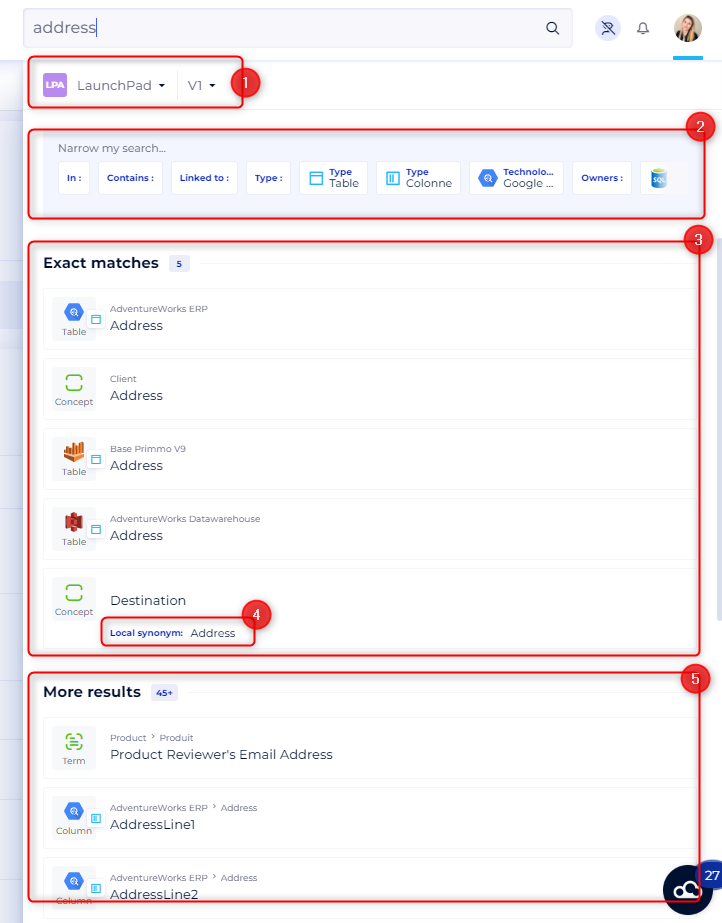
As soon as you start typing in the search bar, a suggestion panel that matches your input appears.
In this suggestion panel:
- Select the space and the version in which you want to apply the search
- A list of quick filters is offered according to your search to refine your results
- The results that match exactly with the input are displayed in a dedicated section: the exact matches
- A 3rd line appears to indicate which attribute matches exactly with the input if it is different from the displayed label
- Another section is displayed for the other relevant results but different from your input
When flying over an object it is possible to:
- Open the card of an object by clicking on its label

- Open the preview of this object by clicking on the line

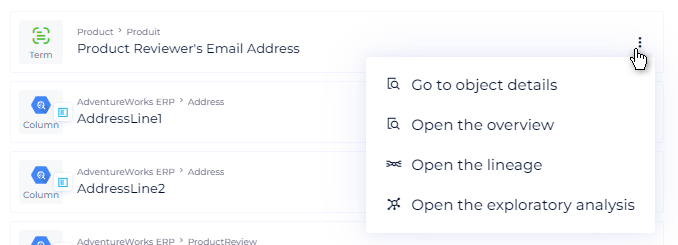
- Open the burger menu of an object to access the following actions:
- Go to the object's card
- Open the object preview
- Open the lineage
- Open the exploratory analysis
As soon as you click on the "enter" button, or on the magnifying glass on the right of the search bar, you are redirected to the results page with many filtering capabilities.
The keyboard shortcuts
You can use keyboard shortcuts to increase the productivity of your searches. To learn more, read this article: [Basics] Keyboard shortcuts