
The connector allows you to import metadata from your existing data processing systems into the DataGalaxy platform. In this article, we describe the metadata that will be imported into the platform and how to configure these imports.
To apply the elements presented in this article, you will need to download the connector and plugins (see this article). The plugins concern are those of the Processing type which only allow to do a CSV export.
If necessary, specific documentation articles for each technology and plugin are available to detail their specificities.
Mapping between source system objects and the DataGalaxy metamodel
The extracted objects and their correspondences are detailed in the following table:
| Source System | DataGalaxy Object | Comments |
|---|---|---|
| Folder | Data Flow | The data flows will be used to represent the organization of the processing in the source system and regroup them |
| Data Processing | Data Processing | |
| Tables and columns in mapping input | Data Processing Input | |
| Tables and columns in mapping output | Data Processing Output | |
| Data Processing step | Data Processing step | Depending on the connector, these processing steps are not necessarily created during an import |
Before importing a process, you must make sure that all tables and columns used by the process have been declared in the DataGalaxy Dictionary module. Actually, the processing plugins only feed the Data Processing module, and do not create the sources used by the processing in the DataGalaxy Dictionary module.
Connection to a processing repository stored in a database
When the processing definition is stored in a database, DataGalaxy proposes to fetch the information directly from these repositories. In this case, the connection is realized with a JDBC driver that must be installed beforehand (it is also possible to use a JDBC driver embedded in a plugin if necessary).
For this type of plugin, the JDBC driver must first be copied into the /lib directory of the connector to be used in a connection chain
An example here with OTIC plugin (ex-Genio), the screen proposes you to enter the connection information in JDBC format (examples are generally available on the site where you downloaded the driver) : 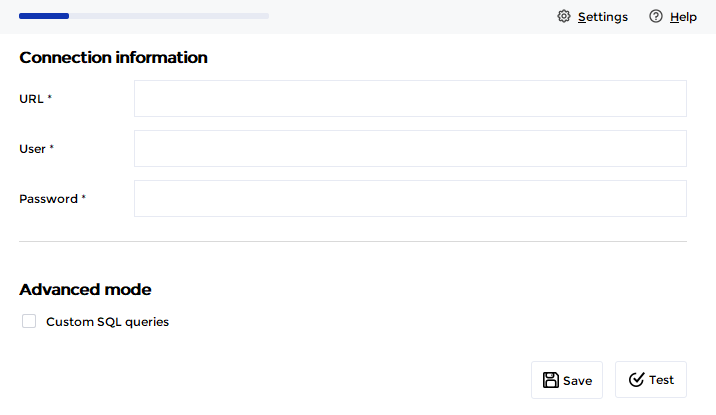
Advanced mode allows you to use a file containing the queries to be executed to retrieve the metadata. Examples of query files are available in the /queries/processing folder of the connector.
Do not modify files already in this folder that can be used by the connector. Make a copy to create your own query files.
When you save the connection information, the path to the custom query file will be saved in the connection.
Use of a mapping file
As explained in the paragraph concerning the correspondences, the sources used as input and output of the processes must have been previously declared in DataGalaxy. However, it is very likely that this definition differs from the one known by your processing systems, from which you are importing metadata. An example here with SSIS plugin :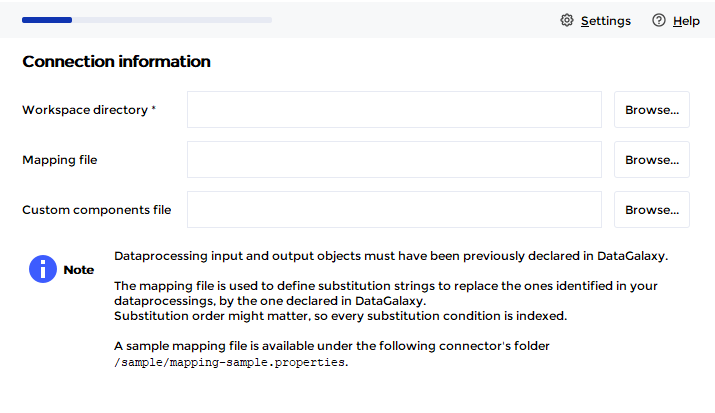
This file is optional in the export procedure of the connector, but it is often indispensable to successfully import the generated CSV files into the platform.
Mapping file allows you to define substitution strings to be used to replace those of the sources identified in your processes, with the source string as defined in DataGalaxy. As the order of replacement can be important, each replacement condition is indexed so that you can control the implementation of these rules.
An example of a mapping file is available in the /sample/mapping-sample.properties file of the connector, below is an extract of what it can contain:
# Sample mapping file
#
# Keys must begin with a positive integer.
# It guarantees that "find and replace" operations will be applied in this specific order.
# Each operation must have a "find" and a "replace" key. For instance:
#
# 1.find=old
# 2.replace=new
#
# Find is case-sensitive, "tHDFSConfiguration" won't match "thdfsconfiguration".
# Backslash character must be escaped.
# File must be encoded in ISO-8859-1.

# 1. Replace "\tHDFSConfiguration_1\env\project" by "\pull"
1.find=\\tHDFSConfiguration_1\\/env/project
1.replace=\\pull

# 2. Then replace "/" by "\"
2.find=/
2.replace=\\

# 3. Then replace "${INCOMING_DIRECTORY}" by "incoming"
3.find=${INCOMING_DIRECTORY}
3.replace=incoming

# 4. Then replace "" (empty) by "\push"
4.find=
4.replace=\\push

# 5. Then replace "${ENVIRONMENT}" by "" (empty)
5.find=${ENVIRONMENT}
5.replace=
a