
This article describes how dbt connector for DataGalaxy works.
This connector is available in the following modes:
| Desktop mode ✅ | SaaS Online mode ✅ |
This connector supports the following import modes:
| Standard mode ✅ | URN mode ✅ |
Scope, attributes and mapping with DataGalaxy
The representation of dbt objects in DataGalaxy depends on the import mode. dbt Models and Snapshots are both a transformation and the destination storage object which presents the transformed data, so in DataGalaxy they are represented both in the Dictionary and the Data Processing modules.
In Standard mode, the Sources, Models and Snapshots are represented in the Dictionary as objects with dbt technology. It's the same abstraction layer than the one that dbt proposes, hiding the underlying real data platform objects. The hierarchy of Sources, Models and Snapshots in Standard mode in the Dictionary follows the package's organization, as for the Data Processing module.
In URN mode, currently available when using dbt with Databricks, BigQuery or Snowflake, the Sources, Models and Snapshots are resolved thanks to the informations of the connection (profiles.yml for dbt Core and projects' connection linked to the production environment for dbt Platform) so that the real data platform objects can be created in the Dictionary. This offers a better view of the lineage in the data platform, which can be completed to the dataviz tool downstream (for instance using the Power BI URN connector) or the ingestion layer upstream Sources. The abstraction layer of dbt is not represented in DataGalaxy in URN mode. The dbt Models and Snapshots are still represented in the Data Processing module. The hierarchy of Sources, Models and Snapshots in the Dictionary in URN mode follows the one of the data platform, so that this mode is fully compatible with other connectors bringing metadata to the same objects (Snowflake, Power BI, Sifflet connectors etc).
⚠️ If you use another data platform than Snowflake, BigQuery or Databricks with dbt, better disable the URN mode, as no objects will be created at all in the Dictionary and no lineage will be created.
As described in the connection's configuration section, the sources of metadata for dbt Core are the .json dbt documentation files (and the profiles.yml file in URN mode). For dbt Platform it's the Administrative v3 and Discovery APIs (the Applied state of the Production environment linked to the selected project is used).
Objects
Some of the attributes listed here may not be present by default in your objects' screens configuration. To make them appear in DataGalaxy screens, it may be necessary to adapt the screens of the concerned objects before running the connector. See this article to learn more about screen customization.
Account
The dbt Platform Account is represented in the Dictionary (Standard mode only) as a Relational DB Source, and in the Data Processing module as a Data Flow. For dbt Core, the Account is replaced by a generic root object representing the dbt Core product.
The URN follows this syntax for dbt Core:
urn:dbt-1:dbtcore.profile_name
and this syntax for dbt Platform:
urn:dbt-1:account_id
The following attributes are retrieved:
| DataGalaxy attribute | Source/Value (dbt Core) | Source/Value (dbt Platform) |
|---|---|---|
| Technical name | Profile name | Account ID |
| Functional name | N/A | Account name |
Project
The project is only relevant for dbt Platform and is represented in the Dictionary (Standard mode only) as a Model, and in the Data Processing module as a Data Flow.
The URN follows this syntax:
urn:dbt-1:account_id:project_id
The following attributes are retrieved from the connector's configuration and the Administrative API v3:
| DataGalaxy attribute | Source/Value (dbt Platform) |
|---|---|
| Technical name | Project ID |
| Functional name | Project name |
Package/Folder
The package and folders are represented in the Dictionary (Standard mode only) as a Model, and in the Data Processing module as a Data Flow.
The URN follows this syntax:
urn:dbt-1:account_id:project_id:package:folder1:folder2
The following attributes are retrieved from the dbt documentation files (dbt Core) or the Discovery API (dbt Platform):
| DataGalaxy attribute | Source/Value |
|---|---|
| Technical name | First segment of the FQN |
Source
A dbt Source is represented as the corresponding structure (Table or View) in the Dictionary. In URN mode, the real data platform object behind the dbt Source is represented, not the Source itself. In Standard mode, the Source is represented, with the dbt technology.
Pushing the attributes of the Sources to the Dictionary object is optional in URN mode, as you may prefer filling these attributes from the dedicated connector of the data platform.
The URN follows the syntax of the structure's URN for each data platform. Check the related documentation.
The following attributes are retrieved from the dbt documentation files (dbt Core) or the Discovery API (dbt Platform):
| DataGalaxy attribute | Source/Value (dbt Core) | Source/Value (dbt Platform) |
|---|---|---|
| Technical name | manifest.json: $.sources.<source>.name | Discovery API query Environment: $...<source>.name |
| Description | manifest.json: $.sources.<source>.description | Discovery API query Environment: $...<source>.description |
| Technical comments | catalog.json: $.sources.<source>.metadata.comment | Discovery API: query Environment: $...<source>.catalog.comment |
Model
A dbt Model is represented both as a Data Processing object in the Data Processing module and as the target structure (Table or View) in the Dictionary. In URN mode for the Dictionary, the real data platform object behind the dbt Model is represented, not the Model itself. In Standard mode for the Dictionary, the Model is represented, with the dbt technology.
Pushing the attributes of the Models to the Dictionary object is optional in URN mode, as you may prefer filling these attributes from the dedicated connector of the data platform.
The URN follows the syntax of the structure's URN for each data platform. Check the related documentation.
The following attributes are retrieved from the dbt documentation files (dbt Core) or the Discovery API (dbt Platform):
For the Data Processing objects:
| DataGalaxy attribute | Source/Value (dbt Core) | Source/Value (dbt Platform) | Standard mode | URN mode |
|---|---|---|---|---|
| Technical name | manifest.json: $.nodes.<model>.name | Discovery API query Environment: $...<model>.name | ✅ | ✅ |
| Description | manifest.json: $.nodes.<model>.description | Discovery API query Environment: $...<model>.description | ❌ | ✅ |
| External technology type | manifest.json: $.nodes.<model>.language | Discovery API: query Environment: $...<model>.language | ❌ | ✅ |
| Query | manifest.json: $.nodes.<model>.raw_code | Discovery API: query Environment: $...<model>.rawCode | ❌ | ✅ |
For the Dictionary objects*:
| DataGalaxy attribute | Source/Value (dbt Core) | Source/Value (dbt Platform) |
|---|---|---|
| Technical name | manifest.json: $.nodes.<model>.name | Discovery API query Environment: $...<model>.name |
| Description | manifest.json: $.nodes.<model>.description | Discovery API query Environment: $...<model>.description |
| External technology type | manifest.json: $.nodes.<model>.materialized | Discovery API: query Environment: $...<model>.materializedType |
| Technical comments | catalog.json: $.nodes.<model>.metadata.comment | Discovery API: query Environment: $...<model>.catalog.comment |
* if option selected
Snapshot
A dbt Snapshot is represented both as a Data Processing object in the Data Processing module and as the target structure (Table) in the Dictionary. In URN mode for the Dictionary, the real data platform object behind the dbt Snapshot is represented, not the Snapshot itself. In Standard mode for the Dictionary, the Snapshot is represented, with the dbt technology.
A Snapshot is always materialized: it stores the history of changes to a source table or Model as slowly changing dimensions (SCD Type 2). It therefore participates in lineage both as a target (downstream from a Source or Model) and as an origin (upstream from a Model), just like a materialized Model.
Pushing the attributes of the Snapshots to the Dictionary object is optional in URN mode, as you may prefer filling these attributes from the dedicated connector of the data platform.
The URN follows the syntax of the structure's URN for each data platform. Check the related documentation.
⚠️ Snapshots only appear in catalog.json after they have actually been materialized. With dbt Core, make sure to run dbt build (or dbt snapshot) before dbt docs generate. Otherwise, Snapshots remain available in the Data Processing module, but no structure or column is created in the Dictionary, and lineage links from the Snapshot to downstream Models are lost. The same applies to dbt Platform: the production job must run the Snapshots before generating the documentation.
The following attributes are retrieved from the dbt documentation files (dbt Core) or the Discovery API (dbt Platform):
For the Data Processing objects:
| DataGalaxy attribute | Source/Value (dbt Core) | Source/Value (dbt Platform) | Standard mode | URN mode |
|---|---|---|---|---|
| Technical name | manifest.json: $.nodes.<snapshot>.name | Discovery API query Snapshots: $...<snapshot>.name | ✅ | ✅ |
| Description | manifest.json: $.nodes.<snapshot>.description | Discovery API query Snapshots: $...<snapshot>.description | ❌ | ✅ |
| External technology type | manifest.json: $.nodes.<snapshot>.language | Fixed value sql (not exposed by the Discovery API) | ❌ | ✅ |
| Query | manifest.json: $.nodes.<snapshot>.raw_code | Discovery API: query Snapshots: $...<snapshot>.rawCode | ❌ | ✅ |
For the Dictionary objects*:
| DataGalaxy attribute | Source/Value (dbt Core) | Source/Value (dbt Platform) |
|---|---|---|
| Technical name | manifest.json: $.nodes.<snapshot>.name | Discovery API query Snapshots: $...<snapshot>.name |
| Description | manifest.json: $.nodes.<snapshot>.description | Discovery API query Snapshots: $...<snapshot>.description |
| External technology type | manifest.json: $.nodes.<snapshot>.materialized (always snapshot) | Fixed value snapshot (not exposed by the Discovery API) |
| Technical comments | catalog.json: $.nodes.<snapshot>.metadata.comment | Discovery API: query Snapshots: $...<snapshot>.catalog.comment |
* if option selected
ℹ️ The technical columns added by dbt to Snapshots (dbt_scd_id, dbt_updated_at, dbt_valid_from, dbt_valid_to) are imported like any other column because they exist in the target structure.
Column/Field
The Columns or Fields of dbt Sources, Models and Snapshots are represented as Columns or Fields in the Dictionary, under the structure representing the corresponding Source, Model or Snapshot.
Pushing the attributes of the Columns and Fields to the Dictionary object is optional in URN mode, as you may prefer filling these attributes from the dedicated connector of the data platform.
The URN follows the syntax of the structure's URN for each data platform. Check the related documentation.
The following attributes are retrieved* from the dbt documentation files (dbt Core) or the Discovery API (dbt Platform), here for a Model but the mapping for a Source is similar:
| DataGalaxy attribute | Source/Value (dbt Core) | Source/Value (dbt Platform) |
|---|---|---|
| Technical name | manifest.json: $.nodes.<model>.columns.<column>.name | Discovery API query Environment: $...<model>.catalog.columns.<column>.name |
| Description | manifest.json: $.nodes.<model>.columns.<column>.description | Discovery API query Environment: $...<model>.catalog.columns.<column>.description |
| Technical comments | catalog.json: $.nodes.<model>.columns.<column>.comment | Discovery API: query Environment: $...<model>.catalog.columns.<column>.comment |
| Data type | catalog.json: $.nodes.<model>.columns.<column>.type | Discovery API: query Environment: $...<model>.catalog.columns.<column>.type |
| Order | catalog.json: $.nodes.<model>.columns.<column>.index | Discovery API: query Environment: $...<model>.catalog.columns.<column>.index |
* if option selected
Links
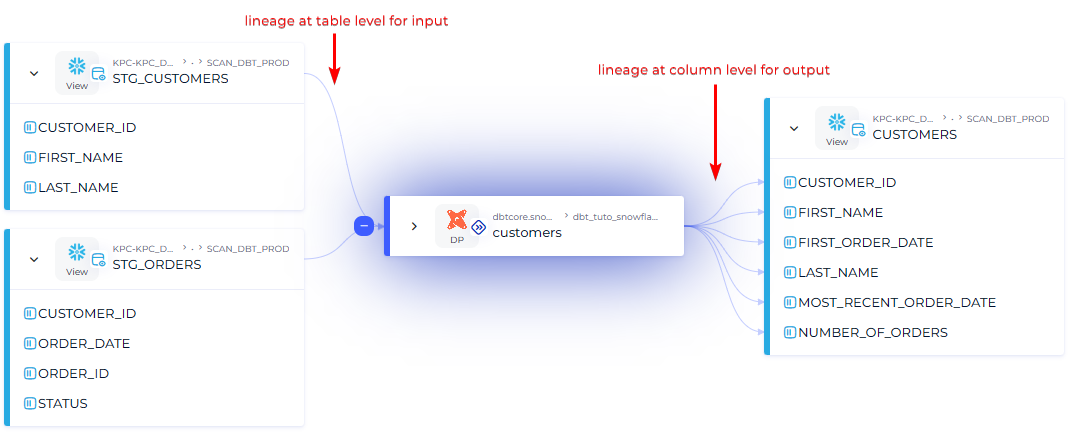
The links created by the dbt connector are lineage links between Models and Snapshots on the one hand, and their upstream Sources/Models/Snapshots on the other hand. In URN mode, links are created directly with the real structures (Tables/Views) of the data platform in the Dictionary. In Standard mode, links are created with Dictionary objects representing Sources, Models and Snapshots.
ℹ️ The granularity of the lineage is at table level between the Data Processing object and its input Dictionary object, and at Column level with the output Dictionary object. dbt doesn't provide the full lineage at column level yet, so theoretically the lineage should be at table level everywhere. But as we're sure that the columns of the output are impacted by the transformation as they are managed by dbt, we've decided to link every column of the target structure to the Data Processing object representing the Model.
Considering the feedbacks of our customers, we may change this behavior to link all objects at table level for more clarity. Then, when dbt will provide the full lineage at column level, we will be able to add this feature to the connector too.
Technical information and dbt privileges
Used with dbt Core, the dbt connector needs the following files from dbt:
- manifest.json: describes the whole dbt project
- catalog.json: describes the metadata of the tables or views manipulated in the SQL scripts
- profiles.yml: in URN mode, this file provides the necessary information to create the URNs of the Tables and Views of the data platform connected to dbt, to be able to generate a proper lineage between these objects in DataGalaxy's Dictionary.
The profiles.yml file is part of your project. The two .json dbt documentation files are generated using the following dbt command and placed in the target/ directory of the project:
dbt docs generate
Using dbt Platform, the connector leverages the Administrative AP and the Discovery API to retrieve automatically all needed information. This requires a Service Account granted with the Metadata Only and Account Viewer privileges for the related projects (see FAQ for more information about Account Viewer).
From Standard to URN mode
Differences
- In Standard mode, the name of the root objects will be the one you give when you create the connection. In URN mode, there is no dbt root object in the Dictionary (see above in the description of the mapping), and for the Data Processing module the root object represents your dbt Platform account (for dbt Platform subscriptions) or a generic dbt Core platform (if you use dbt Core). Its name is automatically defined and corresponds to the last segment of the URN of the object.
- In Standard mode, there are no differences between dbt Core and dbt Platform objects hierachy, as the root object represents the project. In URN mode, for dbt Platform the root object represents the platform itself, with its projects as children. So there is an additional level of hierarchy.
Migration guide
ℹ️ This migration guide is useful if you enrich your objects (custom attributes, links...). If all information on your DataGalaxy dbt objects come from the connector, the fastest path is to remove the objects from DataGalaxy and reimport using the URN mode.
ℹ️ Keep in mind that in URN mode the representation of the objects in the Dictionary changes completely, from representing the dbt Models associated with a dbt Technology in DataGalaxy, to representing the real objects from your data platform (Snowflake, BigQuery, Databricks). As this representation is new, migrating metadata from the old to the new representation could not be relevant. If you're using another data platform than the 3 currently supported, please reach out to us through support ticket or your AM before migrating (see FAQ too).
For dbt Core
If you have enrichments you want to keep on your Dictionary dbt objects, you'll have to export them using the CSV export, run the connector in URN mode and then reimport your attributes on the new objects. Then, remove the hierarchy of objects with dbt Technology from the Dictionary, as they are no longer relevant in URN mode.
For the Data Processing module, if you want to keep your hierarchy of objects from the Standard mode, here are the steps to follow:
- If you've automated the providing of the catalog.json and manifest.json files to the connector, you'll have to add the profiles.yml file the same way to use the URN mode. Note that the connector doesn't need the credentials of your data platform so we recommend you remove them from the file;
- Add the URN attribute to the Data Flow objects in your screens if they aren't already;
- Add the value of the URN on the Data Processing module's root object used by your Standard connection, following this pattern: urn:dbt-1:dbtcore.<name_of_your_dbt_profile> . For instance, if the profile you use from the profiles.yml file is my-dbt-prod, the root object's URN should be: urn:dbt-1:dbtcore.my-dbt-prod .
- Be sure to be in technical view (toggle in the top right hand corner menu) and change the technical name of the Data Processing module's root object used by your Standard connection, following this pattern: dbtcore.<name_of_your_dbt_profile> . For instance, if the profile you use from the profiles.yml file is my-dbt-prod, the root object's technical name should be: dbtcore.my-dbt-prod .
- Launch the connector and activate the URN mode. You'll have a new parameter to fill, to provide the profiles.yml corresponding profile name and target, and a few more options about attributes synchronization (see previous chapters of this documentation).
- After running the connector, the Dictionary should be filled with the objects of your data platform (Snowflake, BigQuery, Databricks) and all objects in the Data Processing module should have been updated with their own URN.
Congratulations, you migrated successfully!
For dbt Platform
If you're a dbt Platform (Starter, Enterprise, Enterprise+) customer, please reach out to us so that we can support you in migrating seamlessly.
Execution of the connector
dbt connector imports metadata from dbt .json documentation files (dbt Core) or using the Discovery API (dbt Platform Starter, Enterprise or Enterprise+). The technical information paragraph details the procedure to follow to generate the files for dbt Core.
Step 1: Installation
- Download DataGalaxy connector from the portal (see here)
- Extract the connector archive in the directory of your choice
- Download the dbt plug-in from the portal and copy it into the /lib directory of the connector
Step 2: Run the dbt connector
- After starting the connector, access Dictionary or Processing type connectors:
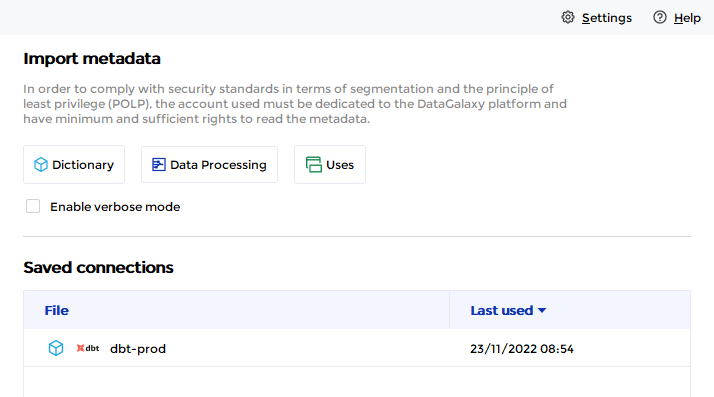
- If it has been correctly installed, the dbt plug-in appears in the list
- The following information is requested for dbt Core:
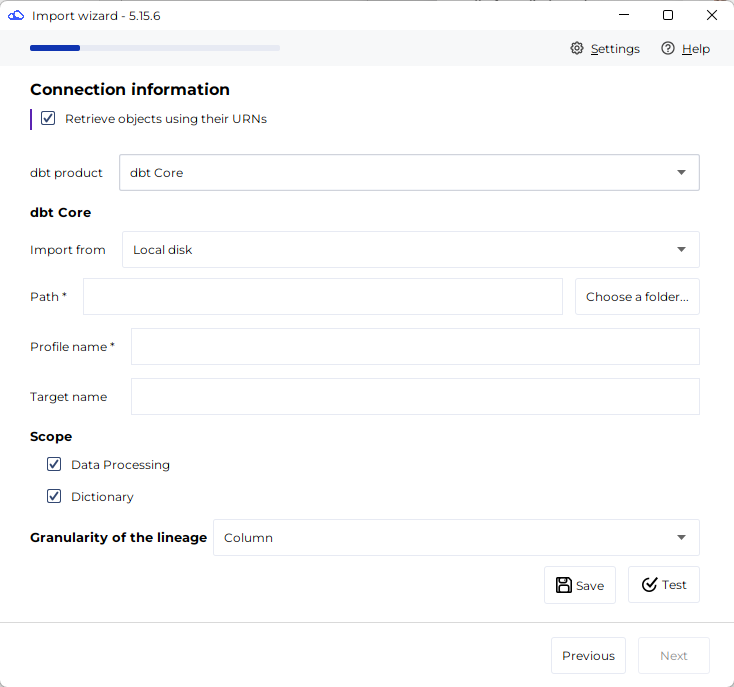
- The following information is requested for dbt Platform:
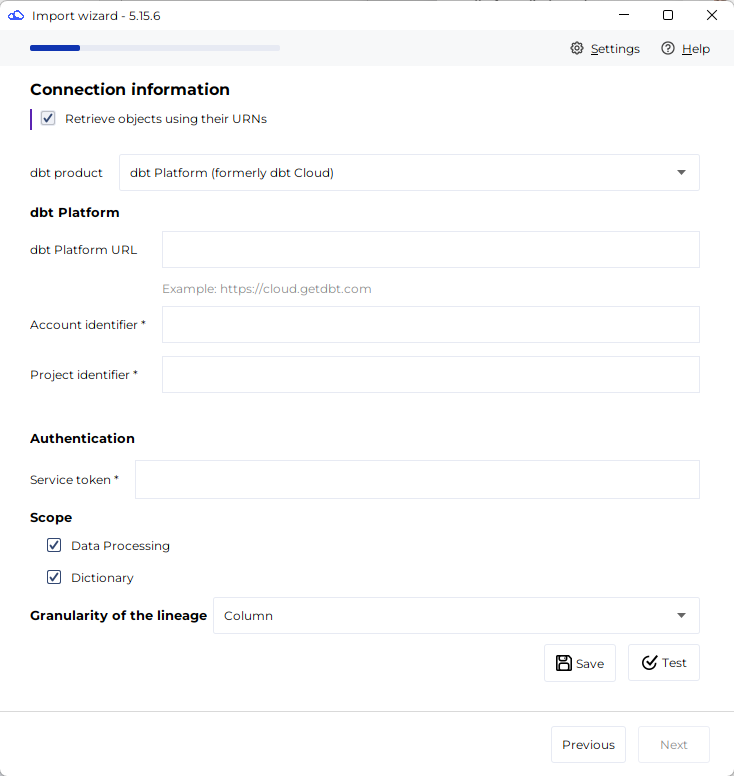 Complete list of parameters:
| Parameter | Mandatory | Description |
|---|---|---|
| dbt product | Yes | Choose dbt Platform if you have a dbt Platform Starter, Enterprise or Enterprise+ subscription |
| Import from (Core) | Yes | Storage in which the files are provided: local (Desktop connector only), or Azure, Google or AWS cloud storage |
| Path (Core) | Yes | Path to folder containing the files, locally or on a cloud storage |
| Cloud storage configuration parameters (Core) | No | Target cloud storage and corresponding authentication credentials |
| Profile name (Core) | Yes | dbt Profile to use in profiles.yml, likely the Production environment |
| Target name (Core) | No | dbt Target to use, if not set the default target of the Profile will be used |
| dbt Platform URL (Platform) | Yes | Check Access URL in Account settings |
| Account identifier (Platform) | Yes | Check Account ID in Account settings |
| Project identifier (Platform) | Yes | From the home page of your dbt project, check the numerical ID in the URL of your browser, after projects/ |
| Service token (Platform) | Yes | A Service token to which you have provided both Metadata Only and Account Viewer* privileges on the related project |
| Dataflow root object name (Standard mode only) | Yes | Name of the "parent" dataflow node underneath which dbt projects and objects will be created |
| Scope | Yes | Modules targeted for this import. By default, the two options are checked and cannot be changed. |
| Granularity of the lineage | Yes | Configures the level of details of the lineage |
* see FAQ for more information about this privilege.
Test button will check that all necessary files are present in the selected working folder.
Frequently asked questions
Should I use the lineage offered by dbt or the one provided by the connector of my data platform (Snowflake, Databricks, BigQuery)?
There are pros and cons in both solutions. First, be sure that in URN mode, you have both options, so you can test both and choose what suit your needs.
Considering the lineage provided by dbt is at table level only, you may prefer to use the one provided by your data platform if you want it at column level. But in this case, the links will be created directly between the Dictionary objects, not involving the dbt Data Processing object (representing the Model responsible for the transformation). On the other side, on some data platforms getting the lineage can generate costs (tracking costs for BigQuery, warehouse costs for Snowflake...), when the lineage provided by dbt is available free of charge.
How do the Orphaned objects handling feature manages the data platform objects in URN mode? Can their status change to Obsolete or can they be deleted if they don't exist anymore after a Model change in dbt?
Indeed, if a Model has changed or has been deleted in dbt, the corresponding target object in the data platform could be impacted at the next run of the dbt project, so it could make sense to apply the orphaned objects action on them.
Due to a current limitation, a connector cannot consider orphaned objects from another technology. So the dbt connector cannot handle the orphaned objects for Snowflake, Databricks or BigQuery. The team is aware of this limitation and an evolution will be available to manage this. It will be an option: the user will have the choice to let the connector consider the objects of the data platform (in the Dictionary) part of the dbt orphaned objects scope, or not, as the user might prefer to manage the orphaned objects with the dedicated connector of the related data platform.
Is it planned to implement the support of other data platforms connected to dbt in URN mode?
The support of dbt + Postgres is planned. If you're looking for another data platform, please reach out to us through your Account Manager. Depending on the complexity and our priorities, we may add the support of other technologies in our roadmap.
Why do I need to provide Account Viewer privileges in addition to Metadata only permission set?
The connector uses more API endpoints in order to retrieve the list of environments and automatically select the deployment one. These calls require Account Viewer privilege for now. We thought it would be easier for our customers to limit the number of parameters to provide to the connector. We could use another approach which would only require Metadata Only privileges, which would mean defining more parameters in the connector's configuration. If you think it's a safer and better option in your context anyway, please reach out to us. We listen carefully to feedbacks especially when it's about security.
Releases
| Date | Plugin Version | DataGalaxy release | Desktop Connector version (minimum) | Description |
| DD/MM/YYYY | 6.1.0 | v3.xxx.0 | 6.1.3 | Added support for dbt Snapshots in both dbt Core and dbt Platform: Snapshots are now imported as Data Processing objects and target structures, and lineage passing through them is no longer broken (Source/Model → Snapshot → Model, including through ephemeral Models). |
| 18/08/2026 | 6.0.2 | v3.399.0 | 6.1.3 | Importing only data processing objects is now possible without any issue. Source parameter is not mandatory anymore in this case in cli import |
| 18/06/2026 | 5.4.3 | v3.358.0 | 5.16.1 | Fixed some security vulnerabilities |
| 02/06/2026 | 5.4.2 | v3.347.0 | 5.15.12 | Fixed an issue where source schemas and names were sometimes lost during import operations. |
| 05/05/2026 | 5.4.0 | v3.337.0 | 5.15.9 | Replaced NullPointerException errors with meaningful errors |
| 24/04/2026 | 5.3.0 | v3.332.0 | 5.15.9 | Bringing URN mode with Snowflake, Databricks, BigQuery. Smarter approach to retrieve metadata in dbt Platform (formerly Cloud) leveraging the Discovery API. ⚠️ Breaking change in the Google Cloud Storage authentication form: you'll have to reconfigure your connection if you use GCS as storage provider for the dbt Core files. |
| 22/11/2024 | 4.1.1 | v3.100.0 | 5.3.3 | Added Online version; Ability to get files from a cloud storage (S3, GCS, ADLS gen2); Ability to choose lineage granularity |
| 30/07/2024 | 3.0.0 | v3.63.0 | 5.0.4 | Migrated from java 11 to java 17 + CVE fixes |