
This article describes how SSIS connector for DataGalaxy works.
This connector is available in the following modes:
| Desktop mode ✅ | SaaS Online mode ❌ |
Connector Overview
Microsoft SQL Server Integration Services (SSIS) connector allows importing SSIS package contents from .dtsx files.The extracted objects and their correspondences are detailed in the following table:
| SSIS object | DataGalaxy object |
|---|---|
| SSIS Package | Data Flow |
| Data Flow | Data Processing |
| Source (Data Flow) | Data Processing Input |
| Target (Data Flow) | Data Processing Output |
Step 1: Installation
- Download DataGalaxy connector from the portal (see here)
- Extract the connector archive in the directory of your choice
- Download the SSIS plug-in from the portal and copy it into the /lib directory of the connector
Step 2: Run the SSIS connector
- After starting the connector, access Processing type connectors:
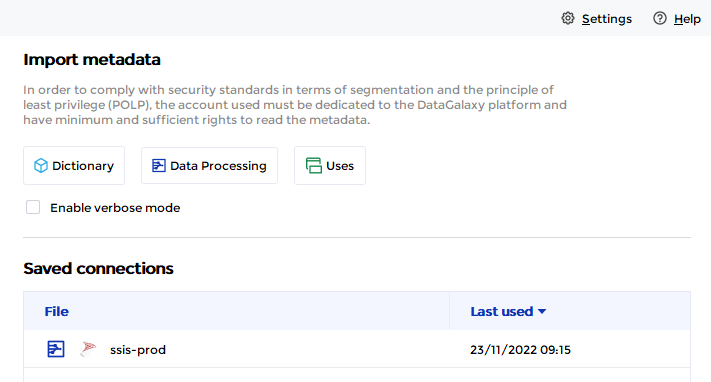
- If it has been correctly installed, the SSIS plug-in appears in the list
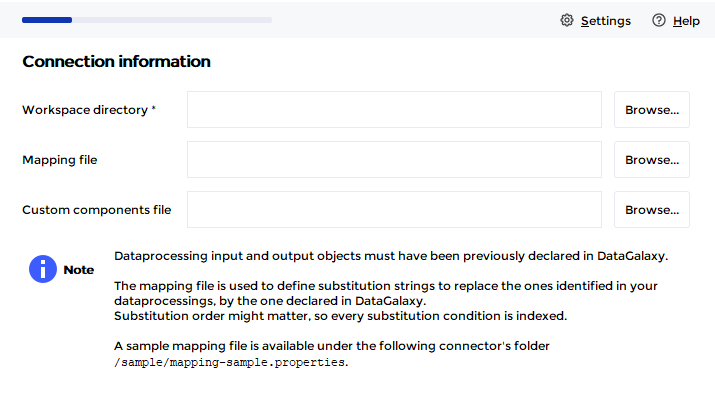
- The following information is requested:
| Parameter | Mandatory | Description |
|---|---|---|
| Workspace folder | Yes | Directory containing the SSIS packages (.dtsx files) to be imported. The subdirectories will also be browsed. |
| Mapping File | No | Path to a file allowing to define string substitutions in the generated CSV file (an example is provided in the /samples directory of the connector). |
| Custom components file | No | Path to a file allowing to take into account custom SSIS components as a source or destination for processing in DataGalaxy (see below). |
Custom component configuration (optional)
The addition of components is done through a configuration file to be used when running the connector. An example is provided in the /samples directory of the connector.
To add a new component, you have to fill in the following properties:
| Key Configuration | Description | Example |
|---|---|---|
| [$key].usercomponenttypename | Corresponds to the value of the UserComponentTypeName property related to the component | KingswaySoft.IntegrationToolkit.DynamicsCrm.CrmSourceComponent |
[$key].dataprocessingtype | Identify if the component should be considered as an input or an output of the process (put input or output) | intput |
| [$key].tablepropertyname | Value of the component property to be used to identify the table concerned. | SourceEntity |
The [$key] value of the configuration keys must be replaced by a unique name that will identify a set of configuration keys (1 key per component).
These properties can be identified by opening in a text editor an SSIS package containing a custom component that you want to take into account.
Once this information is filled in, you can launch the import procedure.
More information on the connector's operating mode is available here
Technical information
This connector supports SSIS packages from SQL Server 2012 and later.
Releases
| Date | Plugin Version | DataGalaxy release | Desktop Connector version (minimum) | Description |
| 06/08/2024 | 4.0.1 | v3.65.0 | 5.0.5 | Migrated from java 11 to java 17 + CVE fixes |