
This article explains how the Talend Cloud connector for DataGalaxy works.
This connector is available in the following modes:
| Desktop mode ✅ | SaaS Online mode ✅ |
Connector scope
The connector allows to retrieve metadata from Talend Data Inventory and Talend Data Preparation via the Talend Coud API. To separate the metadata, two containers are created by default by the connector. The retrieved objects and their correspondences in DataGalaxy are detailed in the following table:
| Talend Cloud object | DataGalaxy object | Comments |
| "Data Inventory" | Model (Containers) | Model created to isolate Datasets declared in Talend Data Inventory |
| Datastore | Model (Containers) | Connections defined in Talend Data Inventory are imported as a child model |
| Dataset | Table (Structure) | Dataset are imported as a child table of a connection |
| Column | Column | |
| "Data Preparation" | Model (Containers) | Model created to isolate output data structures in Talend Data Preparation |
| Folder | Model (Containers) | Les dossiers sont remontés en tant que modèle (schéma) enfant |
| Preparation | Table (Structure) | The folders are imported as a model child |
| Column | Column |
Additionnal attributes
The connector allows you to import additional information to the standard attributes (name, description, ...). For this information to be imported into attributes, they must have been created before in the platform (see this article for more information).
The name must be respected and the format so that the attribute is correctly loaded by the connector via the API export.
The creation of these attributes is not mandatory, the connector can work without them. The corresponding information will simply not be imported via the API export.
| Name | Format | DataType | Description |
| Rating | Text | Structures | Global rating of users |
| Author | Text | Structures | Author of dataset |
| View DataSet Sample | Text | Structures | Link to the dataset |
| Invalid Values | Number | Structures | Number of invalid values in the dataset |
| Pct Invalid Values | Text | Structures | Percentage of invalid values in the dataset |
| Valid Values | Number | Structures | Number of valid values in the dataset |
| Pct Valid Values | Text | Structures | Percentage of valid values in the dataset |
| Empty Values | Number | Structures | Number of empty values in the dataset |
| Pct Empty Values | Text | Structures | Percentage of empty values in the dataset |
| Trust Score | Number | Structures | Evaluation of how trustable is the information |
| Score Popularity | Text | Structures | Trust Score: popularity percentage |
| Score Completeness | Text | Structures | Trust Score: completeness percentage |
| Score Discoverability | Text | Structures | Trust Score: discoverability percentage |
| Score Usage | Text | Structures | Trust Score: usage percentage |
| Score Validity | Text | Structures | Trust Score: validity percentage |
| Semantic Type | Text | Fields | Semantic type of column |
| Invalid Values | Number | Fields | Number of invalid values for a column in the dataset |
| Valid Values | Number | Fields | Number of valid values for a column in the dataset |
| Empty Values | Number | Fields | Number of invalid values for a column in the dataset |
Configuration of a connection
The connector uses REST API of Talend Cloud. The generation of a token is described in the following documentation: Generating a Personal Access Token
| Parameter | Mandatory | Description |
| URL | Yes | Talend Cloud Data Inventory application URL (to be modified to match your data center, information available here) |
| Personnal Acces Token | Yes | Identifier of the token generated in Talend Cloud |
Execution of the connector
To create a connection to Talend Cloud via the Online connector, the entry points are as follows:
From the Import button of the "Shortcuts" widget on the home screen of a client space or workspace
From the Import button of one of the modules when it is empty
From the Import button in the contextual menu of one of the modules, on the right side of the filtered views
From the Add a connection button in the Connector tab available in the workspace setup screen
You can optionally filter (by module, connector type or by using the search bar), then click on the desired technology: 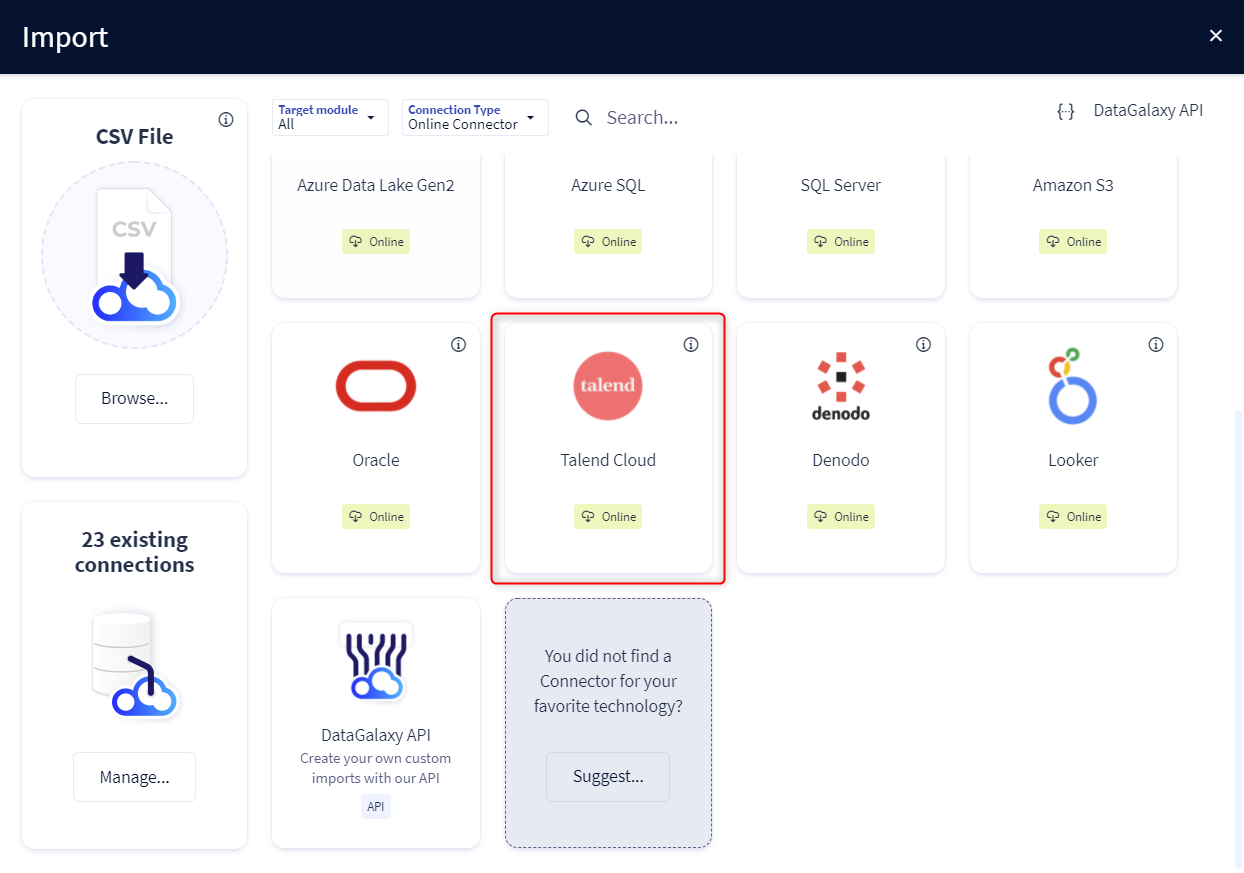
You then need to complete the login form using the login information described above to perform an import. For more details on the steps involved in running the Online connector, you can consult the following article: [HowTo] Running the Online Connector.
This technology is also available via the Desktop Connector, you can find more information on the procedure here: [How to] How to use the connector.
Releases
| Date | Plugin Version | DataGalaxy release | Desktop Connector version (minimum) | Description |
| 06/08/2024 | 3.0.0 | v3.65.0 | 5.0.5 | Migrated from java 11 to java 17 + CVE fixes |