
About this user journey
This short tutorial will guide you through the main steps to
- Discover your data
- Refine search, save your results and share them
- Exploit graphics restitutions such as lineage or exploration
This tutorial is followed by a selection of articles to guide you through a deeper usage of the platform, in particular by using the business glossary and the usage module.
No prior knowledge of DataGalaxy is required. Nevertheless, to use the search feature, objects must have been created in the platform. Other quick starts will show you how to do so. Click here to see them.
Before you begin
Client space, workspace, module... so much terms ! for an overview of the main concepts and notions, please refer to this article.
First step : use the search
The research is the best way to find your data. There is two ways to access it :
- By clicking on the magnifying glass in the navigation bar : this way you'll land on a specific page, with two widgets : one to reuse previous search and the other one to list previously consulted objects.
- By clicking on the research bar on the top right of your screen : available anywhere on the platform, this is a good way to make quick research.
Of course, both search features will retrieve the same information.
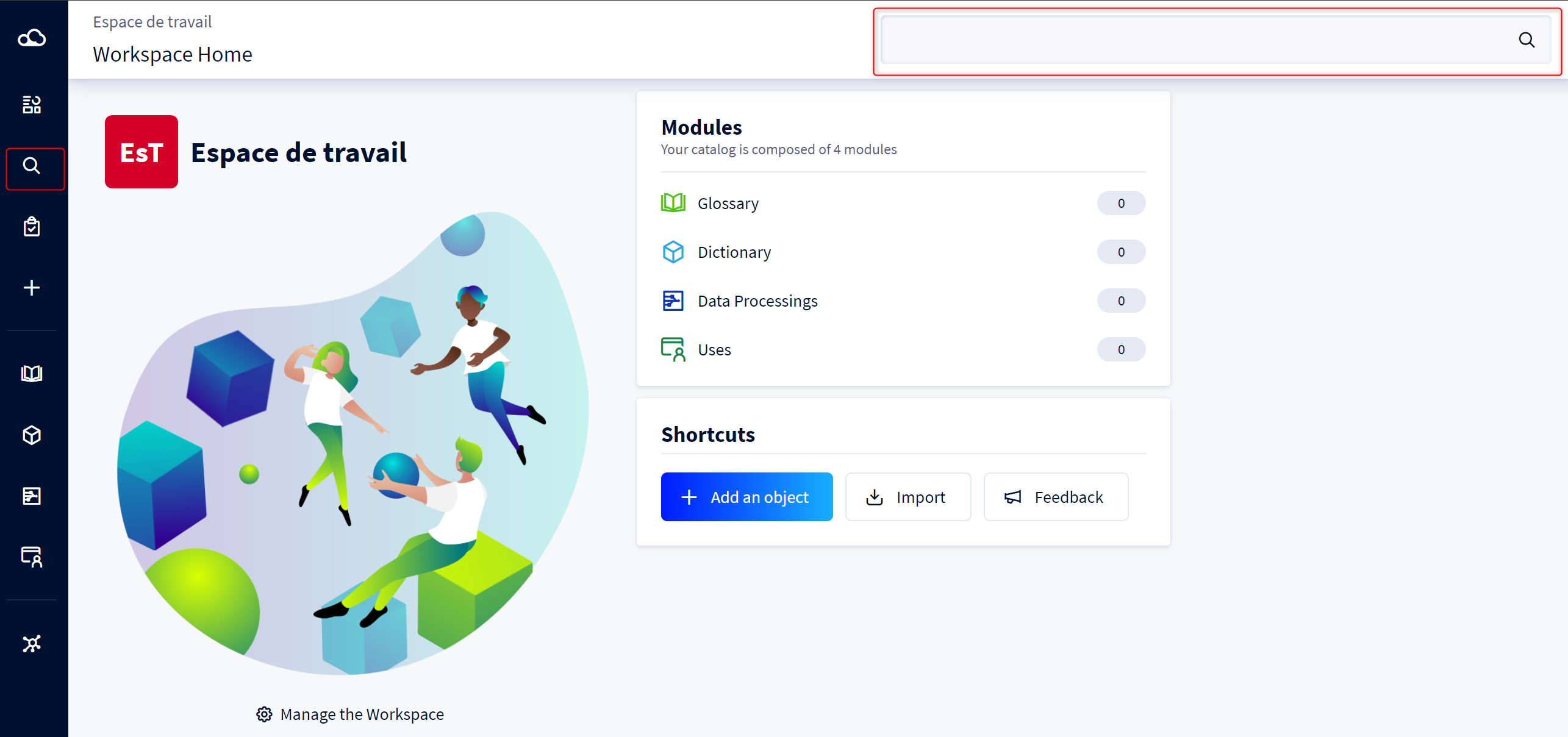
You can start the search with a keyword or by pressing the Enter key without any keyword. You can also use the quick filters. Quick filters are a good way to ease and accelerate your search by suggesting filters that might interest you. (Please read this article to learn more about the quick filters and this article to find other ways to launch the search).
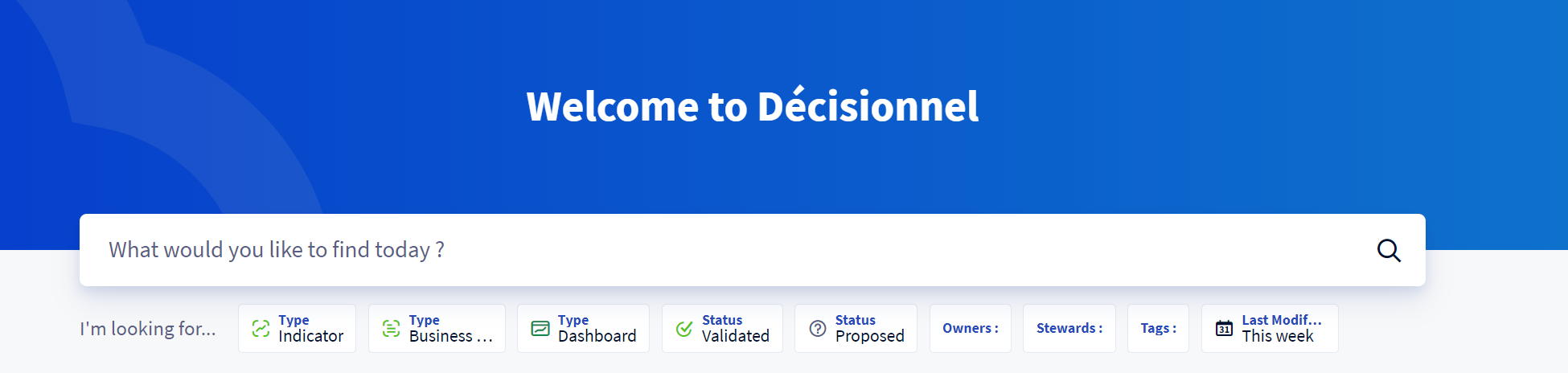
You can find more information about the search engine in this article.
Second step : refine the results
Once the research is launched, the result page display results from the 4 modules.
DataGalaxy contains 4 modules
- The business glossary is an organized collection of data objects, described in business vocabulary, for a company-wide understanding
- The usage catalog to describe, from a business perspective, all data usage
- The Data Dictionary is a comprehensive inventory of the data available in an organization's IT landscape.
- The data processings catalog to describe all data flows between databases and the transformations in between
Objects from the glossary and the usage catalog are in green. They are more business oriented that the one in blue, from the dictionary and data processing module.
Depending on the richness of your Data Catalog and the terms used to launch the search, there can be a lot of results. You can refine the results by using the filter located in zone 2 & 3. Results in zone 4 will be updated with the new filters.
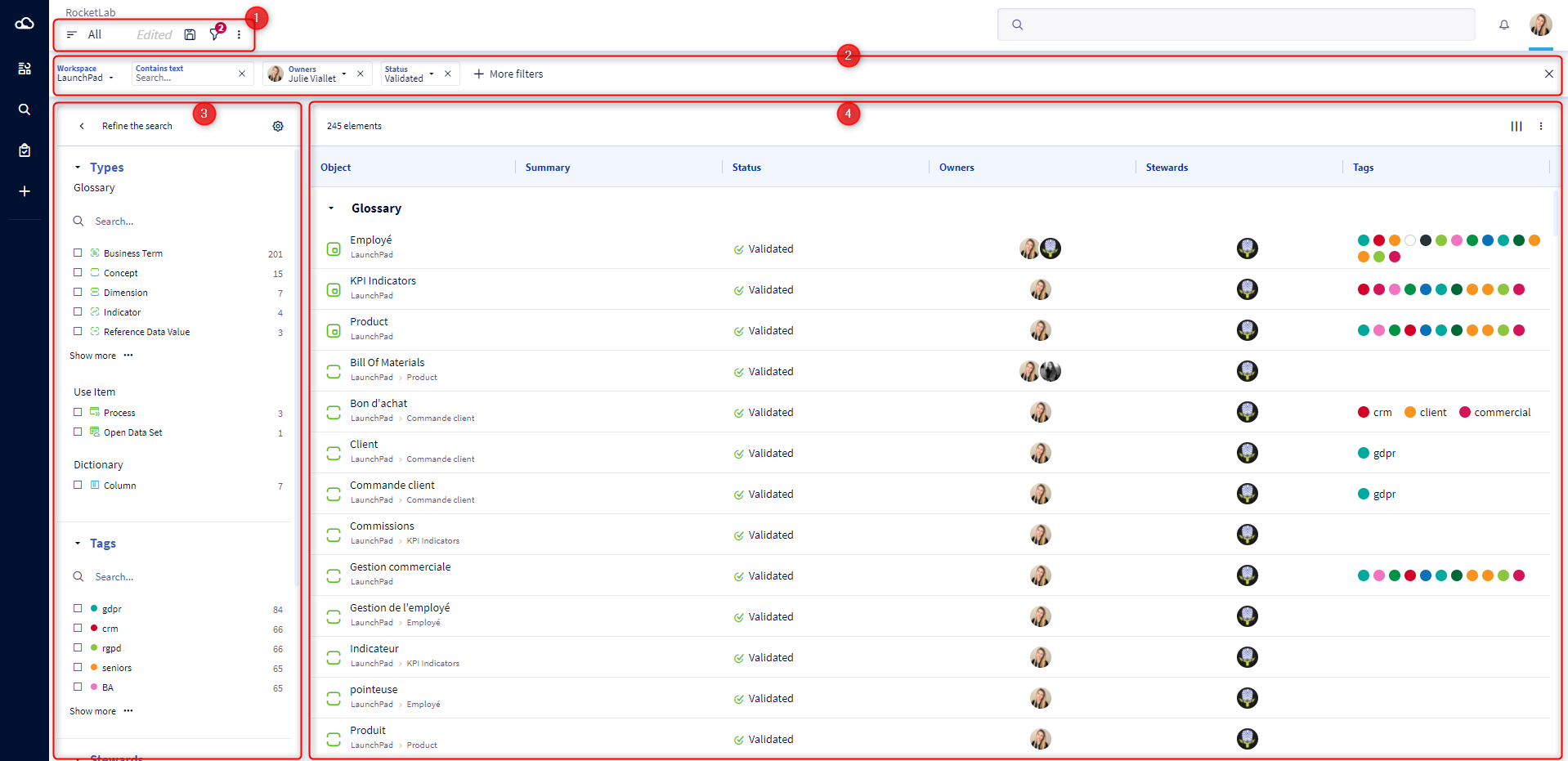
To learn more about how to refine the results, you can read this article.
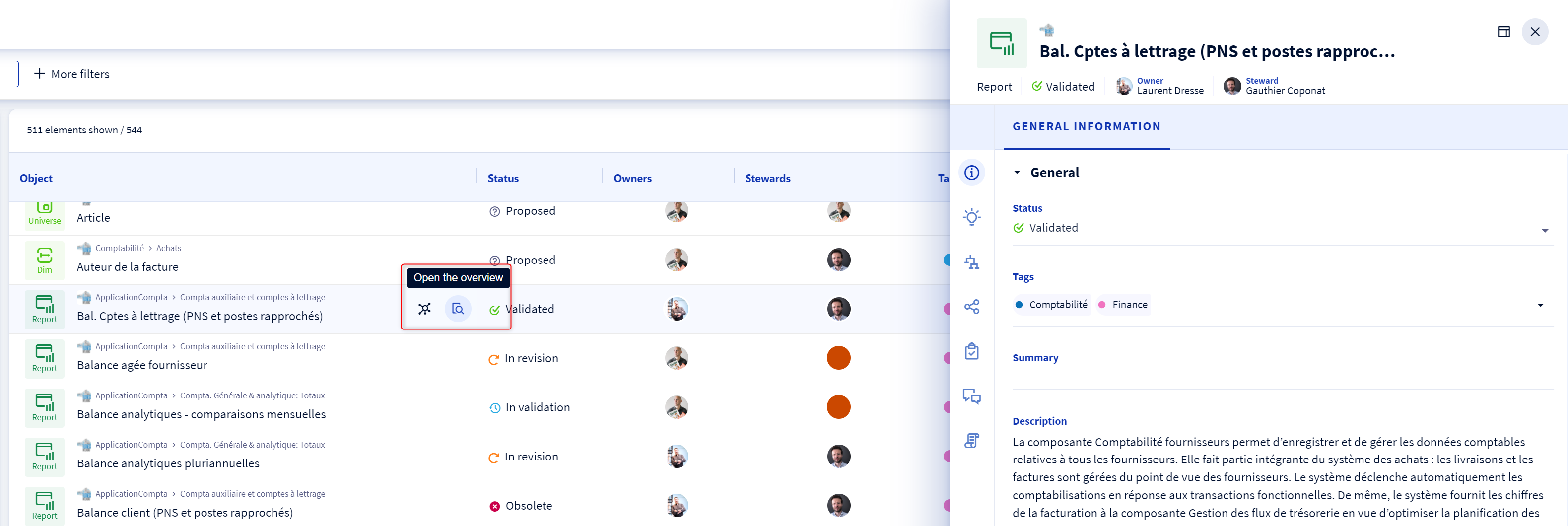
To learn more about an object, you can, without leaving the search, open the service panel by clicking on the magnifying glass available on the object line.
The service panel shows all the information about the object, including links, comments and tasks (more information in this article)
If you would like to reuse this search, you can save it for later. We call it a filtered view. To do so, you just need to click on the save icon (the floppy disk) on the top left of the screen. By doing so, you'll be able to easily get back to your search results and find if new objects match your search criteria. Depending on your autorisations, those filtered view can even be shared. To learn more about filtered view, you can read this article.
Third step : graphical restitution
You have found an interesting object and you are trying to deepen your understanding of its different links : use the Exploratory Analysis button to access it directly.
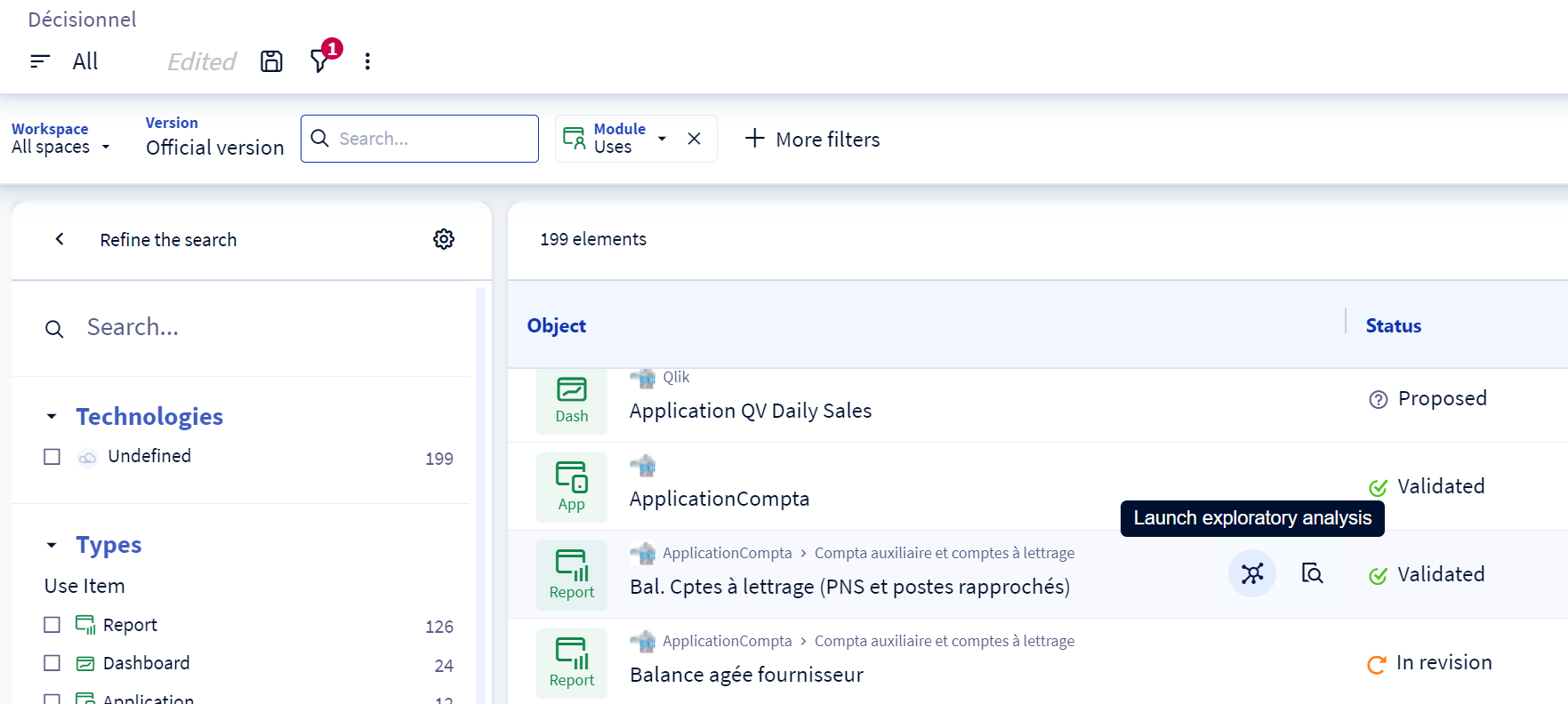
The exploration allows the user to discover both the semantic and technical scope of the data. With this feature you can navigate between the different objects. To learn more about this feature, you can read this article
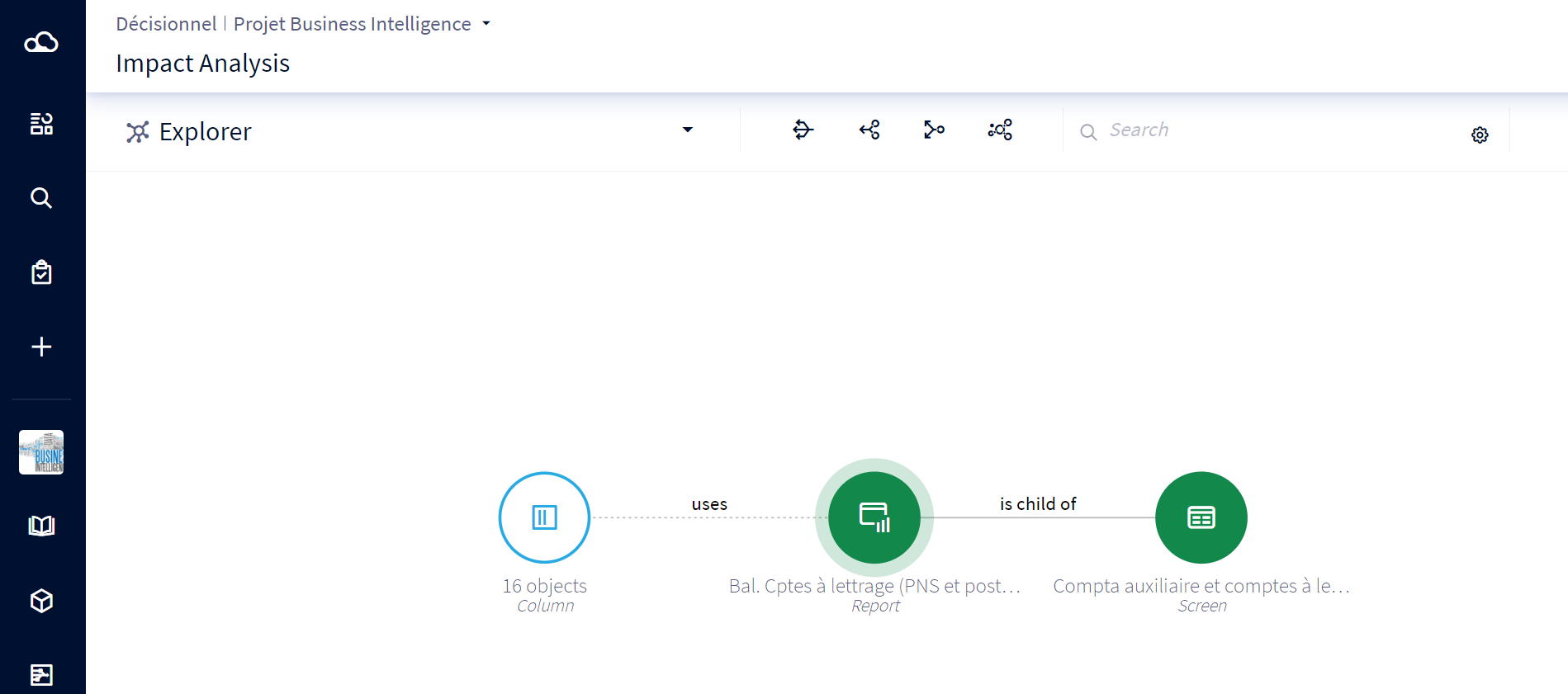
If needed, another graphical restitution is available : the lineage. A data lineage allows the user to understand the traceability of an object by visualizing both the objects impacted by this object and what impact this object. More information about the lineage on this article.
Dig deeper
You can pursue your journey by
- Going into your profil to put the research page as your homepage (more information here) or simplify the research results by ignoring technical objects (more information here)
- Starting to create tasks and comments to ask for more information (more information here)
You can also go into the business modules (the business glossary and the usage catalog) to learn more about your objects
We wish you a good data journey