
About this user journey
This short tutorial will guide you through the main steps to :
- Import your data into the dictionary using the connector
- Generate the business glossary from your technical data
- Describe and model from a business point of view your data
- Create and use the links between objects to benefits from graphical restitution such as the lineage
This tutorial is followed by a selection of articles to guide you through your client space administration.
No prior knowledge of DataGalaxy is required.
In this tutorial, you will use the online connector to retrieve data from your systems. To do so, you need to have the credentials to the systems you want to query. This process is completely secure for your systems : the online connector only retrieves metadata without performing any operations on the data.
Before you begin
Client space, workspace, module... so much terms ! for an overview of the main concepts and notions, please refer to this article.
If you wish, the first and second steps of this quick start are described in this video.
First step : import your data
Begin your DataGalaxy journey by importing the data from your database. This means using our connector to import data into our dictionary.
The dictionary is one of the 4 DataGalaxy modules. It allows you to answer the question : where are stored my data? It's a shared visualization of your data sources, whether they're structured or not, in an ergonomic, simple, and collaborative environment. You can learn more about the dictionary in this article.
DataGalaxy contains 3 more modules
- The glossary is an organized collection of data objects, described in business vocabulary, for a company-wide understanding
The data processings catalog to describe all data flows between databases and the transformations in between
The usage catalog to describe, from a business perspective, all data usage
The online connector allows you to retrieve information from your tools and import them directly into DataGalaxy. This does not involve any security risks for your data or your tools. To learn more about the online connector please read this article.
The connector can also be downloaded. It is then known as the desktop connector. In both cases the connector can retrieve information from 3 kinds of tools : databases, reportings and data processing tools.
To start the connector, click on the "import" button available on the homepage of your workspace.
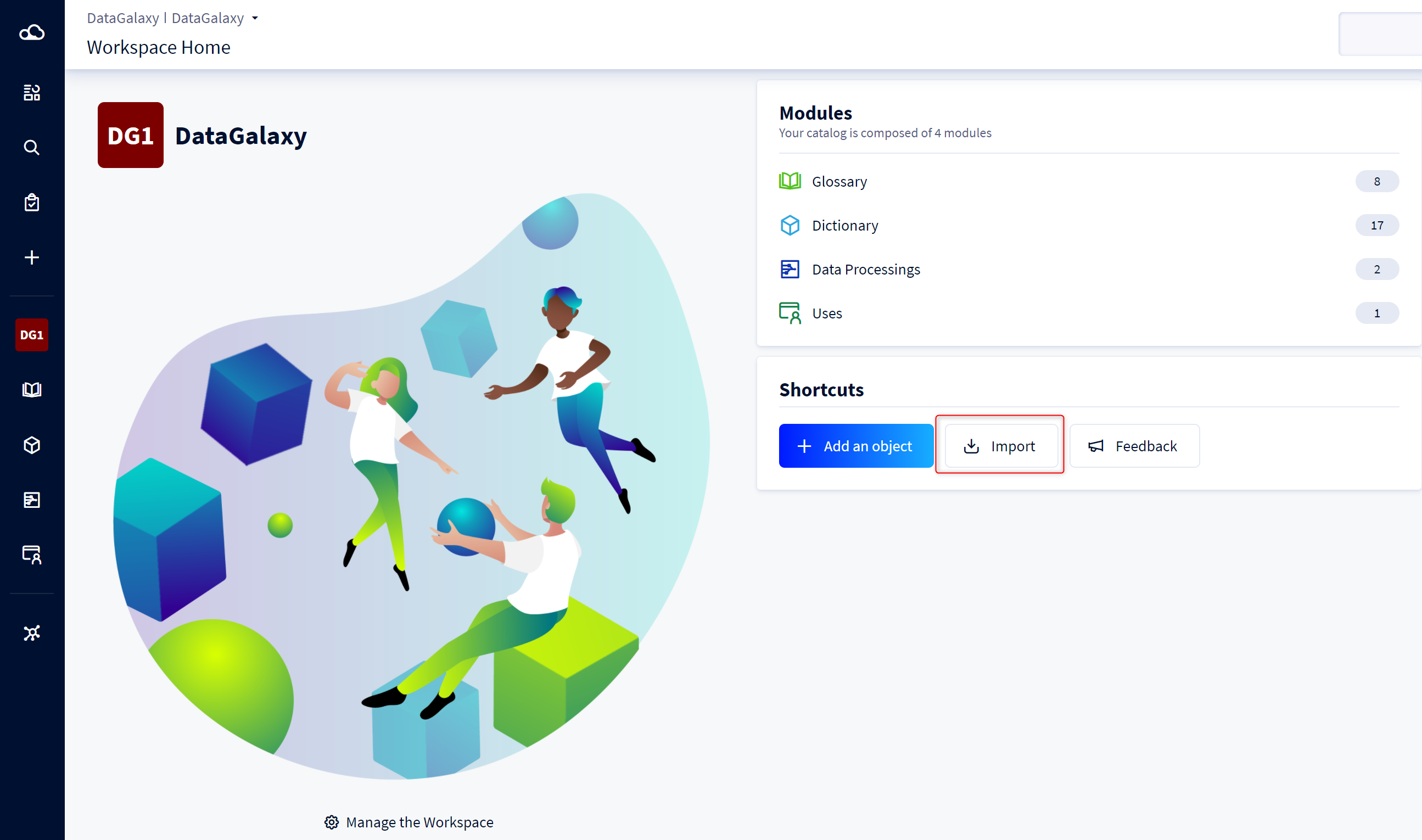
You'll need two elements to use the online connector : a token and a target database to import the data.
- The token is an authentification key allowing the connector to import data into the platform. By default, the online connector is set up to use your Personal Access Token : the P.A.T. it's linked to your account and benefits from the same level of authorisation. Next time, you might consider using the integration token. Unlike the P.A.T, the integration token is linked to your client space and has specific rights. To generate this kind of token, please read this article
- The target database : this is where the connector is going to import the data (if you require more details about the objects included in the dictionary, please check this article). This database can be created directly from the online connector . The online connector will match the type of database with the technology you previously selected.
This article will guide you through the different steps to import the data.
The import can take from one minute to a couple of hours according to the volume of data to import. You can wait for it by continuing to read this quick start!
Second step : generate the glossary
During the previous step, you imported a data base in the dictionary. This is the technical vision of your data, as we can see it it in your systems. This technical vision is a good start, but it can not traduce the complexity of a business model nor make it understandable for users with a business background. The business glossary is the perfect module to address this 2 points. the business glossary is an organized collection of data objects, described in business vocabulary. It can be used to describe your data but also model it to ease user's understanding of the data.
The easiest way to start populating your glossary and automatically link it to the technical layer is to use the feature "generate from the dictionary": this feature
- import data from the dictionary module
- convert it as a glossary object
- create a link between both.
This feature is located in the glossary.
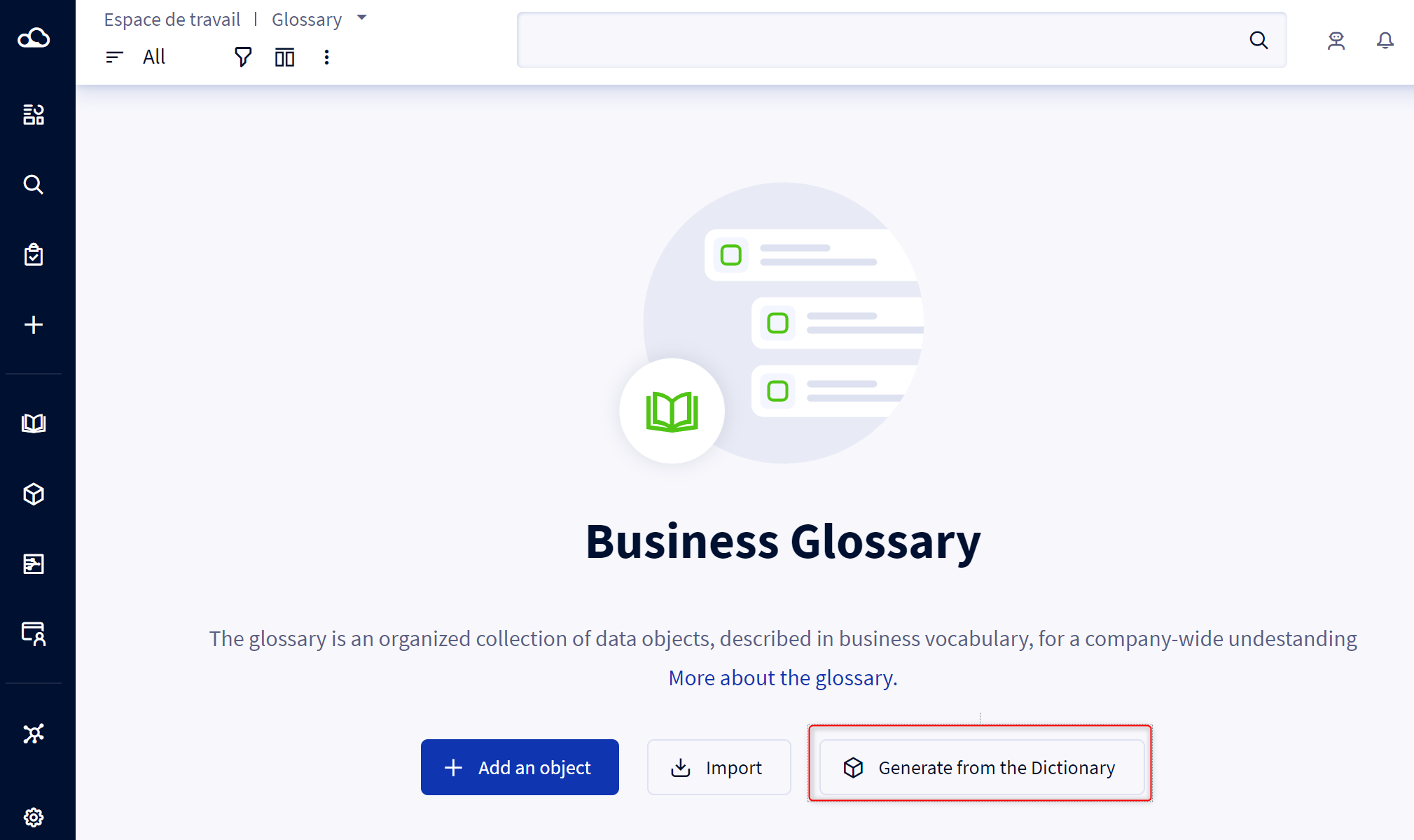
To learn more about this feature, you can read this article
third step : Describe and model from a business point of view your data
As said before, the business glossary is an organized collection of data objects, described in business vocabulary. It can be used to describe your data but also model it to ease user's understanding of the data.
By default, the object card is composed of differents attributes used to describe the objects. This way you can specify :
- The object lifecycle : this attribute is used to identify an object lifecycle : Is it a recently created object? one whose definition has been validated? or an obsolete one that is no longer used? By default objects are created with a "proposed" status. Depending on the selected status, some editing restrictions can be applied. To know more about it, you can read this article.
- The object governance: each object can have its own governance, that's why each object can have different roles. By default each object displays two roles : steward & owner. They are automatically filled up with default values. Users with this kind of role can have extended rights on the object. To know more you can read this article
- Tags: are attributes designed to help you classify your data. Each tag has a color and you can use as many as required to classify your data. You can read this article to know more
- A summary and a description to describe your object.
Fourth step : See the data
Objects and links have been created. The next step is to display those links using a graphical restitution. To do so each object has a lineage tab. You'll find two tools :
- The lineage :A data lineage allows the user to understand the traceability of an object by visualizing both the objects impacted by this object and what impact this object. More information about the lineage on this article.
- The exploration : It allows the user to discover boh the semantic and technical scope of the data. With this feature you can navigate between the differents object. To learn more about this feature, you can read this article
Dig deeper
You can pursue your journey by adding different information. For instance, you can :
- Create other data sources and identify the golden source. To learn more about this feature, you can read this article
- Identify the different data usage (reports, dashboard, algorithm...) thanks to the usage module. Please refer to this article to learn more.
You can also customize the object cards : for example you can new attributes to display more informations (the formula of a KPI for example) or add new tags. You can also invite new users and much more. To do it, get into the administration menu. To do so you can read this article
We wish a good data journey.