
The goal of this page is to guide you through a certain number of checks and commands to make sure that everything was set up correctly in order for the connector to work.
Check if the user is correctly linked to the role used by the connector
Run the following command to do so:
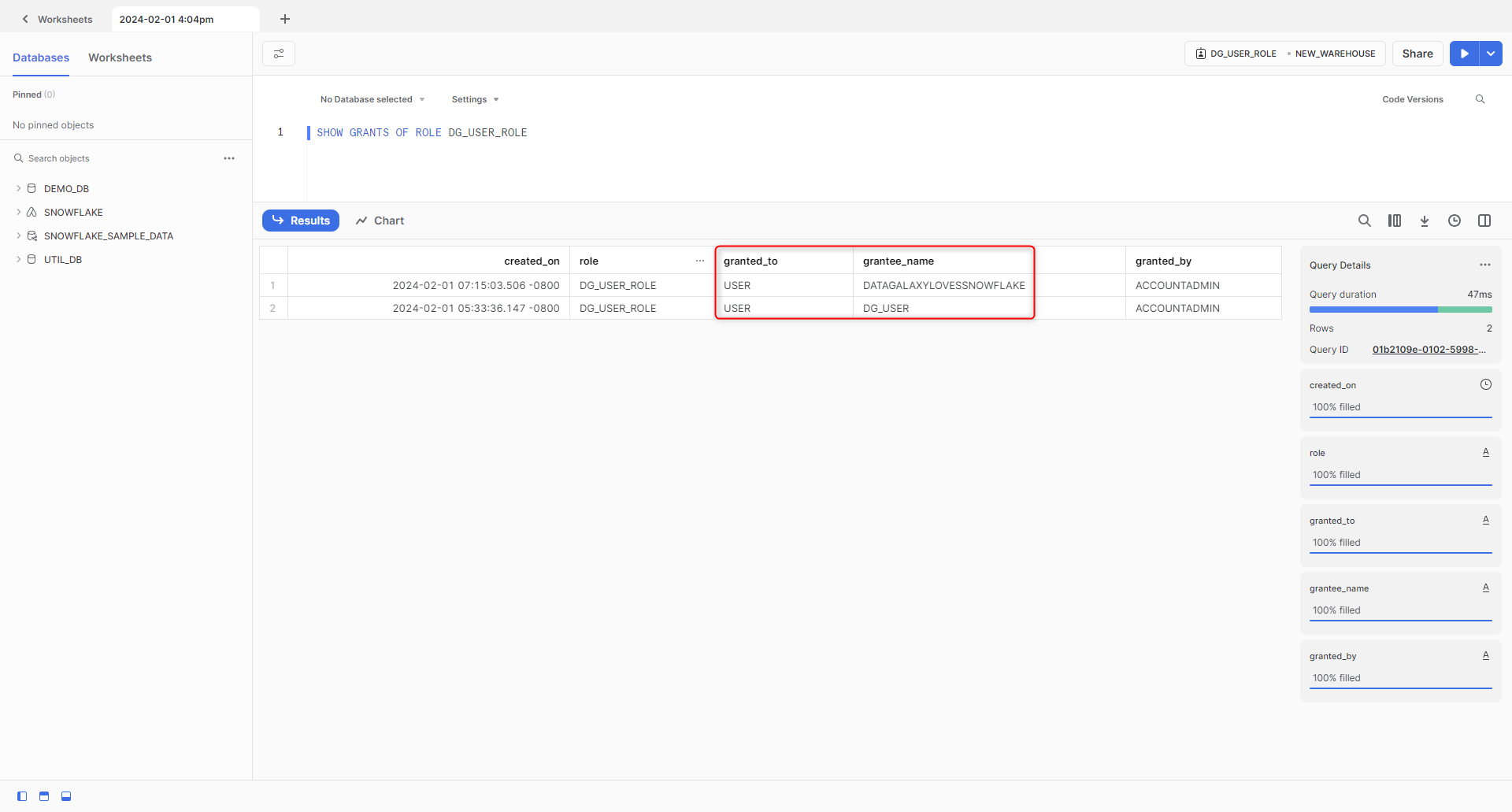
SHOW GRANTS of role <your_dg_role>;This command shows what are the users linked to a given role. In this example we see that our user "dg_user" is correctly linked to "dg_user_role"
In the example below we see that our user "dg_user" does not appear in the result of the request. In order to correct this we need to run in Snowflake, using a role that has sufficient rights, the command
grant role <your_dg_role> to user <your_dg_user>;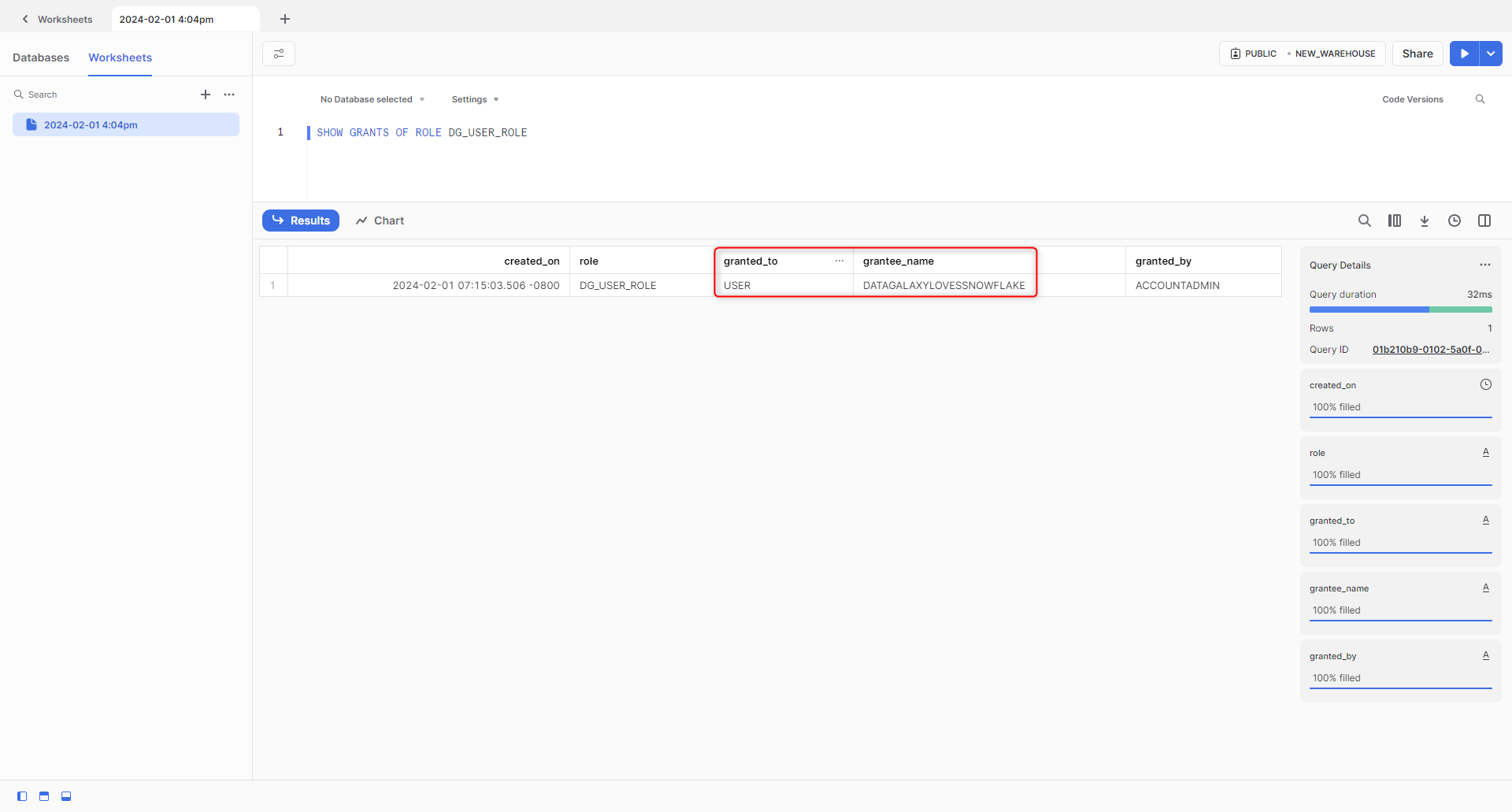
Check if the user has the correct default role
Run the following command to do so:
DESCRIBE USER <your_dg_user>This gives all the information associated with your user, the most important ones being the default warehouse and the default role. In the below example we see that it is the one we will use for our connector, "dg_user_role". If that was not the case the command to use would be:
ALTER USER <your_dg_user> SET default_role=<your_dg_role>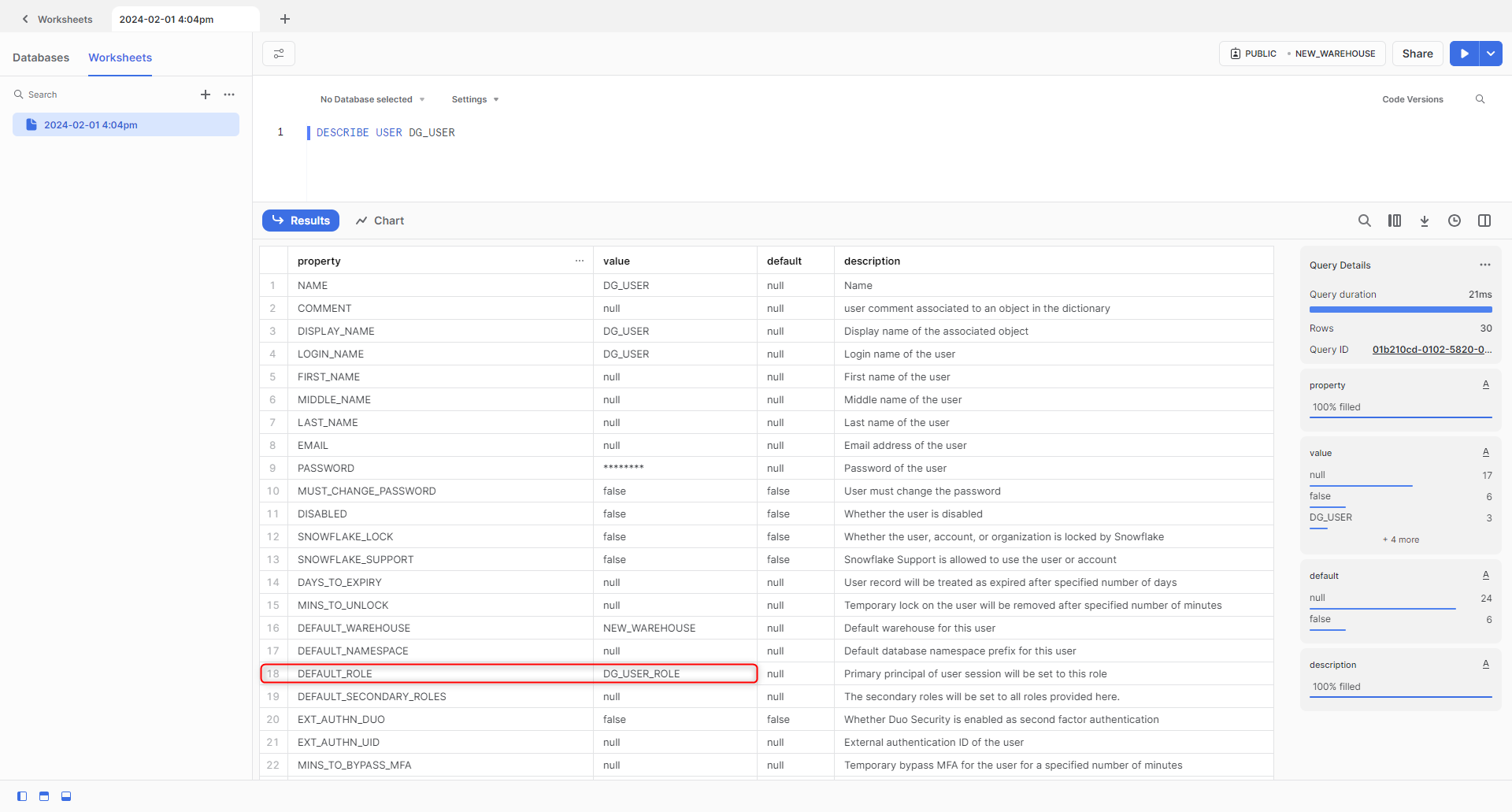
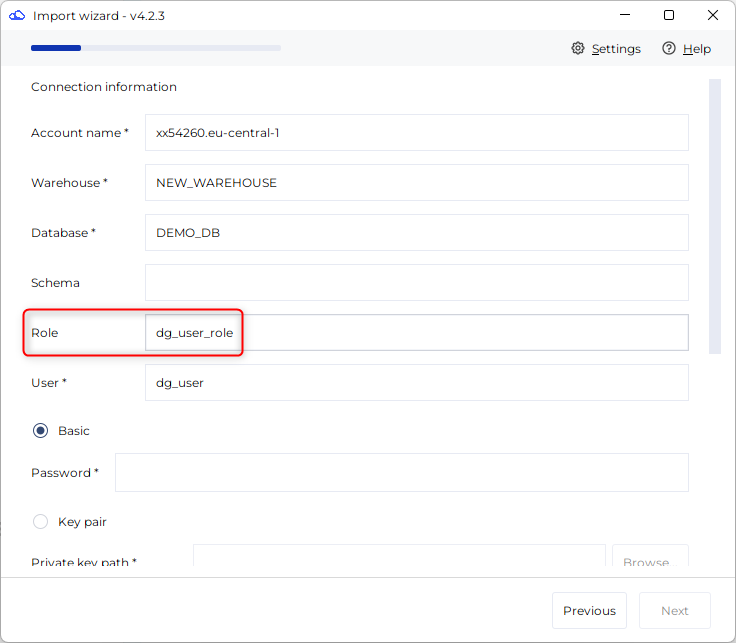
This step is not mandatory but if your user has no default role please make sure to give a valid role name when using the connector (exemple here with "dg_user_role")
Check that the role used by the connector has access to the default warehouse linked to the user
Run the following command to do so:
SHOW GRANTS TO ROLE <your_dg_role>;This command must show that the role you will use with the connector has access to the warehouse used to perform the operations. The necessary rights are MONITOR and USAGE (see example below). If they do not appear you need to run in Snowflake, using a role that has sufficient rights, the command
GRANT MONITOR, USAGE ON WAREHOUSE "<your_warehouse>" TO ROLE <your_dg_role>;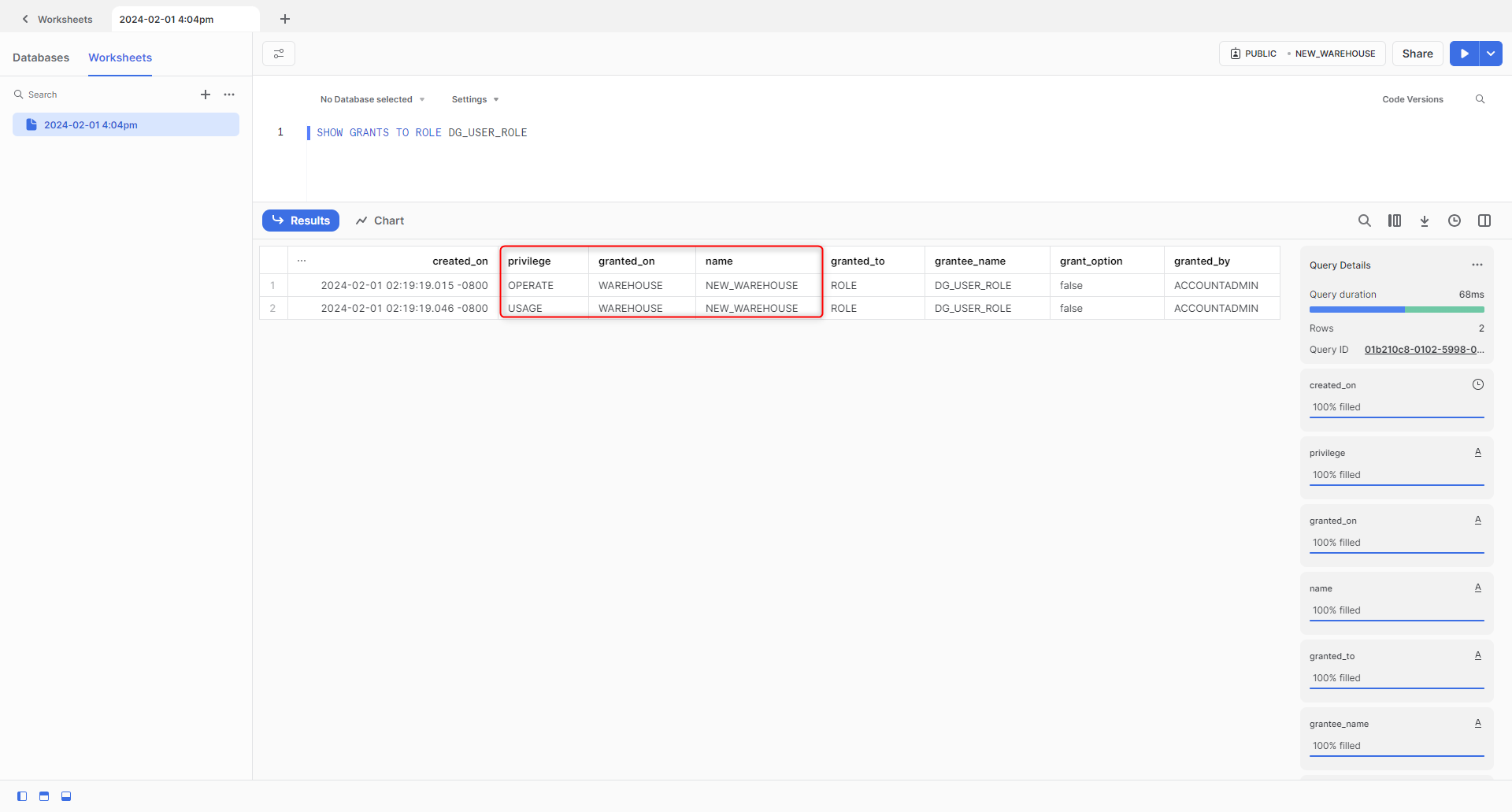
Check that the role used by the connector has access to the database
If the database you want to retrieve metadata from is a non-shared metadata, run the following command in Snowflake using the role and the warehouse that will also be used by the connector (like in the example below):
SELECT * FROM SNOWFLAKE.ACCOUNT_USAGE.DATABASES WHERE DELETED IS NULL;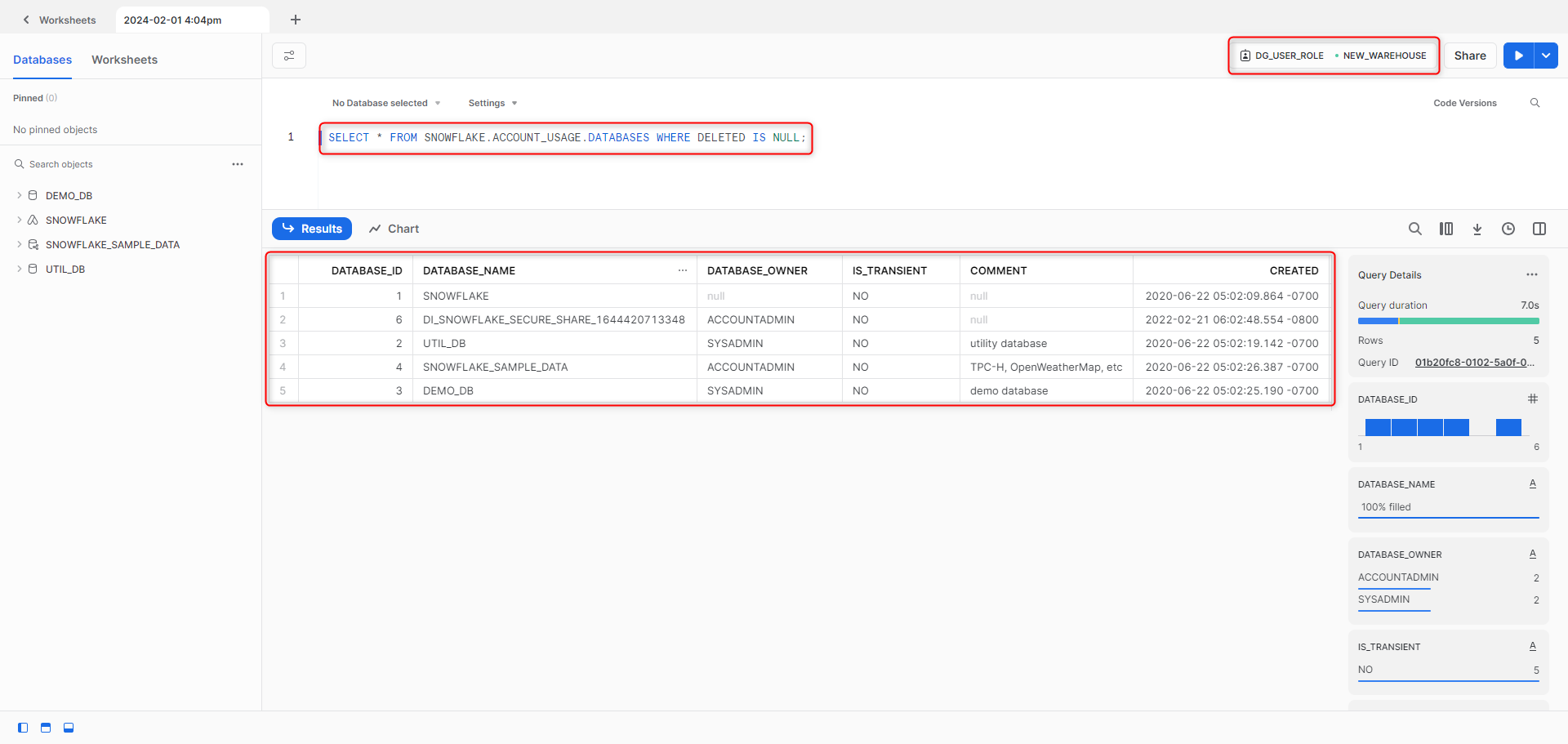
If you get the error message "Schema 'SNOWFLAKE.ACCOUNT_USAGE' does not exist or not authorized" like in the below example, you need to run in Snowflake, using a role that has sufficient rights, the command
grant imported privileges on all tables in DATABASE "SNOWFLAKE" to role <your_dg_role>;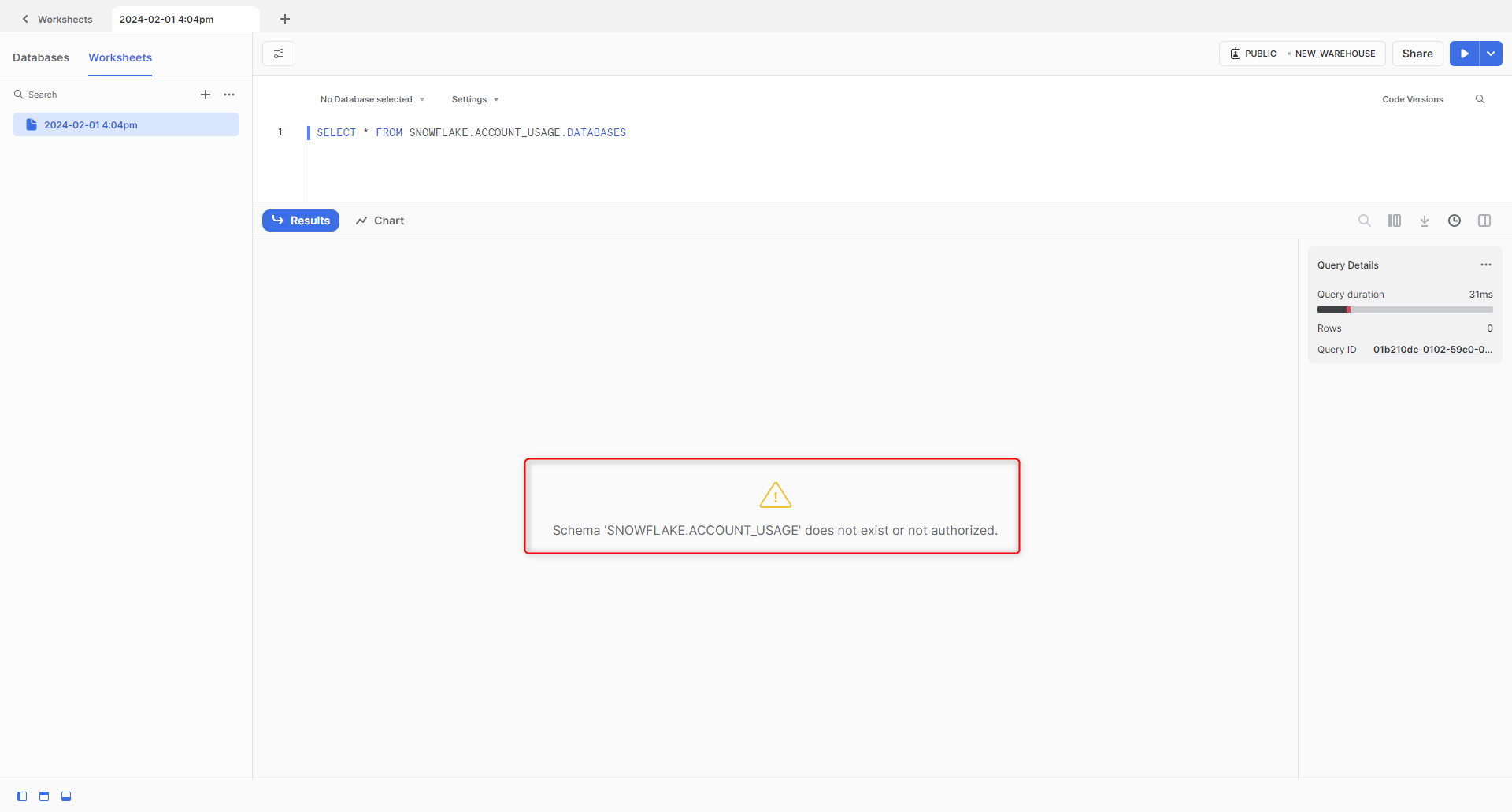
If it is a shared database the command to test is the following:
SELECT * FROM <shared_database_name>.INFORMATION_SCHEMA.SCHEMATAAnd the command to grant access if the previous request failed is the following, always using a role with sufficient rights:
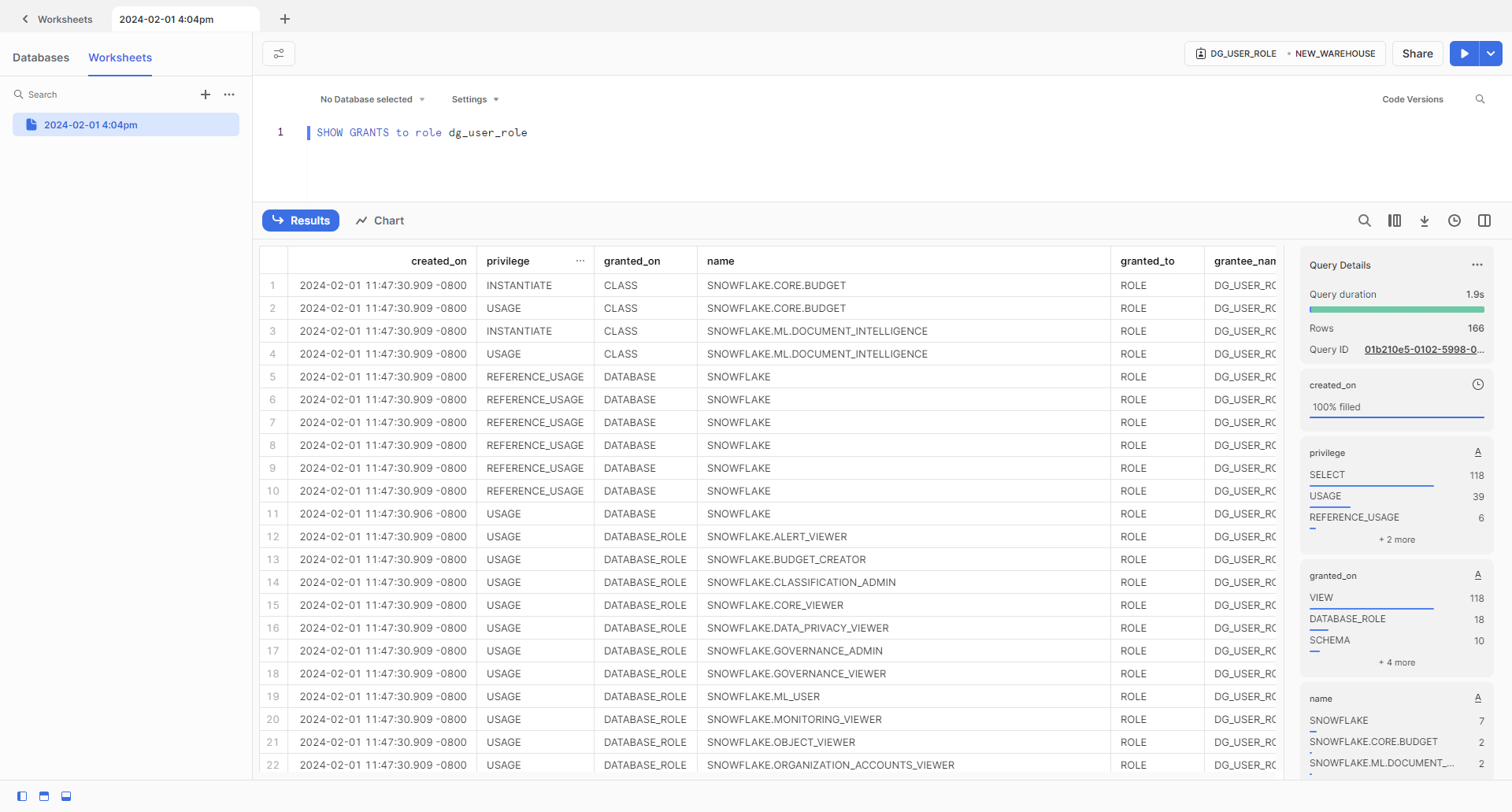
grant imported privileges on all tables IN DATABASE "<shared_database_name>" to role <your_dg_role>;Finally, know that the command SHOW GRANTS TO ROLE <your_dg_role>; that we saw earlier will also show the databases, schemas and tables the role has access too (see below example)
What to do if you get a "java.lang.IllegalArgumentException: Illegal pattern character 'I'" issue when importing?
This might be an issue with the DATE_OUTPUT_FORMAT setting value containing an illegal character. One solution is to set the value to the default YYYY-MM-DD by using the following query:
ALTER SESSION SET DATE_INPUT_FORMAT = "YYYY-MM-DD"
At any time you can check all the parameters by using the command SHOW PARAMETERS