
This article describes how DataGalaxy OneLake connector works.
This connector is available in the following modes:
| Desktop mode ✅ | SaaS Online mode ✅ |
Connector scope
The connector allows you to import the following metadata from OneLake Lakehouses and Warehouses into a Database source:
- The set of schemas for a given database
- The content of the schemas: tables, views and columns
- Primary and foreign keys between tables
The extracted objects and their correspondences are detailed in the following table:
OneLake Object | DataGalaxy Object | Comments |
| Schema | Model (Container) | |
| Table | Table (Structure) | Comments are uploaded to the DataGalaxy Technical Comment field. |
| View | View (Structure) | Comments are uploaded to the DataGalaxy Technical Comment field. |
| Column | Column (Field) | Name, data type (size and precision), description, order are returned when available. Comments are uploaded to the DataGalaxy Technical Comment field. |
| Primary Key | Primarey Key | This information will be used to link tables in DataGalaxy diagrams |
| Foreign Key | Foreign Key |
Configuration of a connection
OneLake connector uses the JDBC driver provided by Microsoft.
The following information is required to set up a connection:
Parameter | Mandatory | Description |
| Endpoint OneLake SQL | Yes | OneLake SQL endpoint hostname |
| Database | Yes | Limits the scope to the specified database |
| Schema | No | Limits the scope to the specified schema |
| Available authentication modes: | ||
| SQL/AAD password (desktop)/ AAD password with MFA (desktop) | ||
| User | Yes | |
| Password | Yes | |
| AAD Service principal (desktop) | ||
| Tenant ID | Yes | Tenant ID |
| Client ID | Yes | Client ID |
| Client Secret | Yes | Client secret |
| Advanced mode | ||
| Advanced mode (Desktop connector option) | No | Option to customize the JDBC URL used to connect |
Execution of the connector
To create a connection to OneLake via the Online connector, the entry points are as follows:
From the Import button of the "Shortcuts" widget on the home screen of a client space or workspace
From the Import button of one of the modules when it is empty
From the Import button in the contextual menu of one of the modules, on the right side of the filtered views
From the Add a connection button in the Connector tab available in the workspace setup screen
You can optionally filter (by module, connector type or by using the search bar), then click on the desired technology: 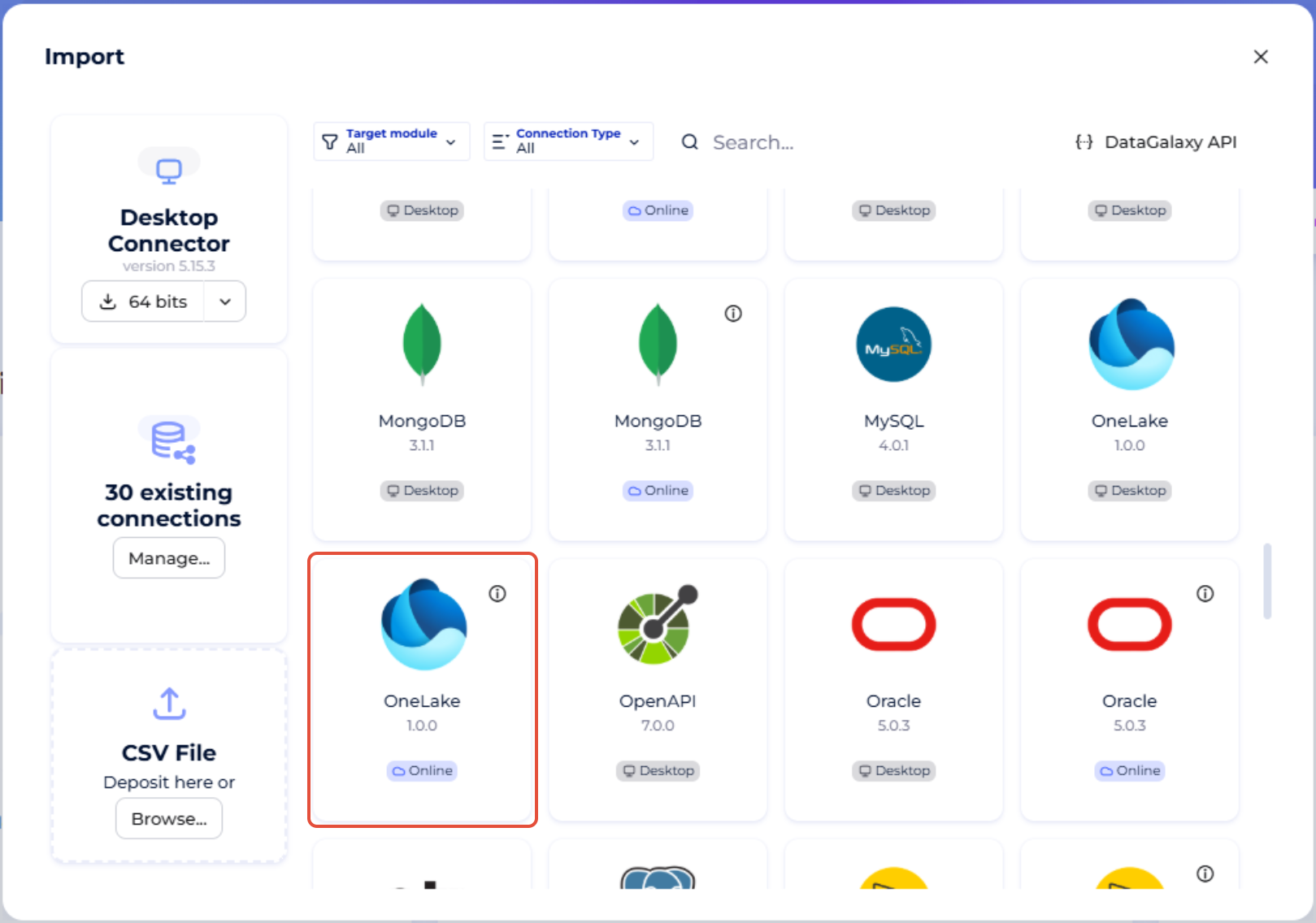
You then need to complete the login form using the login information described above to perform an import. For more details on the steps involved in running the Online connector, you can consult the following article: [HowTo] Running the Online Connector.
This technology is also available via the Desktop Connector, you can find more information on the procedure here: [How to] How to use the connector.
Releases
| Date | Version | DataGalaxy Version | Desktop Connector version (minimum) | Description |
| 07/07/2026 | 2.0.1 | v3.376.0 | 5.18.2 | New internal implementation |
| 23/06.2026 | 1.0.4 | 3.360.0 | 5.16.1 | Fixed some security vulnerabilities |
| 03/03/2026 | 1.0.2 | 3.313.3 | 5.15.6 | Updated internal dependencies |
| 19/12/2025 | 1.0.1 | 3.293.1 | 5.15.4 | Fixed a bug in the Desktop UI related to saved connections |
| 05/12/2025 | 1.0.0 | 3.288.1 | 5.15.3 | First version release |