
This article explains how to use the Google BigQuery connector for DataGalaxy.
This connector is available in the following modes:
| Desktop mode ✅ | SaaS Online mode ✅ |
This connector suppports the following import modes:
| Standard mode ✅ | URN mode ✅ |
Technology
BigQuery is a fully managed enterprise data warehouse, helping you manage and analyze your data with integrated features such as machine learning, geospatial analysis and business intelligence.
Scope, attributes and mapping with DataGalaxy
Objects
Some of the attributes listed here may not be present by default in your objects' screens configuration. To make them appear in DataGalaxy screens, it may be necessary to adapt the screens of the concerned objects before running the connector. See this article to learn more about screen customization.
Project
A BigQuery Project is represented by a NoSQL source in the Dictionary and by a Data Flow in the Data Processing module.
The URN follows this syntax:
urn:googlebigquery-1:project
The following attributes are retrieved from the connection configuration:
| DataGalaxy attribute | Source/Value |
|---|---|
| Technical name | Project name |
Dataset
A Dataset is represented by a Directory.
The URN follows this syntax:
urn:googlebigquery-1:project:dataset
The list of Datasets is retrieved using the listDatasets() method of the BigQuery client library. The following attributes are retrieved using the getDataset() method:
| DataGalaxy attribute | Source/Value |
|---|---|
| Technical name | id.dataset |
| Description | description |
| Technical type | "DATASET" |
| Geographical location | location |
| Creation date of the source object | creationTime |
| Last modification date of the source object | lastModified |
Table, View
A Table or a View are represented by a Document.
The URN follows this syntax:
urn:googlebigquery-1:project:dataset:table
urn:googlebigquery-1:project:dataset:view@view
The following attributes are retrieved using both the getTable() method of the BigQuery client library and the metadata provided by the INFORMATION_SCHEMA.TABLES view of the Dataset:
| DataGalaxy attribute | Source/Value |
|---|---|
| Technical name | tableId.table |
| Description | description |
| Technical type | table_type |
| Creation date of the source object | creation_time |
| Last modification date of the source object | lastModifiedTime |
| Expiration date of the source object | expirationTime |
| Geographical location | Location |
| Query | ddl |
| Number of records | numRows |
| Current storage size | numBytes |
| Storate size unit | "bytes" |
The following attributes are calculated:
| DataGalaxy attribute | Source/Value |
|---|---|
| Is partitioned | true if at least one Field is part of a partition definition |
Field
A Field is represented by a Field.
The URN follows this syntax:
urn:googlebigquery-1:project:dataset:table:field@field
The following attributes are retrieved at the same time as the Table's metadata and completed using the INFORMATION_SCHEMA.COLUMNS view of the Dataset:
| DataGalaxy attribute | Source/Value |
|---|---|
| Technical name | column_name |
| Summary | description |
| Data type | type |
| Technical type | "COLUMN" |
| Order | ordinal_position |
| Is mandatory | mode = "REQUIRED" |
| Is partition key | is_partitioning_column |
Job
A BigQuery Job is represented by a Data Processing.
The URN follows this syntax:
urn:googlebigquery-1:project:jobId@job
The following attributes are retrieved using the listJobs() method of the BigQuery client library:
| DataGalaxy attribute | Source/Value |
|---|---|
| Technical name | jobId.job |
| Query | configuration.query |
Links
The links created by the Google BigQuery connector are lineage links between Dictionary structures and eventually Data Processing objects. If the connector is configured to retrieve BigQuery Jobs, the links are created between the Data Processing objects which represent the BigQuery Jobs and the corresponding input and output Dictionary structures. Otherwise, links are created directly between Dictionary structures.
The lineage is retrieved using the Dataplex REST API, especially searchLinks, batchSearchLinkProcesses, processes, runs and lineageEvents endpoints.
Detailed scope
Input
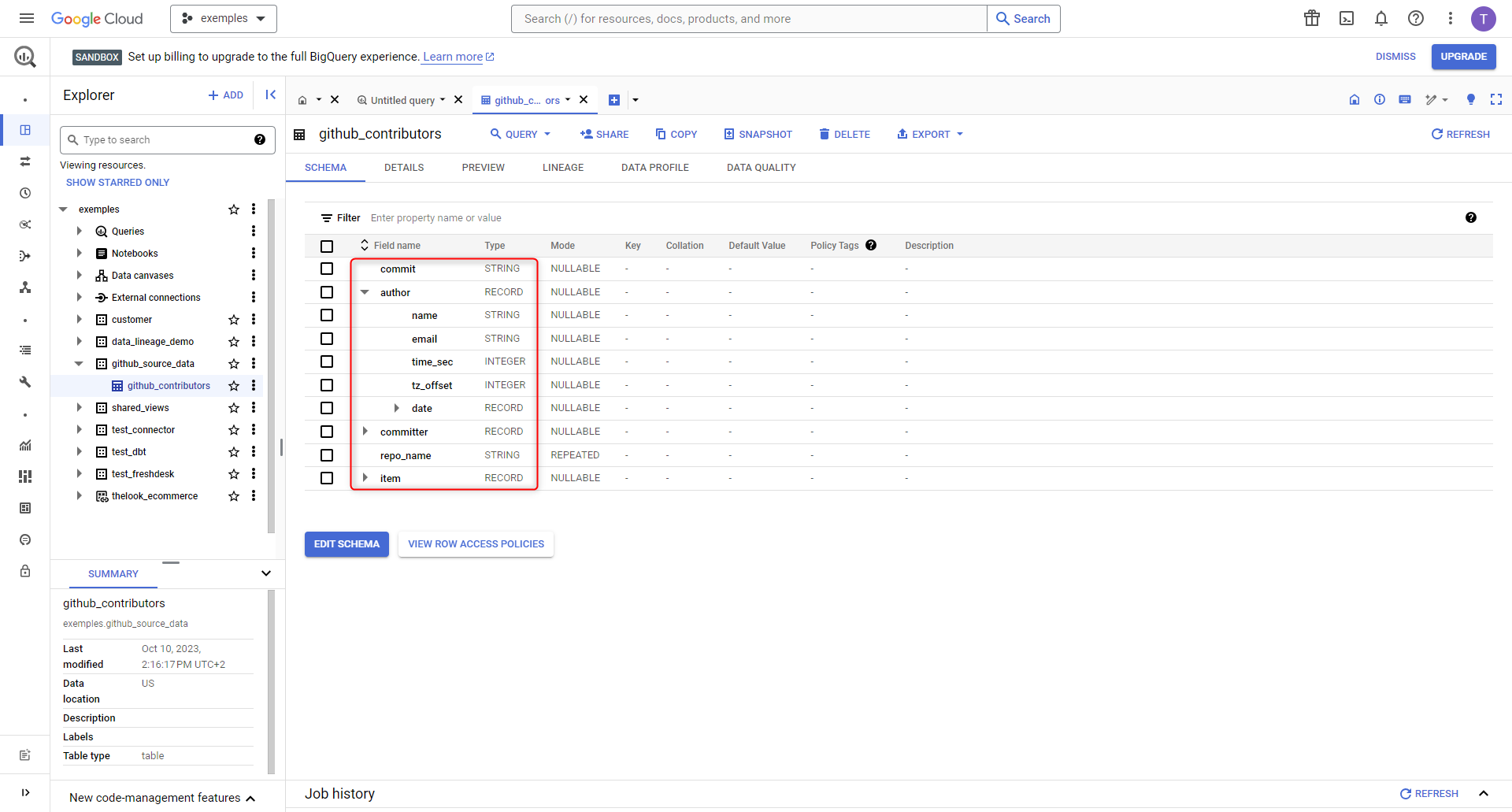
- Dataset, table and view
In BigQuery's home tab, these elements appear on the left-hand side
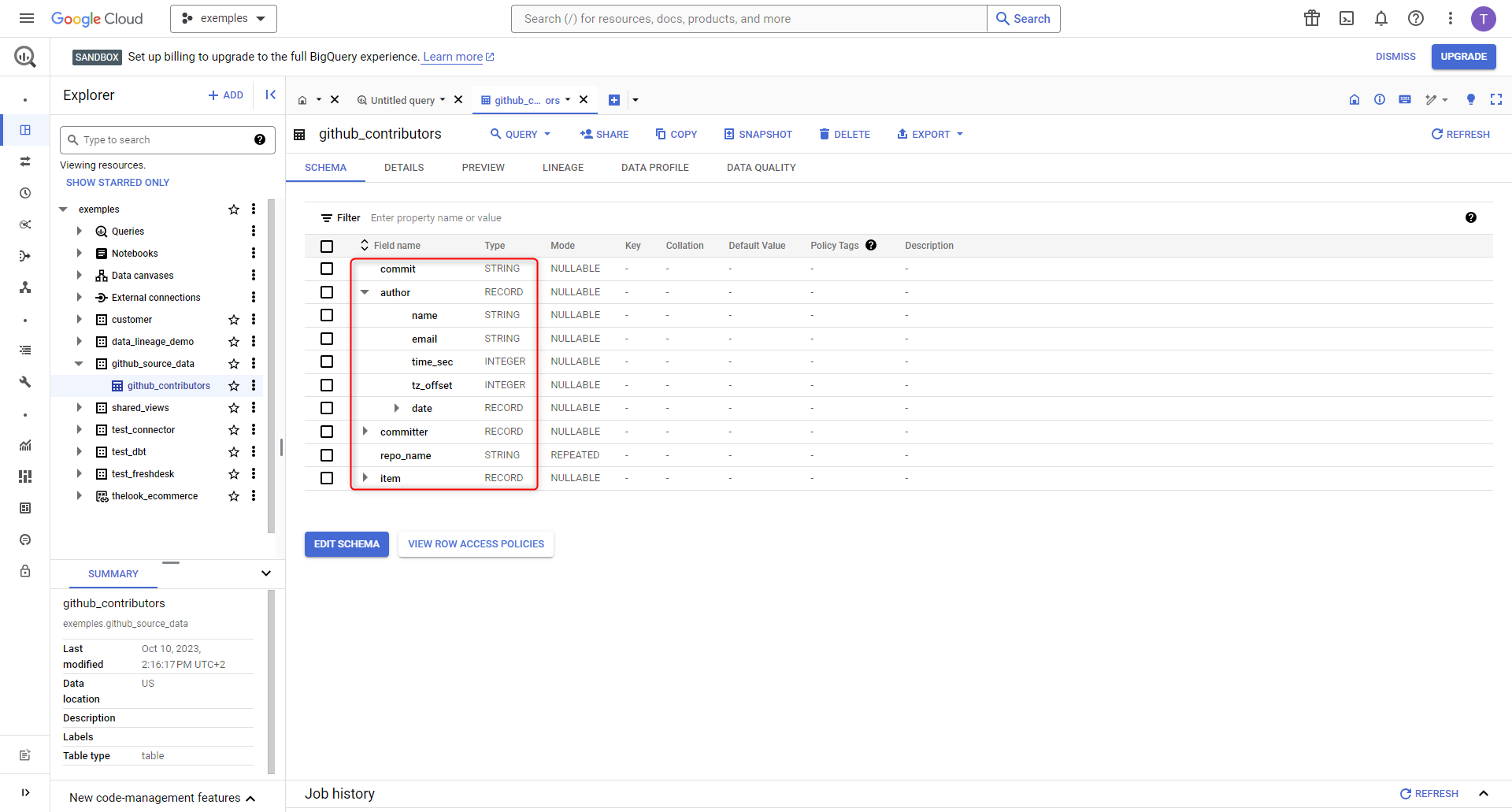
- STRUCT/RECORD field and "normal" field
Selecting a table opens a new tab, giving details of the table schema
- Process/job
Once you've selected a table, the "Lineage" tab will display the processing nodes and, by clicking on them, additional information such as their id, which will be uploaded to DataGalaxy
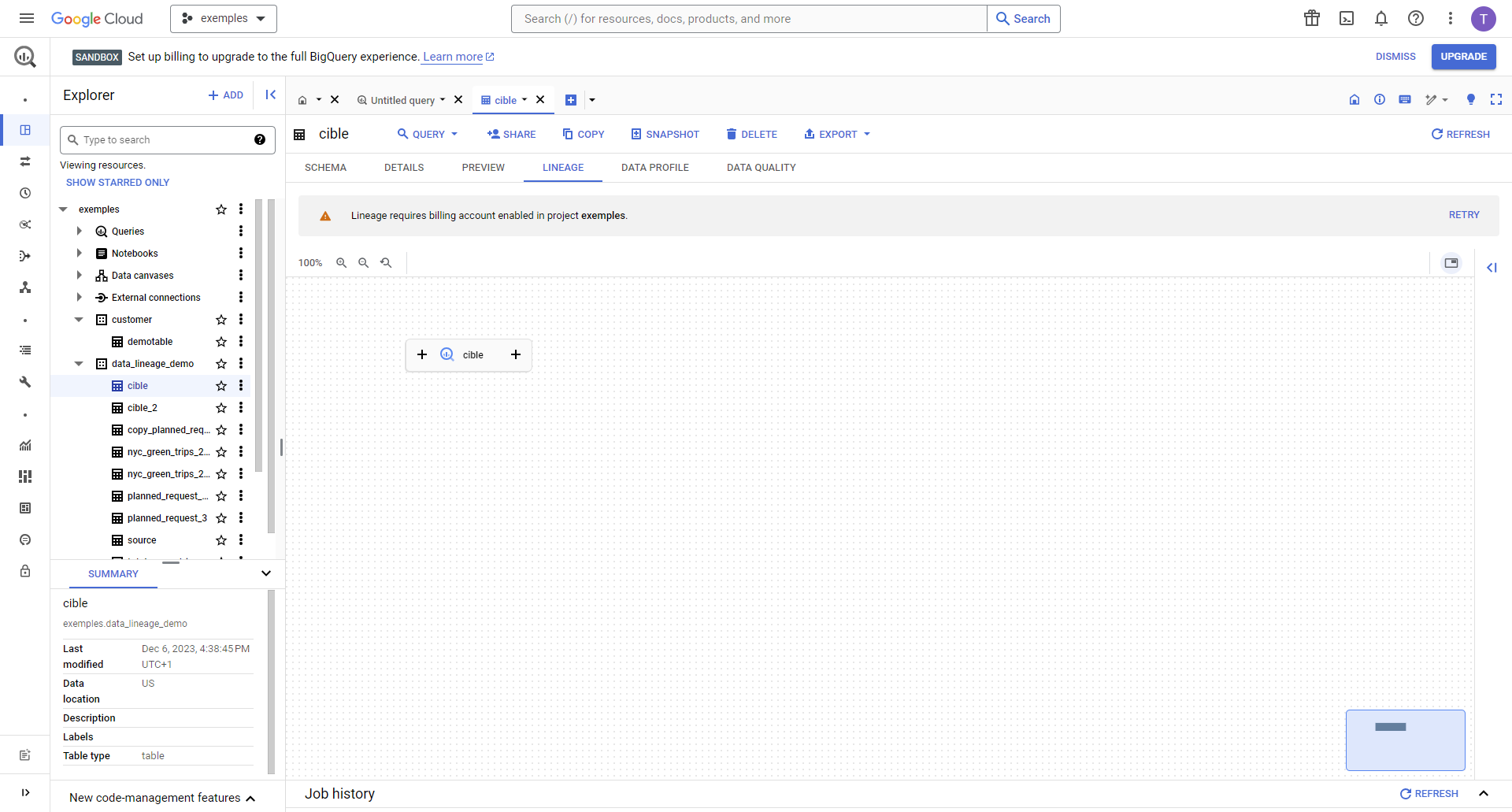
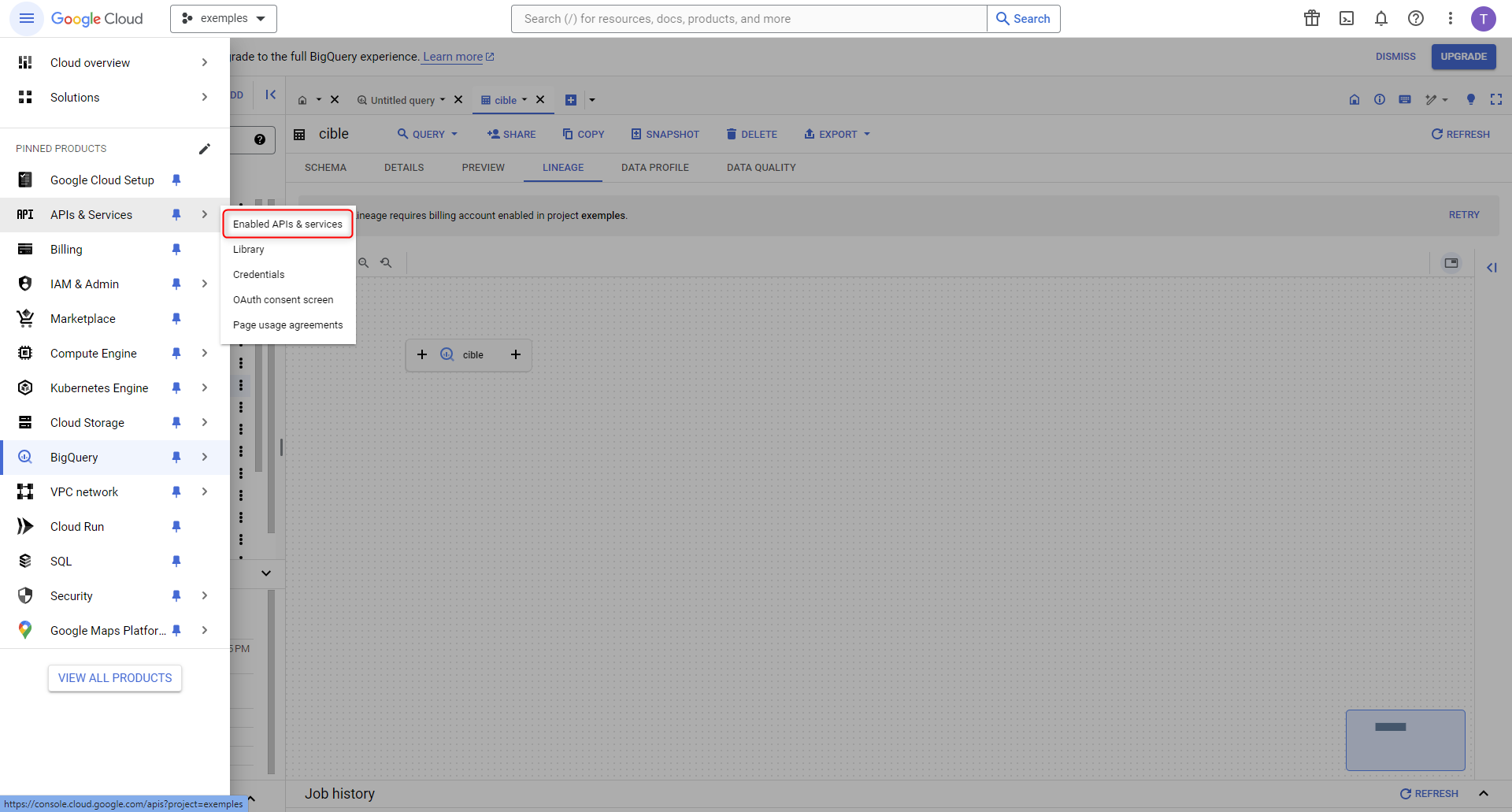
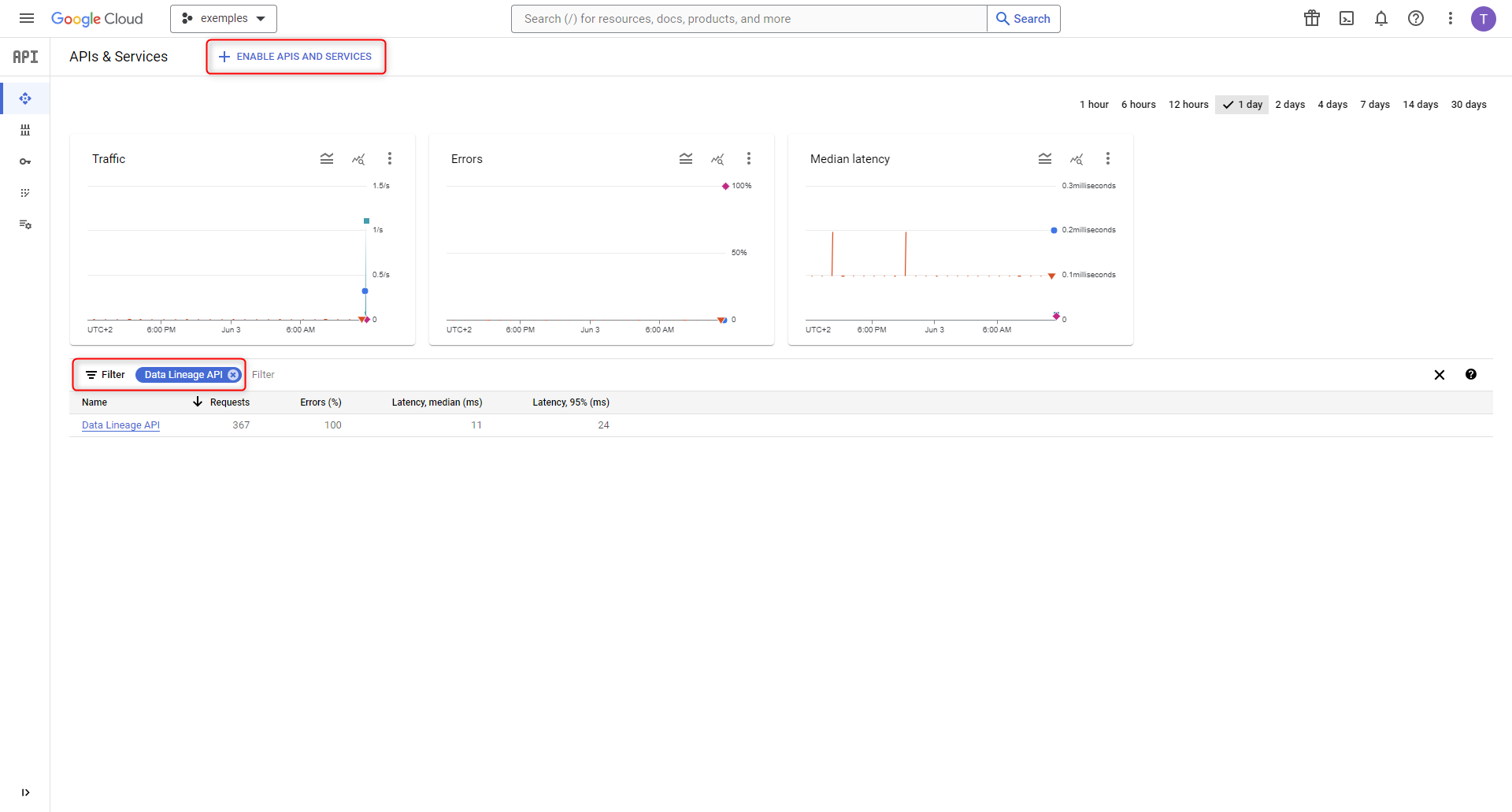
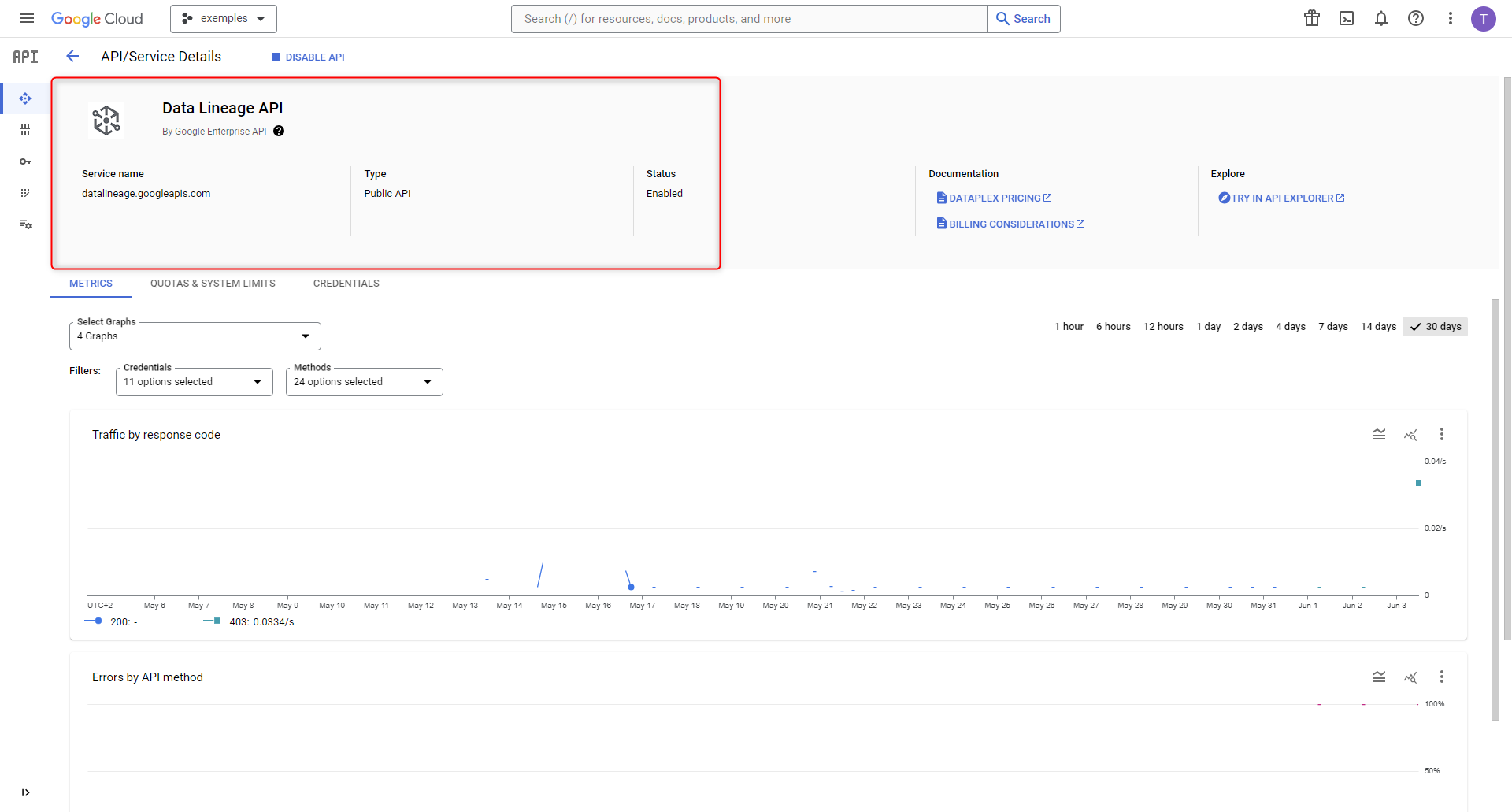
If no information is displayed in this window, check that the Data Lineage service and the associated API are enabled. To do so, select "APIs and services" from the left-hand menu, then "Enabled APIs and services" (capture 1) and filter on "Data Lineage API". If no results are found, click on "+ ACTIVATE APIS AND SERVICES" (capture 2). This will take you to the Google API library page, where you can search for, select and activate "Data Lineage API" (capture 3).
Output
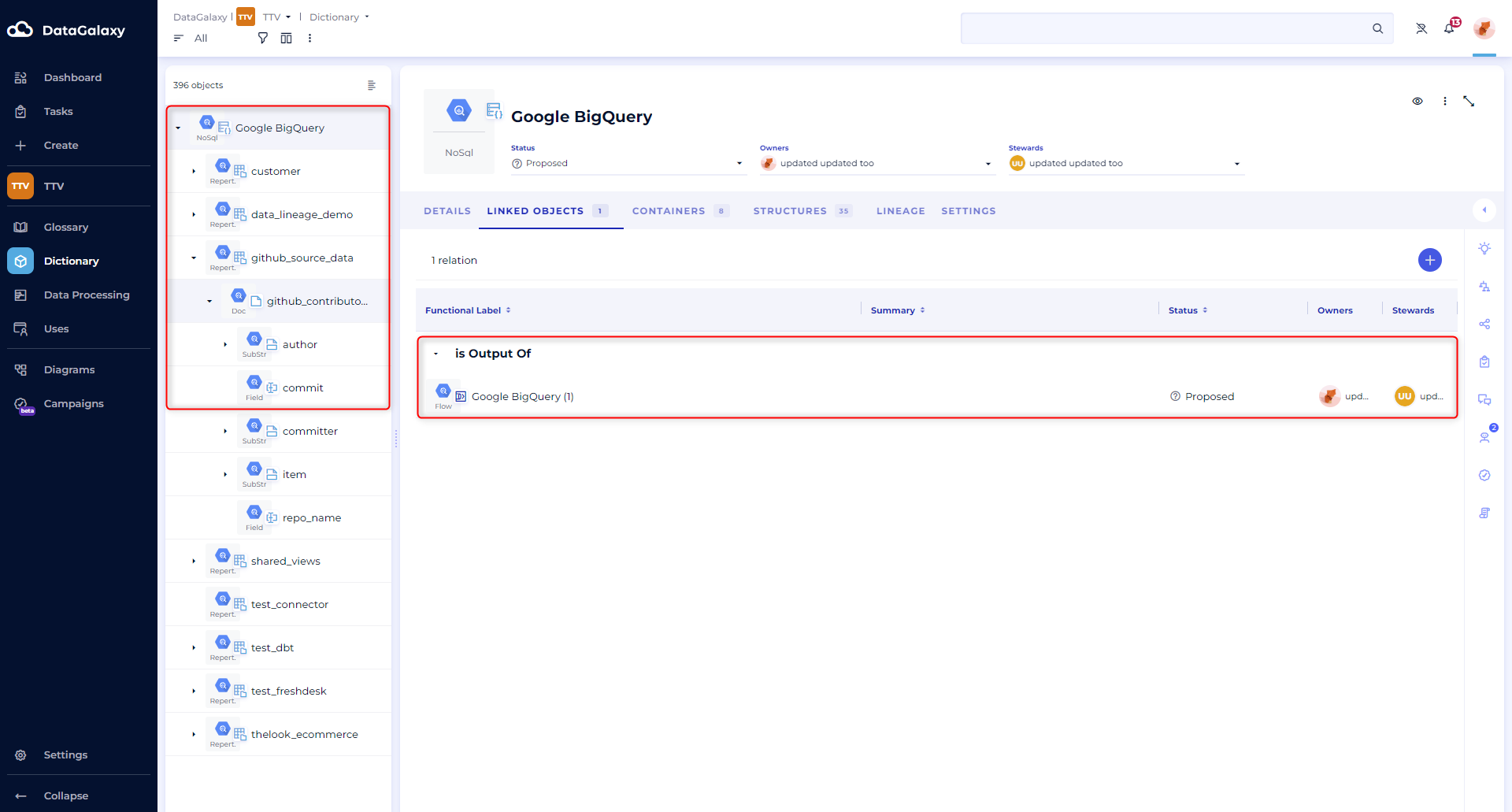
- Directory, Document, Substructure, Field (Dictionary module)
- Processing
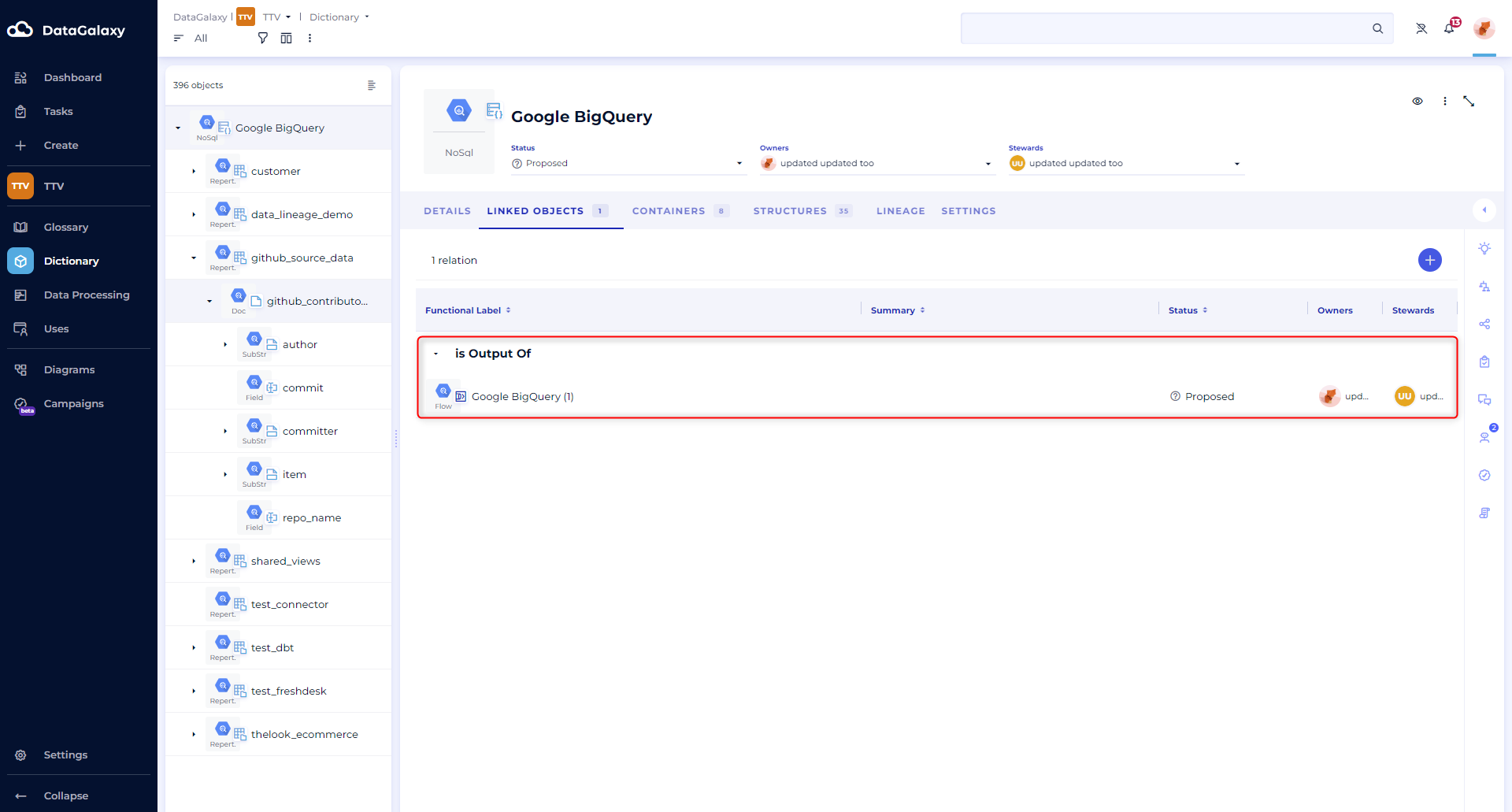
In the Dictionary module, in the "Related objects" tab of a Document object, you will find a reference to the Treatment(s) concerned
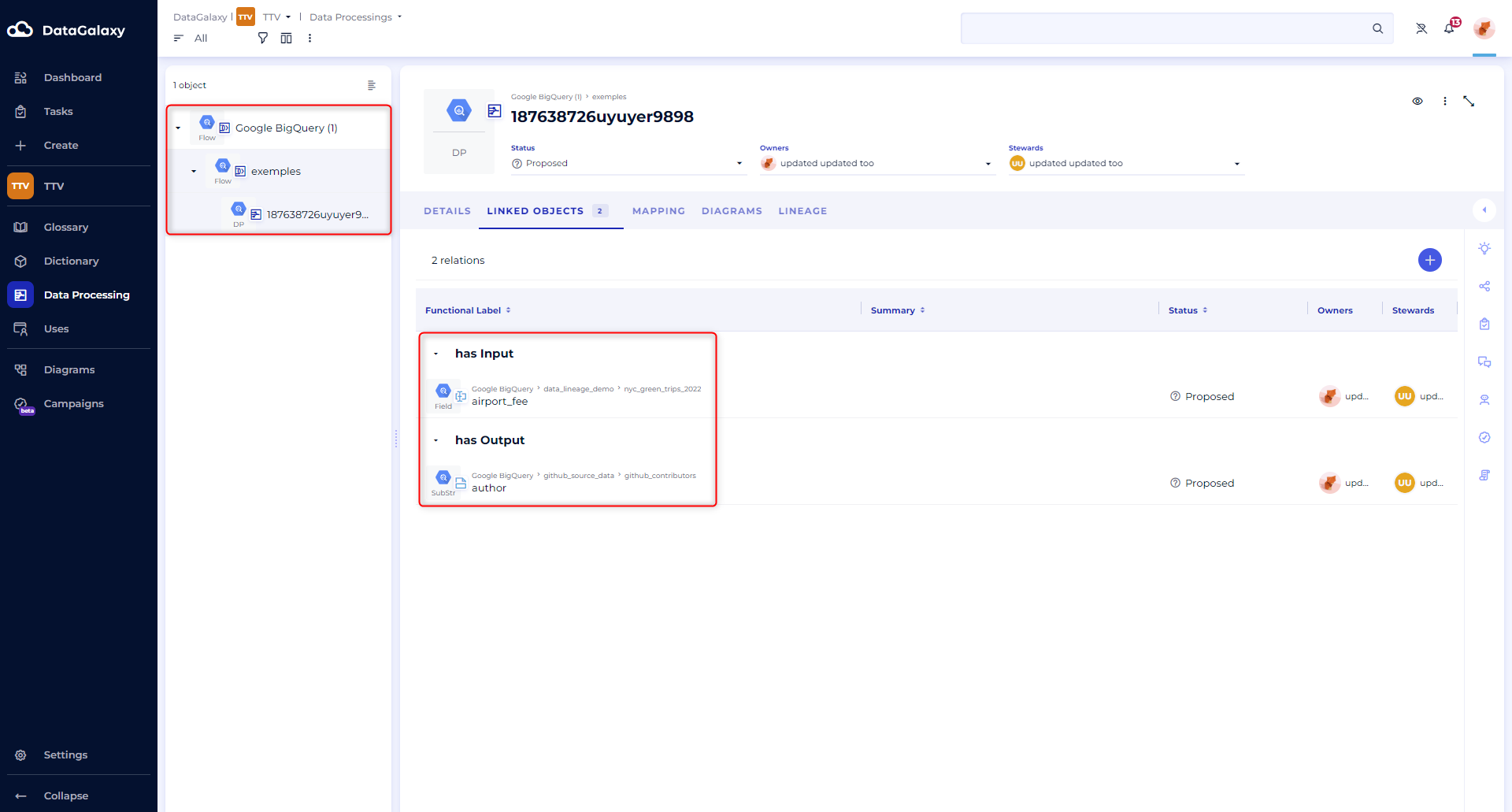
In the Processing module, you will find a "Processing" object that links "Document" type objects together
Setting up a connection
On the BigQuery side
- Creating a dedicated service account
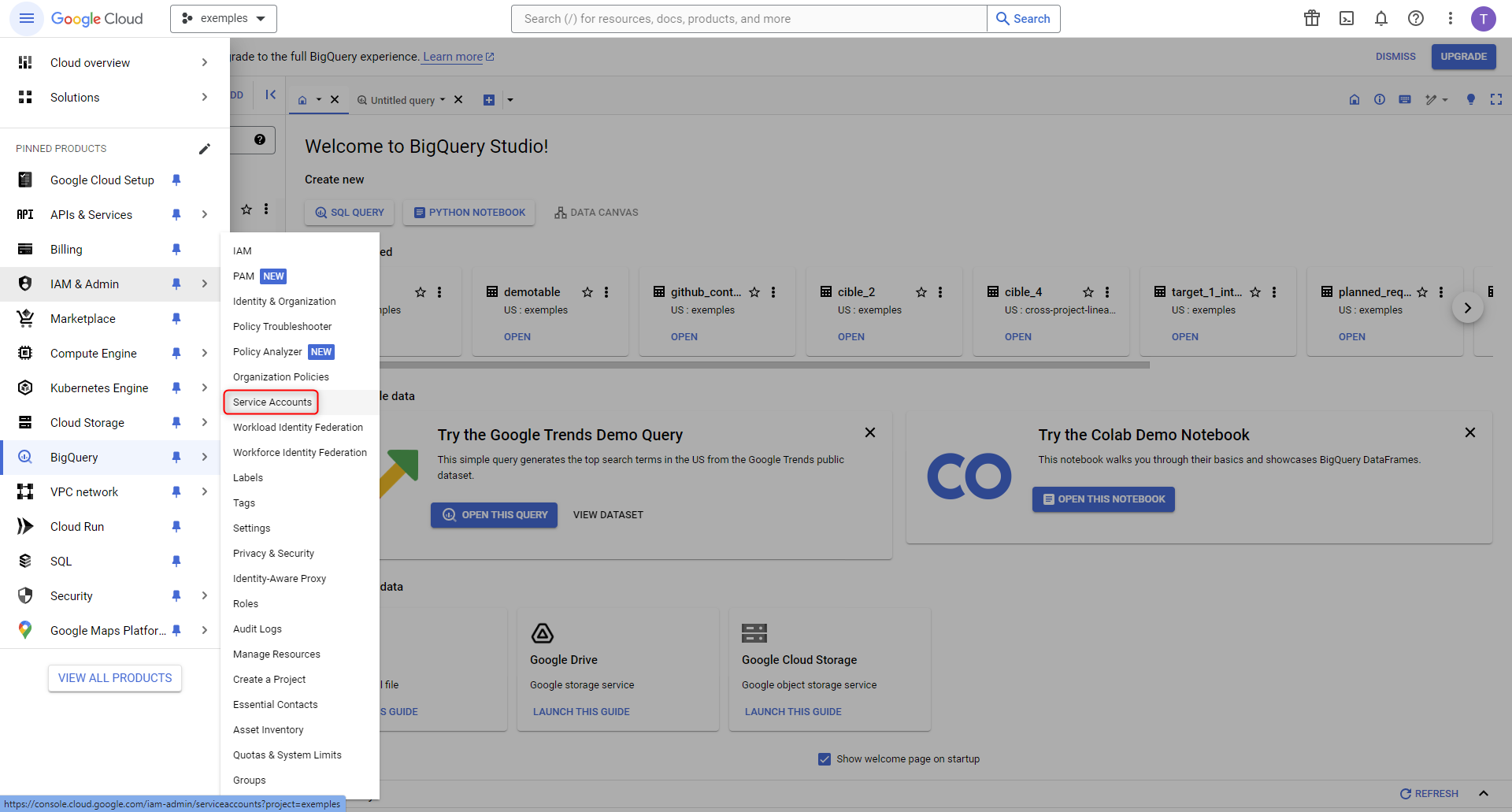
To perform this action, go to the "Service accounts" page in the "IAM and administration" menu, with the project targeted by the import selected in the top right-hand corner ("examples" here)
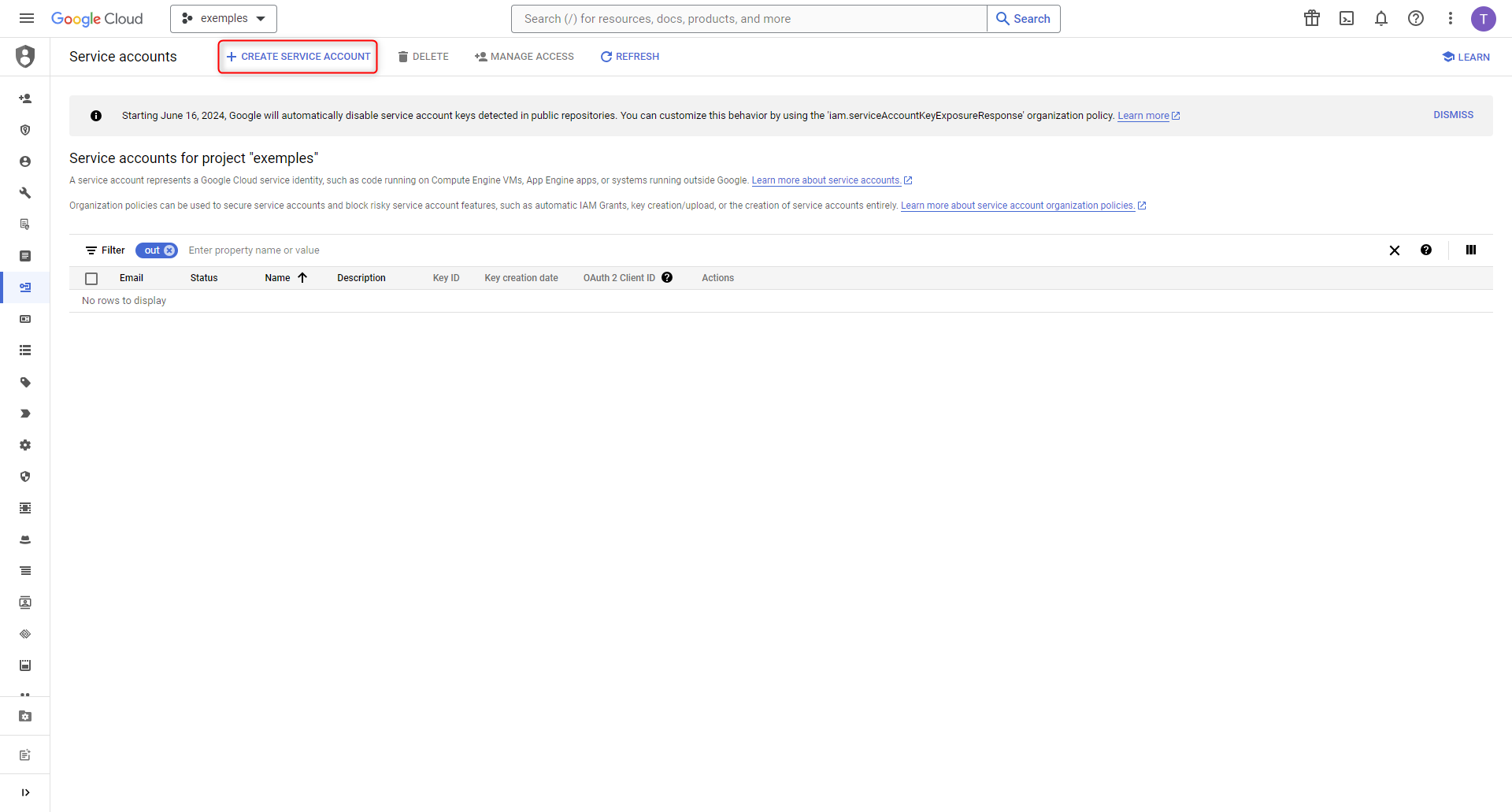
On this page, simply select "+ CREATE SERVICE ACCOUNT" and follow the steps
- Creating a dedicated role
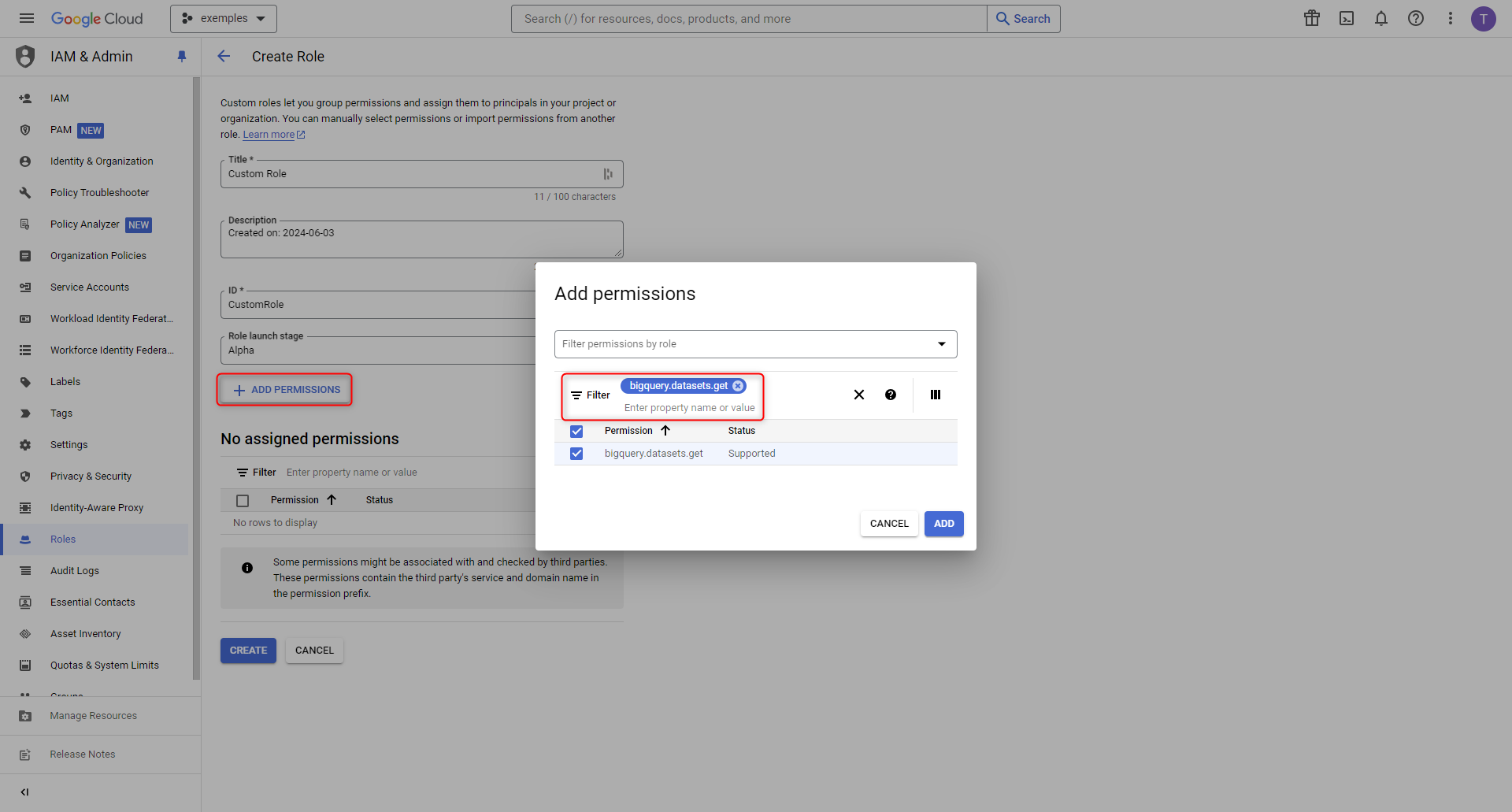
We're going to create a dedicated role for this new service account, this time by going to the "Roles" page in the "IAM and administration" menu, then selecting the "+ CREATE ROLE" option.
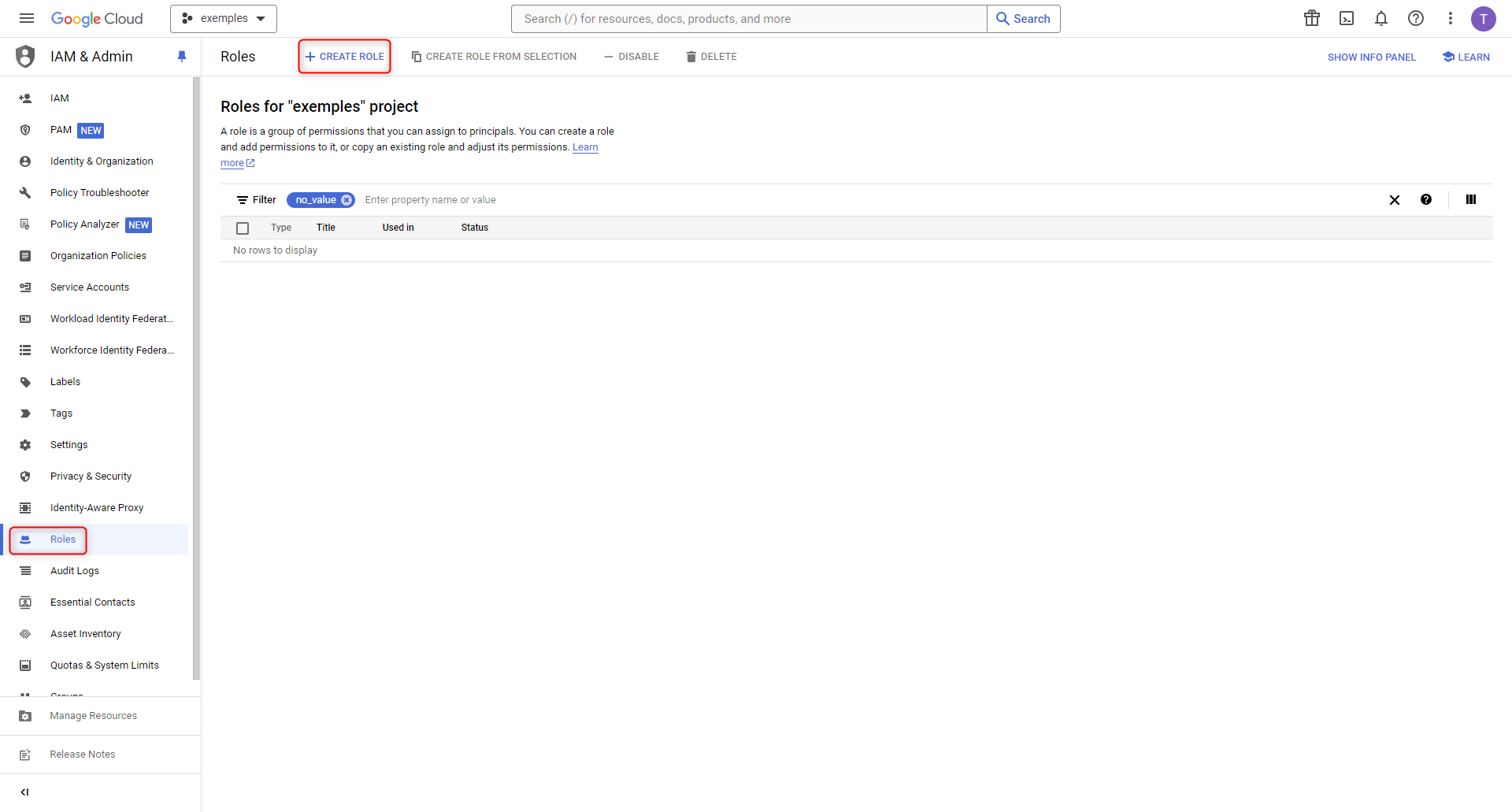
Once you've opened the creation window and given the role a name ("DataGalaxy role" here), click on "+ ADD PERMISSIONS". You can then add the necessary authorizations one by one, entering them in the filter bar before selecting and adding them (example: "bigquery.datasets.get" here).
- Assigning this role to the service account
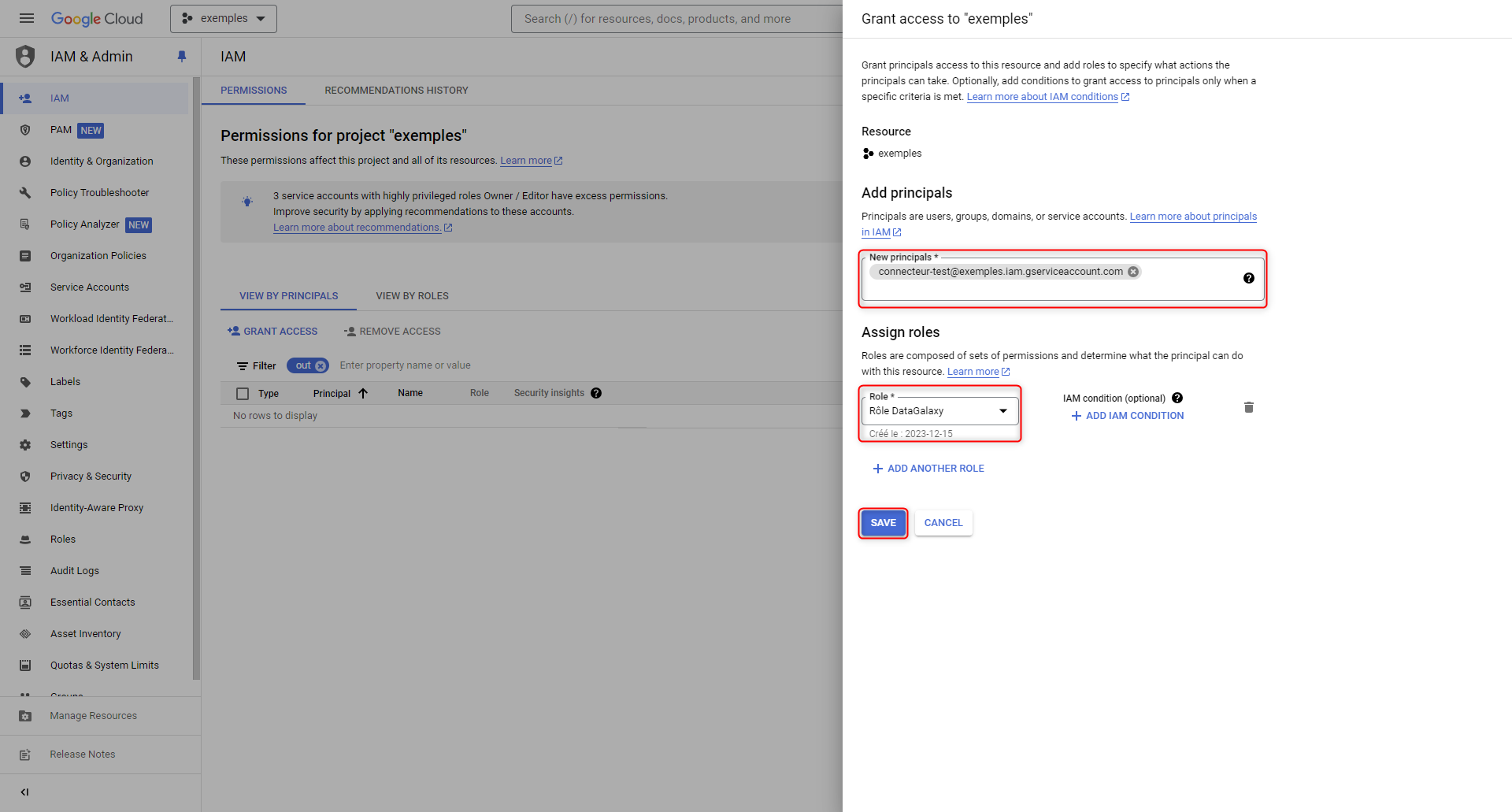
To do this, go to the "IAM" page in the "IAM and administration" menu, then select the "GRANT ACCESS" option.
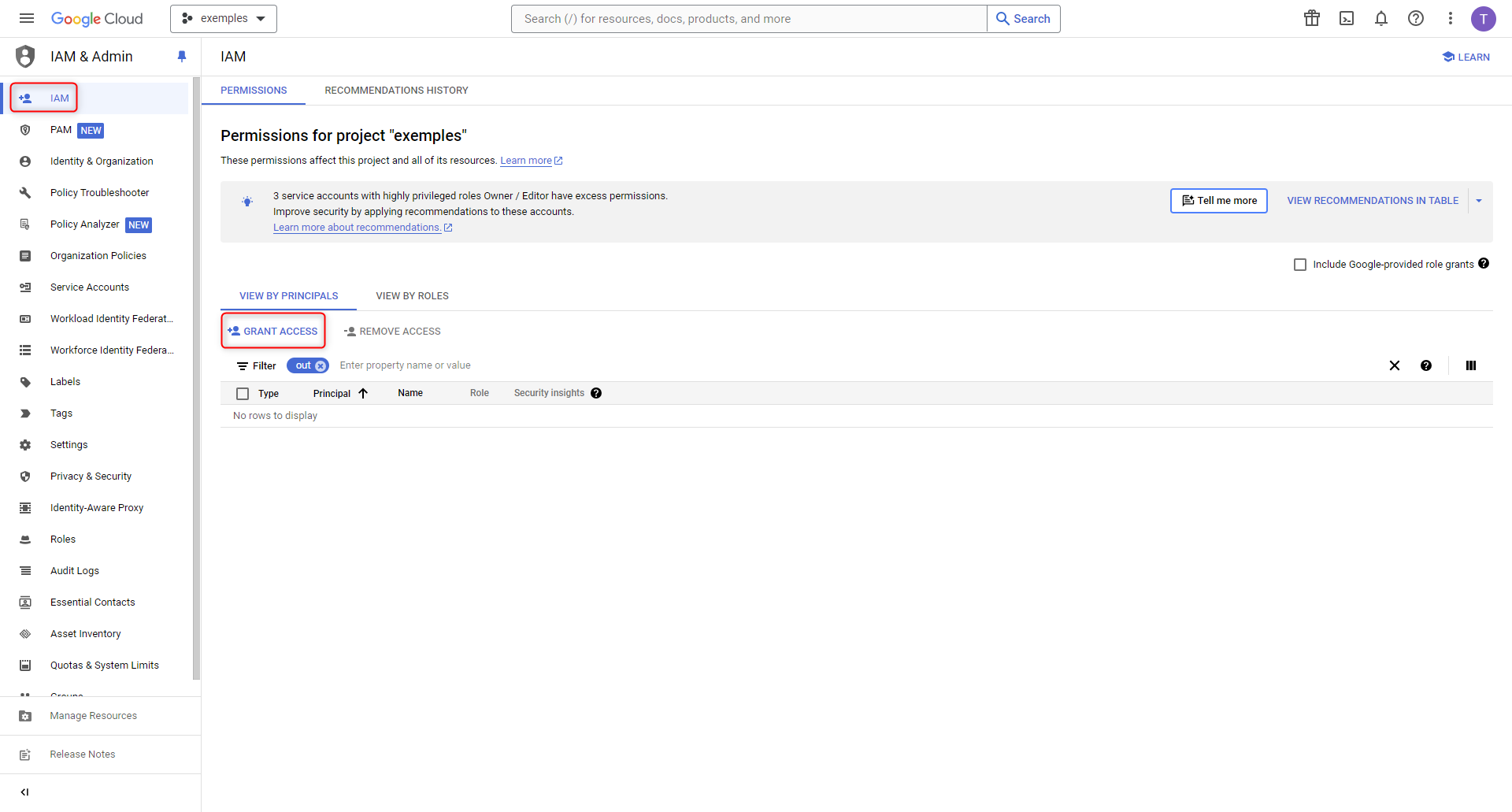
If your service account does not have any rights, it will not appear in the list of main accounts listed by IAM (as shown here with "connecteur-test"). If you wish to add the DataGalaxy rol to an account that already has rights, simply click on the modification icon to the right of the table listing the accounts.
In the tab that opens on the right, you can enter the full identifier of your service account and assign it the desired role before validating with "Save".
Details of the rights necessary to obtain metadata
We will now detail the permissions associated with different types of metadata:
Be careful: permissions in GCP are by project, be sure to add the necessary permissions for each project of your environment.
- Level 1: Dataset, table/view, RECORD/STRUCT type field, and field (general information)
Add to your service account the following standard role:
- BigQuery Metadata Viewer (roles/bigquery.metadataViewer)
- BigQuery Job User(roles/bigquery.jobUser)
BigQuery Job User allows you to add information about the retrieved BigQuery objects. Without it, the connexion test will still work and the objects retrieved, but none of the DataGalaxy attributes associated with them will be completed.
- Level 2: Lineage links between tables/views
Retrieving lineage information requires more permissions as described in the GCP documentation. In addition to the level 2 permissions, add the following standard role:
- Data lineage viewer (roles/datalineage.viewer)
- Level 3: Process/job
This level of permission will allow the import function "Create BigQuery jobs in Processing module", when selected, to work correctly by retrieving the jobs in addition to their links with the given tables/views and the query that is responsible for that creation.
- BigQuery Resource Viewer (roles/bigquery.resourceViewer)
Summary
| GBQ object | DataGalaxy object | Level 1 | Level 3 |
|---|---|---|---|
| Dataset | Directory (Container) | ✅ | ✅ |
| Table/View | Document (structure) | ✅ | ✅ |
| Field of type STRUCT/RECORD | Substructure | ✅ | ✅ |
| Field | Field | ✅ | ✅ |
| Process/Job | Treatment | ✅ |
On the DataGalaxy side
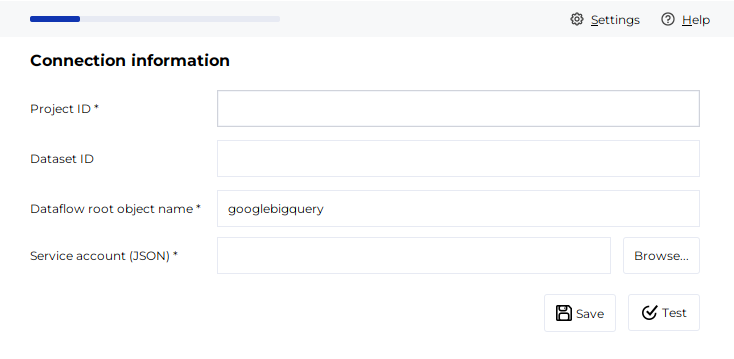
The following information is required to set up a connection:
| Parameter | Mandatory | Description |
| Project Id | Yes | Google Cloud project name |
| Dataset Id | No | Limits the scope to a dataset contained in the project (more information about datasets here). |
| Private Key | Yes | Path to the .json file containing the private key |
| Get lineage from Dataplex | No | Requires activation of the Lineage API |
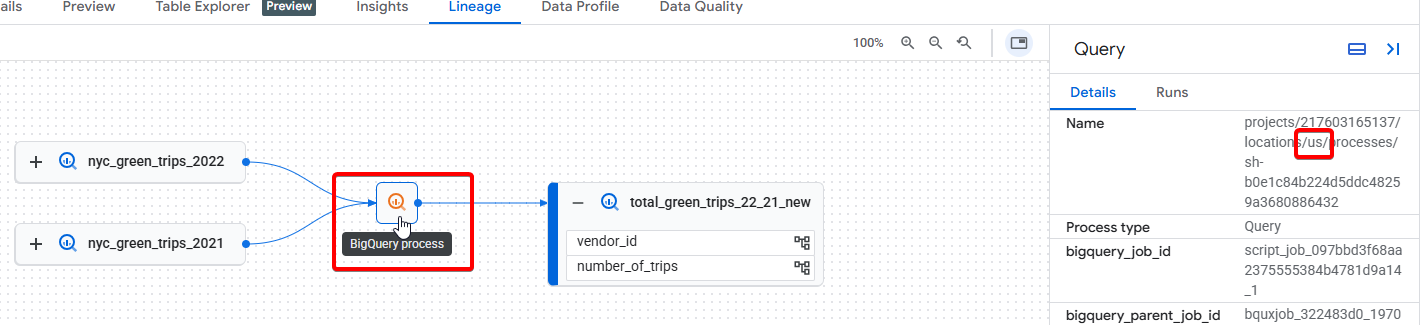
| Location where data processing runs | No | Lineage links are stored in the region where processes run (default value: eu) |
| Create BigQuery jobs in Processing module | No | If deactivated, links will be created between dictionary objects |
| Lineage granularity | No | By default retrieve lineage at table level |
PS: Information linked to job location can be found in the "Lineage" tab of any given table (example with the location us here)
From Standard to URN mode
Differences
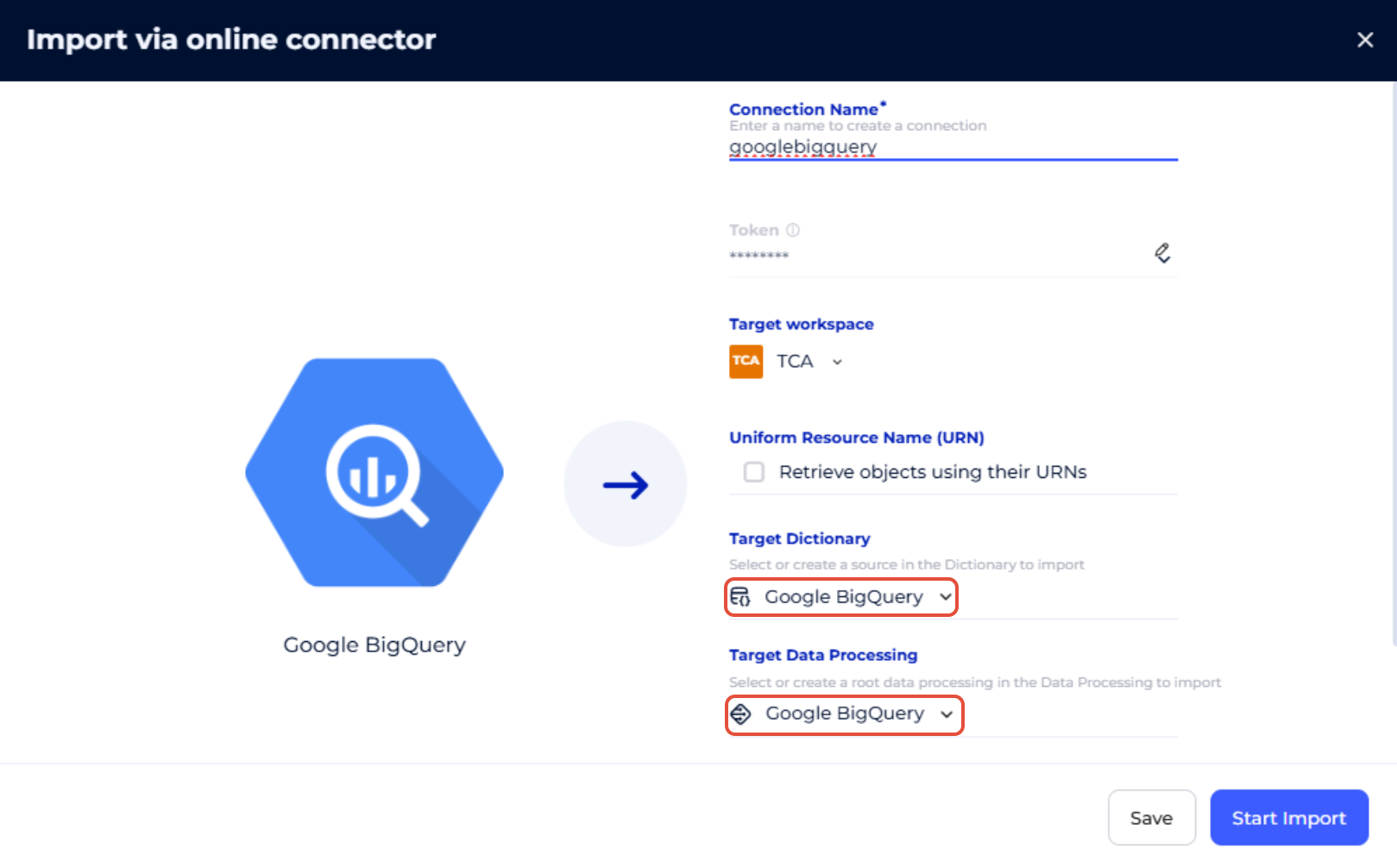
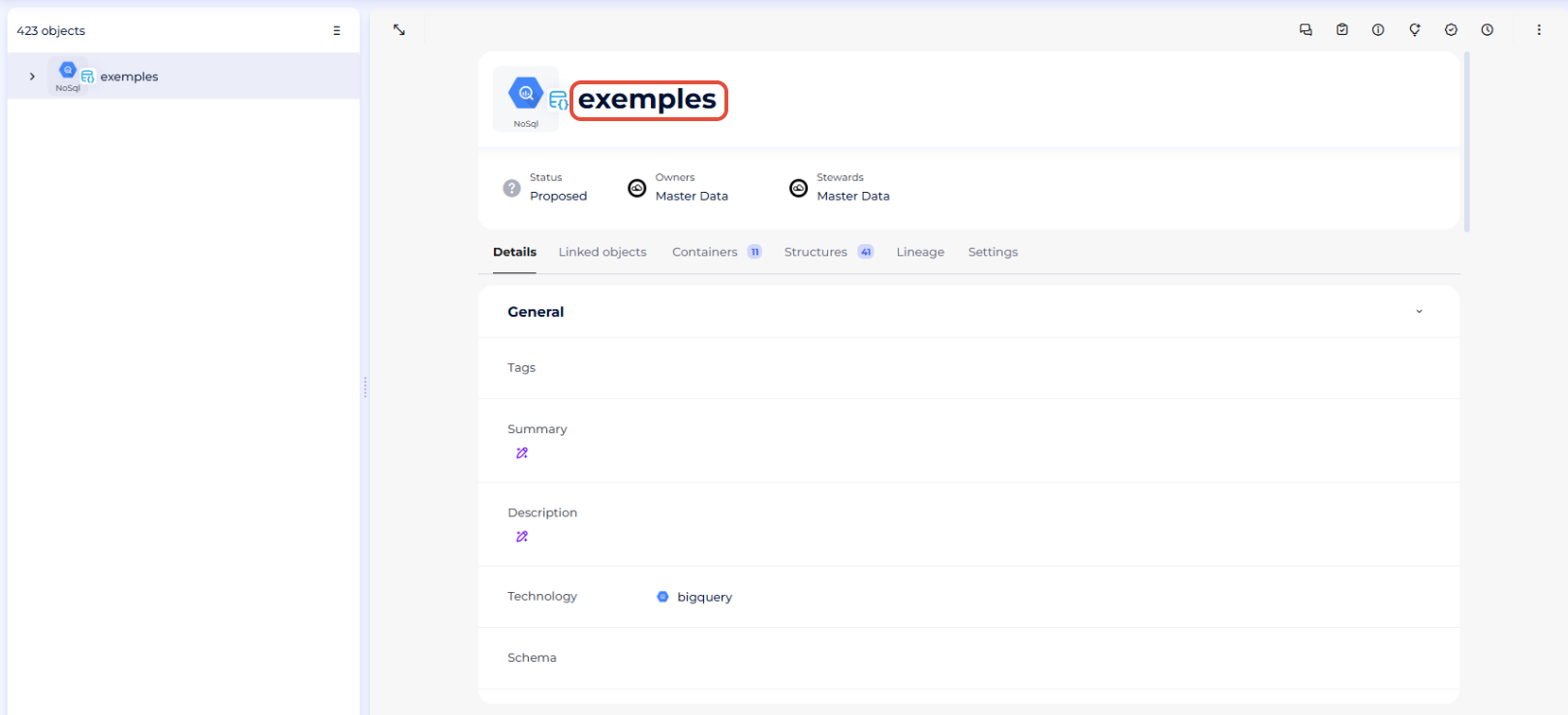
- In Standard mode, the name of your root object will be the one you give it when you create the connection (or the root object of the Dictionary module you target). In URN mode, the name of the root object will be the name of your Google Cloud project.
- Standard mode
- URN mode
- Standard mode
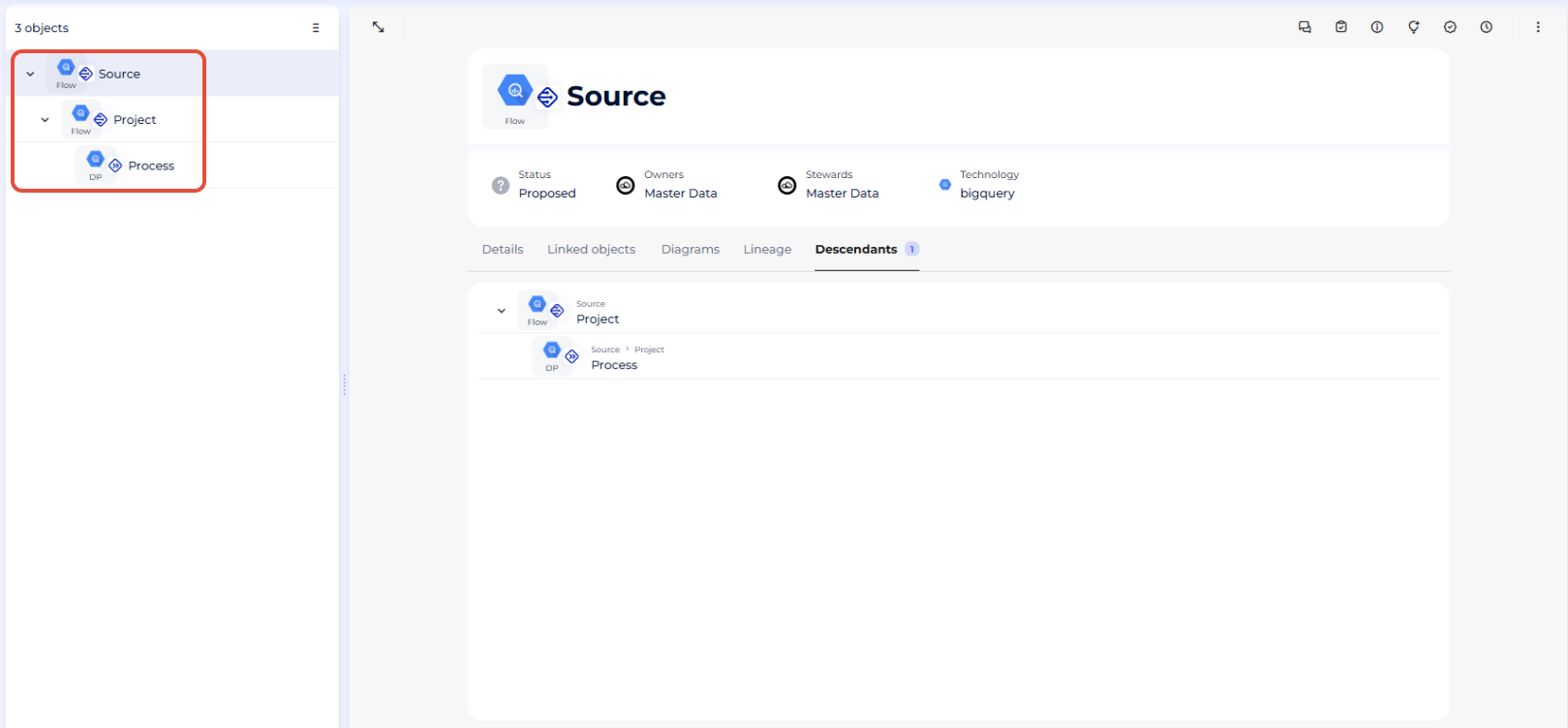
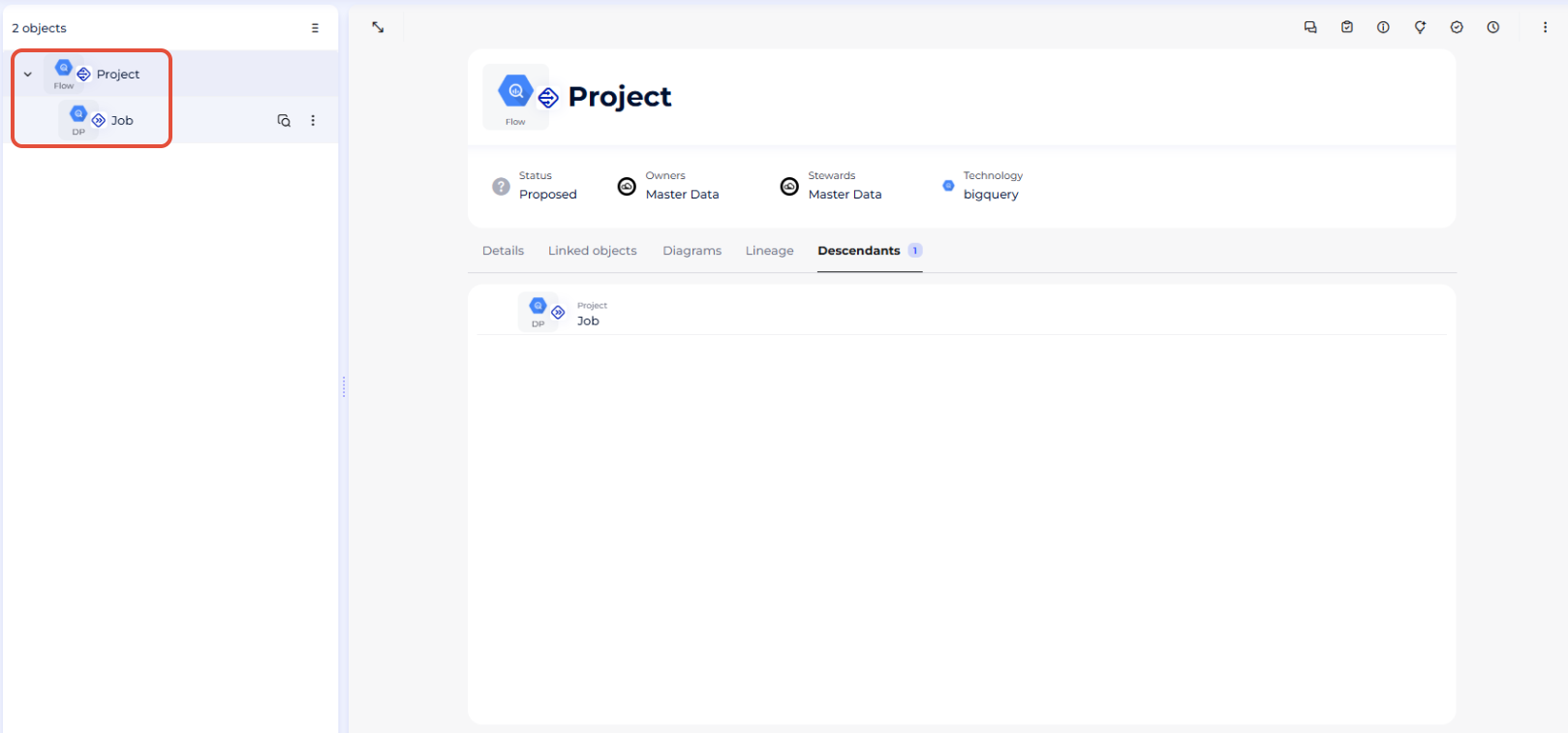
- In Standard mode, in the "Data Processing" module, all your "Flow" and "Data Processing" objects will be gathered under a source object considered as the root object. In URN mode every project is considered as the root object.
- Standard mode
- URN mode
- Standard mode
- In Standard mode, in the case of a "Multi-project import" (that retrieves more than one project at once), your projects will be gathered under an object that will be considered as the root object of the hierarchy. In URN mode every project is considered as the root object.
- Standard mode ("Single import" mode)
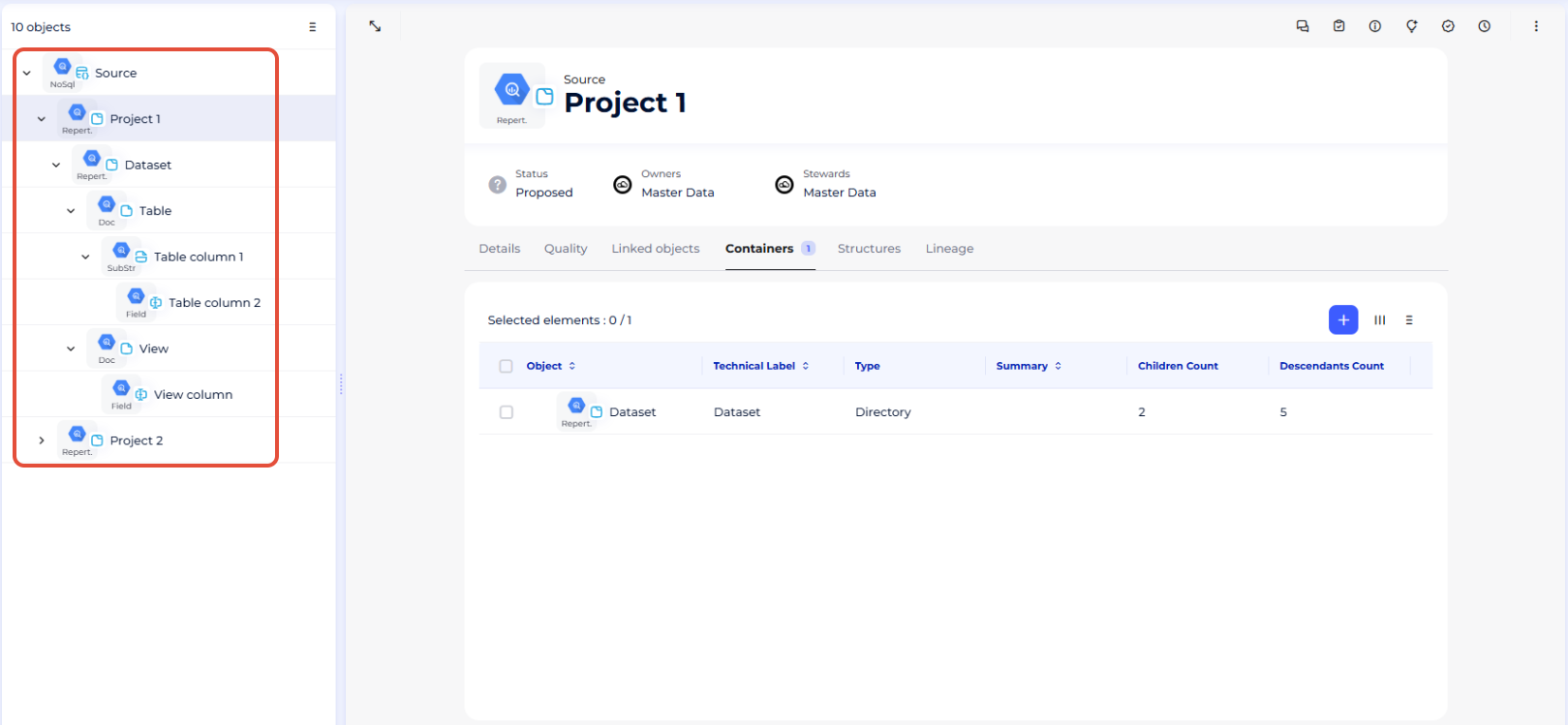
- URN mode
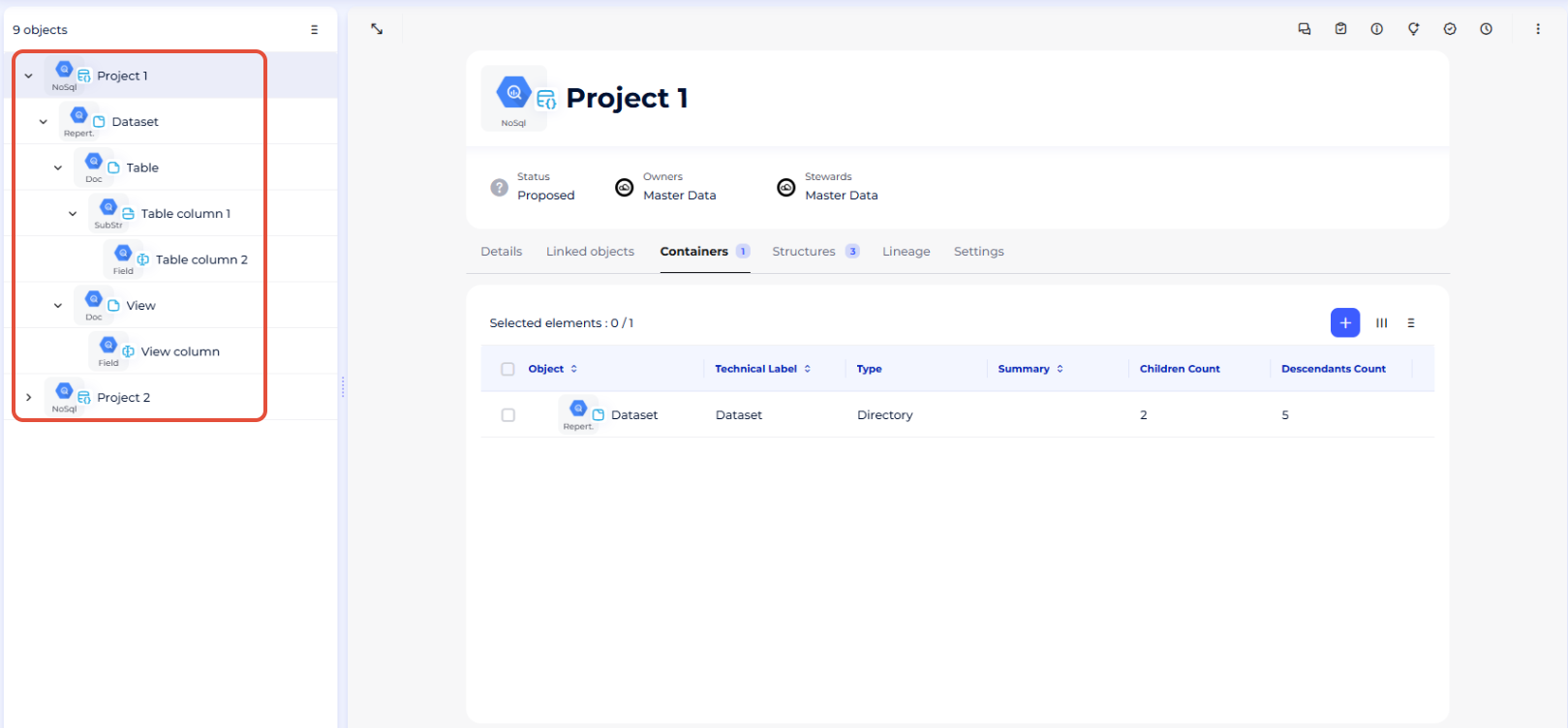
- Standard mode ("Single import" mode)
Migration guide
The aim of this guide is to show you how to switch your root object and all the BigQuery objects it contains from Standard mode to URN mode. Once you've completed these steps, you'll be able to perform all your future imports in URN mode and take advantage of the new features associated with this mode.
- Bring one level up all the objects contained in your root object from the "Data Processing" module
- You will need to move each of these objects contained under your BigQuery object (“examples” here) by opening their associated menus and choosing the “Move” option, before deleting the associated parent. By deleting its parent, your “Flux” object will be moved up one level, ready to be switched to URN mode.
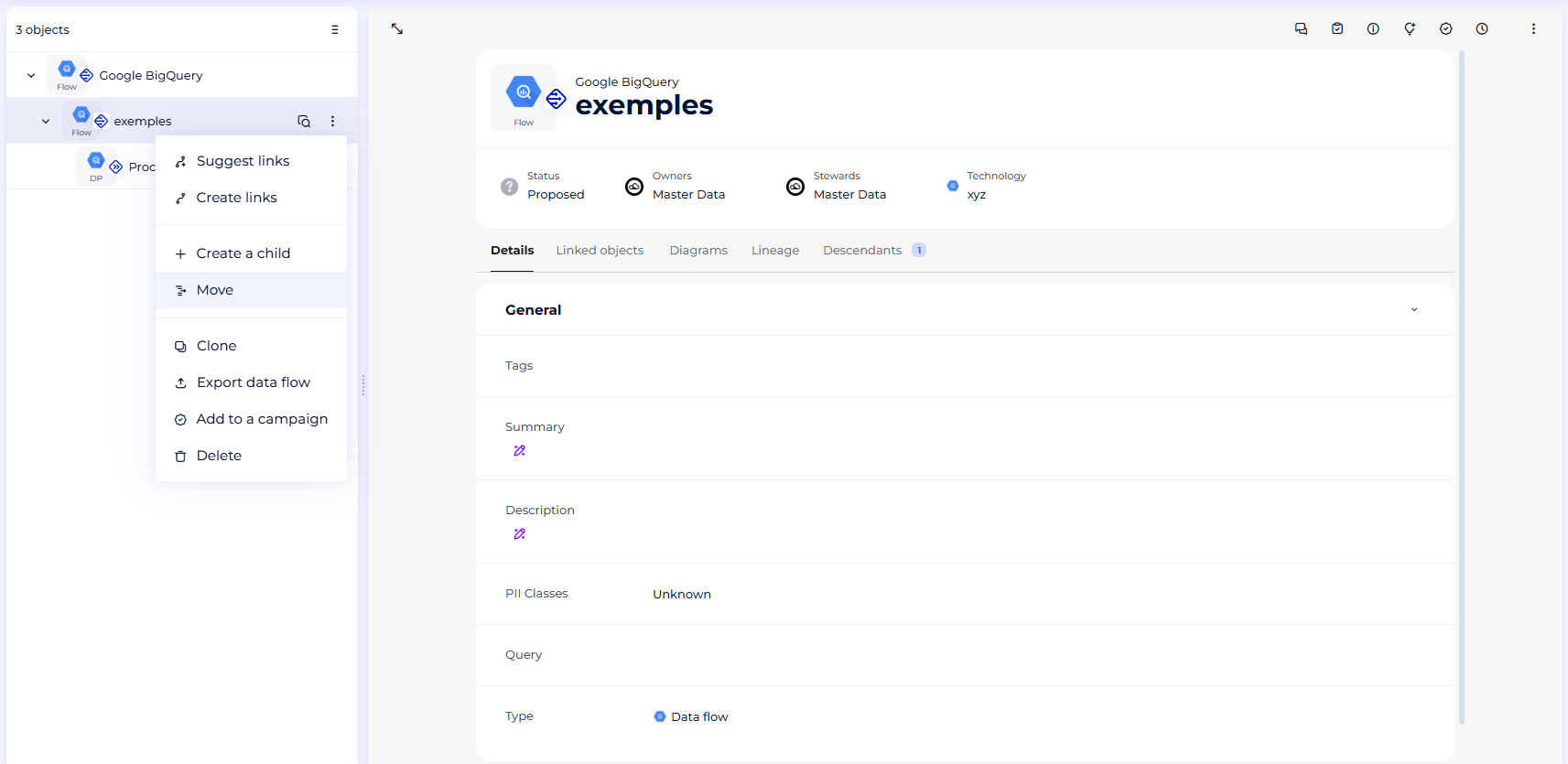
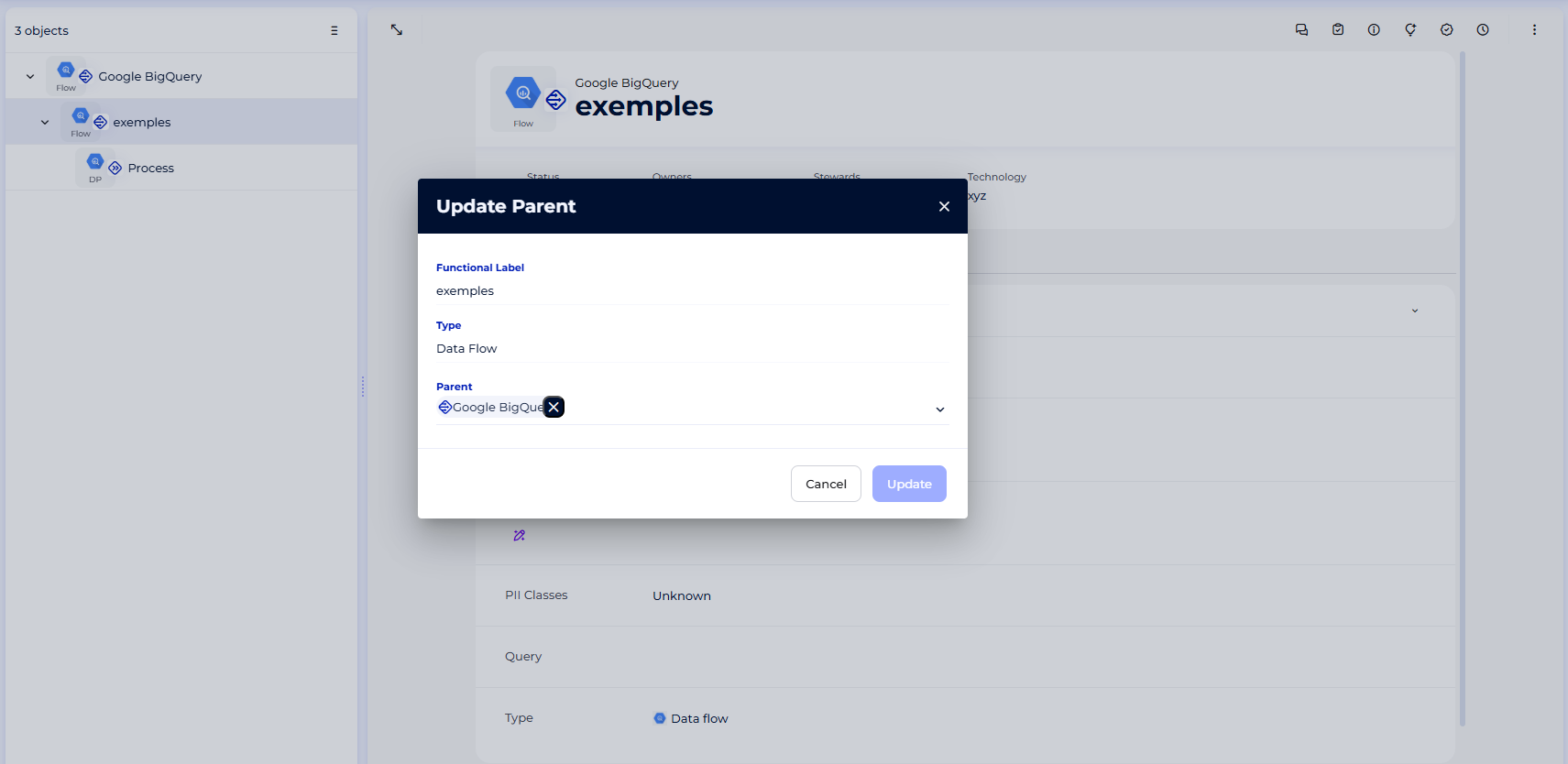
- You can then delete the old root object ("Google BigQuery" in this example)
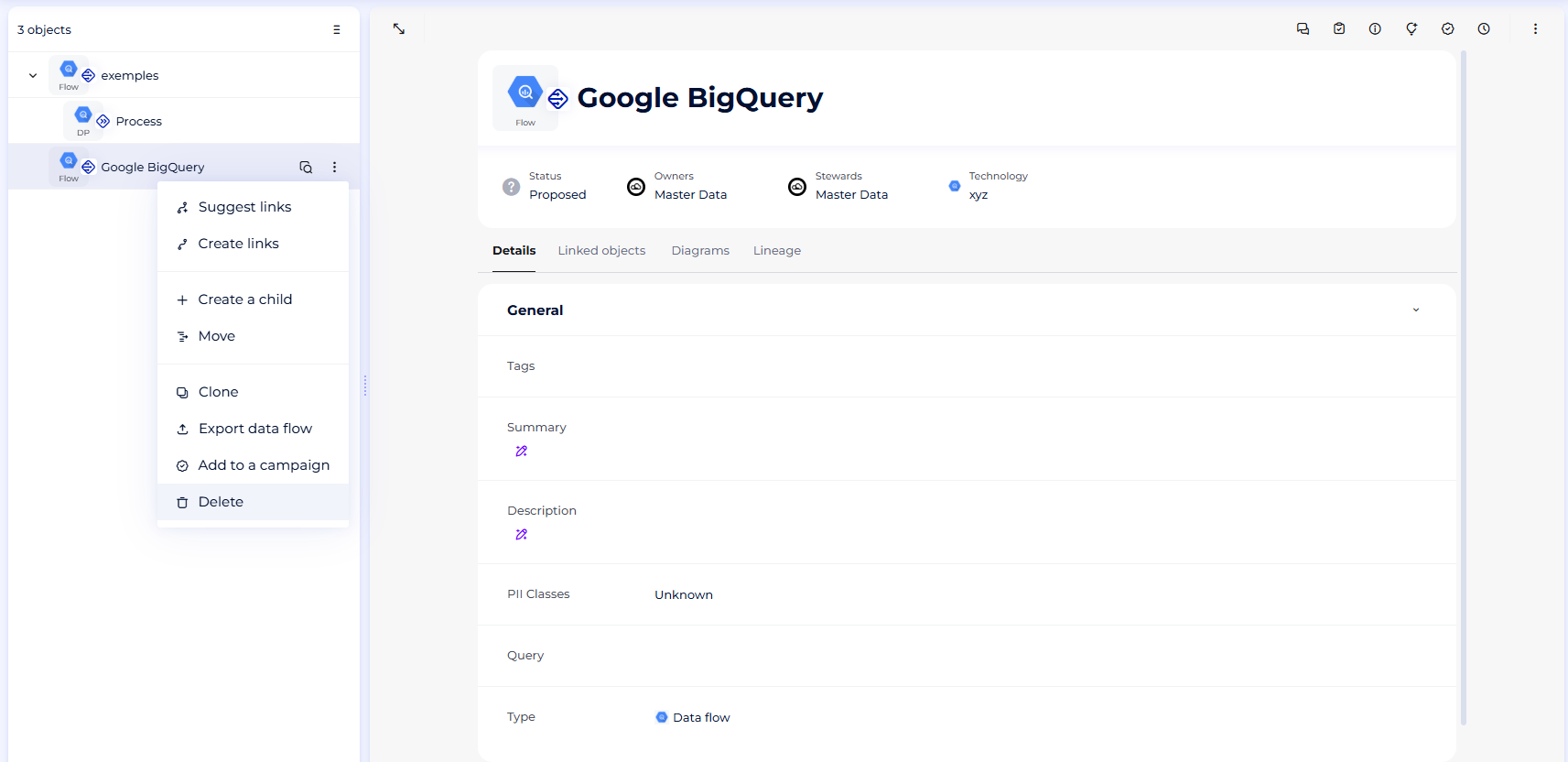
- You will need to move each of these objects contained under your BigQuery object (“examples” here) by opening their associated menus and choosing the “Move” option, before deleting the associated parent. By deleting its parent, your “Flux” object will be moved up one level, ready to be switched to URN mode.
- Bring one level up the objects contained in your BigQuery project from the "Dictionary" module(in the case of a "Multi-project import" only):
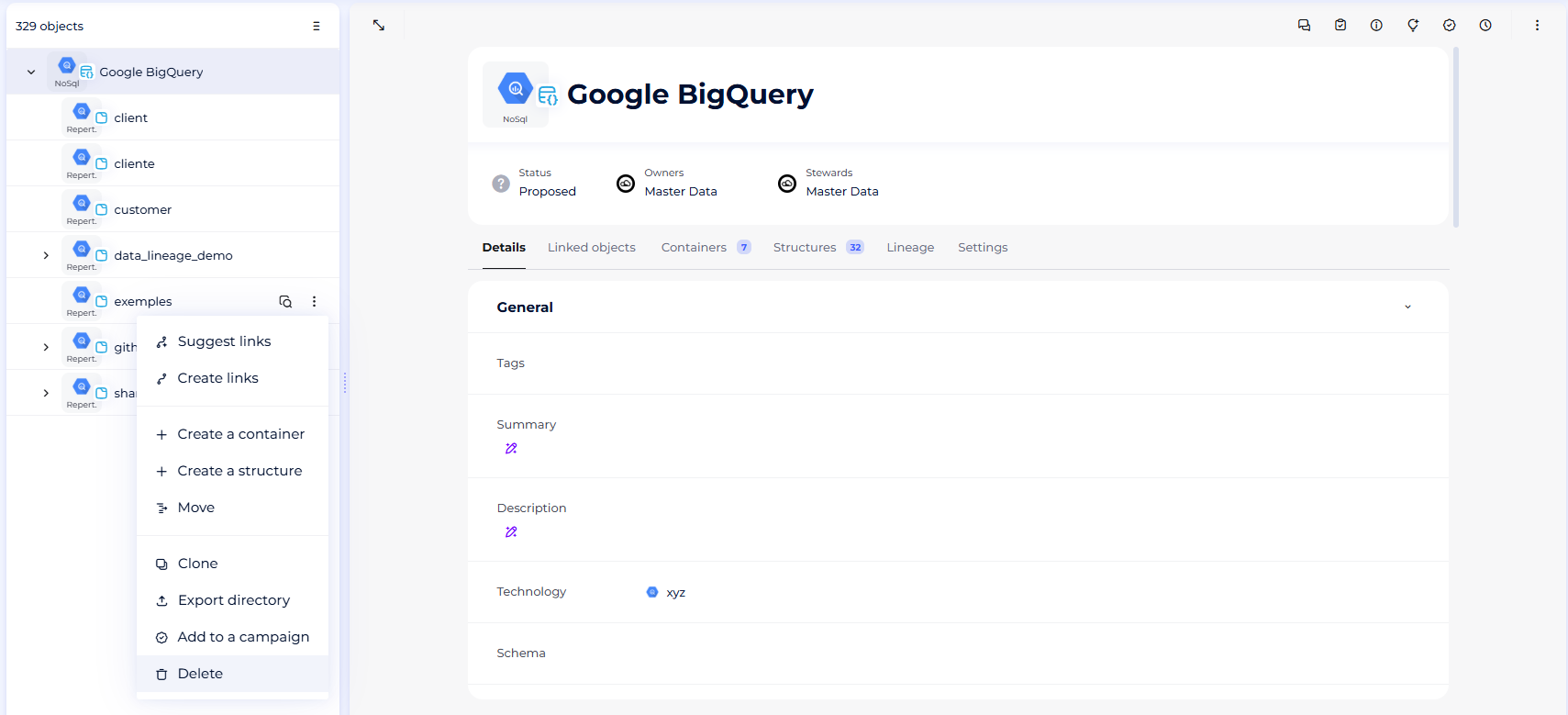
- You will have to move all your objects contained in your BigQuery project (”exemples” here) by opening their associated menus and choosing the "Move" option. You will target the object present one level above, "Google BigQuery" for this example
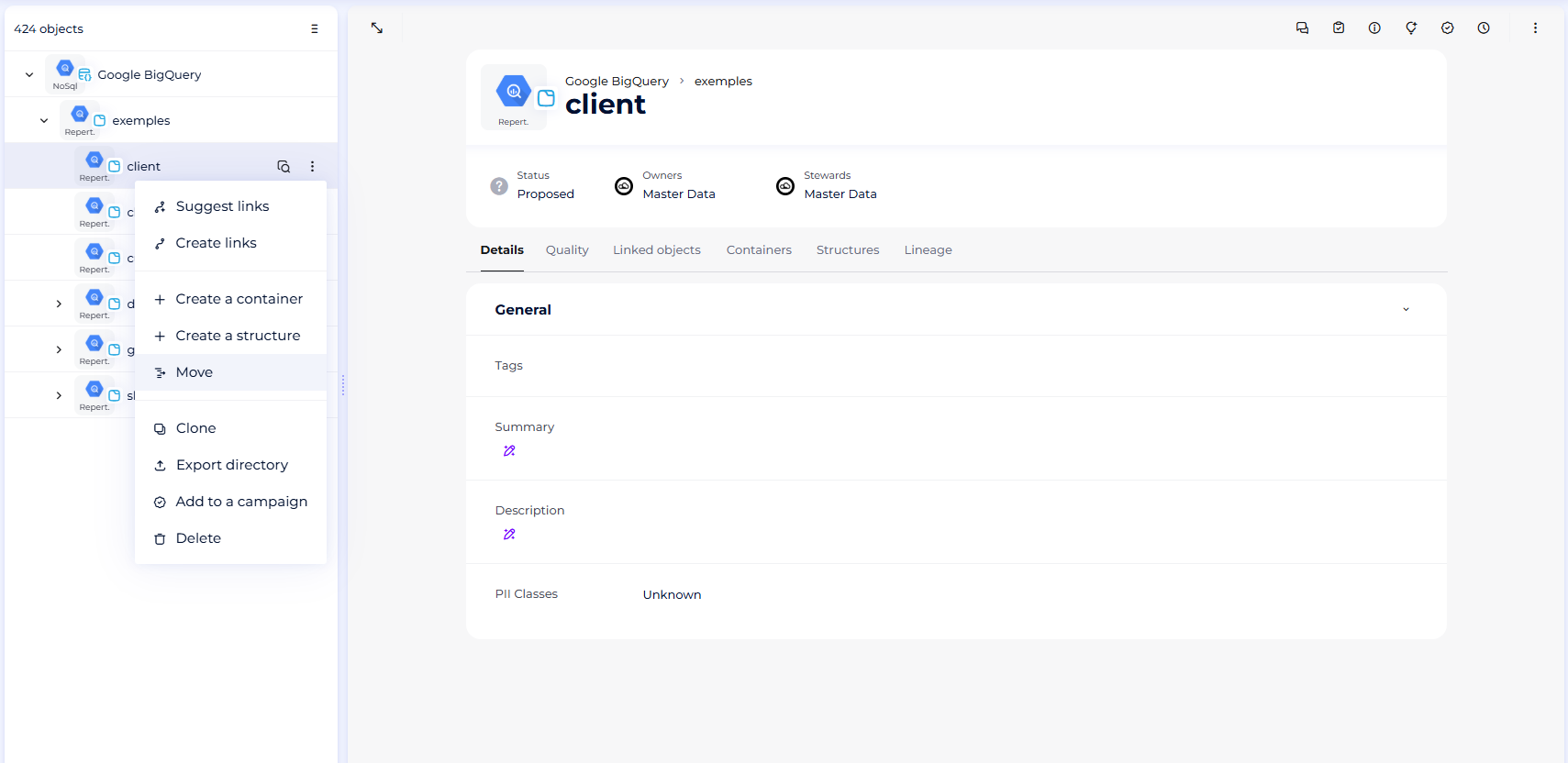
- Do not forget to delete the empty BigQuery object afterward
- From now on the steps will be the same to switch to URN mode, no matter the import mode initially chosen in Standard mode
- If you do not do this, when you do the final URN import on your root object you will end up with duplicates of all the objects retrieved from BigQuery
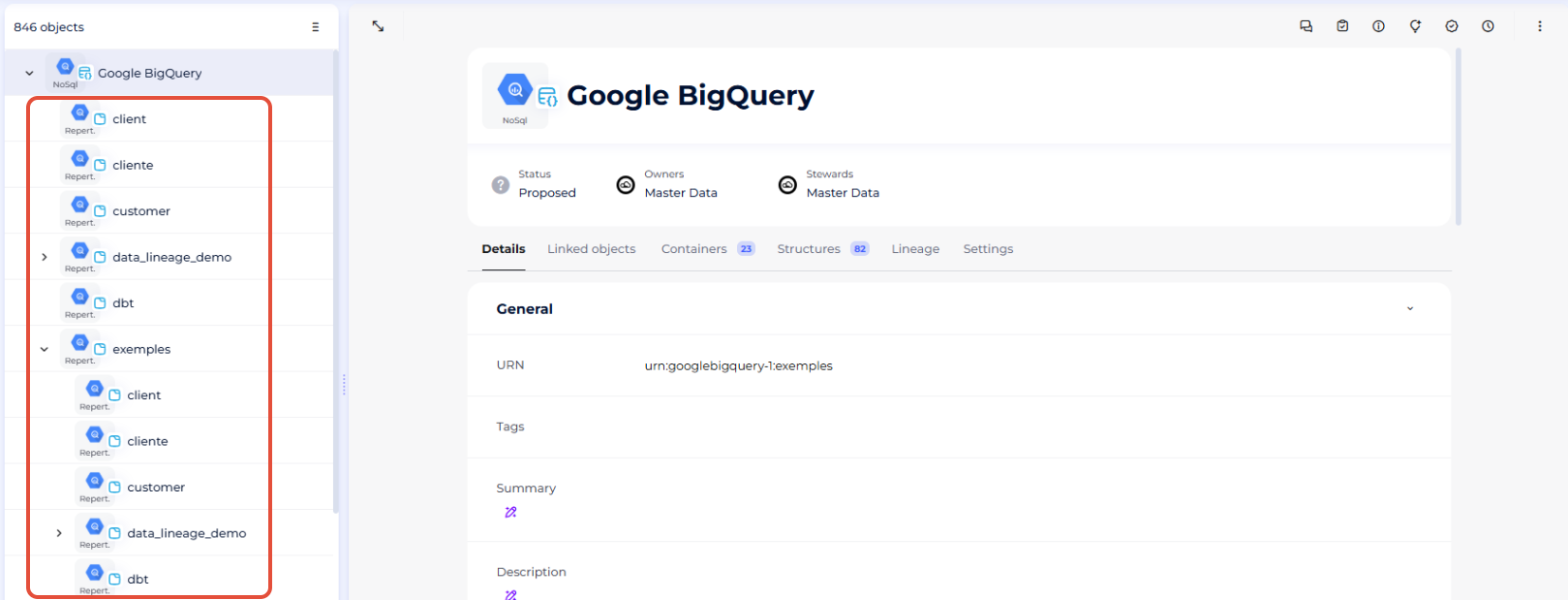
- You will have to move all your objects contained in your BigQuery project (”exemples” here) by opening their associated menus and choosing the "Move" option. You will target the object present one level above, "Google BigQuery" for this example
- If is is not already the case, associate to "NoSql source" sources from the "Dictionary" module the "URN" attribute. Do the same for the "Data Flow" objects from the "Data Processing" module
- Associate with your root objects from the "Dictionary" and "Data Processing" modules the right URN
- Regarding this, we advise you to follow these steps in order to avoid any error:
- Perform a new import in URN mode, which will create in each module a new root object for which the URN attribute will be filled
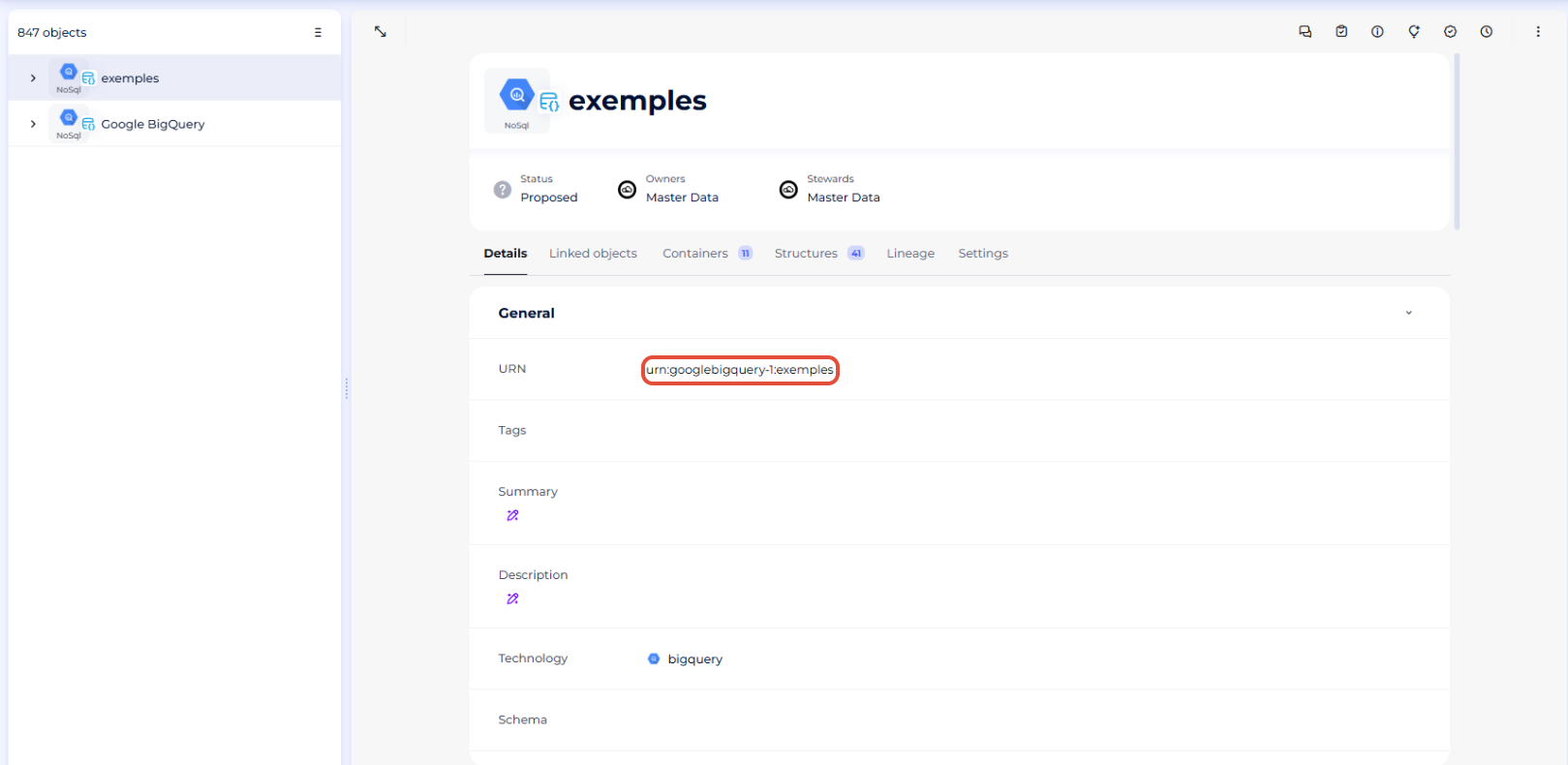
- Copy the URN attributes
- Delete the root objects and all its children that you just imported in URN mode (since a URN must be unique, if you do not delete this root object before trying to assign its URN to another object, the platform will return an error)
- Paste the URNs in order to fill the URN attribute field from your root objects that are still in Standard mode.
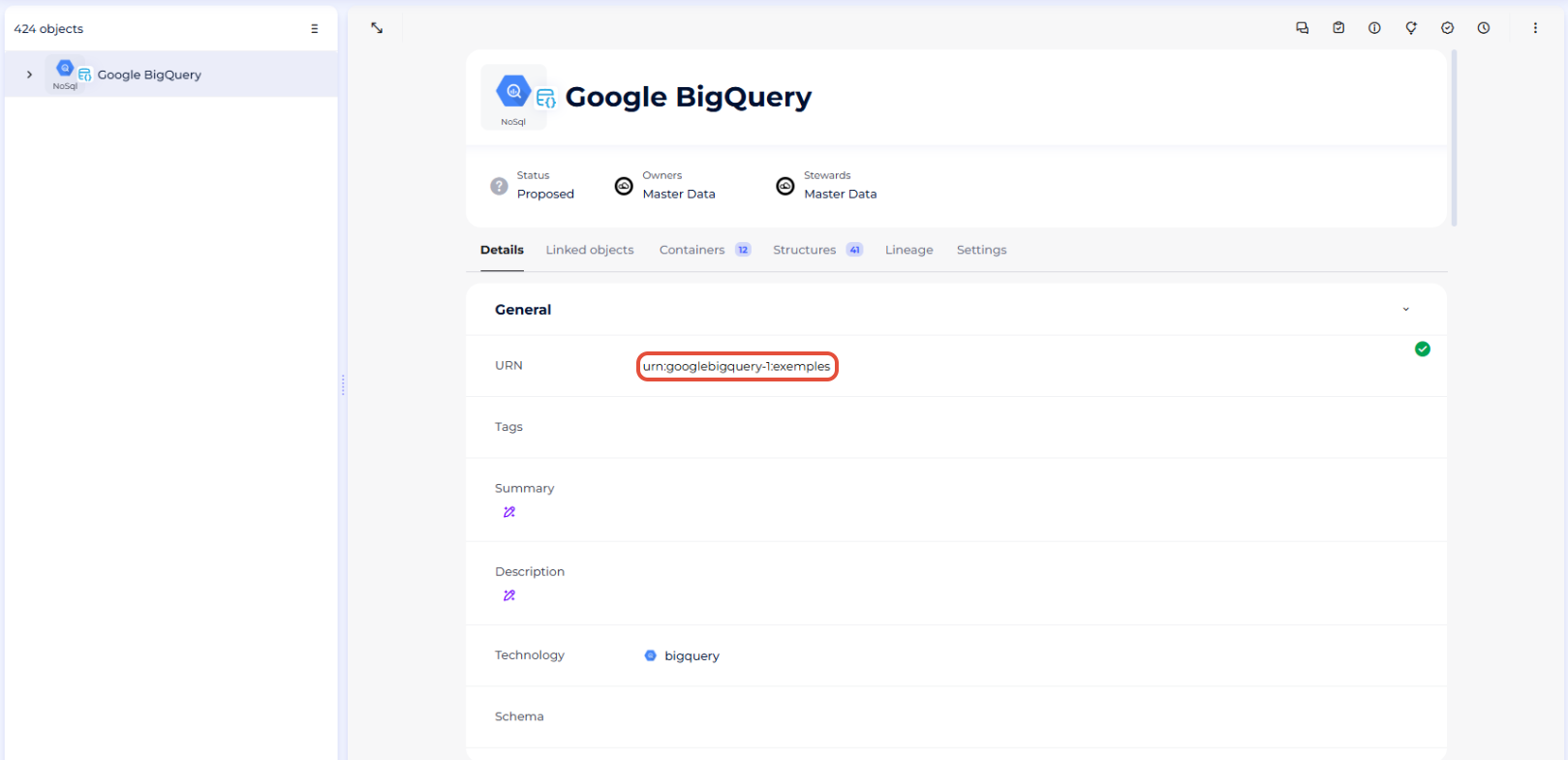
- Perform a new import in URN mode, which will create in each module a new root object for which the URN attribute will be filled
- Regarding this, we advise you to follow these steps in order to avoid any error:
- Do a final import in URN mode
- This time all the URN attributes from the child objects under your root objects in both modules should be filled
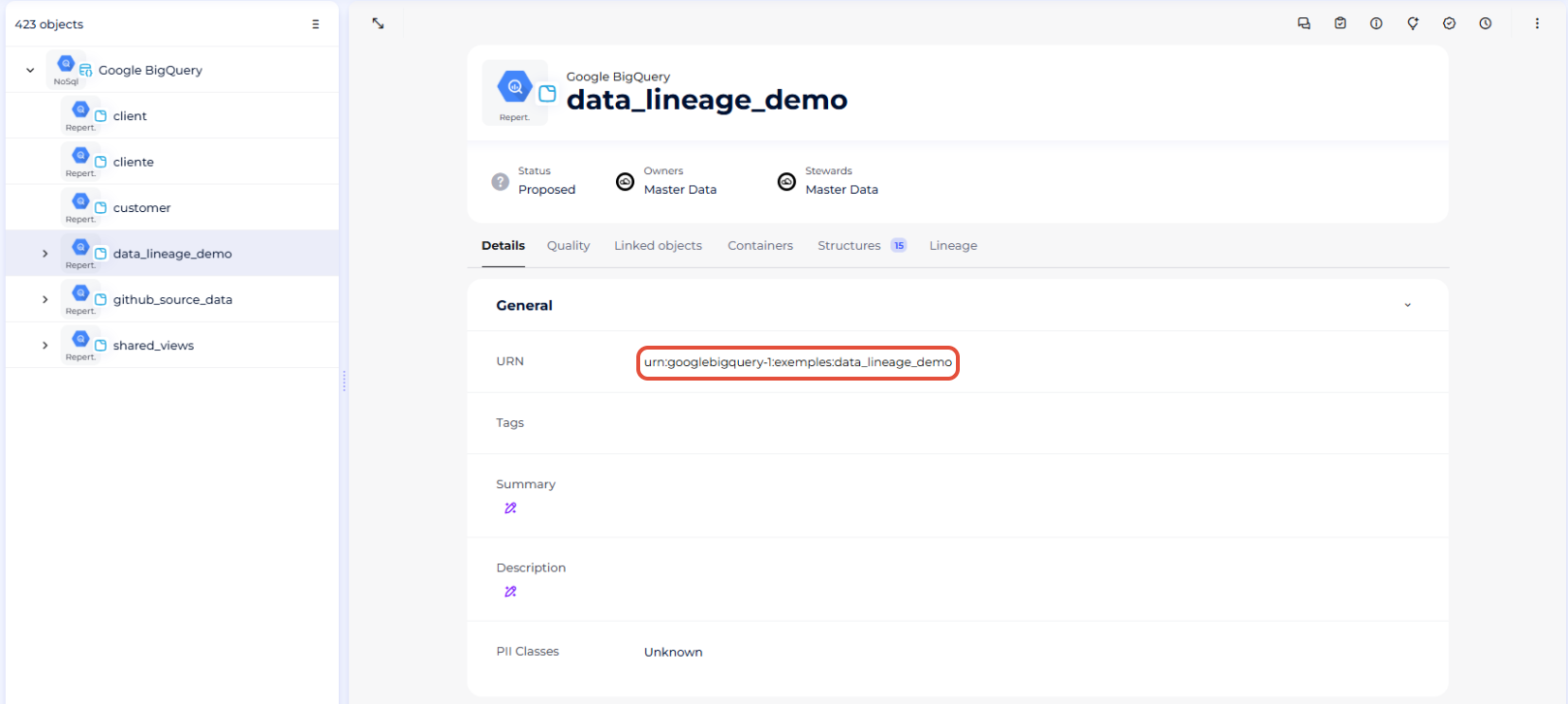
- This time all the URN attributes from the child objects under your root objects in both modules should be filled
Congratulations, you switched from the Standard mode to the URN mode and can now enjoy all the new features it offers!
Execution of the connector
Step 1: Installation
- Download DataGalaxy connector from the portal (see here)
- Extract the connector archive in the directory of your choice
- Download the Google BigQuery plug-in from the portal and copy it into the /lib directory of the connector
Step 2: Run connector
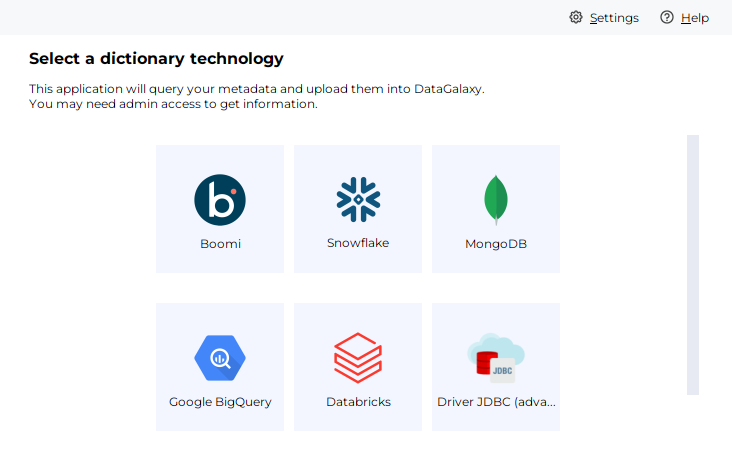
- After starting the connector, access the connectors of the Dictionary category
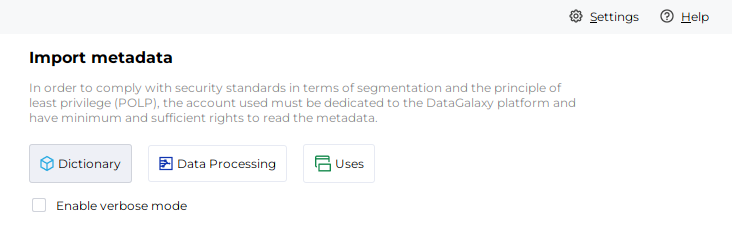
- If it was correctly installed, the Snowflake plug-in will appear
- Fill the corresponding fields using the connection information from above
- Clic on "Test" to test the connection
- Once the connection test passed follow the steps to finalize your import
This connector is also available in online mode, more information on this page: [How to] Online Connector operating mode
Releases
| Date | Plugin Version | DataGalaxy release | Desktop Connector version (minimum) | Description |
| 02/06/2026 | 6.5.6 | v3.347.0 | 5.15.12 | Fixed some security vulnerabilities |
| 24/04/2026 | 6.5.4 | v3.332.1 | 5.15.9 | Updated internal dependencies |
| 19/01/2026 | 6.5.3 | v3.300.2 | 5.15.4 | Fix orphaned handling for GBQ multi-project imports when no project Id provided |
| 02/12/2025 | 6.5.2 | v3.285.3 | 5.15.3 | Add lineage retrieval checkbox in Bulktree mode |
| 03/11/2025 | 6.5.0 | v3.273.1 | 5.15.1 | Add the option to choose lineage granularity between table and column |
| 30/06/2025 | 6.4.0 | v3.188.4 | 5.7.1 | Improved the lineage: the plugin now fetches the links between tables from non BIGQUERY lineage events |
| 23/06/2025 | 6.3.3 | v3.188.2 | 5.7.1 | Fixed a UI bug for the desktop |
| 23/06/2025 | 6.3.2 | v3.188.1 | 5.7.1 | Fixed a bug related to the detection of partitioned tables |
| 09/06/2025 | 6.3.1 | v3.178.2 | 5.6.2 | - Fixed a security issue |
| 04/06/2025 | 6.3.0 | v3.177.2 | 5.5.13 | - Improve connexion test by making it more precise and resilient in case of missing authorizations for certain projects |
| 20/05/2025 | 6.2.4 | v3.171.0 | 5.5.13 | - Only in URN mode: changing objects represented in DataProcessing module: getting BigQuery jobs (with their SQL statement) instead of poor lineage events. - Activated the possibility of using URN imports for everybody |
| 08/04/2025 | 6.1.1 | v3.155.0 | 5.5.5 | Optimized how data is handled in URN mode |
| 23/08/2024 | 4.1.1 | v3.69.0 | 5.2.3 | Updated the logger to show more information when using verbose mode |
| 22/08/2024 | 4.1.0 | v3.68.0 | 5.2.3 | Lineage is optional ; Retrieving order of columns |
| 16/07/2024 | 4.0.0 | v3.59.0 | 5.0.1 | Migrated from java 11 to java 17 + CVE fixes |
| 23/04/2024 | 3.7.0 | v3.43.1 | Add multiple dataset selection in mono-project mode | |
| 28/03/2024 | 3.6.2 | Addition of multiple project ids for multi-projects import | ||
| 26/03/2024 | 3.6.1 | v3.38.0 | Multi-projects import | |
| 26/01/2024 | 3.5.5 | v3.26.0 | Addition of the "Table location" field |