
This article describes how DataGalaxy SAP HANA connector works.
This connector is available in the following modes:
| Desktop mode ✅ | SaaS Online mode ❌ |
Connector Overview
SAP HANA connector imports metadata from a database into a DataGalaxy database source object.
The extracted objects and their correspondences are detailed in the following table:
| Source Object | DataGalaxy Object | Comments |
| Schema | Model (Container) | |
| Table | Table (Structure) | |
| View | View | |
| Column | Column | |
| Primary Key | Primary Key | This information will be used to link tables in DataGalaxy diagrams. |
| Foreign Key | Foreign Key |
Step 1 : Installation
- Download DataGalaxy connector from the portal (see here)
- Extract the connector archive in the directory of your choice
- Download the SAP HANA plug-in from the portal and copy it into the /lib directory of the connector
Step 2 : Run SAP HANA connector
- After starting the connector, access to Dictionary connectors:
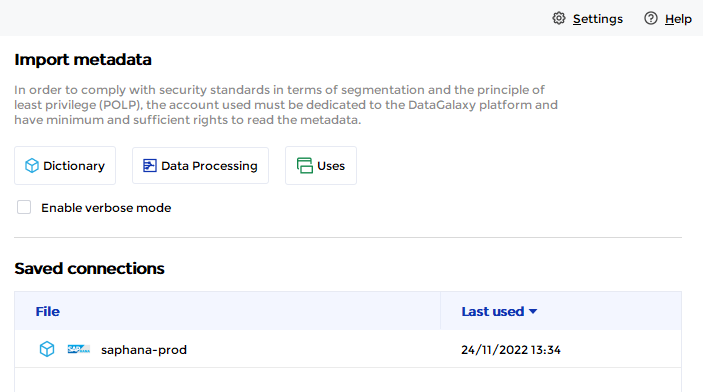
- If it has been correctly installed, the SAP HANA plug-in appears in the list
- The following information is requested:
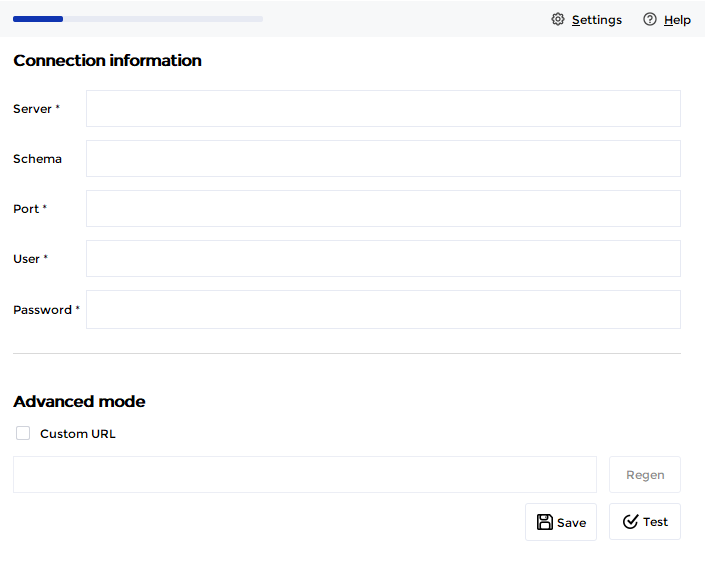
Parameter | Mandatory | Description |
| Server | Yes | |
| Schema | No | Limits the scope to the specified schema |
| Port | Yes | |
| User | Yes | |
| Password | Yes | |
| Advanced mode | No | Option to customize the JDBC URL used to connect |
Once these information filled, you can test the connection and start the import.
Technical information
The SAP HANA connector uses the JDBC driver version 2.8.14 provided by the editor (ngdbc).
Releases
| Date | Plugin Version | DataGalaxy release | Desktop Connector version (minimum) | Description |
| 07/07/2026 | 4.0.0 | v3.376.0 | 5.18.2 | New internal implementation |
| 06/08/2024 | 3.0.0 | v3.65.0 | 5.0.5 | Migrated from java 11 to java 17 + CVE fixes |