
This article describes how to use DataGalaxy Azure Data Lake Services Gen2 (ADLS Gen2) Connector
This connector is available in the following modes:
| Desktop mode ✅ | SaaS Online mode ✅ |
Connector scope
Azure Data Lake Services Gen2 (ADLS Gen2) Connector allows you to import the following metadata from an Azure Data Lake Gen2 :
- The set of directories in the datalake
- All the files present in the datalake
- The fields present in the CSV files
The recovered objects and their correspondences in DataGalaxy are detailed in the following table:
ADSLGen2 Object | DataGalaxy Object | Comments |
| Directory | Directory (Conteneur) | |
| File | File (Structure) | |
| Field | Field | The definition of the columns is imported if the processed file is a CSV file (separator ";") |
Configuration of a connection
The ADLS Gen2 connector uses the Azure Data Lake Store REST APIs (https://docs.microsoft.com/en-us/rest/api/storageservices/data-lake-storage-gen2) and requires the configuration of a service account with the following rights:
- Authorized API (to be defined at application registration): Azure Storage (user_impersonation )
- Role assignment (to be defined at the storage account level): Storage Blob Data Reader
You can optionally set additional restrictions using ACLs to limit the resources the service account will have access to.
The following information is required to set up a connection:
Parameter | Mandatory | Description |
| Storage account | Yes | Storage account name |
| Tenant Id | Yes | Azure tenant identifier |
| Client Id | Yes | Azure Client Service Account ID |
| Client Secret | Yes | Client Secret |
| Container name | Yes | Filesystem container name |
| Custom endpoint | No | Custom endpoint (default values are dfs.core.windows.net in hierarchical mode, blob.core.windows.net in blob mode) |
| API Endpoint type | No | 3 types, Auto, Hierarchical and Blob. In Auto mode Hierarchical and Blob mode will be tried one after another. |
| Path | No | Root path to navigate |
| Mask patterns | No | Masks allow you to define strategies for grouping and filtering folders and files according to naming patterns. Example: /datasource/{YYYYMMDD}/file_{YYYYMM}_{zz}.csv Masks must be absolute paths from the root and each character is important, so it may be necessary to define multiple masks to cover all your cases. More information about this setting is available when running the connector. |
Execution of the connector
To create a connection via the Online connector, the entry points are as follow:
From the Import button of the "Shortcuts" widget on the home screen of a client space or workspace
From the Import button of one of the modules when it is empty
From the Import button in the contextual menu of one of the modules, on the right side of the filtered views
From the Add a connection button in the Connector tab available in the workspace setup screen
You can optionally filter (by module, connector type or by using the search bar), then click on the desired technology: 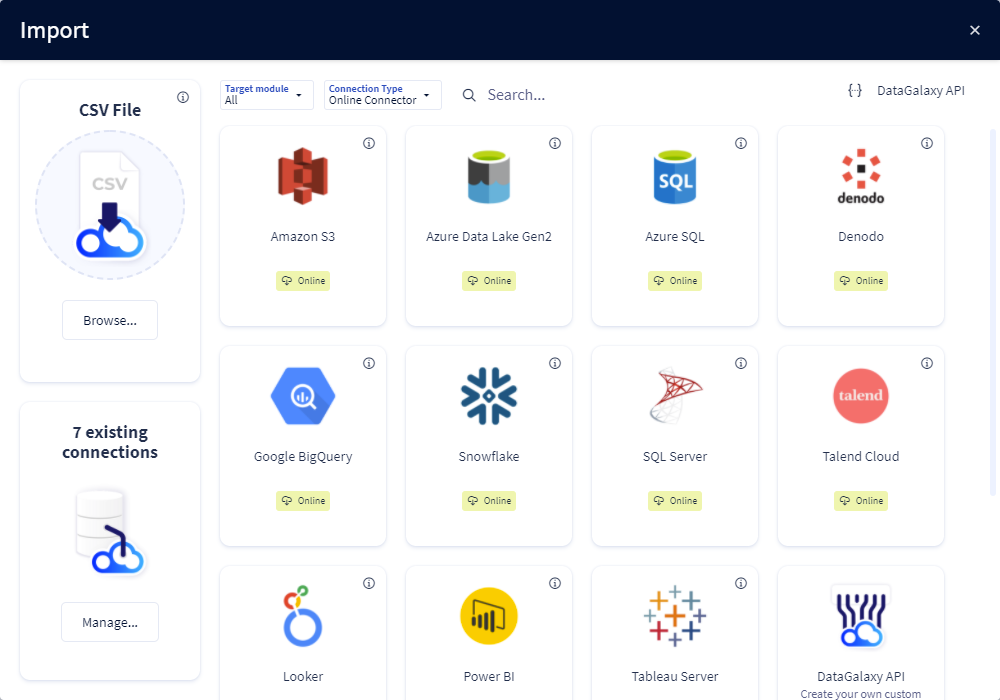
You then need to complete the login form using the login information described above to perform an import. For more details on the steps involved in running the Online connector, you can consult the following article: [HowTo] Running the Online Connector.
This technology is also available via the Desktop Connector, you can find more information on the procedure here: [How to] How to use the connector.
Releases
| Date | Plugin Version | DataGalaxy release | Desktop Connector version (minimum) | Description |
| 29/09/2026 | 5.0.1 | 3.423.0 | 6.2.2 | New internal implementation to fix seucrity vulnerabilities |
| 19/12/2024 | 4.1.0 | 5.3.6 | Addition of the possibility to set a custom endpoint | |
| 23/08/2024 | 4.0.2 | v3.69.0 | 5.2.3 | Updated the logger to show more information when using verbose mode |
| 14/08/2024 | 4.0.1 | v3.67.0 | 5.0.4 | CVE fixes |
| 30/07/2024 | 4.0.0 | v3.63.0 | 5.0.4 | Migrated from java 11 to java 17 + CVE fixes |