
This article describes how to use the File System (local) connector for DataGalaxy.
This connector is available in the following modes:
| Desktop mode ✅ | SaaS Online mode ❌ |
Connector scope
The connector allows you to import objects into a FileStore source from a local file system accessible through the connector.
The installation of the plugin offers the possibility to connect to a folder of a file system in order to recover:
- only column files (.csv, .xls, .xlsx)
- any type of file
The extracted objects and their correspondences are detailed in the following table:
| Object File system | DataGalaxy Object | Comments |
| Directory | Directory (Container) | |
| File | File (Structure) | |
| Column | Field | If the processed files are column files (.csv, .xls, .xlsx ), the definition of the columns of the file will be imported whatever the chosen plugin. |
Step 1 : Installation
- Download DataGalaxy connector from the portal (see here)
- Extract the connector archive in the directory of your choice
- Download the File System plug-in from the portal and copy it into the /lib directory of the connector
Step 2 : Run File System connector
- After starting the connector, access to Dictionary connectors:
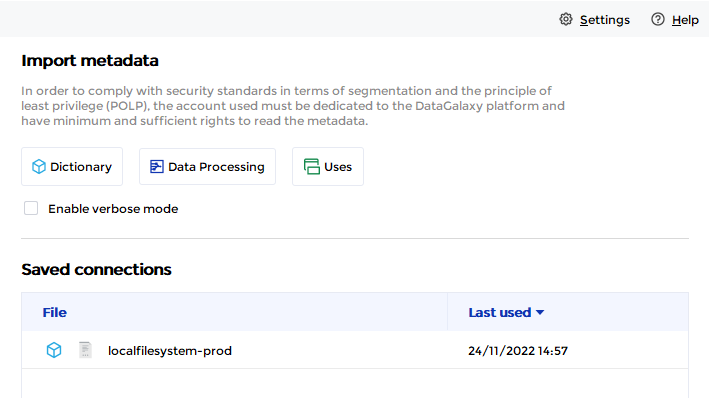
- If it has been correctly installed, the two File System plug-ins (Column Files and Files) appear in the list
- The following information is requested:
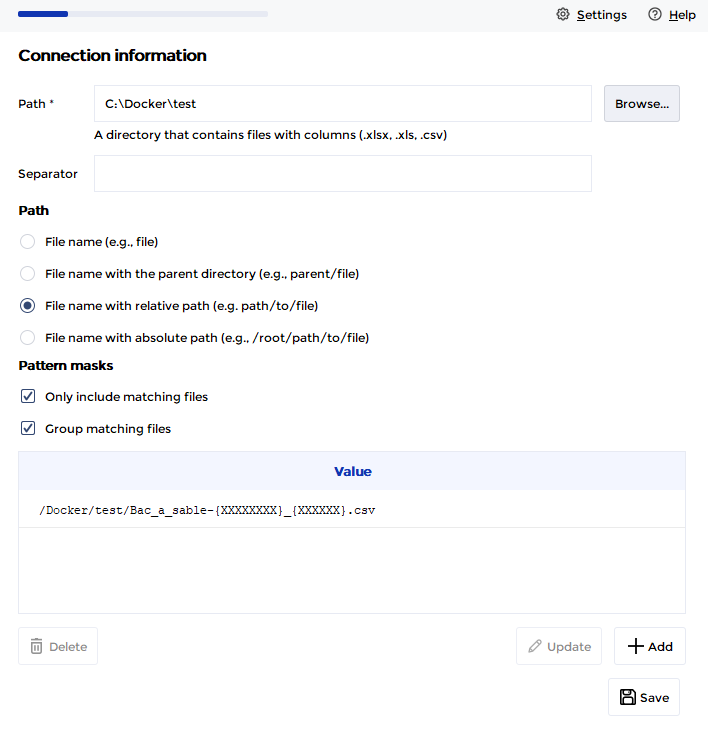
Parameter | Mandatory | Description |
| Path | Yes | Path of the directory that contains files |
| Separator | No | By default, the separators used to extract column definitions from .csv files are the semicolon (";") and the comma (","). Thanks to this parameter, you can define a custom character (for instance "|"), which will be used as a separator in the definition of the columns. |
| Pattern masks | No | Maks allow you to define strategies for grouping and filtering folders and files according to naming patterns. Example: /datasource/{YYYYMMDD}/file_{YYYYMM}_{zz}.csv Masks must be absolute paths from the root and each character is important, so it may be necessary to define multiple masks to cover all your cases. More information about this setting is available when running the connector. |
Once these information filled, you can test the connection and start the import.
Releases
| Date | Plugin Version | DataGalaxy release | Desktop Connector version (minimum) | Description |
| 30/07/2024 | 4.0.0 | v3.63.0 | 5.0.4 | Migrated from java 11 to java 17 + CVE fixes |