
This article describes how to use DataGalaxy Amazon AWS S3 connector.
This connector is available in the following modes:
| Desktop mode ✅ | SaaS Online mode ✅ |
Connector scope
AWS S3 connector allows you to import the following metadata from an Amazon AWS S3 DataLake:
- The set of directories in the datalake
- All the files present in the datalake
- The fields present in the CSV files
The recovered objects and their correspondences in DataGalaxy are detailed in the following table:
AWS S3 Object | DataGalaxy Object | Comments |
| Directory | Directory (Conteneur) | |
| File | File (Structure) | |
| Field | Field | The definition of the columns is imported if the processed file is a CSV file (separator ";") |
Configuration of a connection
Amazon AWS S3 connector uses Amazon Web Services REST API : https://docs.aws.amazon.com/AmazonS3/latest/API/Welcome.html
Connection to an Amazon AWS S3 resource via the connector requires the creation of a service account in advance.
This service account will need to have read rights to the S3 resource (AmazonS3ReadOnlyAccess policy) targeted by the connector. The procedure for generating an access key and a secret associated with a user is available here.
For the Desktop connector, to prevent having to manage IAM secrets, you can use the authentication mode by instance profile (if the connector is hosted on AWS EC2) or Web Identity Token (several possible configurations depending on where the connector is deployed, for instance providing the AWS_WEB_IDENTITY_TOKEN_FILE et AWS_ROLE_ARN environment variables).
The following information is required to set up a connection:
Parameter | Mandatory | Description |
| Bucket's name | Yes | Name of the bucket |
| Path filter (prefix) | No | |
| Authentication | Yes | Authentication can be performed either with an access key (key and secret), using the Amazon EC2 instance profile on which the connector is running or by using the credentials of the environment's or container's web identity tokens (Working with AWS Credentials) |
| Region | Yes | AWS region identifier |
| VPC Endpoint | No (Desktop Connector only) | VPC endpoint identifier to be used to communicate with the AWS resource (example value: vpce-1a2b3c4d-5e6f.s3.us-east-1.vpce.amazonaws.com) |
| IAM Role (ARN) | No (Desktop Connector only) | Overrides the role to use to access the resource. The specified role must be in ARN (Amazon Resource Name) format, example: arn:partition:service:region:account:resource |
| Access Key | Yes (when Basic Credential is selected for the Desktop Connector) | Access Key AWS |
| Secret Key | Yes (when Basic Credential is selected for the Desktop Connector) | Secret Key AWS |
| STS Token | No (Desktop Connector only) | AWS Security Token Service |
| Patterns | No | Masks allow you to define strategies for grouping and filtering folders and files according to naming patterns. Example: /datasource/{YYYYMMDD}/file_{YYYYMM}_{zz}.csv The masks must be absolute paths from the root and each character is important, so it may be necessary to define multiple masks to cover all your cases. More information about this setting is available when running the connector. |
Execution of the connector
To create a connection via the Online connector, the entry points are as follow:
From the Import button of the "Shortcuts" widget on the home screen of a client space or workspace
From the Import button of one of the modules when it is empty
From the Import button in the contextual menu of one of the modules, on the right side of the filtered views
From the Add a connection button in the Connector tab available in the workspace setup screen
You can optionally filter (by module, connector type or by using the search bar), then click on the desired technology: 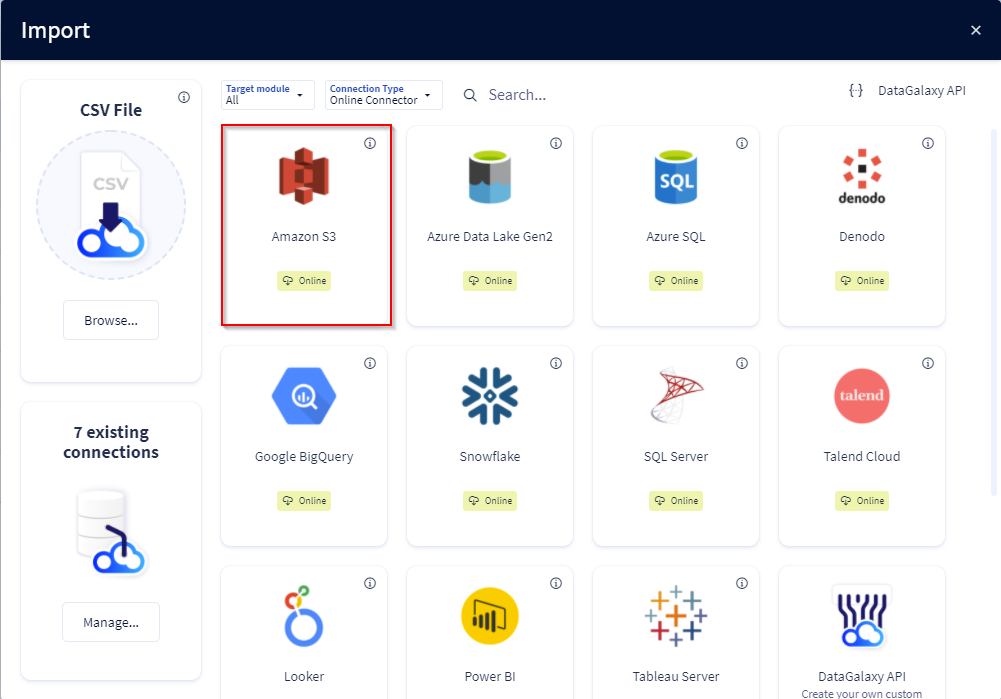
You then need to complete the login form using the login information described above to perform an import. For more details on the steps involved in running the Online connector, you can consult the following article: [HowTo] Running the Online Connector.
This technology is also available via the Desktop Connector, you can find more information on the procedure here: [How to] How to use the connector.
Running the connector from the command line (CLI)
To execute the connection through the command line, ensure that the value of the --password option follows the correct format based on your configuration:
- With an STS token:
--password "{\"password\":\"secretKeyValue",\"sts-token\":\"stsTokenValue\"}"Without an STS Token
--password "secretKeyValue"
Releases
Date | Plugin | DataGalaxy | Desktop Connector | Description |
| 23/06/2026 | 4.0.6 | v3.360.0 | v5.16.1 | Fixed some security vulnerabilities |
| 14/01/2026 | 4.0.4 | v3.298.5 | 5.15.4 | CVE fixes |
| 25/09/2024 | 4.0.2 | v3.78.0 | 5.2.11 |
|
16/07/2024 | 4.0.1 | v3.59.0 | 5.0.1 | Migrated from java 11 to java 17 |
