
This article describes how to use DataGalaxy Amazon AWS DynamoDB connector.
This connector is available in the following modes:
| Desktop mode ✅ | SaaS Online mode ✅ |
Connector scope
AWS DynmoDB connector allows you to import the following metadata from a NoSQL database:
- All tables
- All table attributes
- Information on indexes and keys of tables
By default, the following attributes are populated for the entire scope:
Functional and technical labels
Additional attributes are also filled in depending on the technology and by type of object. To make them appear in DataGalaxy screens, it may be necessary to adapt the screens of the concerned objects. See this article to learn more about screen customization.
The following table details the objects and attributes retrieved, and their correspondences in DataGalaxy :
AWS DynamoDB Object | DataGalaxy Object | DataGalaxy Attributes |
| Project | Source | Geographical Localization |
| Table | Document | Creation date of the source object, Technical type, Partitioned, Number of records, Current storage size, Storage unit |
| Attribute | Field / SubStructure | Technical type, Technical comment, Partition key, Indexed |
Configuration of a connection
Connection to an Amazon AWS DynamoDB resource via the connector requires the creation of a service account in advance.
This service account should have the following IAM permissions on the resource targeted by the connector:
- dynamodb:ListTables
- dynamodb:DescribeTable
- dynamodb:Scan
The procedure for generating an access key and a secret associated with a user is available here.
For the Desktop connector, to prevent having to manage IAM secrets, you can use the authentication mode by instance profile (if the connector is hosted on AWS EC2) or Web Identity Token (several possible configurations depending on where the connector is deployed, for instance providing the AWS_WEB_IDENTITY_TOKEN_FILE et AWS_ROLE_ARN environment variables).
The following information is required to set up a connection:
Parameter | Mandatory | Description |
| Region | Yes | Identifier of the region where the AWS DynamoDB database is located (ex: eu-west-3) |
| Access Key | Yes | Access Key AWS |
| Secret Key | Yes | Secret Key AWS |
| Sample size | Yes | Number of rows in the database read in order to retrieve the attributes. The default value is 100. |
Execution of the connector
To create a connection via the Online connector, the entry points are as follow:
From the Import button of the "Shortcuts" widget on the home screen of a client space or workspace
From the Import button of one of the modules when it is empty
From the Import button in the contextual menu of one of the modules, on the right side of the filtered views
From the Add a connection button in the Connector tab available in the workspace setup screen
You can optionally filter (by module, connector type or by using the search bar), then click on the desired technology: 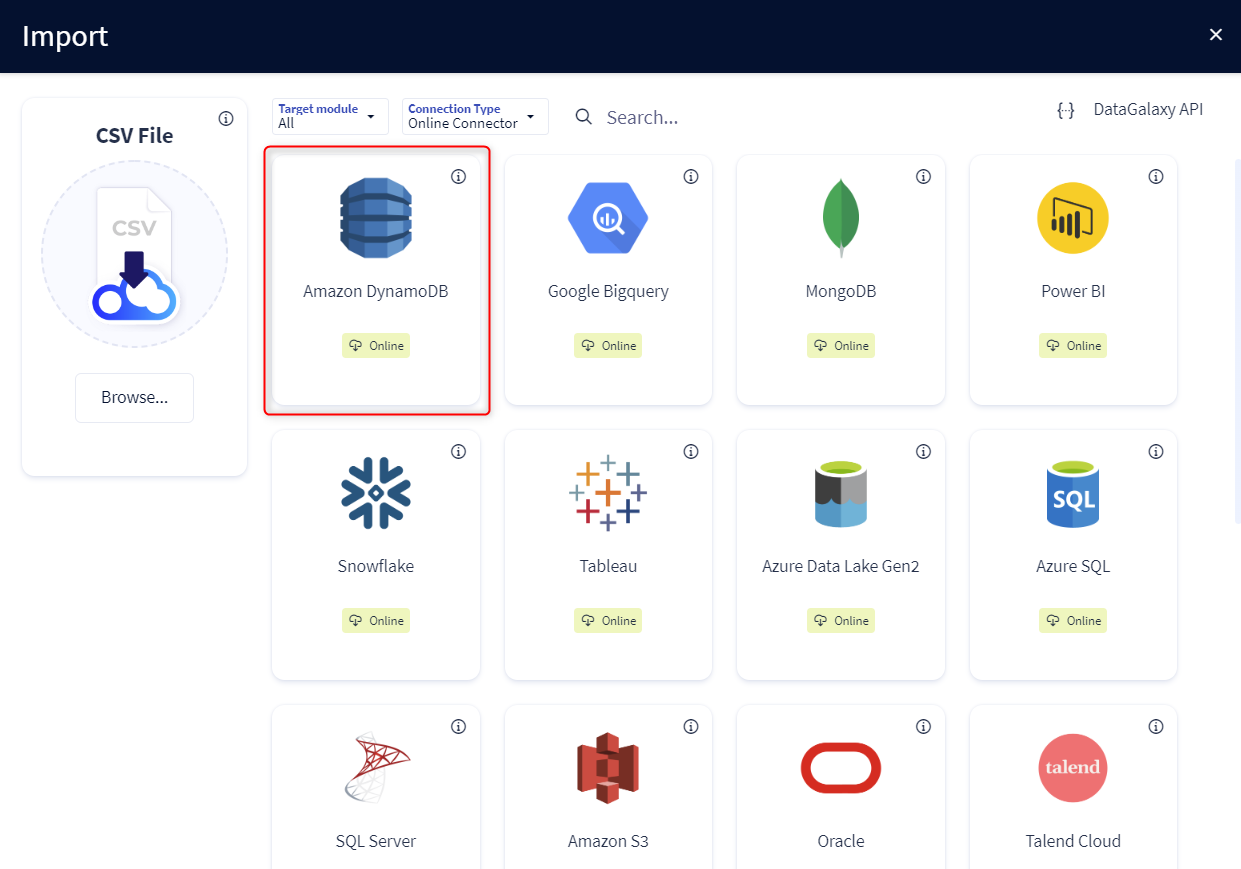
You then need to complete the login form using the login information described above to perform an import. For more details on the steps involved in running the Online connector, you can consult the following article: [HowTo] Running the Online Connector.
This technology is also available via the Desktop Connector, you can find more information on the procedure here: [How to] How to use the connector.
Running the connector from the command line (CLI)
To execute the connection through the command line, ensure that the value of the --password option follows the correct format based on your configuration:
- With an STS token:
--password "{\"password\":\"secretKeyValue",\"sts-token\":\"stsTokenValue\"}"Without an STS Token
--password "secretKeyValue"
Releases
| Date | Plugin Version | DataGalaxy release | Desktop Connector version (minimum) | Description |
| 23/06/2026 | 4.1.2 | v3.360.0 | 5.16.1 | Fixed some security vulnerabilities |
| 06/01/2025 | 4.1.1 | v3.296.3 | 5.15.4 | - Fixed some CVEs - The plugin no longer fills in the "frequency" attribute of DataGalaxy objects |
| 25/09/2024 | 4.0.1 | v3.78.0 | 5.2.11 |
|
| 16/07/2024 | 4.0.0 | v3.59.0 | 5.0.1 | Migrated from java 11 to java 17 + CVE fixes |
