
This article describes how to use MongoDB Connector
This connector is available in the following modes:
| Desktop mode ✅ | SaaS Online mode ✅ |
Connector scope
The connector allows you to import the following metadata from a MongoDB database:
- The set of collections in a database
- The schema of collections
By default, the following attributes are populated for the entire scope:
- Functional and technical labels
Additional attributes are also filled in depending on the technology and by type of object. To make them appear in DataGalaxy screens, it may be necessary to adapt the screens of the concerned objects. See this article to learn more about screen customization.
The following table details the objects and attributes retrieved, and their correspondences in DataGalaxy :
MongoDB object | DataGalaxy object | DataGalaxy attributes | Comments |
| Databses | Directory | Current storage size, Storage unit | |
| Collection | Document | Number of records | |
| Schema | Field / Sub-Structure | Indexed | The schema is deduced by the connector from a sample of documents (see parameters). Embedded objects are represented by exploiting the notion of DataGalaxy sub structure when necessary. |
Configuration of a connection
The MongoDB connector uses the mongodb-driver-sync driver. SSL/TLS is activated by default in the connection string using the option ?ssl=true. If you use private certificates, you'll need to add the CA certs in the Java keystore of the embedded JRE (or your JRE if you don't use the embedded one) as described in this documentation.
It is also possible to connect to a MongoDB database on Azure's CosmoDB via a principal service. The service account must have the following rights:
- Contributor or Owner on the CosmoDB resource (in order to have the necessary rights to retrieve the authentication key of the resource).
It also allows you to connect to MongoDB Cloud Atlas via an advanced mode connection (see the "Configuration of a MongoDB Cloud Atlas connection" section for the connection procedure).
The following information is required to set up a connection:
| Paramter | Authentification Mode | Mandatory | Description |
| Authentification method | All | Yes | Allows you to select an authentication mode: Azure main service, scram-sha-256 (default MongoDB authentication mode) or scram-sha-1 |
| Sample size to use | All | Yes | Number of rows in the database read to retrieve the schemas. The default value is 100. |
| Subcription Id | Azure principal service | Yes | Azure Subscription ID |
| Account Name | Azure principal service | Yes | Azure CosmosDB account name |
| Ressource group name | Azure principal service | Yes | Azure resource group name |
| Client Id | Azure principal service | Yes | Azure Client Service Account ID |
| Tenant Id | Azure principal service | Yes | Azure tenant ID |
| Client Secret | Azure principal service | Yes | Azure client secret |
| User | scram-sha-256, scram-sha-1 | Yes | |
| Password | scram-sha-256, scram-sha-1 | Yes | |
| Server | scram-sha-256, scram-sha-1 | Yes | Name or IP address of the MongoDB server |
| Port | scram-sha-256, scram-sha-1 | Yes | By default the port of a MongoDB database is 27017 |
| Database | scram-sha-256, scram-sha-1 | Yes | Name of the MongoDB database |
| Advanced mode | scram-sha-256, scram-sha-1 | No | Option that allows to override the connection URL to a MongoDB database |
| URL | scram-sha-256, scram-sha-1 | Yes for advanced mode | Connection URL, example: mongodb://mongodb0.example.com:27017/?authSource=admin |
Execution of the connector
Step 1: Installation
- Download DataGalaxy connector from the portal (see here)
- Extract the connector archive in the directory of your choice
- Download the MongoDB plug-in from the portal and copy it into the /lib directory of the connector
Step 2: Run connector
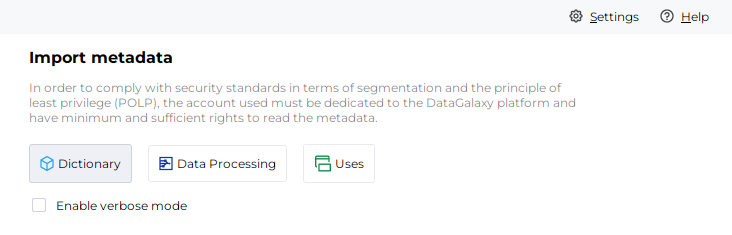
- After starting the connector, access the connectors of the Dictionary category
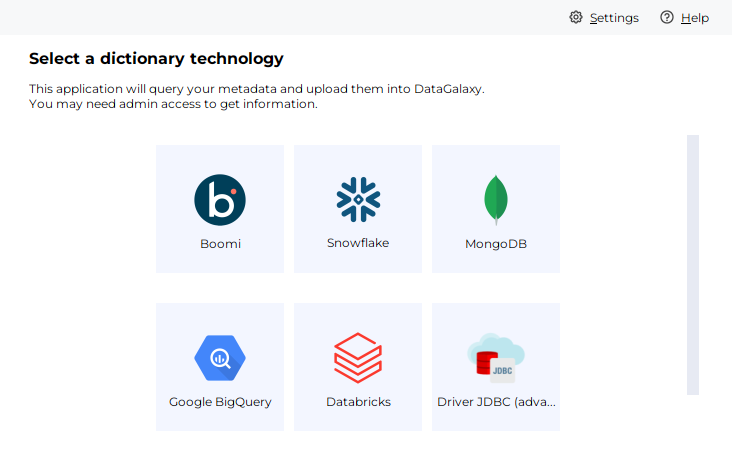
- If it was correctly installed, the MongoDB plug-in will appear
- Fill the corresponding fields using the connection information from above
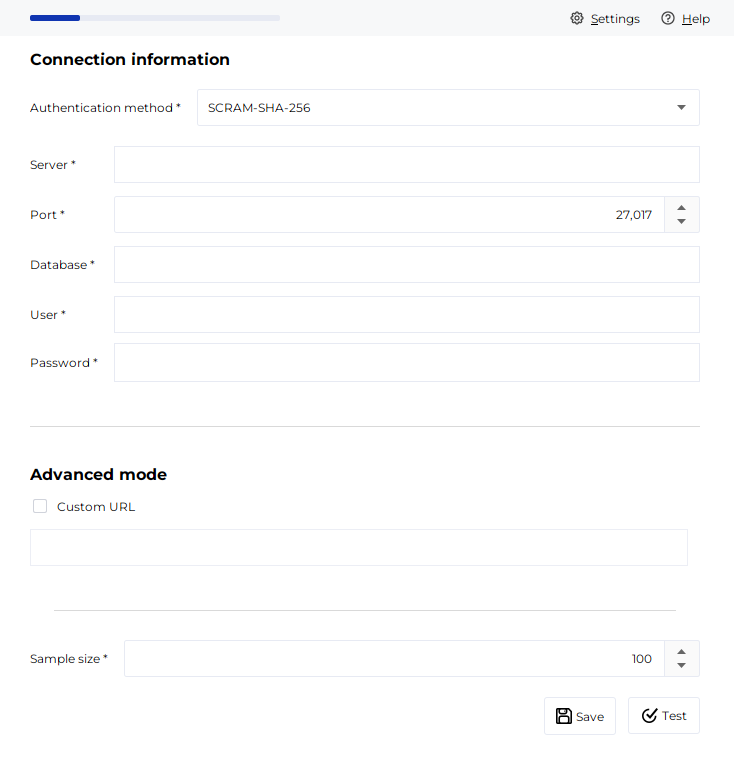
- Clic on "Test" to test the connection
- Once the connection test passed follow the steps to finalize your import
This connector is also available in online mode, more information on this page: [How to] Online Connector operating mode
Configuration of a MongoDB Cloud Atlas connection
This section explains all the steps you need to take to configure a MongoDB Atlas connection with the Online Connector.
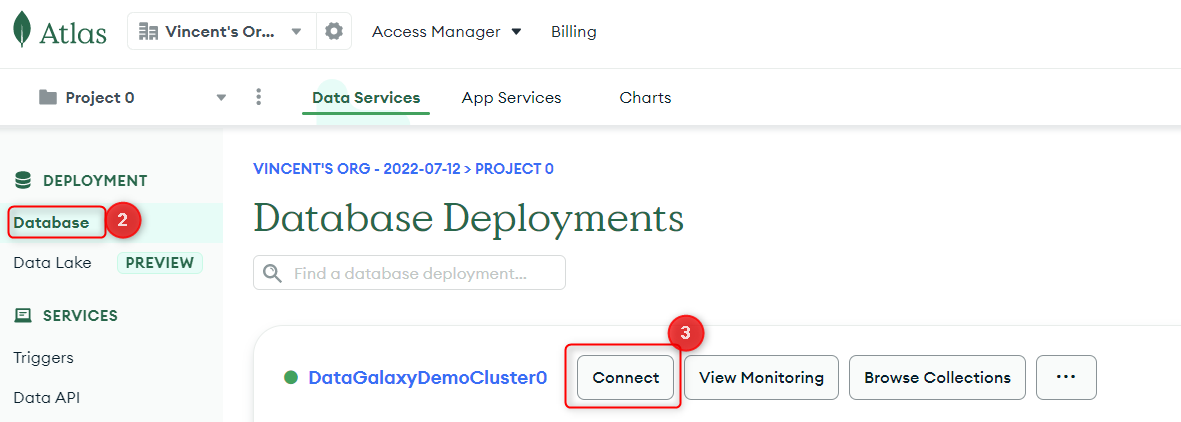
1. Connect to your Atlas Cloud portal
2. Click on Database in the DEPLOYMENT menu on the left
3. Click on the "Connect" button corresponding to the Database whose metadata you want to export
4. Click on "Connect your application".
5. Copy the connection URL: 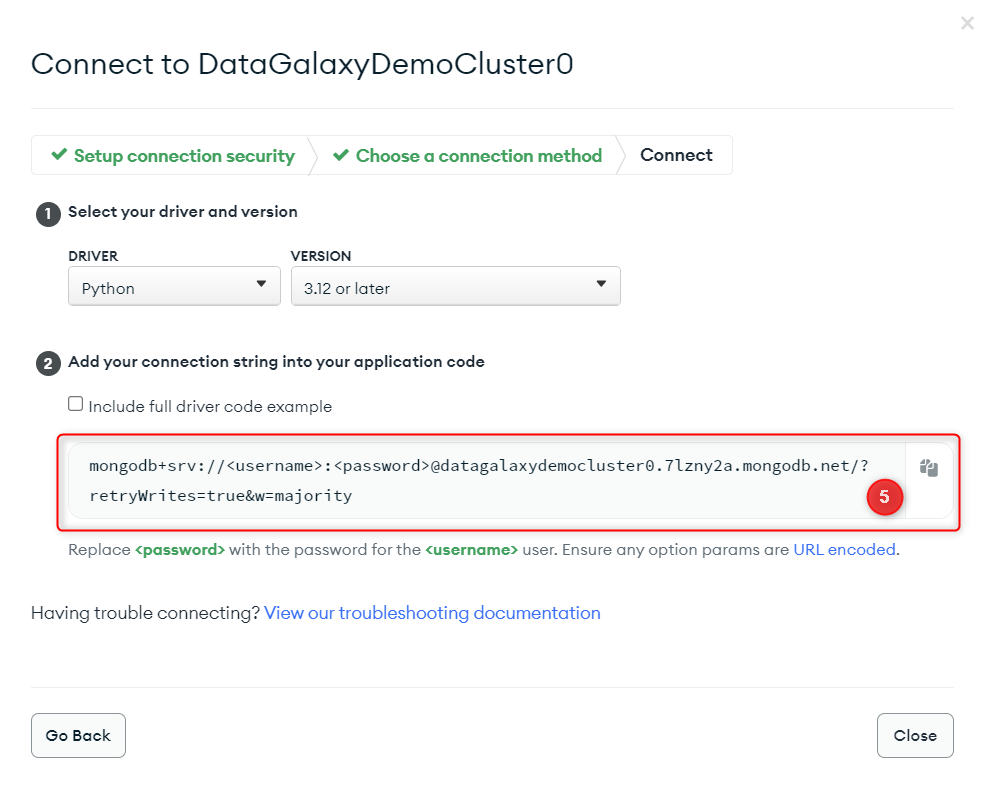
6. Modify login url to remove <username>:<password> which gives with the example of above the following value:
mongodb+srv://datagalaxydemocluster0.7lzny2a.mongodb.net/?retryWrites=true&w=majority
7. Create a MongoDB connection in the DataGalaxy platform
Releases
| Date | Plugin Version | DataGalaxy release | Desktop Connector version (minimum) | Description |
| 19/09/2024 | 3.0.1 | v3.74.0 | 5.0.1 | Fix in management of CLI properties |
| 02/07/2024 | 3.0.0 | v3.55.0 | 5.0.1 | Migrated from java 11 to java 17 + CVE fixes |