
This article explains how the Databricks connector for DataGalaxy works.
This connector is available in the following modes:
| Desktop mode ✅ | SaaS Online mode ✅ |
This connector suppports the following import modes:
| Standard mode ✅ | URN mode ✅ |
⚠ A recent breaking change in Databricks' REST API impacts the current version of the connector regarding the lineage around notebooks. You may miss some lineage links when notebooks are run through a job (aka workflow).
We're currently working on the next version of the connector which use a different and more precise approach for retrieving the lineage. This new version is currently in test phase and will be released soon. This new approach will only be available in URN mode.
Scope, attributes and mapping with DataGalaxy
Objects
Some of the attributes listed here may not be present by default in your objects' screens configuration. To make them appear in DataGalaxy screens, it may be necessary to adapt the screens of the concerned objects before running the connector. See this article to learn more about screen customization.
Instance
A Databricks Instance is represented by a Relational DB in the Dictionary module, and by a Data Flow in the Data Processing module.
The URN follows this syntax:
urn:databricks-1:instance
The following attributes are retrieved from the connection configuration:
| DataGalaxy attribute | Source/Value |
|---|---|
| Technical name | Instance hostname setup in the connector |
Catalog
A Catalog is represented by a Model.
The URN follows this syntax:
urn:databricks-1:instance:catalog
The list of Catalogs is retrieved using the JDBC connection and the SHOW CATALOGS statement. The following attributes are retrieved using the DESCRIBE CATALOG EXTENDED statement:
| DataGalaxy attribute | Source/Value |
|---|---|
| Technical name | catalog |
| Summary | Comment |
| Creation date of the source object | Created At |
| Last modification date of the source object | Updated At |
Note: the system and __databricks_internal catalogs are filtered out implicitely.
Schema
A Schema is represented by a Model.
The URN follows this syntax:
urn:databricks-1:instance:catalog:schema
The list of Schemas is retrieved using the JDBC connection and the SHOW SCHEMAS statement. The following attributes are retrieved using the DESCRIBE SCHEMA EXTENDED statements:
| DataGalaxy attribute | Source/Value |
|---|---|
| Technical name | databaseName |
| Summary | Comment |
Note: the INFORMATION_SCHEMA schemas are filtered out implicitely.
Table (Managed or External)
A Table is represented by a Table.
The URN follows this syntax:
urn:databricks-1:instance:catalog:schema:table
The list of Tables is retrieved using the JDBC connection and the SHOW TABLES statement. The following attributes are retrieved using the DESCRIBE TABLE EXTENDED statement (some attributes may not be present depending on the type of Table):
| DataGalaxy attribute | Source/Value |
|---|---|
| Technical name | tableName |
| Summary | Comment |
| Technical type | Type |
| External Id | Id* |
| Creation date of the source object | Created At |
| Last modification date of the source object | Updated At |
| Link to source | Location |
| Query | Query |
| Current storage size | sizeInBytes* |
| Is partitioned | "# Partition Information" present in the table's metadata* |
*These information are only available using the metadata retrieval method "DESC TABLE".
View (including Materialized View)
A View is represented by a View.
The URN follows this syntax:
urn:databricks-1:instance:catalog:schema:view@view
The list of Views is retrieved using the JDBC connection and the SHOW TABLES statement. The following attributes are retrieved using the DESCRIBE TABLE EXTENDED statement (some attributes may not be present depending on the type of View):
| DataGalaxy attribute | Source/Value |
|---|---|
| Technical name | tableName |
| Summary | Comment |
| Technical type | "VIEW" |
| External Id | Id* |
| Creation date of the source object | Created At |
| Last modification date of the source object | Updated At |
| Link to source | Location |
| Query | Query |
| Current storage size | sizeInBytes* |
| Is partitioned | "# Partition Information" present in the table's metadata* |
*These information are only available using the metadata retrieval method "DESC TABLE".
Column
A Column is represented by a Column.
The URN follows this syntax:
urn:databricks-1:instance:catalog:schema:table:column
The following attributes are retrieved at the same time as the Table's metadata:
| DataGalaxy attribute | Source/Value |
|---|---|
| Technical name | col_name |
| Summary | Comment |
| Technical type | data_type |
The following attributes are calculated:
| DataGalaxy attribute | Source/Value |
|---|---|
| Order | Position of the Column in the Columns list |
| Is partition key | Column present in the "# Partition Information" section of table's metadata |
Workspace Directory
A Workspace Directory is represented by a Data Flow.
The URN follows this syntax:
urn:databricks-1:instance:Workspace@workspace:directory
The following attributes are retrieved using the Databricks' REST API List contents (GET /api/2.0/workspace/list) endpoint:
| DataGalaxy attribute | Source/Value |
|---|---|
| Technical name | name |
| External Id | object_id |
Notebook
A Notebook is represented by a Data Processing.
The URN follows this syntax:
urn:databricks-1:instance:Workspace@workspace:directory:notebook@notebook
The following attributes are retrieved using the Databricks' REST API List contents (GET /api/2.0/workspace/list) endpoint:
| DataGalaxy attribute | Source/Value |
|---|---|
| Technical name | name |
| External Id | object_id |
| Technical type | object_type |
| Summary | language |
Workflow
Note: the Workflows are only supported in URN mode.
A Workflow is represented by a Data Processing.
The URN follows this syntax:
urn:databricks-1:instance:Workflows@workflows:workflowId
The following attributes are retrieved using the Databricks' REST API List jobs (GET /api/2.2/jobs/list) and Get a single job (GET /api/2.2/jobs/get) endpoints:
| DataGalaxy attribute | Source/Value |
|---|---|
| Technical name | job_id |
| Functional name | name |
| Summary | description |
Links
The links created by the Databricks connector are lineage links between structures in the Dictionary and eventually Data Processing objects in the Data Processing module. Retrieving the lineage is optional, the "Get Lineage" option has to be selected in the configuration of the connector. Then, granularity can be configured at table or column level*. The method for retrieving the lineage can be configured too*, the connector offers two options:
- The new option recommended by Databricks is to use Databricks' System Tables. This may require a configuration from an administrator of the Databricks workspace to make them available. This is the option which will bring you the most precise lineage. The system.access.table_lineage and system.table.column_lineage views are read by the connector to retrieve the lineage with this method.
- The legacy option is to use Databricks' lineage REST API (GET /api/2.0/lineage-tracking/table-lineage endpoint). This API is less precise than the System Tables. For instance, it cannot get the full mapping between input and output objects around Notebooks and Workflows, which is possible using the System Tables.
These two options are only available in URN mode.
When creating the links around Notebooks and Workflows, the following behavior is implemented to get the most complete and precise lineage possible in DataGalaxy:
- If the "Get Notebooks" option is selected, the lineage links are created around all Notebooks which are part of the scope of the connector. If a Notebook is not in the scope (filtered out by the path filter or belonging to another Databricks Workspace), then the links are created directly between the involved Dictionary structures.
- If the "Get Workflows" option is selected, the lineage links are created around all Workflows which are part of the scope of the connector. If a Workflow is not in the scope (belonging to another Databricks Workspace), then the links are created directly between the involved Dictionary structures.
When a Data Processing object is involved in the lineage, the Databricks connector leverages the Data Processing Items, in order to provide the most precise mapping between input and output objects. The name of the Data Processing Items created by the connector is a technical name built by analyzing the names of the input and output objects, it doesn't represent anything from the reality and doesn't come from Databricks. This name will remain stable over time, as long as the input and output objects don't change.
Note: the Orphaned Objects Handling mechanism doesn't support the Data Processing Items yet. It means that if you have old Data Processing Items, they will not be cleaned by the Orphaned Objects Handling feature. This is identified by the team which is currently working on an evolution to manage this.
Detailed scope
Input (dictionary module)
- Catalog, schema, table and view
From the home page of your Databricks account, these items are visible in the “Catalog” section on the left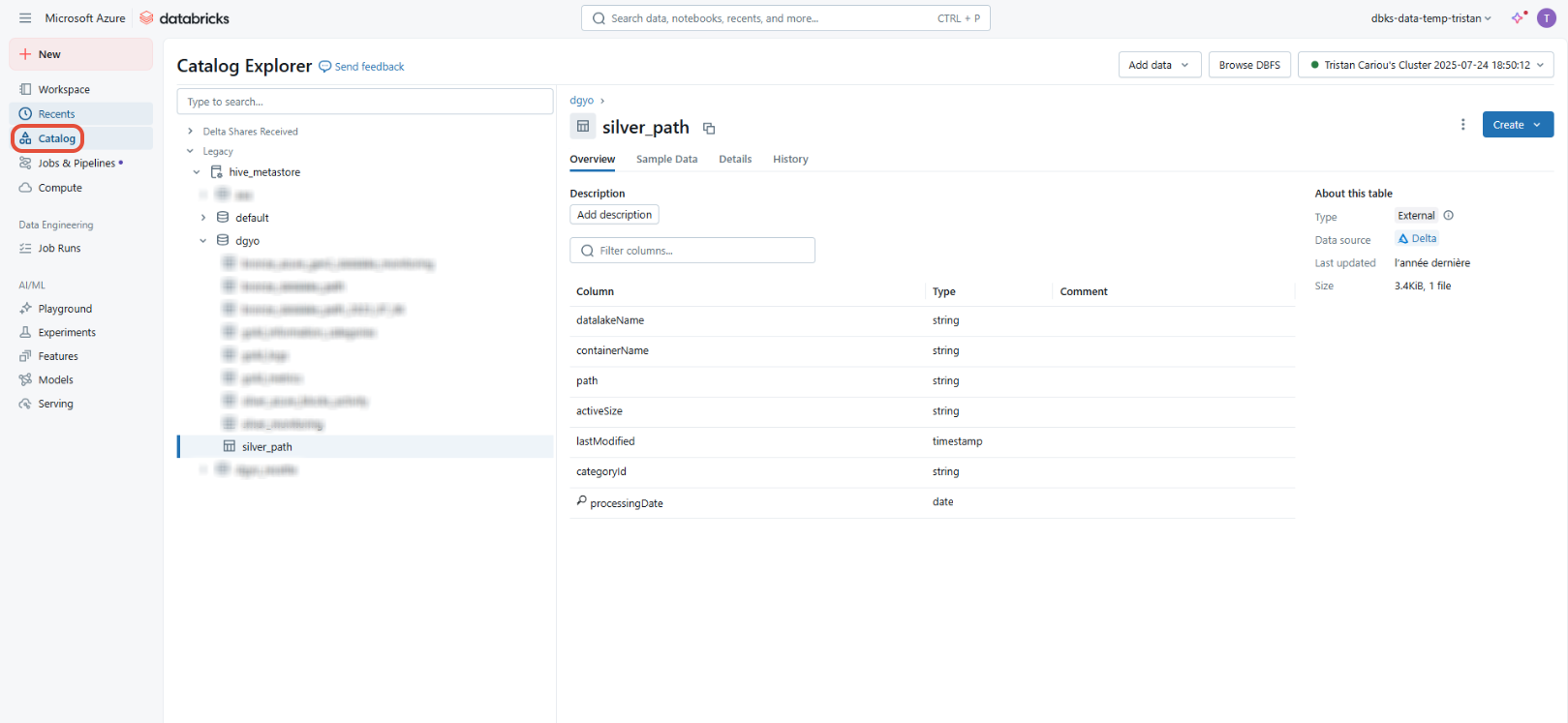
- Column
By clicking on a given table or view, you will see details of the columns that comprise it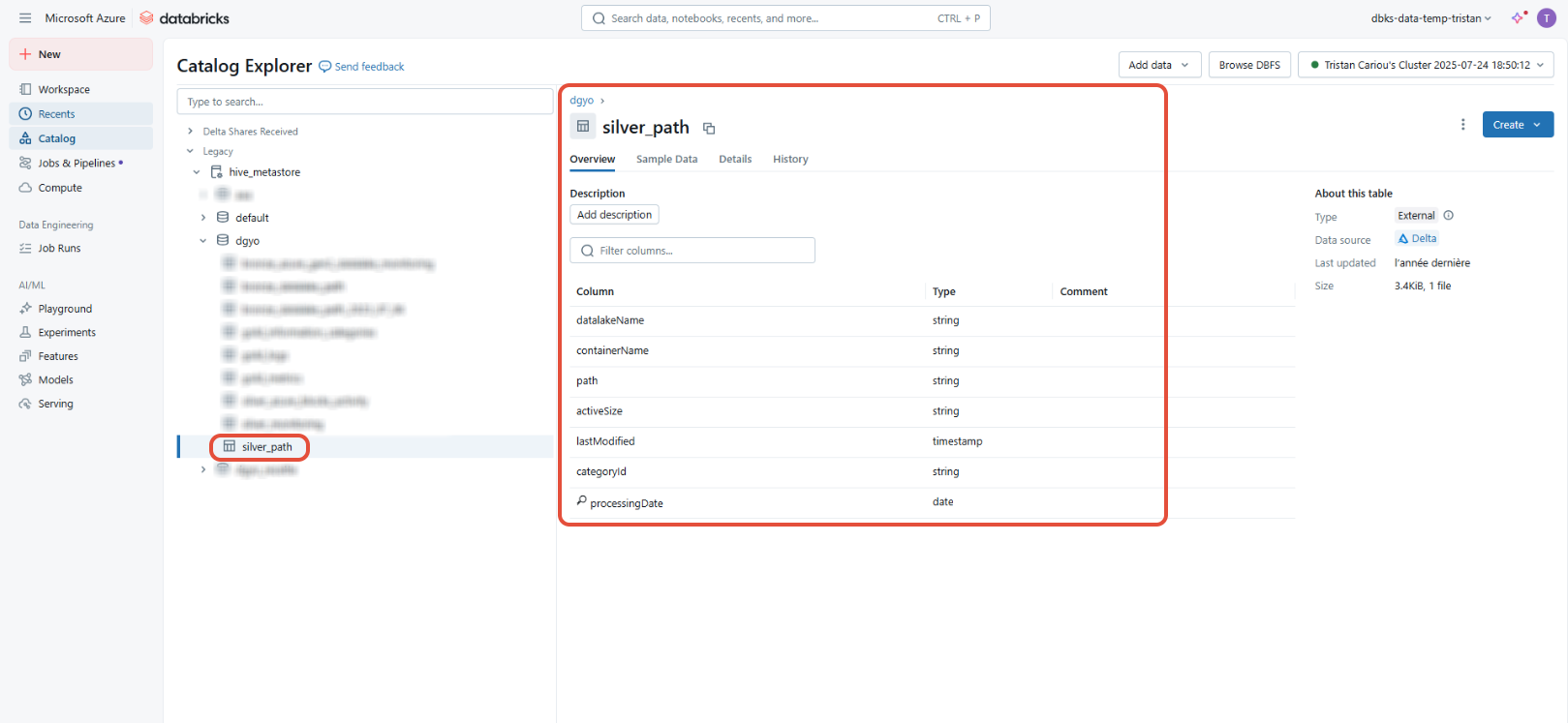
Input (Data Processing module)
- Folders
From the home page of your Databricks account, the folders are visible in the “Workspace” section on the left. The folders contained in the “Workspace” folder will be imported. The "User" and “Repos” folders will be ignored during the import.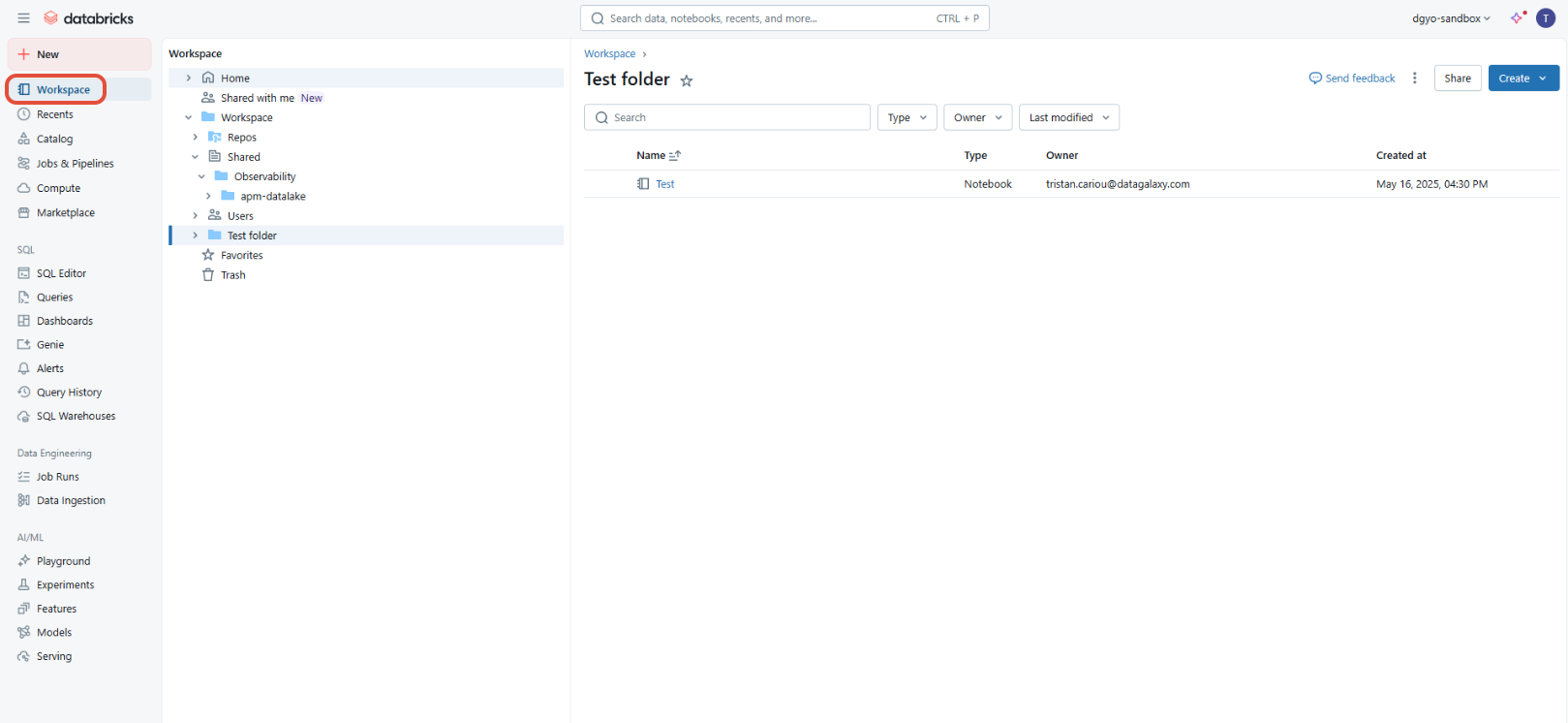
- Notebooks
Notebooks are visible by clicking on a folder. They will then appear in the central part of the screen.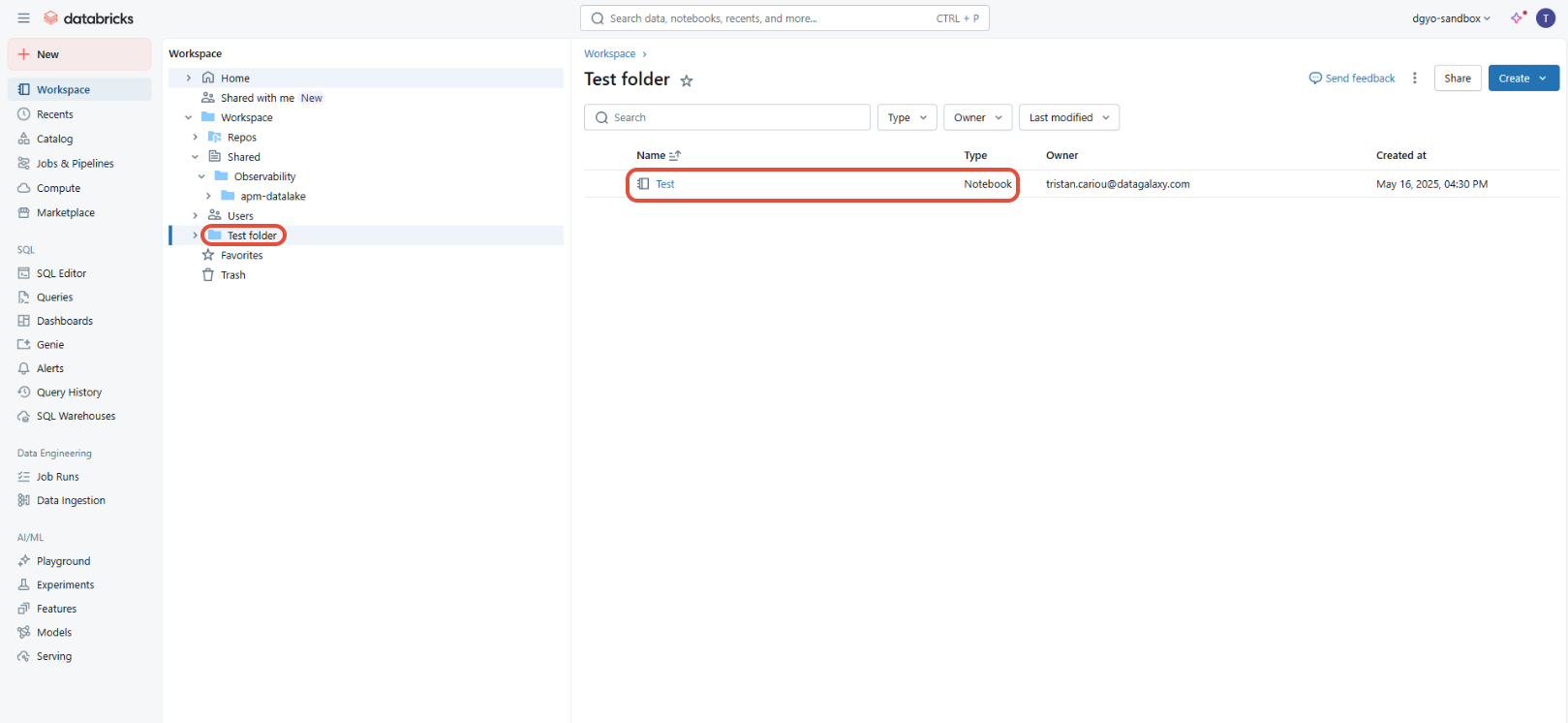
- Workflows (only with the Unity Catalog version of Databricks in URN mode)
From the home page of your Databricks account, workflows are visible in the “Jobs and Pipelines” section on the left.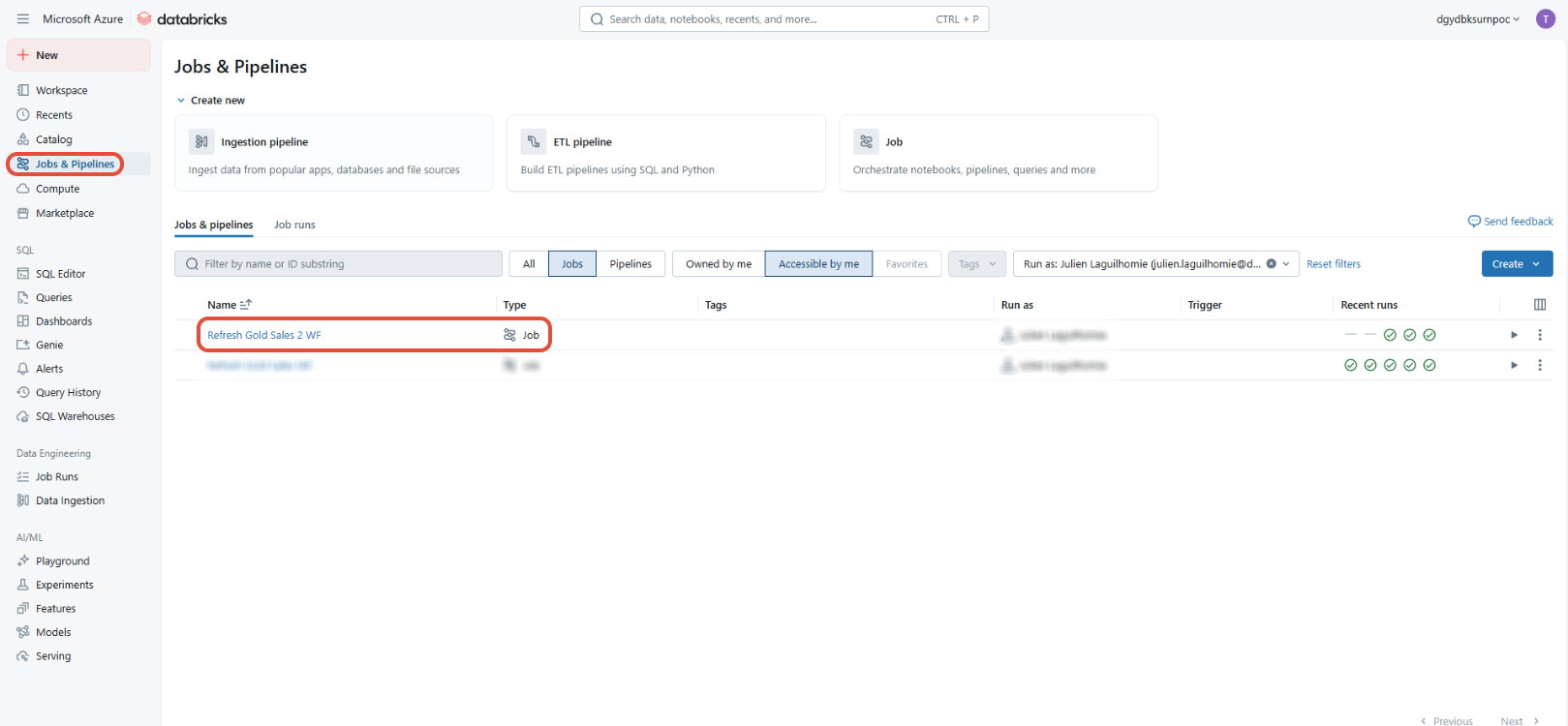
By clicking on a given job, you will see the details associated with it, including the associated lineage, with the upstream and downstream tables (which in DataGalaxy will correspond to links to tables).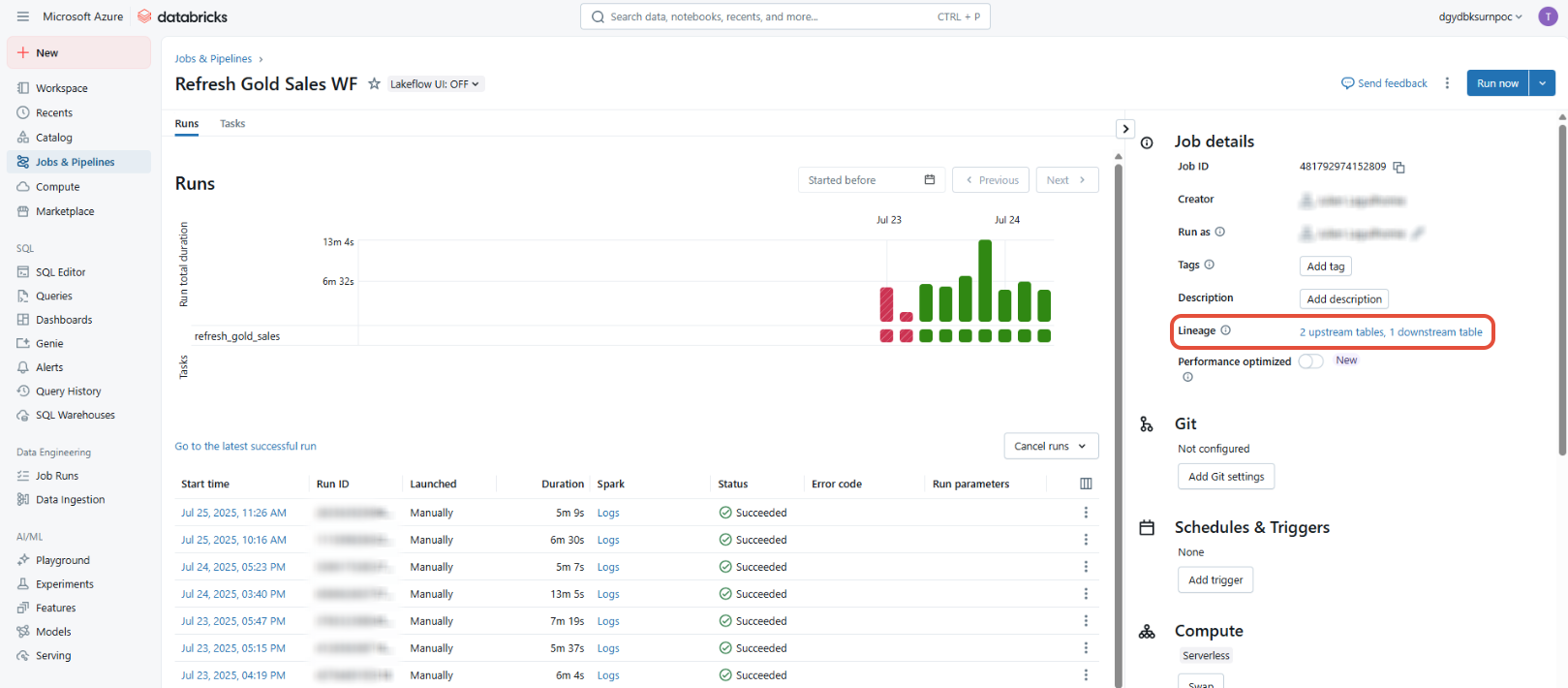
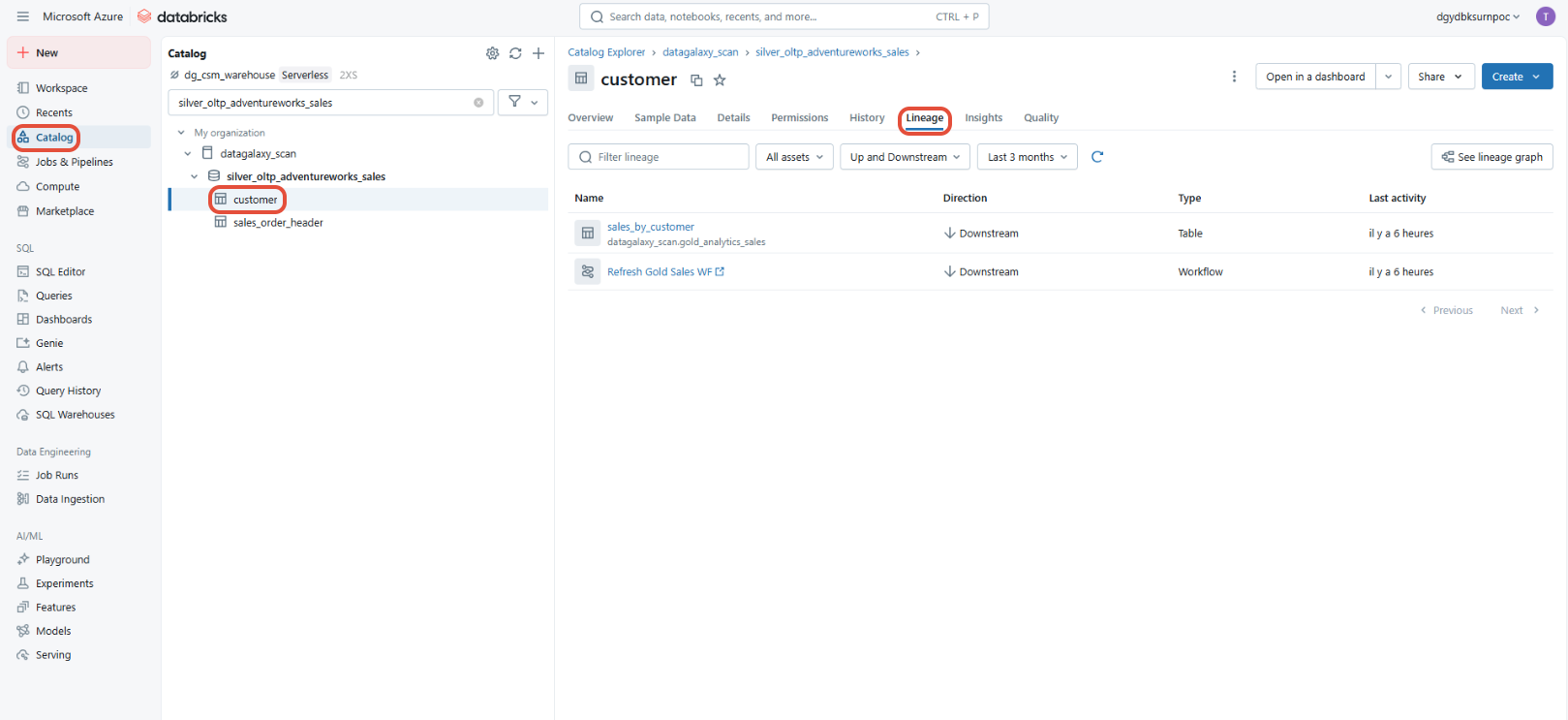
You will also find this information by opening the “lineage” tab of a given table in the “Catalog” section.
Output (dictionary module)
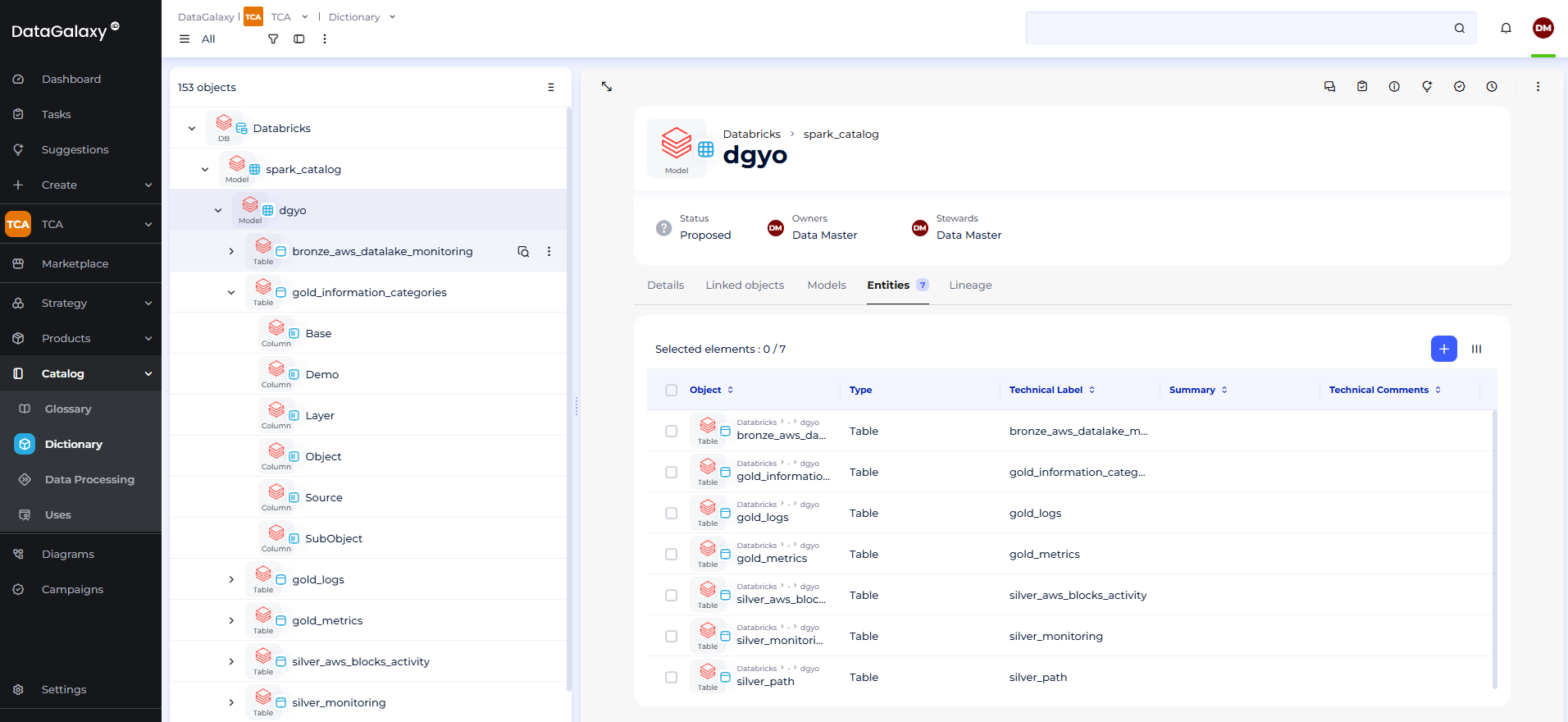
- Catalog, schema, table, view and column
Output (dataprocessing module)
- Folders and Notebooks
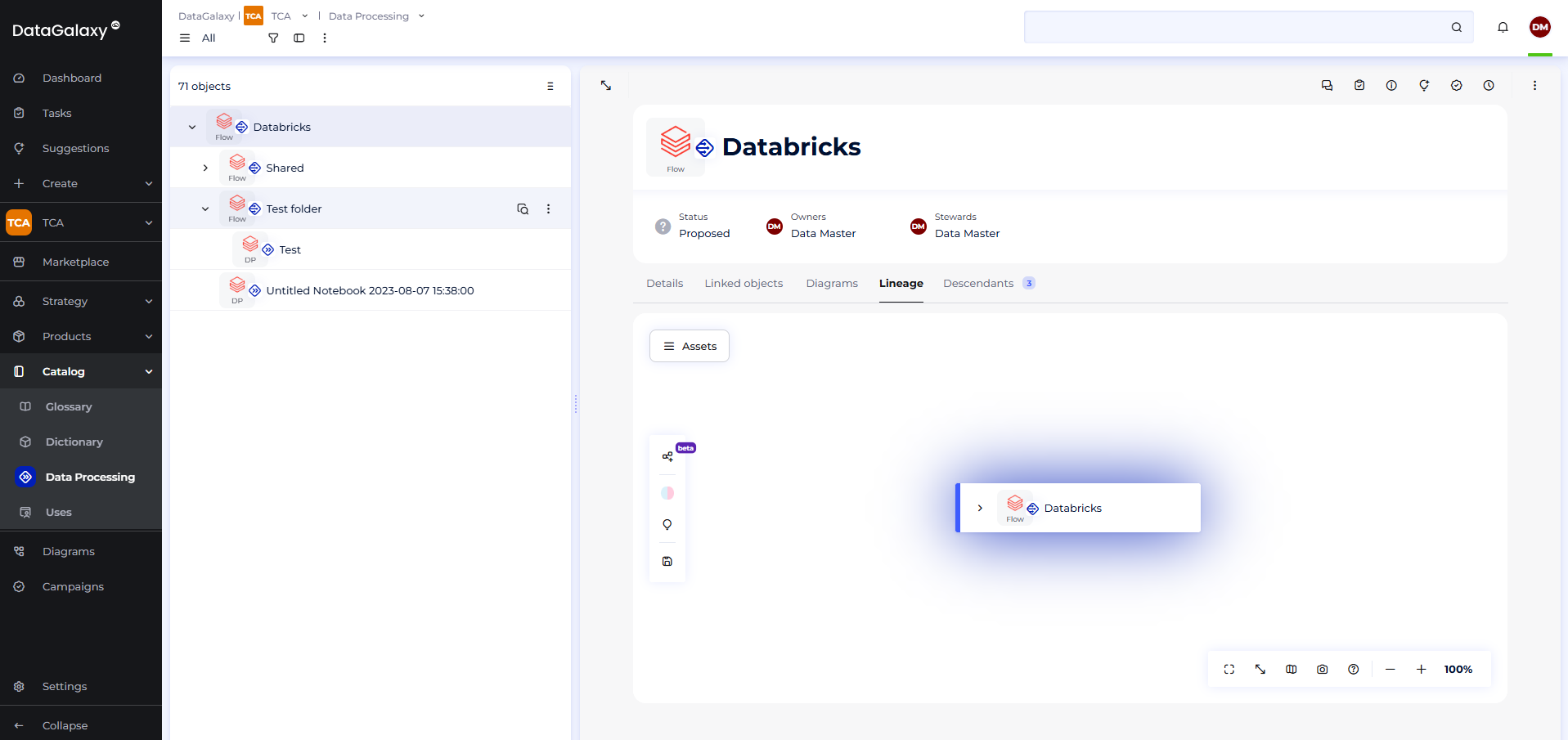
Configuration of a connection
On Databricks' side
The Databricks connector uses the JDBC driver provided by Databricks and the Unity Catalog REST API. Connecting to a Databricks instance therefore requires a cluster to execute SQL commands via the JDBC driver. You can use either an interactive cluster or an SQL Warehouse cluster. Access to the cluster connection information is available here. To optimize processing times, you can start the cluster before launching the connector.
There are three modes available for authenticating on the Databricks cluster:
The token authentication
The detailed procedure for generating a token is available here. The token is associated with a user who must have access to the tables you want to upload via the connector (in other words, when you log in with the account associated with the token, if you do not see what you want to upload, then the import with this token will not upload the missing objects either).
To generate a token, follow these steps:
- Log in using the User you want to associate with the token
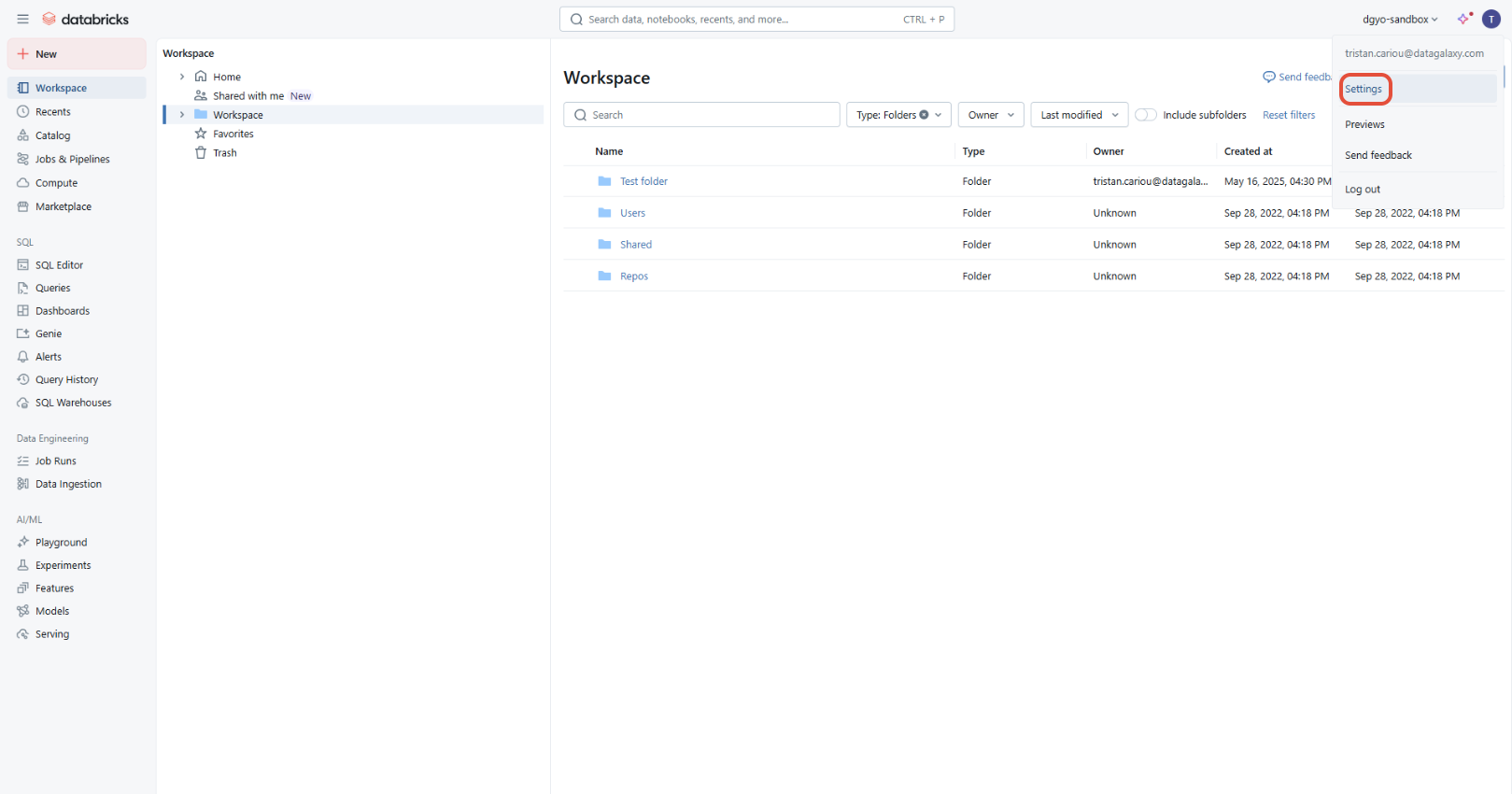
- From the home page, click on the user icon in the top right corner, then on “Settings”
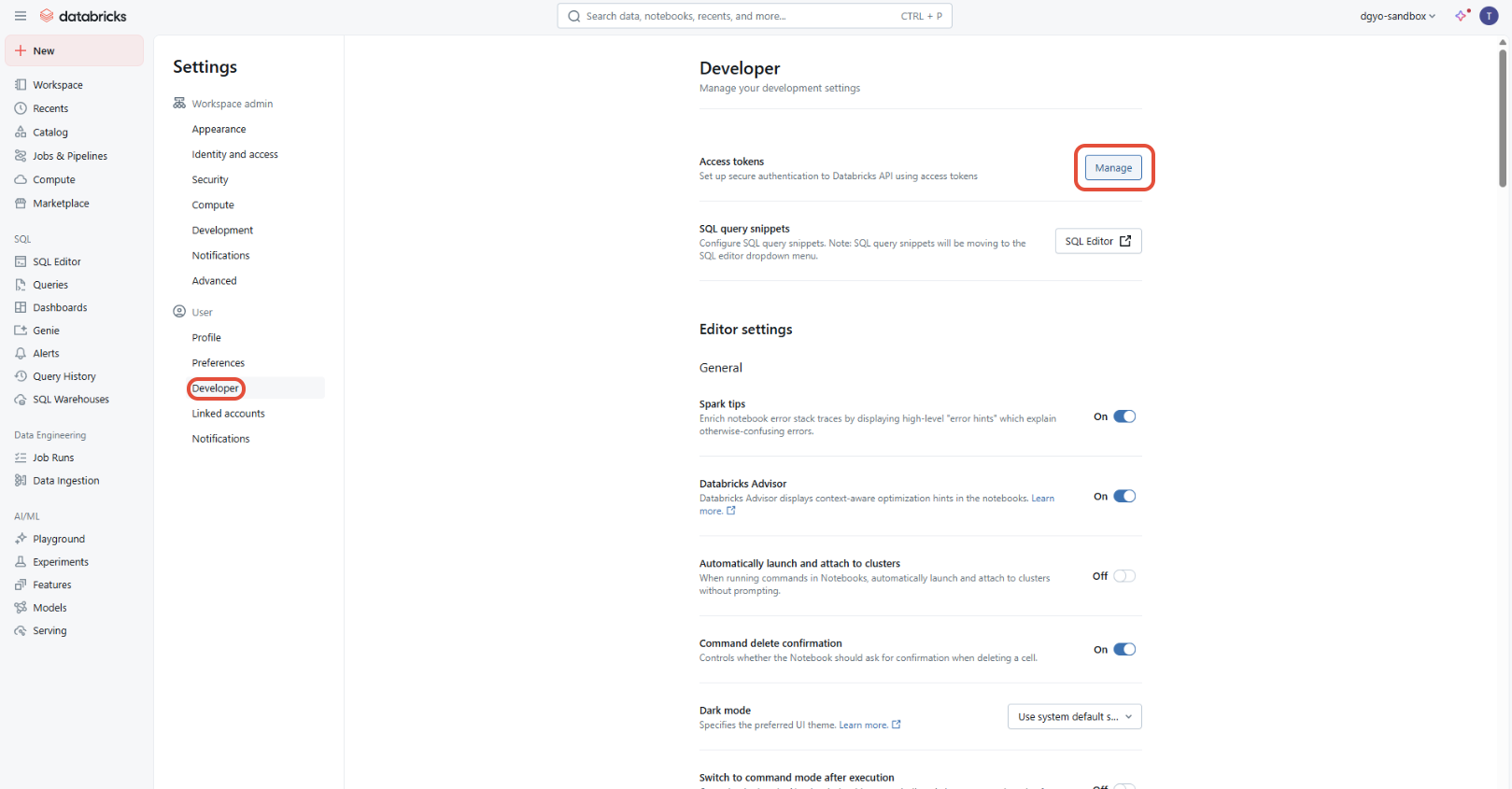
- Open the “Developer” menu, then click on the "Manage" button for “Access tokens”
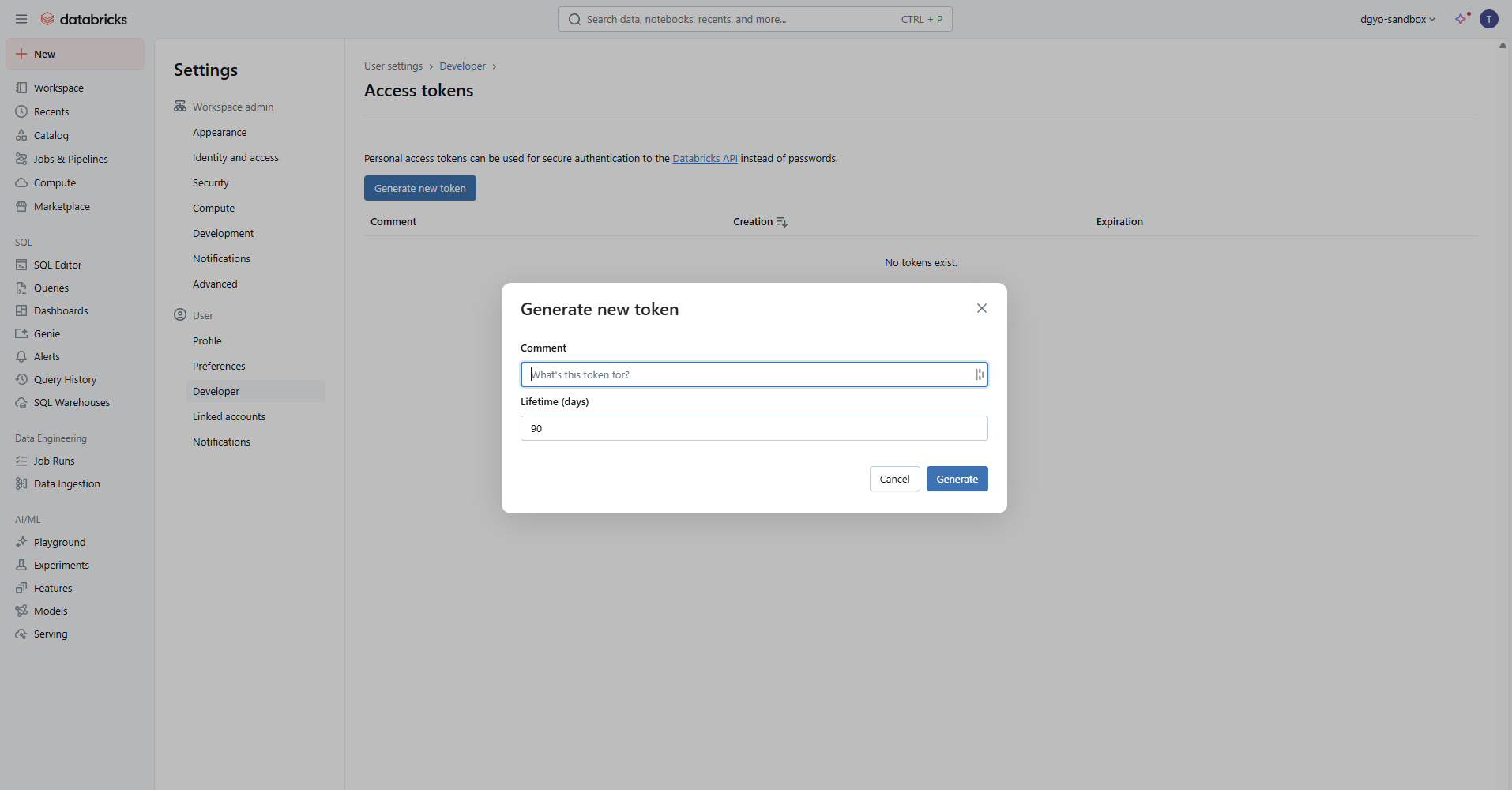
- Generate your token by assigning it a description and a lifetime
- Keep the generated token; you can now use it to configure your DataGalaxy connection
Authentication using Entra ID (Azure AD) Service Principal
In order to use service principals on Azure Databricks, an admin user must first create a new Microsoft Entra ID (formerly Azure AD) application by following these steps:
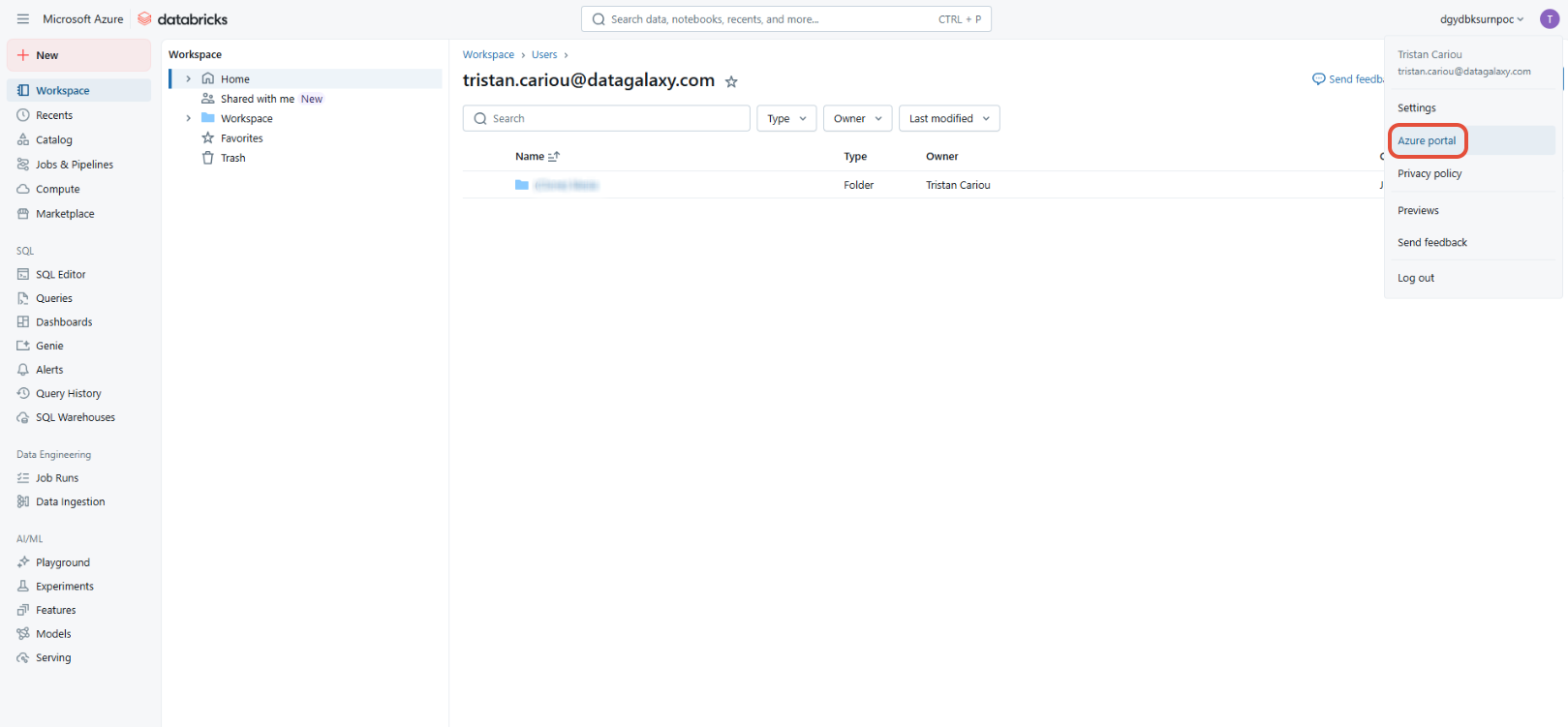
- Go to the Azure portal (for example, by clicking on the user icon from your Databricks account and then on “Azure Portal”)
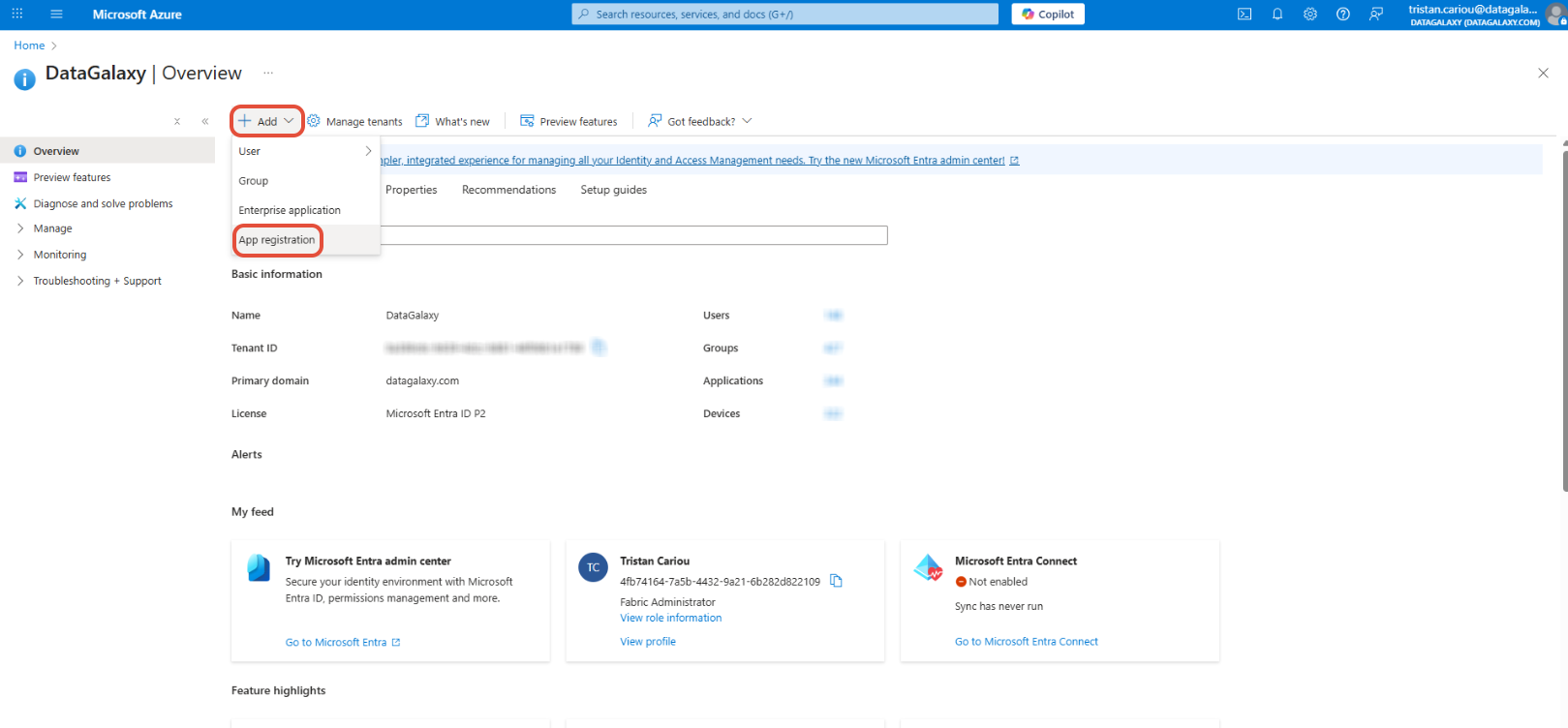
- Once in the Azure portal, find and click on “Microsoft Entra ID” in the search bar

- Then click on “+ Add” and then “App registration”
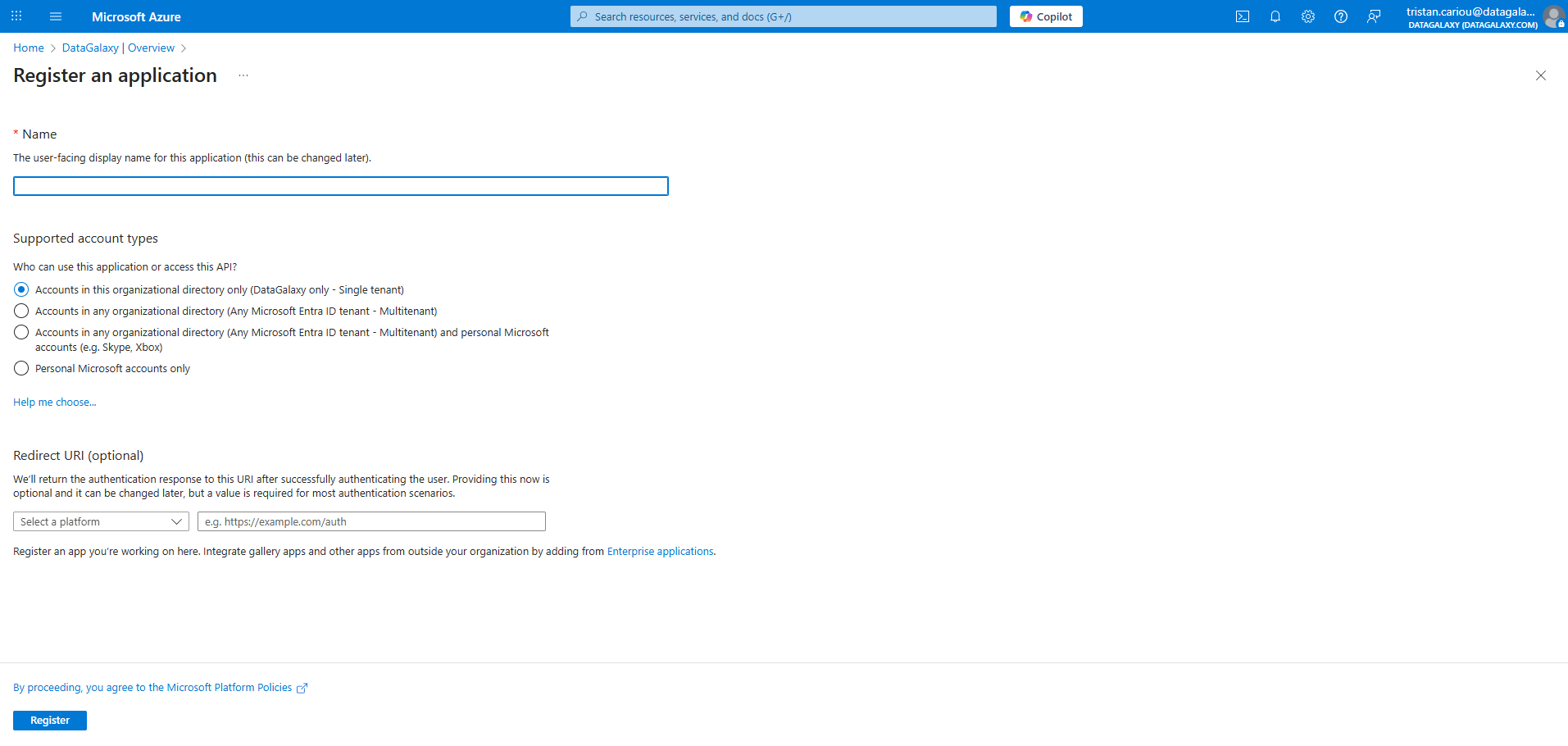
- Enter the necessary information, remembering to select the option “Accounts in this organizational directory only (Single tenant)” in the “Supported account types” section
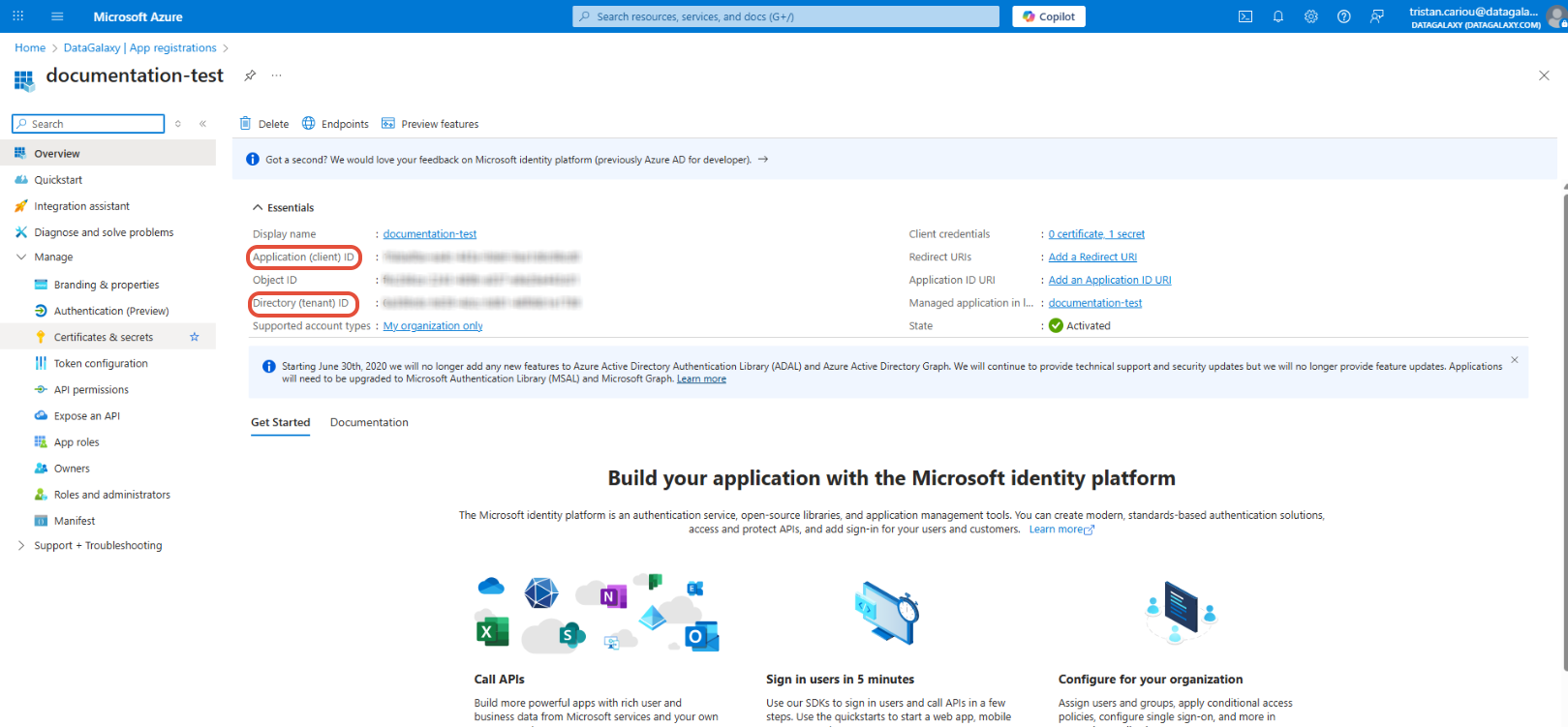
- Once the application has been created, remember to copy/paste the “Application (client) ID” and the “Directory (tenant) ID” before clicking on “Certificates and secrets” on the left
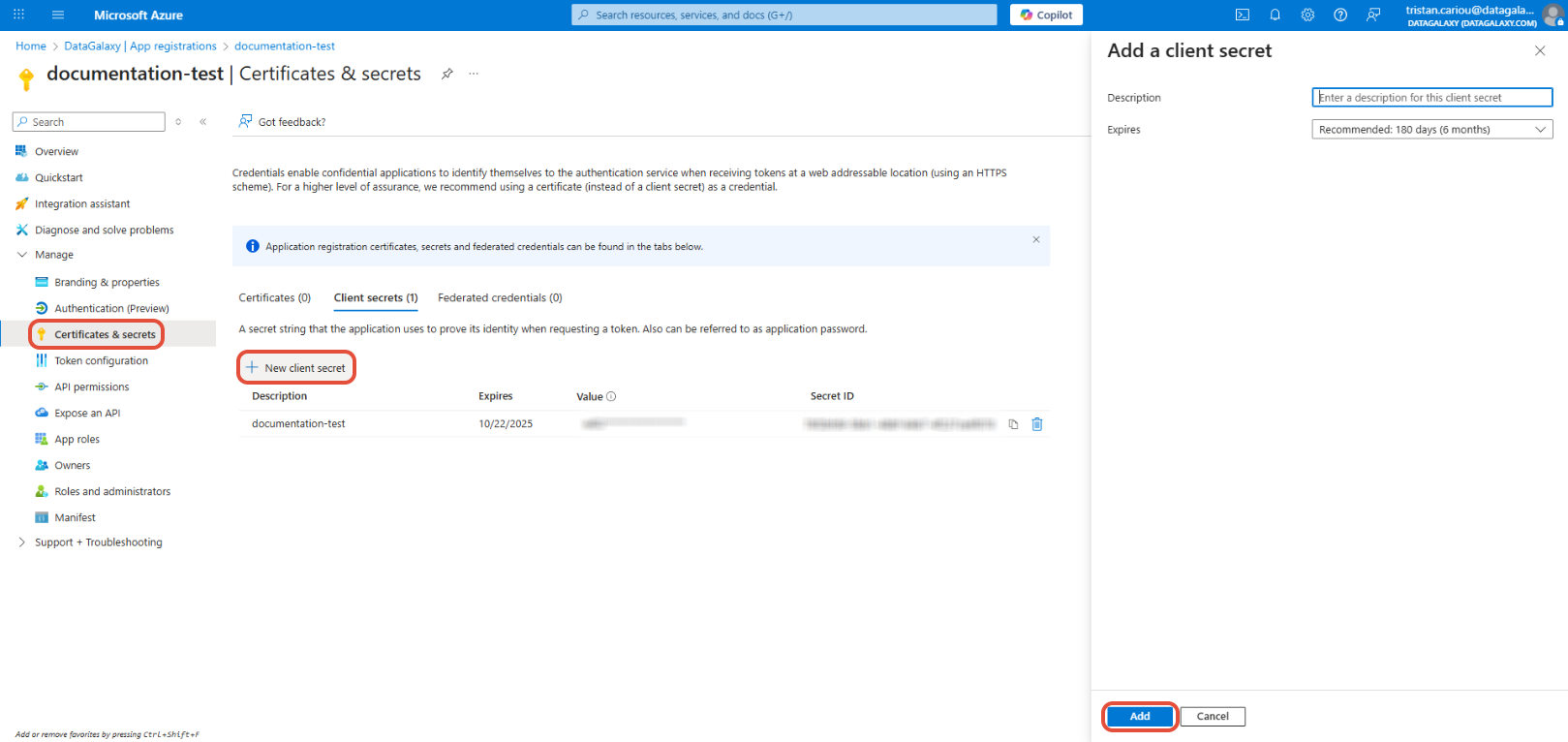
- In “Certificates and secrets,” generate a secret using “+ New client secret”. In the window on the right, enter a description and an expiration date before clicking “Add”
- Keep the generated secret, you can now use it to configure your DataGalaxy connection
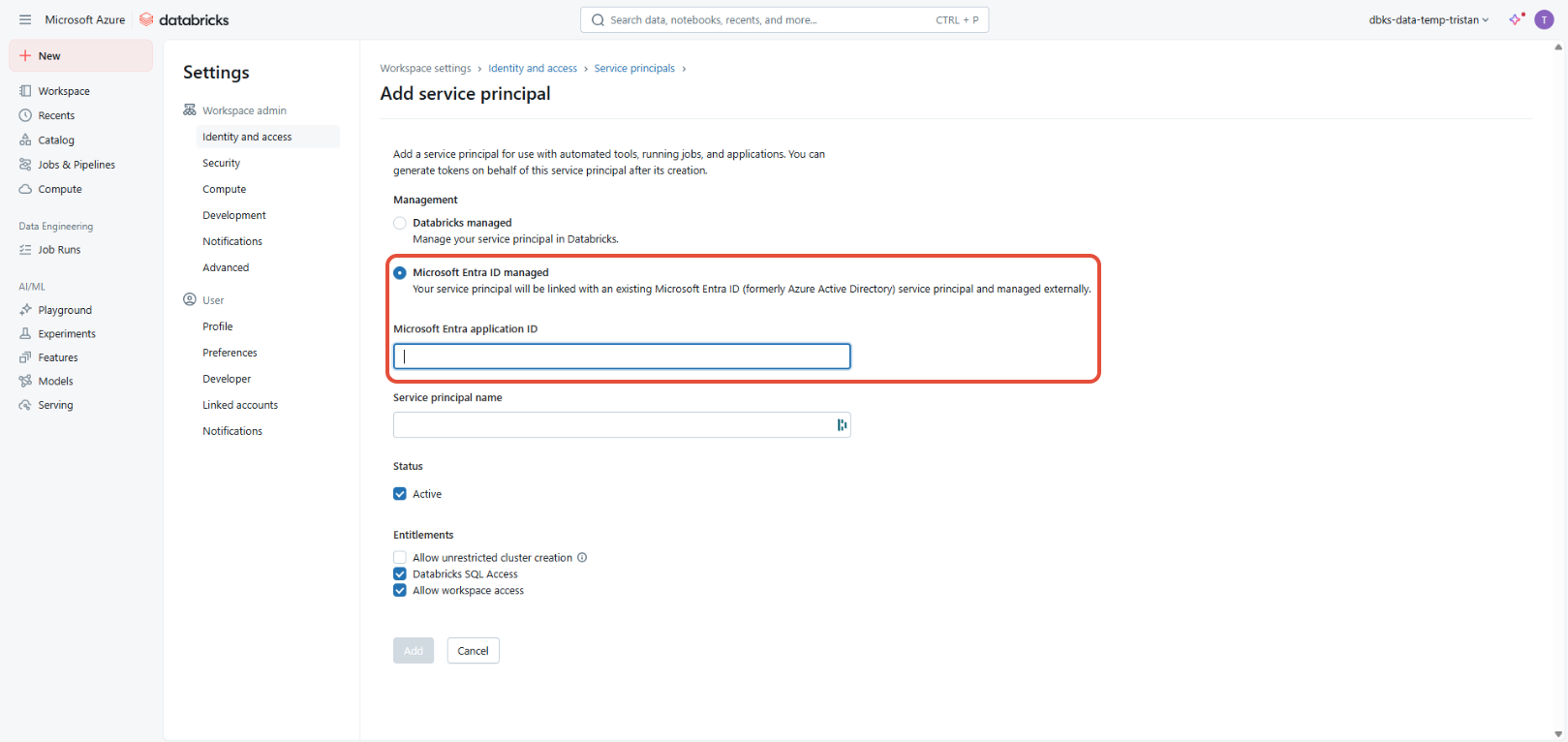
Once the application has been created in Microsoft Entra ID, you will need to link it to your Databricks account by following these steps:
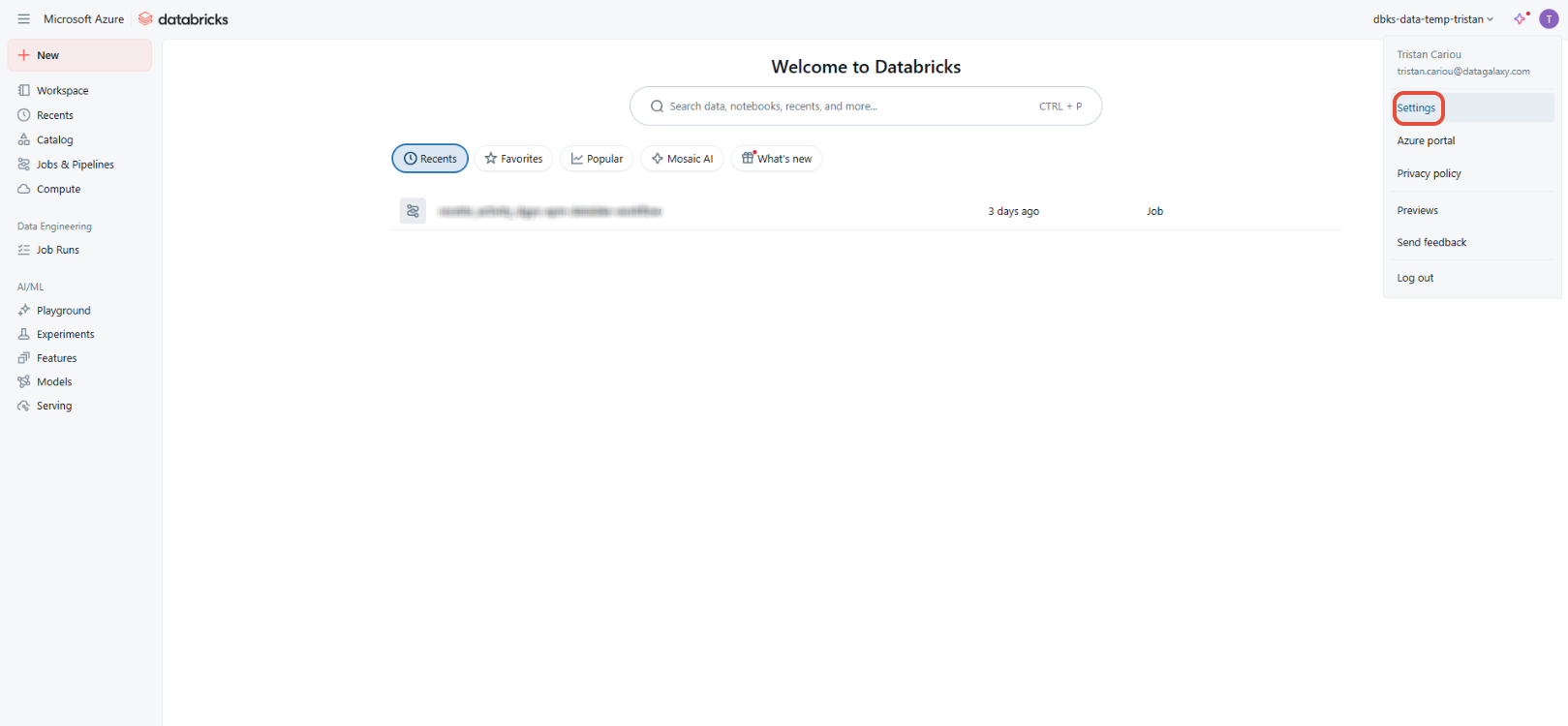
- From the home page, click on the user icon in the top right corner, then click on “Settings”
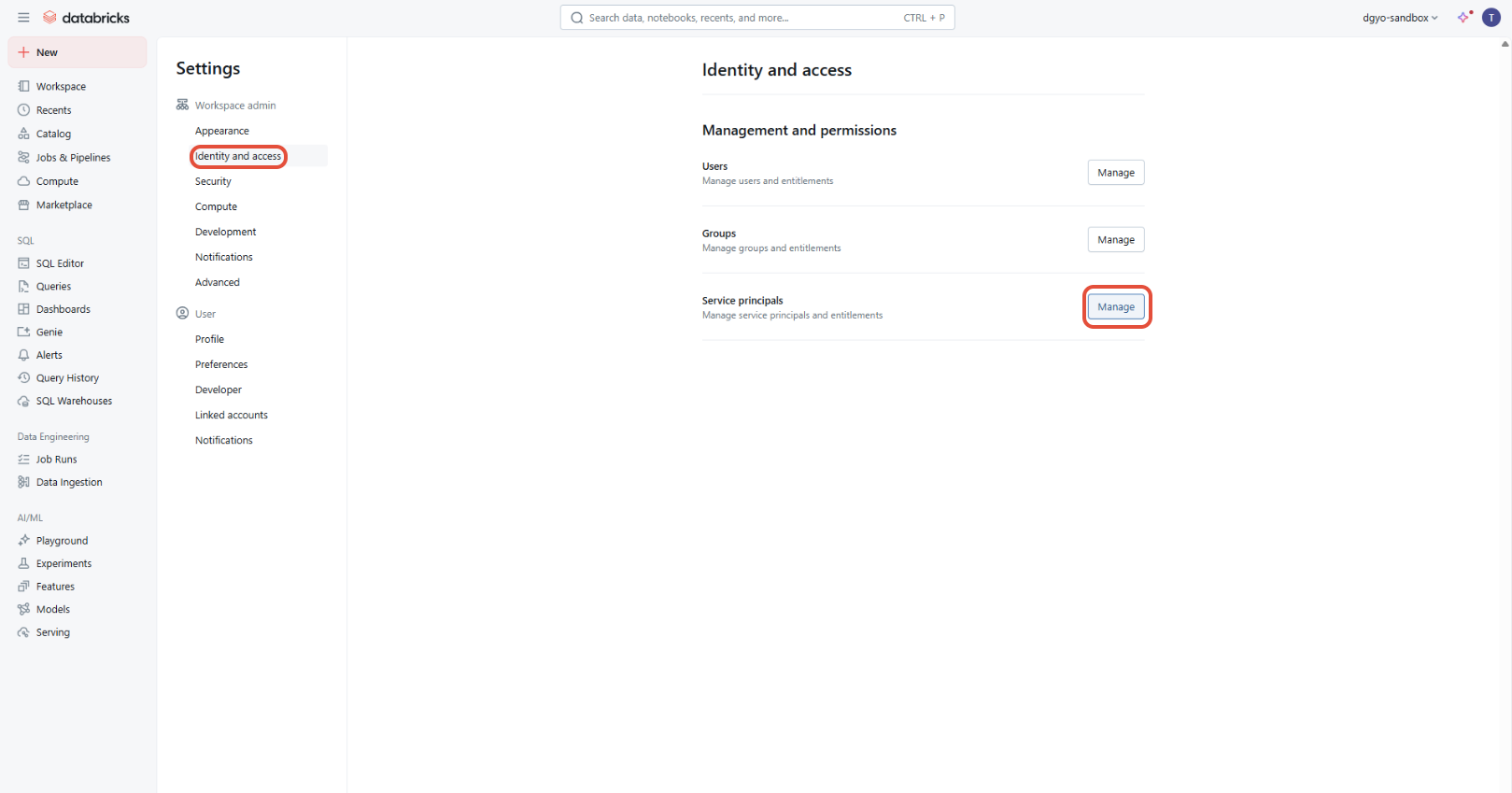
- Open the “Identity and Access” menu, then click on the "Manage" button under “Service Principals”
- You will then be able to create a service principal using the “Add service principal” button
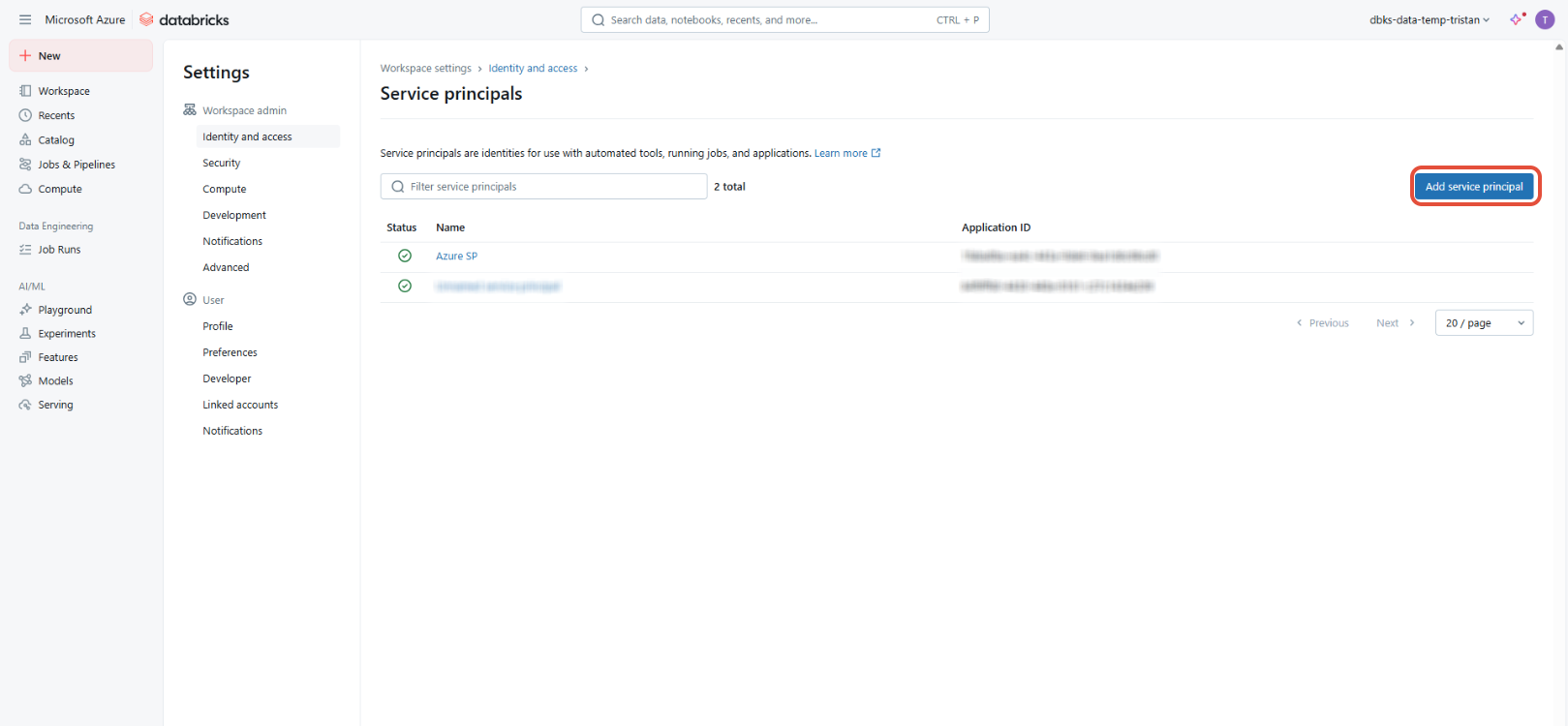
- All you need to do is copy the Microsoft Entra Application ID to associate your Azure application with the Azure Databricks account
Authentication using a Databricks Service Principal
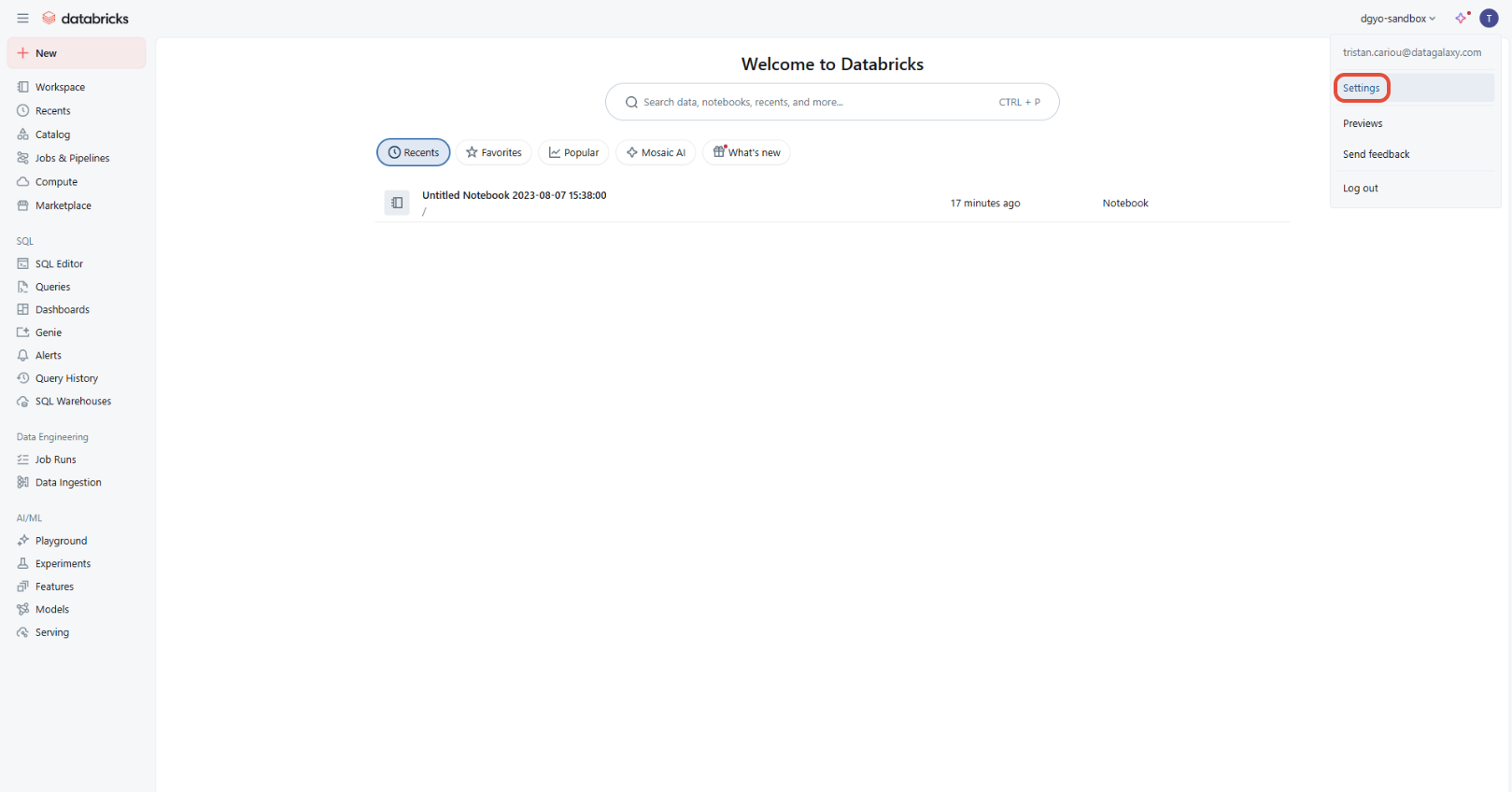
A Service Principal is a specialized identity used for automatic access and scheduled operations. You can manage access for a Databricks Service Principal in the same way you manage access for a user. To create one, follow these steps:
- From the home page, click on the user icon in the top right corner, then on “Settings”
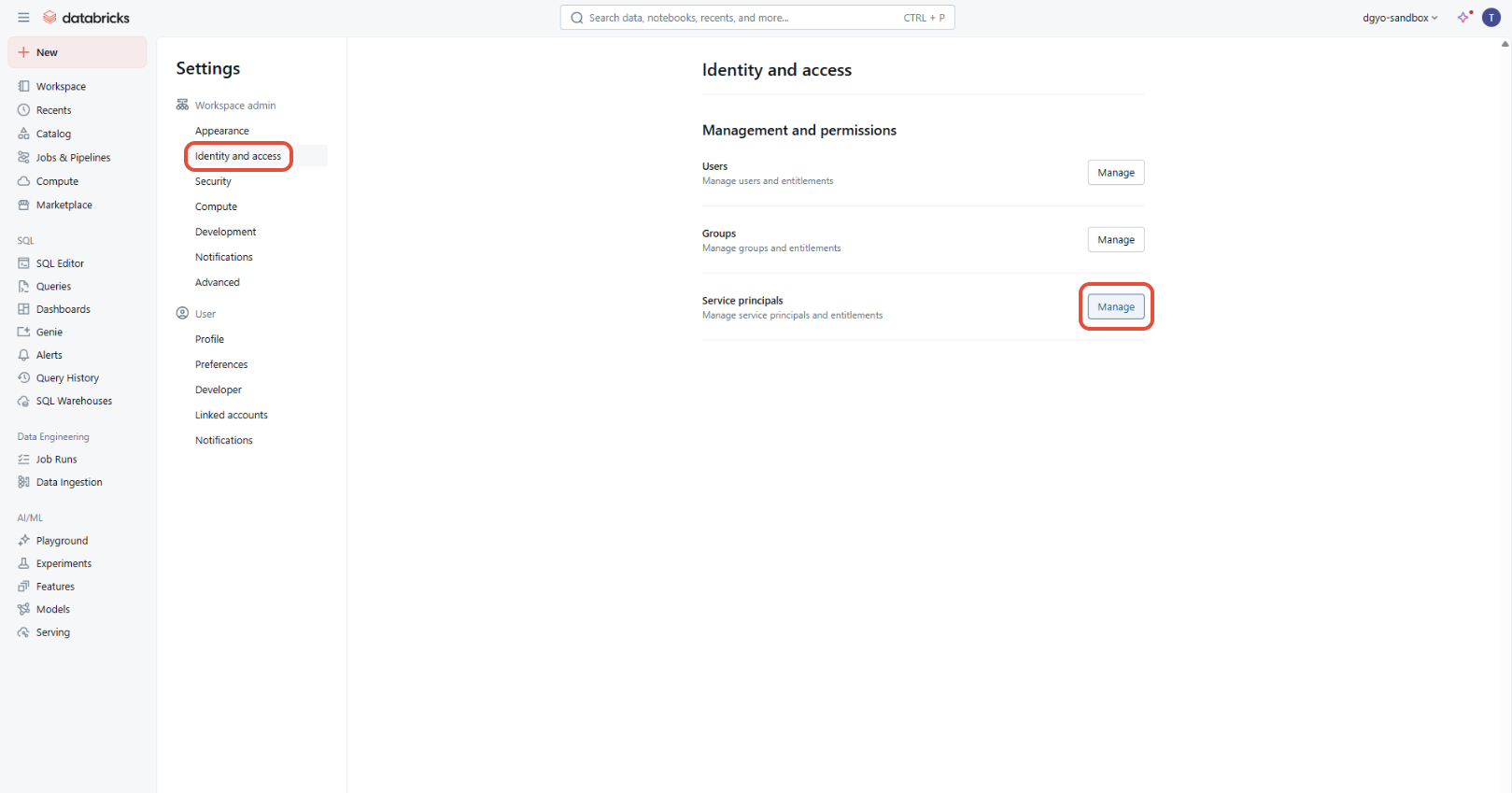
- Open the “Identity and Access” menu, then click on the "Manage’ button under “Service Principals”
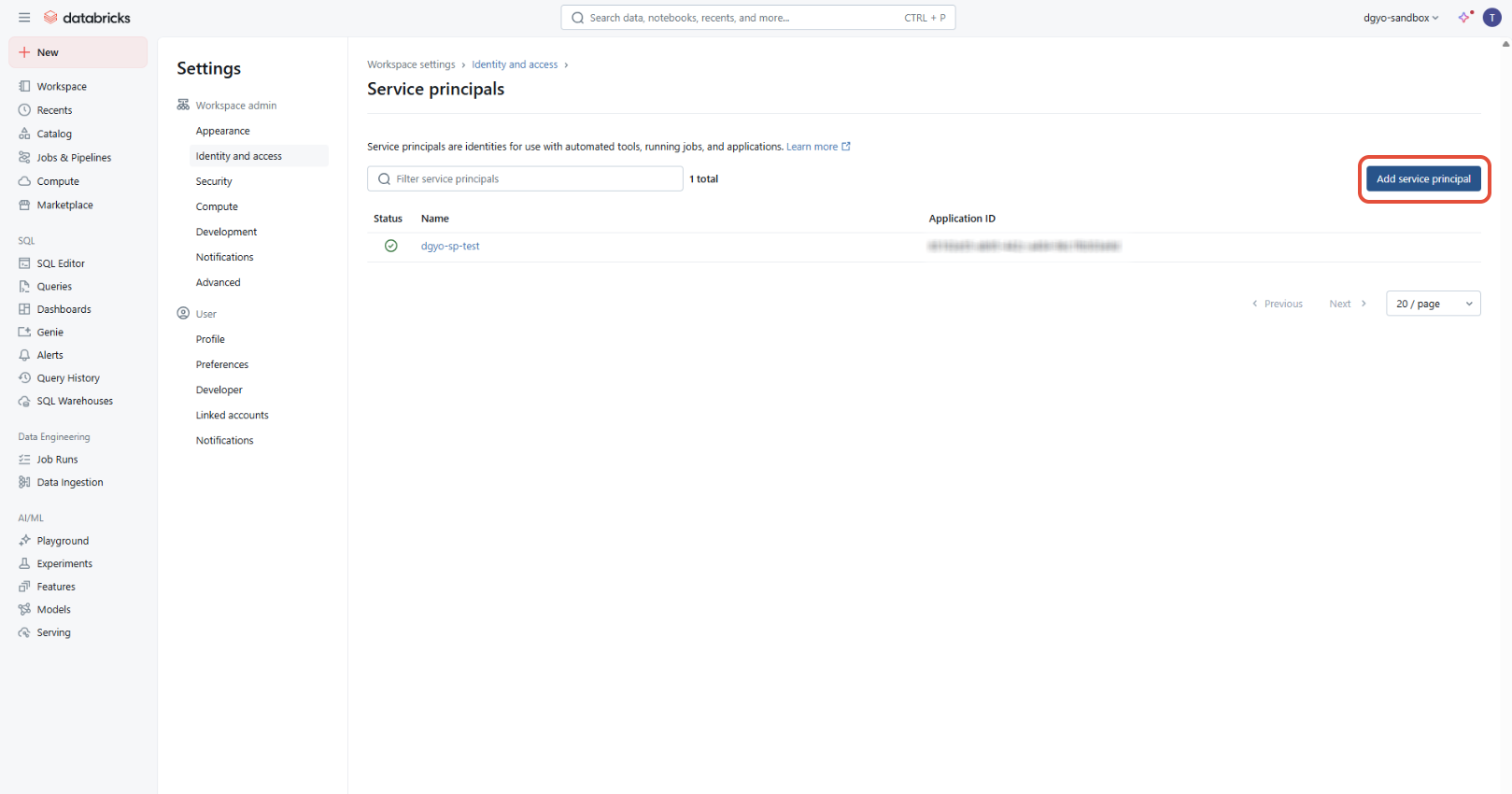
- You will then be able to create a service principal using the “Add service principal” button
- Once the service principal has been created, click on it to access its details, including the “Secrets” tab where you will find the “Generate secret” button. As with the token, you will be asked to enter a lifetime for this secret
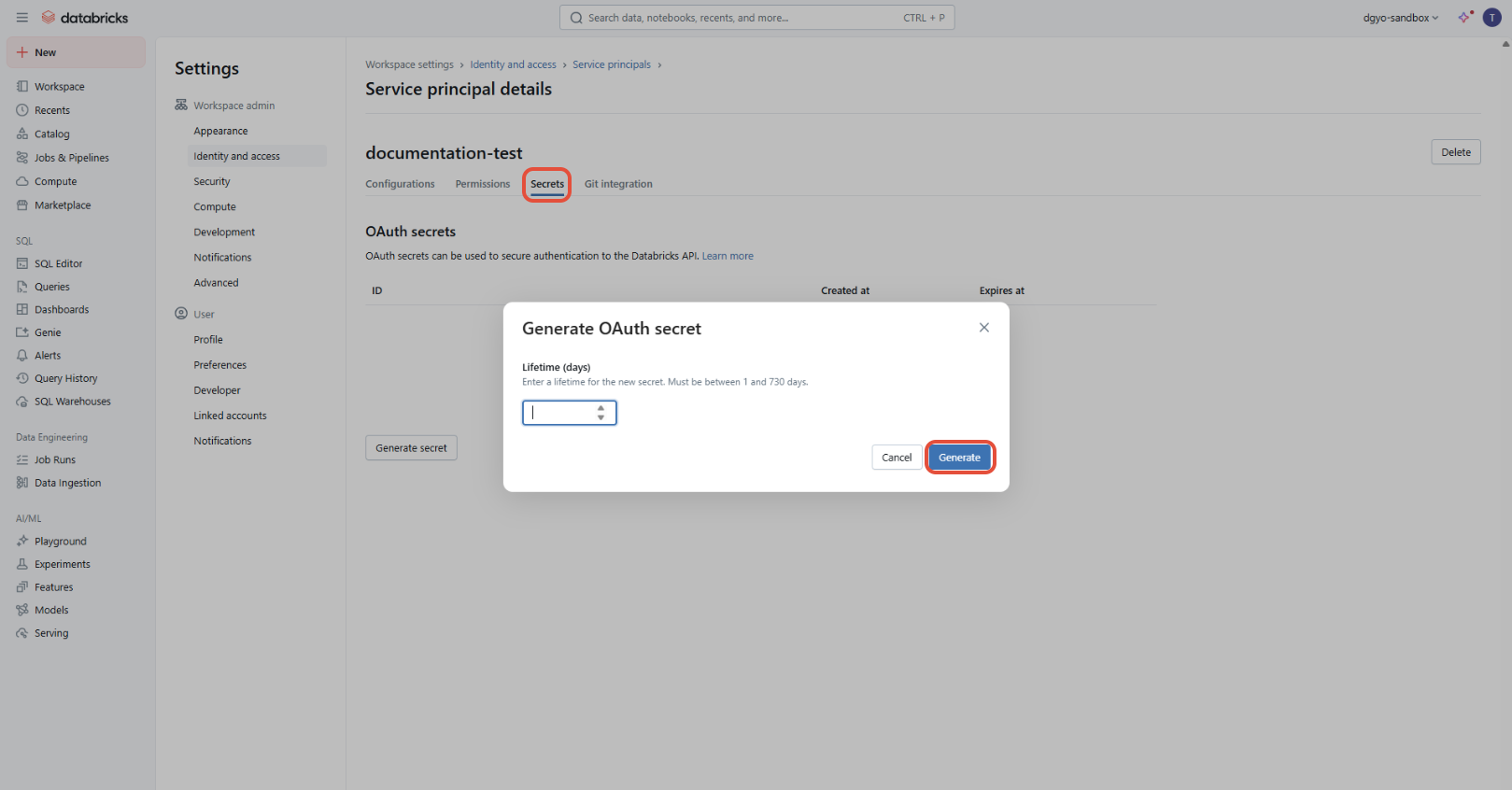
- Keep the generated secret, you can now use it to configure your DataGalaxy connection
Details of the rights required to obtain metadata
We will now detail the permissions associated with the different types of metadata, divided into categories
- Level 1: Catalog, Schema, Table/View
To grant the necessary rights to your Databricks/Azure Primary Service, the process is the same:
- Select “Catalog” on the left
- Select the source you want to grant access to
- Go to the “Permissions” tab and click on “Grant”
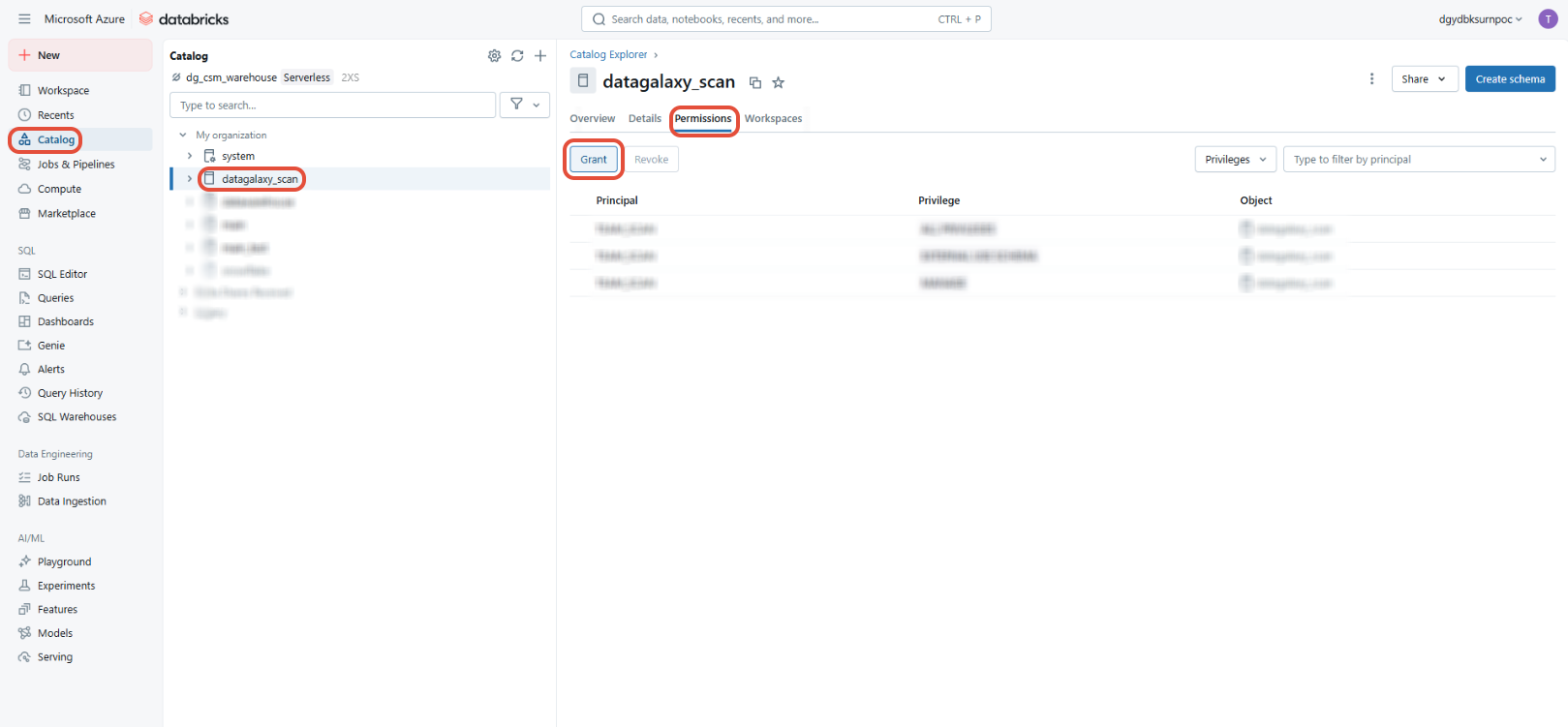
- In the window that opens, add your Primary Service, then check the USE CATALOG, USE SCHEMA and SELECT before confirming (if you use the metadata retrieval method "INFORMATION_SCHEMA", replace SELECT by BROWSE)
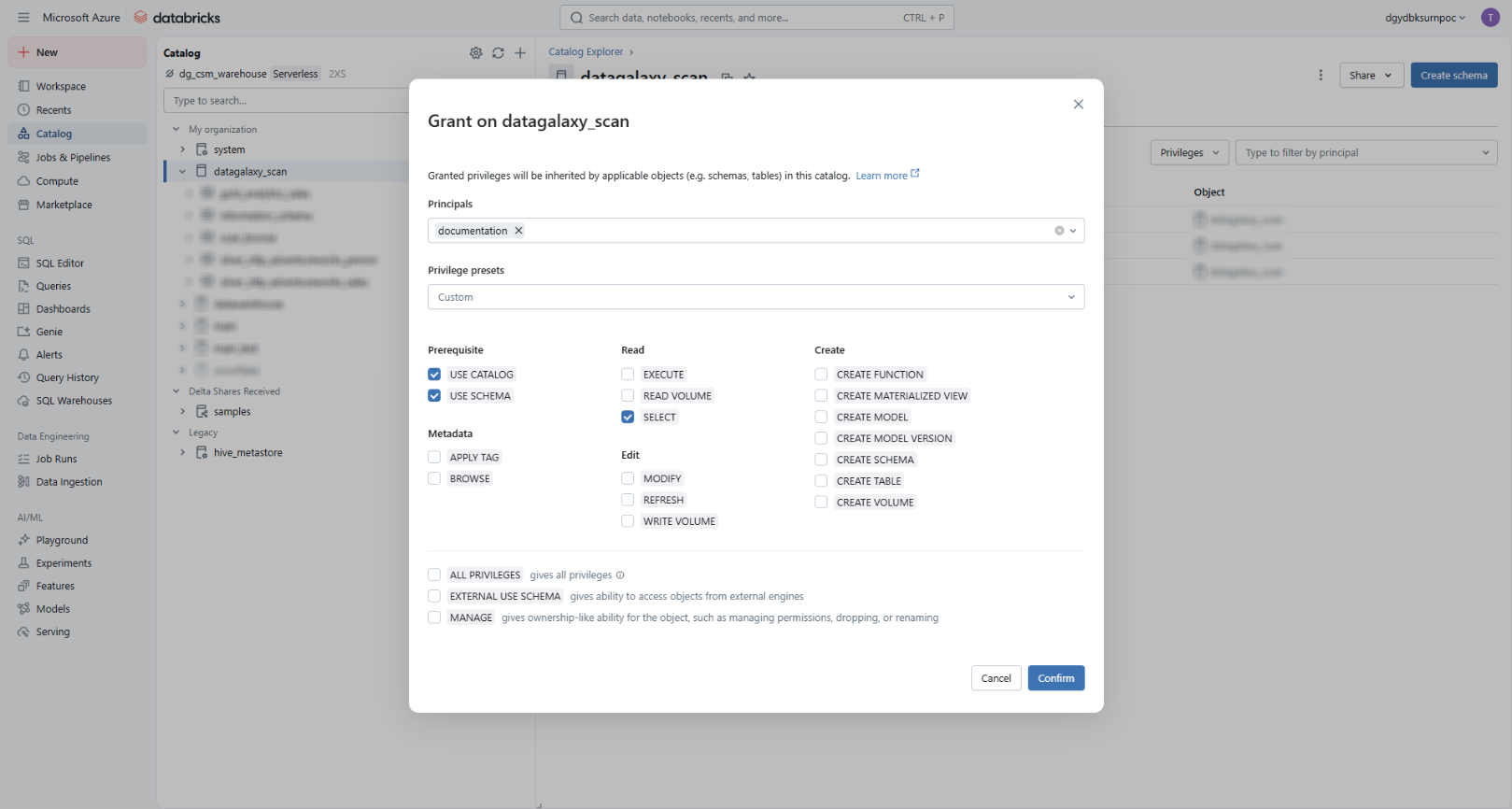
For more precision you can add these USE SCHEMA and SELECT at schema and table level
- Option 1: Folder, Notebook (Feature - Get Notebooks)
To grant the necessary rights to your Databricks/Azure Primary Service, the procedure is the same:
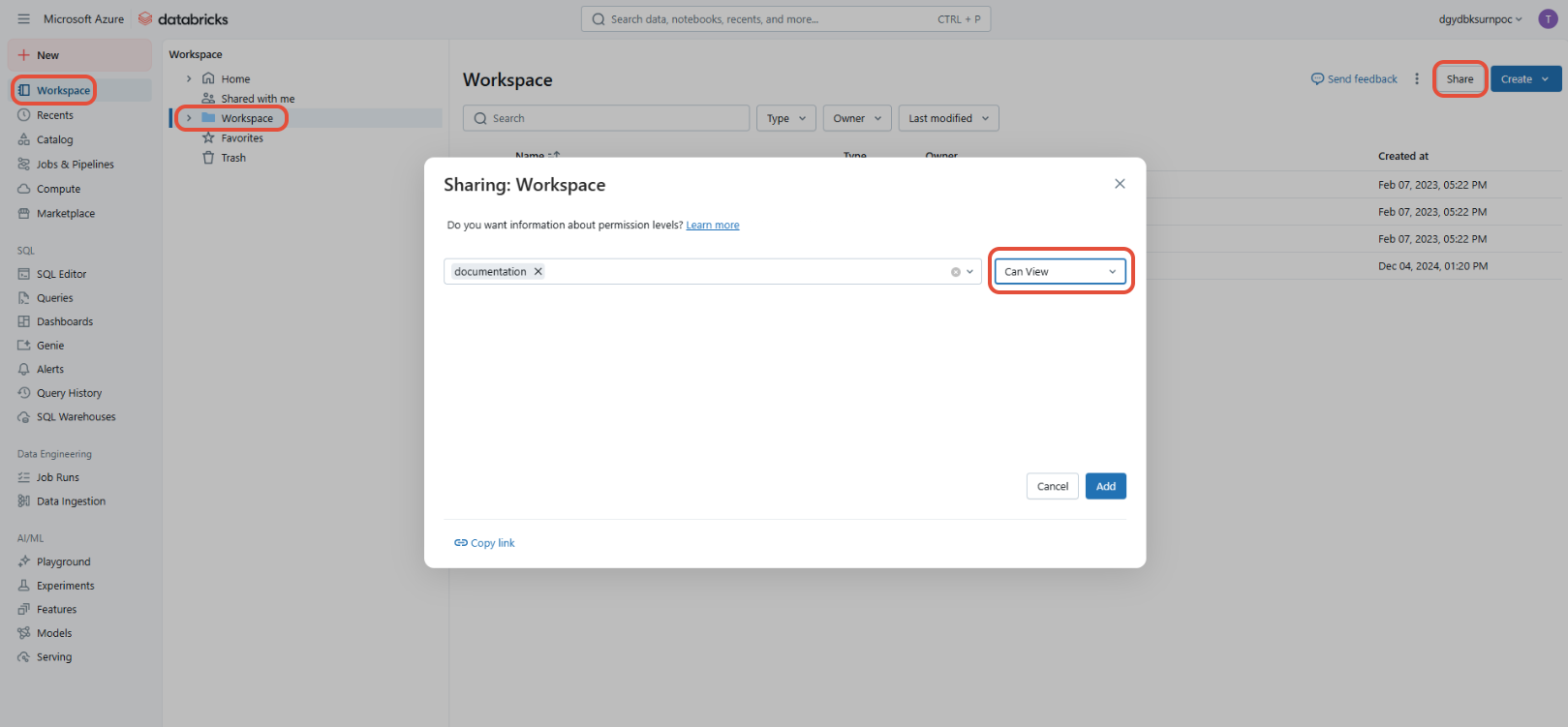
- Select “Workspace” on the left
- Select the “Workspace” folder to which you want to grant access
- Click on the “Share” button
- In the window that opens, enter the name of your Primary Service and grant it the “Can View” right
- Option 2: Workflow (Feature - Get Workflows*)
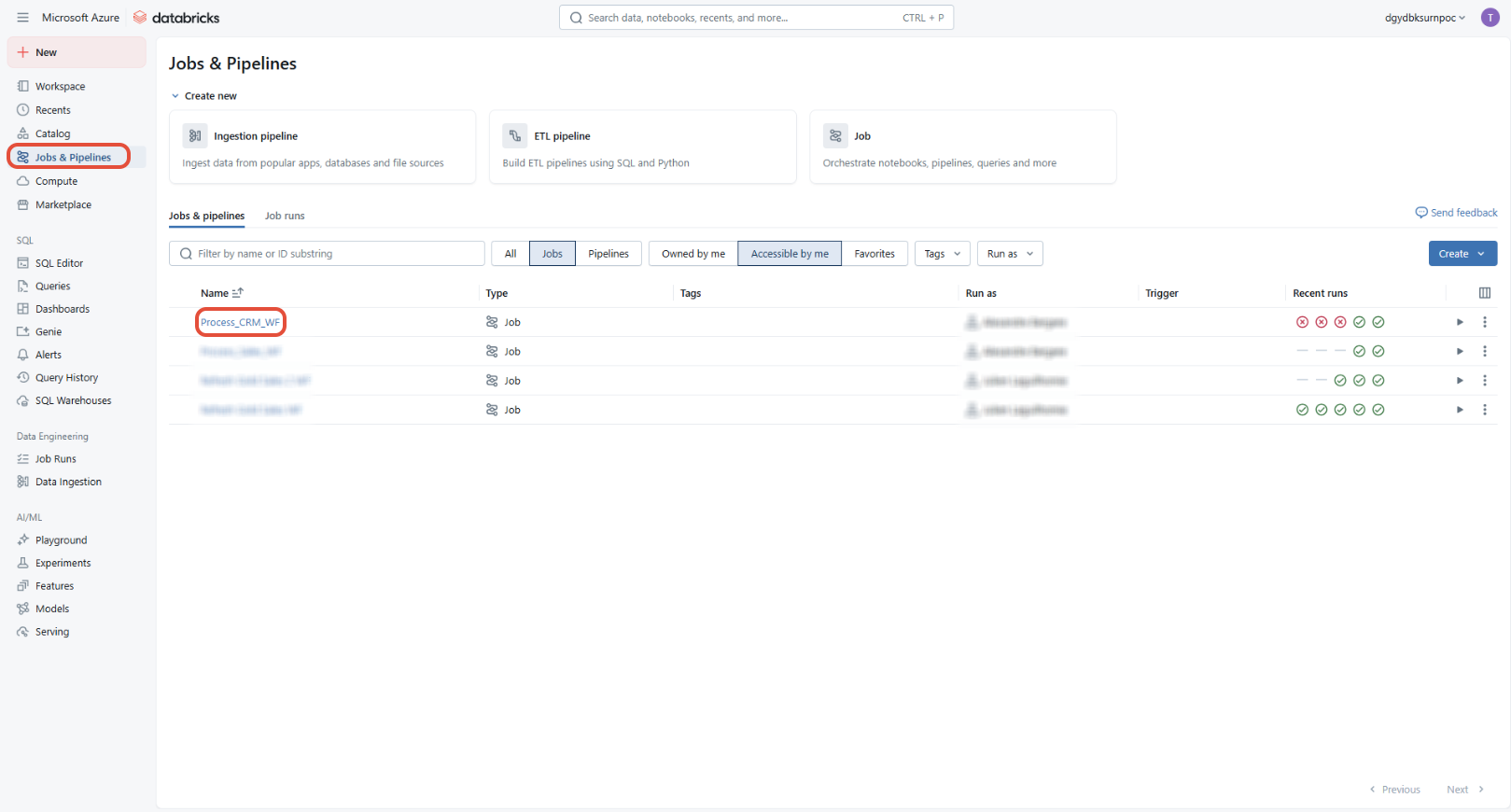
- Select on the left "Jobs & Pipelines"
- Select the element you want to grant access to
- On the right window scroll down to "Permissions" and click on "Edit permissions"
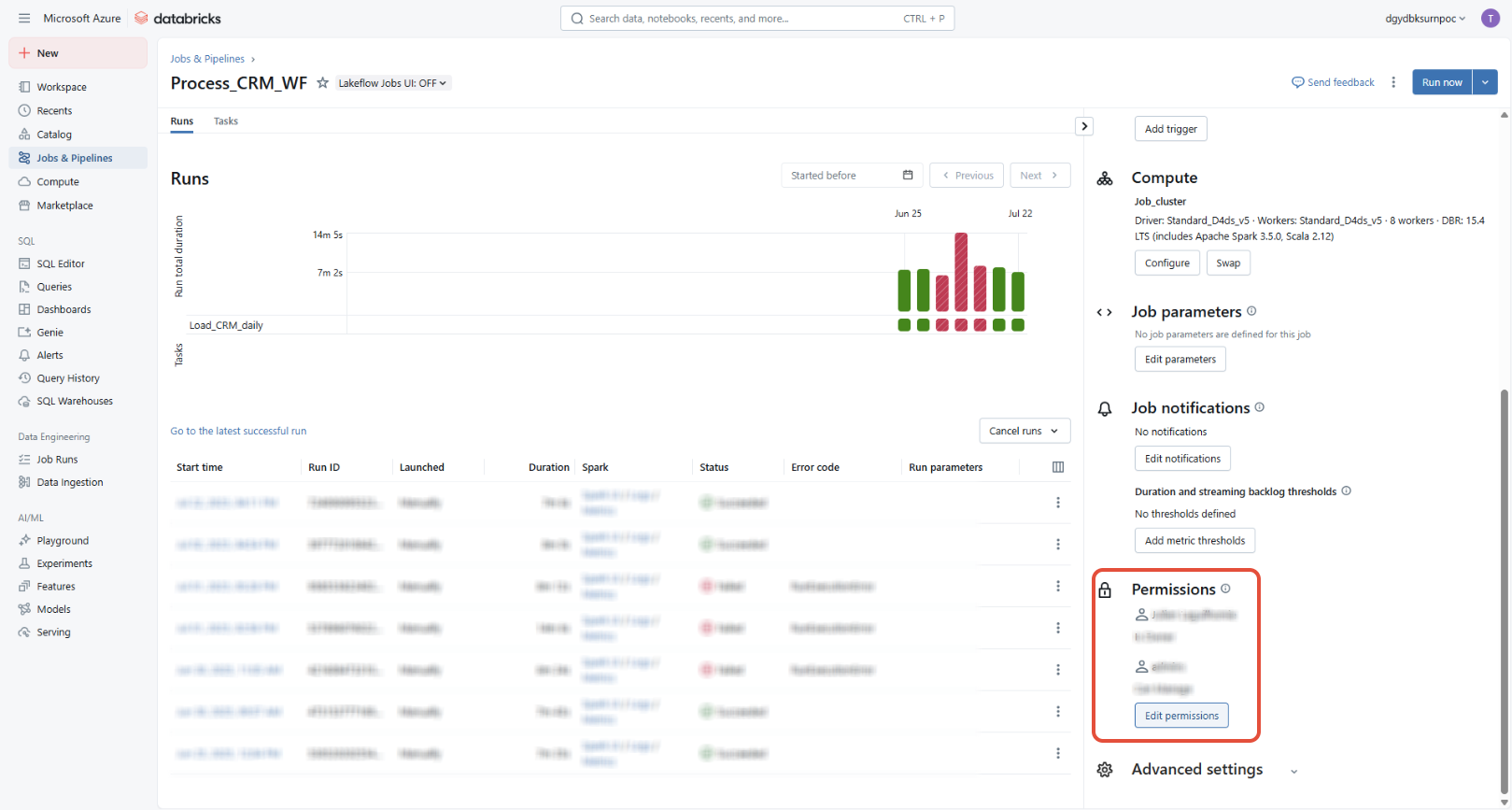
- In the opening window give the name of your Service Principal and give it the right "Can View"
- Option 3: Unity Lineage (Feature - Get Lineage from Unity)
When "Feature - Get Lineage from Unity" is activated, having the previous authorizations on all the right tables, notebooks and workflows is enough to retrieve all lineage informations attached to them. In both modes (REST API and System Tables), your workspace must be enabled for Unity Catalog
- Suboption 1: Lineage Granularity
- Table
- Column
- Suboption 2: Lineage retrieval method
- Auto
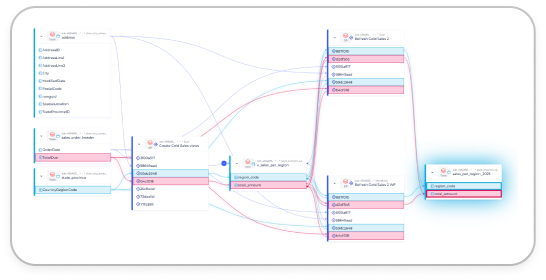
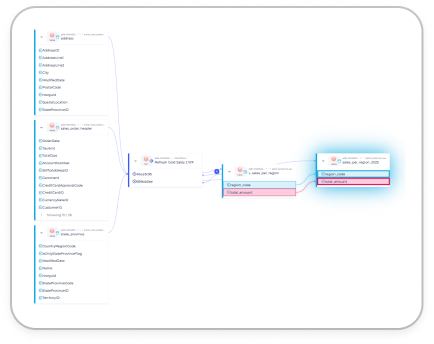
- System Tables (more information here): this retrieval method provides more lineage information than with the API REST, like a mapping around the objects of the scope (see images below, comparing both options at column level). Requires the following privileges to be granted to the connector: USE CATALOG on the system catalog, USE SCHEMA on the access schema and SELECT on the table_lineage and column_lineage views.
- API REST Unity (deprecated by Databricks)
- Compute resource
To grant your Databricks/Azure Primary Service the right to use the compute resource required for importing to DataGalaxy, follow these steps:
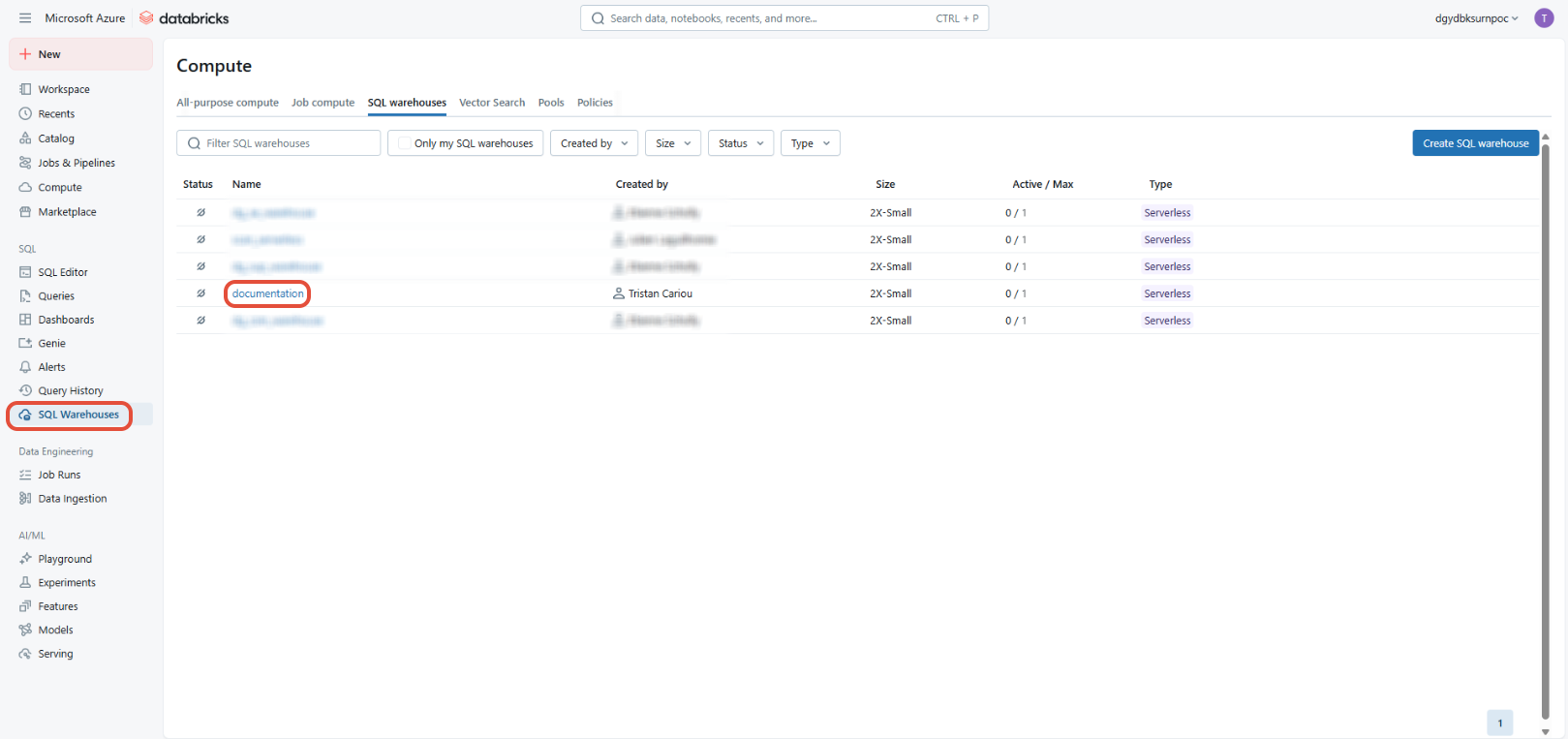
- Select “SQL Warehouses” on the left
- Select the resource you want to use for your import or create it
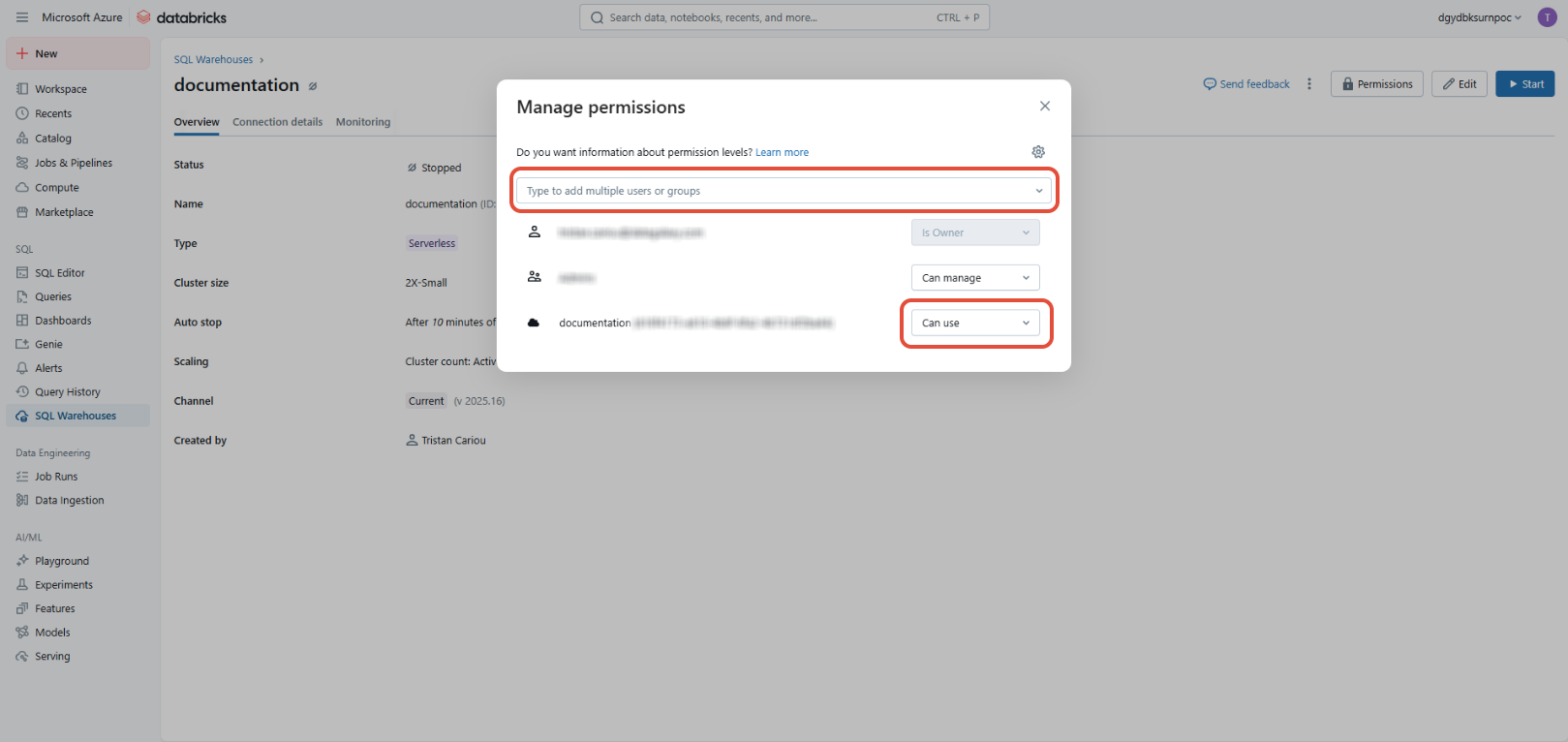
- Click on “Permissions” on the right
- In the window that opens, choose your Main Service and give it the “Can Use” right
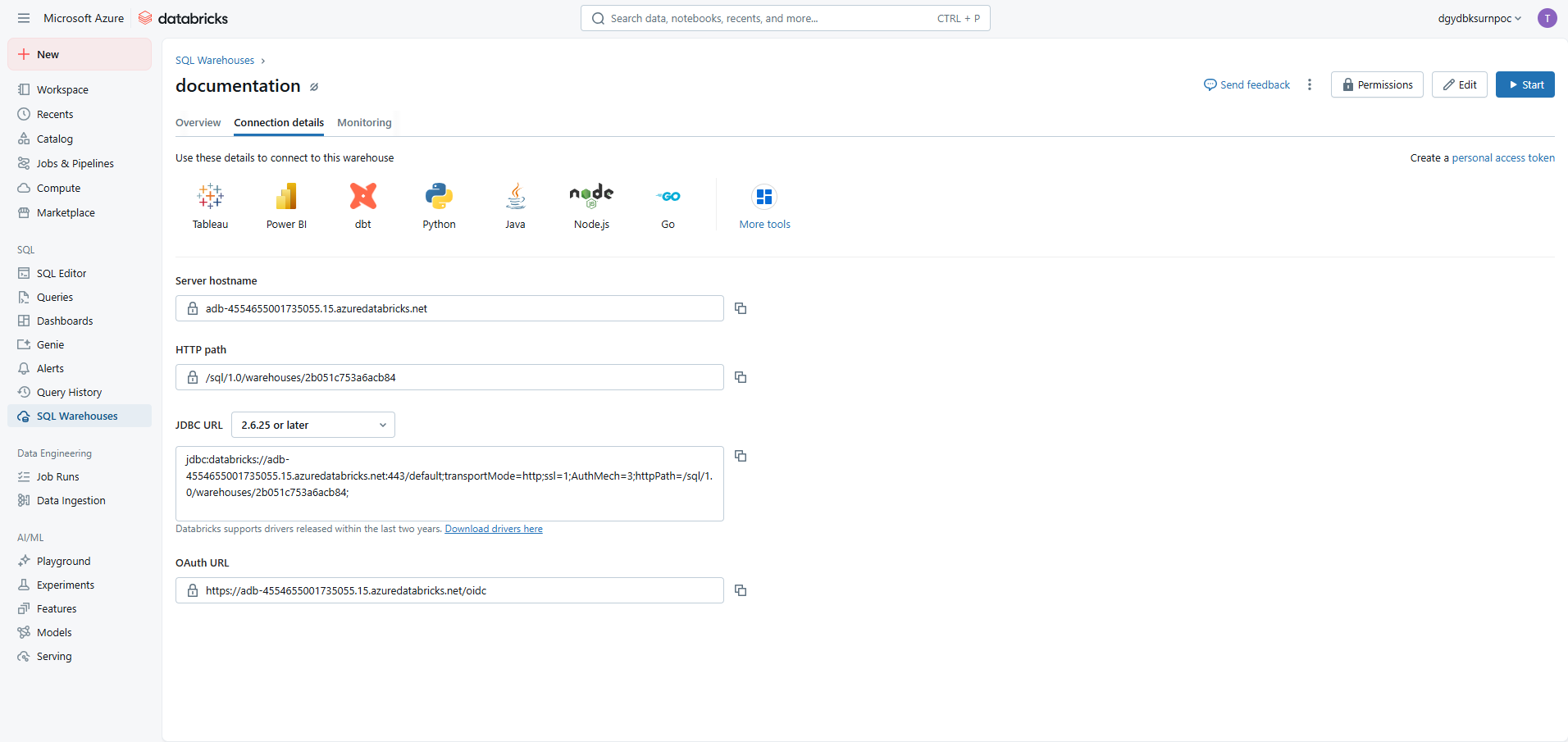
- Finally, in the “Connection details” tab, you will find everything you need to configure the connection on the DataGalaxy side, namely the “Server hostname” and the “HTTP path”
For more details about cluster permissions, please refer to the following table. The permissions management documentation in Databricks is available here.
Summary
In URN mode the connector provides several metadata retrieval options
| Databricks object | DataGalaxy object | Level 1 | Option 1 | Option 2 |
| Catalog | Model | ✅ | ✅ | ✅ |
| Schema (Database) | Model | ✅ | ✅ | ✅ |
| Table | Table | ✅ | ✅ | ✅ |
| View | View | ✅ | ✅ | ✅ |
| Column | Column | ✅ | ✅ | ✅ |
| Folder | DataFlow | ✅ | ✅ | |
| Notebook | DataProcessing | ✅ | ✅ | |
| Workflows* | DataProcessing | ✅ |
* Only available in URN mode
On DataGalaxy's side
The following information is required to set up a connection:
| Parameter | Mandatory | Description | |
| Server | Yes | Databricks server hostname, example: adb-XXXXXXXXXXXXXXXX.X.azuredatabricks.net | |
| Port | Yes | Connection port to Databricks server, example: 443 | |
| HTTP Path | Yes | URL of Databricks calculation resources, example: sql/protocolv1/o/XXXX/0125-105531-okp9kyqn | |
| Auth mode | Yes |
| |
Azure AD Service Principal | Tenant ID | Yes | AZURE Tenant ID |
| Client ID | Yes | AZURE CLIENT ID | |
| Client secret | Yes | AZURE Client Secret | |
| Databricks Service Principal | Client ID | Yes | Databricks Service Principal Client ID |
| Client secret | Yes | Databricks Service Principal Secret | |
| Databricks token | Password | Yes | Databricks Access Token |
| Filter - Catalog | No | Limit the scope to one or more catalogs | |
| Feature - Get Notebooks | No | Notebooks will be represented in DataGalaxy as Data Processing objects | |
| Filter - Path filter (prefix) | No | For notebooks: limits the scope for a given folder based on the prefix entered, example value: /Shared Note: the /Users folder is implicitly filtered out. | |
| Feature - Get Workflows* | No | Workflows will be represented in DataGalaxy as Data Processing objects | |
| Feature - Table/View metadata fetching method | Yes |
| |
| Feature - Get Lineage from Unity | No | Retrieves lineage provided by Unity. | |
| Subfeature - Lineage granularity | No | Table and column levels are available (only Table level in non-URN mode) | |
| Subfeature - Lineage retrieval method | No | Auto (test both methods and pick the one that works), System tables or REST API (deprecated by Databricks) (only REST API available in non-URN mode | |
| Subfeature - Lineage history depth (in days) | No | Number of days for the lookback period for lineage events | |
| Subfeature - Custom system catalog | No | Use a custom system catalog for the lineage retrieval | |
| Feature - JDBC driver client | No |
| |
⚠ Retrieving the lineage will significantly increase the duration of the connector and so the associated cost of the corresponding compute cluster.
* Only available in URN mode
From Standard to URN mode
Differences
- In Standard mode, the name of your root object will be the one you give it when you create the connection (or the root object of the Dictionary module you target). In URN mode, the name of the root object will be the name of the Databricks server used when setting up the connection.
- Standard mode
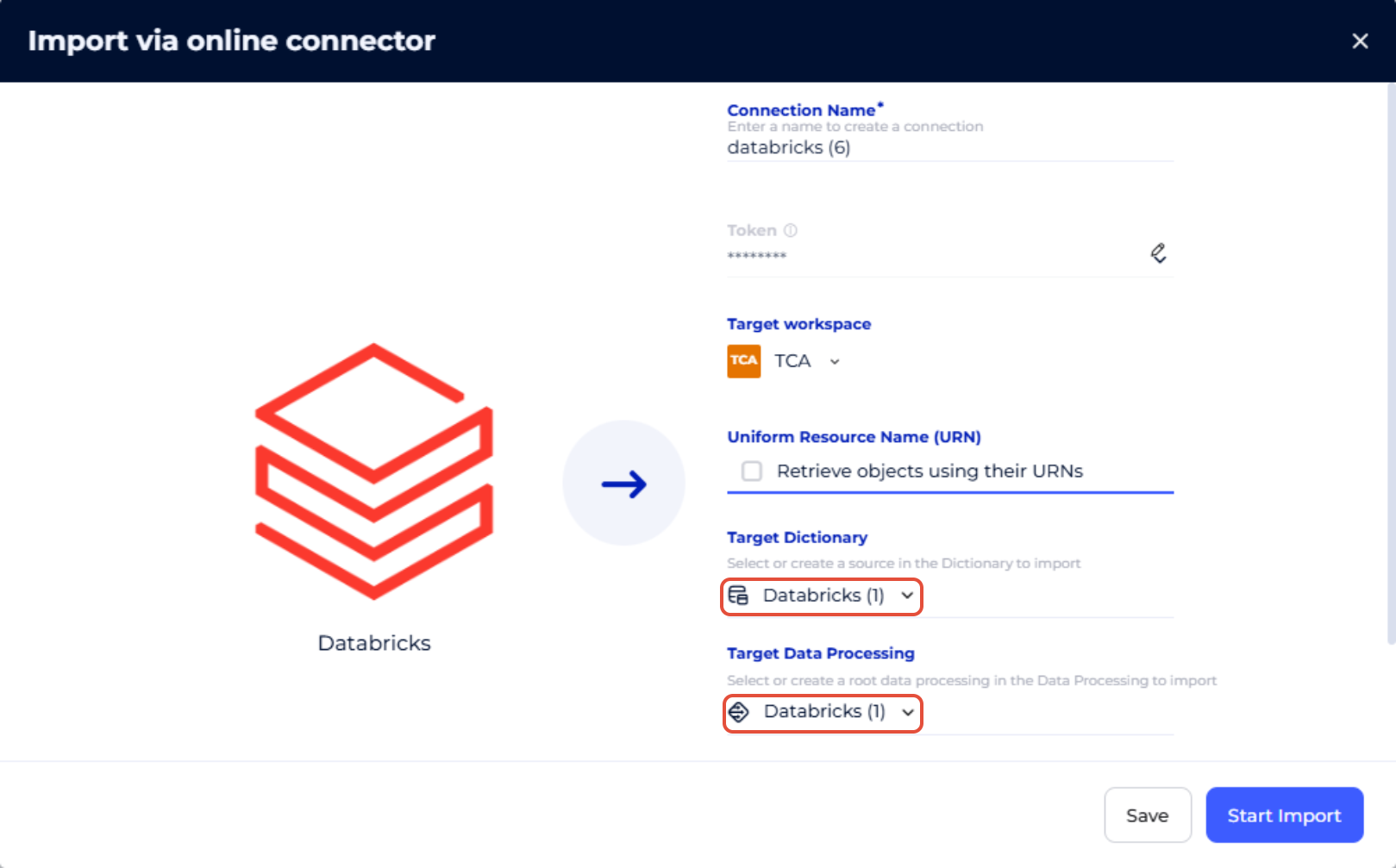
- URN mode
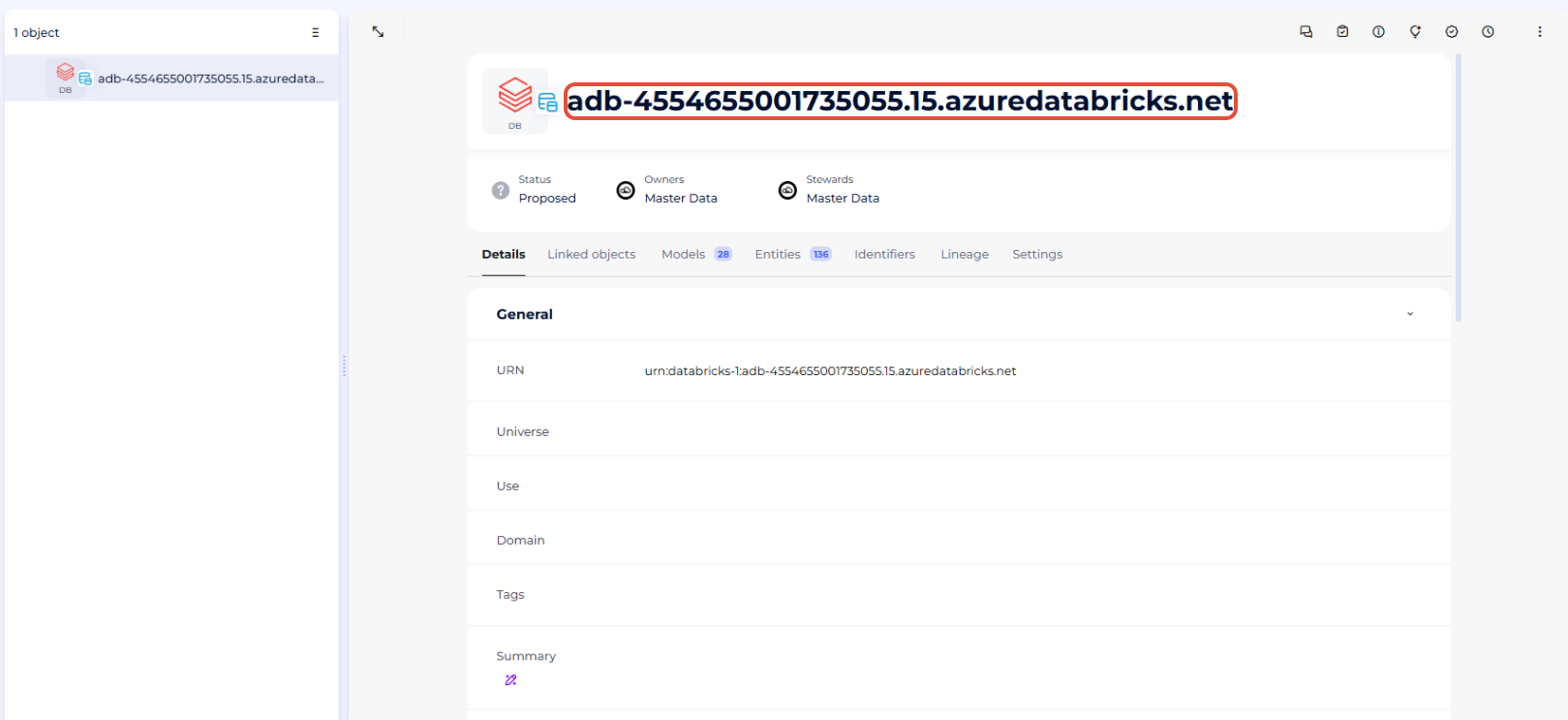
- Standard mode
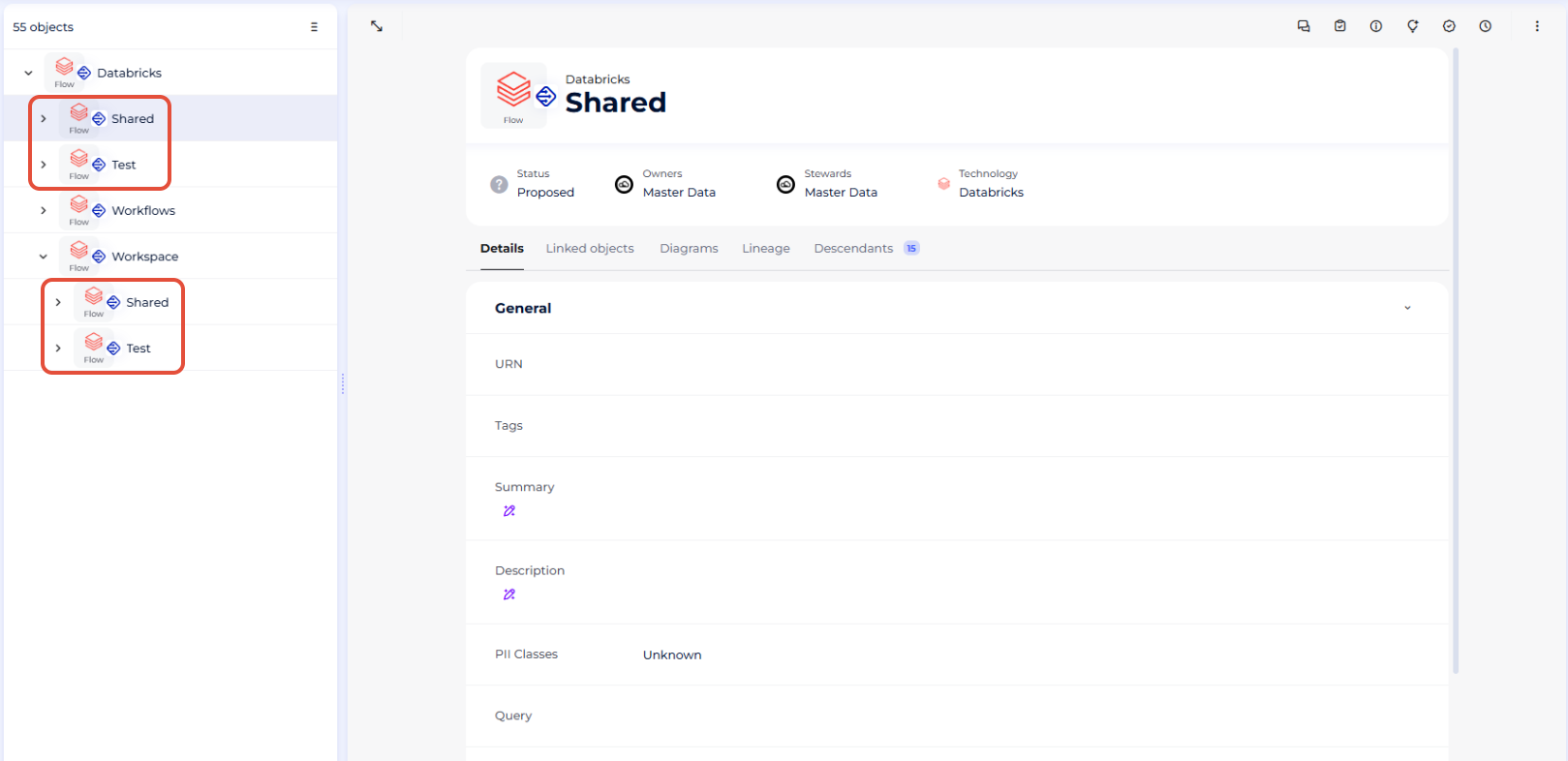
- In Standard mode, in the "Data Processing" module, your "Data Flow" and "Data Processing" items will be found directly under your root object. In URN mode these same objects are grouped one level lower in the hierarchy, under an object named "Workspace". Another extra object named "Workflows" will also appear at the same level than the "Workspace" object.
Standard mode: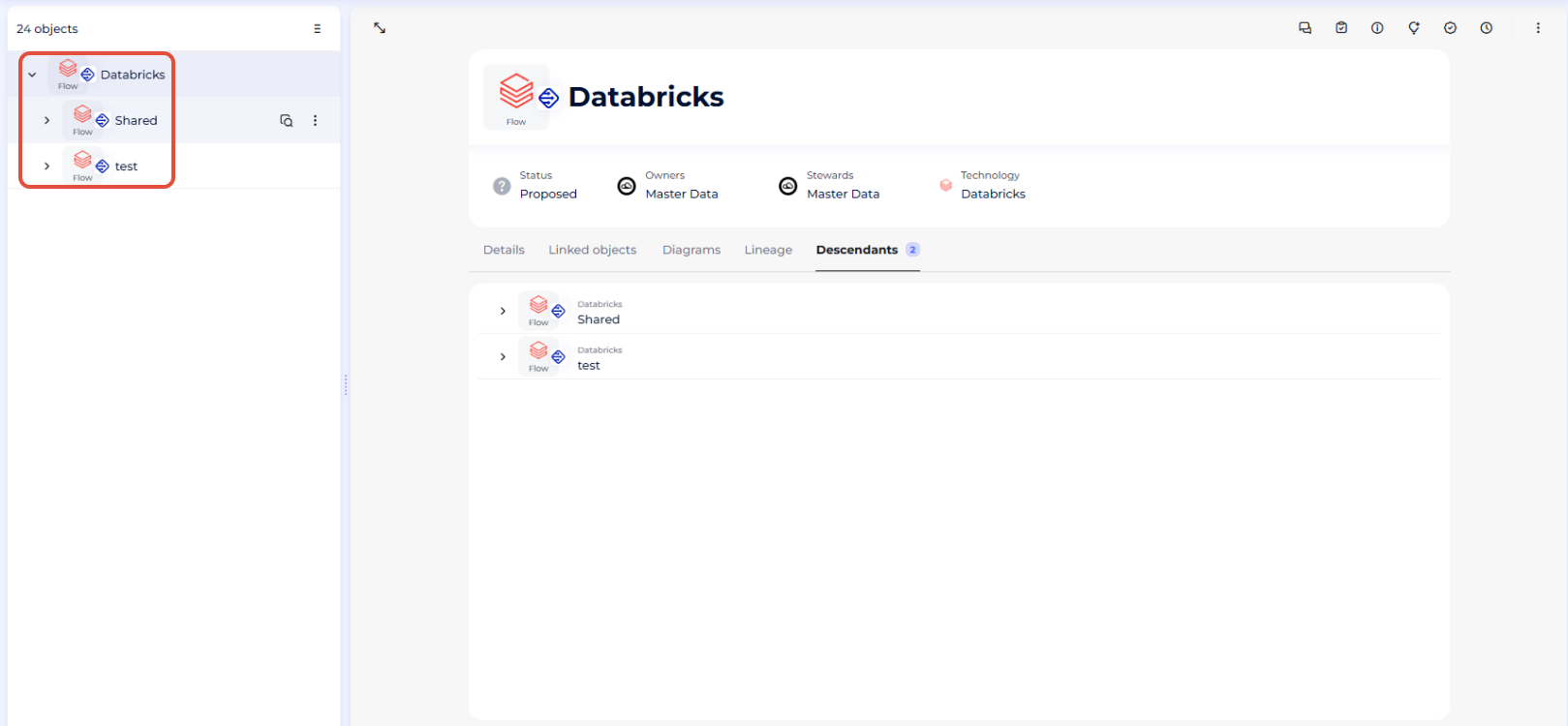 URN mode: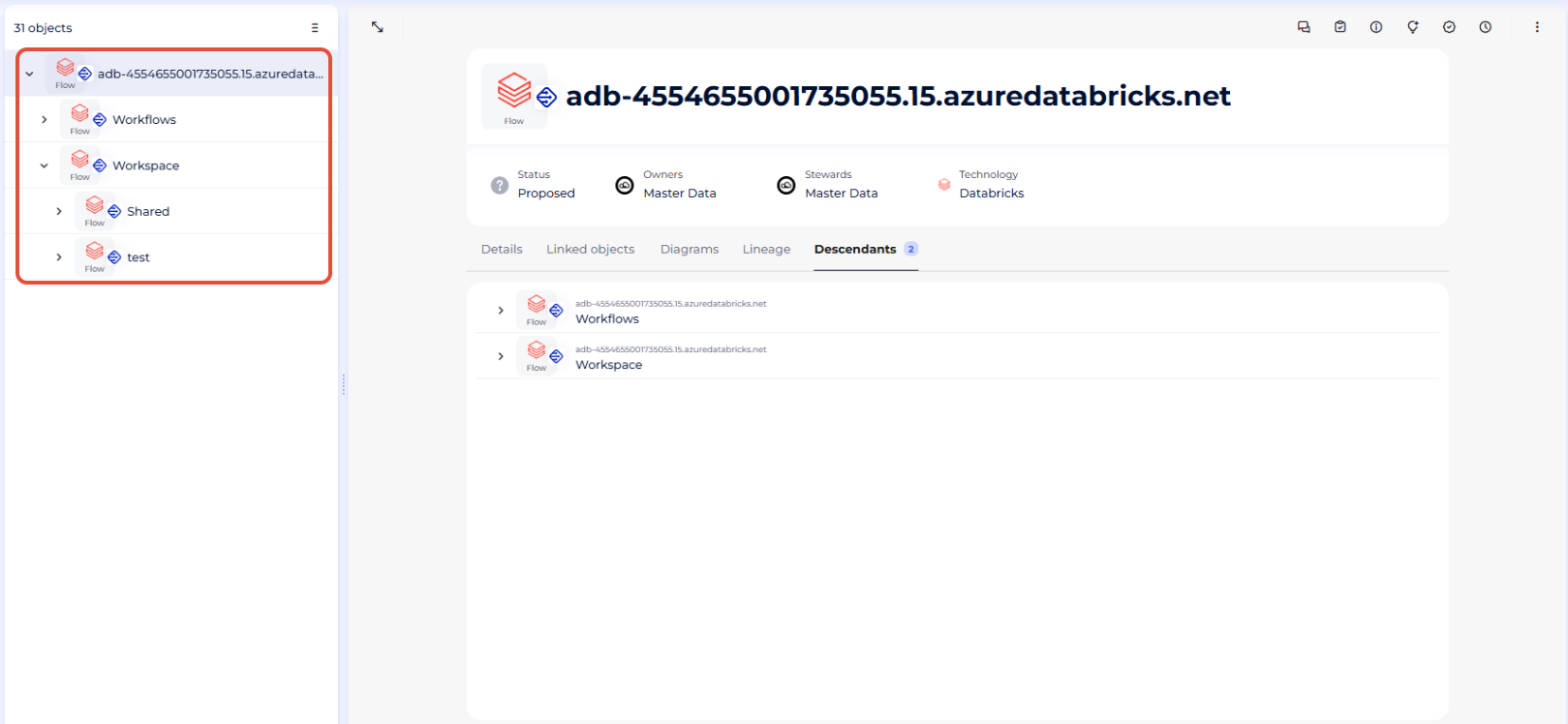
Migration guide
The aim of this guide is to show you how to switch your root object and all the Databricks objects it contains from Standard mode to URN mode. Once you've completed these steps, you'll be able to perform all your future imports in URN mode and take advantage of the new features associated with this mode.
- Bring one level below the objects contained in your root object from the "Data Processing" module:
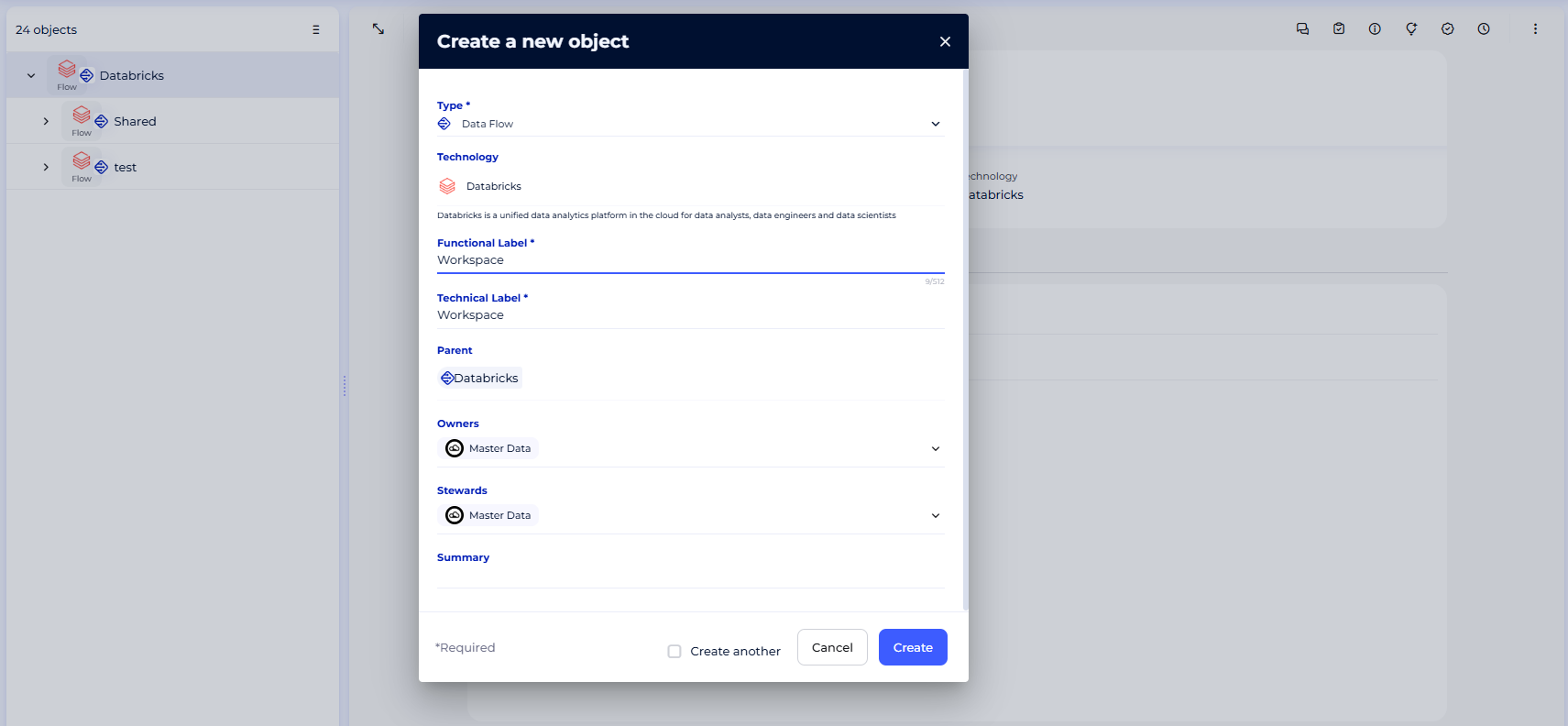
- Open the menu associated with your root object (”Databricks” here) and pick the option “+ Create a child”. It will be of type "Data Flow" and you will name "Workspace"
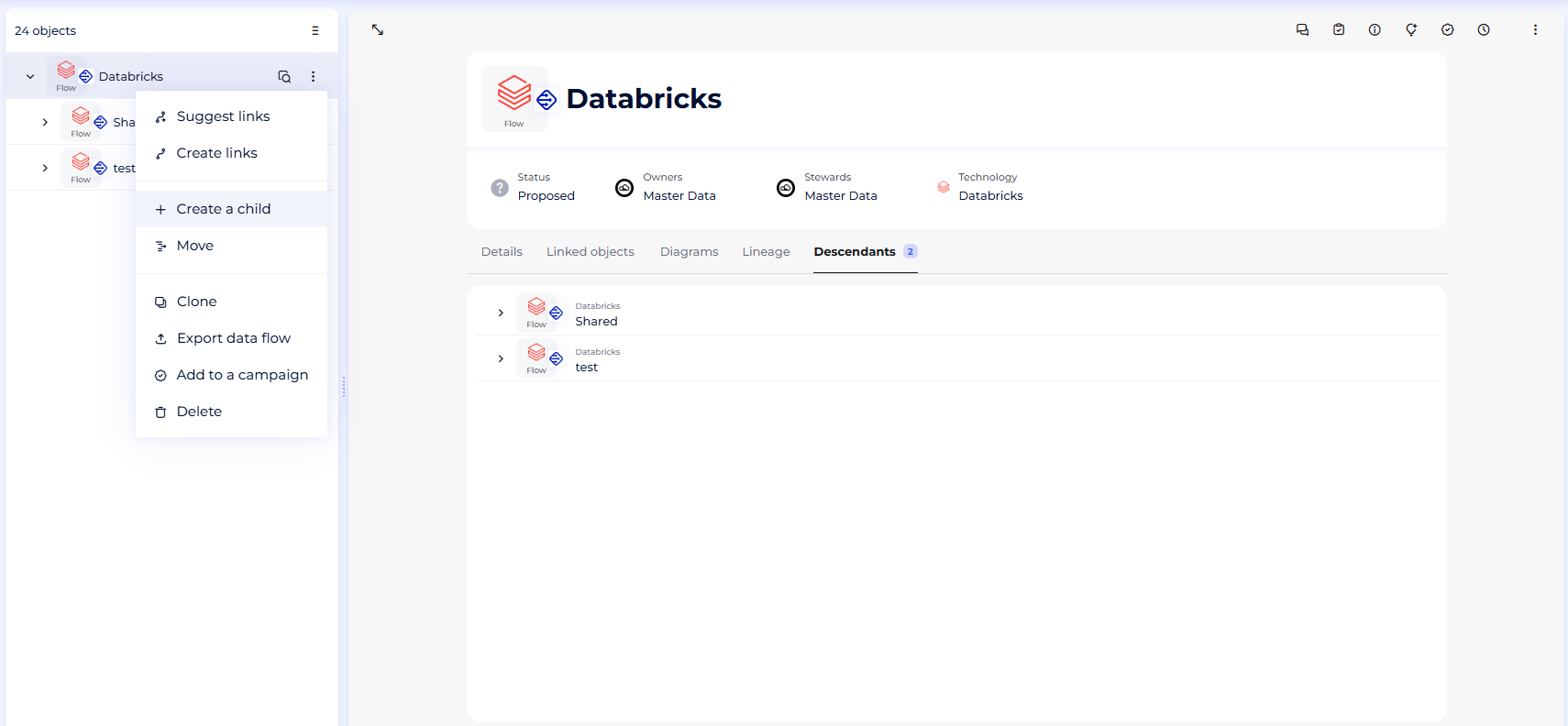
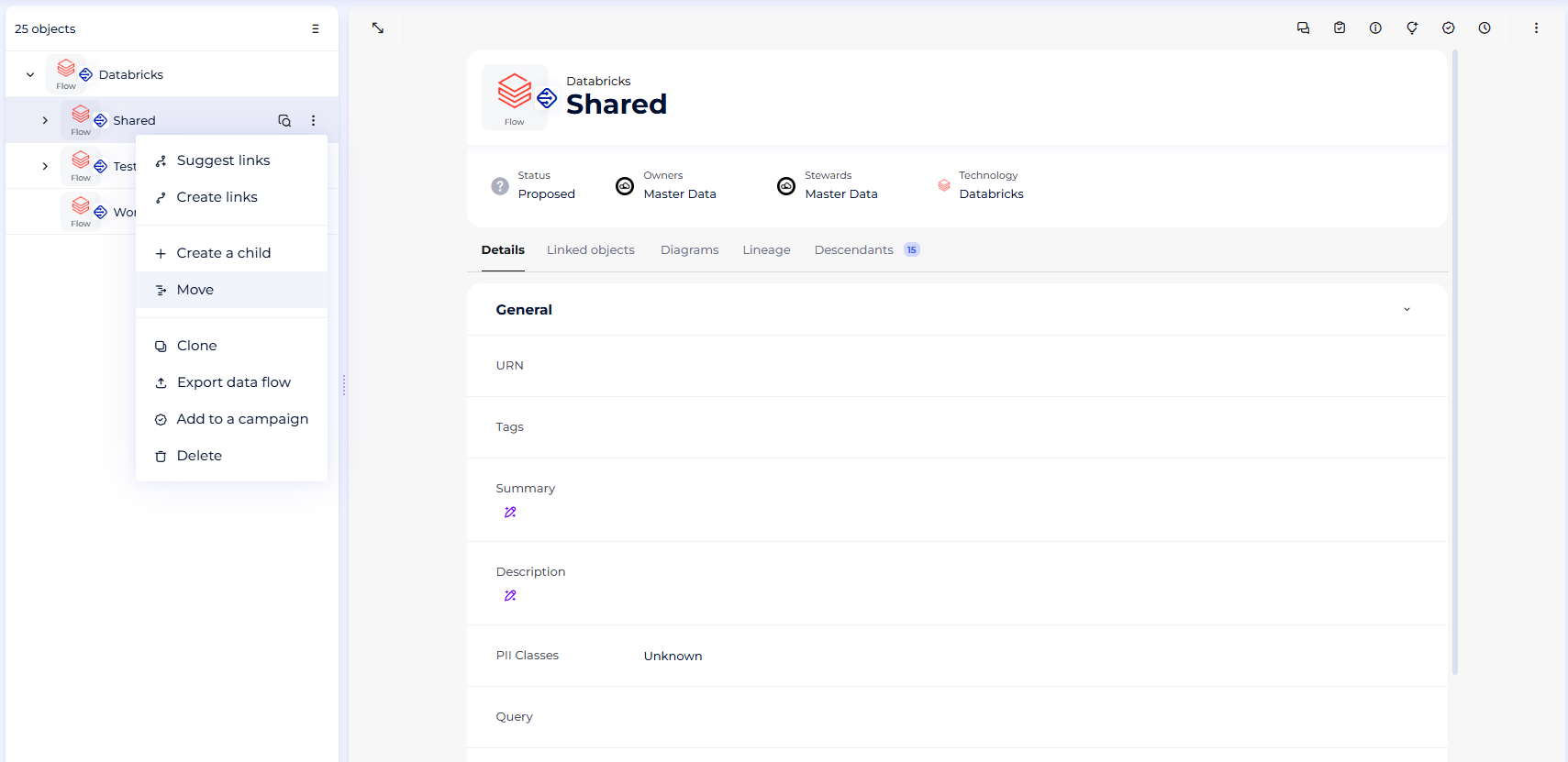
- Once it is done you will have to move all your other objects (”Shared” and "Test" here) by opening their associated menus and choosing the "Move" option. You will target the previously created object, "Workspace"
- If you do not do this, when you do the final URN import on your root object you will end up with duplicates of all the objects retrieved from Databricks
- Open the menu associated with your root object (”Databricks” here) and pick the option “+ Create a child”. It will be of type "Data Flow" and you will name "Workspace"
- If is is not already the case, associate to "Database" sources from the "Dictionary" module the "URN" attribute. Do the same for your "Data Flow" objects from the "Data Processing" module
- Associate with your root objects of the "Dictionary" and "Data Processing" modules the right URN
- Regarding this, we advise you to follow these steps in order to avoid any error:
- Perform a new import in URN mode, which will create a new root object in each module for which the URN attribute will be filled
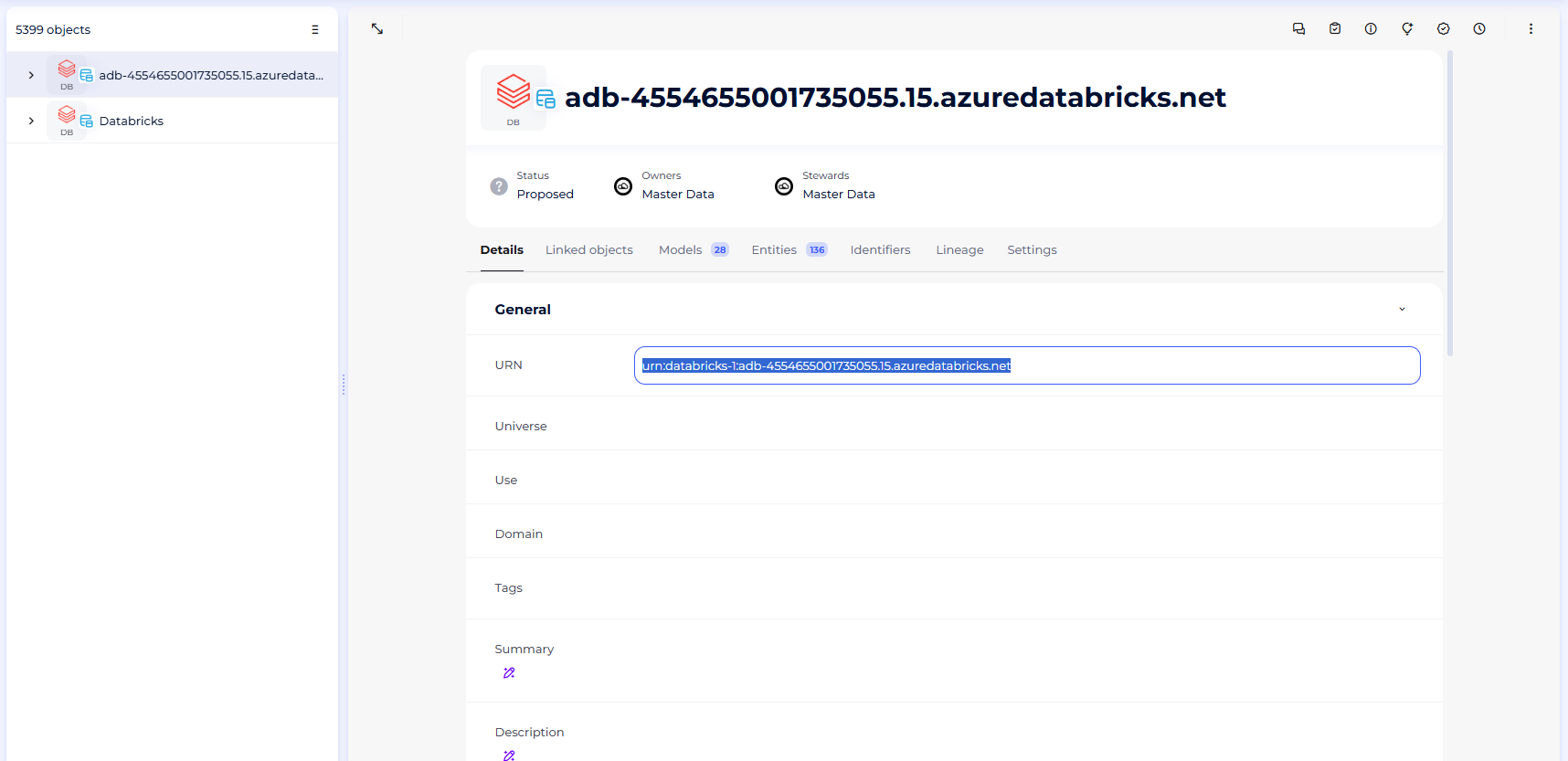
- Copy the URN attribute
- Delete the root objects and all its children that you just imported in URN mode (since a URN must be unique, if you do not delete this root object before trying to assign its URN to another object, the platform will return an error)
- Paste the URNs in order to fill the URN attribute fields from your root objects in both modules that are still in Standard mode
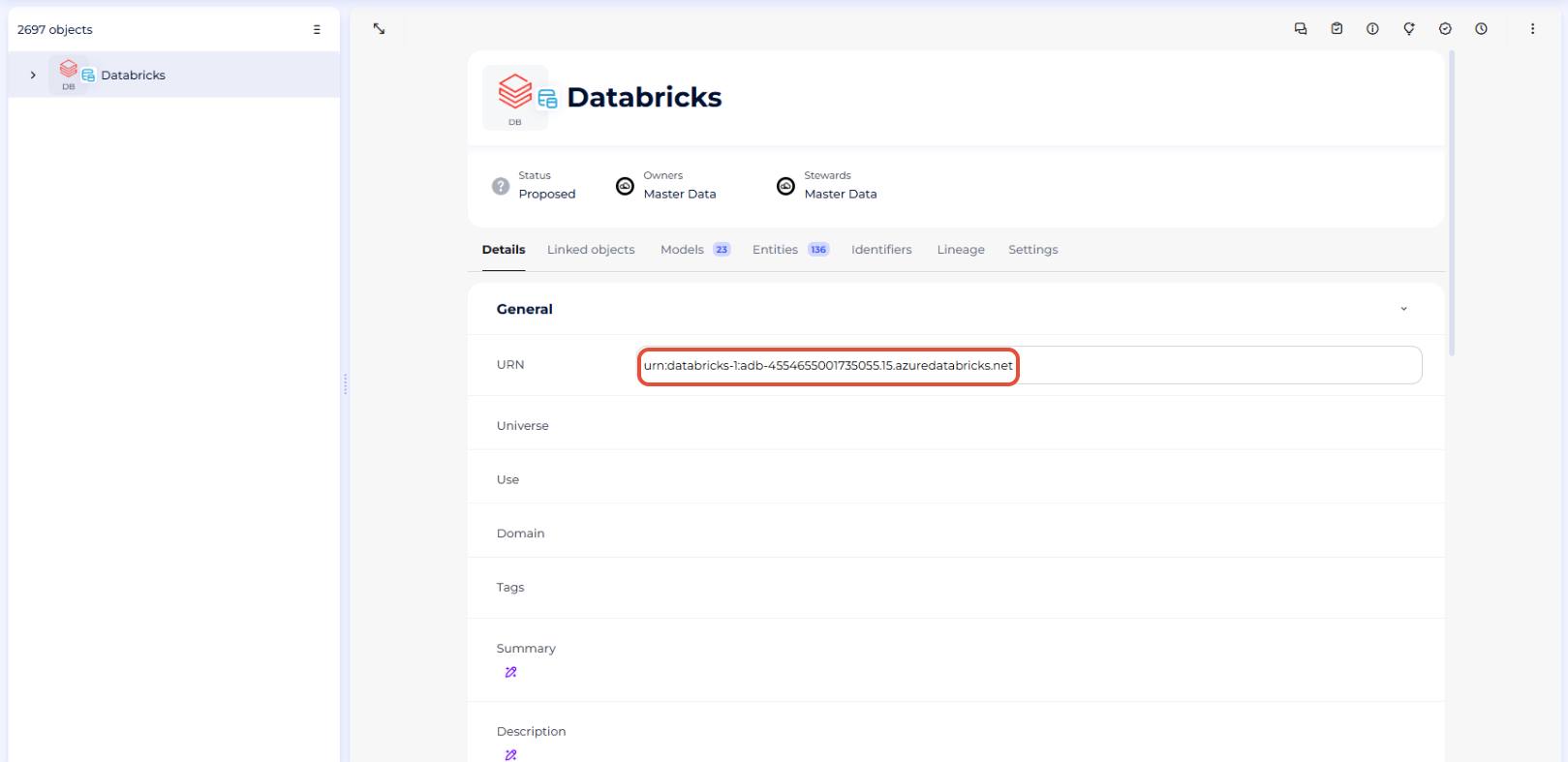
- Perform a new import in URN mode, which will create a new root object in each module for which the URN attribute will be filled
- Regarding this, we advise you to follow these steps in order to avoid any error:
- Do a final import in URN mode
- This time all the URN attributes from the child objects under your root objects should be filled
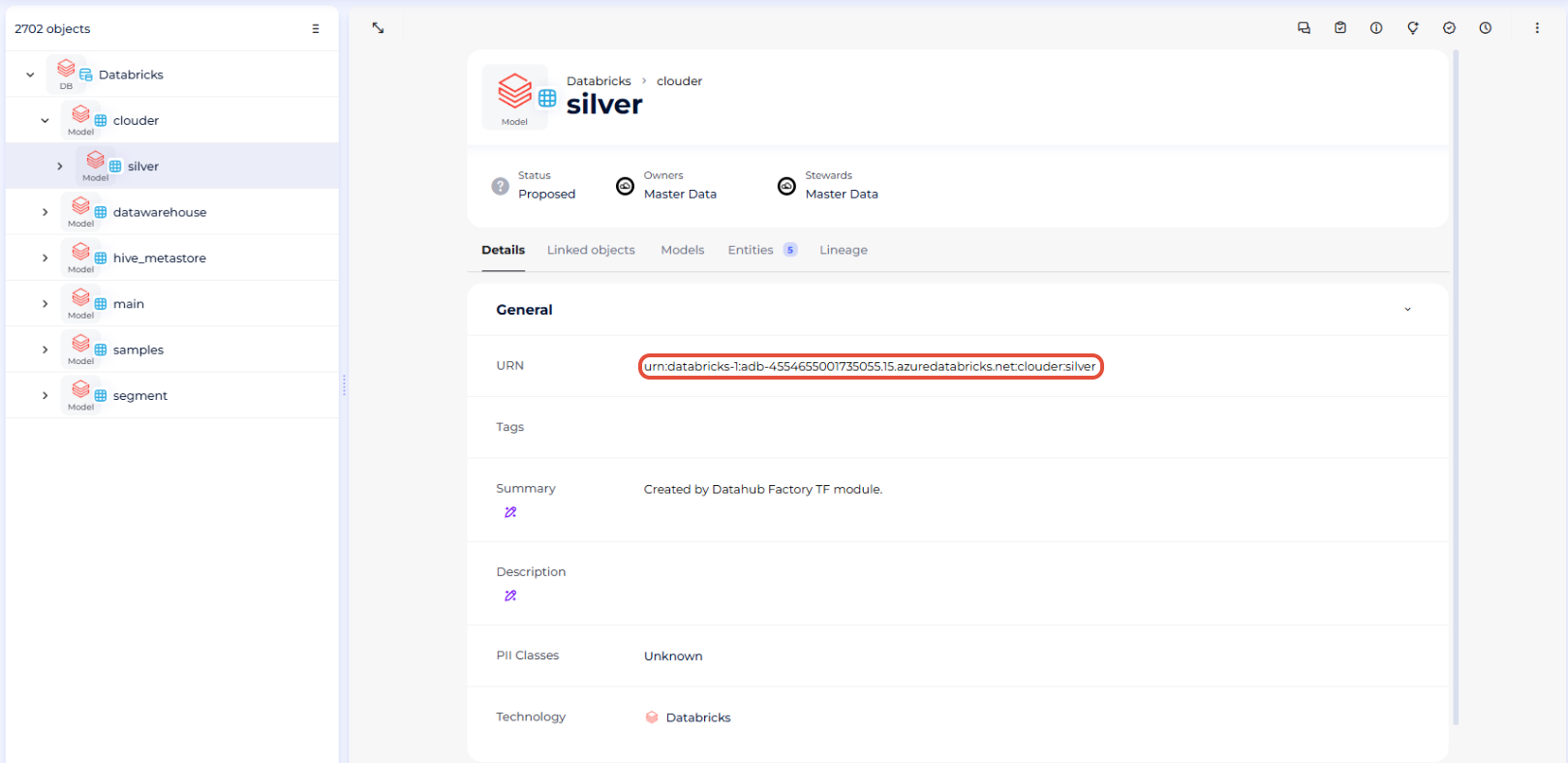
- This time all the URN attributes from the child objects under your root objects should be filled
Congratulations, you switched from the Standard mode to the URN mode and can now enjoy all the new features it offers!
Execution of the connector
Step 1: Installation
- Download DataGalaxy connector from the portal (see here)
- Extract the connector archive in the directory of your choice
- Download the Databricks plug-in from the portal and copy it into the /lib directory of the connector
Step 2: Run connector
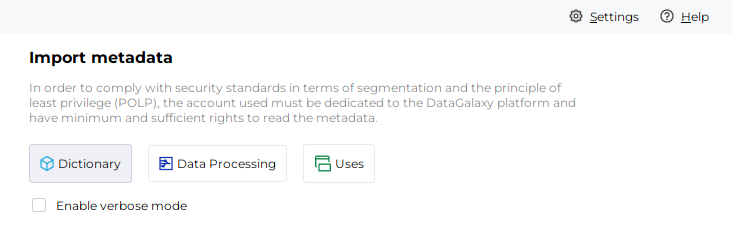
- After starting the connector, access the connectors of the Dictionary or Data Processing categories
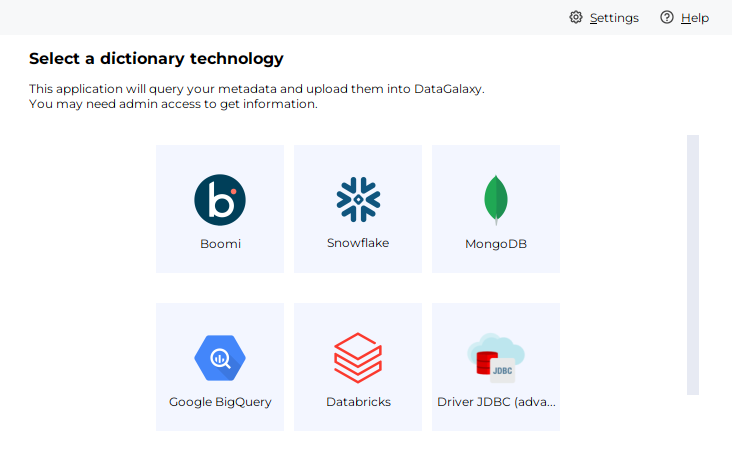
- If it was correctly installed, the Databricks plug-in will appear
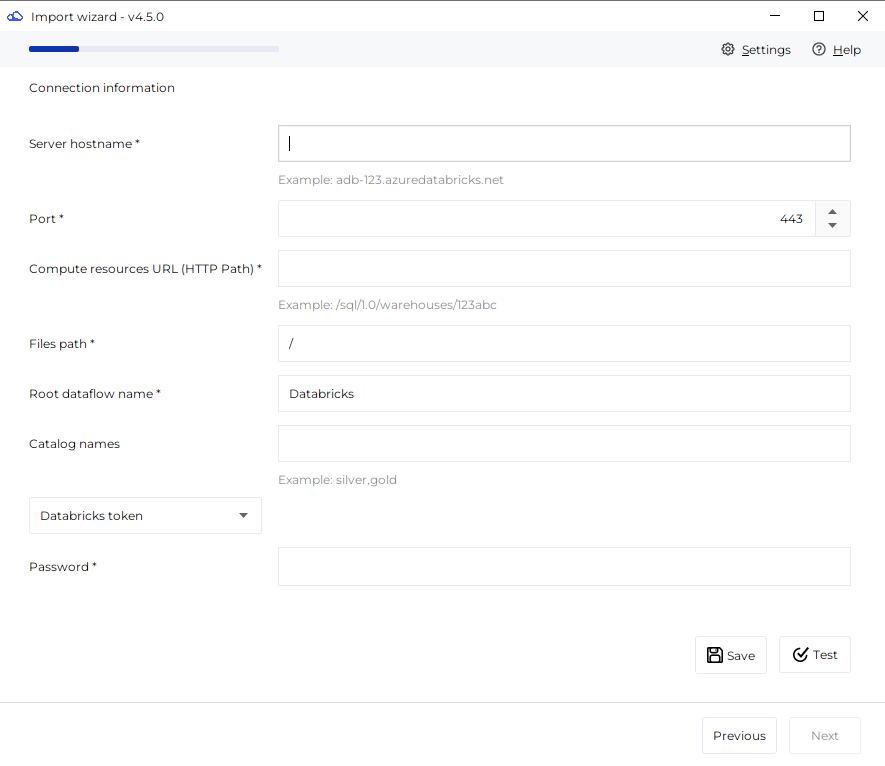
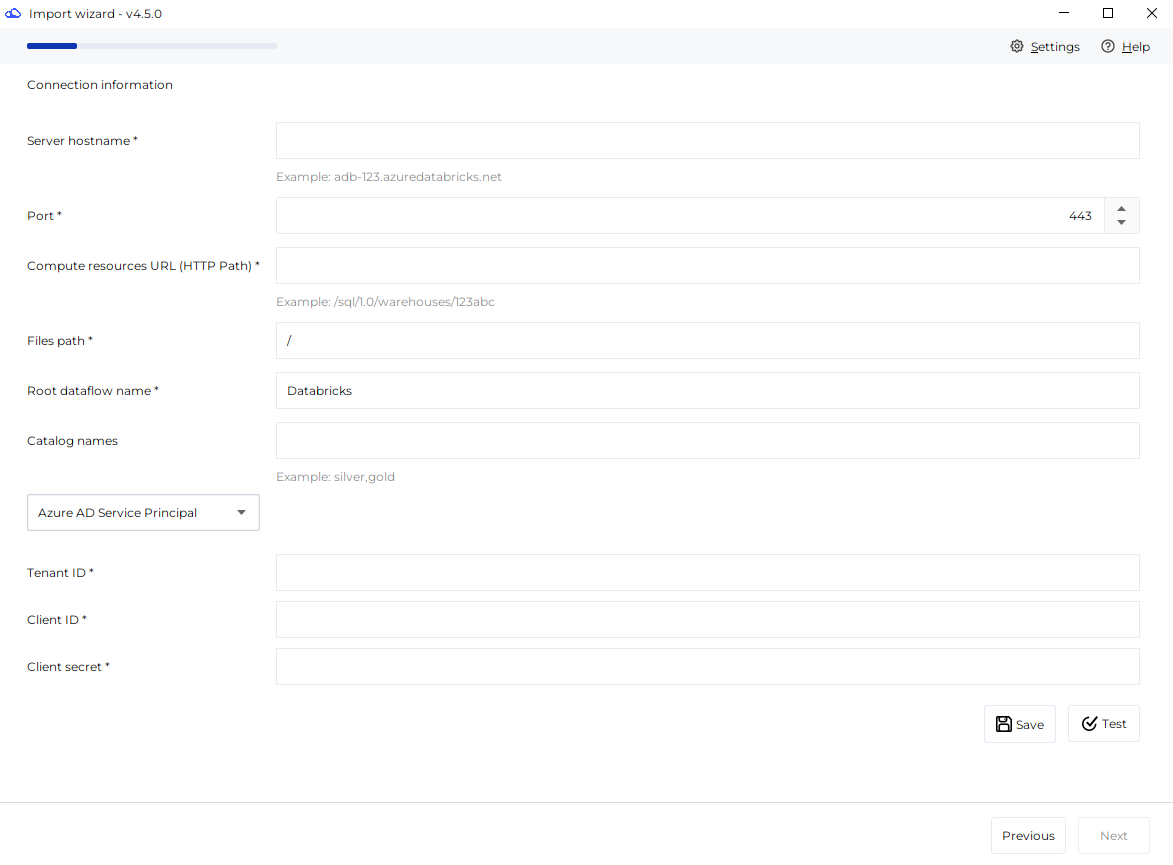
- Fill the corresponding fields using the connection information from above
DATABRICKS ACCESS TOKEN:
Azure AD Service Principal:
Databricks Service Principal:
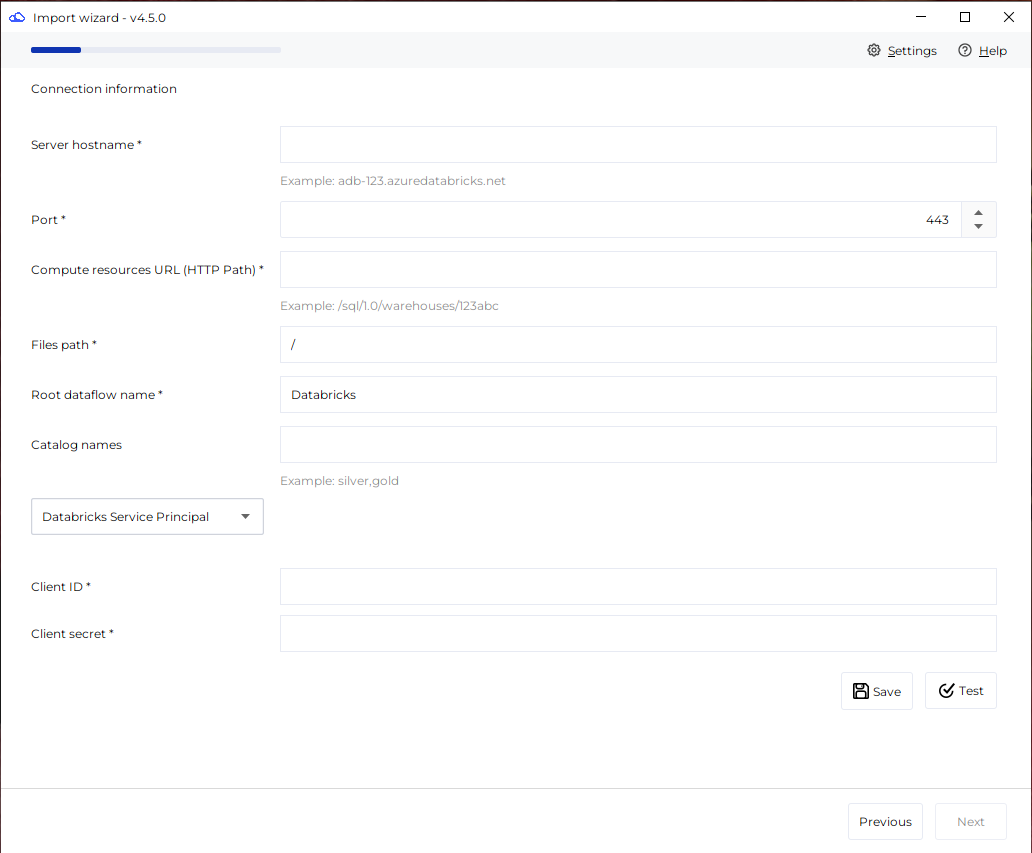
- Clic on "Test" to test the connection
- Once the connection test passed follow the steps to finalize your import
This connector is also available in online mode, more information on this page: [How to] Online Connector operating mode
Releases
| Date | Plugin Version | DataGalaxy release | Desktop connector version (minimum) | Description |
| 07/07/2026 | 7.0.0 | v3.376.0 | 5.18.2 | New internal implementation |
| 28/05/2026 | 6.7.0 | v3.345.0 | 5.15.9 | Path of the system catalog made configurable |
| 05/05/2026 | 6.6.1 | v3.337.0 | 5.15.9 | Lineage history depth configurable in days |
| 24/04/2026 | 6.5.3 | v3.332.1 | 5.15.9 | Updated internal dependencies |
| 14/04/2026 | 6.5.2 | v3.329.3 | 5.15.8 | Adding option to use the new Statement Execution APIs client instead of Thrift client in the Databricks' JDBC driver |
| 19/03/2026 | 6.4.6 | v3.322.0 | 5.15.7 | Bugfix regarding jobRunId parameter |
| 03/11/2025 | 6.4.2 | v3.273.1 | 5.13.0 | Improve connector's resilience when retrieving lineage information |
| 17/10/2025 | 6.4.1 | v3.268.2 | 5.13.0 | Allow the user to choose between two metadata retrieval methods |
| 03/10/2025 | 6.3.1 | v3.262.0 | 5.13.0 | Fix a bug preventing from authenticating to EntraID in CLI mode with the --password argument |
| 23/09/2025 | 6.3.0 | v3.254.0 | 5.13.0 | Addition of the option to filter out or not the "/Users" folder |
| 25/08/2025 | 6.2.0 | v3.245.0 | 5.13.0 | Addition of new retrieval option for lineage |
| 04/08/2025 | 6.1.3 | v3.228.1 | 5.13.0 | Fix issue with Notebook retrieval |
| 31/07/2025 | 6.1.2 | v3.220.1 | 5.7.8 | Fixed a bug related to the retrieval of the lineage in standard mode |
| 07/06/2025 | 6.0.15 | v3.178.1 | 5.6.2 | - Fixed http proxy configuration with JDBC driver - Fixed unnecessary creation of Processing root object in URN mode even if no children have to be created below |
| 27/05/2025 | 6.0.13 | v3.172.5 | 5.6.1 | - Fixed a bug related to retrieving lineage from another unity workspace - FIxed a bug related to views |
| 20/05/2025 | 6.0.11 | v3.171.0 | 5.5.13 | - New lineage behavior: all lineage can be imported, independently of choosing to create Notebooks and Workflows in DataGalaxy. - Activated the possibility of using URN imports for everybody |
| 04/04/2025 | 5.1.0 | v3.154.6 | 5.5.5 | Optimized how data is handled in URN mode |
| 21/01/2025 | 4.0.12 | v3.125.0 | 5.2.9 | Improved resiliency of the connector |
| 09/01/2025 | 4.0.11 | v3.116.1 | 5.2.8 | Fixed a bug regarding CSV imports and improved logs |
| 16/10/2024 | 3.0.3 | v3.85.1 | 5.2.6 | System catalogs are now filtered out and error logging is improved |
| 20/09/2024 | 3.0.2 | v3.77.1 | 5.2.6 | Fixed a bug regarding external tables that are views |
| 23/08/2024 | 3.0.1 | v3.69.0 | 5.2.3 | Updated the logger to show more information when using verbose mode |
| 26/07/2024 | 3.0.0 | v3.62.0 | 5.0.3 | Migrated from java 11 to java 17 |
| 04/07/2024 | 2.4.2 | v3.56.0 | Fixed a bug where some connexion fields where not loaded from a saved connection | |
| 04/07/2024 | 2.4.1 | 3.56.0 | Updated a dependency | |
| 15/05/2024 | 2.4.0 | v3.46.0 | Addition of Databricks Service Principal authentication | |
| 16/04/2024 | 2.3.0 | v3.40.0 | Addition of Entra ID (Azure AD) Service Principal authentication |