
This article covers a feature that is currently being progressively rolled out to our clients. It is therefore possible that it is not yet available to you. In the meantime, feel free to reach out to your Account Manager for more information.
This article aims to present the Activity Log section, accessible from the Client Space Administration interface as well as from object cards.
This section allows you to track in detail the activity of users on objects across the different modules of the platform.
Introduction to Activity log
To better address user activity monitoring needs, we are enhancing the Activity Log, which provides a chronological view of all actions performed by users on objects across workspaces. Every action is tracked with precision, whether for security purposes (detecting suspicious behavior, object deletions, sensitive data modifications), audit requirements (full traceability of changes to meet compliance standards), or debugging (quickly identifying the origin of a modification or an anomaly).
The goal is to provide administrators and users with full transparency over platform activity, enabling them to respond swiftly to potential threats, meet audit requirements, and efficiently diagnose any unexpected behavior.
Access to the Activity log
At the Client Space Administration level
To track the detailed activity of all users across all workspaces, you must be a client space administrator. To verify whether you have these rights, go to your profile and click on the dropdown menu. The "Administration" option should appear. If it does not, you do not have administrator rights.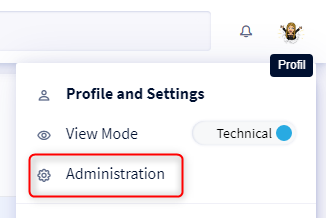
To access the 'Activity log' screen, the client space administrator must :
- Click on the icon at the top right of the screen
- Select Administration from the drop-down menu
- Go to the Activity log section
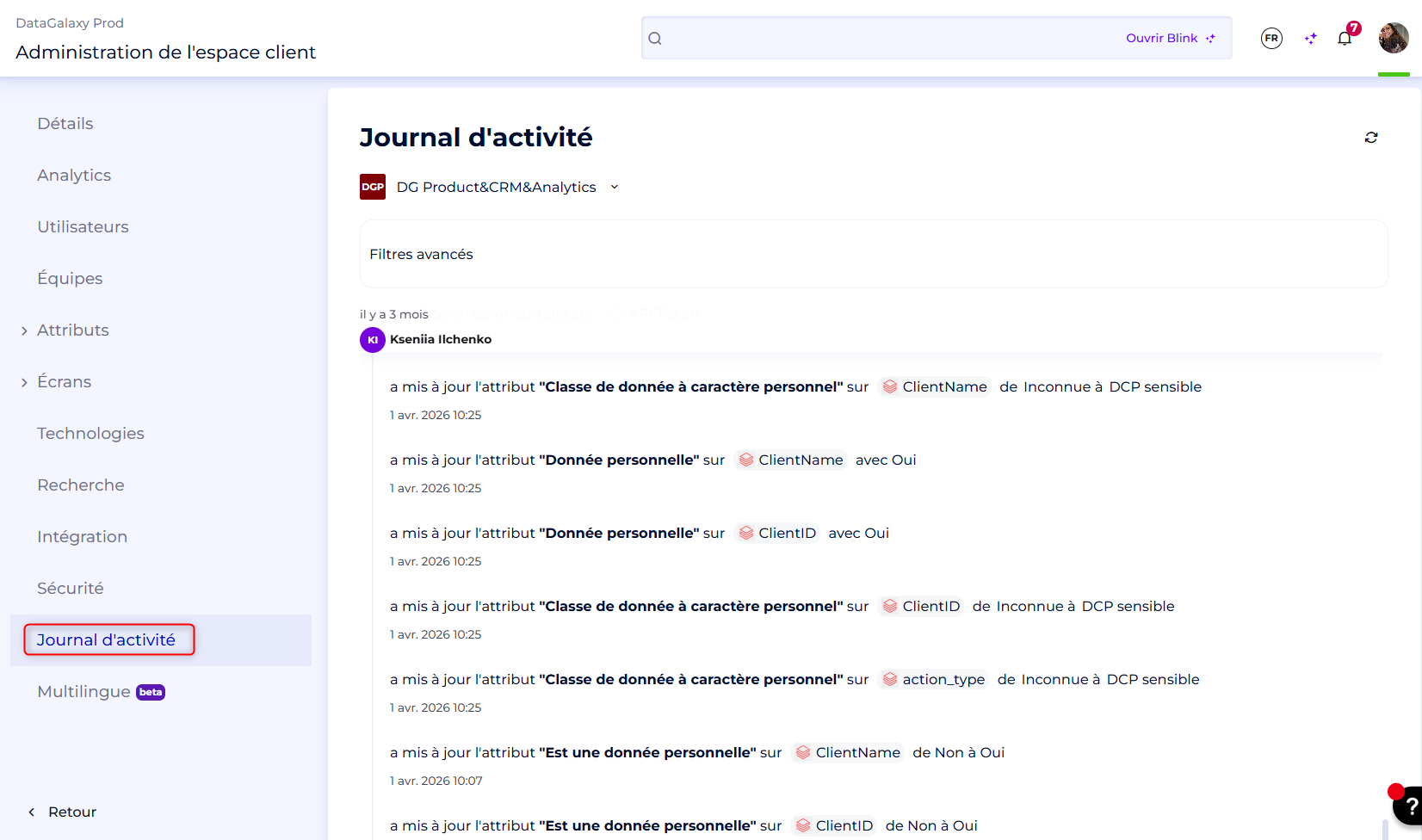
- By accessing the Activity Log, you have a chronological and exhaustive view of all actions performed by users on objects across the workspaces you have access to, as well as complete and precise traceability of all activities.
You also have the ability to filter activities by:
- Workspace and version
- Event type (see the full list at the end of this article)
- The user who performed the action
- The date the action was carried out
- The object in question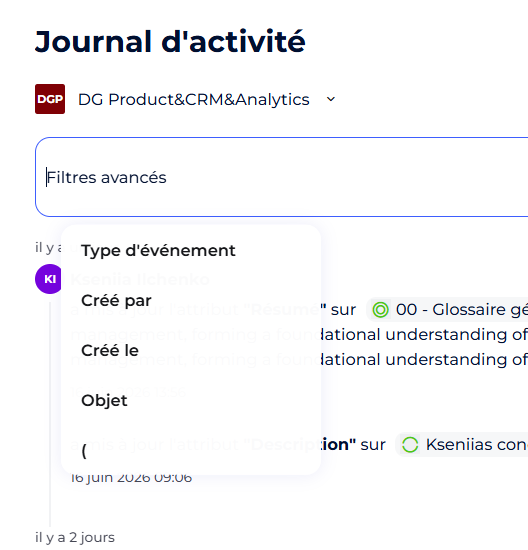
At the object card level
To track the detailed activity of a specific object, any user with access to that object can consult its activity log directly from the object card.
To access it:
1. Open the object card
2. Click on the "Activity Log" icon in the top right corner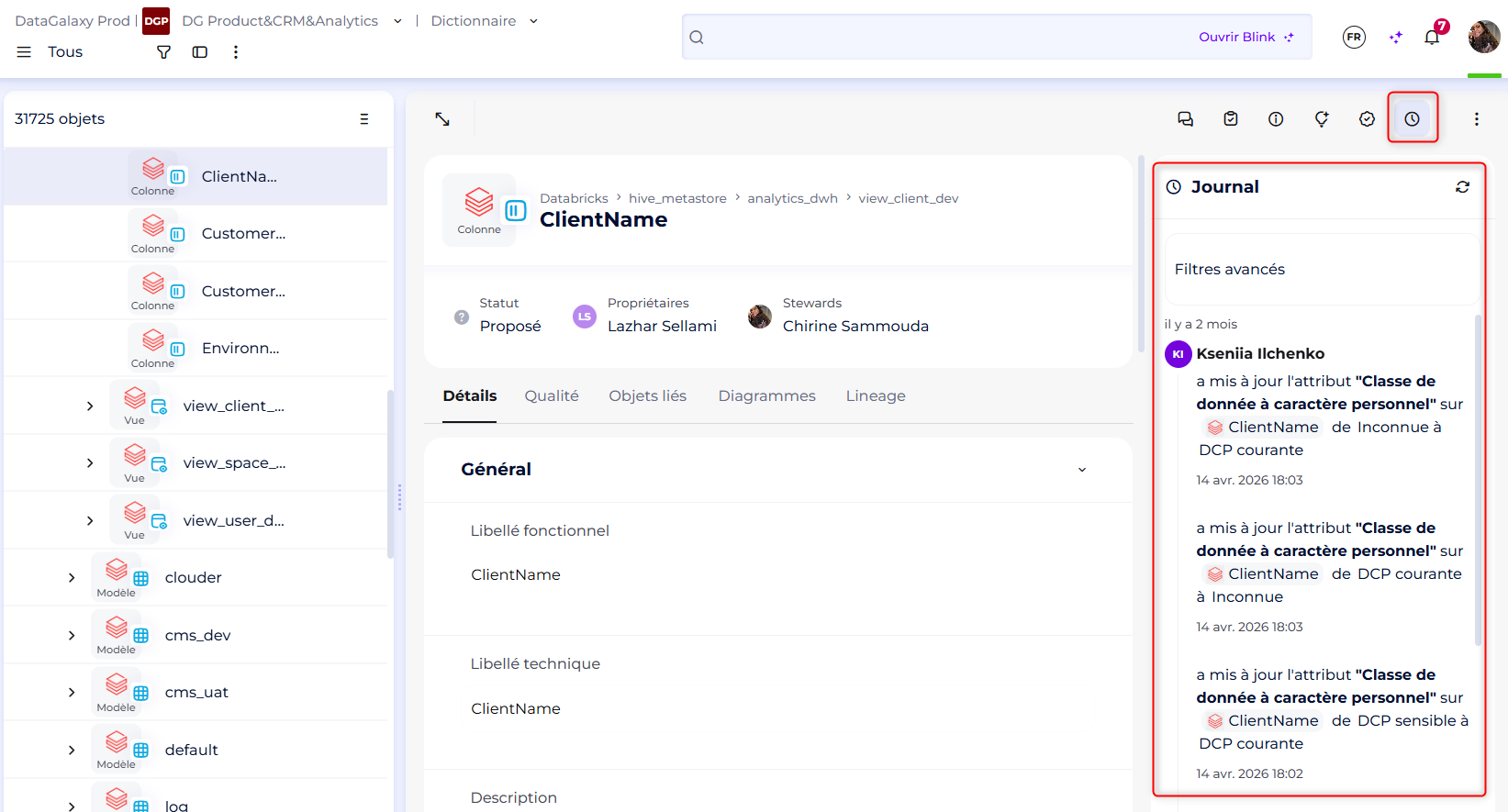
By accessing the Activity Log of an object, you get a chronological view of all actions performed by users on that object, ensuring complete traceability of its history.
You also have the ability to filter activities by:
- Event type (see the full list at the end of this article)
- The user who performed the action
- The date the action was carried out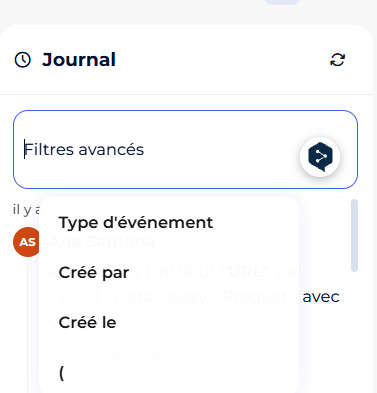
Actions tracked in the Activity Log
The Activity Log records all actions performed by users on the platform. Below is the exhaustive list of tracked events:
- Column added
- Column deleted
- Comment added
- Comment updated
- Comment deleted
- Link added
- Link updated
- Link deleted
- Object created
- Object deleted
- Task added
- Task updated
- Assigned user on task changed
- Task deleted
- Attribute value updated
- Attribute value updated — with value
- Attribute value updated — without value
- Attribute value updated — from / to
- Diagram node added
- Diagram node deleted
- Diagram node updated
- Diagram node color changed
- Diagram node lock changed
- Diagram node size changed
- Diagram link added
- Diagram link added (physical diagram)
- Diagram link removed
- Diagram edge color changed
- Diagram edge thickness changed
- Diagram edge line style changed
- Diagram edge arrow type changed
- Diagram edge renamed
- Diagram edge geometry edited
- Diagram extra data changed
- Diagram grid changed
- Diagram visual data changed
- Field created
- Field deleted
- Foreign key created
- Foreign key deleted
- Foreign key updated
- Primary key column added
- Primary key column removed
- Primary key renamed
- Source data type created
- Source data type deleted
- Source data type updated
- Synonym created
- Synonym deleted
- Workspace added