Introduction
When a team member leaves your organization or changes role, managing their access and responsibilities can quickly become a significant operational burden. Roles to reassign, objects to transfer, user account to delete , all manual operations that take time and slow down your internal processes.
This is precisely what the User Swap feature is designed to solve.
In a single operation, the administrator selects the user to be deleted and the user who will replace them. The platform handles the entire process automatically: role transfers, reassignment of object responsibilities, and deletion of the departing user's account.
Who can manage User Swap?
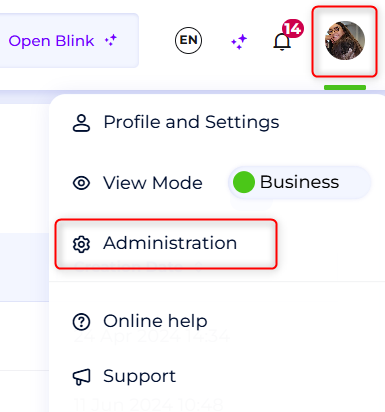
To use the User Swap feature, you must be an administrator of the client space. To check whether you have these rights, go to your profile and click on the dropdown menu : the "Administration" option should appear. If it does not, you do not have administrator rights.
To learn more about the administrator profile and how permissions and licenses work in DataGalaxy, you can refer to this article.
How does User Swap work?
When an administrator wants to delete a user from the Admin Client Space, here are the steps to follow:
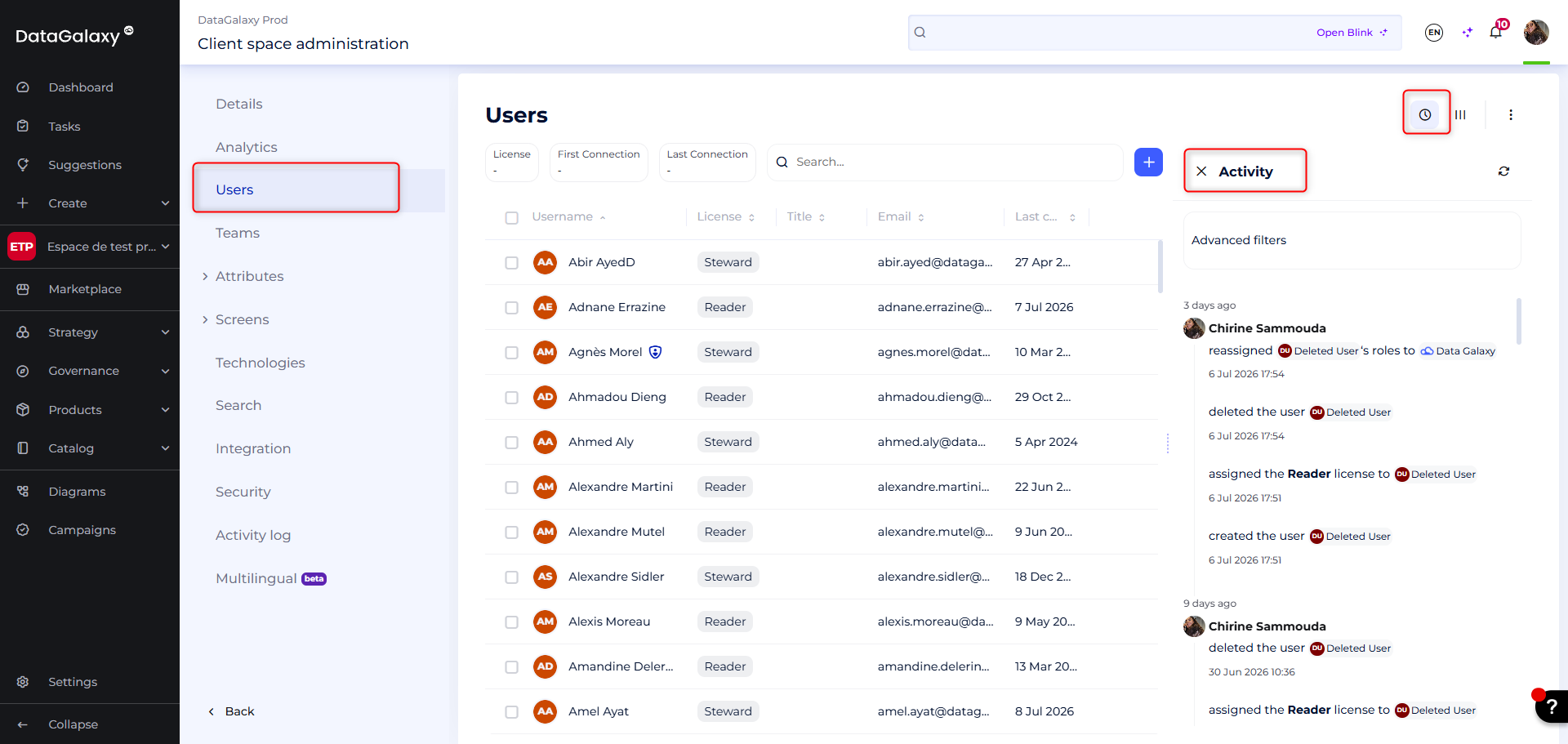
- Go to the Admin Client Space
- Navigate to the Users tab
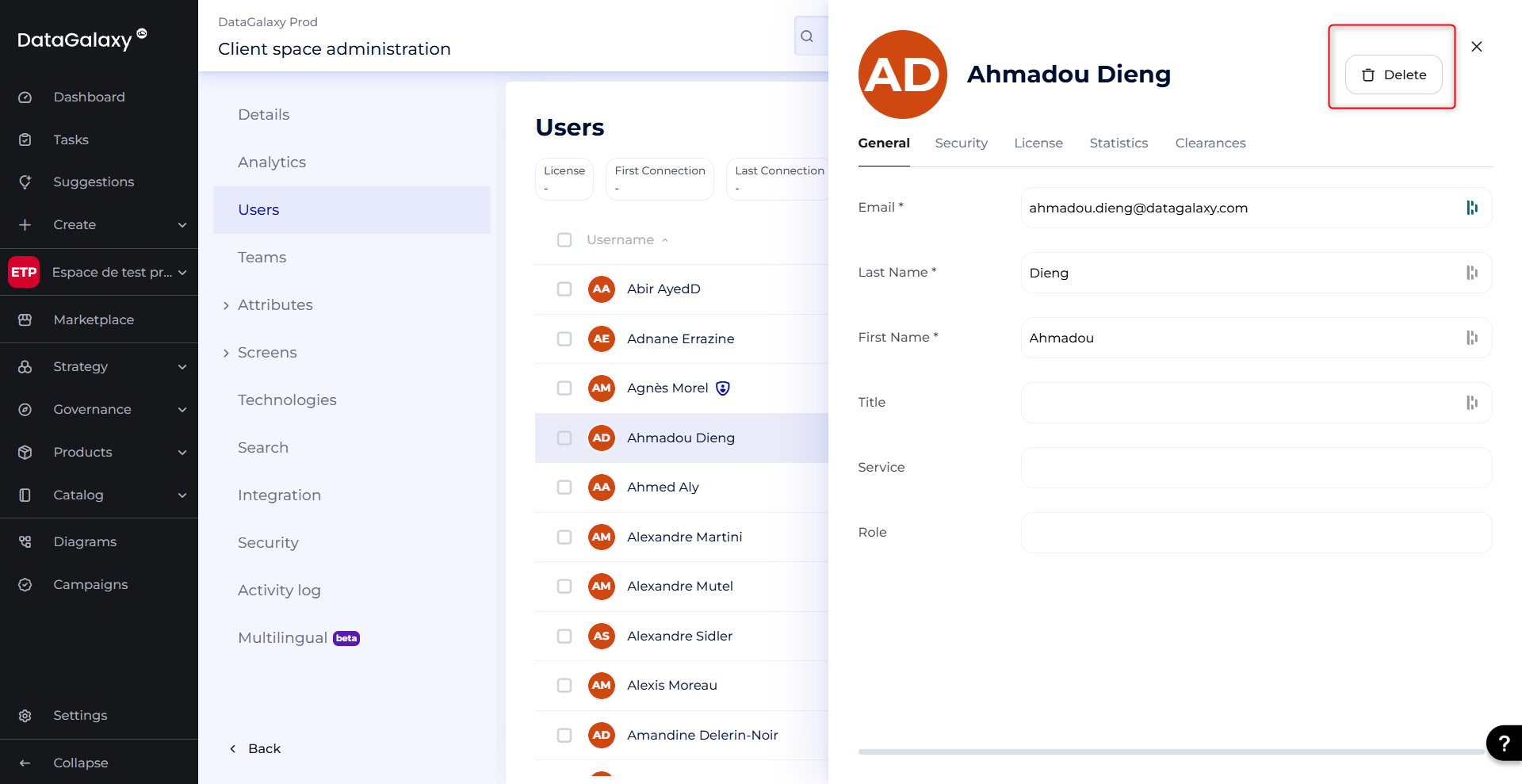
- Click on the name of the user to be deleted to open a preview
- Click the Delete button in the top right corner
A window then appears, displaying two key information:
- The workspaces in which this user is assigned a default official governance role such as Owner, Steward, etc
- The workspaces in which this user is identified as Owner, Steward, or another role directly on object card
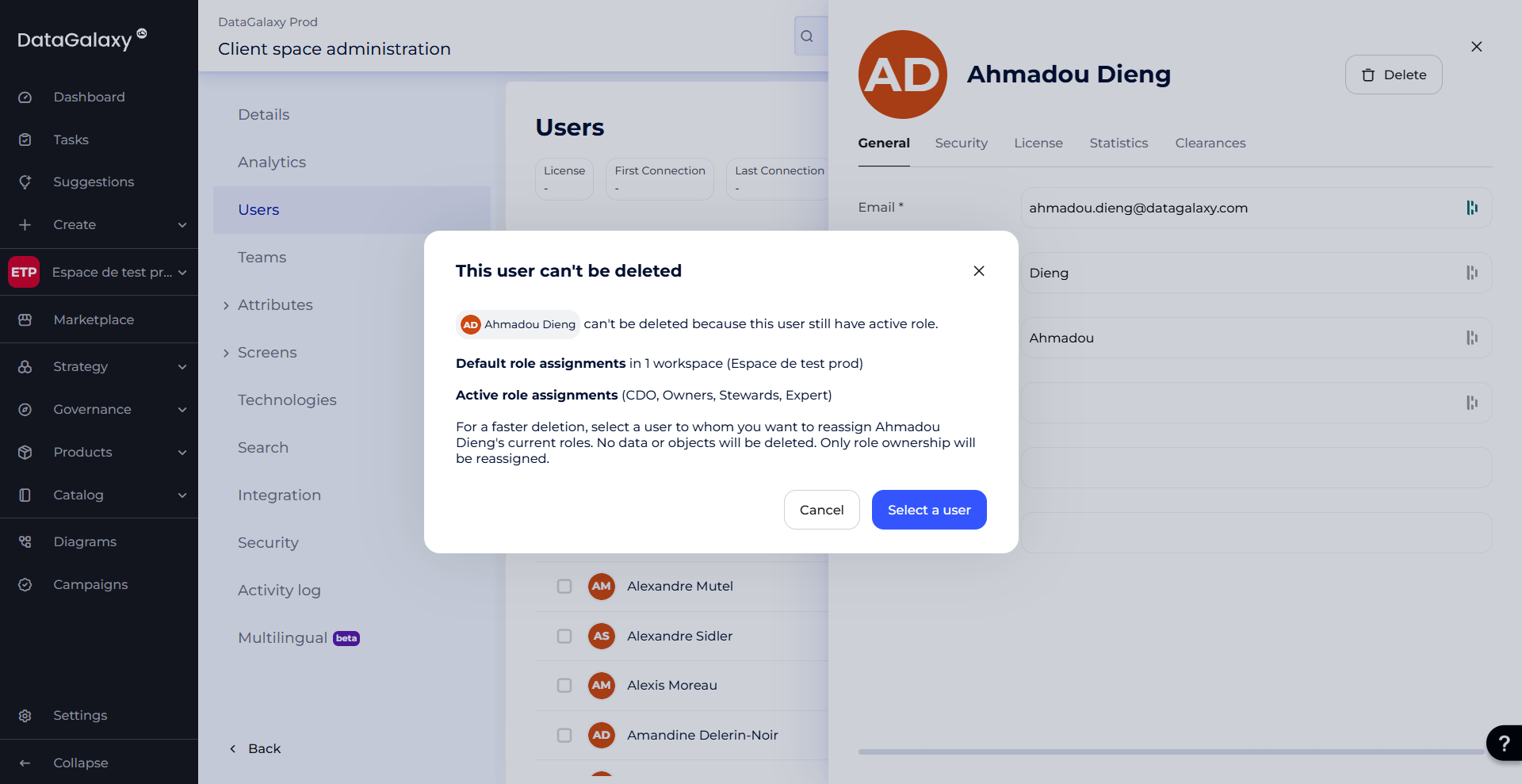
Based on this information, the platform invites you to designate a replacement user in order to transfer all responsibilities before finalizing the deletion.
Finalizing the swap
Once the window is displayed, follow these steps:
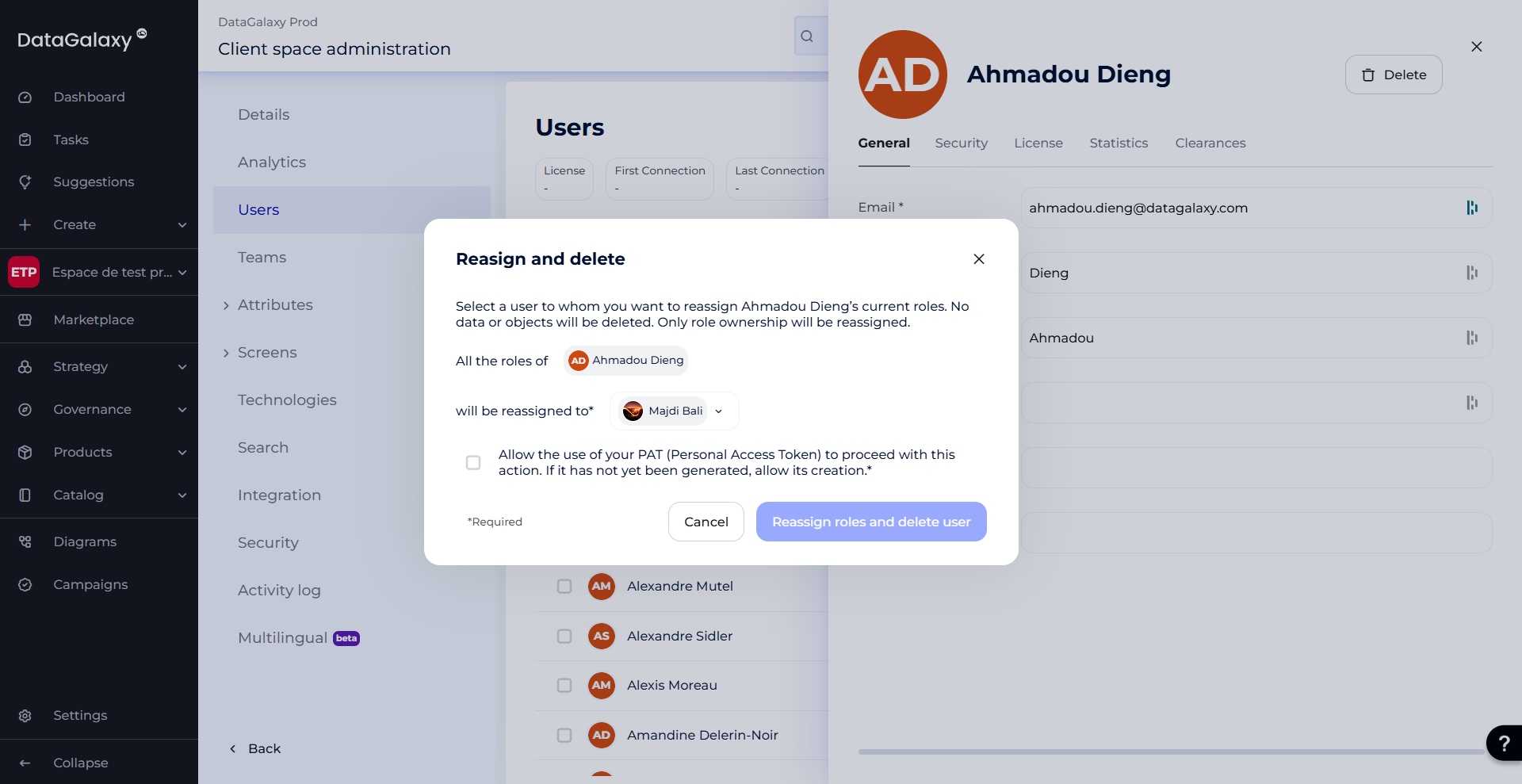
- Click on the button"Select a user"
- A new step appears: in this modal you can select the replacement user of your choice.
All responsibilities of the departing user (default roles and object level roles) will be automatically transferred to this user - Check the box to authorize the use of your PAT (Personal Access Token)
- Click on the button "Reassign roles and delete user" to confirm and launch the operation
Tracking & notifications
As soon as you confirm, an instant notification lets you know that the process has been launched and is running in the background. You can continue using the platform as normal.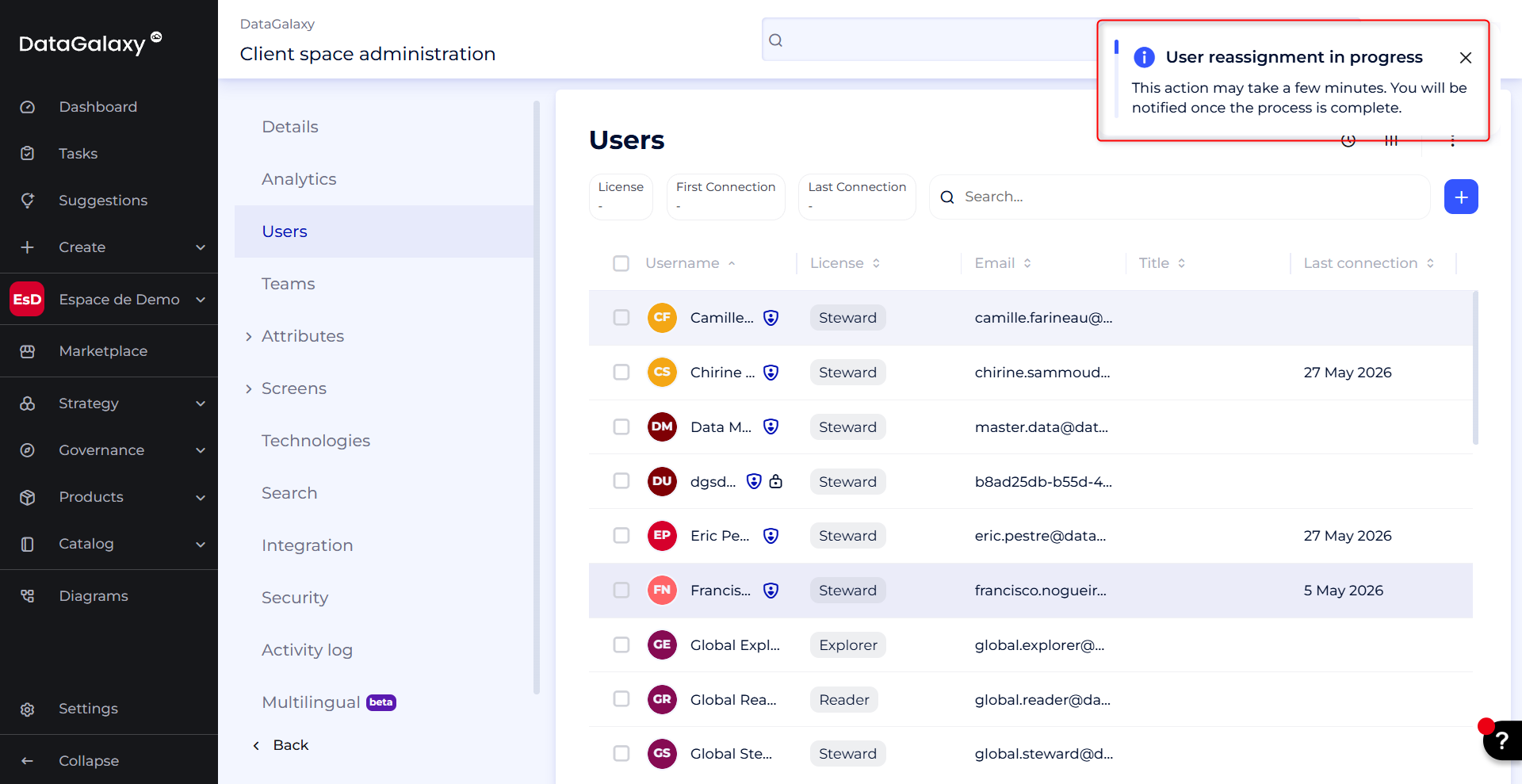
Once the operation is complete, two notifications are sent automatically:
- To the administrator who initiated the User Swap: confirmation that the replacement was completed successfully and that the original user has been deleted.

- To the replacement user: a summary of all the responsibilities that have been transferred to them.

In the users screen, the client space admin will be able to see a log of the user swap action. They will have information on who initiated the user swap action, the user to whom the responsibilities were transferred, as well as information that a user was deleted.