
This article explains how to customize the home page.
There is a single home page for each workspace, and this home page is visible to all users with access to that workspace. You can customize the home page for each of your workspaces to suit your specific use cases.
To find out more about the home page, consult this article: Home page overview
Overview with a video
Who can customize the home page?
Only workspace administrators can customize the homepage.
How to customize the home page?
To customize the home page, you need to:
- Go to the home page you wish to customize
- Click on the pencil button
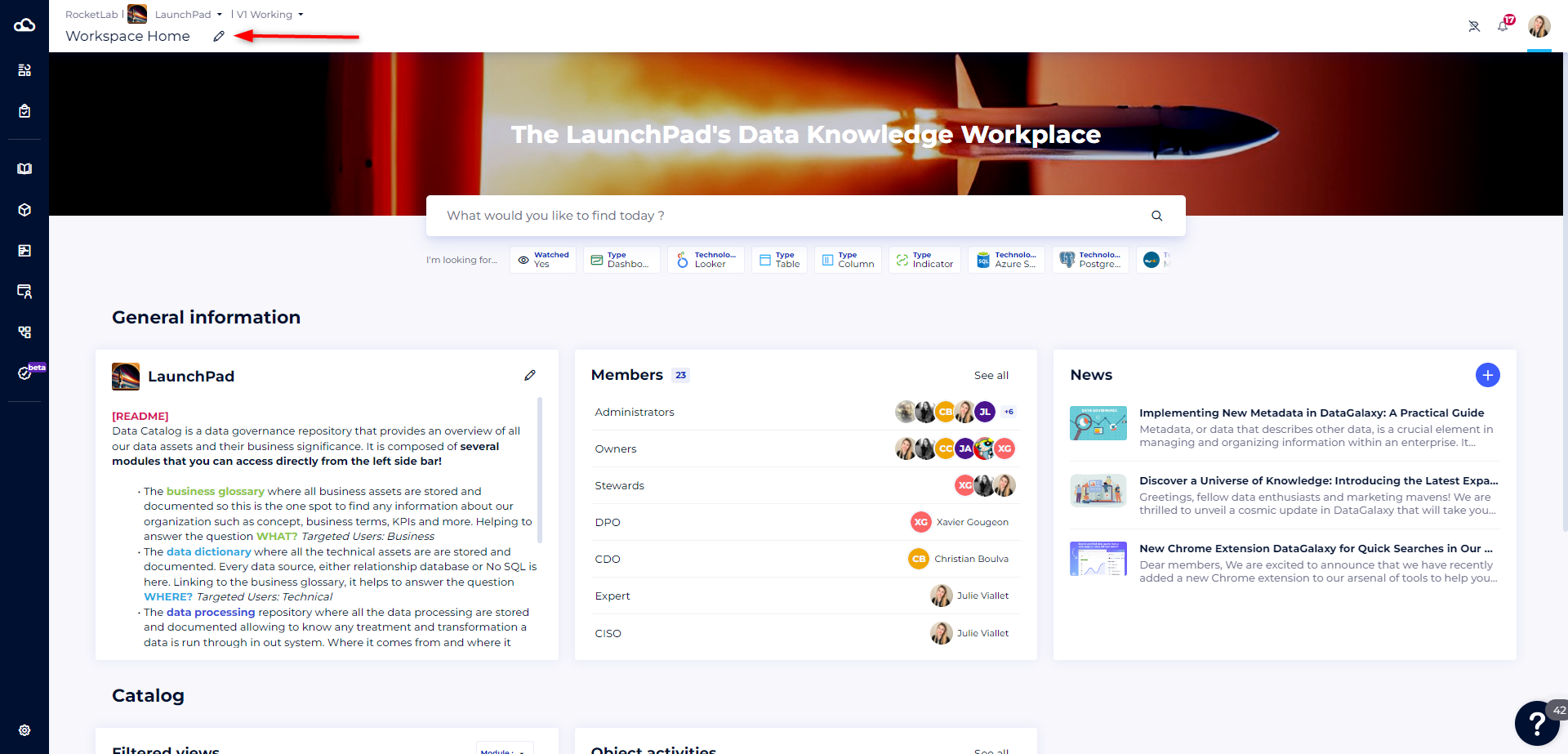
- Make your changes
- Click on the Save button to save your changes, which will then be visible to all workspace users.
1 - The banner
The banner image on the home page, and the welcome message on the banner, can be customized.
To modify them, simply:
- Click on the image
- Change the image and/or message. You can also hide the message.
- Click on the Update button
2 - Widgets
You can add, duplicate, remove and move widgets.
Adding a widget
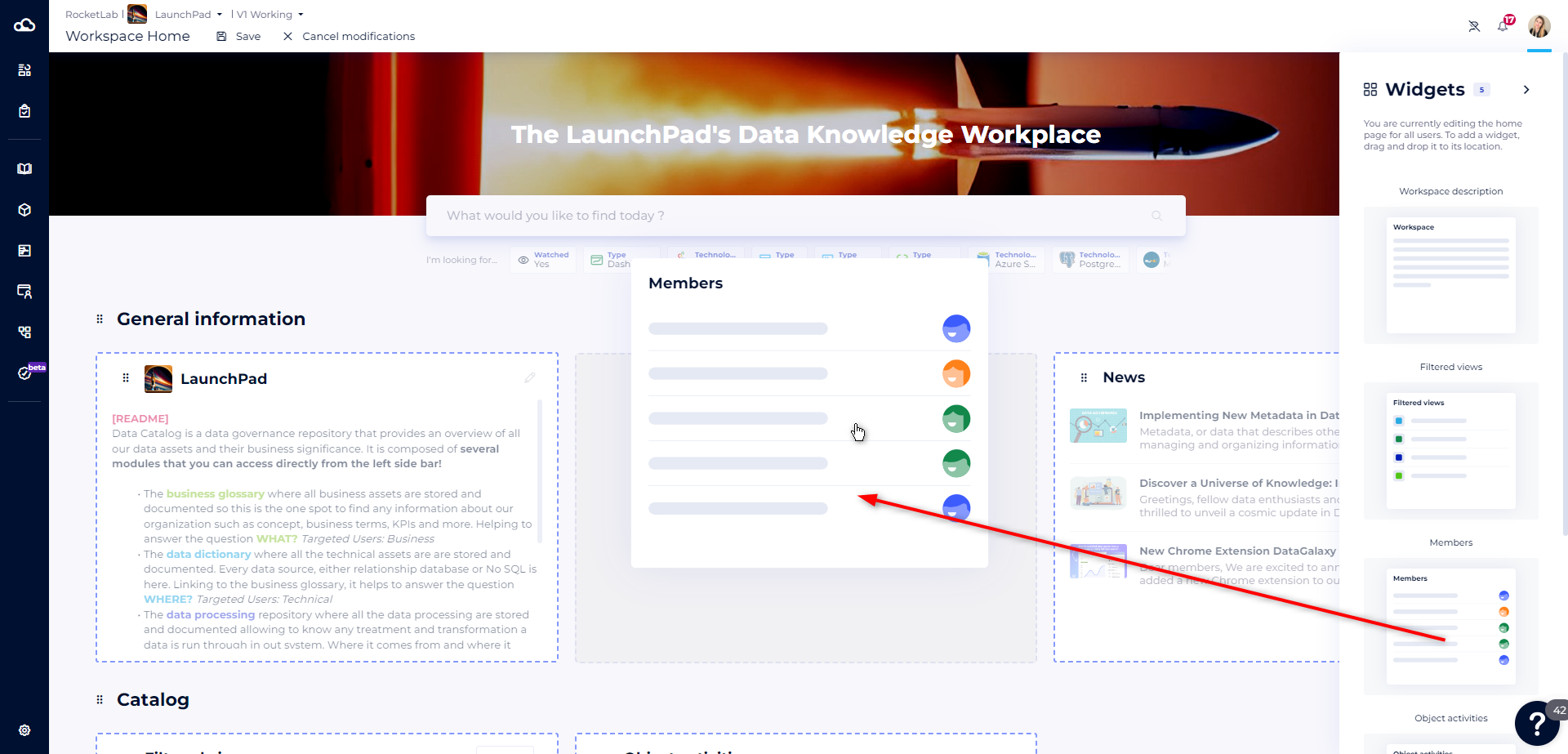
When you switch to edit mode, the widget gallery opens automatically.
From this gallery, you can drag and drop a widget to the location of your choice.
Duplicating a widget
To duplicate a widget:
- Click on the context menu of the widget you wish to duplicate
- Select the Duplicate option
- Your widget will be automatically duplicated to the right of the initial widget.
Remove a widget
To remove a widget:
- Click on the context menu of the widget you wish to remove
- Select the Delete option
- Your widget will automatically be duplicated to the right of the initial widget.
Moving a widget
To move a widget:
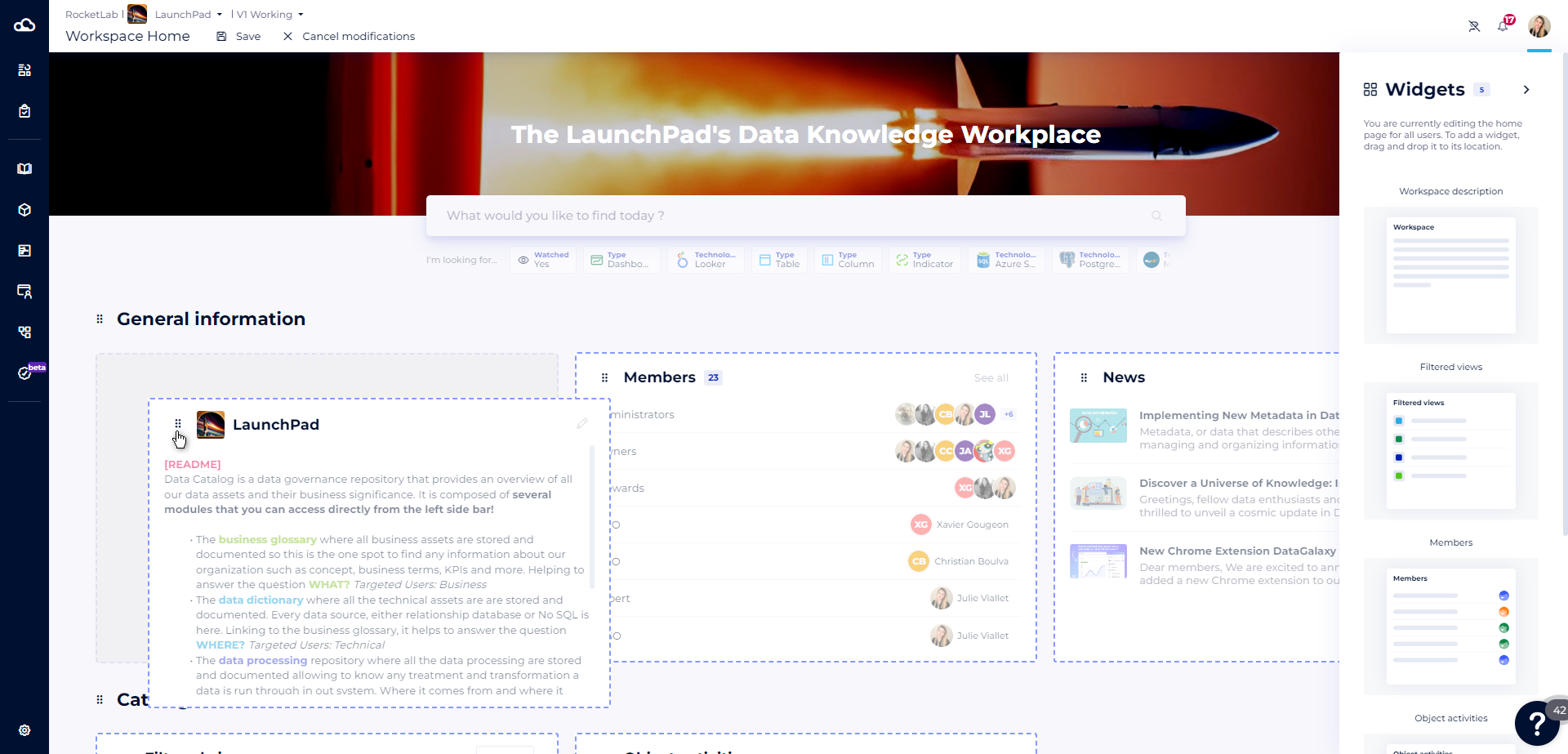
- Catch a widget by long-clicking on the context menu of the widget you wish to move
- Drag and drop the widget to the desired location
Rename a widget
To rename a widget, click on the title of the widget you wish to rename.
NB: The Description and Objects widgets in a filtered view cannot be renamed.
3- Sections
Sections allow you to group widgets by category.
You can create up to 6 sections, and add up to 12 widgets per section.
You can add, delete, move and rename sections.
Adding a section
To add a section:
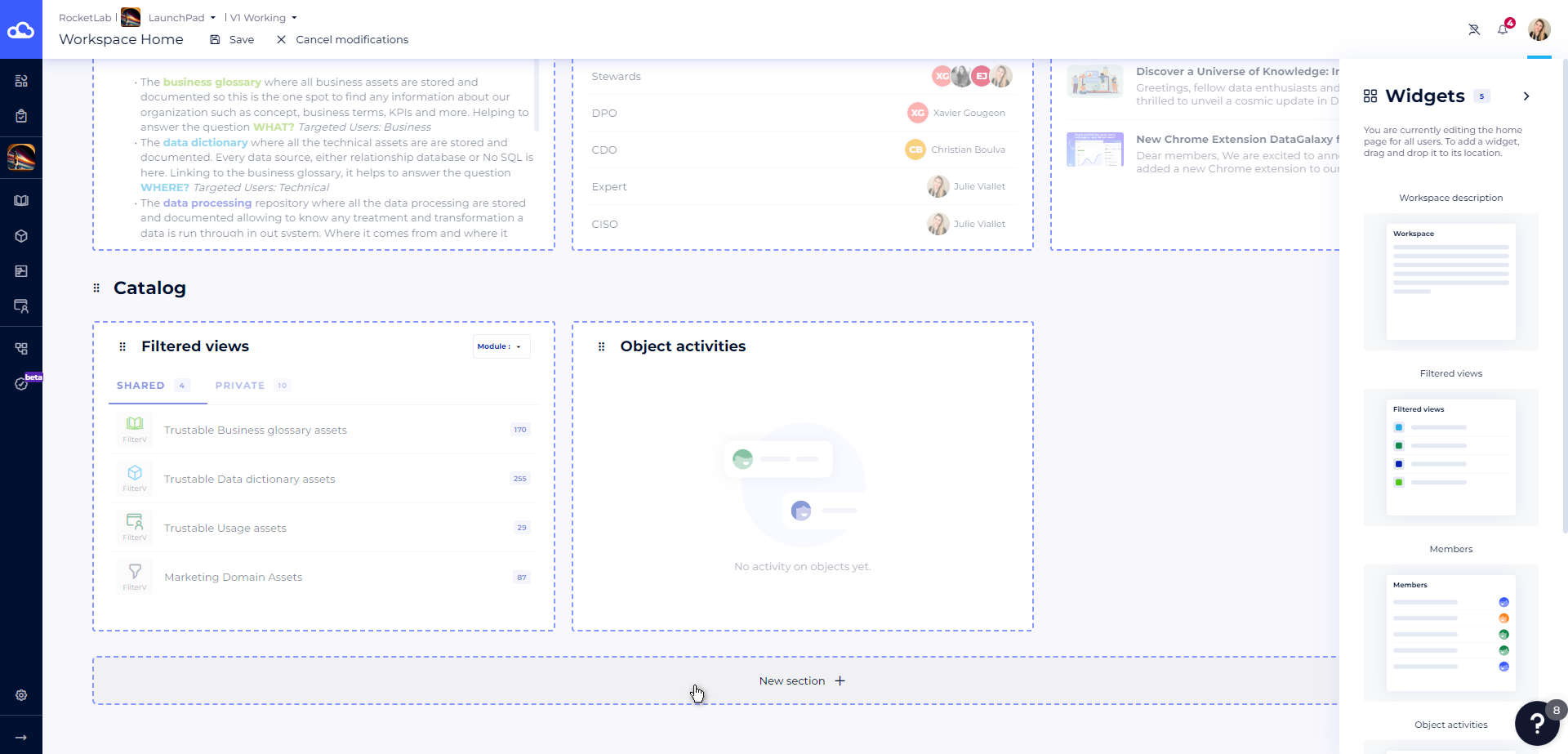
- Scroll to the bottom of the page
- Click on the Add a section button
Deleting a section
To delete a section :
- Click on the contextual menu of the section you wish to delete
- Select the Delete option
Moving a section
There are 2 options for moving a section:
- Drag and drop the section from its context menu by long-clicking to the position of your choice
- Open the context menu of the section you wish to move and select the Move section down or Move section up option
Rename a section
To rename a section, click on the title of the section you wish to rename.