This article aims to explain how to manage your avatar.
How to insert a new image?
There are 2 ways to add a new image:
- Via drag and drop
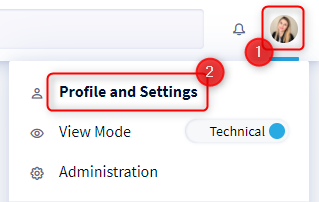
- Go to your profile by clicking on your icon at the top right of the screen
- Click on Profile and settings in the drop-down menu
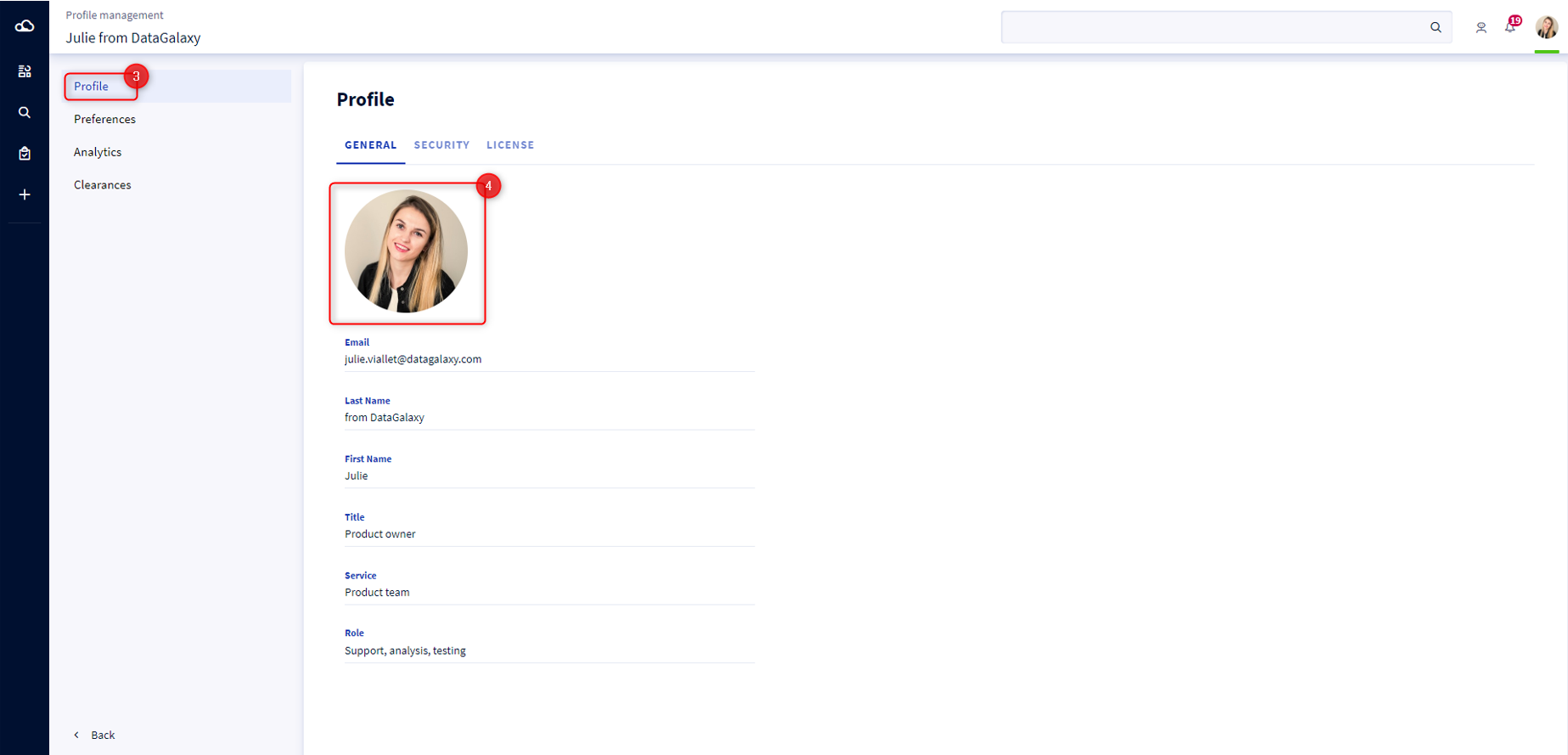
- Select the profile tab
- Drop your new profile picture directly to your avatar's dedicated space
- By clicking on the 3 small dots
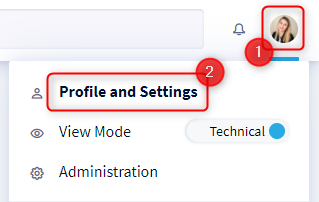
- Go to your profile by clicking on your icon at the top right of the screen
- Click on Profile and settings in the drop-down menu
 *
* - Select the Profil tab
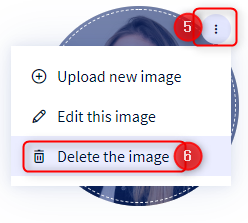
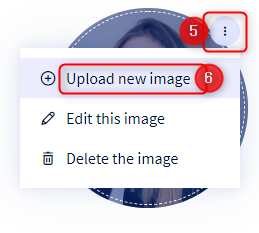
- Hover over the image: 3 small dots appear on the hover
- Click on the 3 small dots
- Select Upload new image
- Select your image to import
- A modal opens
- Apply the adjustments of your choice
- Click on Done
How to change your current photo?
To modify your current profile picture:
- Go to your profile by clicking on your icon at the top right of the screen
- Click on Profile and settings in the drop-down menu
- Select the profile tab
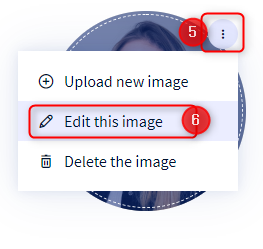
- Hover over the image: 3 small dots appear on the hover
- Click on the 3 small dots
- Select Edit this image
- A modal opens
- Apply the adjustments of your choice
- Click on Done
How to delete your profile picture?
To delete your profile picture and return to the avatar with your initials:
- Go to your profile by clicking on your icon at the top right of the screen
- Click on Profile and settings in the drop-down menu
- Select the profile tab
- Hover over the image: 3 small dots appear on the hover
- Click on the 3 small dots
- Select Delete this image