
This article explains how to manage the teams you are part of. To learn more about the team notion, you can read this article : Teams presentation.
To access the teams, you need to:
- Access your profile by clicking on your icon at the top right of the screen.
- Click on Profile and Preferences in the drop-down menu.
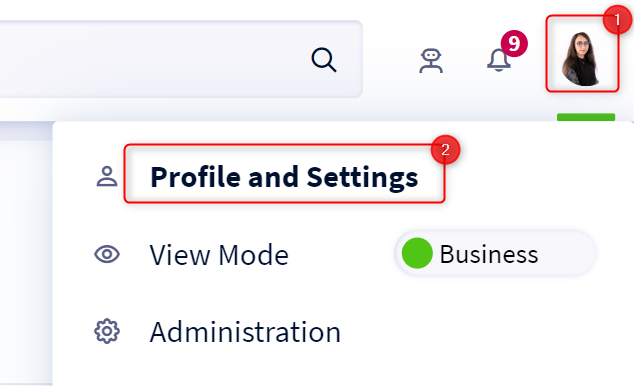
- Select the Teams tab
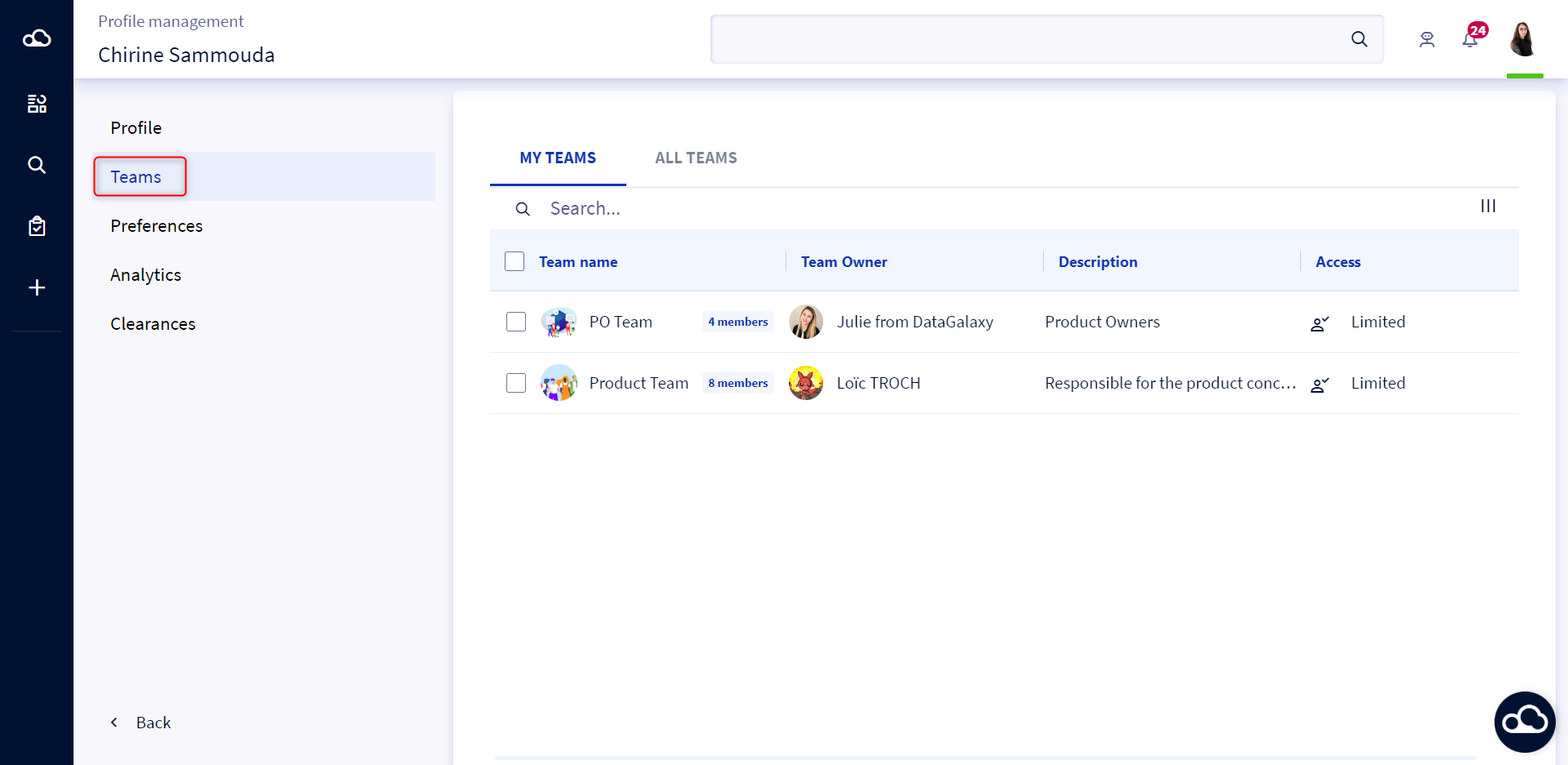
A screen with 2 sub-sections is presented:
- My Teams: Displays a list of the teams you are member of.
- All teams: Displays a complete list of teams created and existing in the client space.
- All teams are created in the client space by the administrators. The administrators define the team members and the owner(s).
To learn more about the management of teams in the client space, consult this article : ----------
My Teams
In the tab My Teams, you can view all the information about the teams you are part of.
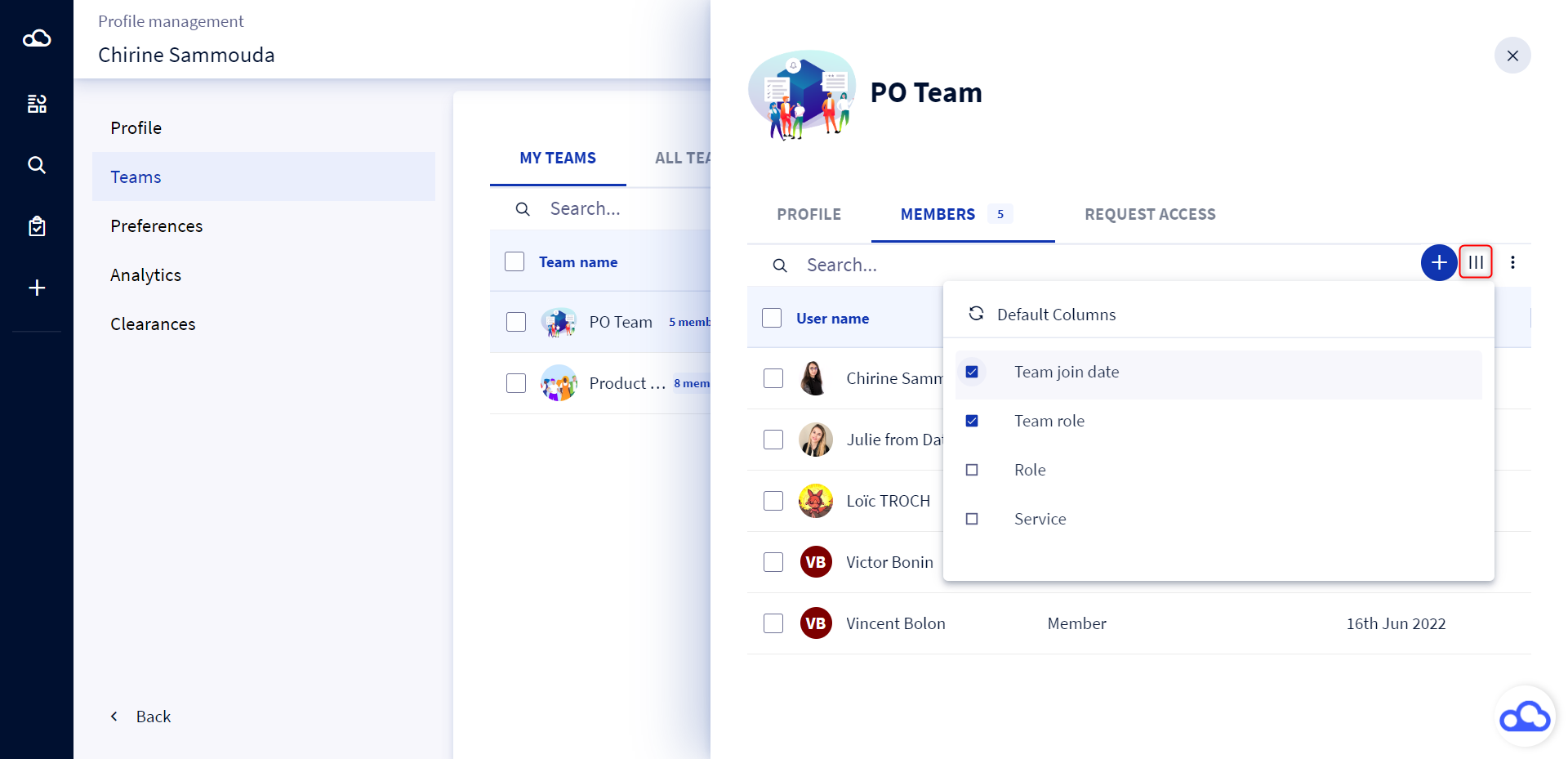
To view more information about your teams, click on the 3 bars at the top right of the screen to manage the columns of the teams table.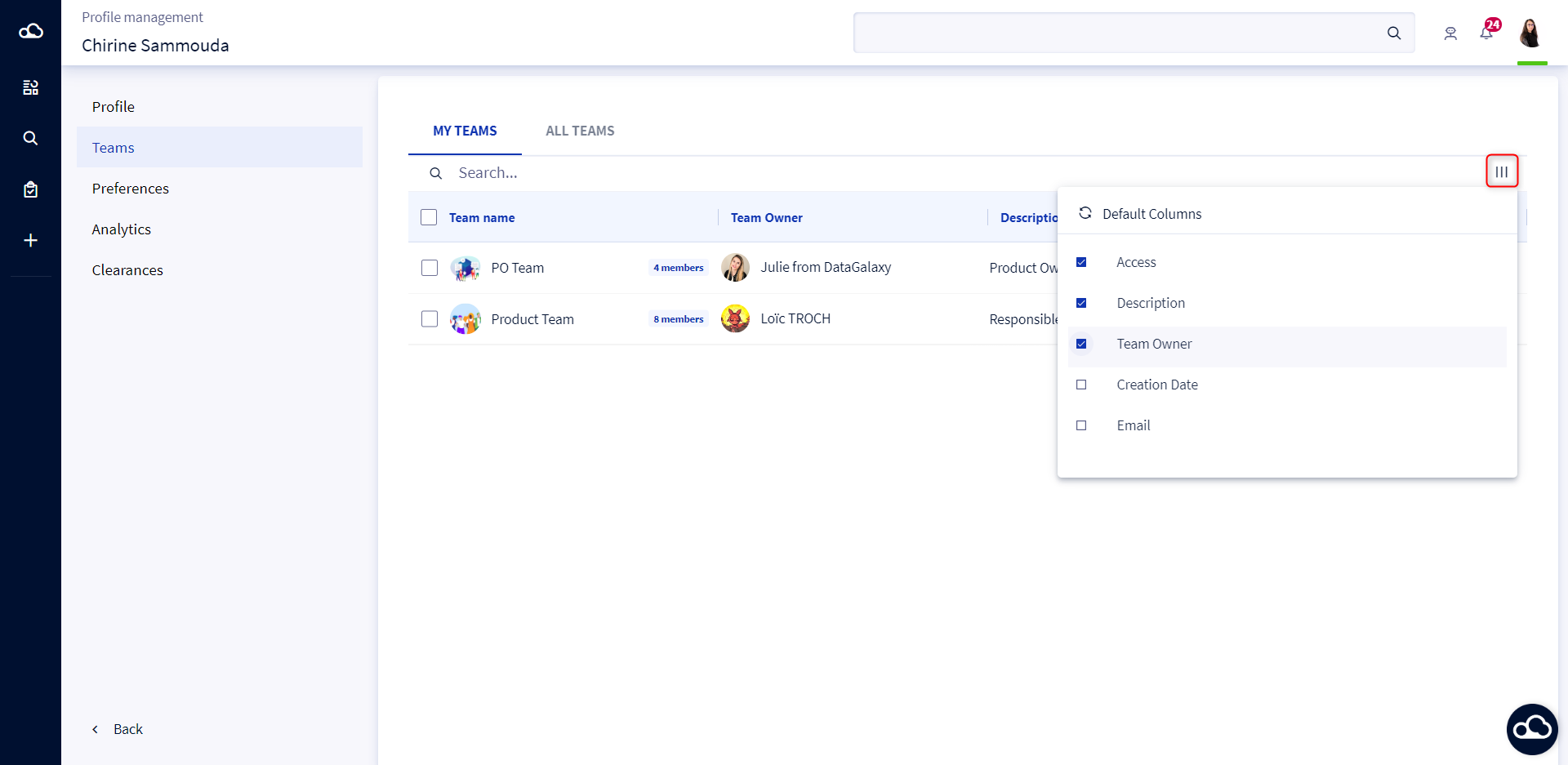
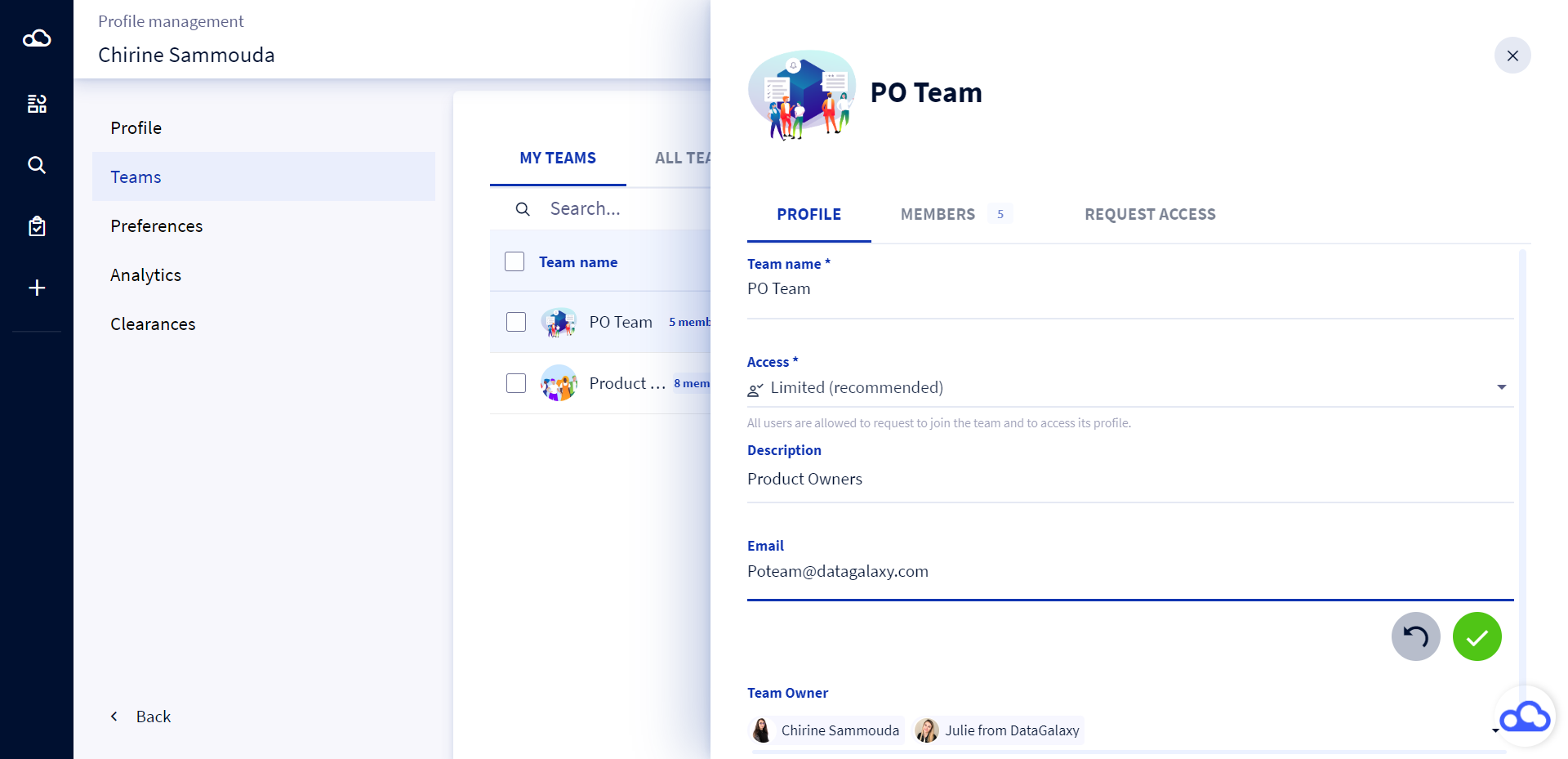
To consult a team's card, click on the team from the list displayed, a preview opens on the right of the screen with :
- The name
- The description
- The access type
- The email
- The team owner
- The members
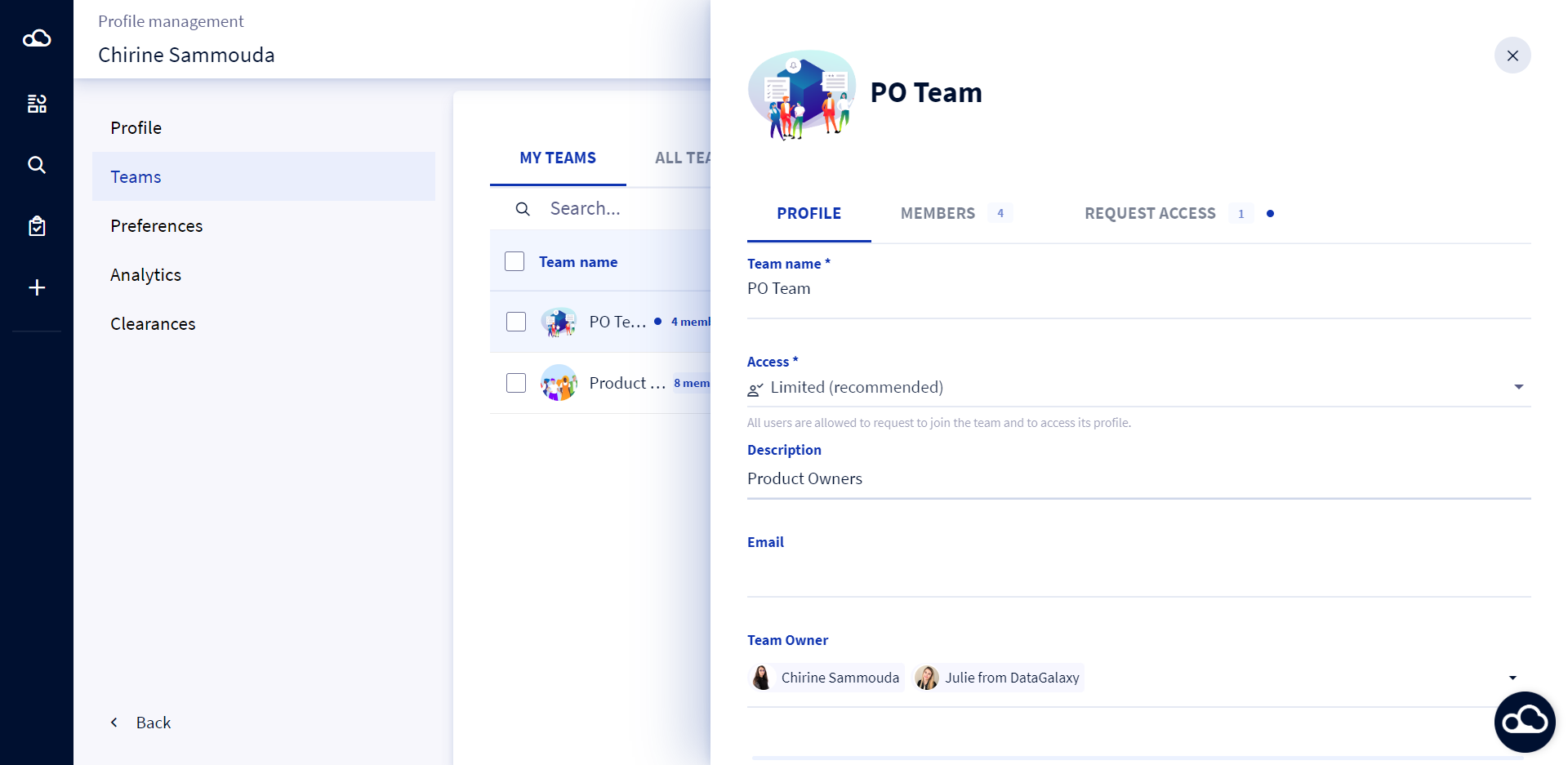
If you are a Team Owner (a role assigned by the client space administrator), you can edit your team information and add and/or remove members. You can also accept/refuse access requests to your team.
The following paragraphs concern the team owners.
1 - Update a team
To update a team, you must :
- Click on a team you would like to edit from the team list
- Update the fields in the team's card that opens on the right of the screen
2 - Add members to a team
To add members to a team, you must :
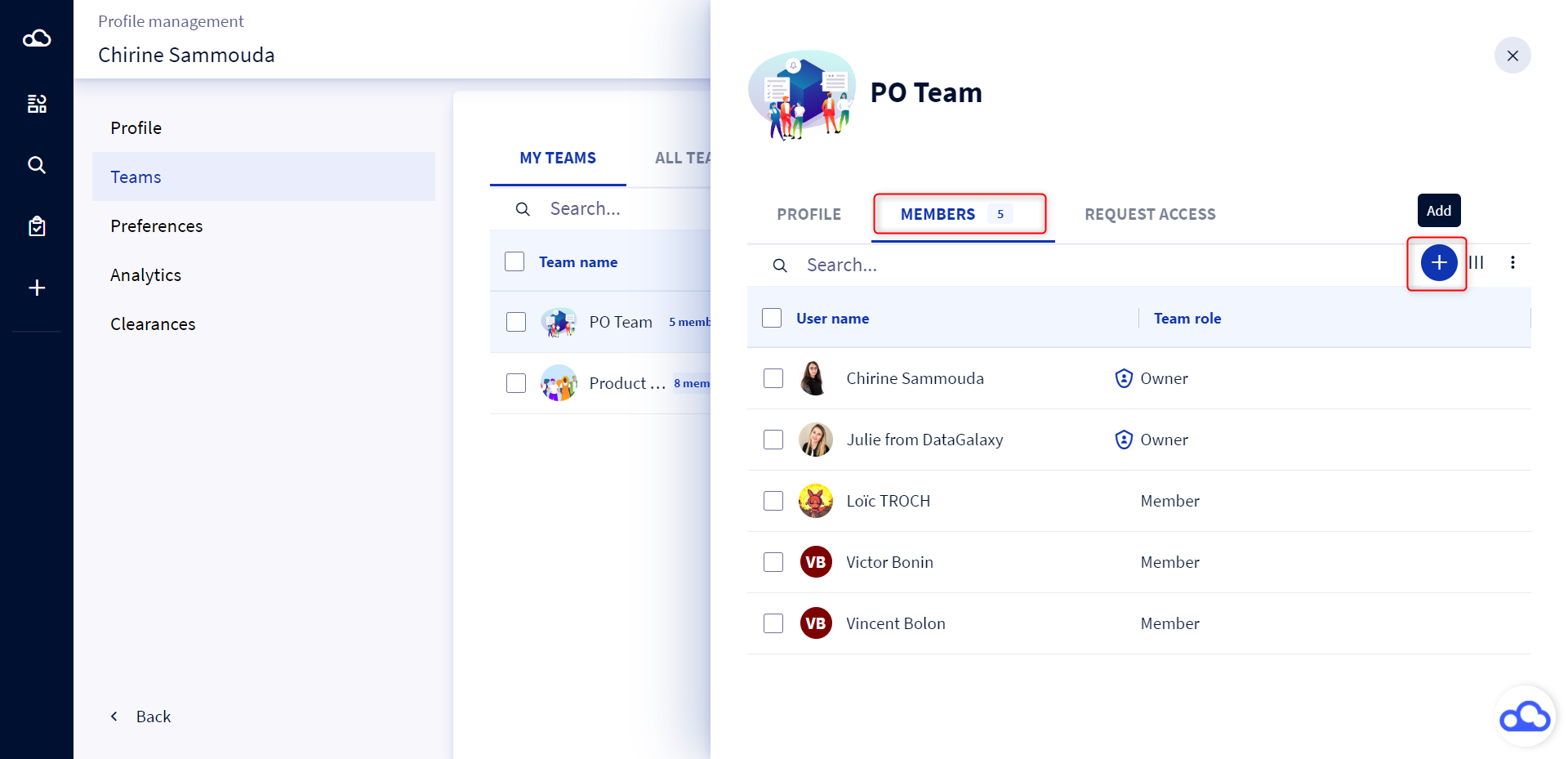
- Click on a team from the list of teams
- Click on the Members tab from the team card that appears on the right of the screen
- Click on the Add button
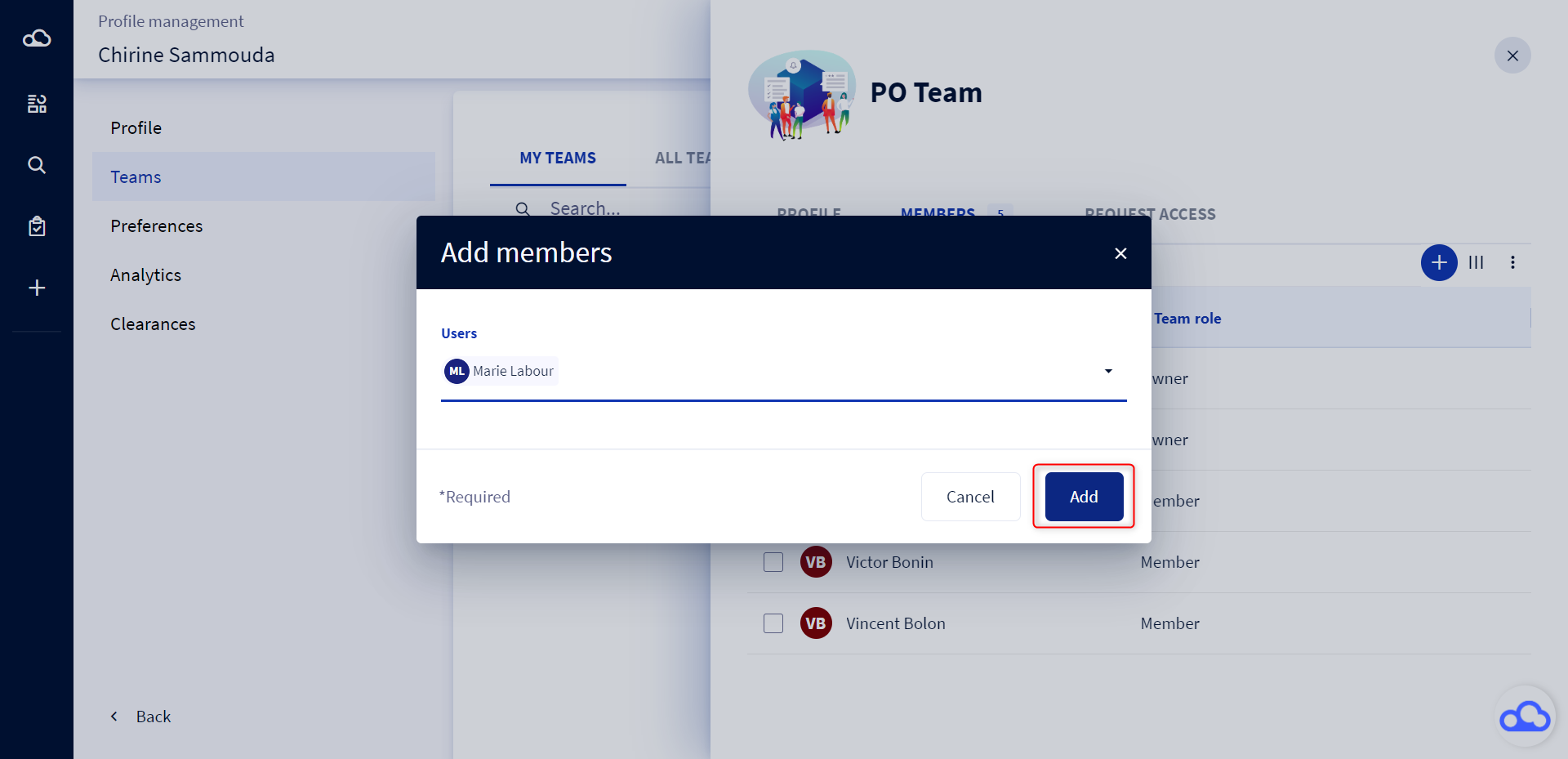
- A modal opens, select the users you want to add to this team
- Click on Add
The members list is updated. To view more information about the members, click on the 3 bars at the top right of the screen to manage the columns of the members table.
3 - Define a team owner