
This article explains how to use the Snowflake connector for DataGalaxy.
This connector is available in the following modes:
| Desktop mode ✅ | SaaS Online mode ✅ |
This connector supports the following import modes:
| Standard mode ✅ | URN mode ✅ |
Technology
Created in 2012, Snowflake is a SaaS offering a unique platform for data warehousing, data lakes, data engineering, data science, data application development, and the secure sharing and use of real-time/shared data.
Scope, attributes and mapping with DataGalaxy
Objects
Some of the attributes listed here may not be present by default in your objects' screens configuration. To make them appear in DataGalaxy screens, it may be necessary to adapt the screens of the concerned objects before running the connector. See this article to learn more about screen customization.
As described in details below, the process of listing Snowflake objects uses the Snowflake Account Usage views. A latency of two hours has to be taken into account between the changes made in Snowflake and their visibility in these views. It impacts directly the representation of the Snowflake objects in DataGalaxy. More information here.
Account
A Snowflake Account is represented by a Dictionary source (Relational DB).
The URN follows this syntax:
urn:snowflake-1:accountName
The following attributes are retrieved from the connection configuration:
| DataGalaxy attribute | Source/Value |
|---|---|
| Technical name | Account name |
Database
A Database is represented by a Model.
The URN follows this syntax:
urn:snowflake-1:accountName:database
The following attributes are retrieved from the SNOWFLAKE.ACCOUNT_USAGE.DATABASES view:
| DataGalaxy attribute | Source/Value |
|---|---|
| Technical name | DATABASE_NAME |
Schema
A Schema is represented by a Model.
The URN follows this syntax:
urn:snowflake-1:accountName:database:schema
The following attributes are retrieved from the SNOWFLAKE.ACCOUNT_USAGE.SCHEMATA view (<SHARED_DATABASE>.INFORMATION_SCHEMA.SCHEMATA for shared databases):
| DataGalaxy attribute | Source/Value |
|---|---|
| Technical name | SCHEMA_NAME |
| Description | COMMENT |
| External Id | SCHEMA_ID |
| Creation date of the source object | CREATED |
| Last modification date of the source object | LAST_ALTERED |
The following attributes are calculated:
| DataGalaxy attribute | Source/Value |
|---|---|
| Current storage size | Sum of Tables size |
| Historical storage size | Sum of Tables size at the date of connector's run |
| Storage size unit | "bytes" |
Table
A Table is represented by a Table.
The URN follows this syntax:
urn:snowflake-1:accountName:database:schema:table
The following attributes are retrieved from the SNOWFLAKE.ACCOUNT_USAGE.TABLES view (<SHARED_DATABASE>.INFORMATION_SCHEMA.TABLES for shared databases):
| DataGalaxy attribute | Source/Value |
|---|---|
| Technical name | TABLE_NAME |
| Description | COMMENT |
| Current storage size | BYTES |
| Historical storage size | BYTES at the date of connector's run |
| Storage size unit | "bytes" |
| Number of records | ROW_COUNT |
| Historical number of records | ROW_COUNT at the date of connector's run |
View
A View is represented by a View.
The URN follows this syntax:
urn:snowflake-1:accountName:database:schema:view@view
The following attributes are retrieved from the SNOWFLAKE.ACCOUNT_USAGE.TABLES and SNOWFLAKE.ACCOUNT_USAGE.VIEWS views (<SHARED_DATABASE>.INFORMATION_SCHEMA.TABLES and <SHARED_DATABASE>.INFORMATION_SCHEMA.VIEWS for shared databases):
| DataGalaxy attribute | Source/Value |
|---|---|
| Technical name | TABLE_NAME |
| Description | COMMENT |
| Query | VIEW_DEFINITION |
Dynamic table
A Dynamic Table is represented by a Table.
The URN follows this syntax:
urn:snowflake-1:accountName:database:schema:dtable@dynamictable
WARNING: outside of these 3 retrieved types (Table, View and Dynamic Table), other table types are not yet retrieved by the connector (EXTERNAL TABLE and MATERIALIZED VIEW for example).
The following attributes are retrieved from the SNOWFLAKE.ACCOUNT_USAGE.TABLES view (and <SHARED_DATABASE>.INFORMATION_SCHEMA.TABLES for shared databases):
| DataGalaxy attribute | Source/Value |
|---|---|
| Technical name | TABLE_NAME |
| Description | COMMENT |
| Query | GET_DDL() |
| Current storage size | BYTES |
| Historical storage size | BYTES at the date of connector's run |
| Storage size unit | "bytes" |
| Number of records | ROW_COUNT |
| Historical number of records | ROW_COUNT at the date of connector's run |
Column
A Column is represented by a Column.
The URN follows this syntax:
urn:snowflake-1:accountName:database:table:column
The following attributes are retrieved fom the SNOWFLAKE.ACCOUNT_USAGE.COLUMNS view (and <SHARED_DATABASE>.INFORMATION_SCHEMA.COLUMNS for shared databases):
| DataGalaxy attribute | Source/Value |
|---|---|
| Technical name | COLUMN_NAME |
| Description | COMMENT |
| External Id | COLUMN_ID |
| Type | DATA_TYPE |
| Order | ORDINAL_POSITION |
| Mandatory | IS_NULLABLE is not "YES" |
Primary key
A Primary key is represented by a Primary key.
The URN follows this syntax:
urn:snowflake-1:accountName:database:schema:table:pk@primarykey
Primary keys are retrieved using SHOW PRIMARY KEYS statement.
Foreign key
A Foreign key is represented by a Foreign key.
The URN follows this syntax:
urn:snowflake-1:accountName:database:schema:table:fk@foreignkey
Foreign keys are retrieved using SHOW IMPORTED KEYS statement.
Tags bi-directional synchronization
The bi-directional tags synchronization mechanism allows to retrieve tags from Snowflake objects in the DataGalaxy "External Tags" attribute, and to push the tags from the DataGalaxy "Tags" attribute to Snowflake objects.
The assignment of tags to objects in Snowflake is retrieved from the SNOWFLAKE.ACCOUNT_USAGE.TAG_REFERENCES view.
Please note that as DataGalaxy doesn't support key|value tags yet but only labels, the tags in DataGalaxy will be created by concatenating the tag name and the tag value from Snowflake.
| DataGalaxy attribute | Source/Value |
|---|---|
| External tags | TAG_NAME | TAG_VALUE |
In Snowflake, the tags are first created in a specific schema to be provided to the connector (the only one for which the connector needs write permissions for the CREATE TAGS statement) and then applied to each object.
Please note that as DataGalaxy doesn't support key|value tags yet but only labels, the tags in Snowflake will be created using only the tag name from DataGalaxy.
| DataGalaxy attribute | Target |
|---|---|
| Tags | TAG_NAME |
Links
The links created by the Snowflake connector are data lineage links between structures in the Dictionary, at table or column level depending on the connector's configuration. The lineage links are retrieved from Snowflake using the SNOWFLAKE.CORE.GET_LINEAGE() function and are represented in DataGalaxy with Uses/Is Used By links.
In URN mode, when running a single import (mono-db), only information related to the imported database will we retrieved. Links towards objects coming from other databases won't be retrieved in DataGalaxy.
Links with Known Out-of-Scope Objects
You can now enable the connector to keep lineage links even when one of the two objects is outside that connector's scope, as long as that object already exists in DataGalaxy (for example, imported by another connection). Links to objects not present anywhere in DataGalaxy are still dropped.
Available via the new "Lineage with objects out of scope" parameter → "Get lineage with objects already known in DataGalaxy".
⚠ With this option, a connection only creates the upstream links pointing to out-of-scope objects already known in DataGalaxy, not downstream ones. So on a connection's first run, some cross-scope links may be missing; they'll appear once the related connection (which sees them as its own upstream links) has also run. If you use this option on multiple connections, run them regularly, after each has run at least twice, all the lineage will be there, regardless of order.
Detailed scope
Input
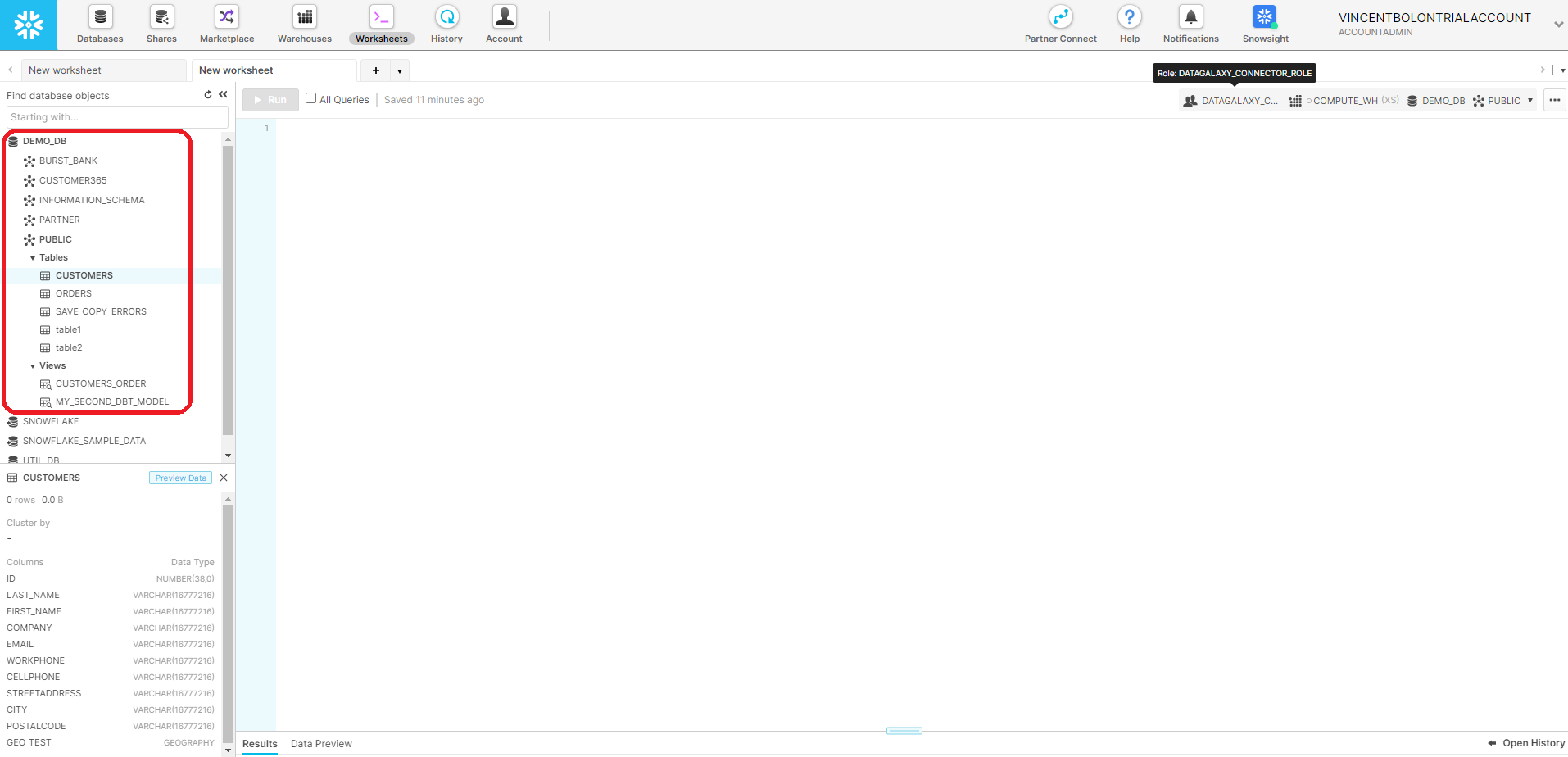
- Database, schema, table and view
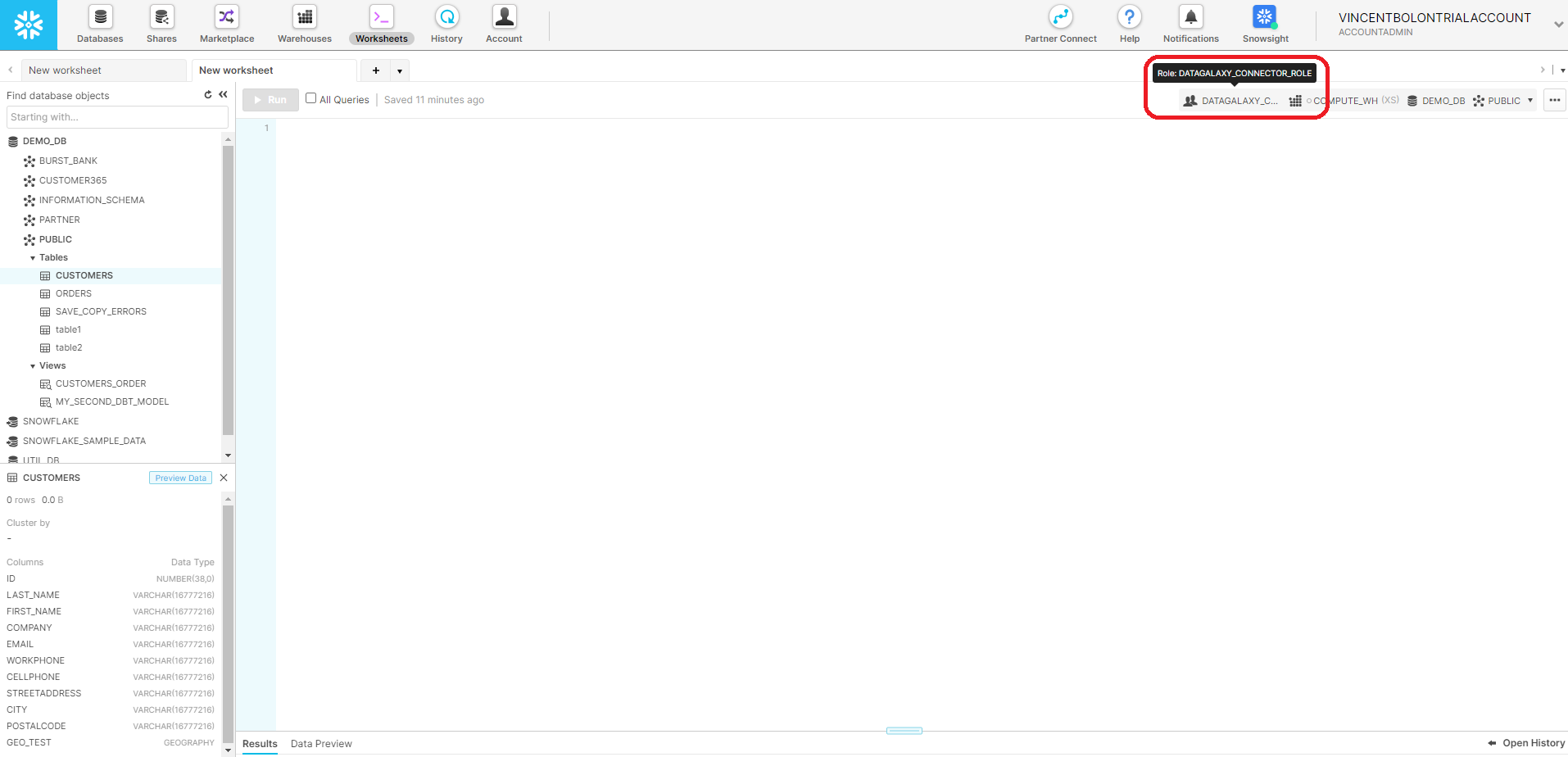
In the “Worksheets” tab of the classic console, these elements appear on the left
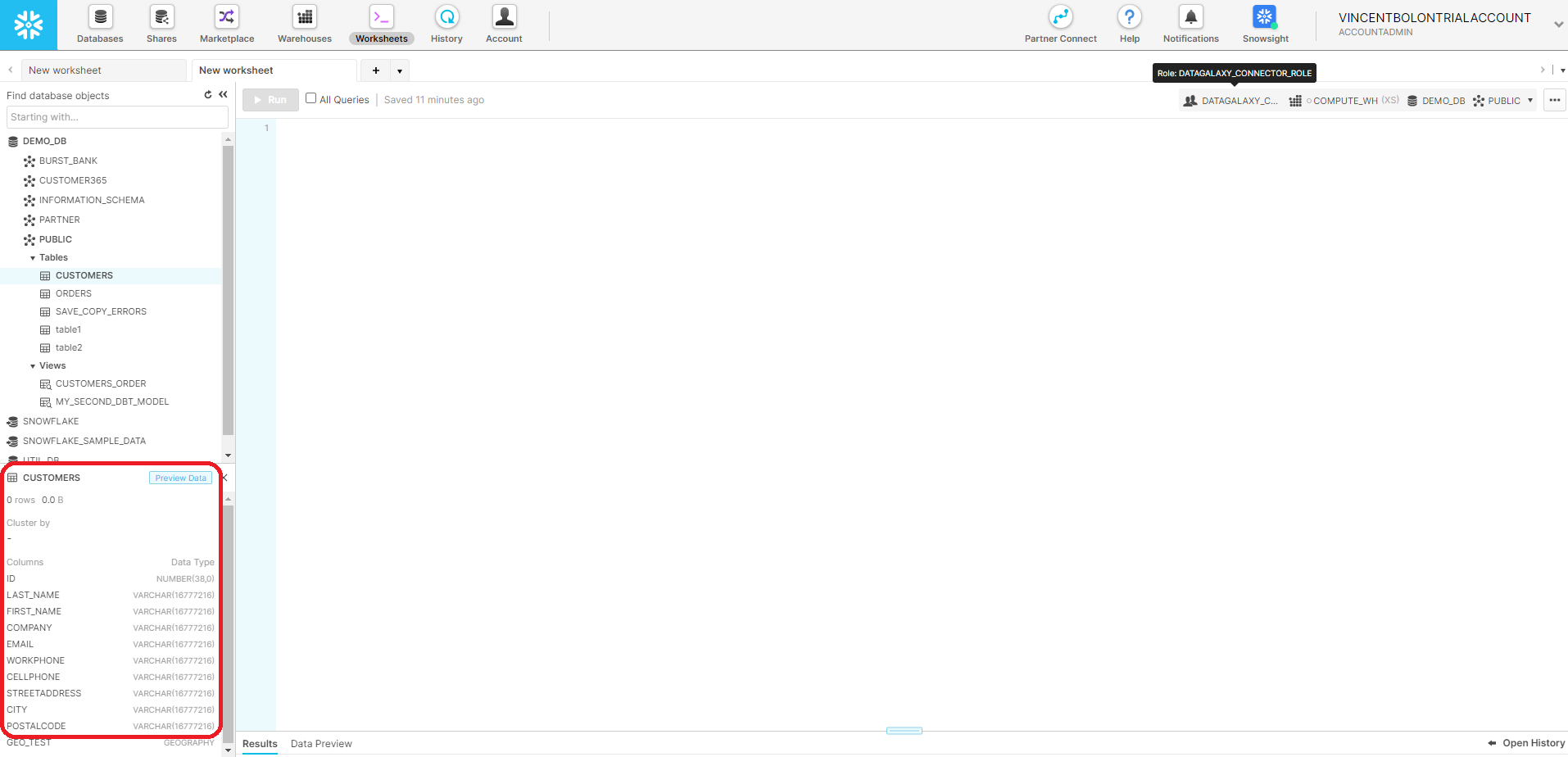
- Column
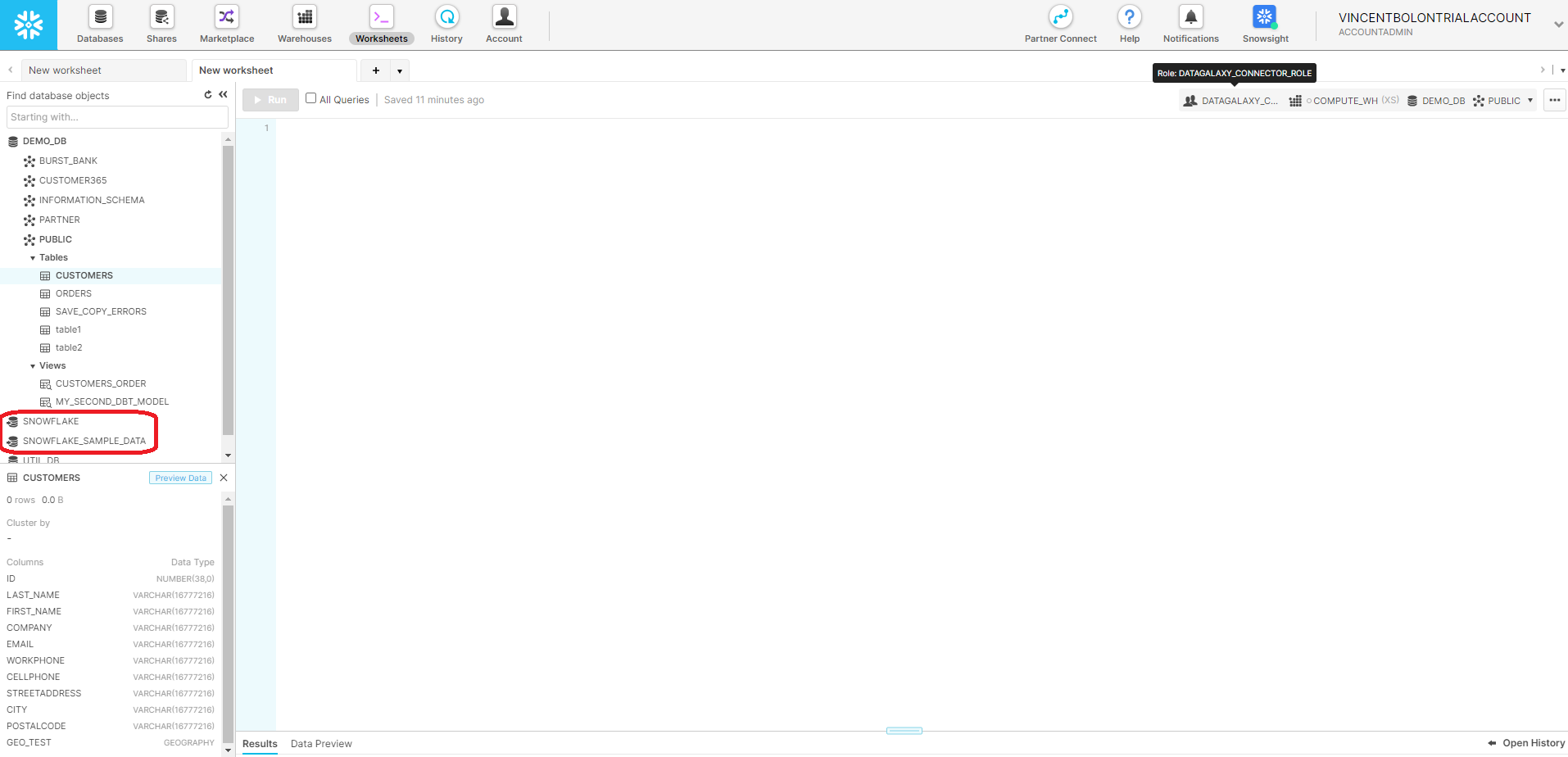
- Database, schema, table and shared view
Location is the same as for "classic" tables, but these databases are distinguished by a small arrow to the left of the database symbol (for example here, “SNOWFLAKE” and “SNOWFLAKE_SAMPLE_DATA”)
- Shared column
These columns are found in the same location as classic columns
- Primary Key, Foreign Key
This information is visible using the following queries (example result for primary keys below):
SHOW PRIMARY KEYS IN DATABASE "DEMO_DB";
SHOW IMPORTED KEYS IN DATABASE "DEMO_DB";
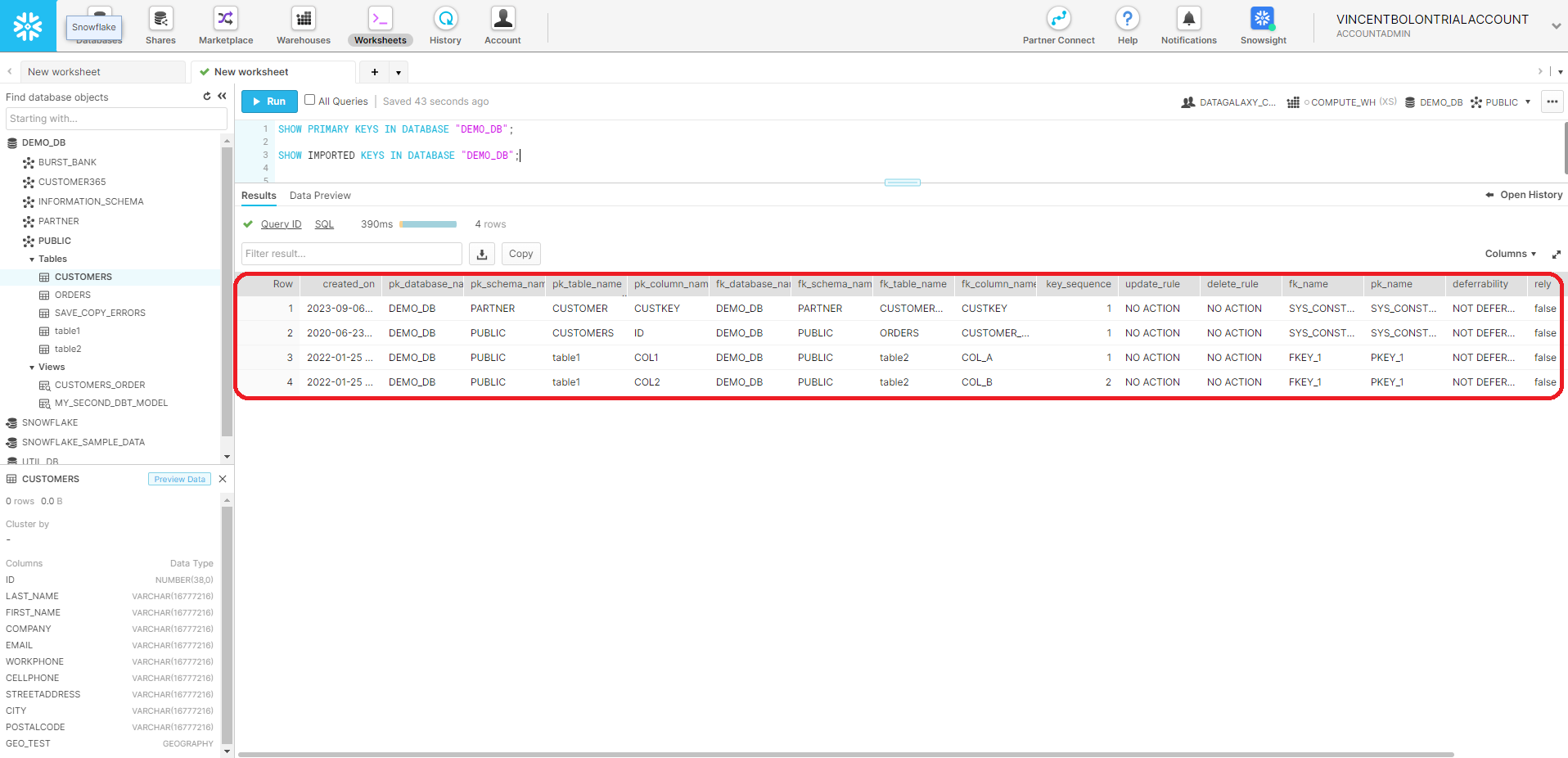
For these elements to appear in the "Worksheets" space of Snowflake, the role used must have the necessary permissions. This role is visible at the top right of the window. It is also a good way to test if the custom role you will create for the use of the connector has the necessary permissions (exemple with the role "DATAGALAXY_CONNECTOR_ROLE" here)
Output
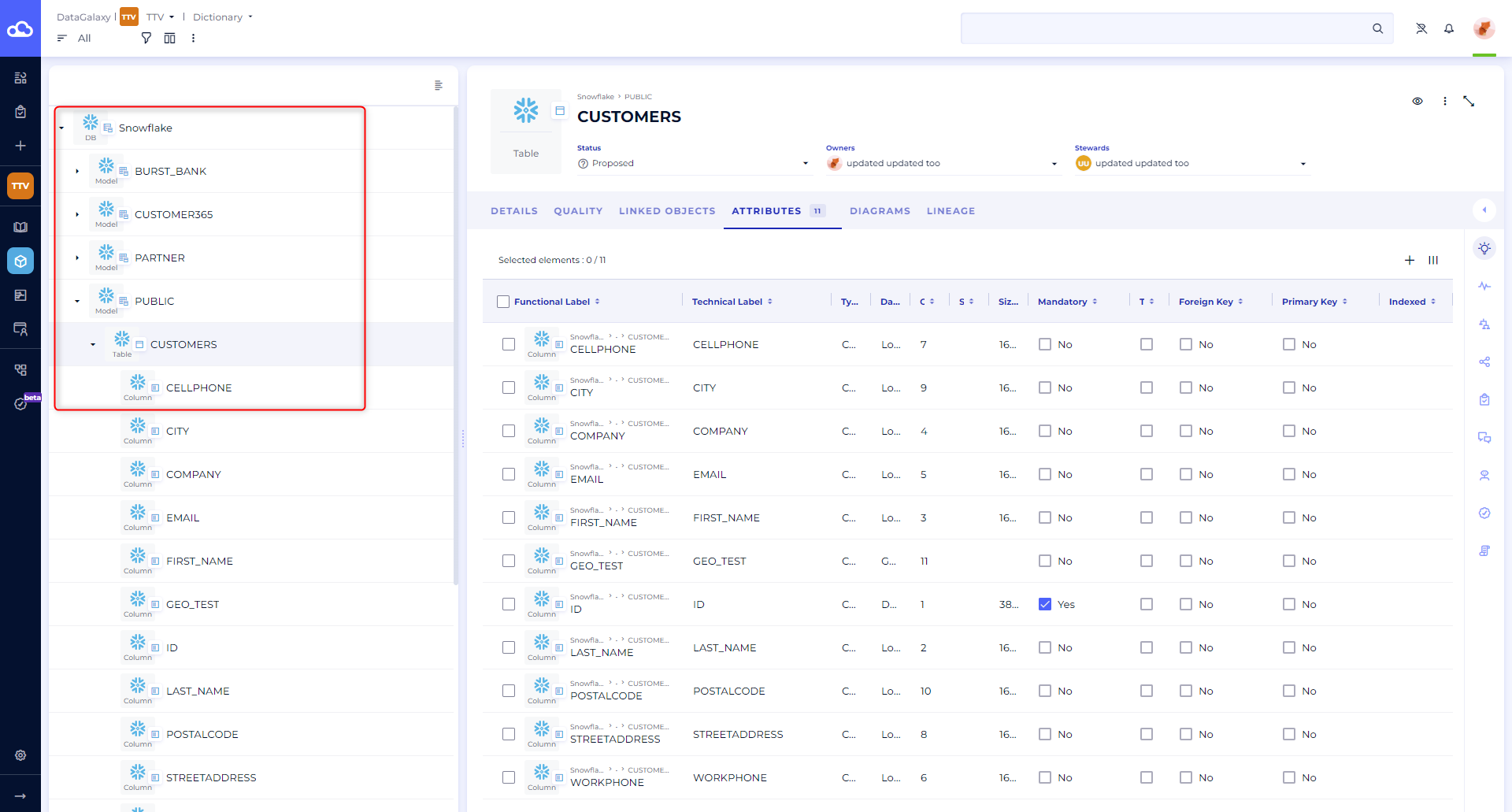
- Source, schema, table, view and column
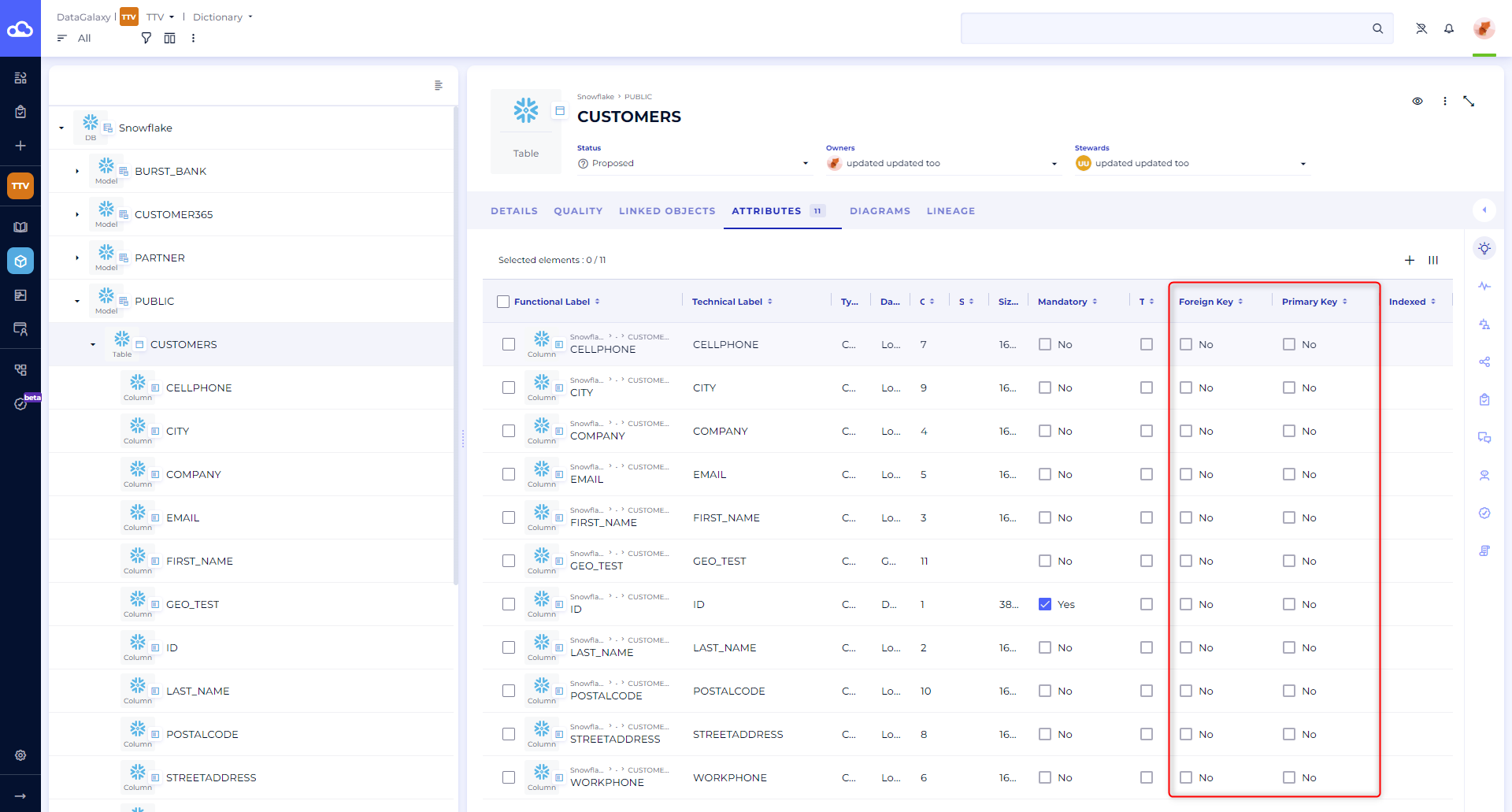
- Primary key, foreign key
Connexion configuration
On the Snowflake side
In order to extract the first level of metadata, a database role defined by the Snowflake platform called OBJECT_VIEWER is sufficient. We recommand you to associate this default role to a custom role like this:
- Creation of a dedicated role, assigning to this role the default role OBJECT_VIEWER, assigning the necessary permissions on a warehouse to this role, creating a dedicated user and assigning the role as well as a default warehouse to this user
To perform these actions, please execute the following commands in the “Worksheets” tab of Snowflake, replacing values between <> (example below):
// Creation of a dedicated role
create or replace role <datagalaxy_role_name>;

// Assigning default Snowflake database role to this role
grant database role SNOWFLAKE.OBJECT_VIEWER to role <datagalaxy_role_name>;

// Assigning necessary permissions on a warehouse to this role
grant usage on warehouse "<warehouse_name>" to role <datagalaxy_role_name>;

// Creation of a dedicated user and assigning the role as well as a default warehouse to this user (do not put quotes around the default role!)
create user <datagalaxy_user_name> password="<datagalaxy_user_password>" default_role = <datagalaxy_role_name> default_warehouse = "<warehouse_name>";

// Assigning the role to the user
grant role <datagalaxy_role_name> to user <datagalaxy_user_name>;
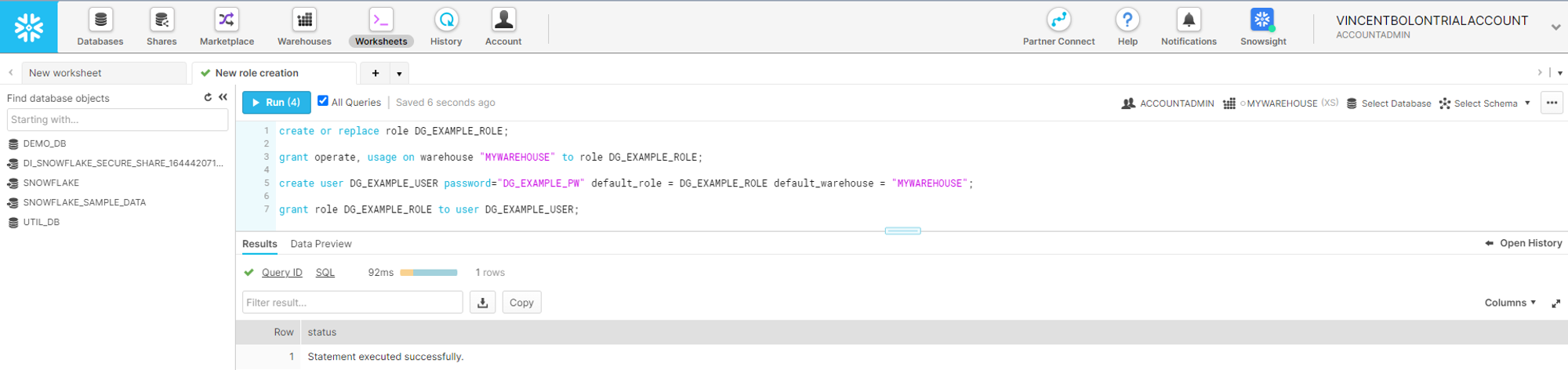
Do not forget to check "All queries" next to the "Run" button to execute all queries at once, nor to have sufficient rights to perform these actions (via the ACCOUNTADMIN role in general). Once these are performed the statement "Statement executed successfully" must appear in the result window.
- Level 1: Database, schema, table, view, dynamic table and column
Once the role was created there is no need for extra access in order to retrieve your level 1 metadata, whether is is a single or multi database import, as long as none of them is a shared database.
- Option 1: Shared database, schema, table, view, dynamic table and column
To retrieve metadata from shared databases, you must give explicit access to them to the role via the following command:
It is currently not possible on Snowflake to more finely manage rights on shared databases, for example by giving usage rights only on the necessary views for the execution of the connector contained in the "ACCOUNT_USAGE" schema of the shared database "SNOWFLAKE". However, a workaround is available here for those who wish
- Option 2: Primary key, foreign key
In addition to these rights, when you wish to send primary and foreign keys, it is necessary to have certain rights directly on the schemas and tables of the databases using the following commands:
- Option 3: Dynamic Table creation requests
In addition to these rights, when you wish to retrieve dynamic tables creation requests it is necessary to have certain rights directly on the schemas and dynamic tables of the databases using the following commands:
- Option 4: Governance features
In addition to these rights, when you wish to retrieve Snowflake tag references in non shared databases, the connector will need the SNOWFLAKE.GOVERNANCE_VIEWER database role. This can be done with the following query:
- VIEW LINEAGE on the account.
- Any privilege on the objects for which you want to retrieve the lineage for (e.g. SELECT on a table).
- USAGE on the databases and schemas that contain the objects for which you would like to retrieve the lineage for.
You can find more information about the necessary priviliges for lineage retrieval in Snowflake's documentation here.
Any trouble configuring your connexion? Please have a look at our troubleshooting page for Snowflake!
Summary
| Snowflake object | DataGalaxy object | DataGalaxy attribute | Level 1 | Option 1 | Option 2 | Option 4 | Option 5 |
|---|---|---|---|---|---|---|---|
| Database | Source (database) | ✅ | ✅ | ✅ | |||
| Database (shared) | Source (database) | ✅ | ✅ | ||||
| Schema | Schema (container) | ✅ | ✅ | ✅ | |||
| Schema (shared) | Schema (container) | ✅ | ✅ | ||||
| Table | Table (structure) | ✅ | ✅ | ✅ | ✅ | ||
| Table (shared) | Table (structure) | ✅ | ✅ | ||||
| View | View (structure) | ✅ | ✅ | ✅ | ✅ | ||
| View (shared) | View (structure) | ✅ | ✅ | ||||
| Dynamic Table | View (structure) | ✅ | ✅ | ✅ | ✅ | ||
| Dynamic Table (shared) | View (structure) | ✅ | ✅ | ||||
| Column | Column (field) | ✅ | ✅ | ✅ | ✅ | ||
| Column (shared) | Column (field) | ✅ | ✅ | ||||
| Primary Key | Primary Key | ✅ | |||||
| Foreign Key | Primary Key | ✅ | |||||
| Snowflake tag references | External tags | ✅ |
On the DataGalaxy side
The following information is required to set up a connection:
Parameter | Mandatory | Description | Example |
| Account name | Yes | The name of the Snowflake account as described on the following page: Where are Account Identifiers Used? Example: account_identifier.snowflakecomputing.com Only the "account_identifier" part must be specified in the connection form. | eh09718.west-europe.azure |
| Warehouse | Yes | The name of the Snowflake data warehouse | COMPUTE_WH |
| Single import / Multiple databases import | Yes | Import one or multiple databases | |
| Database (only for "Single import" mode) | Yes | Limits the scope to the specified database | DEMO_DB |
| Schemas (only for "Single import" mode) | No | Limits the scope to the specified schema | PUBLIC |
| Databases (only for "Multiple databases" mode) | No | Limits the scope to the specified databases. If empty, all databases will be retrieved. | BANK,PARTNER |
| Role | No | Limits the scope to the specified role | ACCOUNTADMIN |
| User | Yes | Snowflake user | |
| Basic / Key Pair authentication | Yes | Authentication mode | |
| Password (for the "Basic" authentication mode) | Yes | ||
| Private key path (for the "Key Pair" autentication mode) | Yes | The Desktop Connector allows you to perform a "Pair of keys" authentication. The following article explains how to generate the private key needed for this authentication mode: Key Pair Authentication & Key Pair Rotation | |
| Private key passphrase (for the "Key Pair" autentication mode) | Yes | ||
| Option 1: Retrieve information from shared databases | No | Option that allows you to retrieve shared databases information, see documentation for necessary grants | |
| Option 2: Get PKs and FKs | No | Option that allows you to retrieve primary keys and foreign keys linked to columns, see documentation for necessary grants | |
| Option 3: Get Dynamic Tables queries | No | Option that allows you to retrieve Dynamic Table creation queries, see documentation for necessary grants | |
| Option 4: Enable Governance features | No | Option that enables the features requiring the SNOWFLAKE.GOVERNANCE_VIEWER database role. These features are: - Snowflake tag references retrieval (for non shared databases only, getting tags for shared databases is not supported at all) | |
| Option 5: Get lineage* | No | Option that retrieves the lineage of tables, views and dynamic tables OR columns, based on the granularity option that was picked ("Table" or "Column"). This option is only available for URN imports. WARNING: Some links only exist at "Table" granularity while others only exist at "Column" granularity. If some of the links you expected are not imported in DataGalaxy it might be necessary to perform 2 imports, one by granularity option available. | |
| Advanced mode (Desktop connector option) | No | Option to customize the JDBC URL used to connect |
⚠ Retrieving the lineage can increase the duration of the connector and generates more compute on Snowflake size, which will therefore have impacts on the costs of the associated warehouse.
* Only in URN mode
Push DataGalaxy tags to Snowflake
⚠️Pushing tags to Snowflake is not supported with shared databases.
If you wish to push DataGalaxy tags to Snowflake, here are the necessary prerequisites:
- In Snowflake:
- Provide the "APPLY TAG" grant on the account level to the role used by the connector. This can be achieved with the following query:
grant apply tag on account to role <connector_role>;
- Create a schema that the connector will store the DataGalaxy tags. This can be achived with the CREATE SCHEMA query.
- Provide the "USAGE" grant on the parent database of the schema that will store the DataGalaxy tags. This can be achieved with the following query:
grant usage on database <dg_database>;
- Provide the "CREATE TAG" grant on the schema that will store the DataGalaxy tags. This can be achieved with the following query:
grant create tag on schema <dg_database>.<dg_schema> to role <connector_role>;
- In DataGalaxy:
- Add the attribute "Tags" on the following screens: "Dictionary: Model", "Dictionary: Table", "Dictionary: View" and "Dictionary: Column"
- Add values to the "Tags" attribute on objects representing Snowflake entities
- In the Snowflake connector:
- Tick the "Enable Governance features" checkbox
- Tick the "Push DataGalaxy tags to Snowflake" checkbox
- Provide in the "Push DataGalaxy tags to Snowflake" text field the path of the schema where the DataGalaxy tags will be stored
Once the prerequisites are done, all you need to do is execute the Snowflake connector that you configured.
From Standard to URN mode
Differences
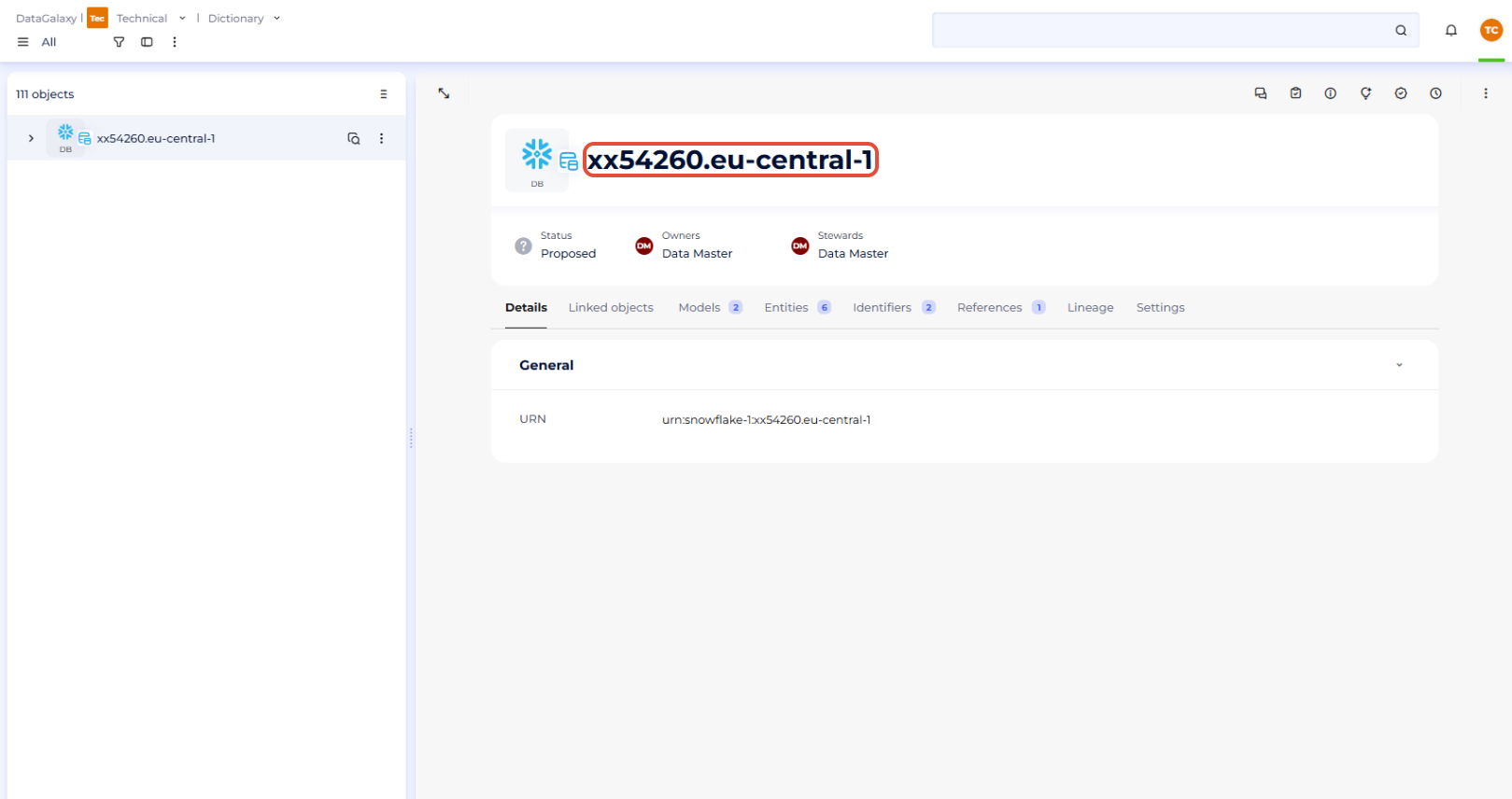
- In Standard mode, the name of your root object will be the one you give it when you create the connection (or the root object of the Dictionary module you target). In URN mode, the name of the root object will be the Snowflake account name used when setting up the connection.
- Standard mode
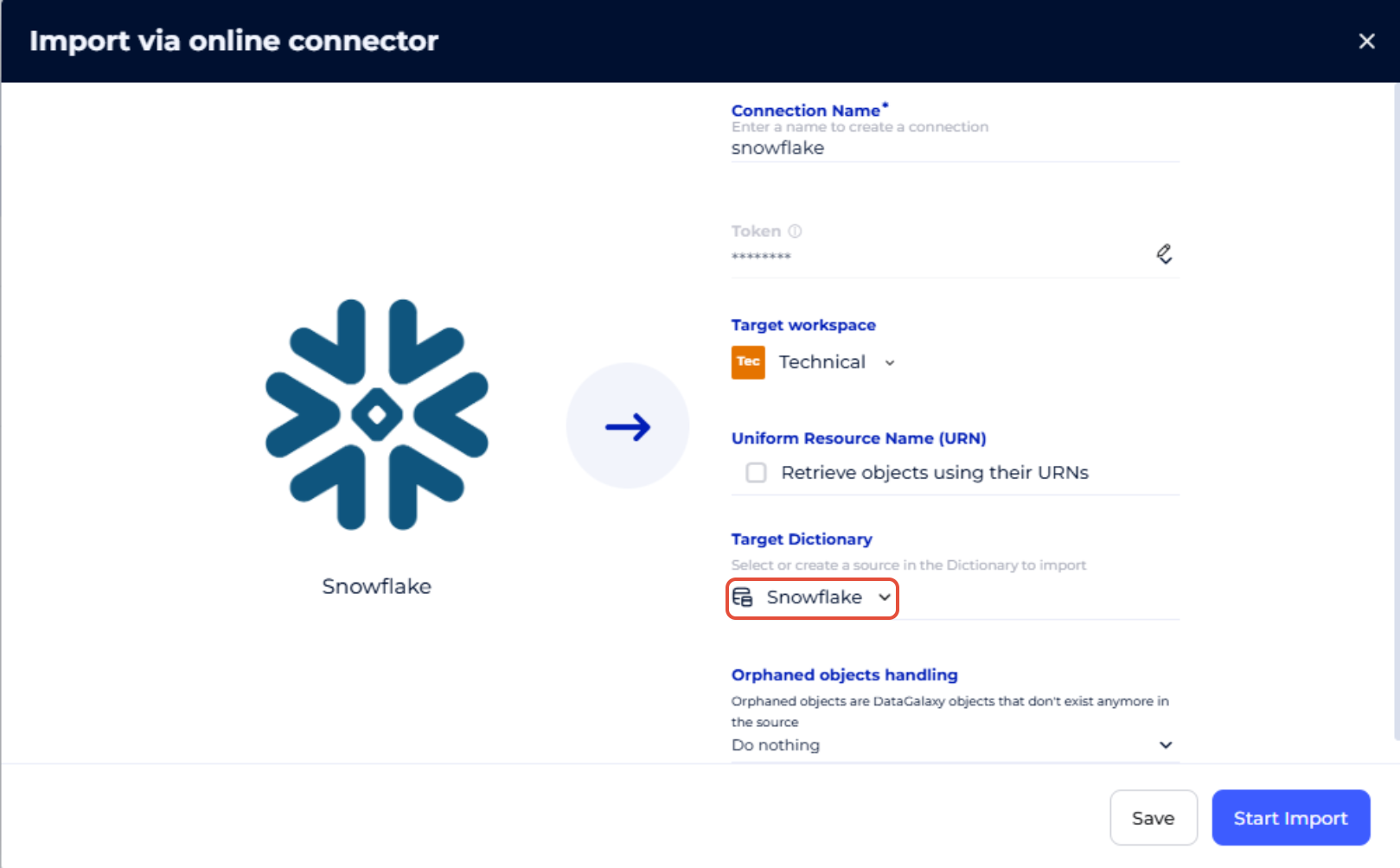
- URN mode
- Standard mode
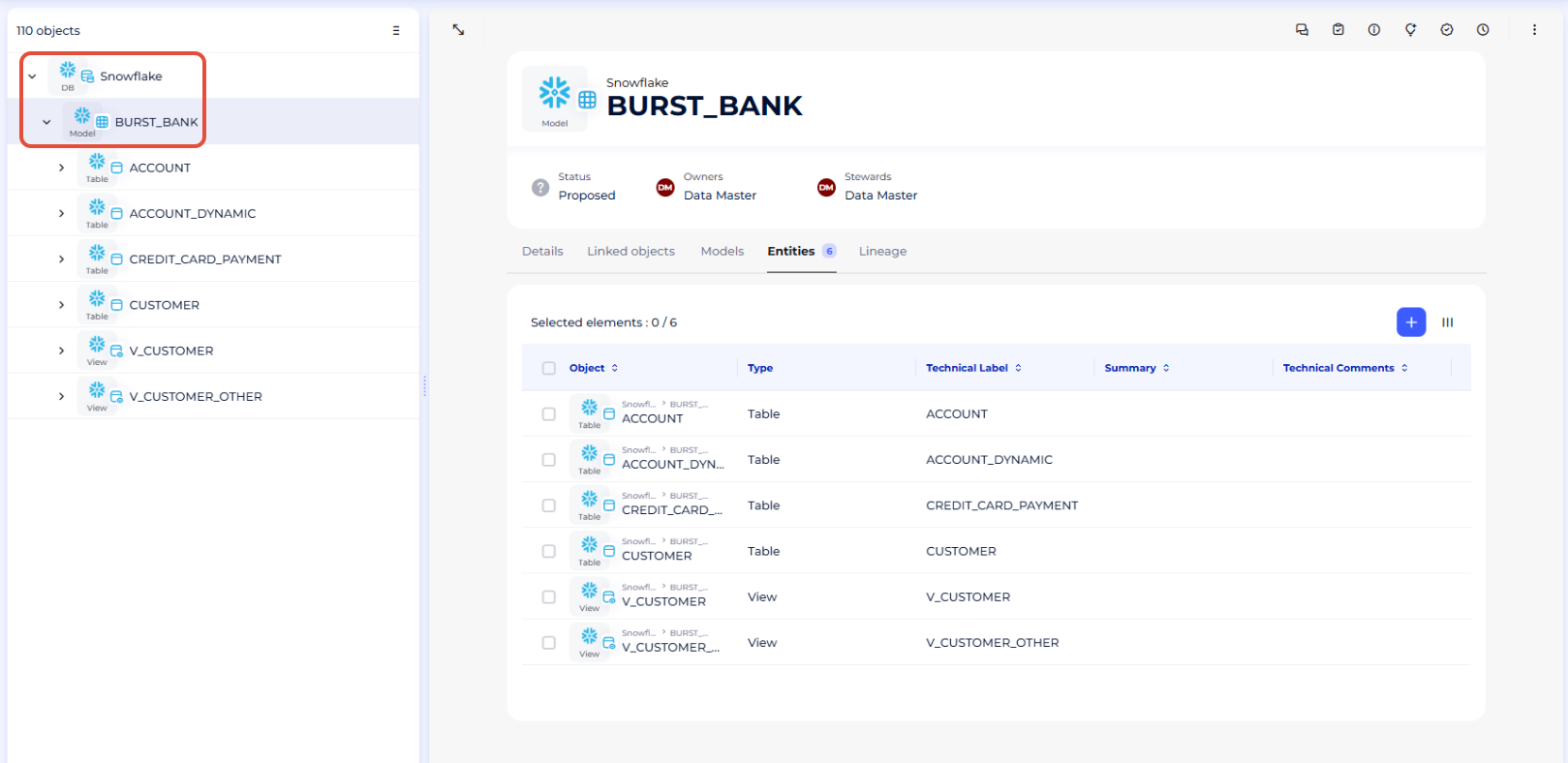
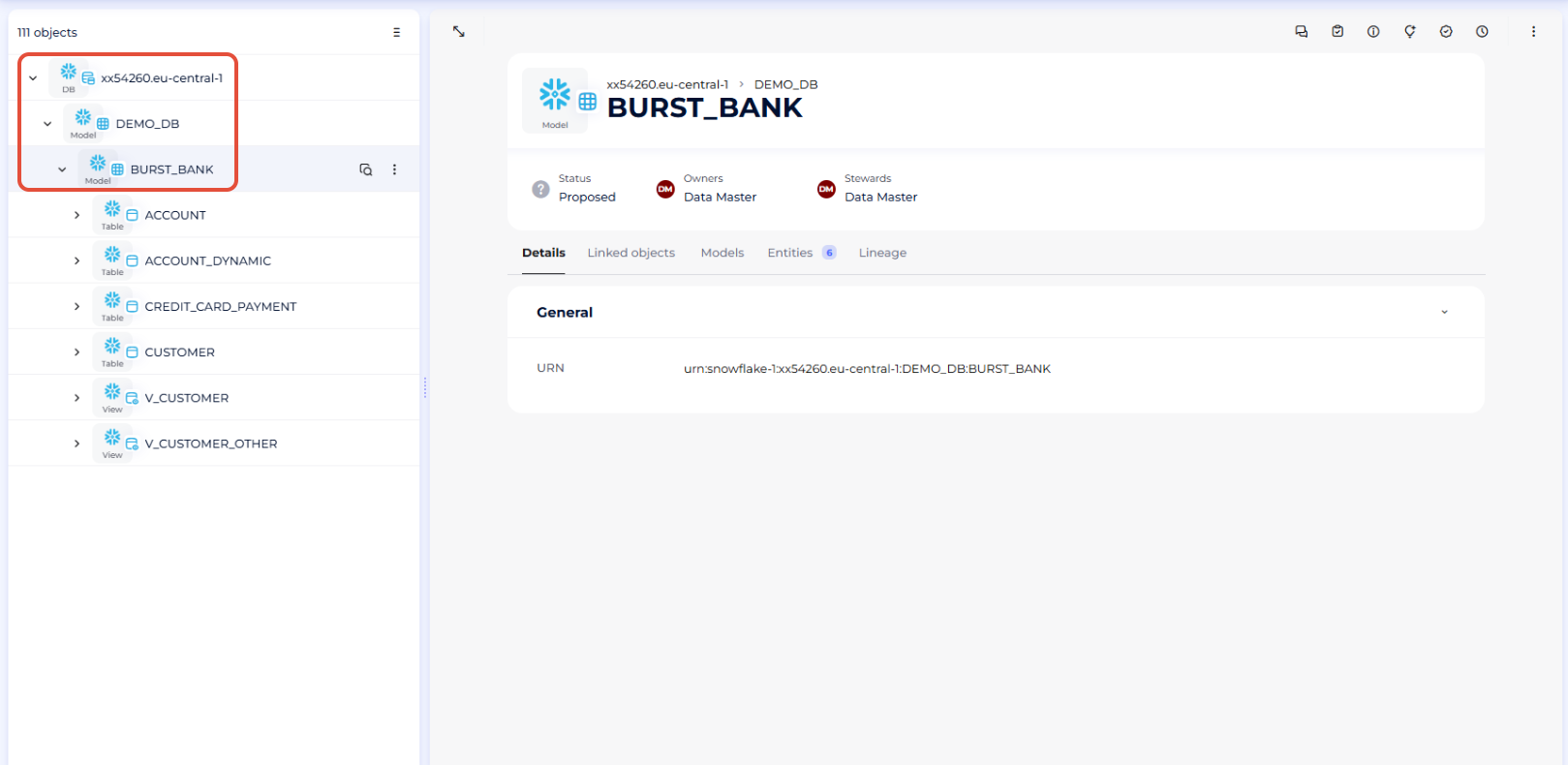
- In Standard mode, in the case of a "Single import" mode (that retrieves only one database), your database will be considered as the root object of the hierarchy. In URN mode this database will be one level lower, der your Snowflake account name which will become the new root object.
- Standard mode ("Single import" mode)
- URN mode
- Standard mode ("Single import" mode)
Migration guide
The aim of this guide is to show you how to switch your root object and all the Snowflake objects it contains from Standard mode to URN mode. Once you've completed these steps, you'll be able to perform all your future imports in URN mode and take advantage of the new features associated with this mode.
- Bring one level below the schematas contained in your database (only in case of a previous import in "Single import" mode):
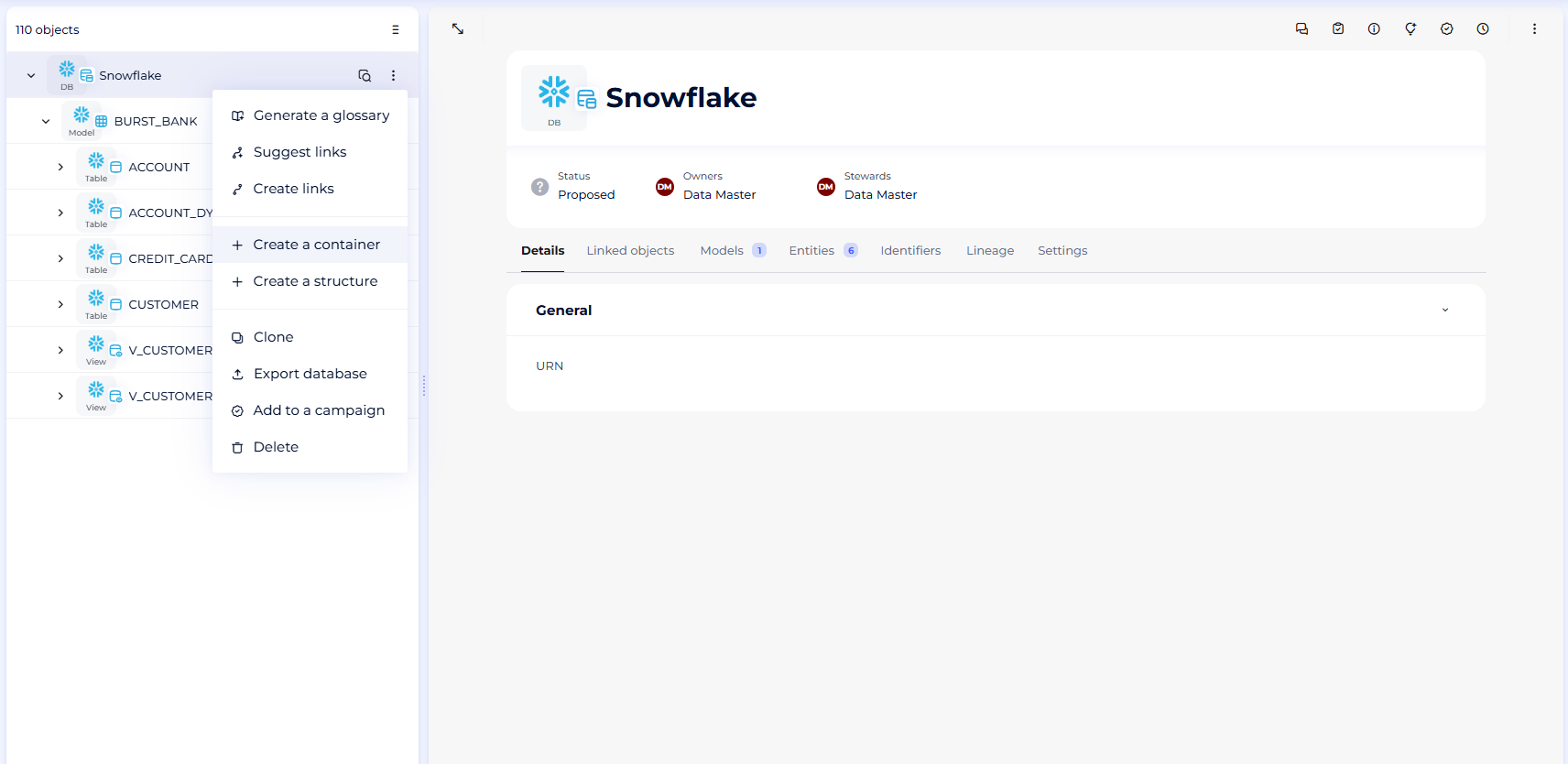
- Open the menu associated with your root object (”Snowflake” here) and pick the option “+ Create a container”. It will be of type "Model" and you will name it after the name of your Database as it exists in Snowflake
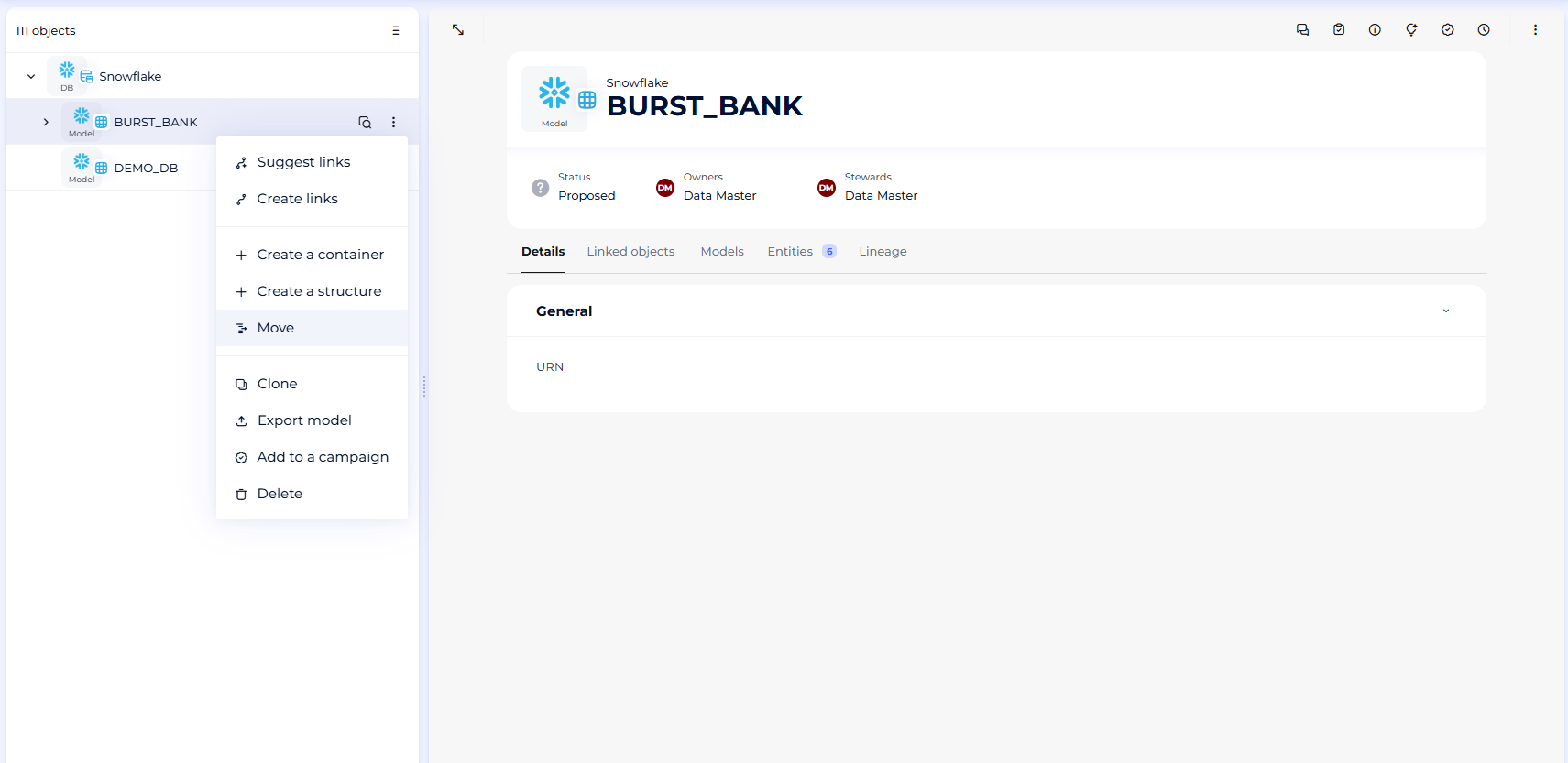
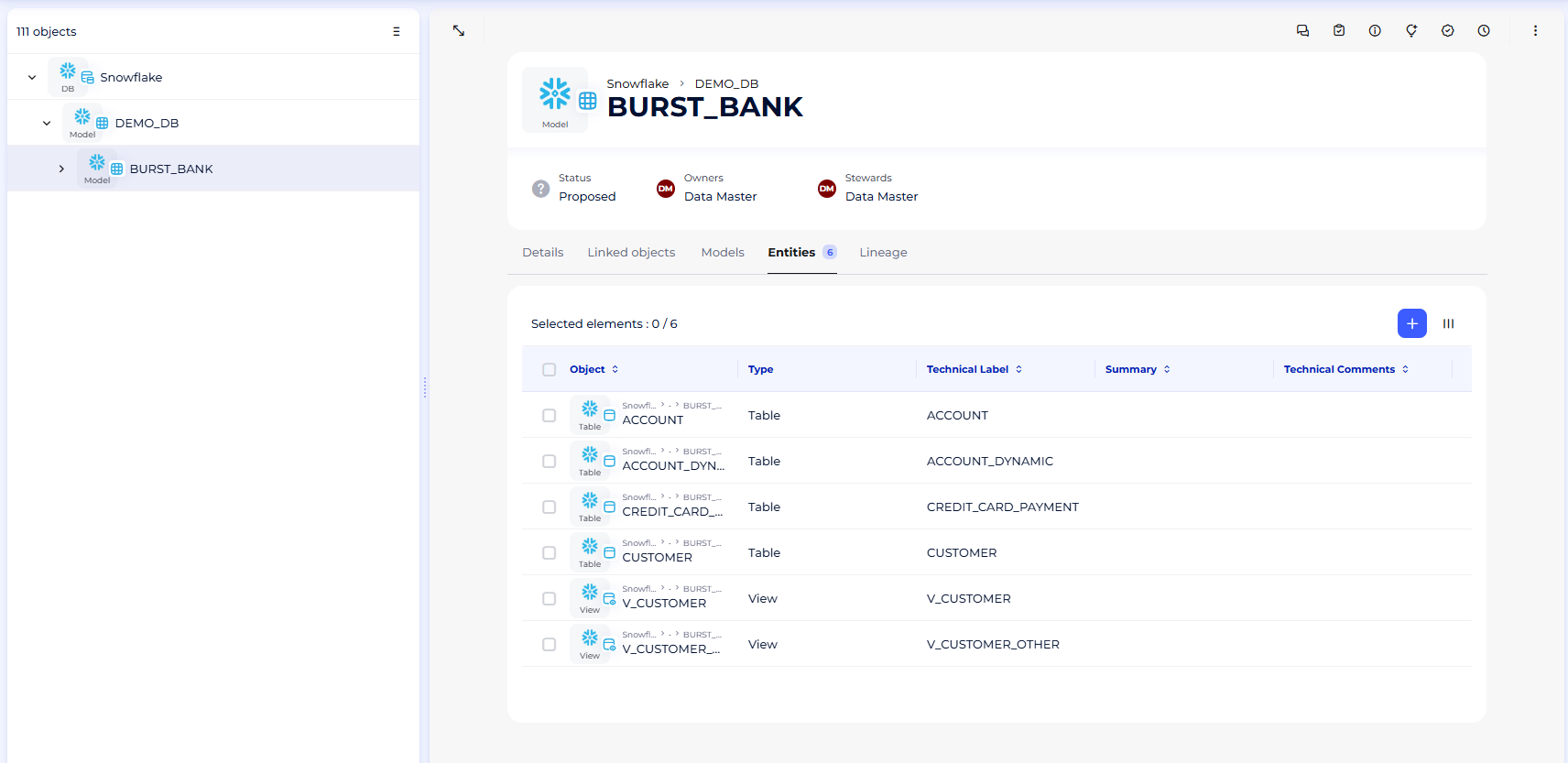
- Once it is done you will have to move all your schematas (”BURST_BANK” here) by opening their associated menus and choosing the "Move" option. You will target the previously created object, "DEMO_DB" for this example
- From now on the steps will be the same to switch to URN mode, no matter the import mode initially chosen in Standard mode
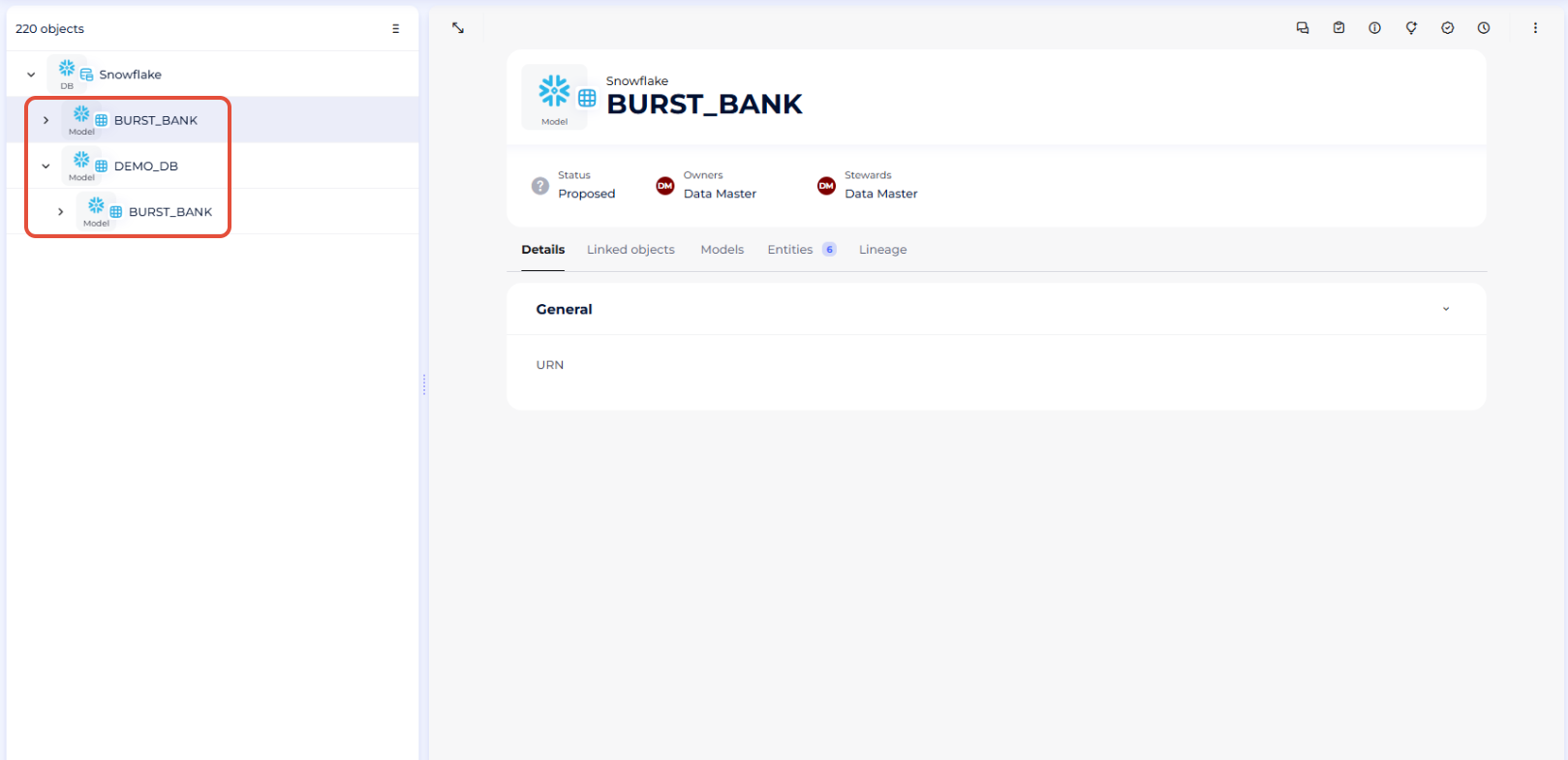
- If you do not do this, when you do the final URN import on your root object you will end up with duplicates of all the schemata objects of your database retrieved from Snowflake
- Open the menu associated with your root object (”Snowflake” here) and pick the option “+ Create a container”. It will be of type "Model" and you will name it after the name of your Database as it exists in Snowflake
- If is is not already the case, associate to "Database" sources from the "Dictionary" module the "URN" attribute
- Associate with your root object the right URN
- Regarding this, we advise you to follow these steps in order to avoid any error:
- Perform a new import in URN mode, which will create a new root object for which the URN attribute will be filled
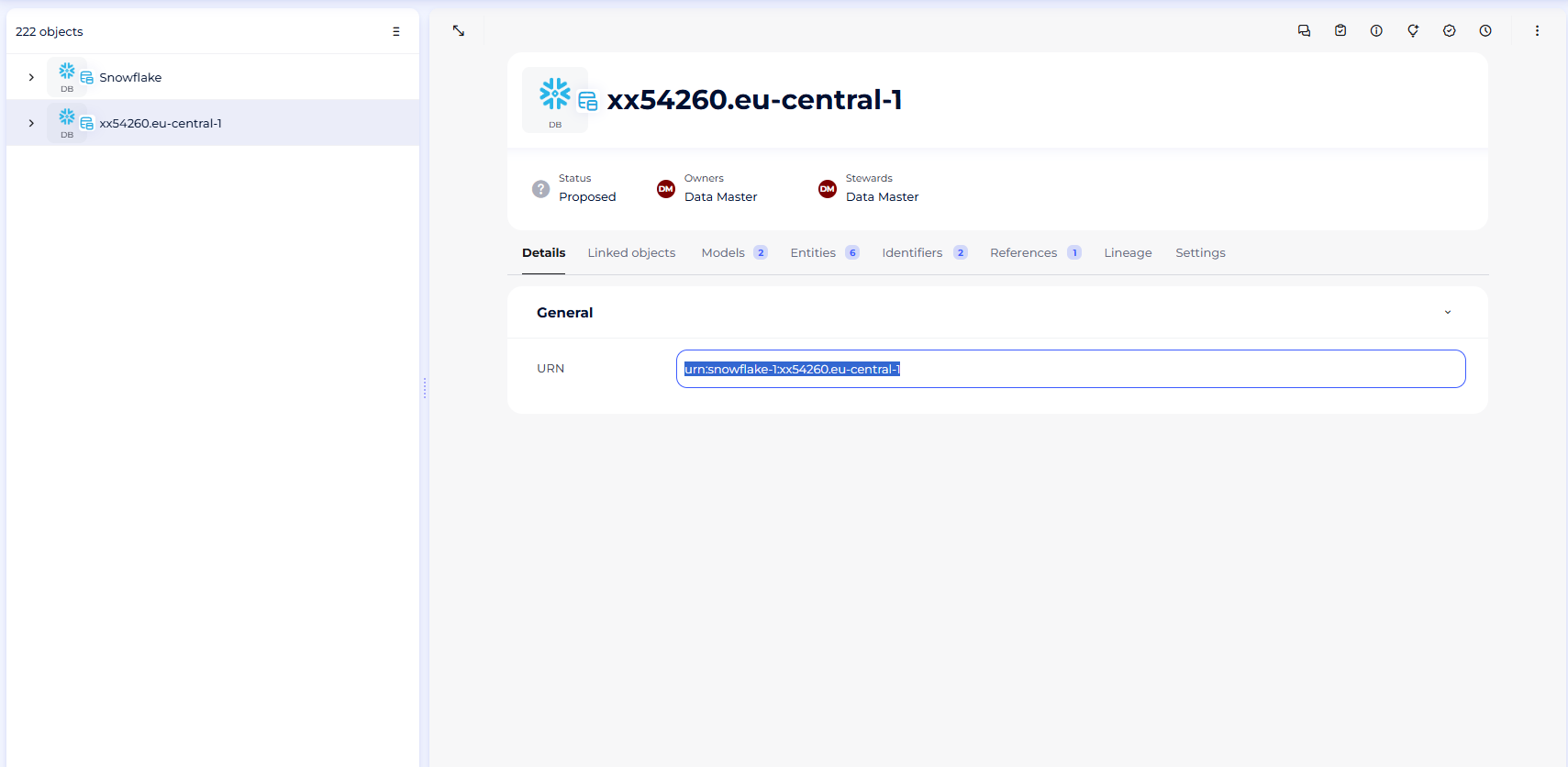
- Copy the URN attribute
- Delete the root object and all its children that you just imported in URN mode (since a URN must be unique, if you do not delete this root object before trying to assign its URN to another object, the platform will return an error)
- Paste the URN in order to fill the URN attribute field from your root object that is still in Standard mode
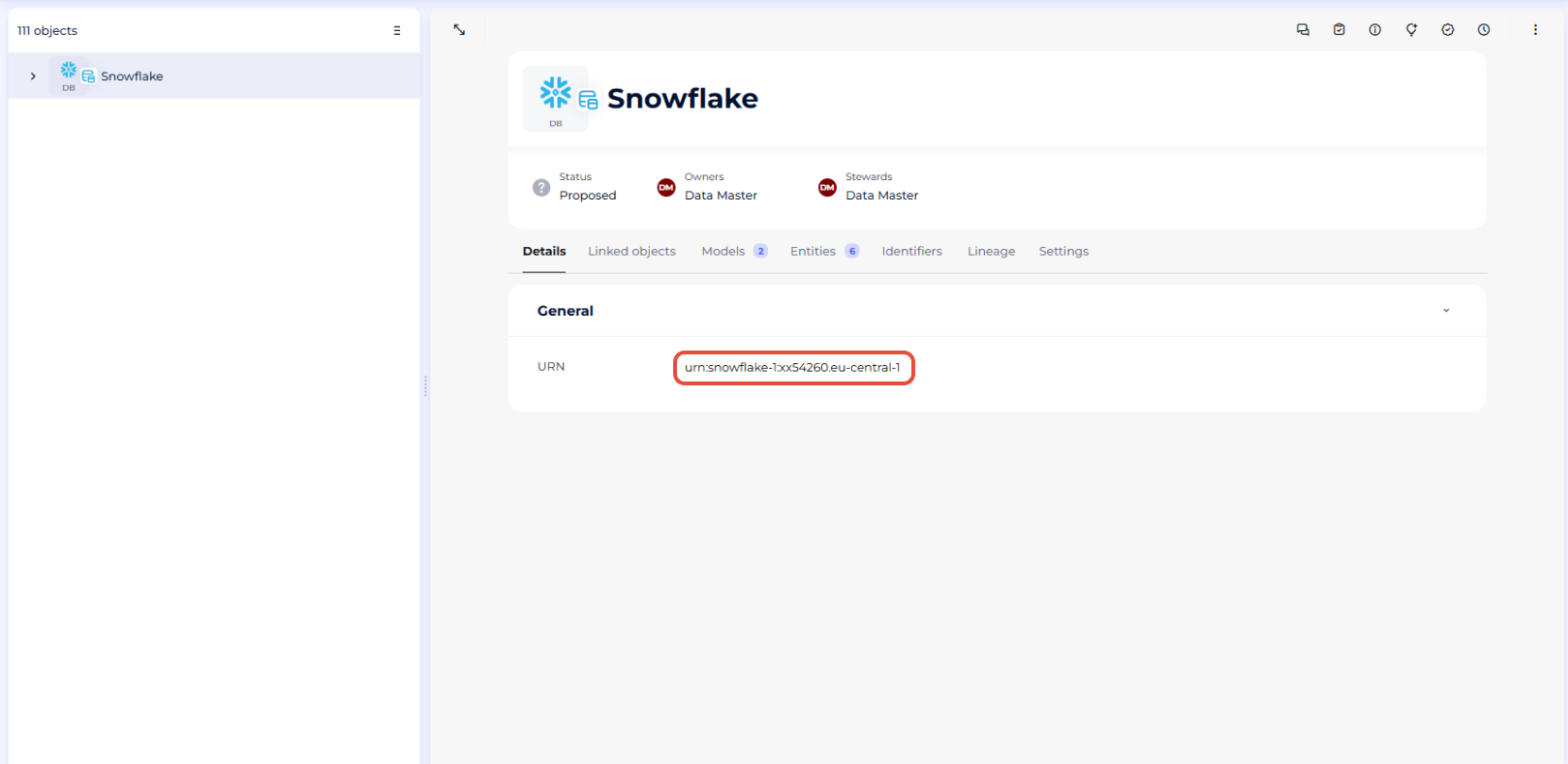
- Perform a new import in URN mode, which will create a new root object for which the URN attribute will be filled
- Regarding this, we advise you to follow these steps in order to avoid any error:
- Do a final import in URN mode
- This time all the URN attributes from the child objects under your root object should be filled
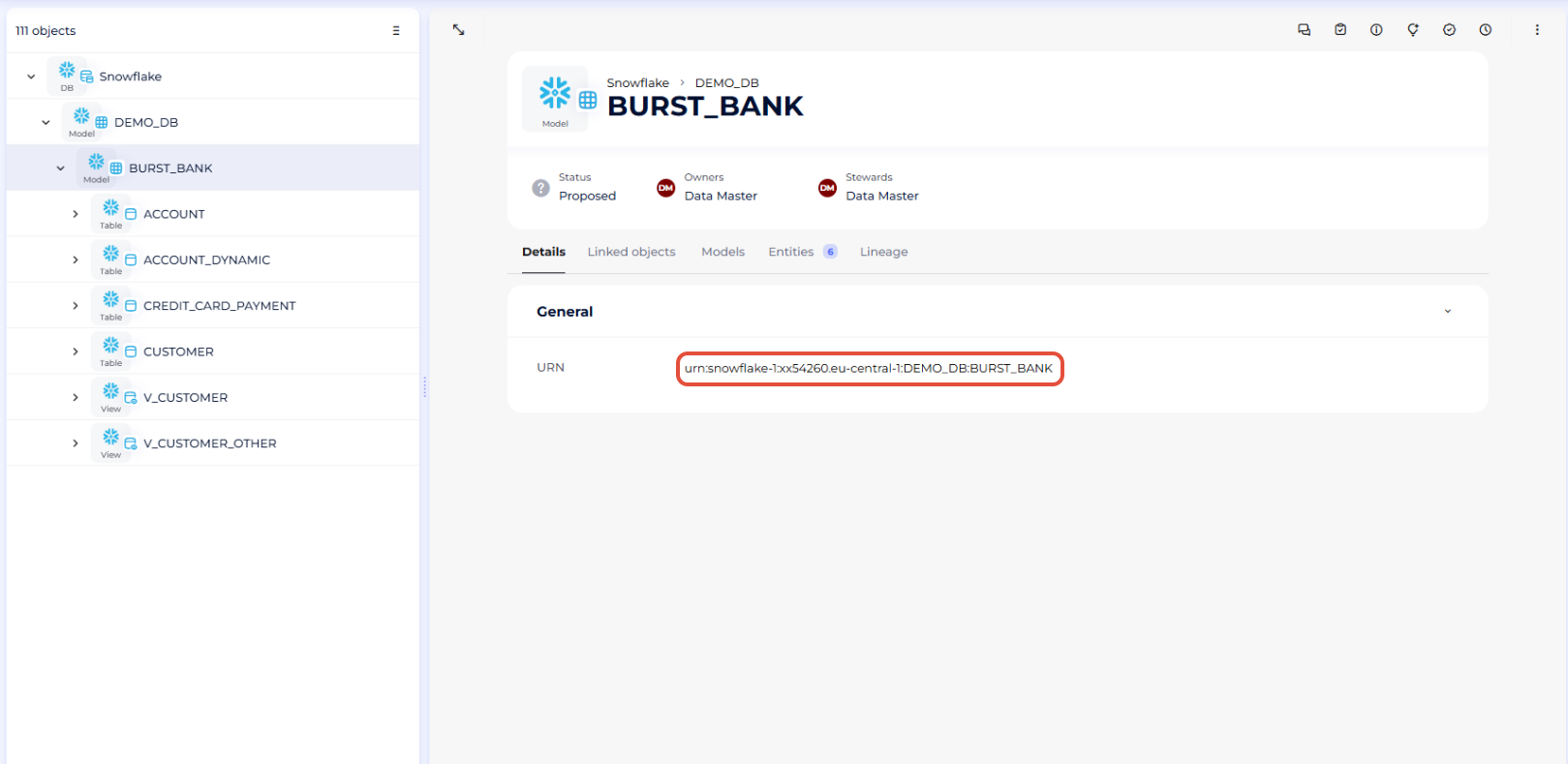
- This time all the URN attributes from the child objects under your root object should be filled
Congratulations, you switched from the Standard mode to the URN mode and can now enjoy all the new features it offers!
Features
Only in URN mode
- Lineage retrieval
Warnings
Account name format
Snowflake supports multiple formats for account names. When you use different formats for the same Snowflake account across connections, DataGalaxy creates separate source objects for each format rather than grouping the objects together. Furthermore, to properly utilize the cross-technology lineage feature with URN imports, you must maintain consistency by using the same account format across all technologies. Inconsistent formatting will result in duplicate representations of the same Snowflake objects in DataGalaxy.
Execution of the connector
Step 1: Installation
- Download DataGalaxy connector from the portal (see here)
- Extract the connector archive in the directory of your choice
- Download the Snowflake plug-in from the portal and copy it into the /lib directory of the connector
Step 2: Run connector
- After starting the connector, access the connectors of the Dictionary category
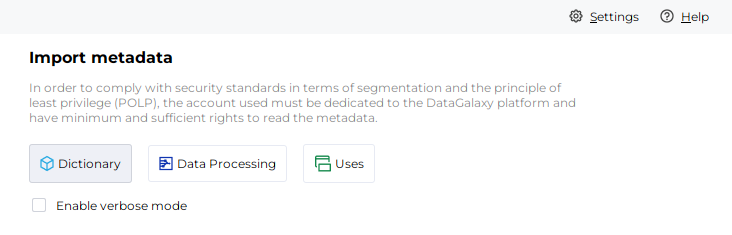
- If it was correctly installed, the Snowflake plug-in will appear
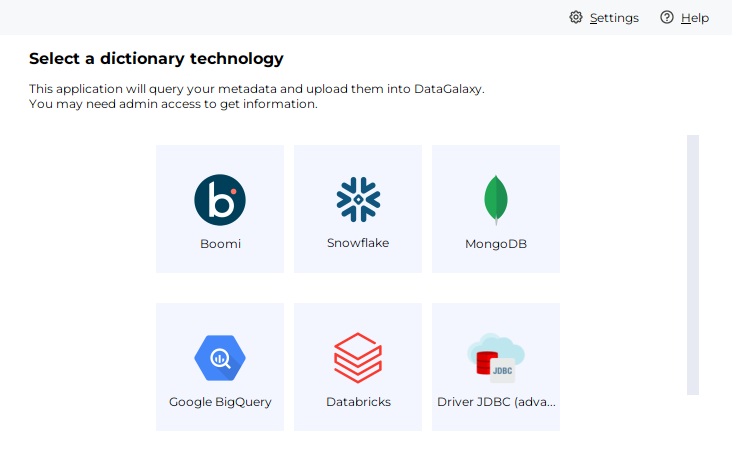
- Fill the corresponding fields using the connection information from above
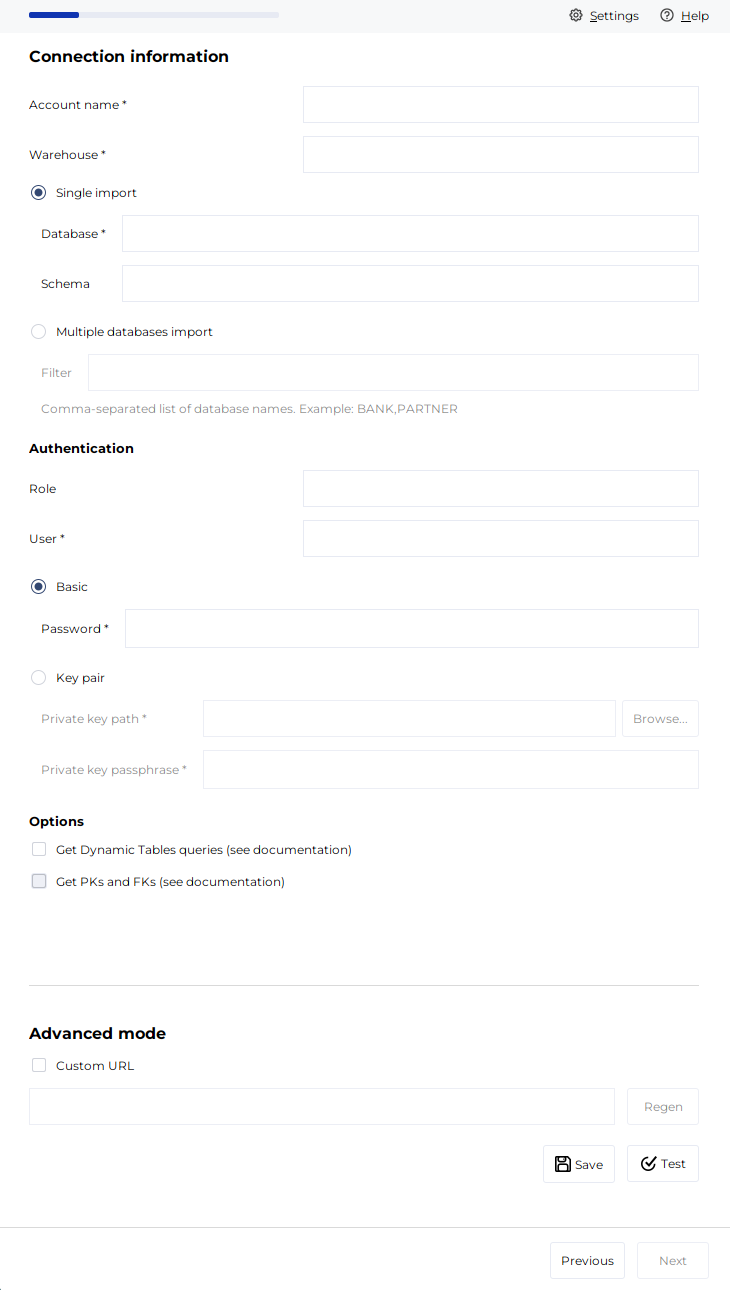
- Click on "Test" to test the connection
- Once the connection test passed follow the steps to finalize your import
This connector is also available in online mode, more information on this page: [How to] Online Connector operating mode
Frequently asked questions
Does the connector support Iceberg tables?
Yes, the connector has been validated with Iceberg tables managed by the Snowflake catalog.
Releases
| Date | Plugin Version | DataGalaxy release | Desktop Connector version (minimum) | Description |
| 9/9/2026 | 10.1.1 | v3.414.0 | 6.2.1 | Keeps lineage links to known out-of-scope objects |
| 24/04/2026 | 9.1.7 | v3.332.1 | 5.15.9 | Updated internal dependencies |
| 24/03/2026 | 9.1.5 | v3.323.1 | 5.15.7 | Fixed a bug related to verbose logs |
| 12/03/2026 | 9.1.4 | v3.317.2 | 5.15.6 | Fixed a lineage bug related to materialized views and external tables |
| 11/12/2025 | 9.1.0 | v3.290.0 | 5.15.3 | Optimizations on lineage retrieval reducing duration up to 95% |
| 03/09/2025 | 9.0.0 | v3.247.0 | 5.9.0 | Support push tags feature in URN mode |
| 01/08/2025 | 8.7.6 | v3.225.0 | 5.7.1 | Import PK/FK in URN mode only if option activated |
| 01/08/2025 | 8.7.5 | v3.204.0 | 5.7.1 | Replace Snowflake logo |
| 02/07/2024 | 8.7.2 | v3.192.1 | 5.7.1 | Added the possibility of limiting a scope to multiple schemas for the single database import mode |
| 04/06/2024 | 8.5.6 | v3.177.1 | 5.6.2 | - Fixed a security issue |
| 02/06/2025 | 8.5.5 | v3.174.3 | 5.6.1 | - Added the possibility to only retrieve lineage between tables - Fixed a bug related to duplicate selected schemas - Fixed some bugs related to Snowflake quoted object identifiers |
| 22/05/2025 | 8.5.1 | v3.171.0 | 5.5.13 | Activated the possibility of using URN imports for everybody |
| 24/04/2025 | 8.3.0 | v3.161.1 | 5.5.7 | - Added lineage retrieval for URN imports - Improved performance of the connection test |
| 10/04/2025 | 8.1.2 | v3.155.3 | 5.5.5 | Fixing the SQL query for retrieving tables and views. Key pair authentication mode now available in Online mode. |
| 07/04/2025 | 8.1.1 | v3.154.7 | 5.5.5 | Optimized how data is handled in URN mode |
| 27/02/2025 | 7.3.2 | v3.140.1 | 5.4.7 | - Bumped Snowflake driver to 3.22.0 - Don't require OPERATE permission on warehouse anymore |
| 24/02/2025 | 7.2.4 | v3.139.2 | 5.4.4 | Fixed a timeout issue for the connexion test |
| 13/12/2024 | 7.2.3 | v3.109.0 | 5.3.6 | Fixed the label of a checkbox for the desktop version of the connector |
| 29/11/2024 | 7.2.1 | v3.102.1 | 5.3.4 | - New feature: Push DataGalaxy tags to Snowflake - The connector now supports all naming formats for databases, schemas, tables, views and columns - The connector now checks the formats of the databases, schemas and paths provided as parameters for the connection |
| 06/11/2024 | 7.1.6 | v3.93.1 | 5.2.12 | Changed the link for the documentation that is given when the connexion test fails |
| 31/10/2024 | 7.1.5 | v3.91.1 | 5.2.11 | Add by default the warehouse in JDBC chain |
| 28/10/2024 | 7.1.4 | v3.89.1 | 5.2.11 | Added the Snowflake tag references retrieval feature for URN imports |
| 24/10/2024 | 7.1.3 | v3.88.2 | 5.2.11 | Changed the format of Snowflake tag references in DataGalaxy |
| 29/11/2024 | 7.2.1 | v3.102.1 | 5.3.3 | New feature: Push DataGalaxy tags to Snowflake |
| 06/11/2024 | 7.1.6 | v3.93.1 | 5.2.12 | Changed the link for the documentation that is given when the connexion test fails |
| 18/10/2024 | 7.1.2 | v3.87.3 | 5.2.11 | Fixed connexion test for governance features |
| 16/10/2024 | 7.1.1 | v3.85.1 | 5.2.11 | Typo fix |
| 16/10/2024 | 7.1.0 | v3.85.0 | 5.2.11 | New feature: Snowflake tag references retrieval (does not work for URN imports) |
| 08/10/2024 | 7.0.0 | v3.84.0 | 5.2.11 | Bugfix to avoid creation of empty schematas, optimization of SQL queries for view definition retrieval, addition of button to filter out shared databases |
| 06/09/2024 | 6.0.4 | v3.72.1 | 5.2.7 | Bugfix on creation query for views retrieval |
| 04/09/2024 | 6.0.3 | v3.72.0 | 5.2.7 | Simplification of necessary rights to retrieve metadata, retrieval of dynamic table and creation query for views by default, UI update to give options for dynamic tables creation query retrieval and PK/FK retrieval |
| 04/09/2024 | 6.0.2 | v3.72.0 | 5.2.7 | Made the table type of URNs (preview) implicit |
| 23/08/2024 | 6.0.1 | v3.69.0 | 5.2.3 | Updated the logger to show more information when using verbose mode |
| 02/07/2024 | 6.0.0 | v3.55.0 | 5.0.1 | Migrated from java 11 to java 17 + CVE fixes |
| 11/06/2024 | 5.4.0 | v3.51.0 | 4.10.0 | User can select to get or push tags independently (preview) |
| 06/06/2024 | 5.3.1 | v3.50.0 | Integration with Snowflake Data Metrics Functions for data quality (preview) | |
| 30/05/2024 | 5.2.0 | v3.48.0 | Tag synchronization (preview) | |
| 16/05/2024 | 5.0.0 | v3.46.0 | Addition of multi databases import | |
| 30/04/2024 | 4.3.6 | v3.44.0 | Filter to optimize requests | |
| 25/03/2024 | 4.3.5 | Bugfix | ||
| 18/03/2024 | 4.3.4 | Changed data type from BigDecimal to Number | ||
| 14/03/2024 | 4.3.2 | Manifest update | ||
| 13/03/2024 | 4.3.1 | v3.36.0 | Bugfix | |
| 28/02/2024 | 4.3.0 | v3.33.0 | Addition of the query attribute | |
| 26/02/2024 | 4.2.1 | Improvement of the connexion test | ||
| 15/02/2024 | 4.2.0 | v3.31.0 | Addition of dynamic tables | |
| 24/01/2024 | 4.1.1 | Update of the retrieval method for tables on the selection screen |