
This article explains how the Tableau CRM connector for DataGalaxy works.
This connector is available in the following modes:
| Desktop mode ✅ | SaaS Online mode ❌ |
Connector Overview
The connector allows to retrieve metadata from Dashboards, Lenses and Datasets via the Salesforce API. The retrieved objects and their correspondences in DataGalaxy are detailed in the following table
| Tableau CRM object | DataGalaxy Object | Comments |
|---|---|---|
| App | Application | Each App shared in Tableau CRM is imported as an application, within a root application (to be named during configuration) in the Usage module. |
| Lense | Report | Each dashboards and lenses are imported as children of an application object, reproducing the source application structure. |
| Dashboard | Dashboard | |
| Page | Usage Component | The dashboard pages are imported as a "Tab" component of the dashboard. |
| Widget | Usage Component | Each Dashboard's/Report's widget element is imported as a child component of the corresponding page. |
| Dataset | Data Set | Each datatset is imported with its dates, dimensions and measures as child fields. Links are imported to associate datasets used in a dashboard or a lens. |
Step 1: Installation
- Download DataGalaxy connector from the portal (see here)
- Extract the connector archive in the directory of your choice
- Download the Tableau CRM plug-in from the portal and copy it into the /lib directory of the connector
Step 2: Running the Tableau CRM connector
- After starting the connector, access Software type connectors:
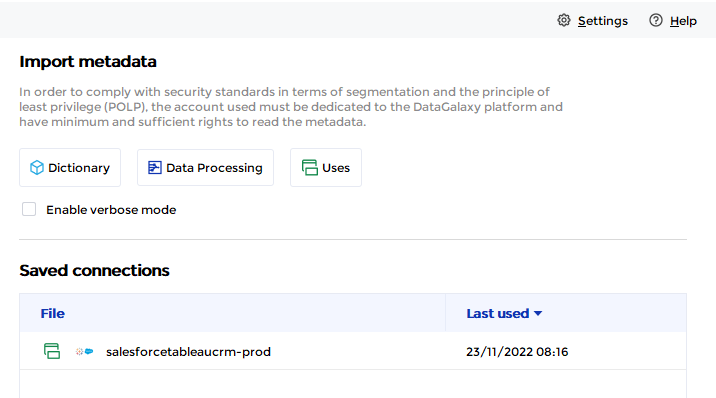
- If it has been correctly installed, the Tableau CRM plug-in appears in the list
- The following information is requested:
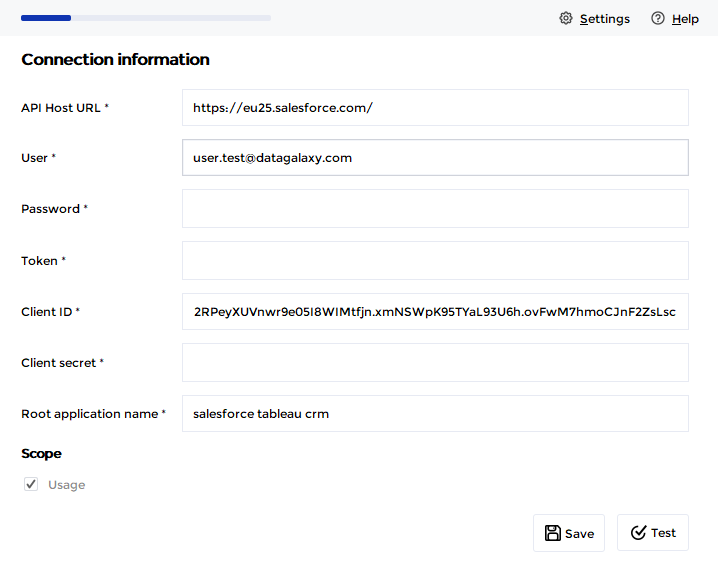
| Parameter | Mandatory | Description |
API Host URL | Yes | The URL of the API, example: https://eu25.salesforce.com/ |
| User | Yes | User's Salesforce login email address |
| Password | Yes | User's Salesforce login password |
| Token | Yes | Identifier of the initial access token associated with the user. The following documentation explains how to generate one to receive it by email: Reset Your Security Token |
| Client ID | Yes | Following Saleforce documentation explains how to generate a Connected APP to obtain a clients ID and secret: Enable OAuth Settings for API Integration. |
| Client secret | Yes | |
| Root application name | Yes | Name of the "parent" application in the DataGalaxy Usage module, which will be used to store all reports and dashboards of the Tableau CRM tool. If the application does not exist, it will be created during the import. |
| Scope | Yes | Select the import perimeter. By default, during the beta version, only one option is available and mandatory (Usage). |
Note: in CLI mode, the 3 secrets "Password", "Client secret", "Token" have to be passed via the --password argument using the json format, like this:
--password "{'password':'my_password','token':'mytoken','client_secret':'my_client_secret'}"
Technical Information
The connector uses version 51.0 of Salesforce API (https://developer.salesforce.com/docs/atlas.en-us.230.0.bi_dev_guide_rest.meta/bi_dev_guide_rest/bi_resources_lenses_id.htm )
Releases
| Date | Plugin Version | DataGalaxy release | Desktop Connector version (minimum) | Description |
| 23/08/2024 | 3.0.1 | v3.69.0 | 5.2.3 | Updated the logger to show more information when using verbose mode |
| 06/08/2024 | 3.0.0 | v3.65.0 | 5.0.5 | Migrated from java 11 to java 17 + CVE fixes |