
This article explains how to use Qlik Sense Enterprise connector for DataGalaxy.
This connector is available in the following modes:
| Desktop mode ✅ | SaaS Online mode ❌ |
Connector Overview
The connector allows importing metadata from a Qlik Sense Enterprise server. The retrieved objects and their correspondences in DataGalaxy are detailed in the following table:
| Qlik Sense Object | DataGalaxy Object | Comments |
|---|---|---|
| (none) | Application (root) | A root level application is created during the import (to be named during setup) in the Usage module. |
Streams | Application | Each Qlik Sense Stream is imported as a child application |
Application | Dashboard | Only applications published in a Stream are taken into account |
Sheet | Report |
|
| Table | Dataset | |
| Field | Usage field | |
| Master Item (measure, dimension) | Usage field | The lineage between Master Items and Fields is retrieved too. |
Step 1: Installation
- Download DataGalaxy connector from the portal (see here)
- Extract the connector archive in the directory of your choice
- Download the Qlik Sense Entreprise plug-in from the portal and copy it into the /lib directory of the connector
Step 2 : Running Qlik Sense connector
- After starting the connector, access Software type connectors:
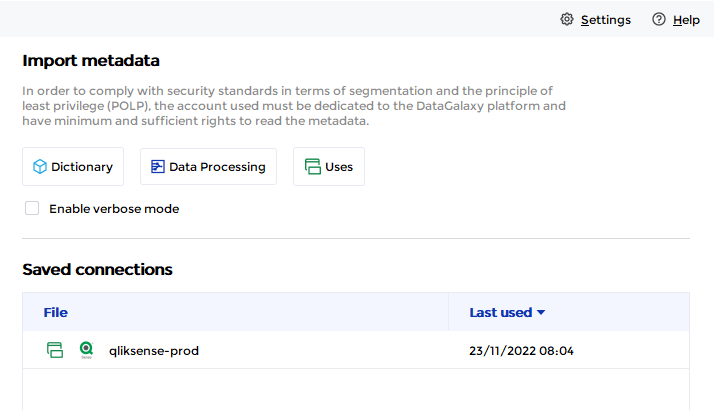
- If it has been correctly installed, the Qlik Sense Enterprise plug-in appears in the list
- The following information is requested:
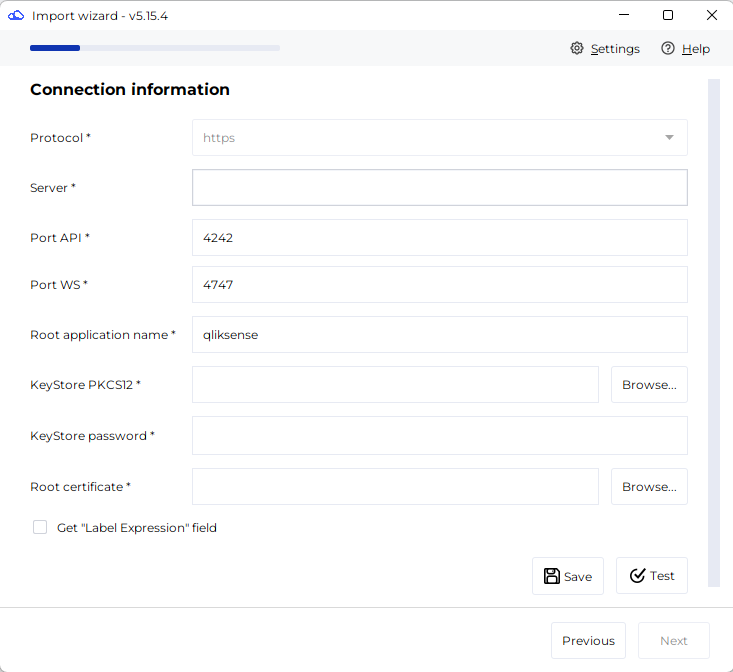
| Parameter | Mandatory | Description |
|---|---|---|
| Server | Yes | Qlik Sense server hostname |
| Port API | Yes | QRS REST API port, 4242 by default, to be modified if the server configuration is different |
| Port WS | Yes | Engine JSON API WebSocket port, 4747 by default, to be modified if the server configuration is different |
| Root application name | Yes | Root application name in the DataGalaxy Usage module, which will be used to store all Qlik Sense applications. If the application does not exist, it will be created during the import. |
| KeyStore PKCS12 | Yes | Qlik Sense certificate information, see below for how to generate the certificate |
| KeyStore PKCS12 password | Yes | |
| Root certificate | Yes | |
| Get "Label Expression" field | No | Retrieve the "Label Expression" field and import it as "Summary" attribute |
Once this information has been filled in, you must test the connection in order to start the import procedure.
Technical Information
Qlik Sense connector uses the Qlik Sense Repository APIs (https://help.qlik.com/en-US/sense-developer/April2020/APIs/RepositoryServiceAPI/index.html?page=0)
Generating Qlik Sense certificates
Certificates must be generated from the Qlik Sense Management Console (QMC) in order to use the connector
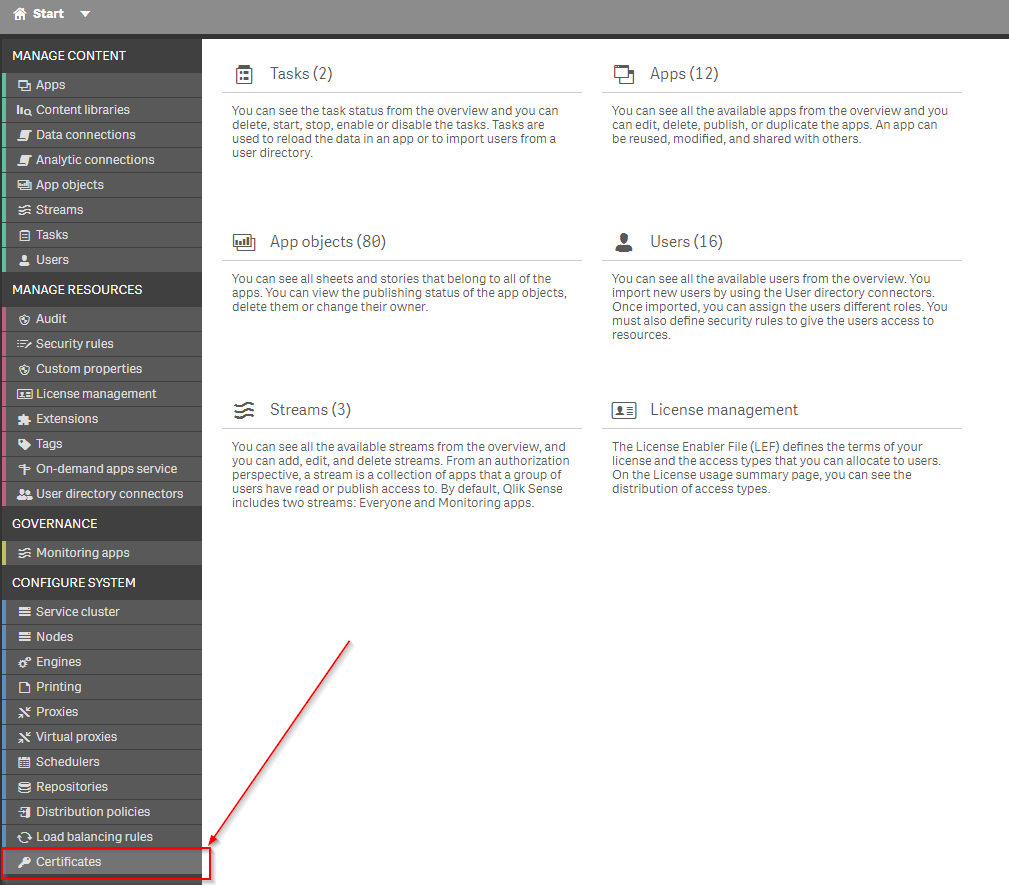
The certificates must be generated with the following options:
- Machine name: this information is mandatory, but it doesn't need to match the computer's name that will use the certificate (this information is not checked afterwards)
- It is not necessary to enter a password at this stage
- Check the "Include secret key" box
- Choose the PEM format for the certificates
- Note the name of the path where the certificates will be generated on the server
- Click on the "Export certificates" button at the bottom of the page
- Retrieve the generated files from the Qlik Sense server
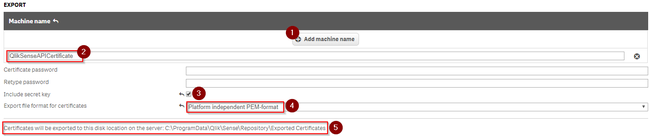
More information on this export procedure is available here : https://help.qlik.com/en-US/sense/June2019/Subsystems/ManagementConsole/Content/Sense_QMC/export-certificates.htm
Generating a PKS12 formatted key
Once the files have been retrieved, the key obtained must be converted to the PKS12 format (extension .p12) expected by the connector. To do this, use the openssl utility (installed by default on UNIX and MAC, to be installed on Windows - available for example here)
openssl pkcs12 -export -inkey client_key.pem -in client.pem -out client.p12
You will be asked for a password during the generation process. It is important to write it down because you will need it when you run the connector.
Once these operations have been carried out, you will have :
- A p12 file corresponding to the KeyStore PKS12
- A KeyStore password
- A root certificate: this is the root.pem file generated by Qlik Sense
Releases
| Date | Plugin Version | DataGalaxy release | Desktop Connector version (minimum) | Description |
| 09/04/2026 | 5.3.1 | 5.15.8 | Fix: add missing fields in CSV export (Technical type, Expression for Master Items) | |
| 11/03/2026 | 5.3.0 | v3.315.0 | 5.15.6 | Feature: add ability to retrieve label expression field from measures in "summary" attribute |
| 17/04/2025 | 5.1.2 | 5.5.5 | Fix: WebSocket default port + loading value from saved connection profile | |
| 28/03/2025 | 5.1.0 | v3.154.2 | 5.5.0 | Added WebSocket JSON API connection to retrieve app Tables + Master Items |
| 23/08/2024 | 5.0.1 | v3.69.0 | 5.2.3 | Updated the logger to show more information when using verbose mode |
| 30/07/2024 | 5.0.0 | v3.63.0 | 5.0.4 | Migrated from java 11 to java 17 + CVE fixes |