
This article explains how to use Qlik Cloud connector for DataGalaxy.
This connector is available in the following modes:
| Desktop mode ✅ | SaaS Online mode ✅ |
Connector Overview
The connector allows importing metadata from a Qlik Cloud tenant. The retrieved objects and their correspondences in DataGalaxy are detailed in the following table:
| Qlik Cloud Object | DataGalaxy Object | Comments |
|---|---|---|
| (none) | Application (root) | A root level application is created during the import (to be named during setup) in the Uses module. |
Space | Application | Each Qlik Sense Space is imported as a child application. The list of Spaces to be imported can be filtered (see the regex parameters below), all Applications in the scanned Spaces will be imported |
Application | Dashboard | Only published applications are taken into account |
Table | Dataset | The tables part of the data model of the application |
| Field | Usage field | Each field available in the data model of the application, in a table |
| Master Item (Measures, Dimensions) | Usage field | Each Measures and Dimensions in the semantic layer of the application |
Step 1: Installation
- Download DataGalaxy connector from the portal (see here)
- Extract the connector archive in the directory of your choice
- Download the Qlik Cloud plug-in from the portal and copy it into the /lib directory of the connector
Step 2 : Running Qlik Cloud connector
- After starting the connector, access Uses type connectors:
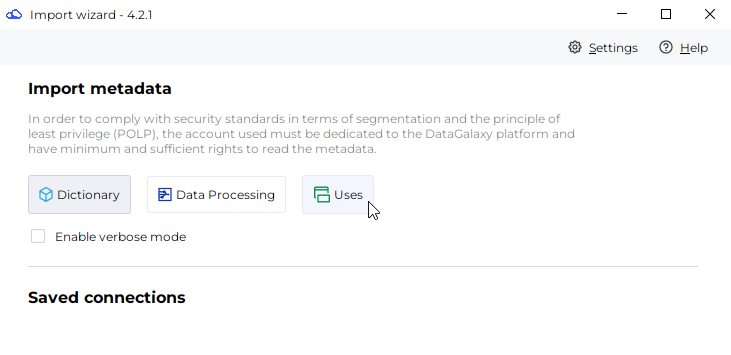
- If it has been correctly installed, the Qlik Cloud plug-in appears in the list
- The following information is requested:
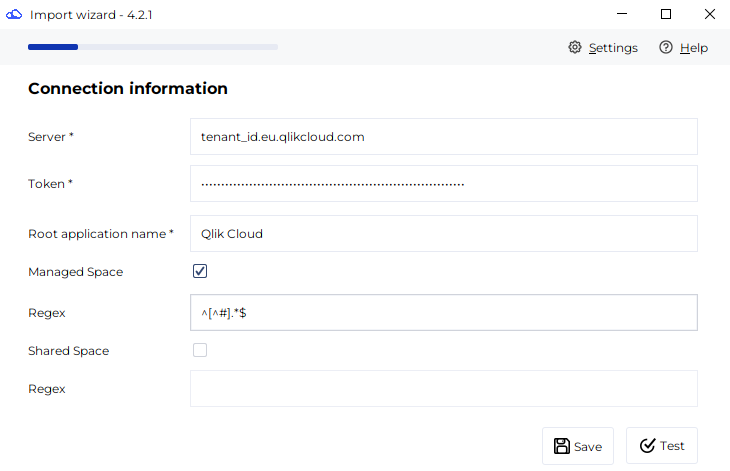
| Parameter | Mandatory | Description |
|---|---|---|
| Server | Yes | Qlik Cloud tenant address |
| Token | Yes | A valid Qlik Cloud token with permissions on the API and on each Space / Application to scan |
| Root application name | Yes | Root application name in the DataGalaxy Uses module, which will be used to store all Qlik Cloud applications. If the application does not exist, it will be created during the import. |
| Managed Space | Yes | Check this if you want to scan the Managed Spaces |
| Regex | No | To filter the Spaces to scan, provide a regular expression which should match with the names of the Managed Spaces you want to import. If you want to import only one specific Space, provide the name of the Space. If nothing is provided, all the Spaces will be imported. Example : ^[^#].*$ to import all the Managed Spaces whose name doesn't start with #. |
| Shared Space | Yes | Check this if you want to scan the Shared Spaces |
| Regex | No | Same parameter than above but for filtering the Shared Spaces |
Once this information has been filled in, you must test the connection in order to start the import procedure.
Technical Information
Qlik Cloud connector uses the Qlik Cloud REST APIs (https://qlik.dev/apis/rest/items) and the JSON-RPC API for reading the model of each application.
Releases
| Date | Plugin version | DataGalaxy release | Desktop connector version (minimum) | Description |
| 01/09/2026 | 3.0.1 | v3.409.0 | 6.1.5 | Fixed an issue with the logs for online imports |
| 21/05/2026 | 2.0.8 | v3.340.0 | 5.15.7 | Fix error message for authorization issue |
| 24/03/2026 | 2.0.7 | v3.323.1 | 5.15.7 | Fixed a bug related to verbose logs |
| 03/12/2025 | 2.0.6 | v3.286.4 | 5.15.3 | Fixed some issues related to Web Socket requests |
| 23/08/2024 | 2.0.1 | v3.69.0 | 5.2.3 | Updated the logger to show more information when using verbose mode |
| 26/07/2024 | 2.0.0 | v3.62.0 | 5.0.3 | Migrated from java 11 to java 17 |