
This article explains how to use Power BI Services connector for DataGalaxy.
This connector is available in the following modes:
| Desktop mode ✅ | SaaS Online mode ✅ |
This connector suppports the following import modes:
| Standard mode ✅ | URN mode ✅ |
Technology
Power BI is a set of software services, applications and connectors that work together to transform disparate data sources into coherent, visually immersive and interactive insights.
Scope
Objects
There are two ways to retrieve Power BI metadata: using the Admin API or the Non-admin API. Almost all the scope can be retrieved using the Admin API (except the Report pages) but it requires a higher level of permissions. On the other side, the User API is less intrusive in terms of permissions but allows to retrieve less metadata.
You can grant one or the other or both types of permissions to the Service Principal used by the connector. The connector will try to get as much metadata as possible depending on the permissions that have been granted. See further in this doc for the setup of the permissions.
Here is a summary of the scope which can be retrieved using one or the other option:
| Power BI object | Non-admin API | Admin API | DataGalaxy object | DataGalaxy attributes (only for API admin) | Comments |
| Workspace | ✅ | ✅ | Application | - Description | Each workspace in the Power BI tool is imported as an application within a root application (to be named during configuration) in the Usage module. |
| Apps | ❌ | ✅ | Application | - Description - URL (optional) | Optional. The Apps are imported as an application within a parent application named 'Apps' to reflect the organization in Power BI platform. The App is linked with the Workspace it belongs to using an "Is Linked To" link. Lineage with embedded content is created. You can activate an option to forge a URL for the Apps and to replace URL of embedded Reports and Dashboards with the one through the App. |
| Dataset | ✅ | ✅ | Data Set | - Description - Creation date of the source object - Technical type | Lineage with Dataflow is provided. |
| Dataset's table | ❌ | ✅ | Data Set | - Query | Lineage with source data warehouse is provided (URN mode, Admin API only, see limitations below). |
| Column | ❌ | ✅ | Field | - Description - Expression - Technical type | |
| Dashboard | ✅ | ✅ | Dashboard | - URL | Lineage with Report is provided. |
| Report | ✅ | ✅ | Report | - Description - Creation date of the source object - URL | Lineage with Data Set is provided. |
| Report page | ✅ | ❌ | Component Usage | ||
| Dataflow | ❌ | ✅ | Data Set | - Description - Technical type - Query | Lineage with source data warehouse is provided (URN mode, Admin API only, see limitations below). |
| Dataflow's entity | ❌ | ✅ | Data Set | - Description | |
| Entity attribute | ❌ | ✅ | Field | ||
| Paginated report (RDL) | ✅ | ✅ | Report | - URL | Paginated reports are a special format, most of the features available on other objects are not supported by Power BI API for these reports (fields, lineage...) |
Some of these attributes are also specific to the technology and the object type. To make them appear in DataGalaxy screens, it may be necessary to adapt the screens of the concerned objects. See this article to learn more about screen customization.
Lineage
The lineage internal to Power BI is retrieved between following objects:
- Datasets and Reports
- Reports and Dashboards
- Reports/Dashboards and Apps
- Datasets and Datasets
- Dataflows and Datasets
The upstream lineage with source data platforms can be retrieved using the connector (URN mode only). The following technologies are supported:
- Snowflake
- Google BigQuery
- Databricks
- MS SQL Server
⚠️ The lineage is retrieved at table level. The NativeQuery statements in the datasets definitions are not supported so no lineage will be extracted from these datasets. Variables can be interpreted if their value is available. Dynamic values which are defined at runtime, like concatenation, cannot be evaluated.
Detailed scope
Input
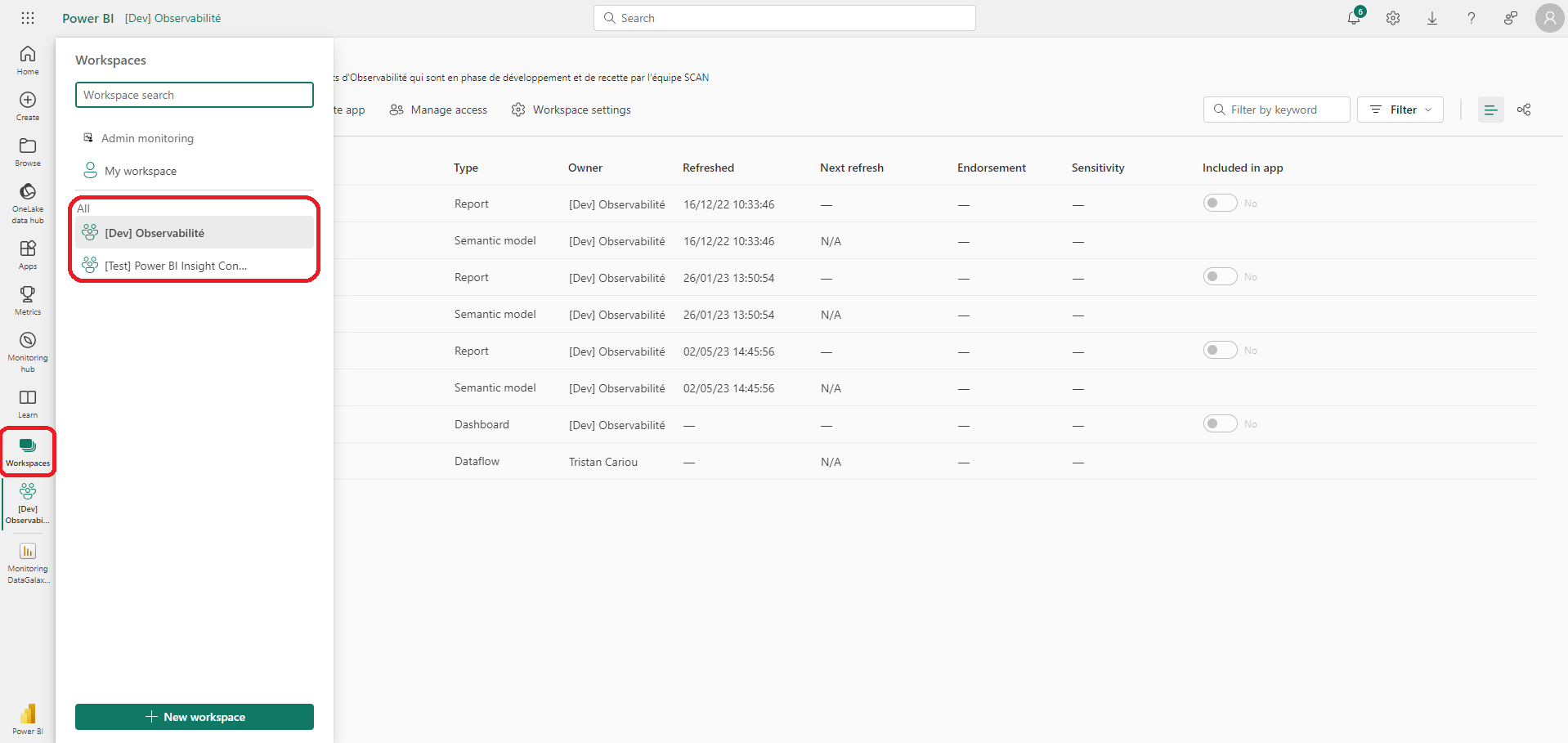
- From your PowerBI homepage, workspaces are accessible by clicking on the tab of the same name
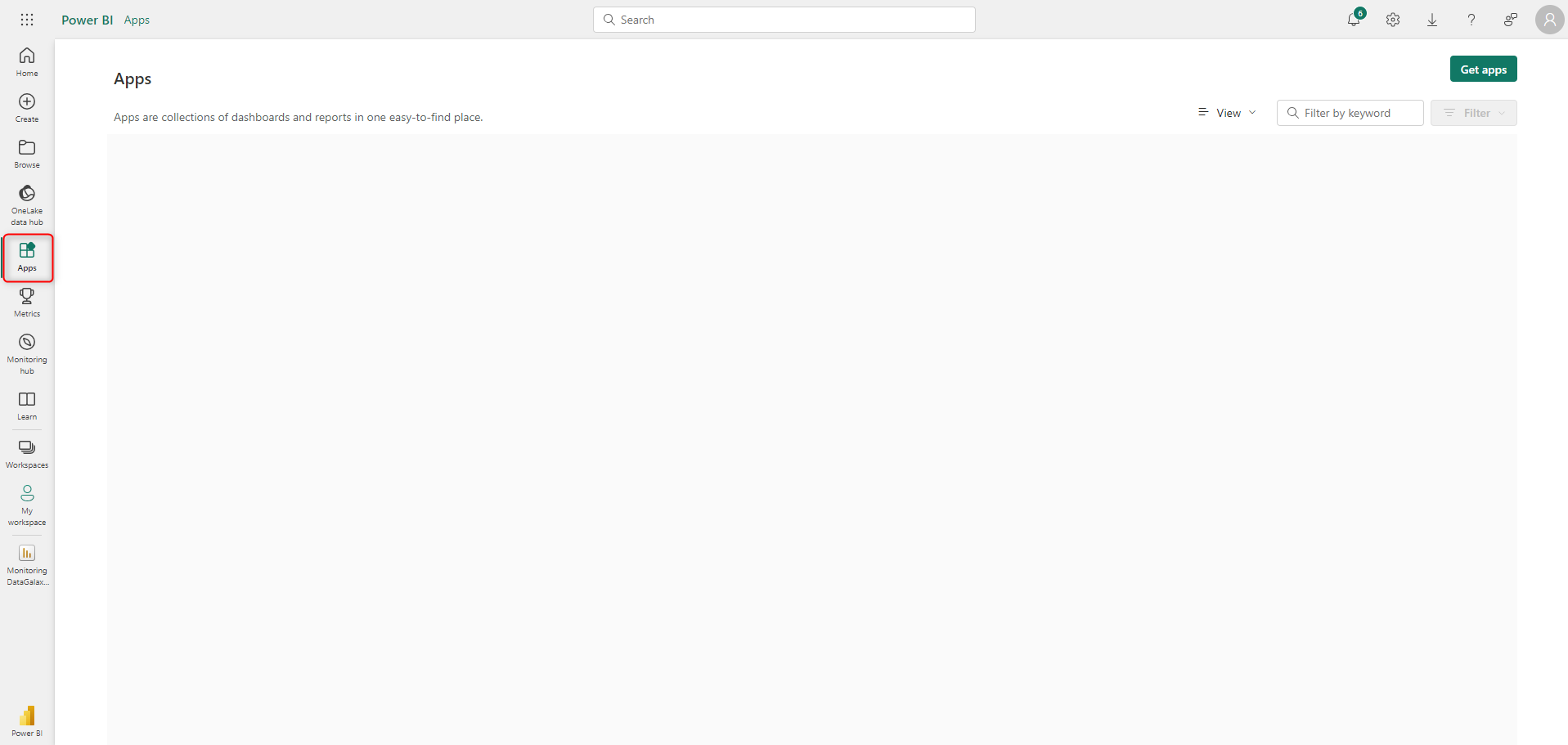
- Still from your PowerBI homepage, Applications also have their dedicated tab
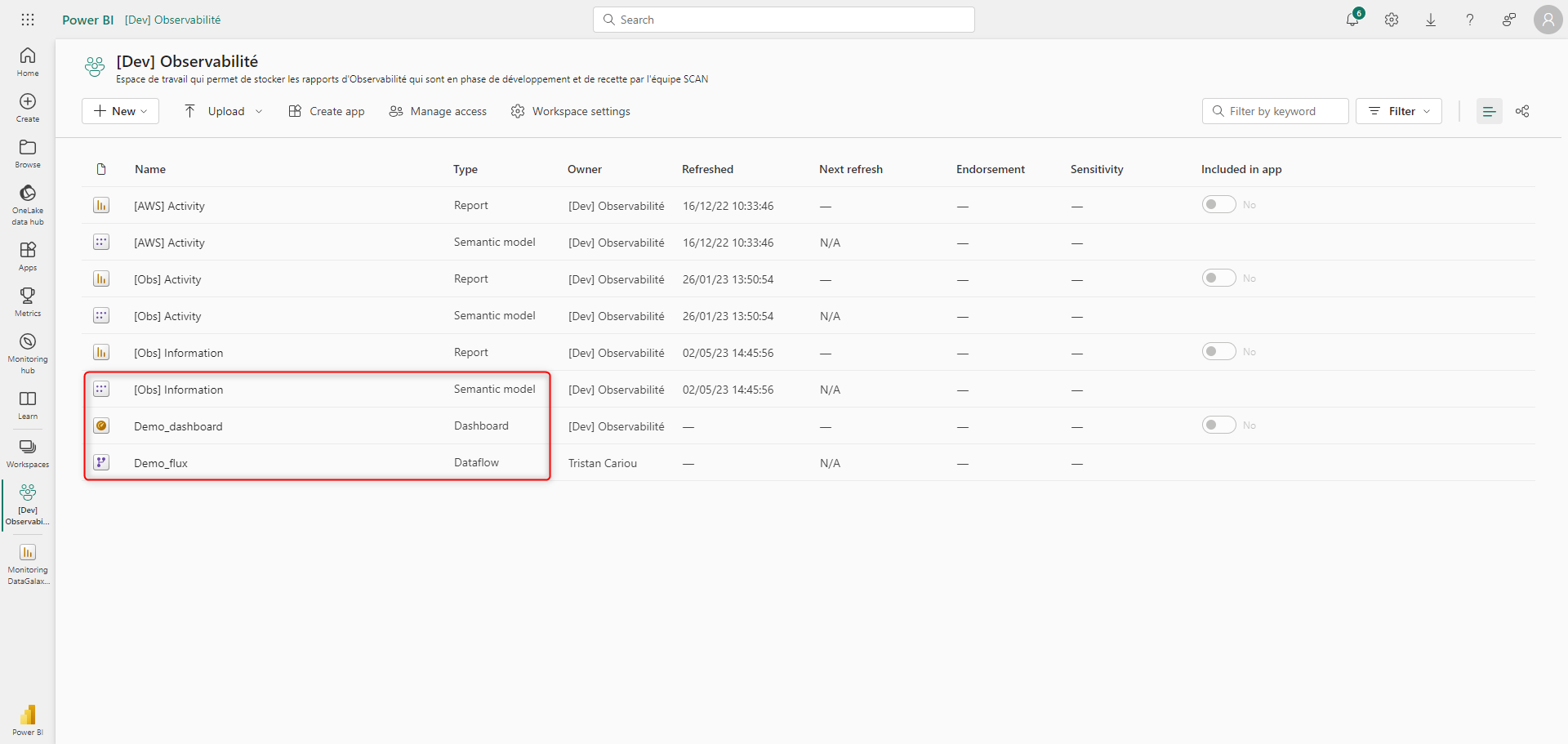
- By targeting a specific workspace, you will have access to the list of reports, semantic models, data flows, and dashboards it contains (example with the workspace '[Dev] Observability' here)
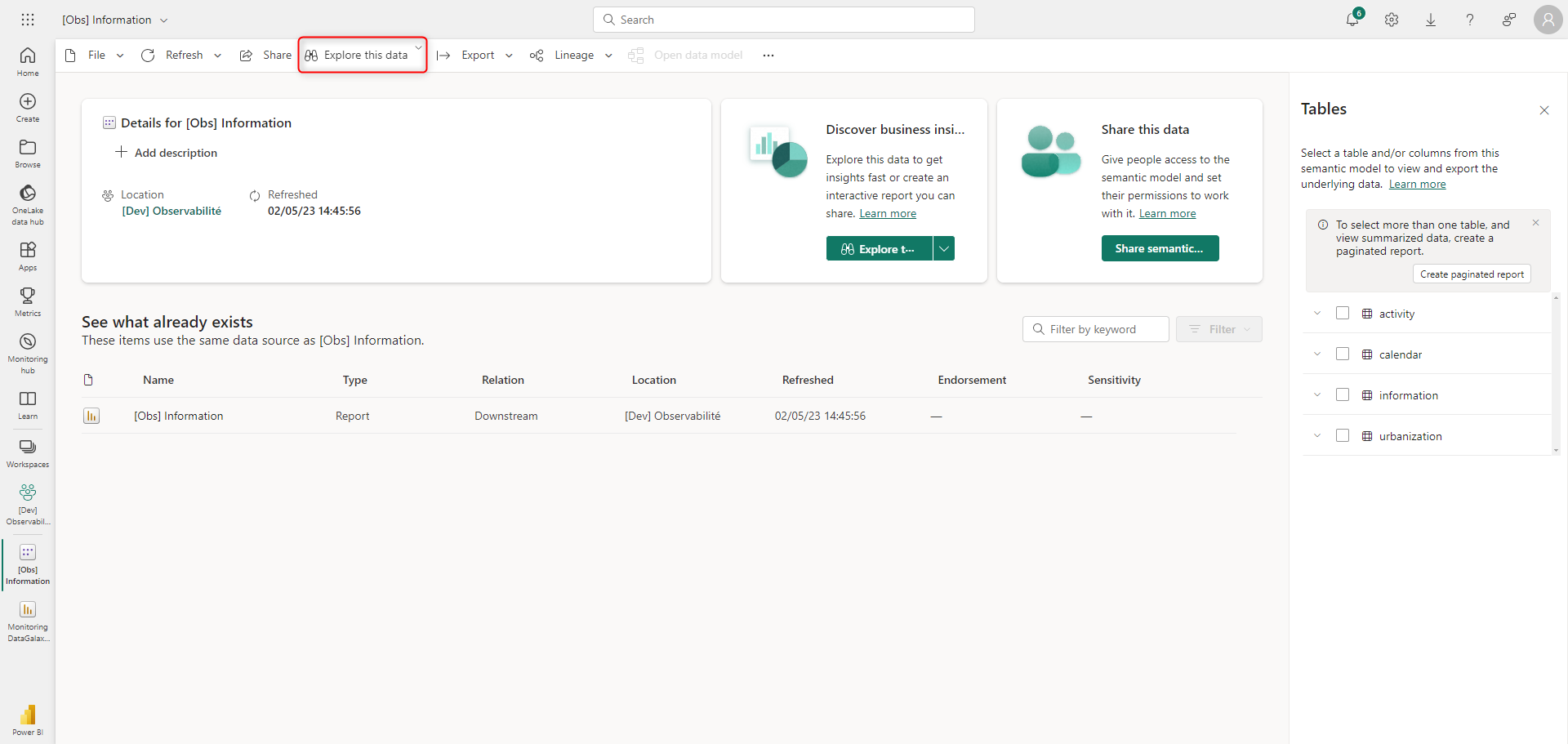
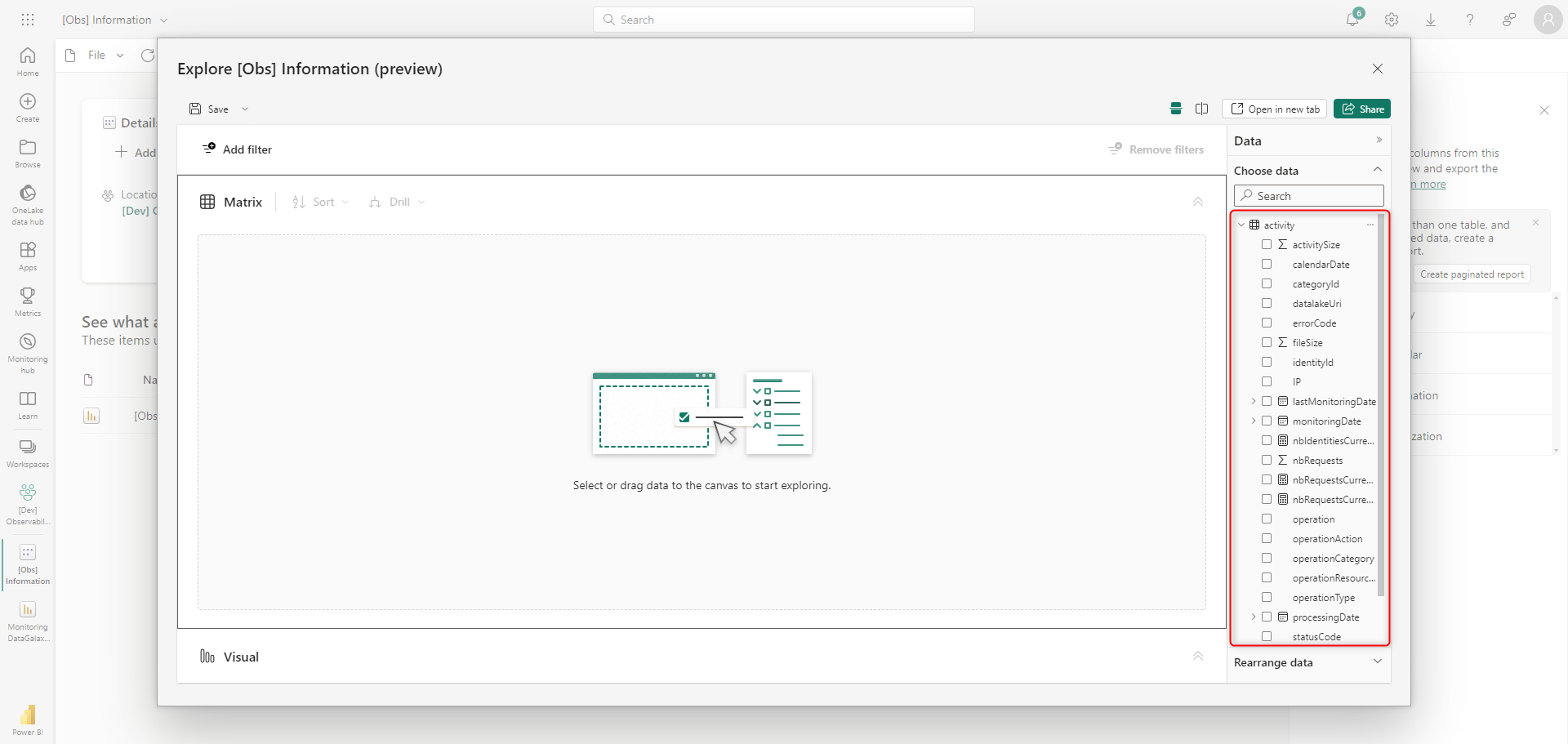
- From the previous screen, by clicking on a specific semantic model, you will be taken to a new dedicated page where the 'Explore this data' button is located (capture 1). This opens a window that details the tables and columns of said model (capture 2, example with '[AWS] Activity' here)
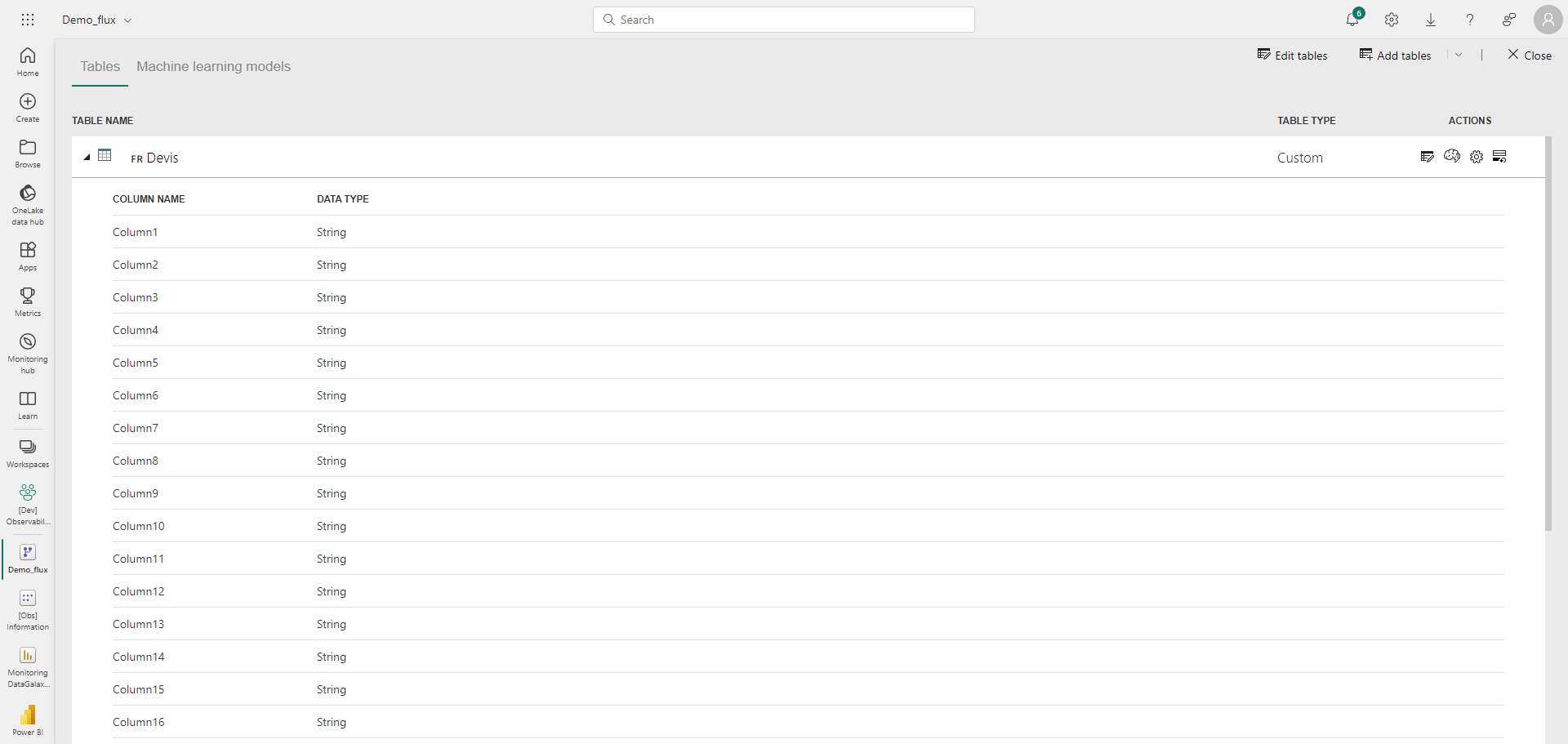
- Still from the screen that summarizes the objects of a given workspace, by clicking on a data flow, you will directly reach a screen allowing you to view the entities (tables) and attributes of the entities (columns) (example with 'Demo_flux')
- Finally, by clicking on a specific report from the screen that summarizes the objects of a workspace, it will be displayed with the list of pages on the left.
Output
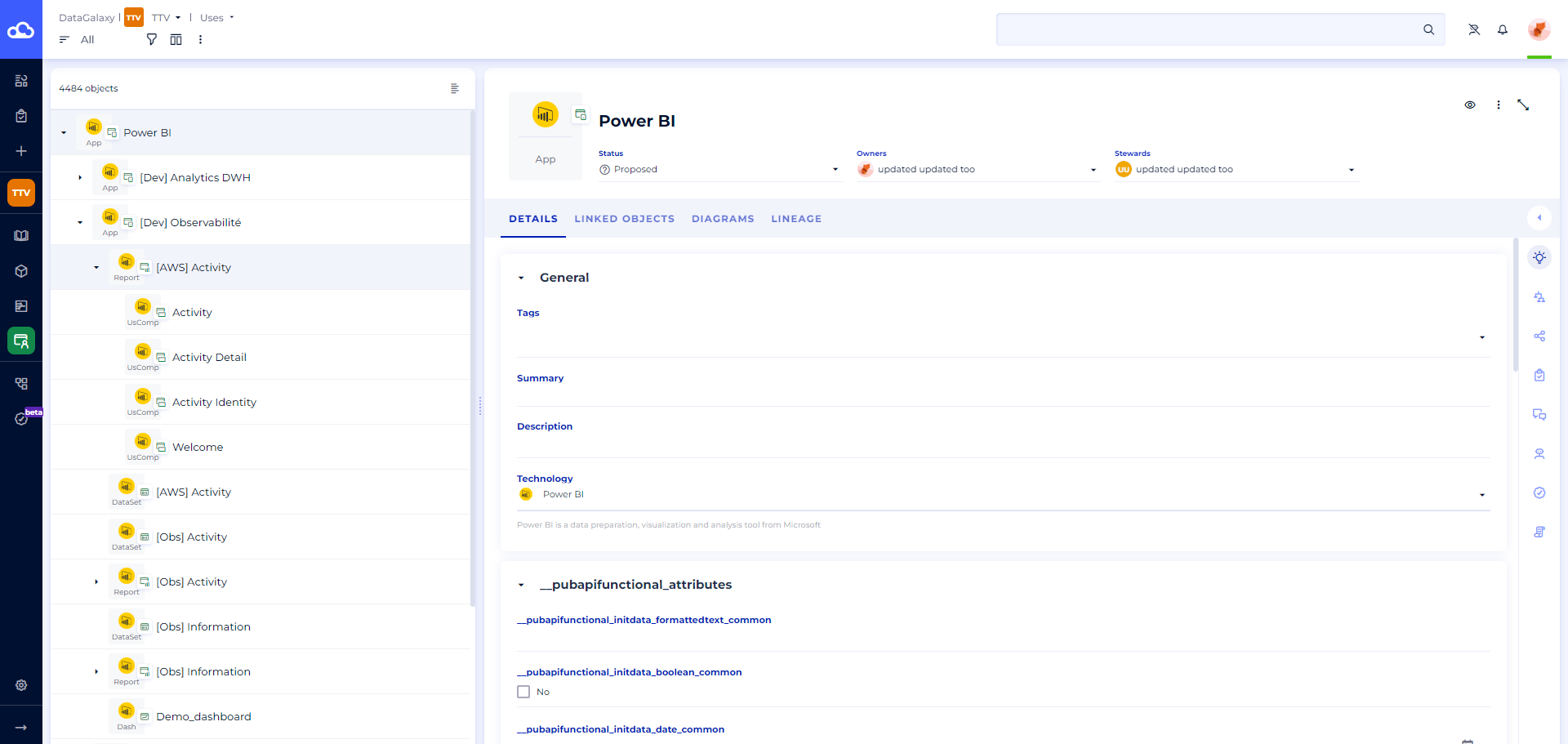
- Application, Report and Usage component (example of import via Non-admin API)
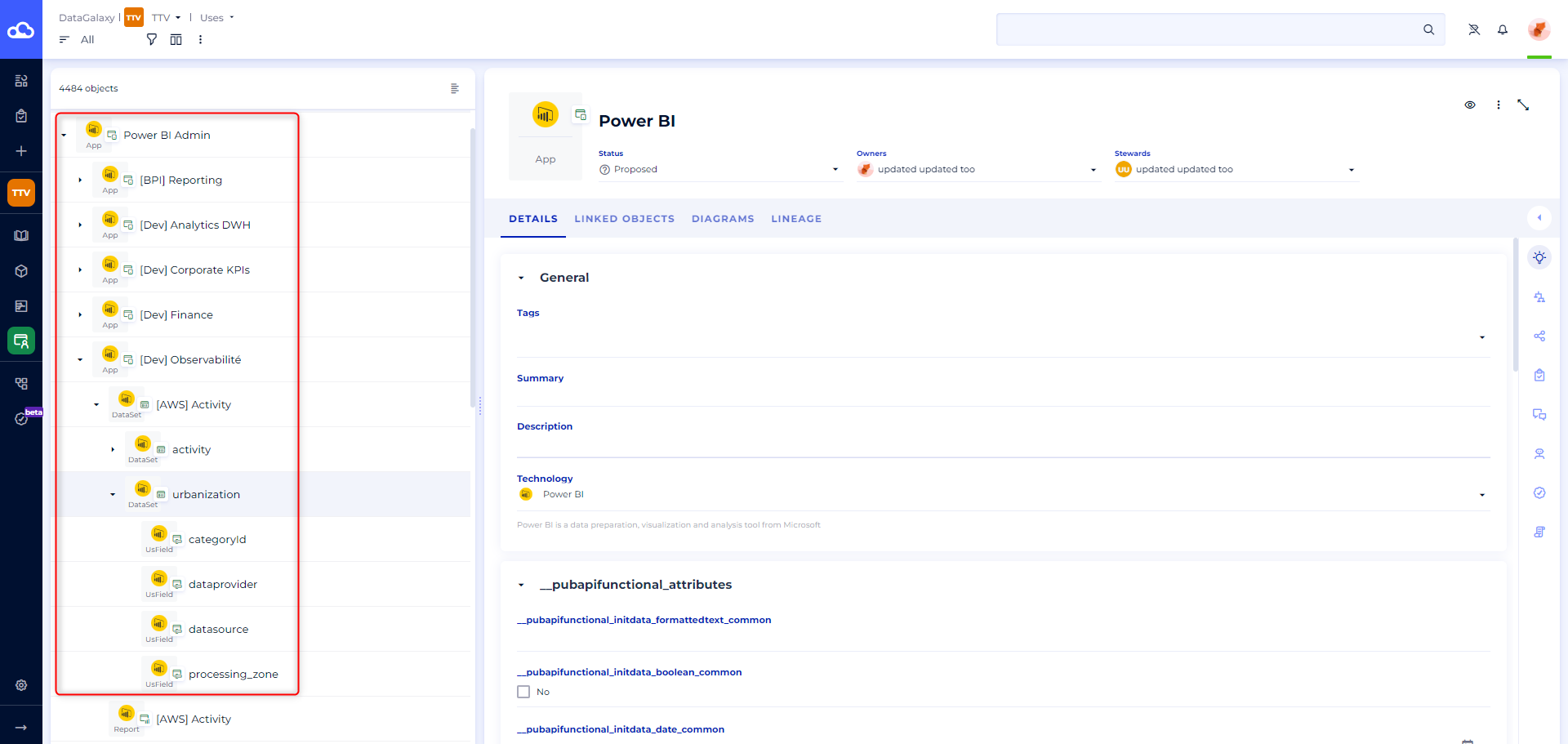
- DataSet and Usage field (example of import via admin API)
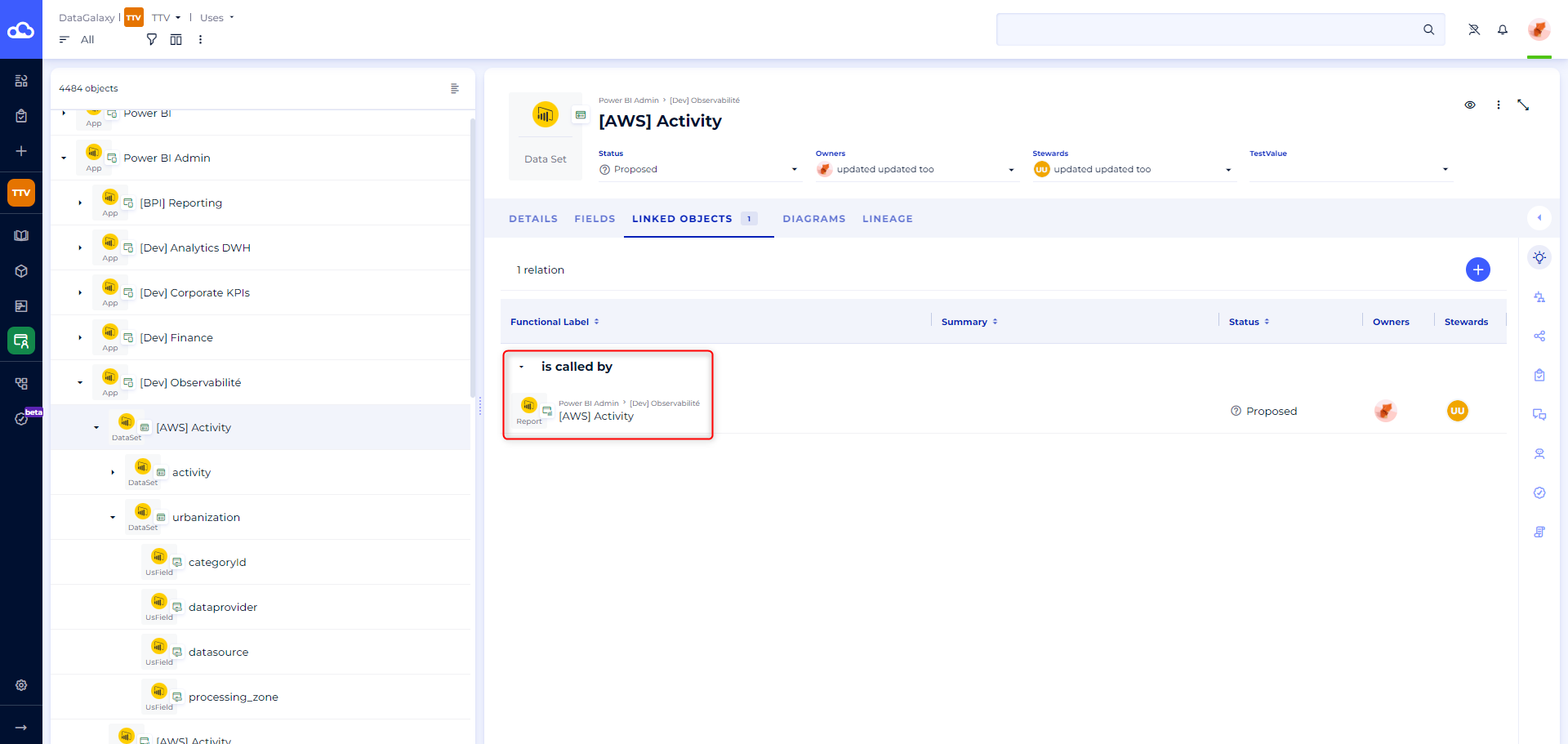
- Link between DataSet and Report (sample import via admin API)
Connection configuration
On Power BI side
The connector needs a Service Principal to discuss with Power BI APIs. Here you'll learn how to create one in Entra ID and then how to grant permissions, for Non-admin and/or Admin APIs. As a reminder, you can grant one or the other or both types of permissions to the Service Principal, depending on the scope you want to retrieve with the connector.
Create a Service Principal
Whether you're looking to import via the Admin or Non-admin API, you'll need to carry out 3 steps in Azure:
- Register an application (this is where you'll be able to retrieve the necessary connection information)
- Create a group
- Add our application to this group
Register an application
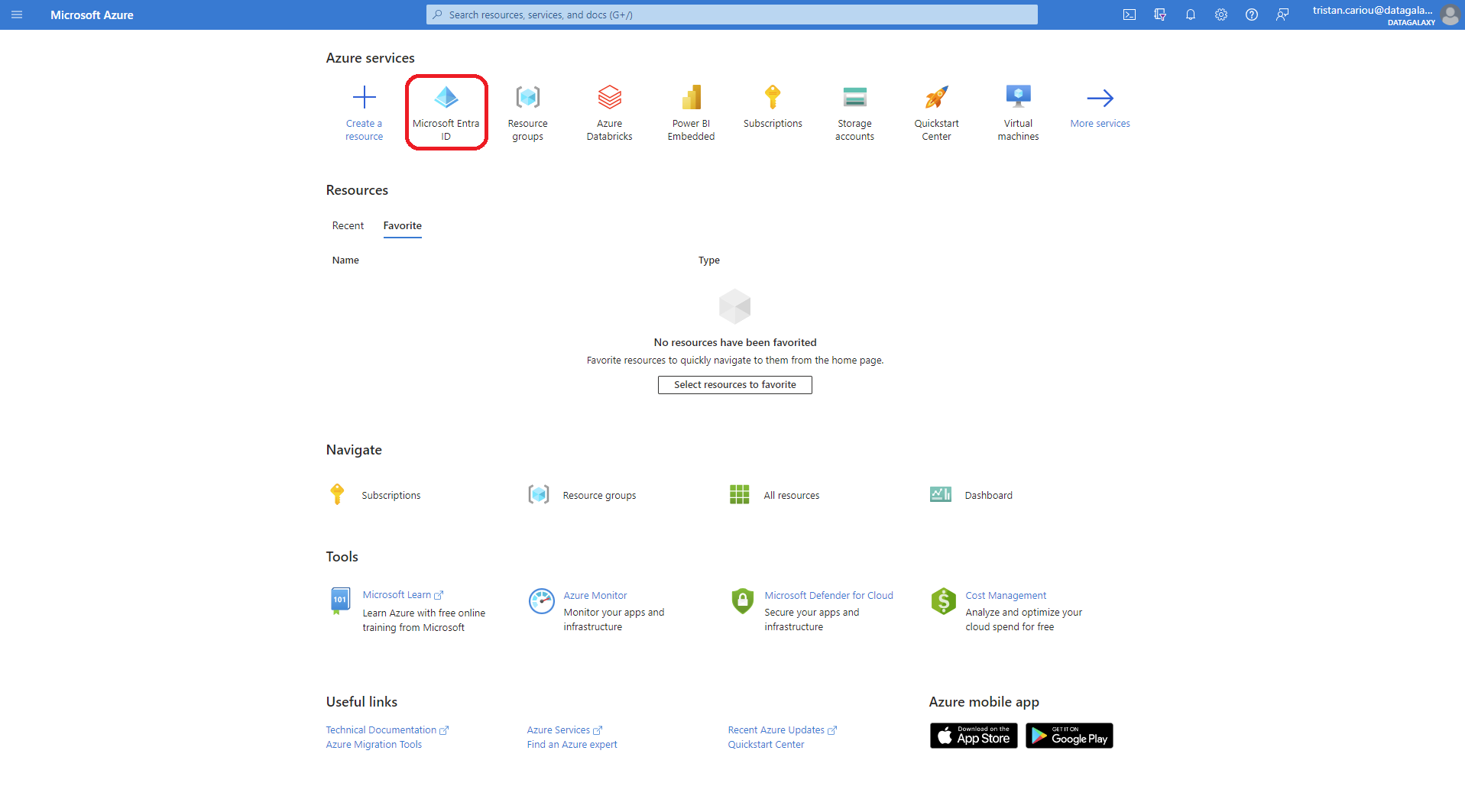
- From your Azure home screen, start by selecting the "Microsoft EntraID" service
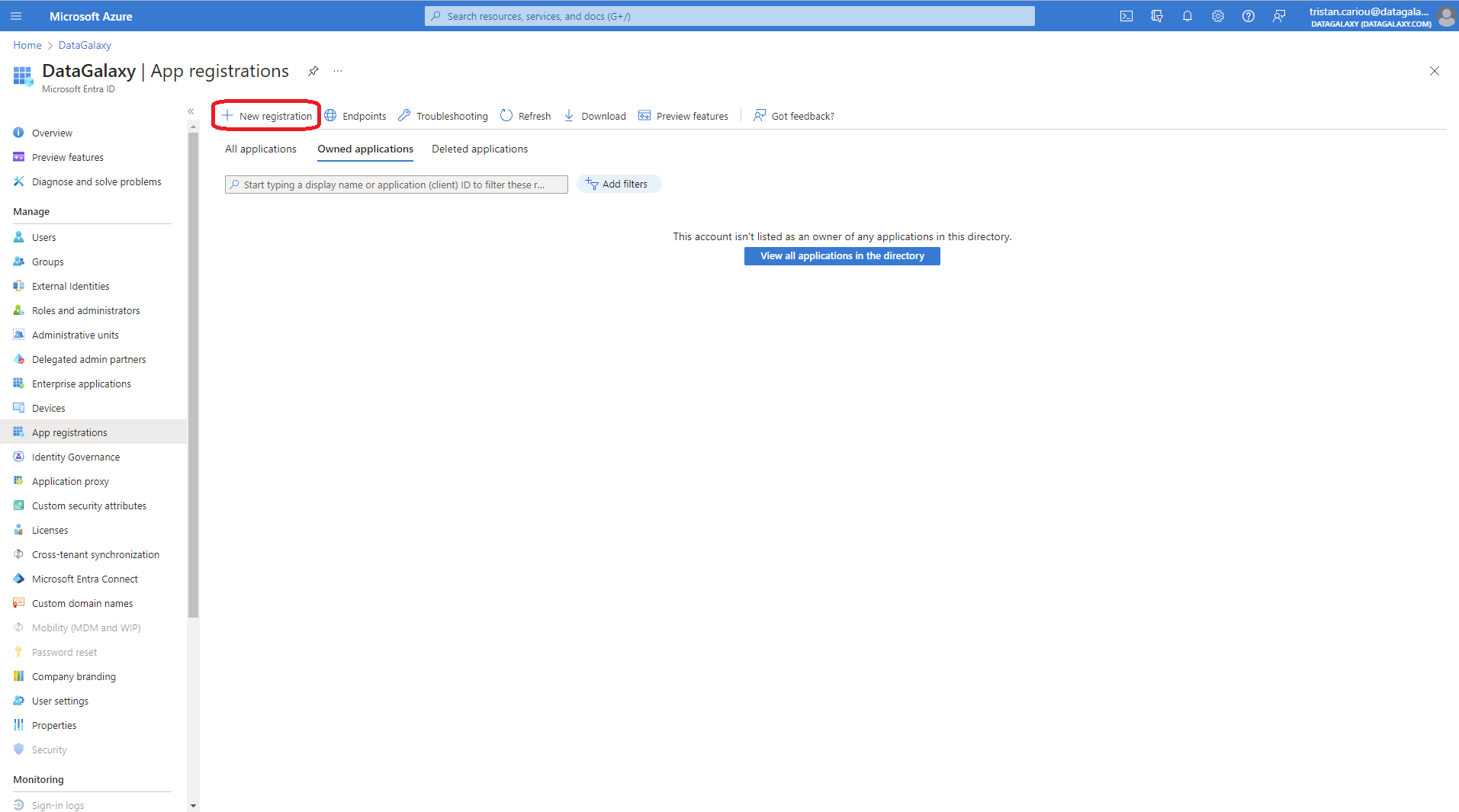
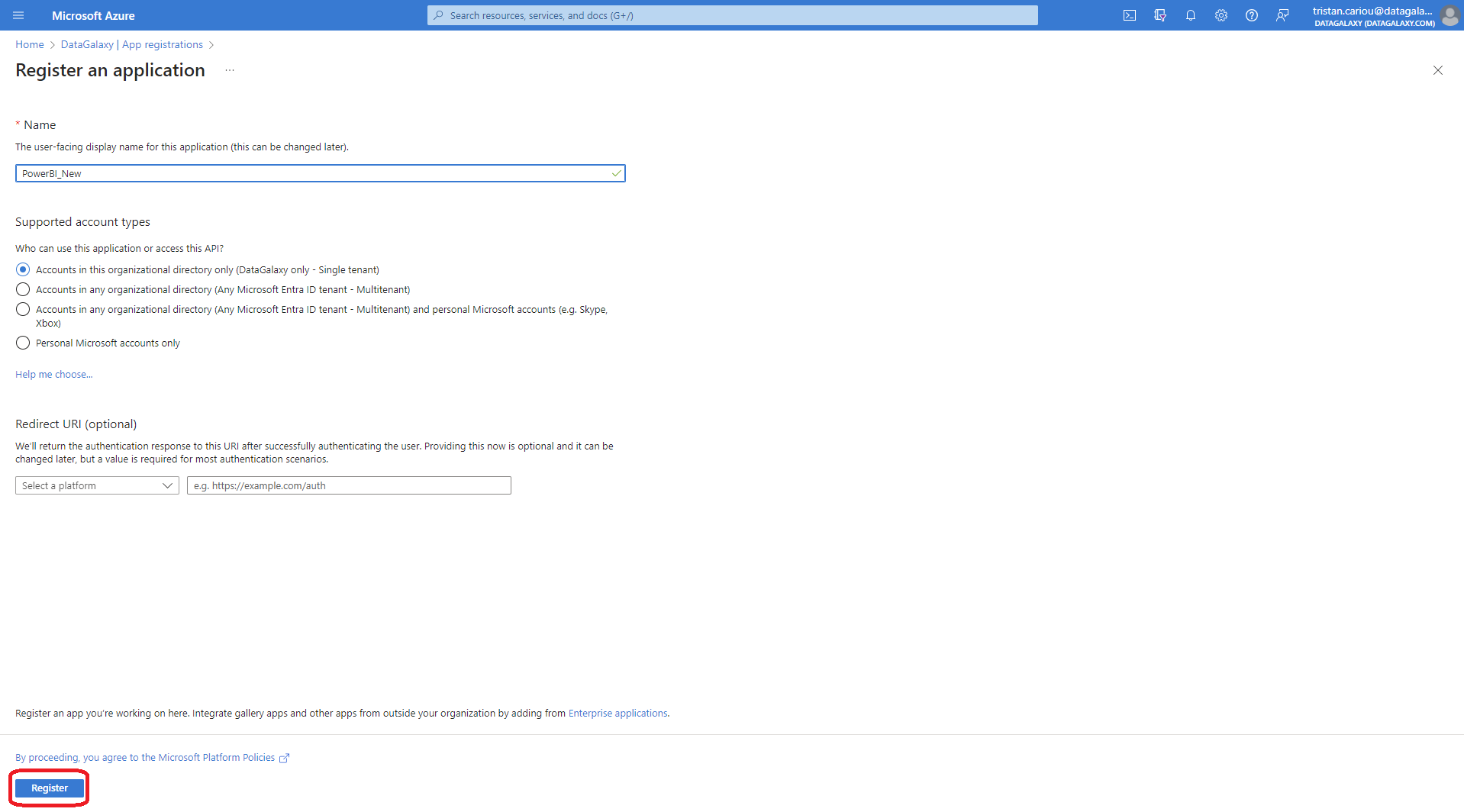
- On the left-hand menu you'll find "App registrations". From here you can choose "+ New registration" (fig. 1) and follow the steps to create your account (fig. 2). Simply fill in the name, and we advise you to stay with the first option in "Supported account types" before clicking on "Register" to finalize the operation.
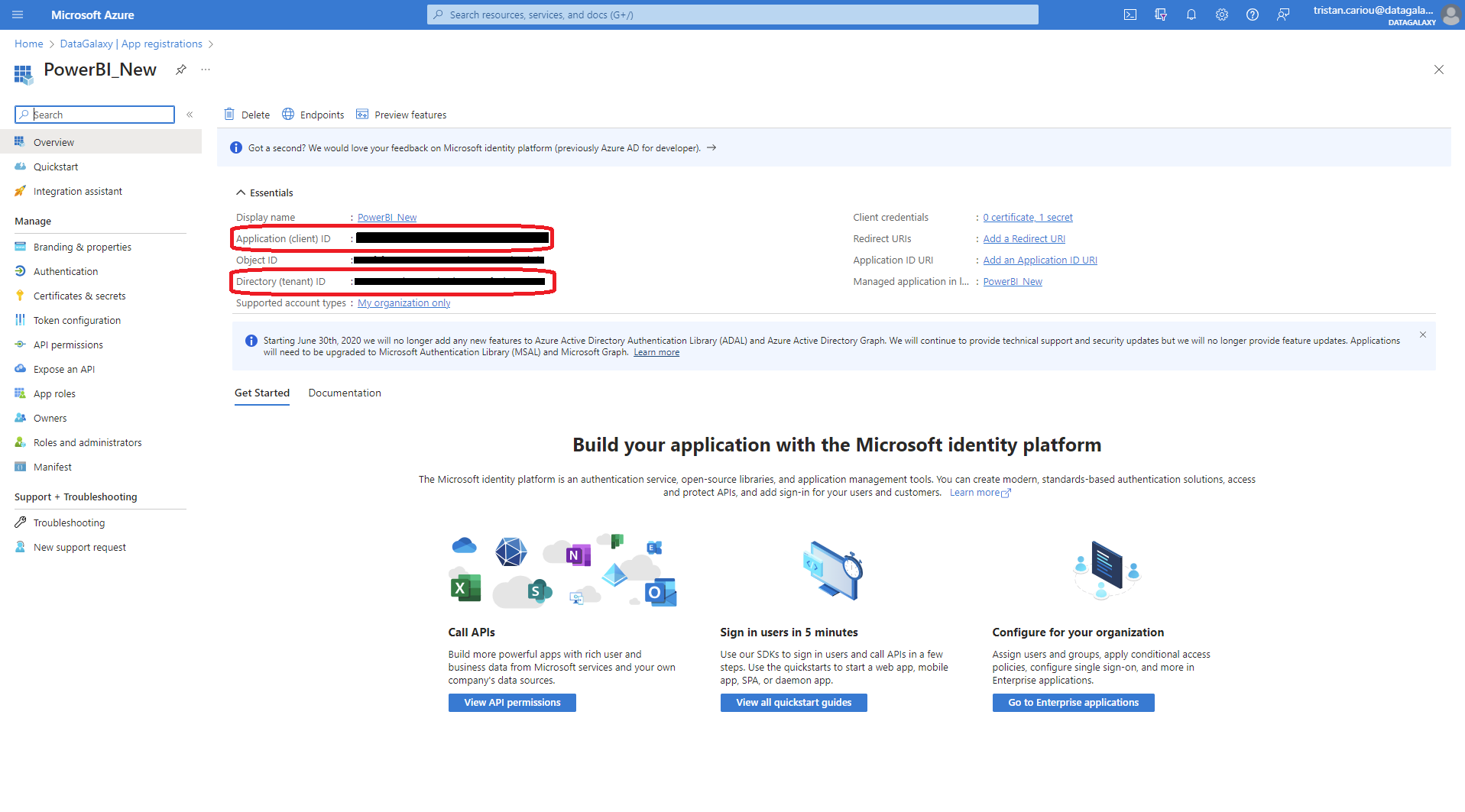
 From the Microsoft Entra ID home page, you can find the application you've created in "App registrations", by going to the "Owned applications" tab or by using the search bar in the "All applications" tab (capture 1). By clicking on your application, you'll land on its "Overview" page, which summarizes all the connection information you'll need later (screenshot 2).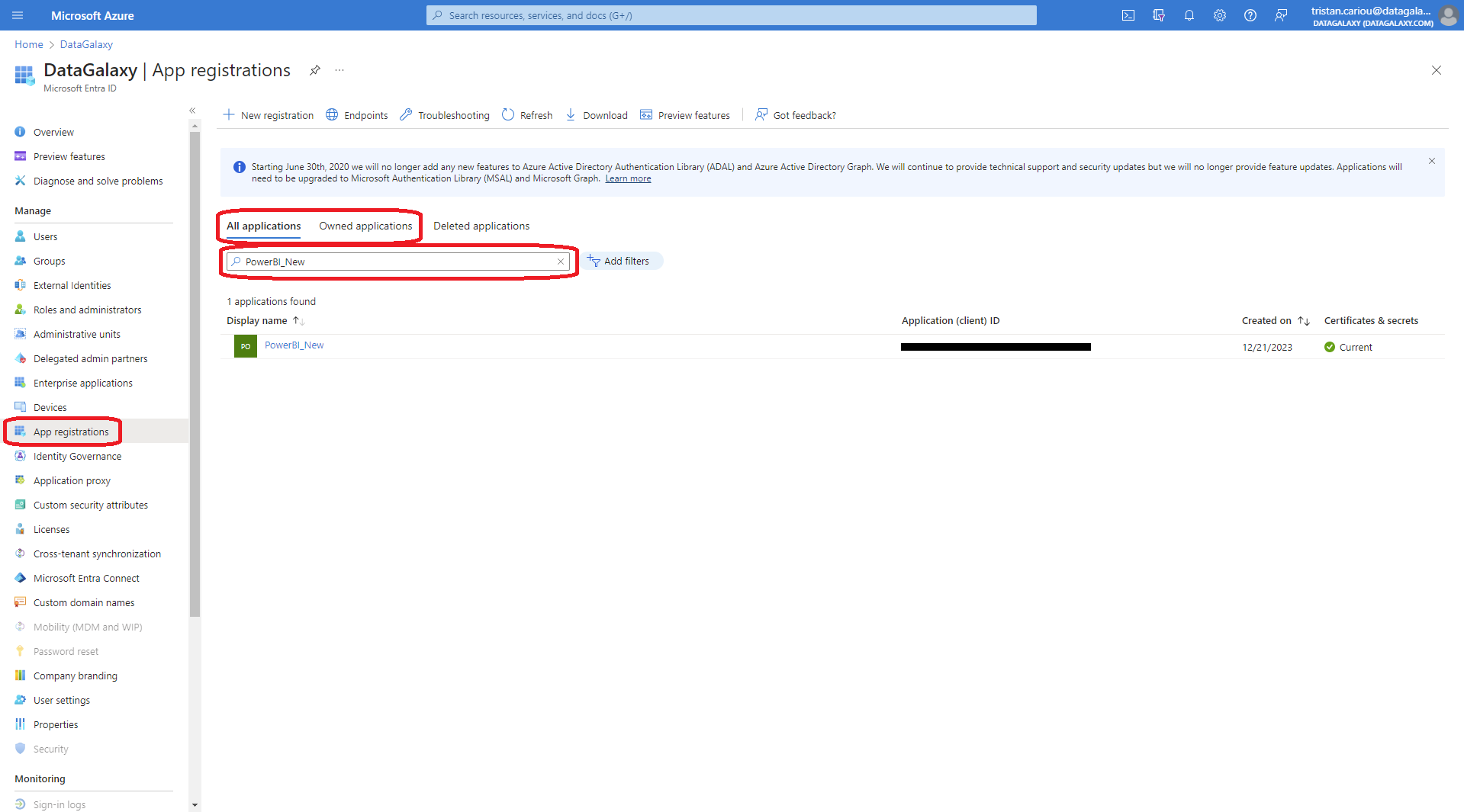
 In addition to the application created in "App registrations", Azure will automatically create an enterprise application, which you can find by going to the "Enterprise applications" tab on the Microsoft Entra ID home page, then typing the name of your application in the search bar. It's this enterprise application that will be added to the group we'll be creating later in the tutorial.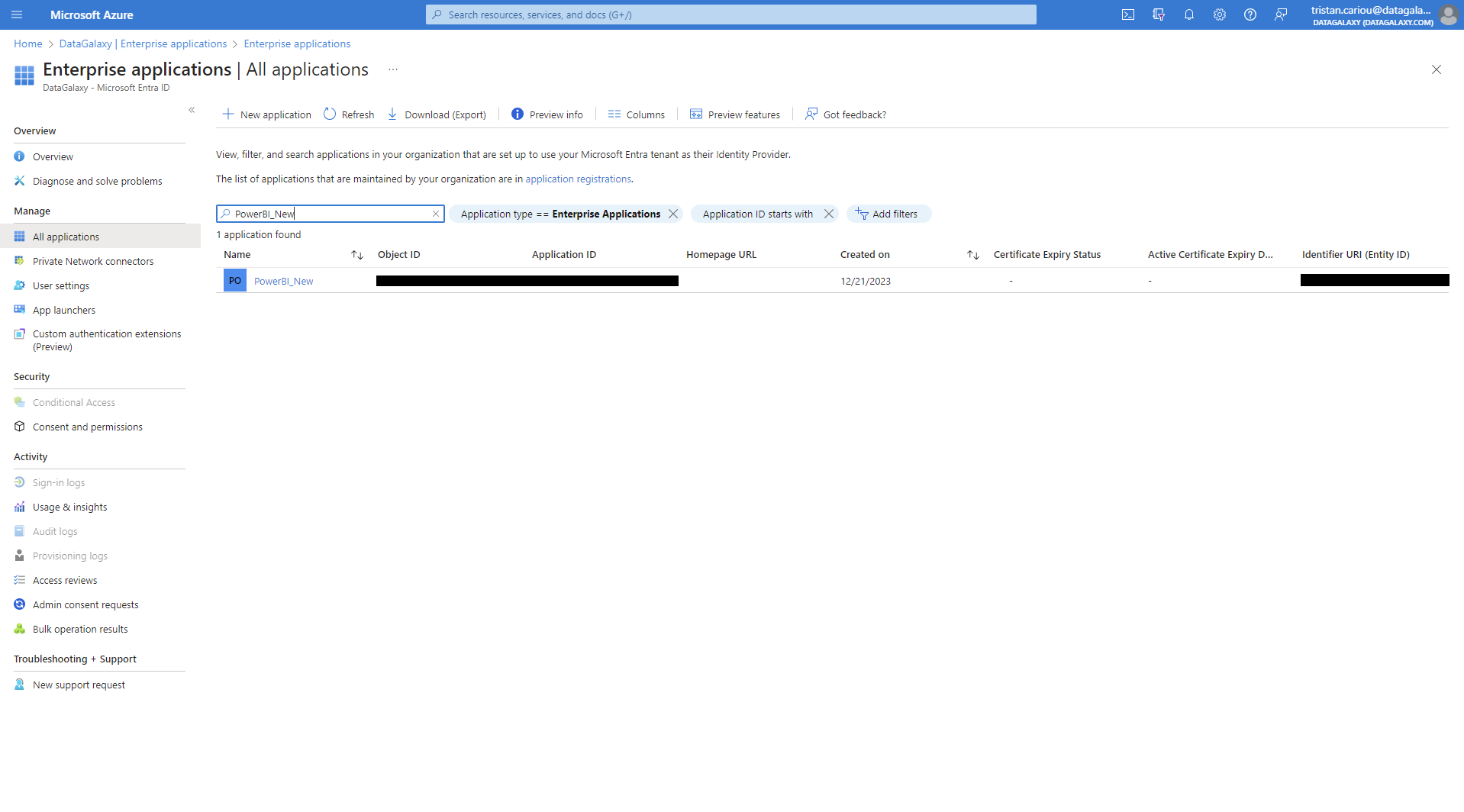
- Once the application has been created, from its dedicated page on the left you'll have access to "Certificates and secrets". From this page you can create a new secret via the "+ New client secret" button (capture 1). Once you've followed these steps, the secret will be created (screenshot 2).
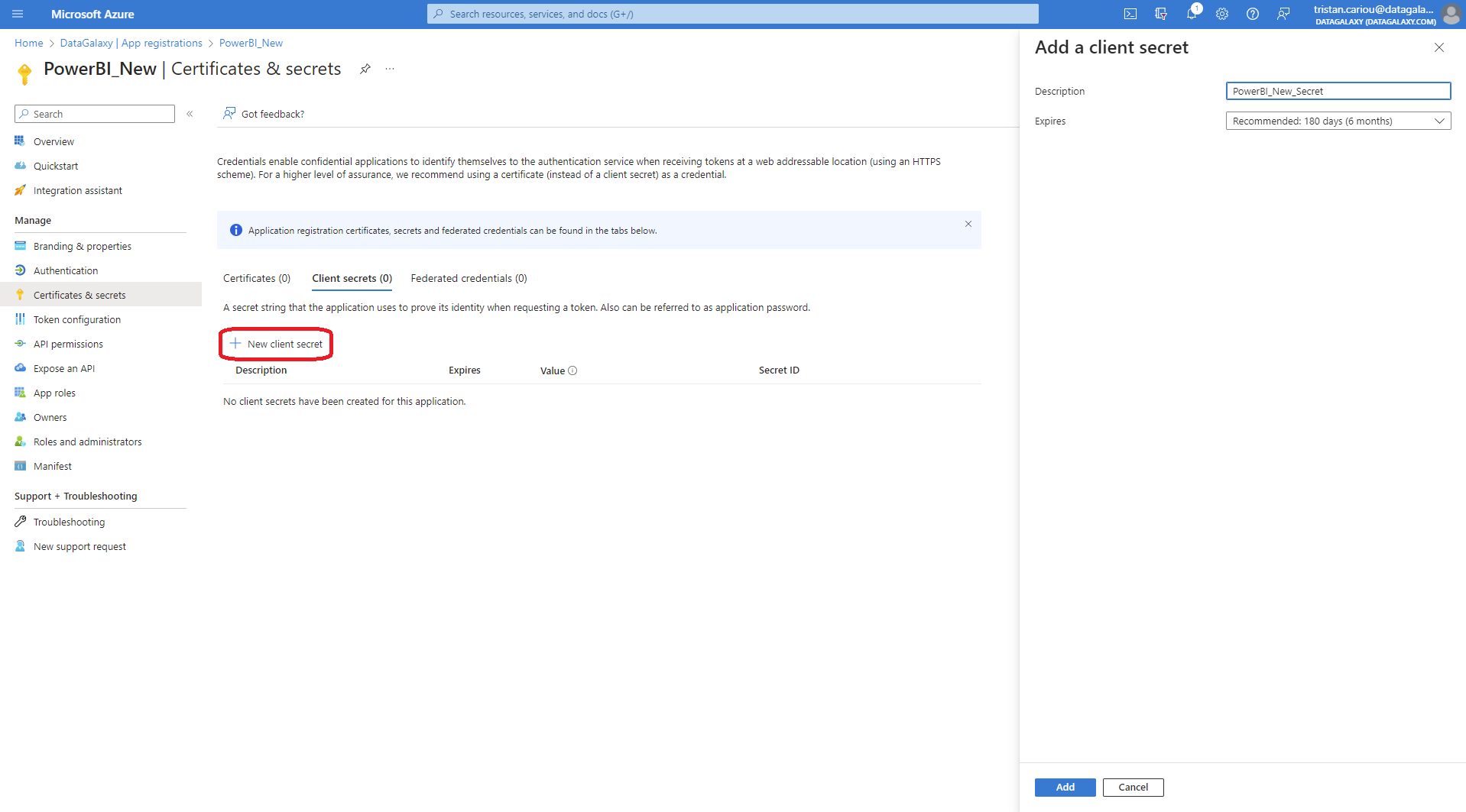
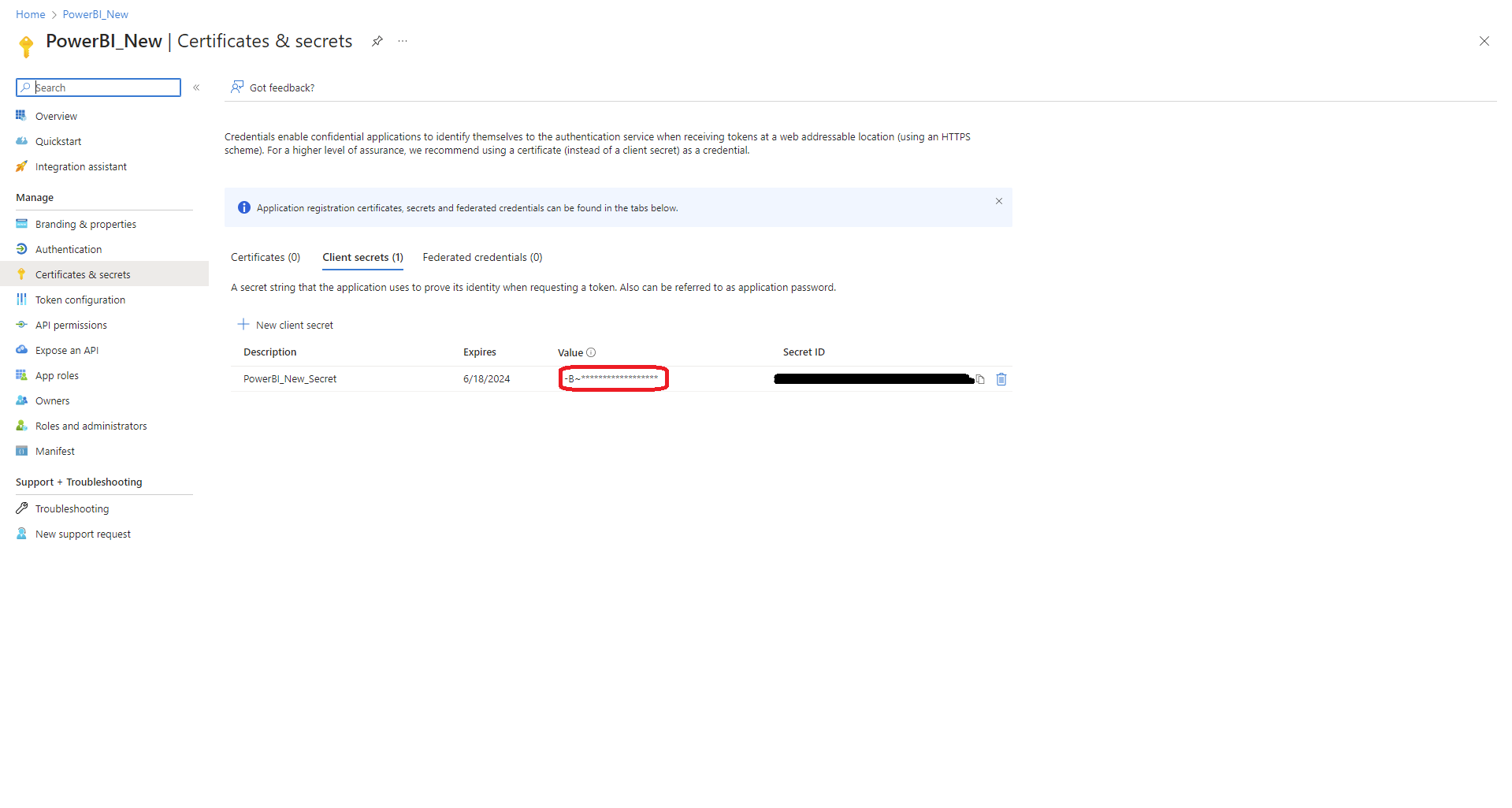 Once you've created a secret, make a note of its value and don't lose it - you only get it once
Create a group
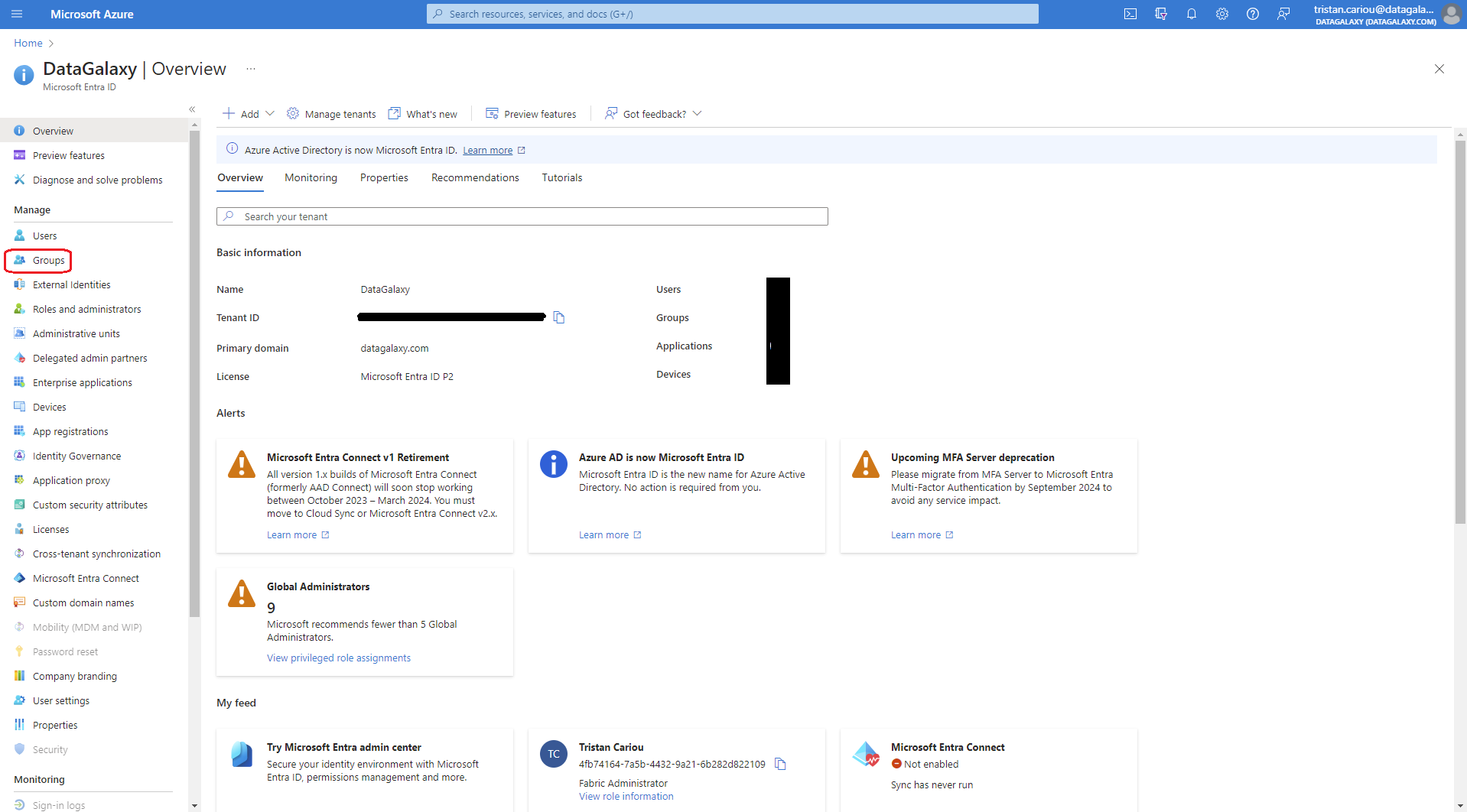
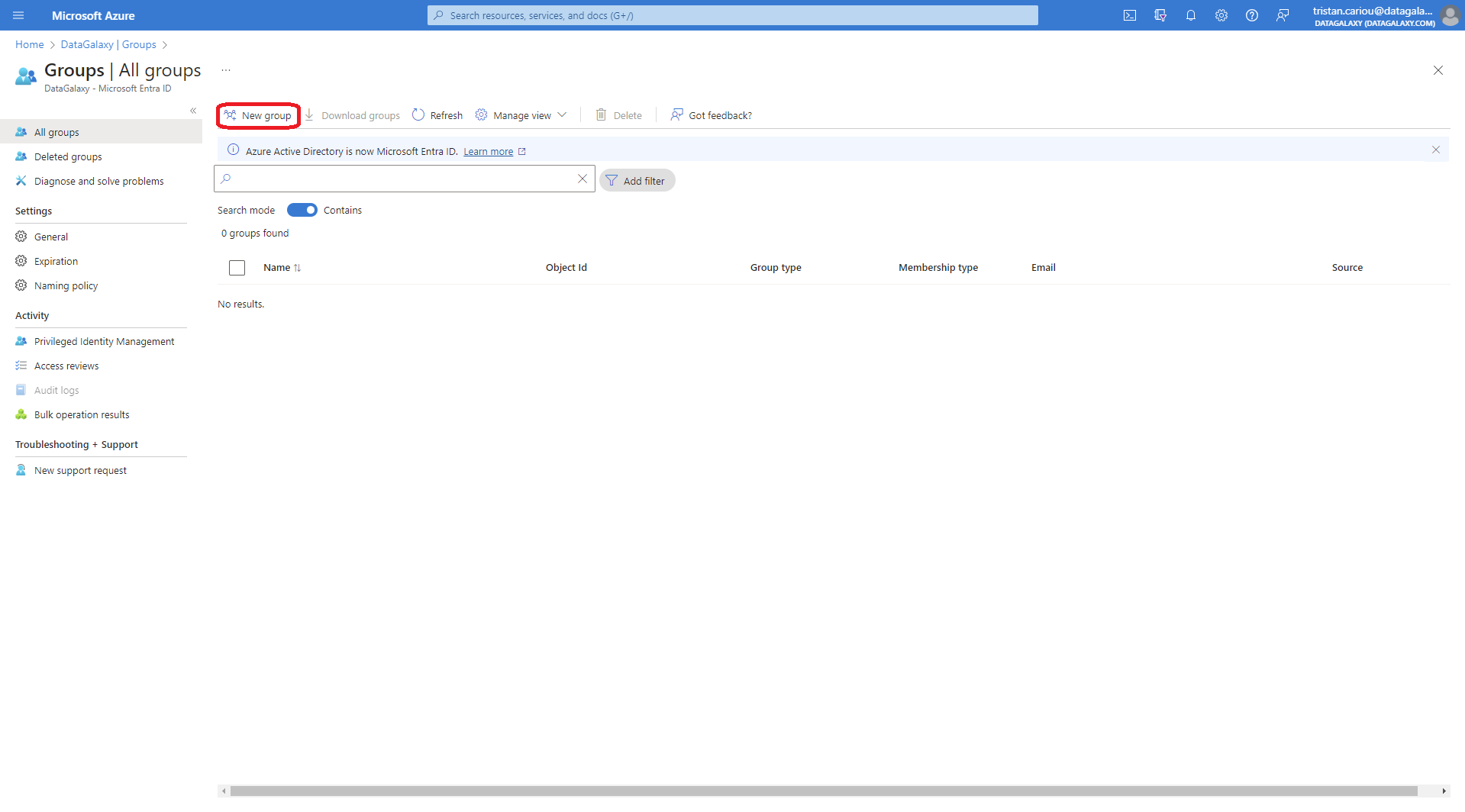
- On the left-hand side of the Microsoft Entra ID home page, you'll find "Groups" (capture 1). Click on it to access the "New group" button (fig. 2)
- Clicking on "New group" will open a new page. You will be able to choose the type (choose "Security") and name of the group before confirming by clicking on "Create" (capture 1). Once creation has been confirmed, the group will be visible (filter using the search bar if necessary) (capture 2)
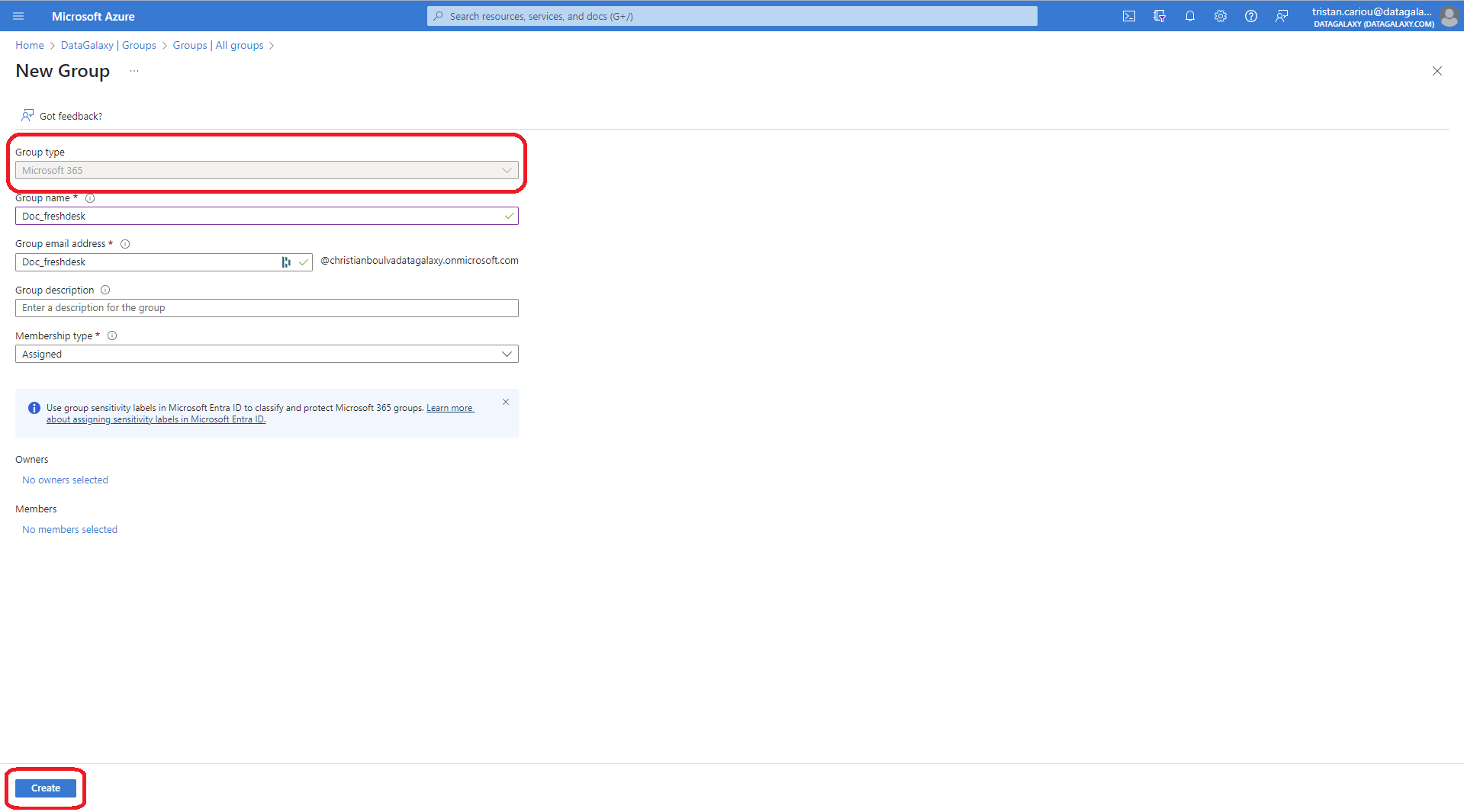 If you don't create a "Security" group, you won't be able to add your enterprise application to it later
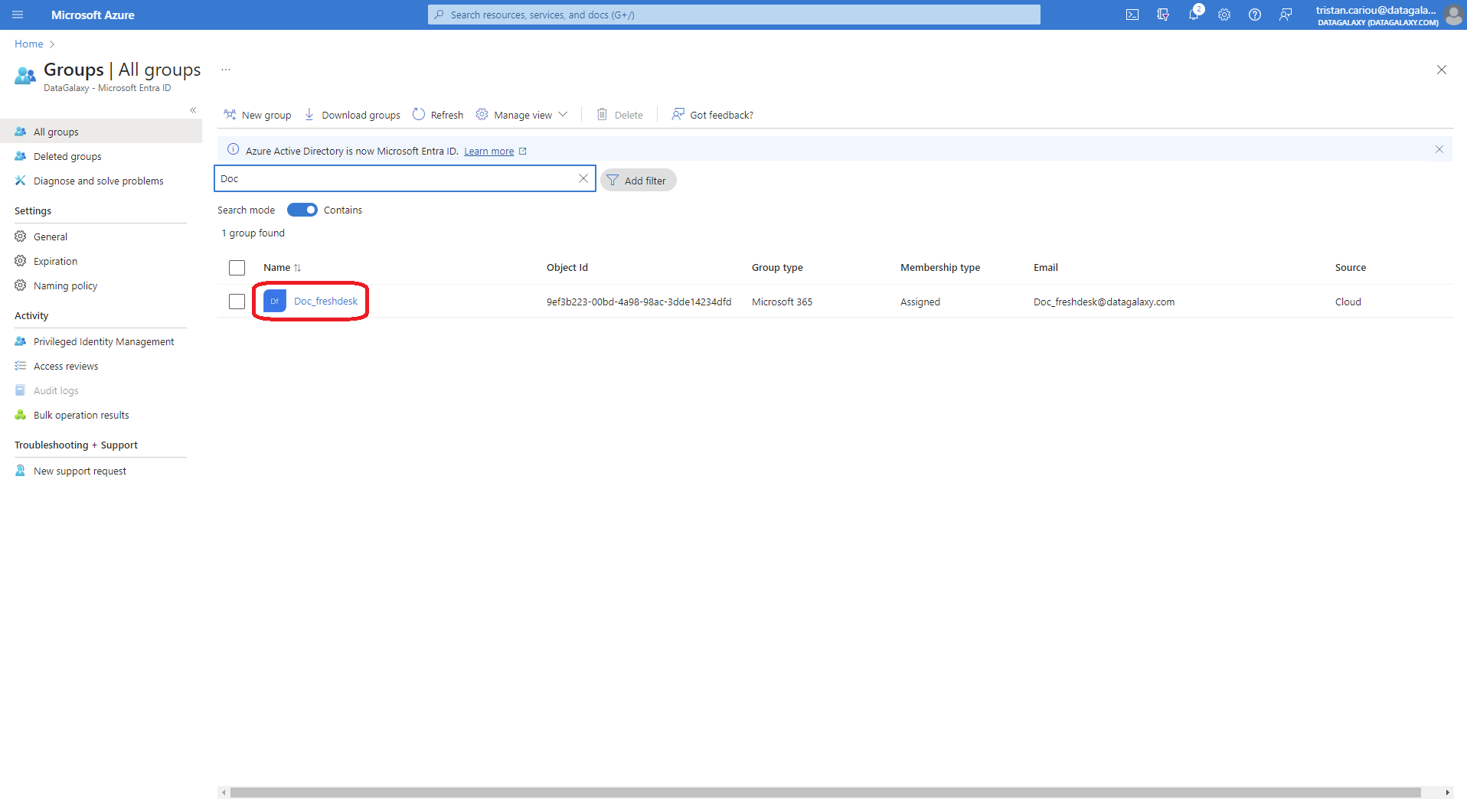
Adding our application to this group
- To do this, from the previous window click on the newly created group ("Doc_freshdesk" here). This will take you to the page summarizing the group's characteristics. From here, select the "Members" option on the left, which will open the page dedicated to managing members
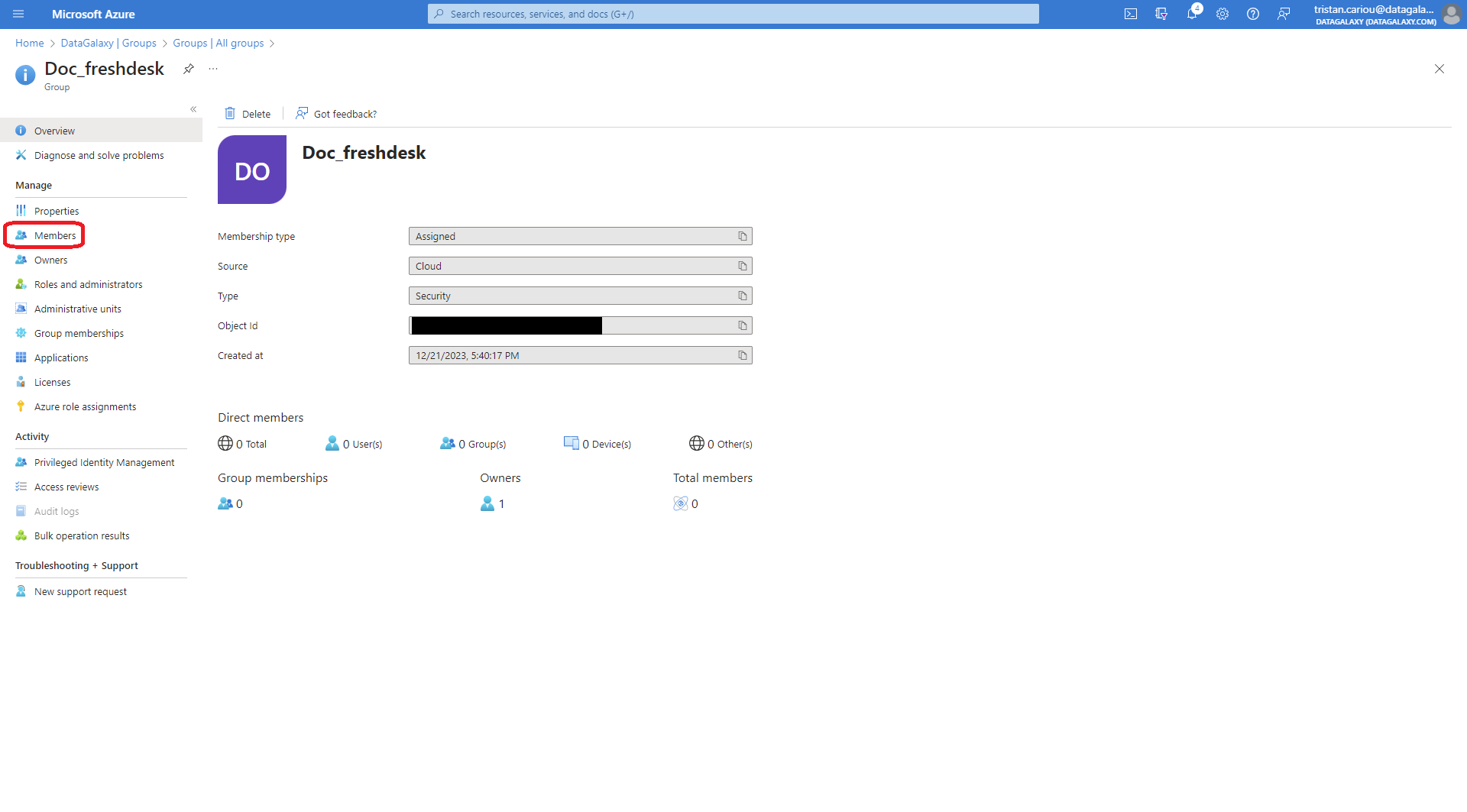
- From this member management page, you'll need to do the following:
- click on the "+ Add members" button to add a member
- type into the search bar on the right the name of the enterprise application you created earlier ("PowerBI_New" here)
- add it by checking the box to the left of the name, then clicking on the "Select" button at the bottom of the page
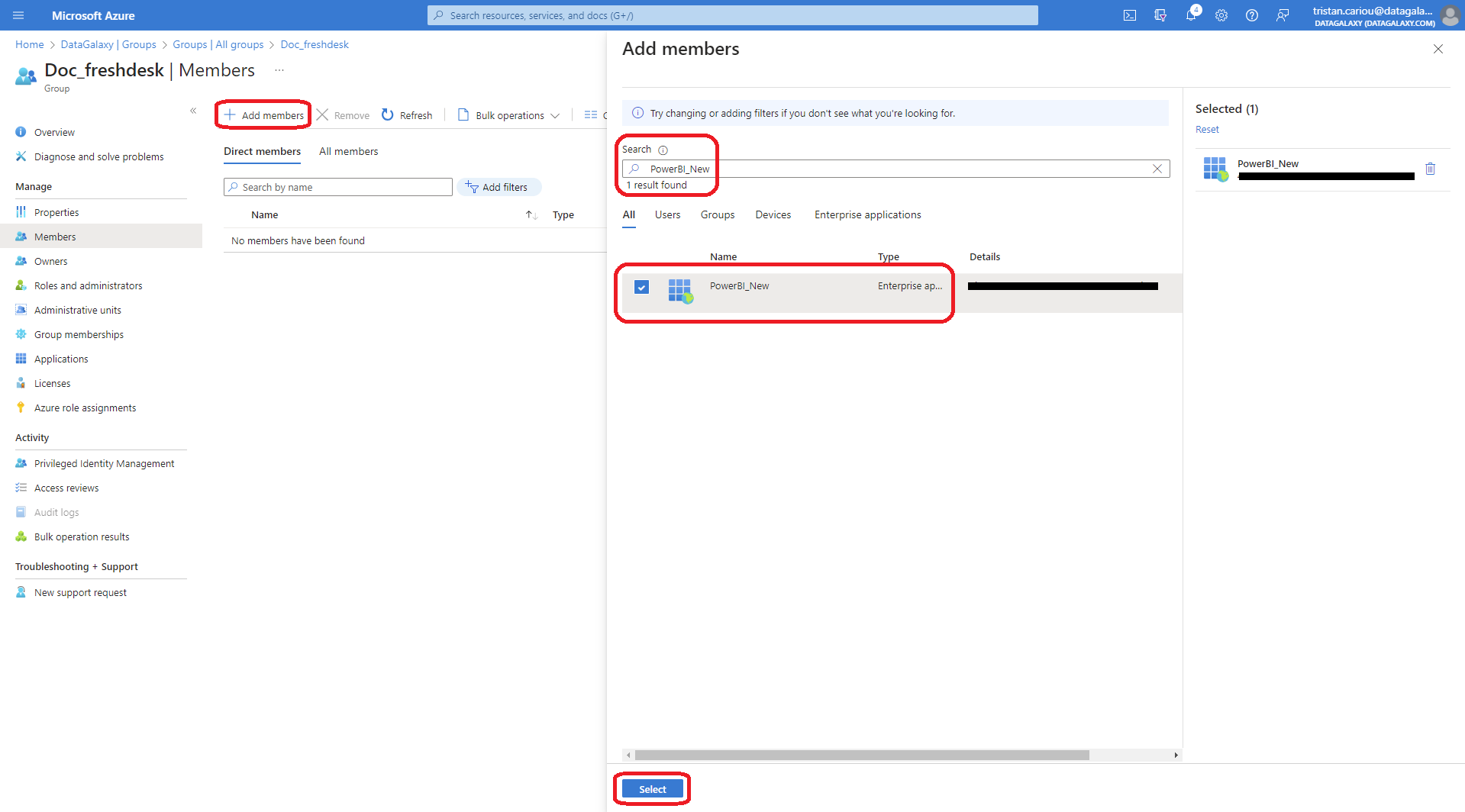 As mentioned earlier, if the group ("Doc_freshdesk" here) is not of type "Security" you won't be able to find your enterprise application, even by typing its name in the search bar ("PowerBI_New" here)
Once these steps have been completed, the procedure to be followed will differ according to the type of import you wish to perform.
Grant permissions for the Non-admin API
To import via the Non-admin API, 2 additional configuration steps are required:
- Authorize your group to access the Non-admin API (Power BI)
- Authorize your group to access a given workspace (Power BI)
Authorize your group to access the Non-admin API (Power BI)
This step has to be done by a Power BI Administrator.
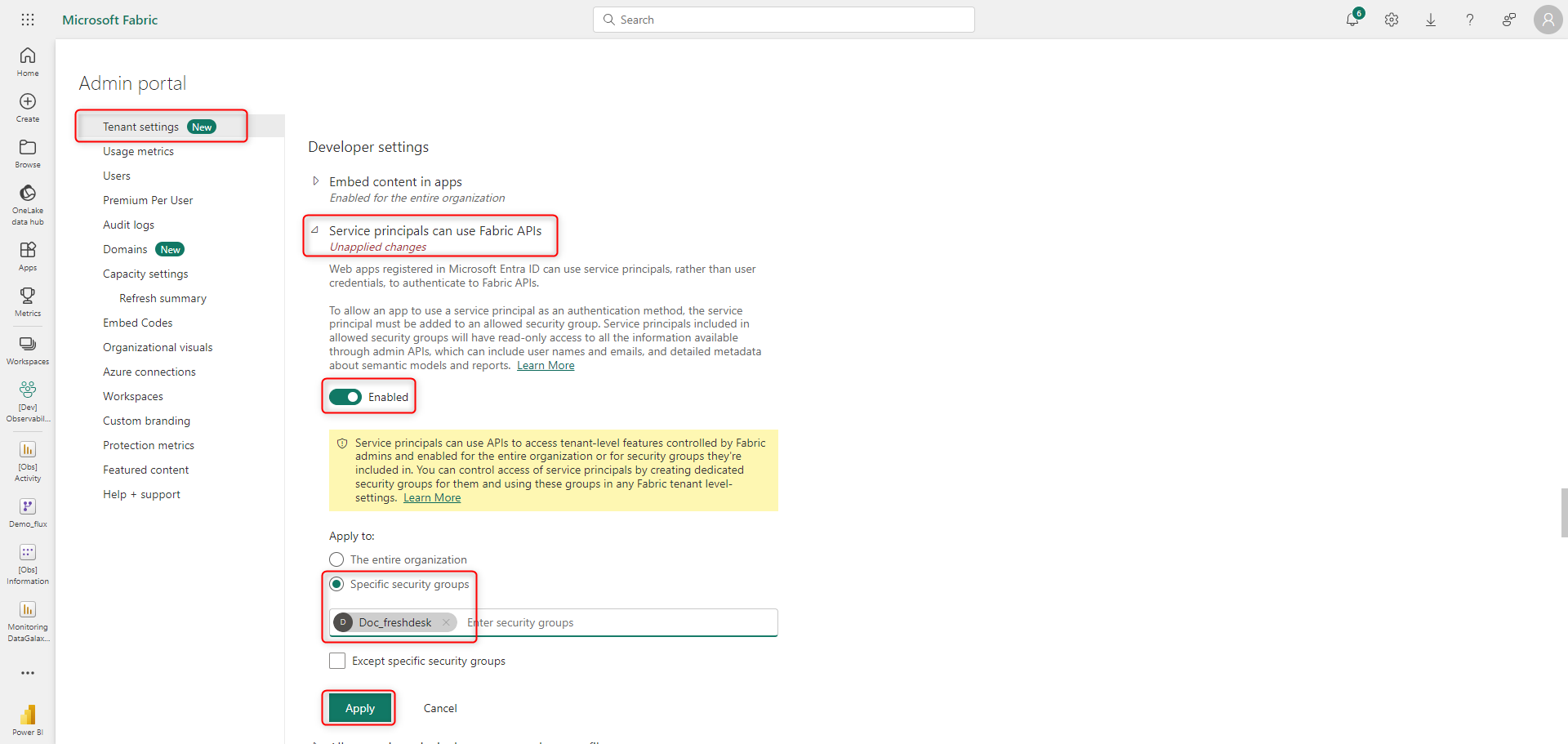
- to begin, access the administration portal by selecting "Settings" in PowerBI, then "Admin portal"
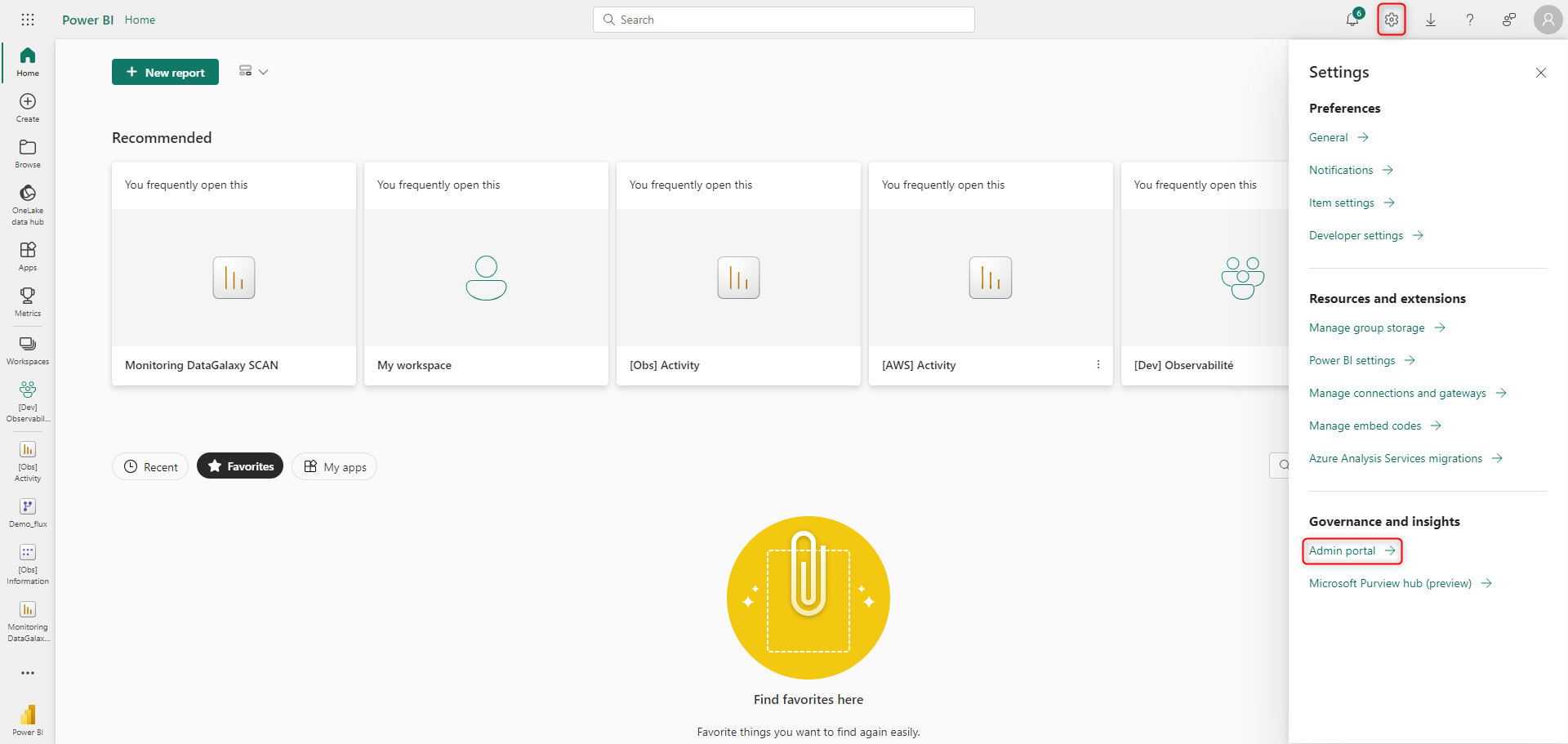 If "Admin portal" does not appear, you do not have sufficient authorizations on your PowerBI account
- from the newly opened window, perform these 3 operations:
- select "Tenant settings
- scroll down until you find "Developer settings"
- deploy "Service principals can use Fabric APIs"
- activate the option if necessary
- apply this to specific security groups
- add the group you've created for the occasion ("Doc_freshdesk" here)
- complete the operation by clicking on "Apply"
Authorize your group to access a given workspace (Power BI)
The rest of the operation will take place directly in your Power BI workspace. For each workspace whose information you wish to upload to DataGalaxy, you will need to perform the following actions:
- from the home screen, click on "Workspace", then choose the workspace for which you want to retrieve information ("[Dev] Observability" here)
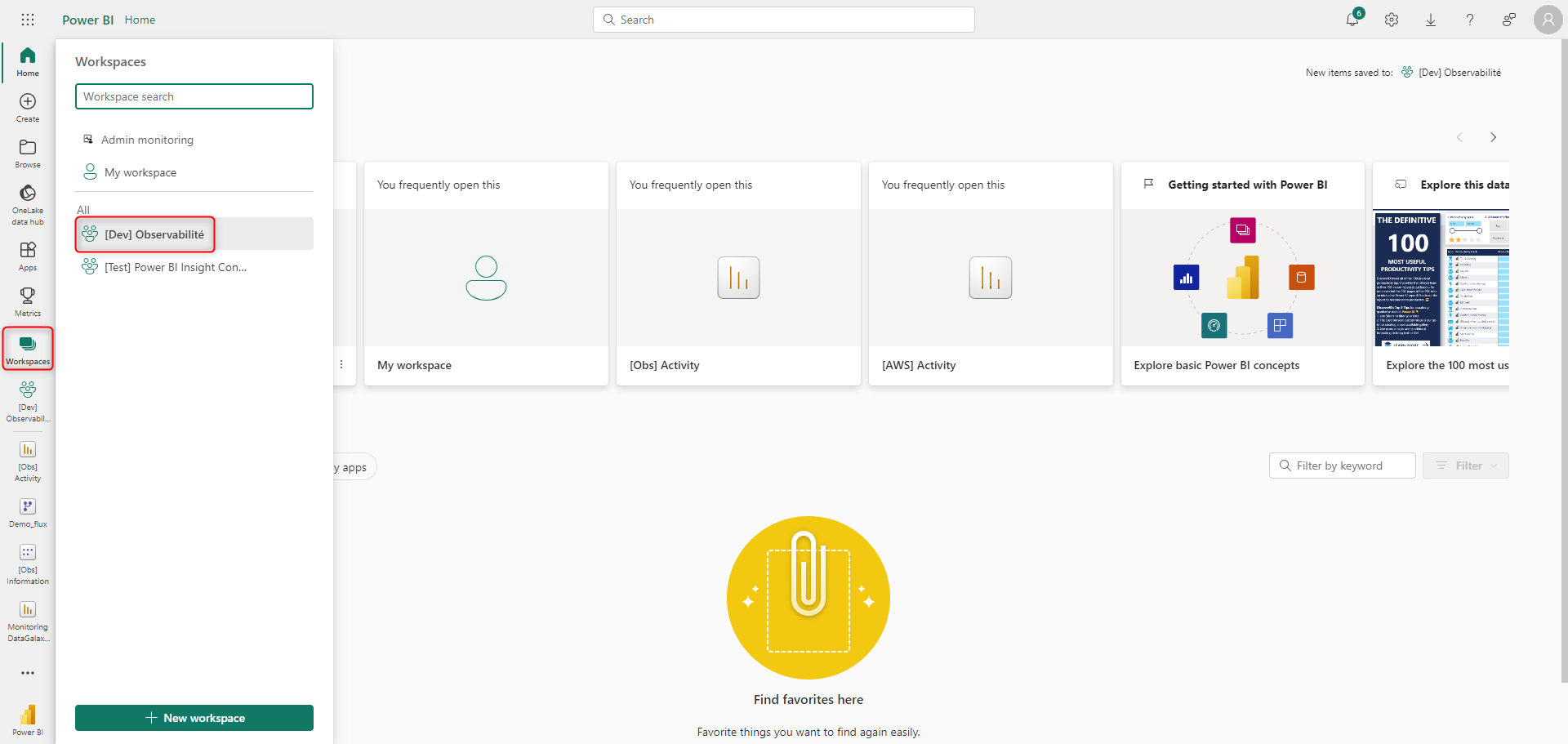
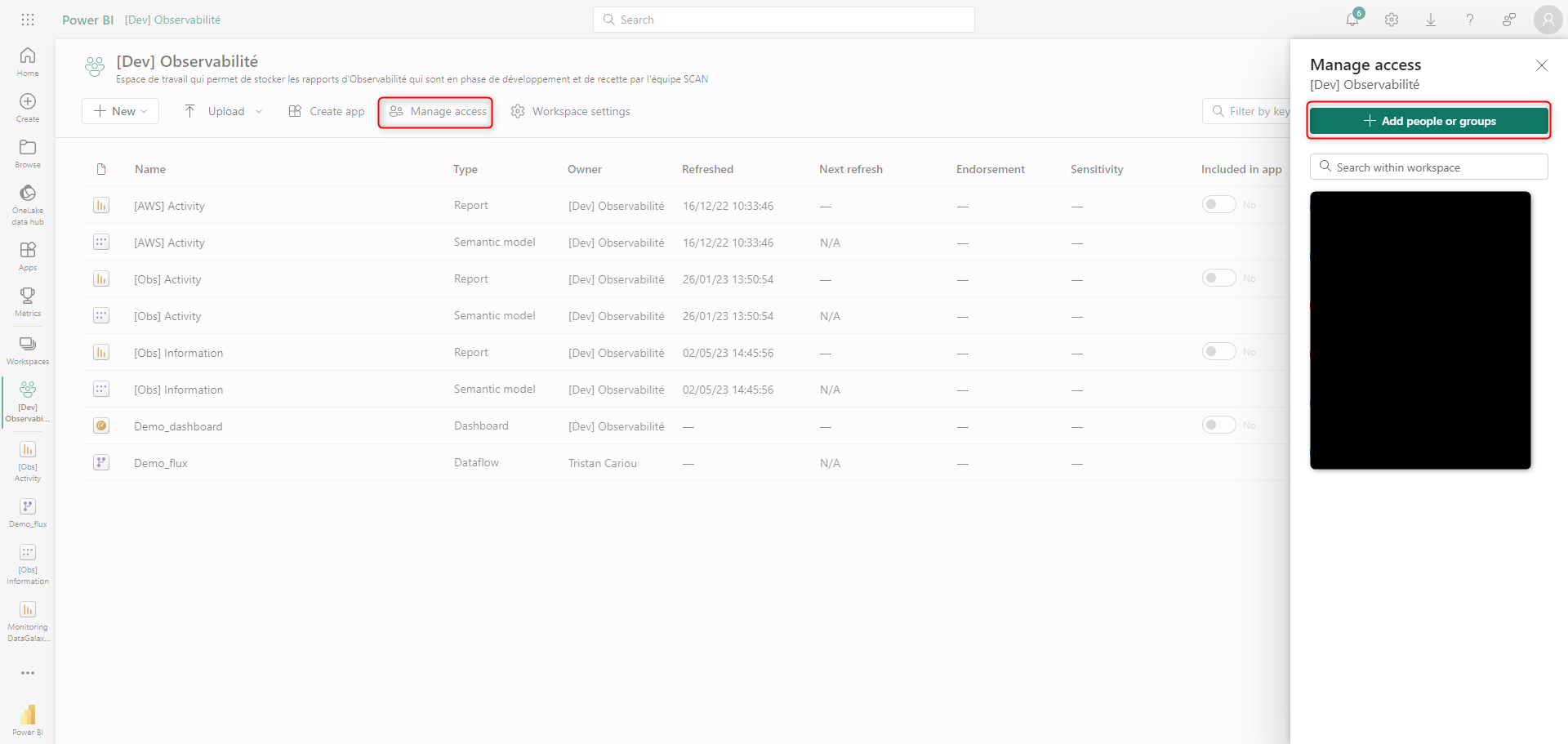
- once on the workspace screen, click on "Manage access". This will open a window on the right, from which you can select "+ Add people or groups"
- from here you can type into the search bar the name of the group previously created in Microsoft Entra ID ("Doc_fresdesk" here), then add it as Viewer
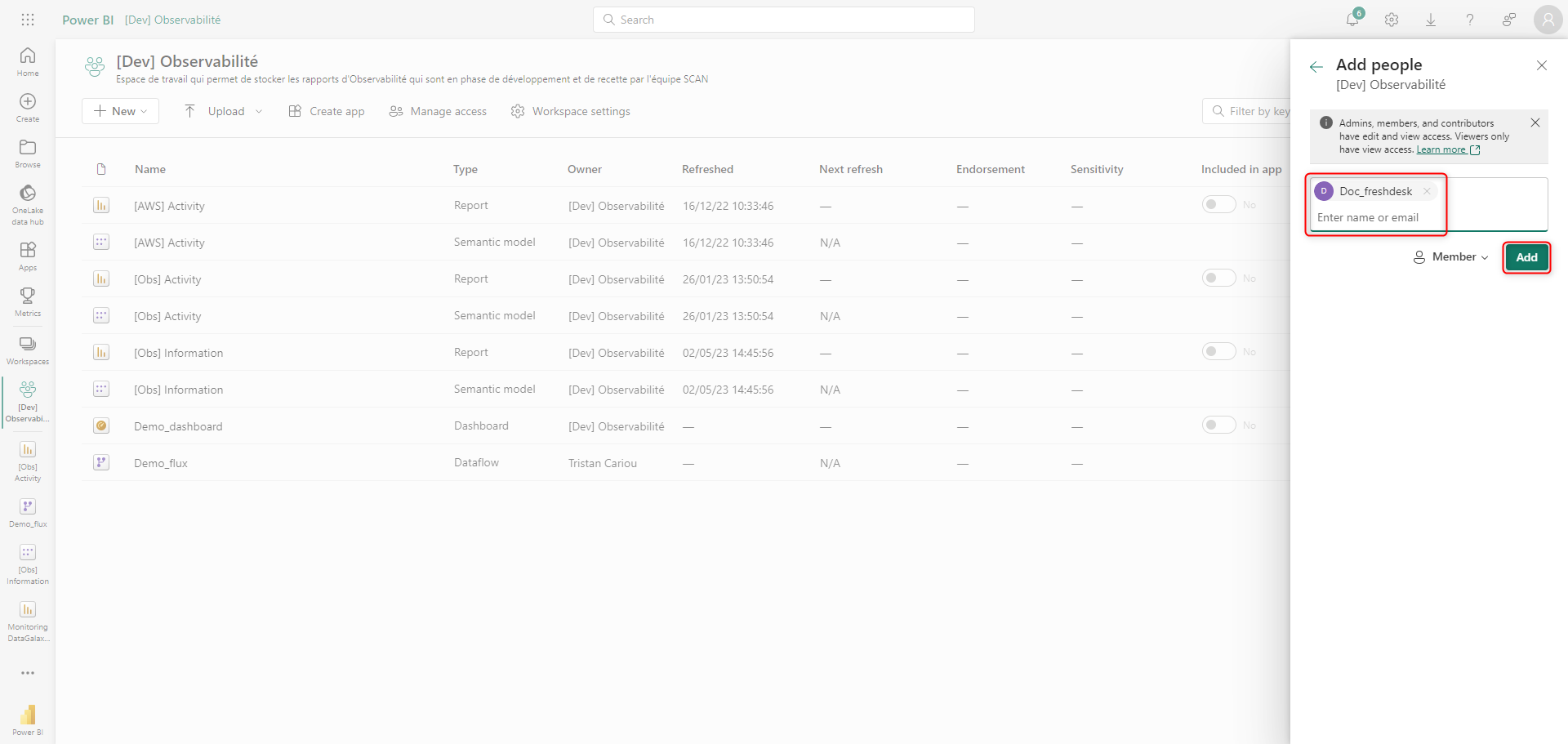
- the group is now a member of the workspace and will have access via the Non-admin API
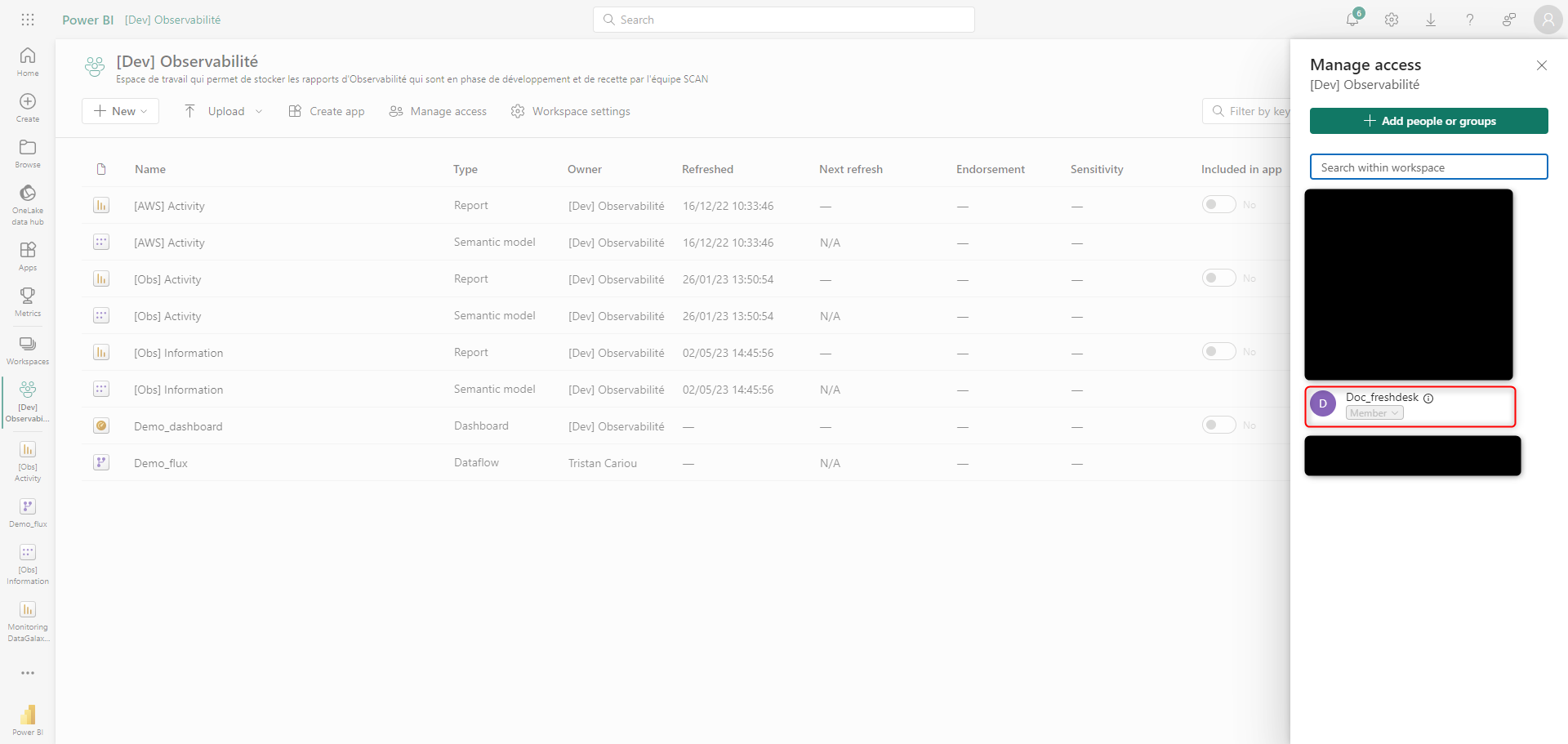
That's it, by using the DataGalaxy connector you'll now cover the "Non-admin API" perimeter of the connector.
Grant permissions for the admin API
This step has to be done by a Power BI Administrator.
To import via the admin API, the configuration steps are simpler. Simply authorize your group to access the admin API via Power BI.
To do so, simply:
- access the admin portal by selecting "Settings" in PowerBI, then "Admin portal"
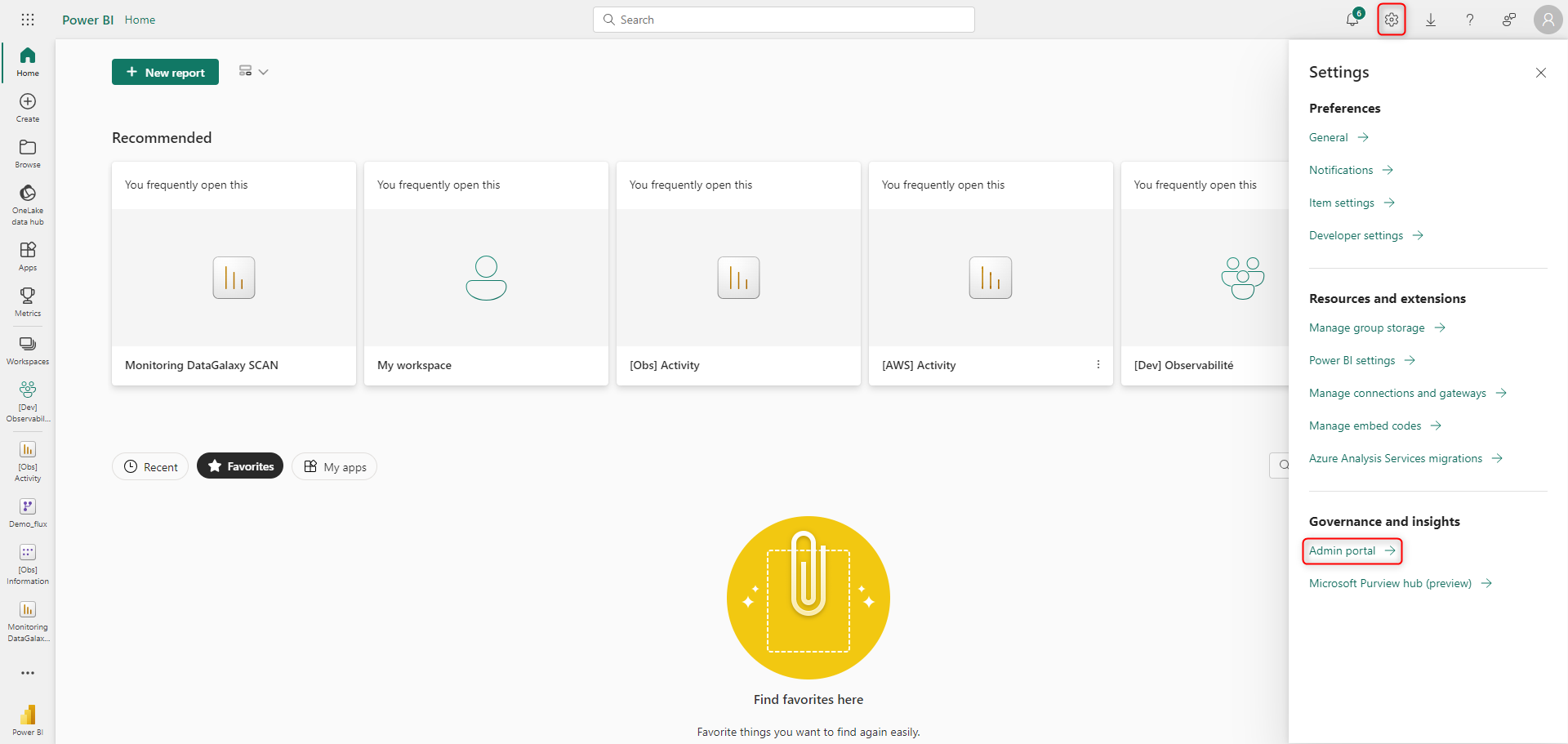 If "administration portal" does not appear, you do not have sufficient authorizations on your PowerBI account
- from the newly opened window, perform these 3 operations:
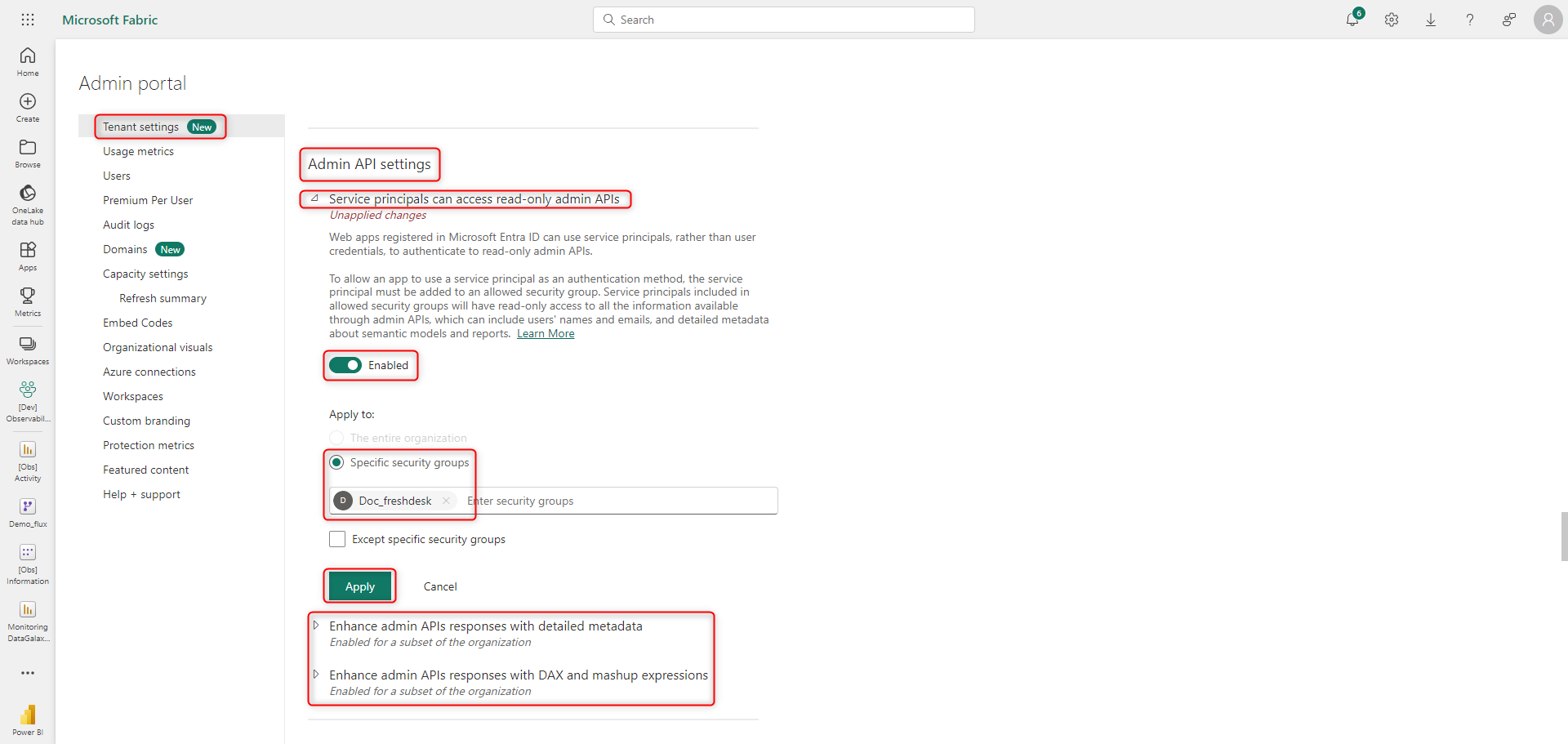
- select "Client settings
- scroll down until you find "Admin API settings"
- for each of the 3 settings present ("Service principals can access read-only admin APIs", "Enhance admin APIs responses with detailed metadata" and "Enhance admin APIs responses with DAX and mashup expressions") perform the following actions:
- deploy the tab
- activate the option if necessary
- apply this to specific security groups
- add the group you've created for the occasion ("Doc_freshdesk" here)
- complete the operation by clicking on "Apply".
Details for "Service principals can access read-only admin APIs":
Details for "Enhance admin APIs responses with detailed metadata":
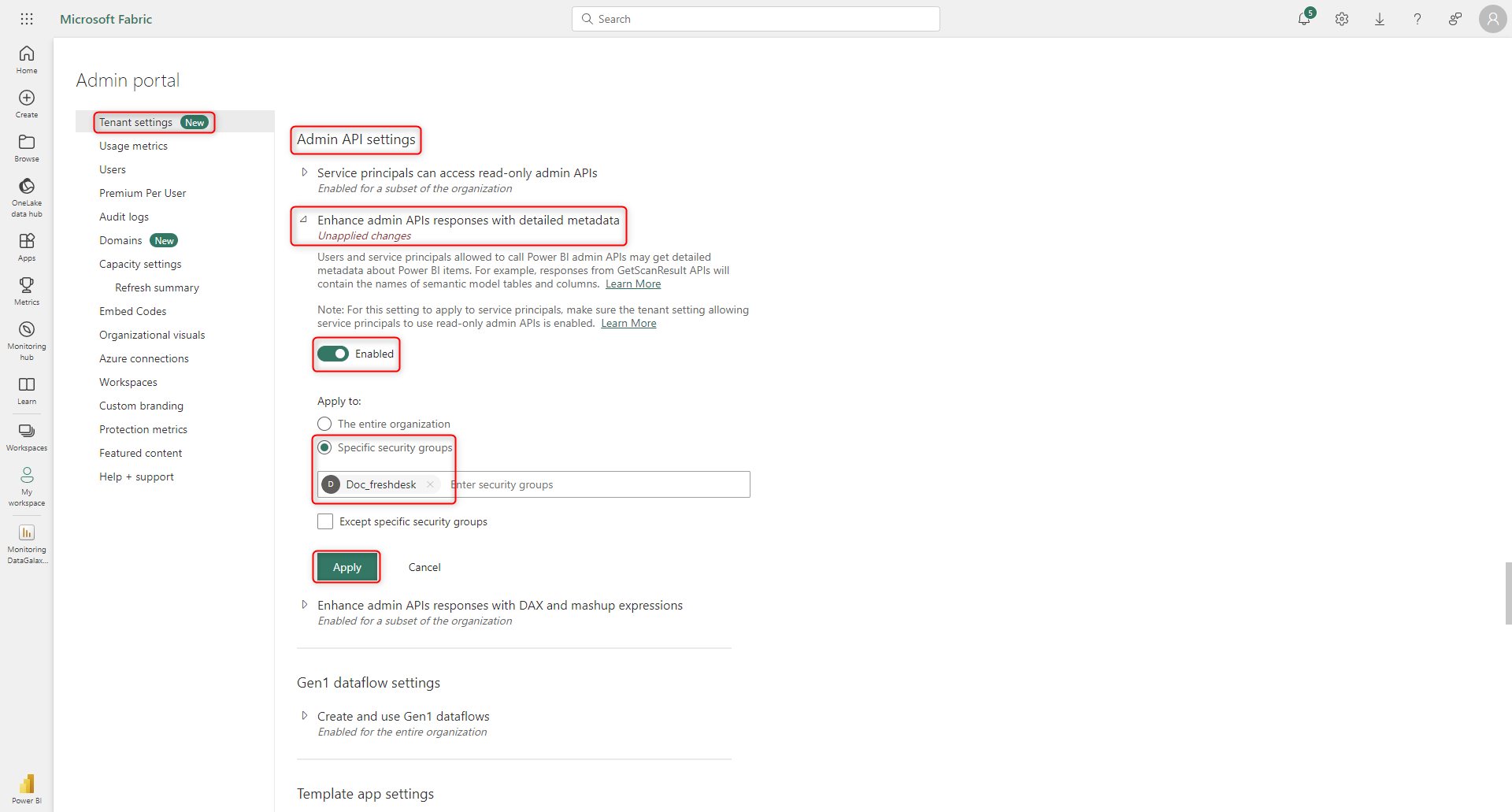
Details for "Enhance admin APIs responses with detailed metadata" and "Enhance admin APIs responses with DAX and mashup expressions"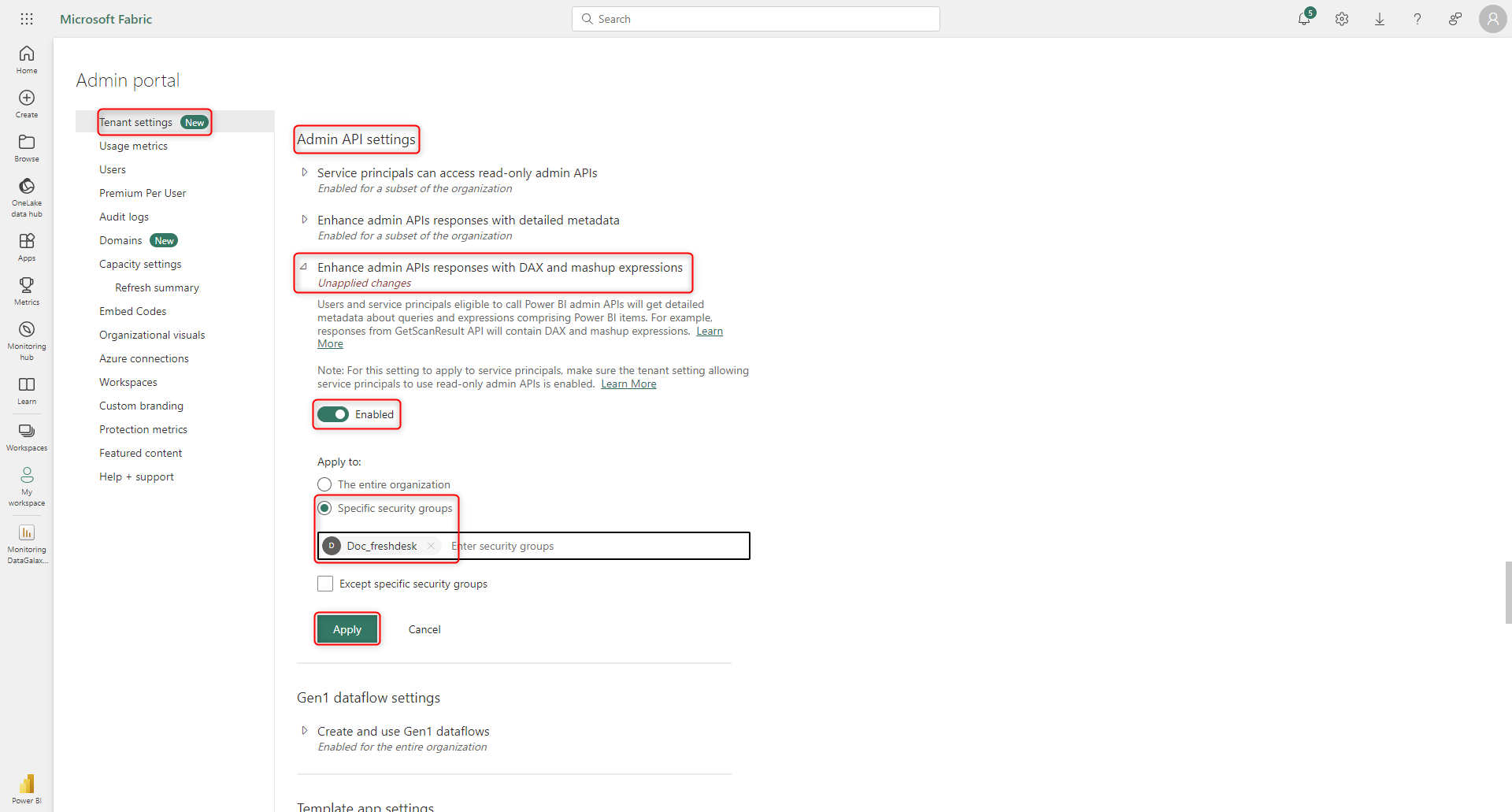
Now, using the DataGalaxy connector, you can cover the "API admin" perimeter of the connector.
On the DataGalaxy side
The following information is expected to set up a connection:
| Parameter | Mandatory | Description |
|---|---|---|
| Tenant Id | Yes | Azure tenant identifier |
| Client Id | Yes | Azure service account identifier |
| Root application name | Yes | Root application name in the DataGalaxy Usage module, which will be used to store all Power BI objects. If the application does not exist, it will be created during the import. |
| Client Secret | Yes if using Online Connector or using Desktop Connector with authentication mode set to Secret | Client secret |
| Username | Yes if using Desktop Connector and authentication mode set to User account | User name |
| Password | User password | |
| Certificate in PEM format (.cert, .perm, .cer) | Yes if using Desktop Connector and authentication mode set to Certificate | The Desktop Connector allows you to perform a Certificate authentication. The following article explains how to generate certificate and the private key needed for this authentication mode: Microsoft identity platform application authentication certificate credentials |
| Private key in PEM format (.key) | ||
| Import Apps | No | Use this option to import your worspace's applications |
| Create URLs for Apps | No | Use this option to let the connector forge the URL of your App objects in the corresponding attribute in DataGalaxy |
| Use the URL of App for Reports and Dashboards embedded into an App | No | Use this option if you want your users to access to the Reports and Dashboards through the App and not with the direct URL of the objects, for instance if you manage permissions at App level. |
| Ignore hidden fields | No | Use this option to ignore the hidden fields of your reports |
| Get lineage from Power BI data sources | No | Use this option to generate lineage between your Power BI objects |
| Workspace | No | Limit the scope of extraction to a list of workspace names. If the name of your workspace contains a comma, please surrond it with " (example: "[Exemple] Connectors workspace, with comma") |
From Standard to URN mode
Differences
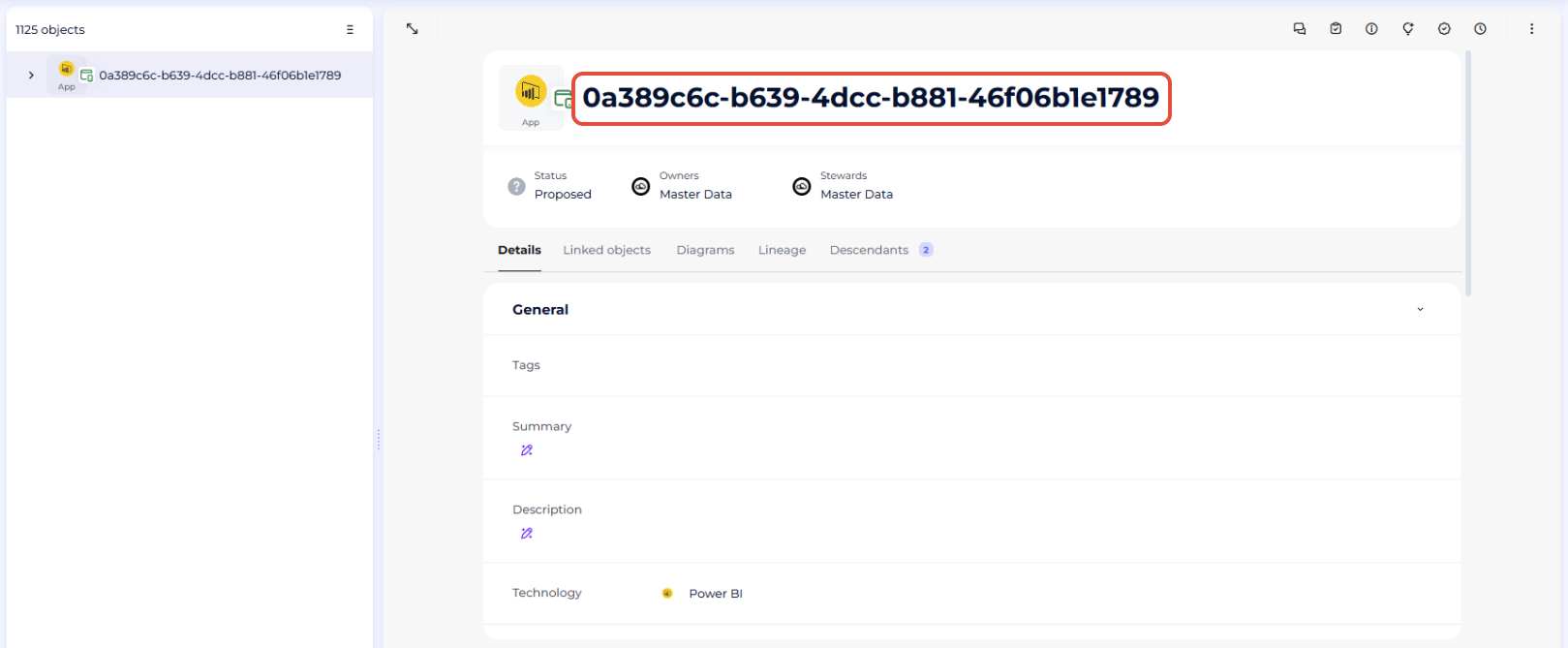
In Standard mode, the name of your root object will be the one you give it when you create the connection (or the root object of the Usages module you target). In URN mode, the default name of the root object will be the tenant id used when setting up the connection (please note that you can change the functional name of this root object to a more meaningful name, it will not be overwritten by the connector).
- Standard mode
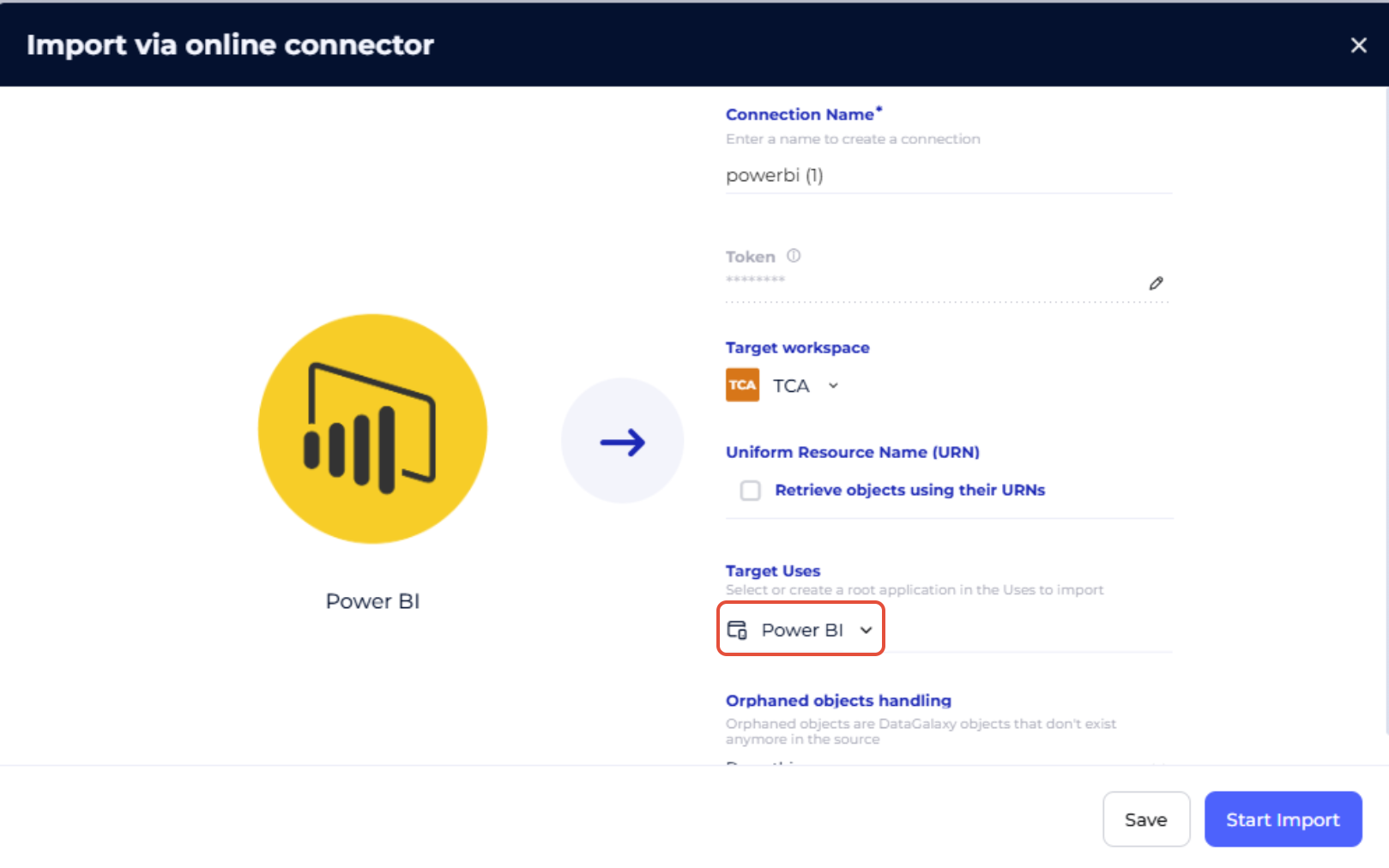
- URN mode
Migration guide
The aim of this guide is to show you how to switch your root object and all the PowerBI objects it contains from Standard mode to URN mode. Once you've completed these steps, you'll be able to perform all your future imports in URN mode and take advantage of the new features associated with this mode.
- If it's not already done, add the URN attribute to the object screens of Usages module objects.
- Associate with your root object the right URN
- Regarding this, we advise you to follow these steps in order to avoid any error:
- Perform a new import in URN mode, which will create a new root object for which the URN attribute will be filled
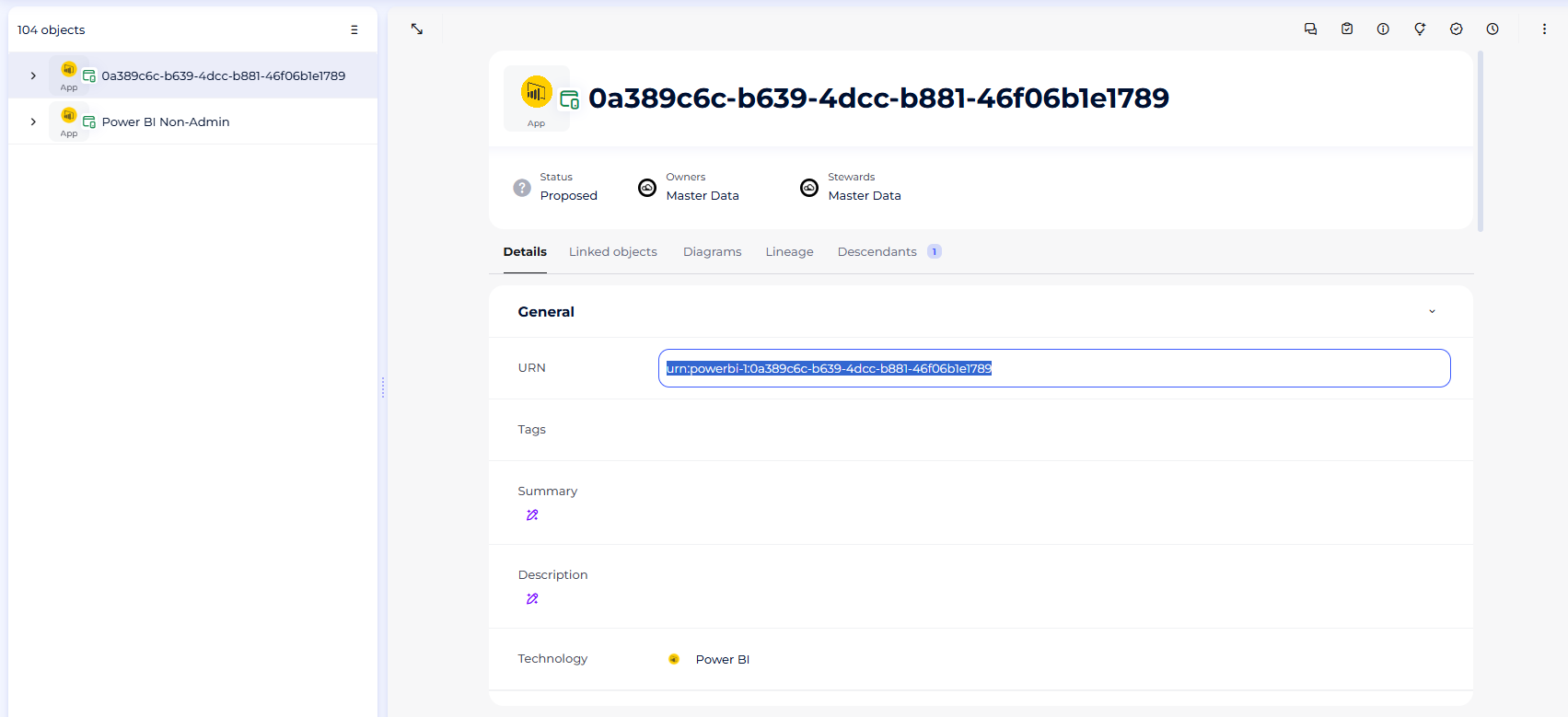
- Copy the URN attribute
- Delete the root object and all its children that you just imported in URN mode (since a URN must be unique, if you do not delete this root object before trying to assign its URN to another object, the platform will return an error)
- Paste the URN in order to fill the URN attribute field from your root object that is still in Standard mode
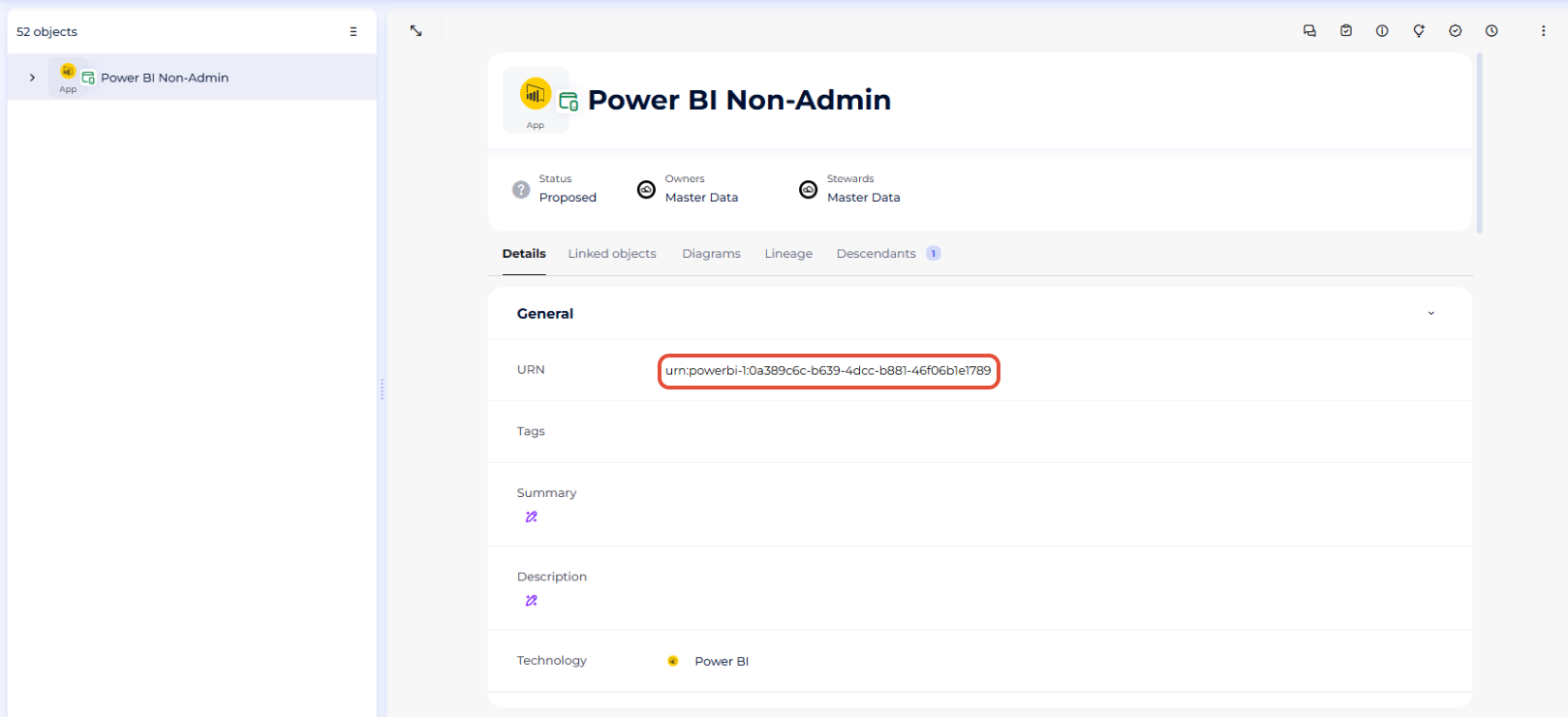
- Perform a new import in URN mode, which will create a new root object for which the URN attribute will be filled
- Regarding this, we advise you to follow these steps in order to avoid any error:
- Do a final import in URN mode
- This time all the URN attributes from the child objects under your root object should be filled
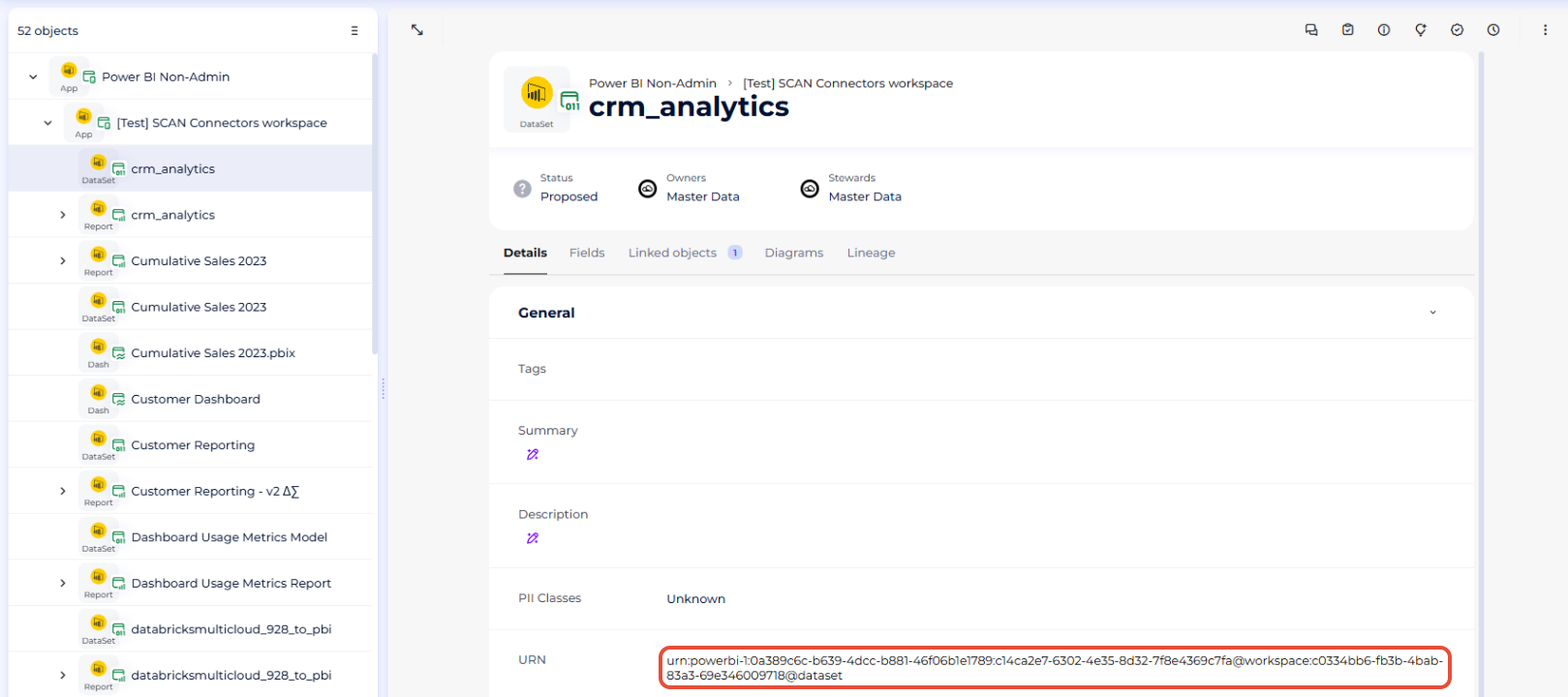
- This time all the URN attributes from the child objects under your root object should be filled
Congratulations, you switched from the Standard mode to the URN mode and can now enjoy all the new features it offers!
Execution of the connector
To create a connection to Power BI via the Online connector, the entry points are as follows:
- From the Import button of the "Shortcuts" widget on the home screen of a client space or workspace
- From the Import button of one of the modules when it is empty
- From the Import button in the contextual menu of one of the modules, on the right side of the filtered views
- From the Add a connection button in the Connector tab available in the workspace setup screen
You can optionally filter (by module, connector type or by using the search bar), then click on the desired technology:
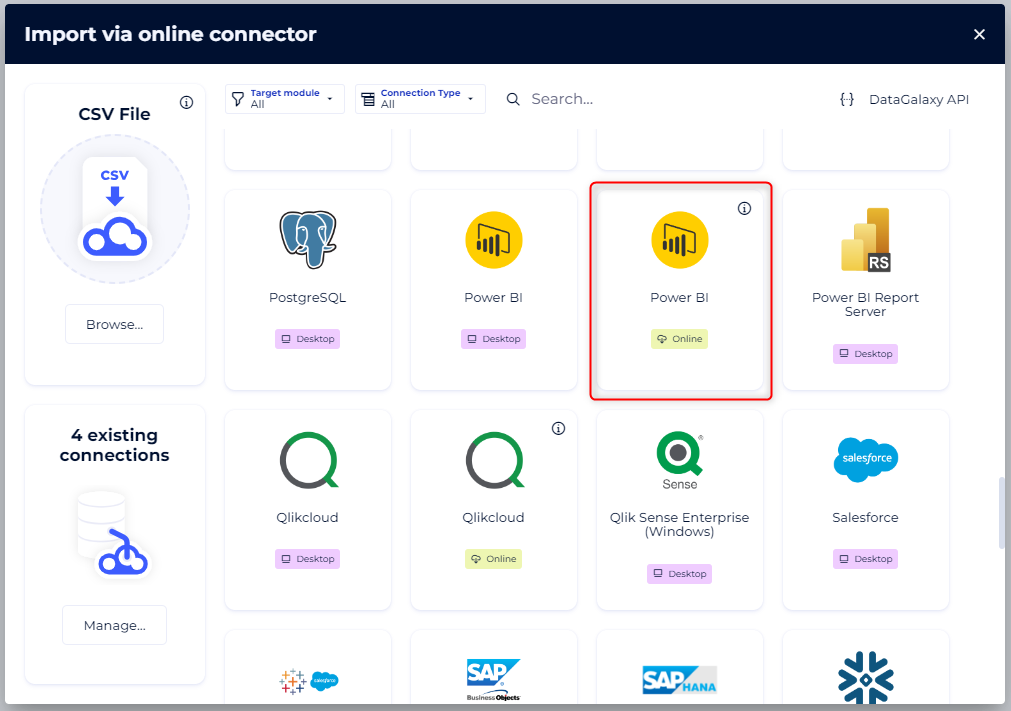
You then need to complete the login form using the login information described above to perform an import. For more details on the steps involved in running the Online connector, you can consult the following article: [HowTo] Running the Online Connector.
This technology is also available via the Desktop Connector, you can find more information on the procedure here: [How to] How to use the connector.
Frequently Asked Questions
Why is the structure (tables and fields) of some Power BI data sets (semantic models) missing in DataGalaxy?
Not all data sets support retrieving their structure from Power BI API. In some cases, like for instance data sets using live connections, the structure cannot be retrieved. In this case, the API returns an explicit error code schemaRetrievalError for this data set, with a message informing about the reason, for instance "Unsupported request. On-premise or ASAzure dataset are not supported.". To check if this can be your problem, you can run the connector with the verbose logs option and seach for this schemaRetrievalError error code in the verbose logs file.
Why isn’t the lineage for my reports appearing?
Automatic lineage exists between Power BI and its sources when:
- URN mode is enabled for both the Power BI connector and the various data sources.
- The Power BI dataset uses a standard connection. "Non-standard" cases include:
- Use of Native Queries with custom SQL (or generally speaking each method relying on a custom SQL statement).
- Use of parameters within the queries.
Releases
| Date | Version | DataGalaxy Version | Desktop Connector version (minimum) | Description |
| 07/07/2026 | 9.0.2 | v3.376.0 | 5.18.2 | New internal implementation |
| 24/04/2026 | 8.9.3 | v3.332.1 | 5.15.9 | Updated internal dependencies |
| 19/03/2026 | 8.9.0 | 5.15.7 | Added external URL to Powerbi App | |
| 17/02/2026 | 8.8.1 | v3.308.0 | 5.15.4 | Added new debug logs |
| 12/02/2026 | 8.8.0 | 5.14.1 | Allows to pass workspace names with a comma included | |
| 23/10/2025 | 8.7.3 | v3.270.3 | 5.14.1 | Managed the backslashes in Tables, Fields and Pages names; Changed the OData pagination limits to prevent MaxNodeCount issues since a recent change in Power BI REST API. |
| 02/10/2025 | 8.7.1 | v3.262.0 | 5.13.0 | Fixed a bug happening when getting Report pages |
| 30/09/2025 | 8.7.0 | v3.257.0 | 5.13.0 | Add support for Power BI Apps Folder Objects |
| 30/09/2025 | 8.6.0 | v3.257.0 | 5.13.0 | Add "Query" parameter to Dataflow objects |
| 26/09/2025 | 8.5.2 | v3.255.1 | 5.13.0 | Add new "Import Apps" checkbox |
| 14/08/2025 | 8.5.1 | v3.234.1 | 5.7.10 | Fixed an issue related to the orphaned objects handling feature for URN imports |
| 30/07/2025 | 8.5.0 | v3.219.1 | 5.7.7 | - The Admin API and Non-admin API are now compatible. This allows the connector to use the Admin API to retrieve the information that was previously available only through the Non-admin API. - The connector now generates 'calls' links that connect datasets to the source datasets they depend on. - Fixed a bug related to null dataset expressions |
| 21/05/2025 | 8.0.10 | v3.171.3 | 5.5.13 | - Fixed a bug related to the fetching reports in admin mde - Added support to parse DatabricksMultiCloud statements for URN imports |
| 20/05/2025 | 8.0.8 | 3.171.0 | 5.5.13 | - Optimizing fetch of Dashboards objects - Activated the possibility of using URN imports for everybody |
| 16/05/2025 | 8.0.5 | 3.167.2 | 5.5.11 | Fixed a bug related to dates that made imports fail |
| 29/04/2025 | 8.0.4 | 3.164.1 | 5.5.10 | Logger update |
| 08/04/2025 | 8.0.3 | 3.155.0 | 5.5.5 | Optimized how data is handled in URN mode |
| 25/01/2025 | 7.5.0 | 3.151.3 | 5.4.8 | Fixes workspaces filter in Non-admin API mode |
| 23/01/2025 | 7.3.4 | 3.126.0 | 5.3.9 | Addition of "Expression" column in CSV imports |
| 21/01/2025 | 7.3.3 | 3.125.0 | 5.3.9 | Improved regex to catch linked technologies |
| 7/01/2025 | 7.3.1 | 3.116.0 | 5.3.8 | Catch of associated error when reaching PowerBI API's limit |
| 11/09/2024 | 7.0.2 | 3.73.0 | 5.2.3 | Improve technical table filter and workspace naming tolerance |
| 23/08/2024 | 7.0.1 | 3.69.0 | 5.2.3 | Updated the logger to show more information when using verbose mode |
| 02/07/2024 | 7.0.0 | 3.55.0 | 5.0.1 | Migrated from java 11 to java 17 + CVE fixes |
| 16/05/2024 | 6.0.0 | 3.46.0 | URN feature (preview) | |
| 25/01/2024 | 5.0.3 | Attributes addition to ensure the CSV import is consistent with the desktop/online import |